 TL;DR:
Hidden files are typically concealed by accidental settings changes, malware, or drive corruption rather than being permanently deleted, and can be retrieved using built-in OS view options, command-line attribute resets, or specialized recovery software.
● Toggle the Show Hidden Files option in the Windows File Explorer View tab or use native shortcuts in macOS Finder to immediately reveal items hidden by user error or basic system protection rules.
● Execute the attrib command via an administrator Command Prompt to forcefully reset file attributes, which is highly effective for exposing files hidden by malware on USB drives and flash storage.
● Scan corrupted drives with the Recoverit Data Recovery Tool to locate, preview, and extract hidden items when device read errors block standard operating system visibility.
Ask AI for a summary
 ChatGPT
 Perplexity
 Gemini
 Claude
 Grok
Grok
Sometimes, an important file seems to vanish without a trace. In many cases, it isn’t deleted but simply concealed within the device. This can be frustrating and stressful, especially when the missing file contains valuable work or cherished personal memories. The challenge often lies in not knowing where to search or which settings to adjust, leaving users confused and worried about their data.
This guide offers a straightforward approach to uncovering hidden files across computers, USB drives, and other storage devices.

By following along, you’ll learn not only how to safely restore hidden files but also why files become hidden in the first place and how to prevent it from happening again.
Try Recoverit to Recover & Repair Video/Photo/Docs etc.
 Security Verified. Over 7,302,189 people have downloaded it.
Table of Contents:
Common Causes: Why Files Become Hidden?
Many people wonder why files vanish even when nothing is deleted. Files can become hidden for simple reasons or due to deeper problems. Here are the most common causes. These points help you understand why you need to know how to retrieve hidden files and how to recover hidden folder issues in daily work. When you know the cause, you can pick the right method later.
- Wrong folder settings Sometimes the system hides items because the view settings are changed. When hidden mode is active, the files do not appear. This is a common reason when learning how to find hidden files on hard drives. Many users forget that the system can hide items to keep the folder neat.
- User error People may right-click a file and mark it as hidden by mistake. This can happen when someone is in a hurry. You may think the file is gone, but it is not deleted. People often hide files to clean up a folder and forget to unhide them later.
- Malware activity Some harmful programs hide files on hard drives, USB sticks, or flash drives. They do this to cause confusion. When this happens, you must recover hidden files from the USB or recover hidden files from the pendrive with care. Malware tries to distract the user by making files invisible.
- Faulty USB drive A USB drive or flash drive may not load items properly. When the file system has errors, folders may turn hidden. You may then need to recover hidden files from a flash drive or other portable devices. This is common when drives are old or used on many computers.
- System protection rules Some systems hide certain files to protect them. These may include important system items. When the settings change, other files can hide too. New updates or old settings can both affect this.
- Corrupt storage Old drives or damaged storage may hide files during read errors. The content may appear lost, but it is only set to hidden. A corrupt file system often marks entire folders as hidden.
How to Retrieve Hidden Files?
This part explains how to retrieve hidden files using different methods. Each method fits a different situation. You may use software, settings, command tools, or backup services. The steps are short and clear.
Hidden files may appear again once you follow the right steps.
Method 1: Use Recoverit Data Recovery Tool
Many people prefer software because it is easy to use. A tool like Recoverit scans the device deeply. It finds the items that are hidden, lost, or damaged. This helps when you want to recover hidden files from USB, flash drives, or large storage. The tool is known for locating files that do not appear in normal view. It works on many storage types and gives you a preview before saving.
The process is smooth. You do not need skills. You only select the drive and scan. This tool works even when the device has errors. It is helpful when you want to know how to restore hidden files in a safe way. Many people use it when they fear the files are lost forever.
How to use Recoverit to recover hidden files:
Step 1. Open the Recoverit software and select the drive to scan.

Step 2. Scan and recover the files you want. The software will show the hidden files it finds.

Step 3. Click Recover. Choose a safe location on your PC to save the recovered files.

Method 2: Enable the Show Hidden Files option in File Explorer (Windows)
Windows can hide files automatically. This is why many people look for how to retrieve hidden files or how to retrieve a hidden file even when nothing is deleted. The Show Hidden Files option helps you view such items. It is a fast method that works for simple issues. Many users do not know the option exists.
This option helps you find items on hard drives or USB drives. Many users forget that Windows has this built-in feature. It is the first method to try before using tools. It often solves the quick issue of how to find hidden files on USB drive as well. This method helps you see both system files and your own files.
How to Enable the Show Hidden Files option in File Explorer (Windows):
Step 1. Open File Explorer and go to the View tab.
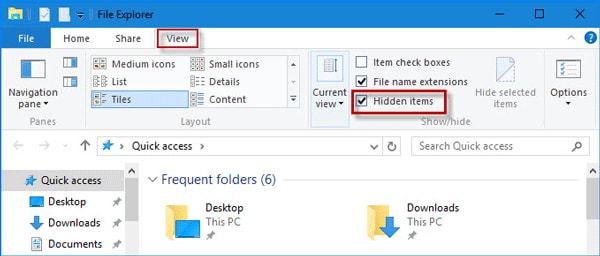
Step 2. Select the option that allows hidden items to appear. Then check the folder again.
Method 3: Use Terminal or Command Prompt to unhide files
Sometimes file attributes change because of system issues. Command Prompt helps reset these values. This method helps when files do not show even after you enable hidden file view. Command tools are strong and can fix many attribute problems. They work well for USB drives and large storage.
If you want to recover hidden files from flash drive or pendrive, commands work well. The device may have errors, but commands help expose the items. This is a good option for people who want more control. It also helps when you want to know how to retrieve a hidden file in complex cases. The command system reads deeper than the normal view settings.
How to Use Terminal or Command Prompt to unhide files:
Step 1. Open Command Prompt as an admin.
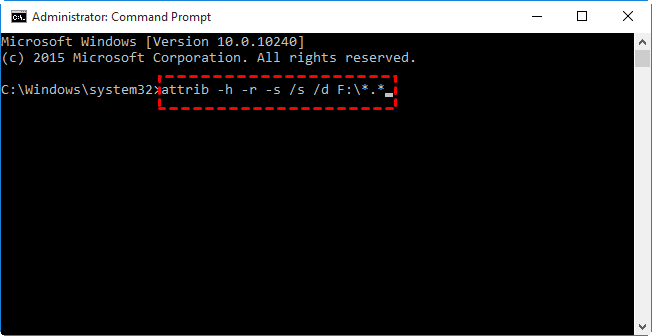
Step 2. Use the attrib command to unhide the files. Then refresh the folder.
Method 4: Check hidden files settings on macOS Finder
Mac users face hidden file issues too. Finder has settings that filter items. If the wrong setting is active, you may think the file is gone. Finder shortcuts help reveal hidden items with a simple action. This method suits anyone using macOS. It works fast for most lost items.
Finder lets you view and inspect files easily. Many people who want to learn how to recover hidden files on a Mac start with this method. It is quick and does not require tools. It also helps check if a folder is simply set to hidden. macOS hides files for safety, so you must reveal them manually.
How to Check hidden files settings on macOS Finder:
Step 1. Open Finder and use the shortcut to show hidden items.
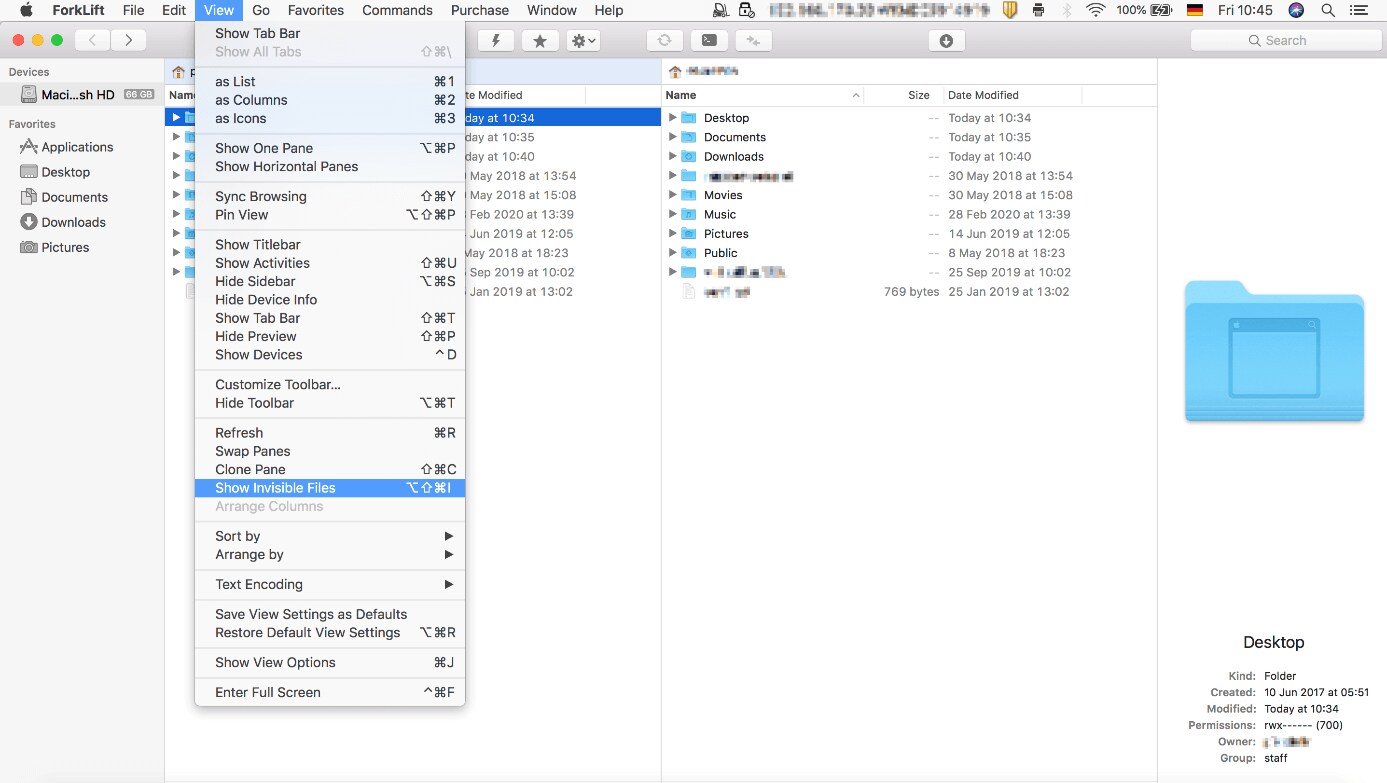
Step 2. Look in each folder for your missing files and change settings if needed.
Method 5: Scan for malware or viruses that hide files
Malware often hides files. If the device acts strangely, you must scan it. A deep scan finds harmful programs that mark your folders as hidden. Many users face this issue on USB drives and flash drives. It is common in shared computers. Malware can hide multiple folders in seconds.
Once the malware is removed, your files may appear again. If not, you can still recover hidden files from a USB with other methods. Malware scanning is important for people who want to know how to retrieve hidden files in a safe way. A clean system prevents more harm.
How to Scan for malware or viruses that hide files:
Step 1. Run a full system scan using updated security software.
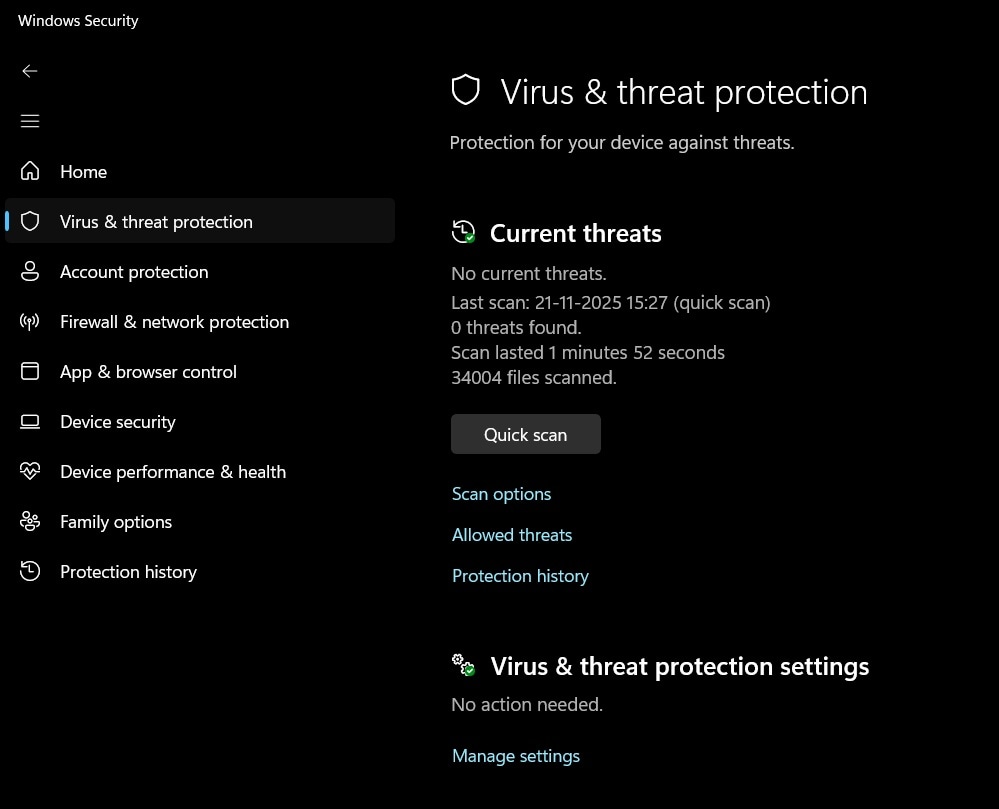
Step 2. Remove harmful items and restart the device to refresh the file system.
Method 6: Restore files from backup or cloud storage
Backup services are helpful when files go missing. If you saved your data earlier, you can bring it back. Cloud or external backups store older versions. Even if the device hides files, the backup may keep them safe and clean. This method is simple and works well during emergencies.
Backup restore is simple. It works well for people who learn how to restore hidden files without using advanced tools. This also helps when the device is damaged beyond normal recovery. It is a good long-term plan. Many users keep backups to avoid stress.
How to Restore files from backup or cloud storage:
Step 1. Open your backup tool or cloud account like Google Drive.
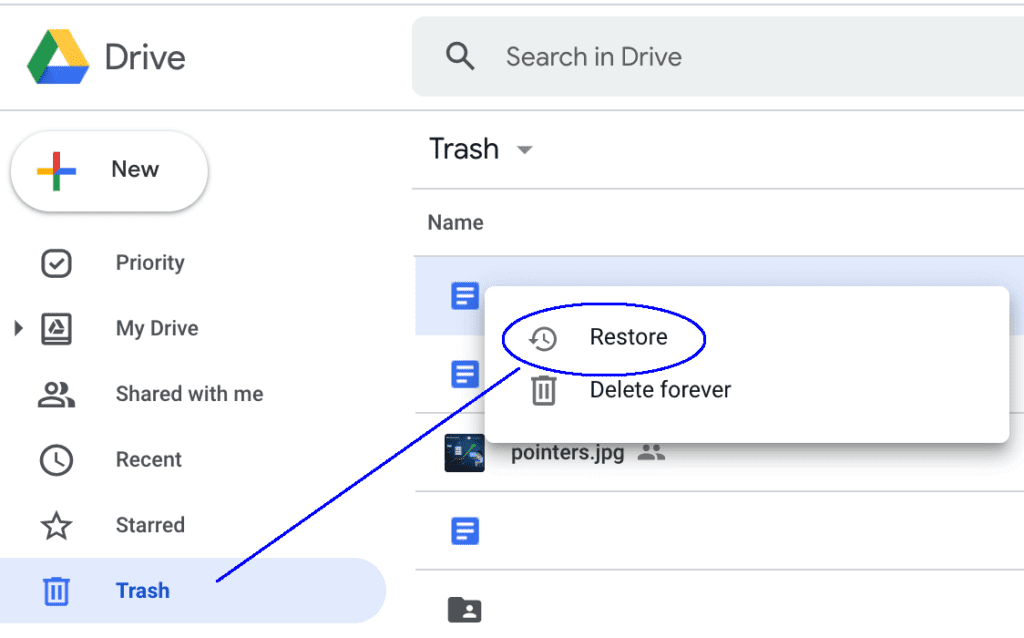
Step 2. Restore the files to the device. Make sure the folder path is correct.
Conclusion
Hidden files can cause stress. The good news is that most hidden file problems are easy to fix. Now you know how to retrieve hidden files using simple tools and common settings. You also know how to retrieve a hidden file from many types of devices. These steps give quick results for beginners and advanced users.
With careful work, you can restore your folders. You can recover hidden files from a USB or flash storage. You can also use backup tools, command steps, or system options. Once you know how to find hidden files on hard drives and how to find hidden files on USB drive systems, the process feels easy. Follow the tips to keep your files safe in the future. Good habits prevent long hours of searching.
FAQs:
-
1. Why do files become hidden?
Files become hidden due to system settings, user mistakes, malware, or storage errors. Some programs also change file attributes. Once you fix the cause, the files may show again. Hidden files are often not deleted. -
2. Can I retrieve hidden files from a damaged USB drive?
Yes, in many cases. You can use recovery tools or command steps. These help recover hidden files from USB or flash drives that have errors. If the drive is badly damaged, try backup tools. Some drives need repair before scanning. -
3. Does malware hide files without deleting them?
Yes. Many harmful programs hide files to cause confusion. A full scan often reveals the issue. After removing the malware, your files may appear again. Some malware marks folders as system items.



