

 TL;DR:
You can restore overwritten or unsaved Word, Excel, and PowerPoint files using built-in Office tools like Version History, AutoRecover, or Windows backups, provided that history tracking or auto-saving was previously enabled.
● Access immediate past drafts directly within Office apps by clicking the file name at the top and selecting Version History, or navigate to File, Info, and Manage Document to retrieve unsaved AutoRecover backups.
● If Office auto-recovery is inaccessible for locally saved files, right-click the document in Windows File Explorer and select Restore Previous Versions to extract older backups saved by the operating system.
● Built-in recovery methods will not work if history tracking was disabled or if the file was permanently deleted, which requires third-party data recovery software like Recoverit to scan the storage drive.
Ask AI for a summary
 ChatGPT
 Perplexity
 Gemini
 Claude
 Grok
Grok
Office files store key work that needs safe care during daily tasks. When errors strike, older drafts help users fix broken sections fast today. Tools in Word, Excel, and PowerPoint show past versions with clear dates. These files keep short records that let users choose safe restore points. You can recover an earlier version of an office file through history.
Moreover, the Version History panel shows each save with simple names and times. Users tap a draft, review details, and bring lost work back fast. These steps keep work safe and give users a sense of calm control after mistakes.
Try Recoverit to Perform Office Document Recovery
 Security Verified. 3,591,664 people have downloaded it.
In this article

Part 1. Is It Possible to Restore a Previous Version of an Excel File?
Yes, users can restore old versions of Excel with clear built-in tools. Excel, Windows, and cloud services keep backup points that help protect important work. These tools save past drafts that support fast recovery after common file issues appear. They work on local drives, OneDrive, or SharePoint based on user settings today.
Common Reasons for How to Recover an Earlier Version of an Office File

- Accidental Overwrite: Users save new changes that replace parts they still need for work. Older drafts help users recover data lost after a wrong save.
- Data Corruption: Files break after errors, losing essential parts needed to complete tasks. Document drafts allow users to return to a safe copy made before issues.
- Unintended Edits: Wrong edits remove needed parts and make the file hard to use. Accessing older versions helps users reach a point where all data is safe.
- Collaborative Conflicts: Teams' edits clash and change parts that should stay the same. Having the older versions of a document helps users reach a point where all data is safe.
- Closed Without Saving: Users close Excel by mistake, losing new work created minutes earlier. Auto Recover keeps the draft saved shortly before the program is closed.
Part 2. How to Recover an Earlier Version of an Office File - 5 Ways to Try
Once you understand why file versions get lost, it’s time to explore the practical methods to recover an earlier version of an office file:
1. Use Office Version History (Word, Excel, PowerPoint)
To recover an earlier version of an office file, users can instantly access the version history to restore older versions. This method is also beneficial for tracking the changes, which are extremely useful for ensuring accountability. The Office history feature is easily accessible to both personal and enterprise users for free. Furthermore, you can also update the mistakes without needing backups or third-party tools, so follow this guide:
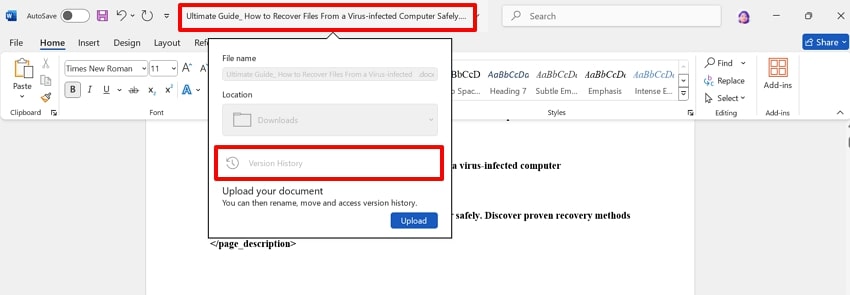
- After opening the Word document, click "File Name" at the top, then "Version History" to access its backup.
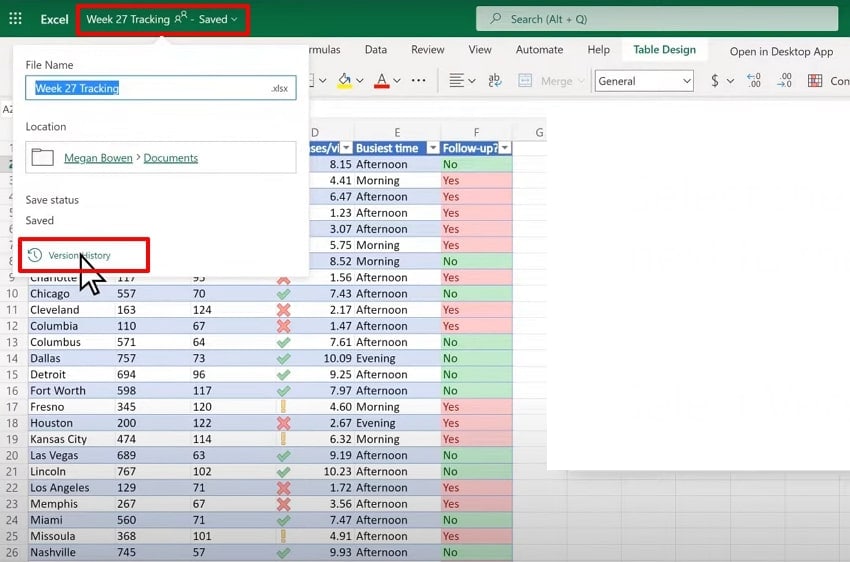
- Following this, go to the Excel app and tap on the file name and click "Version history" to access its older version instantly.
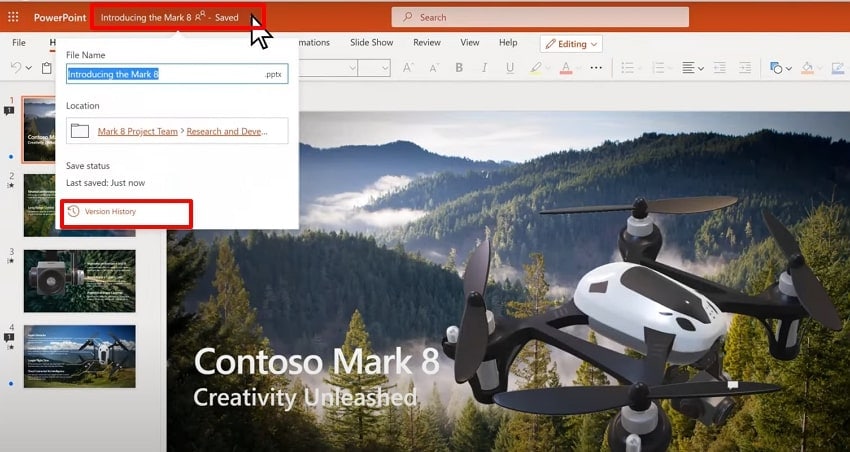
- For the PowerPoint file, again double-tap the file name and hit the "Version History" to get the previous version of your file.
2. Recover Unsaved Files (Office AutoRecover)
To find the previous version of the Word document, users can opt for its built-in Auto Recovery feature. This tool automatically backs up your previous data, letting you restore your nearly finished document. Furthermore, it avoids the need for redoing extensive work by quickly restoring unsaved edits. Without requiring manual backup, Office quietly saves your files as long as it is running, which is visible in the following cases:
Case 1. If You Have Saved the File
Now, if you have already saved a file, then follow the given guide to recover an earlier version of an office file:
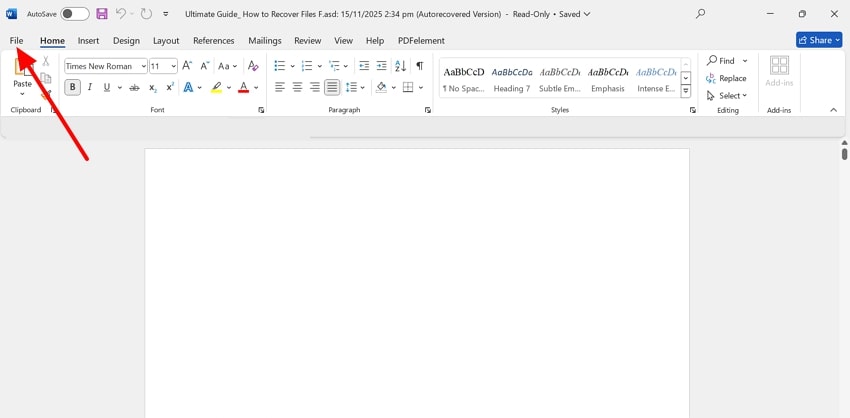
- Access the Word software, click on the "File" menu available on the top right of the interface.
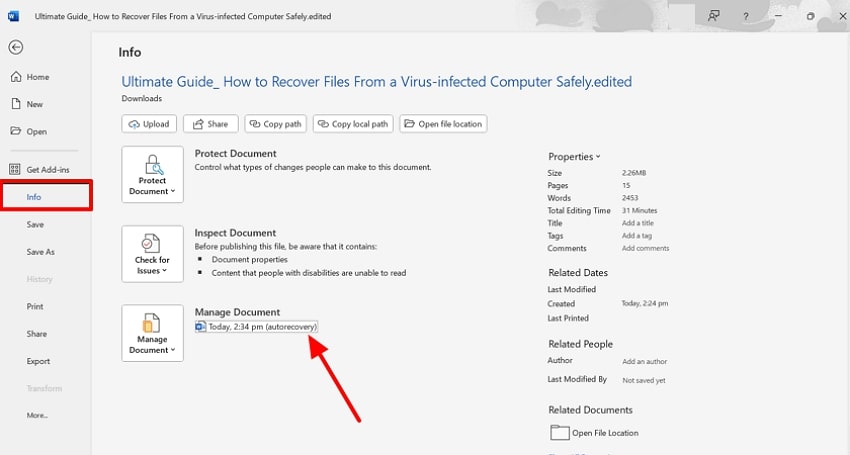
- Following this, click on the Info option and navigate to the "Manage Document" to choose the "Auto Recovery" option. However, for PowerPoint, click on the "Manage Presentation," and for the Excel sheet, tap on the "Manage Sheet."
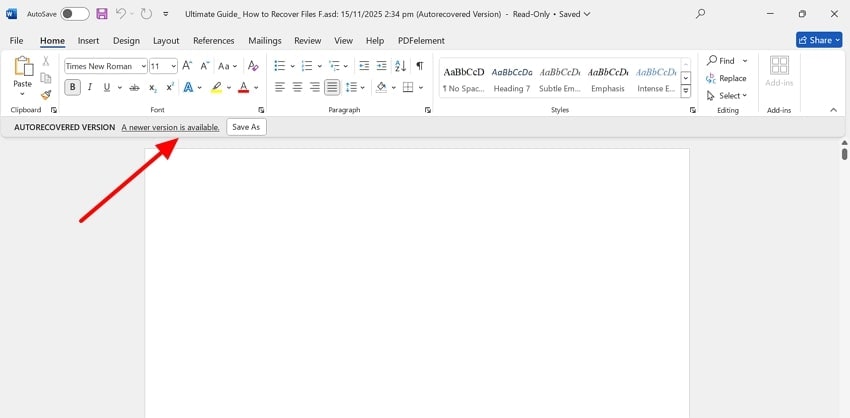
- Here, your previous backup files will automatically appear, which can be saved by clicking the "Save As" button.
Case 2. If You Haven't Saved the File
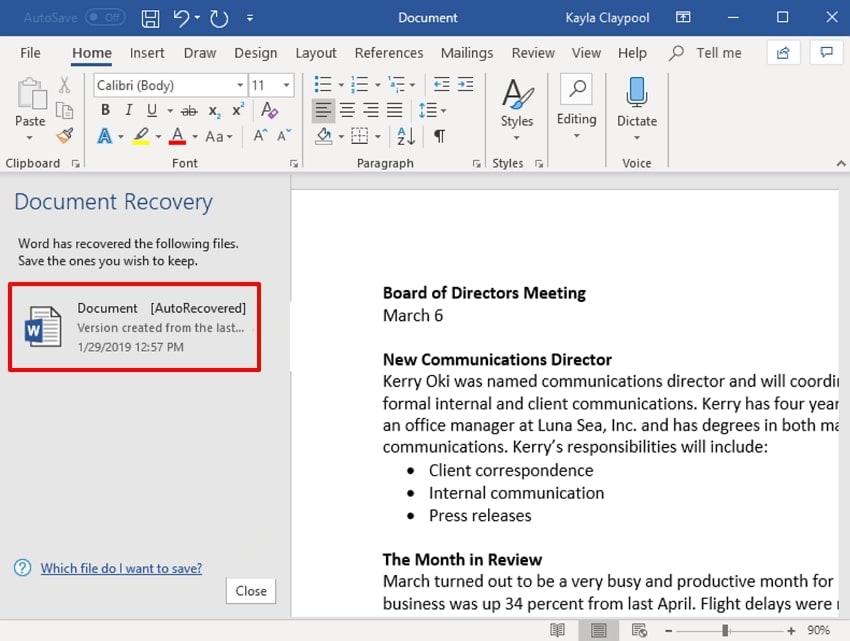
In case you have not saved the older version of your file and want to recover it, open your Office to access older backups. To recover unsaved files, do have a look at the following guide to know its procedure:
Instructions. Open Word again, and your platform will automatically open the "Document recovery" pane in the left tab. Here, click on the previous version to access it and ensure you save it instantly to not lose it again.
3. Restore Previous Versions in Windows
In case your Office auto-recovery mode is not accessible, you can opt for Windows' previous versions. Without requiring any third-party tool, this method utilizes the File Explorer to restore older backups. Furthermore, if you mistakenly modify or delete a file, you can quickly revert to old versions of Excel. The feature is fully integrated into Windows, making recovery straightforward and accessible, so let's explore the following guide:
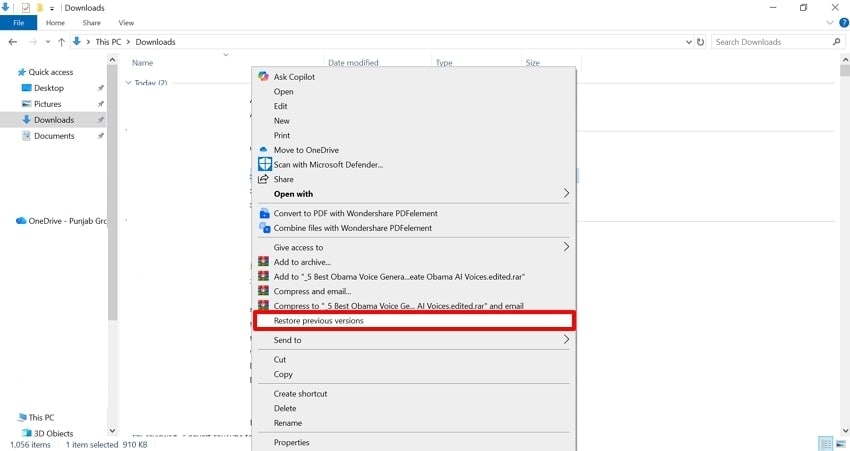
- Access the "File Explorer" window, navigate to the desired document, and right-click it. Following this, choose the "Restore Previous Versions" to access the older files.
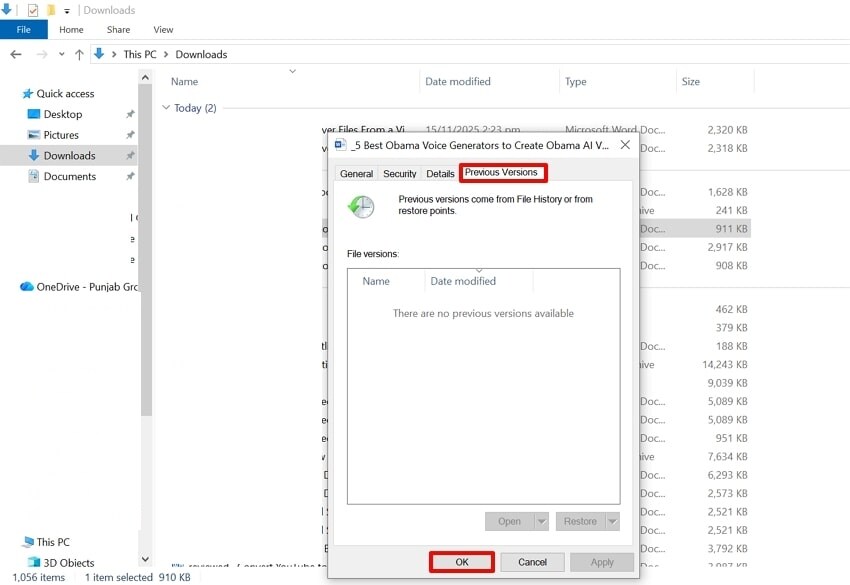
- Now, click on the "Previous Versions" tab and choose the desired version if available.
4. Office/OneDrive/SharePoint Online
One can recover their lost files from the version history of online cloud services like OneDrive or SharePoint. This method works smoothly with all office apps, including Word, PowerPoint, and Excel files. Furthermore, restoring a version does not erase history, so you can recover other formats anytime. Being an efficient method, let's explore its stepwise guide to recover an earlier version of an office file:
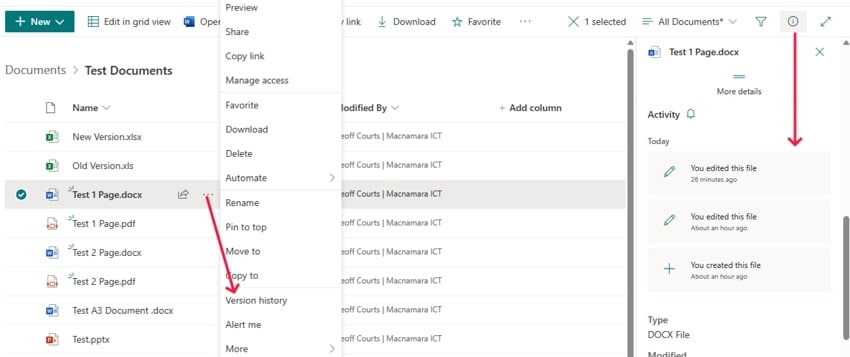
Instructions. Access OneDrive and navigate to the desired Office file you want to recover. Afterwards, click on the 3 dots beside the file name and choose the "Version history" option. Here, it will show you all versions in the right panel, from which you can delete them by clicking on them.
5. Restore From Backup
Using the "Restore from Backup" method is essential because it allows you to recover important files, folders, or even entire systems. Unlike other methods that may only recover recent changes or individual files, it lets you recover whole folders. Furthermore, it is the most reliable solution in scenarios where traditional recovery tools didn't work. So, if you want to explore the guide, then go through the following:
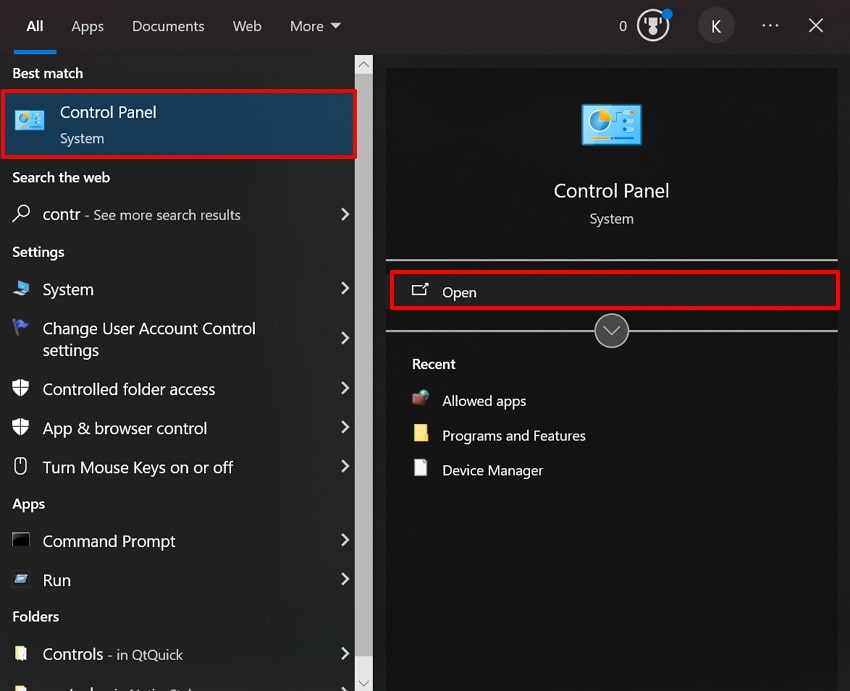
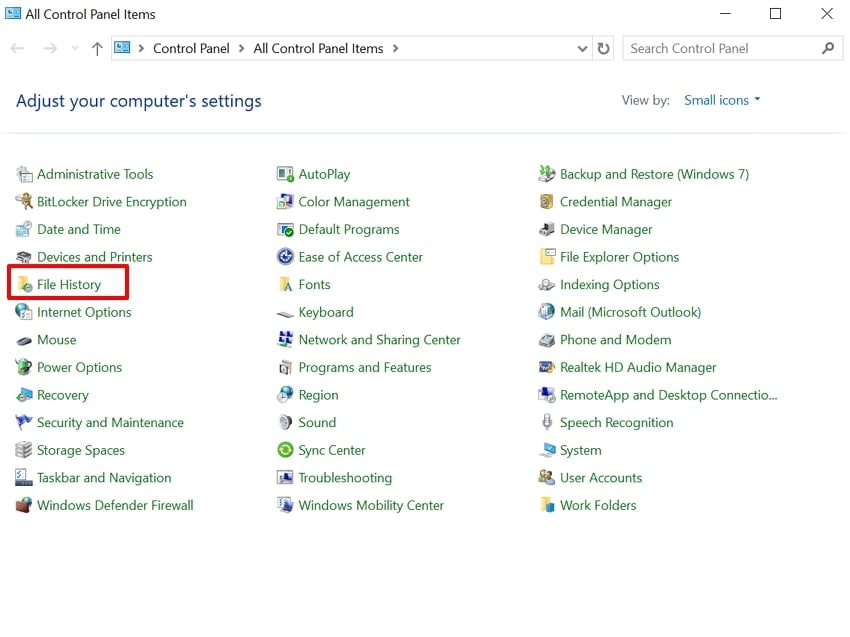
- Hit "Windows + X" key to open the Start menu, search for "Control Panel," and hit the "Open" button to access the service.
- Here, choose the "File History" option from this interface to access the settings.
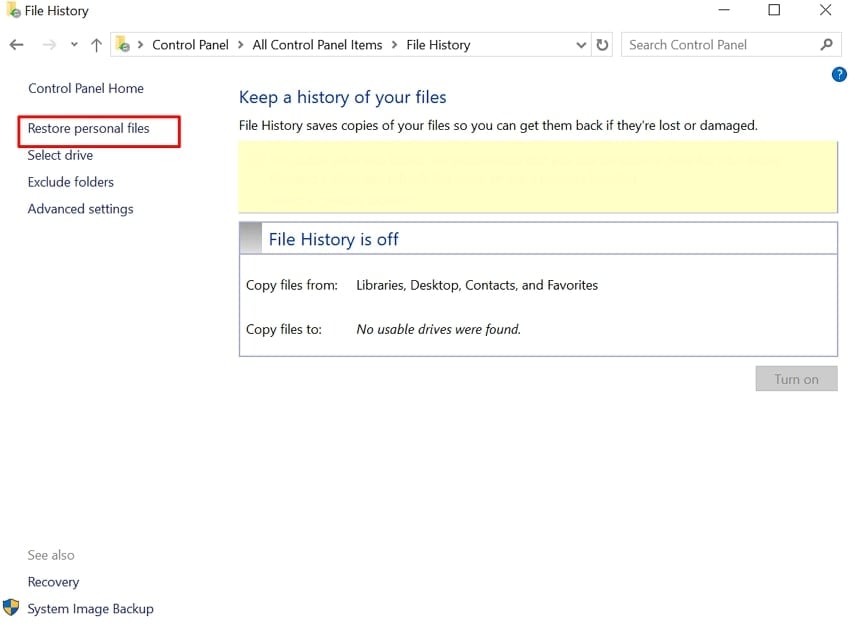
- Afterward, choose "Restore Personal Files" to access the desired file backup version.
Part 3. Recover the Previous Version of an Office Document with File Recovery Software - Seamless Solution!
Imagine working on a university thesis or a crucial business report that takes up your weeks of effort to complete. However, one day you mistakenly deleted your Office file and also emptied the whole recycle bin to later realize your blunder. In this situation, we recommend using Recoverit, which lets you restore your essential documents instantly while ensuring maximum accuracy.
This tool is capable of retrieving files of any type, including Word, Excel, and PowerPoint. Furthermore, it is capable of catering to any lost scenario, including data lost due to a power outage or any malware attack. Users can also preview the recovered outcome to examine its complete accuracy without downloading. The foremost part is that you can easily access it from any operating system, Windows, Mac, or Linux.
Key Features
- Batch Processing: This tool lets you access its batch processing system to retrieve all your essential files at once to save time efficiently.
- Scanning Modes: Users can choose between Quick Scanning mode to cater to easier lost scenarios or Deep Scanning mode to retrieve data lost from complex scenarios.
- Device Support: Recoverit lets you restore your lost data from both internal and external devices, including USB drives and SD cards.
Detailed Guide to Use Recoverit to Restore Office Document
Upon hearing its key features, if you want to recover an earlier version of an office file, then go through the following:
- Click Hard Drives and Locations to Choose Quick Access
Upon opening the tool, select the "Hard Drive and Location" option from the left tab. Next, select the desired location in the "Quick Access" tab.
- Initiate the Scanning Procedure to Retrieve Files
Now, it will automatically start the quick scanning process to find the lost files. However, you can also retrieve files instantly by searching for "File Name" and "File Type".
- Preview and Restore the Lost Files Instantly
Finally, the lost file has been recovered, which you can examine by clicking the "Preview" button. After previewing, hit the "Recover All" button to render it to the device.
Part 4. Tips to Prevent Data Loss and Recover an Earlier Version of an Office File

- Regular Backup: Ensure you regularly back up your Office files to reliable storage platforms, such as OneDrive, SharePoint, or an external drive.
- Enable Version History: Always enable the version history option within the cloud drives and your PC to easily recover lost files.
- Turn On Auto Recover: Users should ensure that the Auto Recover option is on and is adjusted to shorter intervals to save backups more often in Office.
- Regularly Update Software: Keep Office, your operating system, and antivirus software up-to-date to protect against data loss from malware.
- Use File Recovery Tools: If files are deleted or corrupted and not available via standard recovery options, consider a dedicated tool like Recoverit.
Conclusion
Summing up, now users can easily recover an earlier version of an office file by opting for proper methods. In this article, we have narrowed down the 5 most efficient methods that you can consider using. However, if these DIY methods didn't work, we recommend using recovery tools like Recoverit, which lets you retrieve your data with 99.5% accuracy.
FAQ
1. How do I know if an older version of a file exists?
Older versions appear when apps or storage services save history for your file. You can open version panels to see past drafts kept during your work.2. How can I easily find the previous version of a Word document?
Open the file menu and select Version History to view saved drafts. These listed drafts help users restore clean content made before recent changes.3. Why do old file versions sometimes not appear?
Versions tools need history turned on before any draft can be saved. If history is disabled, the file contains only the most recent saved old version of Excel.4. Can third-party tools help if my document isn’t in version history or AutoRecover?
Yes, if you have not enabled Auto recovery mode, then you can opt for third-party recovery tools like Recoverit. This tool lets you find your lost files by using both Quick and deep scanning, depending on your needs.


