
 TL;DR:
Permanently deleted files in Windows 10 can still be recovered because the operating system only marks the disk space as available, leaving the underlying data intact until it is overwritten by new data.
● Stop using the affected drive immediately, and ensure any recovery software or restored files are saved to a completely different drive or partition to prevent permanently overwriting the deleted data.
● Built-in recovery methods like Windows File History and Backup and Restore strictly require being enabled prior to data loss, whereas the free Windows File Recovery application works post-deletion but requires users to input command-line instructions.
● Synced cloud services like OneDrive and Google Drive act as an independent safety net by retaining deleted files in their native trash bins for up to 30 days, while third-party tools like Recoverit offer deep-scanning capabilities if no prior backups exist.
Ask AI for a summary
 ChatGPT
 Perplexity
 Gemini
 Claude
 Grok
Grok
Deleting important files by accident can be frustrating. Maybe you clicked the wrong button, emptied the Recycle Bin, or used Shift + Delete. Suddenly, the files seem gone. But are they really gone forever? Many people believe permanently deleted files can't be recovered. But that's not always true. Windows 10 has ways to help you restore them.
The good news is that the file data still exists on your hard drive. Windows just marks that space as available. Until new data overwrites it, you can retrieve permanently deleted files in Windows 10.
This guide will show you how to restore permanently deleted files in Windows 10 using different methods.
Try Recoverit to Recover Permanently Deleted Files
 Security Verified. Over 7,302,189 people have downloaded it.
Table of Contents:
Part 1: Is it Possible to Restore Permanently Deleted Files in PC?
Yes, it is possible to restore permanently deleted files in PC. When you delete a file permanently, Windows does not erase it immediately. The operating system removes the file entry from the directory. It marks the disk space as free.
But the actual file data remains on the hard drive. This is why permanently deleted files recovery Windows 10 is possible. The file stays there until new data overwrites it. Your chances of recovery are best if you act quickly.
Part 2: How to Recover Permanently Deleted Files in Windows PC
Below are six proven methods to recover permanently deleted files in Windows 10.
Method 1: Use Recoverit Tool
Recoverit is a powerful data recovery software. It specializes in recovering permanently deleted files from Windows computers. This tool works even when files are deleted using Shift + Delete. Recoverit scans your hard drive deeply. It finds traces of deleted files that Windows cannot see. The software has a simple interface.
Even beginners can use it without technical knowledge. Recoverit supports recovery from various storage devices. This includes hard drives, SSDs, USB drives, and memory cards.
Try Recoverit to Recover Permanently Deleted Files
Security Verified. Over 7,302,189 people have downloaded it.
The software supports over 1000+ file formats. This includes documents, photos, videos, emails, and audio files. Recoverit also offers a preview feature. You can see recoverable files before restoring them. This helps you select only the files you need.
Steps to Recover Permanently Deleted Files Using Recoverit:
Step 1. Download and install Recoverit on your computer. Launch the program. Choose the folder or drive where your files were originally saved prior to deletion, then click the "Start" button to proceed.

Step 2. Wait for the scan to complete. Review the list of recoverable files. Use the preview feature to check files. Select the files for recovery.

Step 3. Click the "Recover" button. Save the recovered files somewhere else so they don’t get replaced.

Method 2: Use Windows File History
Windows File History is a built-in backup feature. It automatically saves copies of your files. This feature must be enabled before file deletion occurs. File History backs up files in your Documents, Pictures, Videos, and Desktop folders. It saves versions of your files at regular intervals. If you previously enabled File History, you can restore permanently deleted files in Windows 10 easily.
This method works only if File History was active before deletion. It creates restore points for your files. You can go back to previous versions. This is useful for recovering files deleted days or weeks ago.
Steps to Restore Files Using Windows File History:
Step 1. Go to Control Panel > System and Security. Select File History. Click "Restore personal files”.
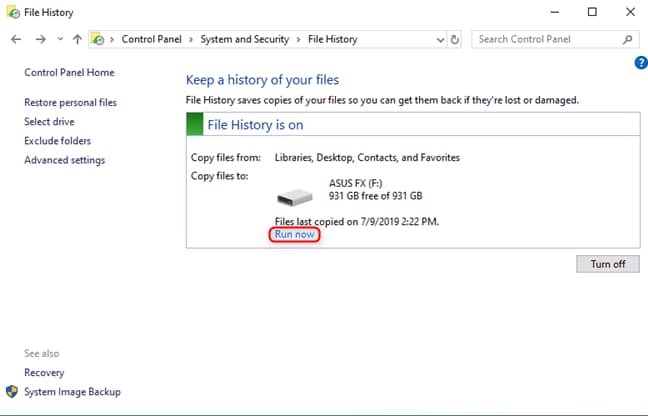
Step 2. Use the arrows to browse through different versions of your files and folders. Select the file or folder you want to restore, then click the green Restore button to return it to its original location.
Method 3: Use Windows File Recovery Tool
Windows File Recovery is a free tool from Microsoft that helps you get back deleted files on Windows 10. You can download it from the Microsoft Store. It works with hard drives, SSDs, USB drives, and memory cards, even if the Recycle Bin has been emptied.
This tool uses different scanning modes. Regular mode works for recently deleted files. Extensive mode performs a deep scan for older deletions. The tool requires basic command-line knowledge.
Steps to Recover Files Using Windows File Recovery Tool:
Step 1. Download Windows File Recovery from the Microsoft Store. Install and launch the application. Open Command Prompt as administrator. Type the command format: winfr source-drive: destination-drive: [/mode] [/switches].
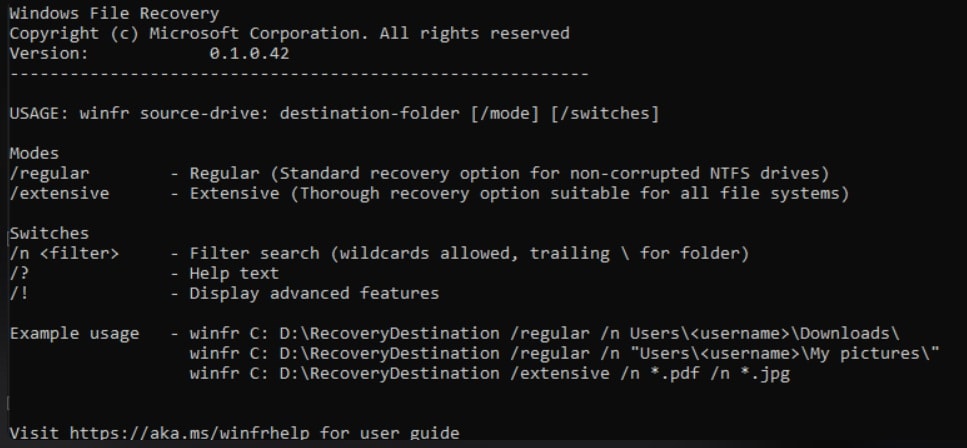
Step 2. For example, to recover deleted documents from the C: drive to the D: drive, type: winfr C: D: /regular /n \Users\Username\Documents\. Press Enter. Wait for the scan to complete. Follow the on-screen prompts. Your recovered files will be saved to the destination drive.
Method 4: Use Windows Backup and Restore (Control Panel)
Windows Backup and Restore is an older backup feature. It is still available in Windows 10 through the Control Panel. This feature creates complete backups of your system and files. If you set up regular backups before deletion, you can restore permanently deleted files in pc using this method. Backup and Restore allows you to recover entire folders or individual files.
This method requires a previous setup. You must have created a backup before the files were deleted.
Steps to Restore Files Using Backup and Restore:
Step 1. Open Control Panel. Go to "System and Security" and click "Backup and Restore (Windows 7)." Click the "Restore my files" button. Click "Browse for files" or "Browse for folders."
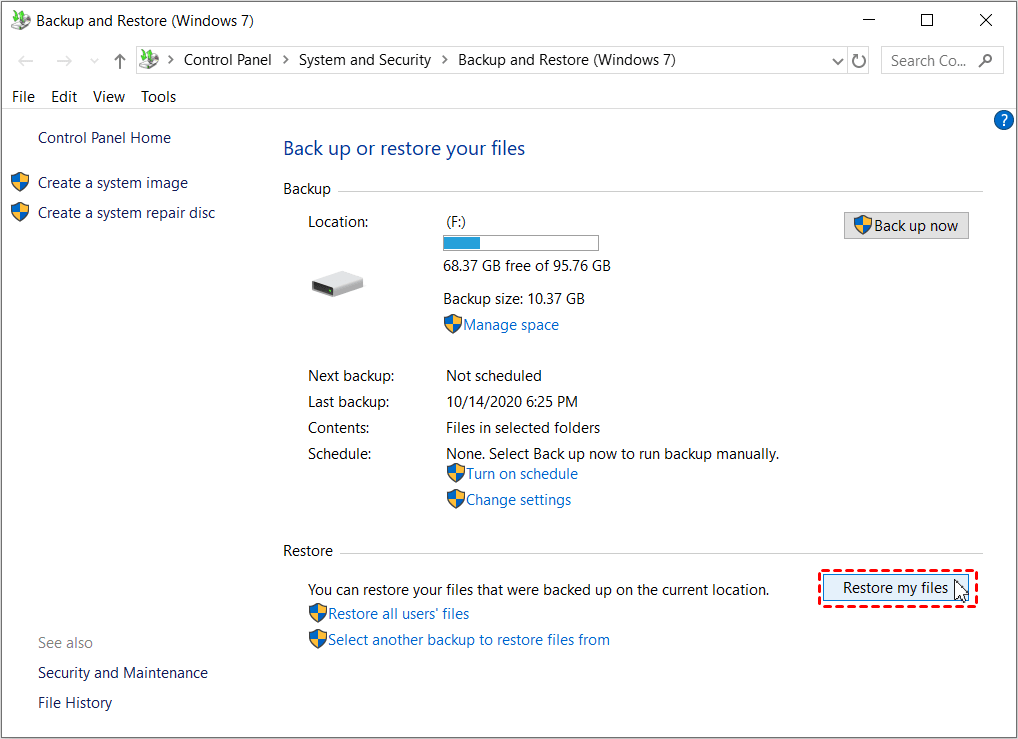
Step 2. Navigate through your backup to find deleted files. Select the files you want to restore. Click "Next" and choose the restore location. Click "Restore" to recover your files. Wait for the process to complete.
Method 5: Restore from System Restore Point
System Restore is a Windows feature that creates restore points. These points save your system state at specific times. System Restore can help you undelete permanently deleted files in Windows 10 indirectly. When you restore your system to an earlier point, files that existed then may reappear. This method works best for files stored in system folders.
System Restore does not specifically target file recovery. It restores your entire system configuration. This includes system files, installed programs, and registry settings. Your personal files may or may not be recovered. This method works best when combined with other recovery methods. It is most effective for files deleted recently.
Steps to Restore Files Using System Restore:
Step 1. Type "Create a restore point" in Windows search. Click the result to open System Properties. Click the "System Restore" button. Click "Next" to see available restore points. Select a restore point from before your files were deleted.
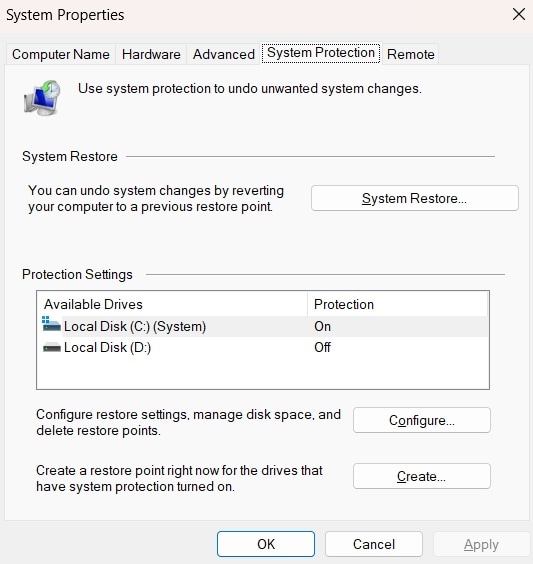
Step 2. Click "Next" and then "Finish" to confirm. Click "Yes" to start the restoration process. Your computer will restart. Wait for System Restore to complete. Check if your deleted files have been recovered after a restart.
Method 6: Recover From Cloud Service
Many users store files on cloud services. Popular options include OneDrive, Google Drive, and Dropbox. These services often have their own recycle bins. Deleted files go to the cloud trash first. They stay there for a specific period before permanent deletion. If you synced your files to the cloud, you can recover permanently deleted files in Windows 10 from there.
Cloud services usually keep deleted files for 30 days or more. OneDrive retains files in the recycle bin for 30 days. Google Drive keeps them for 30 days. Dropbox retains deleted files for 30 days on free accounts and longer on paid accounts. You can restore files from the cloud even if they are gone from your computer. This method is reliable and easy.
Steps to Recover Files From Cloud Service:
Step 1. Log in to your cloud service account through a web browser. For OneDrive, go to OneDrive.com. For Google Drive, go to drive.google.com. Navigate to the "Trash" or "Recycle Bin" section.
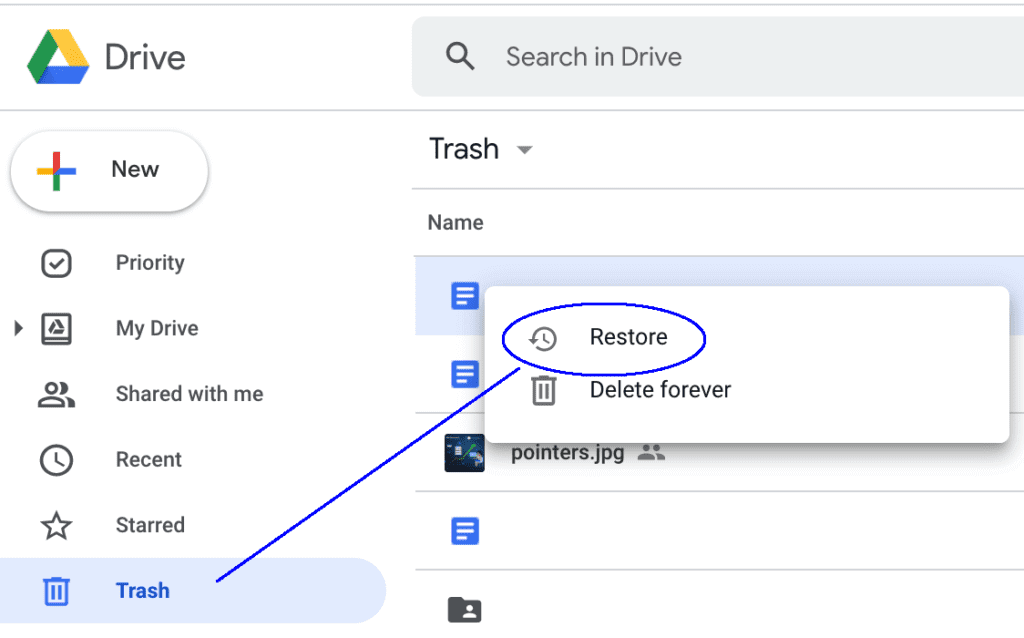
Step 2. Browse through deleted files. Select the files you want to recover. Click the "Restore" or "Recover" button. Your files will be restored to their original cloud location. Wait for cloud sync to update files on your computer.
Part 3: Pro Tips to Restore Permanently Deleted Files
These tips also help you avoid data loss in the future. Following these guidelines will help you restore permanently deleted files in Windows 10 more effectively.
Professional Tips for File Recovery:
- Stop using your computer immediately after realizing files are deleted. Every action you take could overwrite deleted data and make recovery impossible.
- Enable File History or Backup and Restore before disaster strikes. Regular backups are your best insurance against data loss and make shift deleted files recovery much easier.
- Use cloud storage services for important files. Services like OneDrive, Google Drive, and Dropbox provide automatic backup and version history for your critical data.
- Install recovery software on a different drive than where deleted files were stored. This prevents overwriting the deleted data during software installation.
- Act quickly when files are deleted. The sooner you attempt to recover permanently deleted files recovery Windows 10, the higher your success rate will be.
- Do not save recovered files to the same location where they were deleted. Always choose a different drive or partition to avoid overwriting other recoverable data.
- Keep your recovery software updated. Newer versions have better algorithms for how to recover permanently deleted files in Windows and support more file types.
- Create regular system restore points. Enable automatic restore point creation so you always have recovery options available when needed.
Conclusion
Losing important files is frustrating. But permanently deleted files are not always lost forever. This guide showed you how to restore permanently deleted files in Windows 10 using six different methods. Each method has its strengths.
Recoverit Tool offers powerful deep scanning. Windows File History works if you enabled backups. Windows File Recovery is free but requires technical knowledge. Backup and Restore helps with complete system backups. System Restore can bring back files indirectly. Cloud services provide an extra safety net.
FAQs:
-
Q1: Can I recover files deleted months ago from Windows 10?
Yes, you can potentially recover files deleted months ago, but success depends on several factors. If you have enabled File History, Backup and Restore, or cloud sync before deletion, recovery is straightforward. These systems maintain file versions for extended periods. If you did not have backups, recovery becomes harder but not impossible. -
Q2: Does Shift + Delete permanently remove files?
Shift + Delete bypasses the Recycle Bin and removes files immediately. This makes shift deleted files recovery more challenging than regular deletion. However, the files are not completely erased from your hard drive. Windows marks the disk space as available, but does not wipe the actual data. The file remains on the disk until new data overwrites it. -
Q3: What is the best free method to recover deleted files?
Windows File Recovery Tool is the best free method provided by Microsoft. It works well for how to recover permanently deleted files in Windows without spending money. Download it from the Microsoft Store for free. The tool uses a command-line interface, so you need basic technical knowledge.



