

 TL;DR:
Opening Excel in Safe Mode helps diagnose crashes, freezes, and startup issues by launching the program with only essential features and disabling add-ins, custom settings, and macros.
● **Using Keyboard Shortcut:** Press and hold the "Ctrl" key while double-clicking the Excel icon, then click "Yes" when prompted to open in Safe Mode.
● **Using Run Command:** Press "Windows + R", type `excel /safe` into the dialog box, and press "Enter" or click "OK".
● **Using Start Menu:** Open the Start Menu, locate Excel, hold the "Ctrl" key while clicking the program, and select "Yes" in the dialog box.
● **File Recovery Option:** If Excel fails to open even in Safe Mode due to severe file corruption, third-party software like Wondershare Recoverit can be used to restore damaged or lost spreadsheets.
● **Prevention Tips:** To avoid frequent crashes, keep Excel updated, remove untrusted or unused add-ins, limit macros to trusted sources, and regularly back up files to stable storage.
Ask AI for a summary
 ChatGPT
 Perplexity
 Gemini
 Claude
 Grok
Grok
When you open Excel in safe mode, the program avoids harmful add-ins. This clean start helps you find errors and keep your workflow steady. It prevents freezes and creates a calm space for clear checks during repair. This guide shows clear steps so you can fix issues and work safely.
Try Recoverit to Perform Excel File Recovery
 Security Verified. 3,591,664 people have downloaded it.
In this article

Part 1. What is Safe Mode? Can I Open Excel In Safe Mode?
Safe Mode is a diagnostic state that loads only essential Excel features. It blocks add-ins and custom elements that may disturb normal work. This mode helps users check crashes or errors without extra tools, causing trouble. It offers a clean space where Excel runs with minimal features active.
Can I Open Excel in Safe Mode?
Yes, you can open Excel file in Safe Mode to test problems easily. It helps you find issues linked to corrupted files, risky add-ins, or custom settings. The process uses simple shortcuts that start Excel with a cleaner setup. It keeps your work safe while you check possible causes calmly.
Why You Might Need How to Open Excel in Safe Mode?
You may need Safe Mode when Excel freezes often during normal tasks. Below are common scenarios where Safe Mode helps you find the real issue:
- Add-In Conflict: Faulty add-ins can cause crashes during normal sheet work and startup moments. Safe Mode blocks them instantly, so Excel loads safely without interference.
- Corrupt Workbook: A damaged file can freeze Excel and disrupt smooth loading during tasks. Safe Mode helps effectively and clearly separate file issues from program faults.
- Broken Settings: Custom settings may trigger tool failures and cause unstable behavior during use. Safe Mode resets those elements temporarily so you can test Excel cleanly.
- Macro Trouble: Unstable macros can break tasks and freeze sheets during important work moments. Safe Mode stops them fully, so Excel starts without automated code running.
- Plugin Error: External plugins may add risky changes and disturb Excel during regular tasks. Safe Mode removes them instantly, so errors stop while testing continues.
Part 2. How to Open Excel in Safe Mode? 3 Methods to fix!
Using Keyboard Shortcut
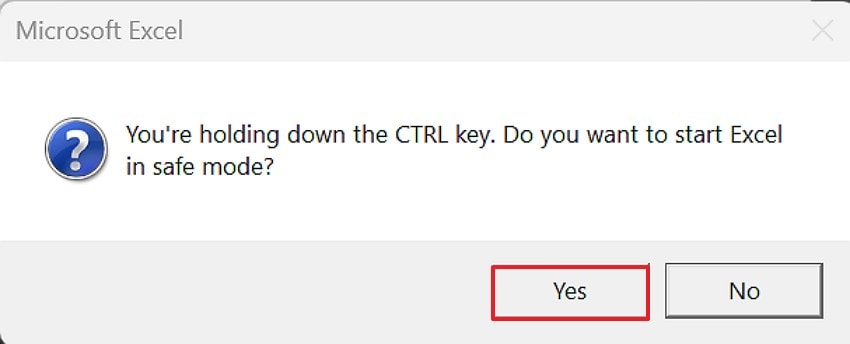
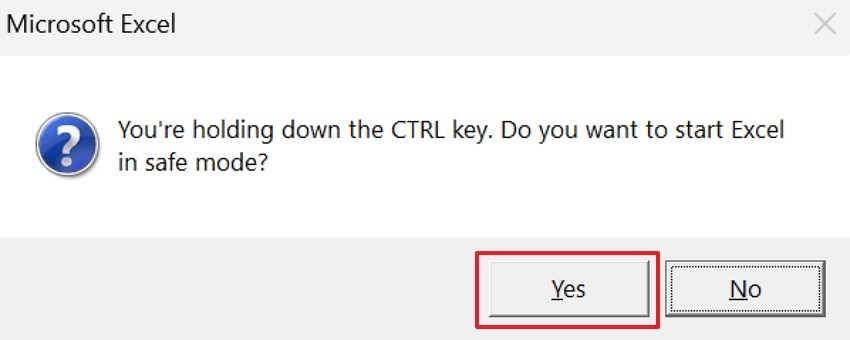
The keyboard shortcut is the quickest way to start excel in safe mode. It launches Excel with essential features active while avoiding unnecessary add-ins entirely. This method creates a cleaner testing space that supports stable checks. It helps identify issues faster and keeps your workflow steady. Follow the instructions below to open Excel safely using this simple keyboard shortcut:
Instructions. First, press the "Ctrl" key and double click on the "Excel", then choose "Yes" for Safe Mode.
Using Run Command
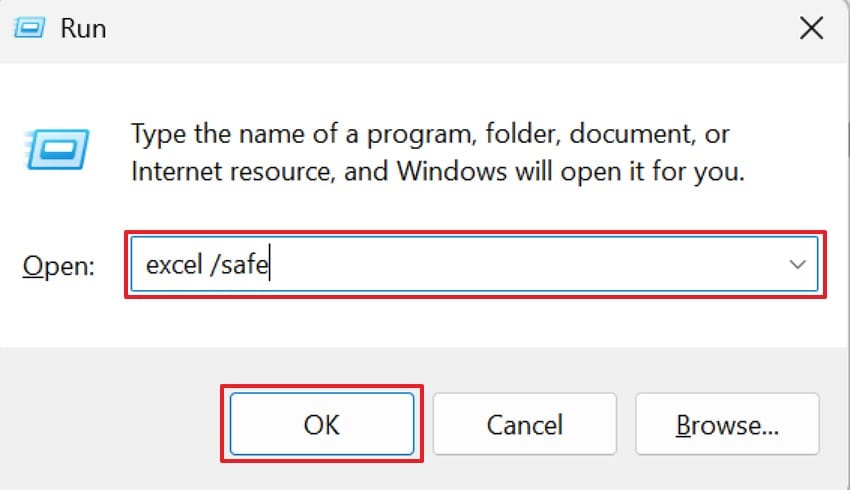
The Run Command gives you a quick way to open Excel in Safe Mode without loading add-ins or custom tools. It starts Excel with only core features, helping you check problems safely. This method works on every Windows system and is ideal for testing crashes, freezes, or corrupted files. Adhere to the following steps to launch Excel safely using the Run Command:
- First, press the "Windows + R" keys to open the "Run" dialog instantly.
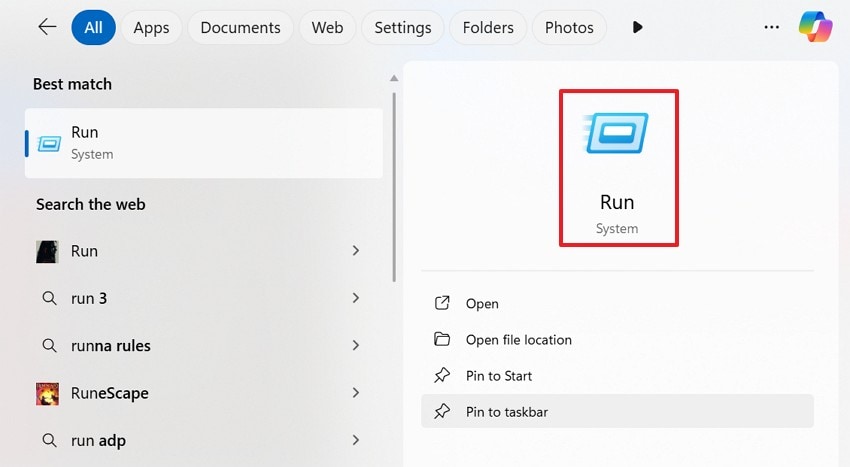
- Next, in the box type "excel /safe" and click on the "OK" button or press "Enter" to start the command.
Using Start Menu
The Start Menu offers another simple way to "open Excel safe mode", a clean state. This method uses a quick key press to block add-ins and custom tools during launch. It helps you check issues calmly and works well when shortcuts or commands feel inconvenient. Every Windows device supports this approach. Consider using the steps below to open Excel safely through the Start Menu shortcut method:
- First, click on the "Windows" start button to open the "Start Menu". Then locate "Excel" in the list of programs to proceed.
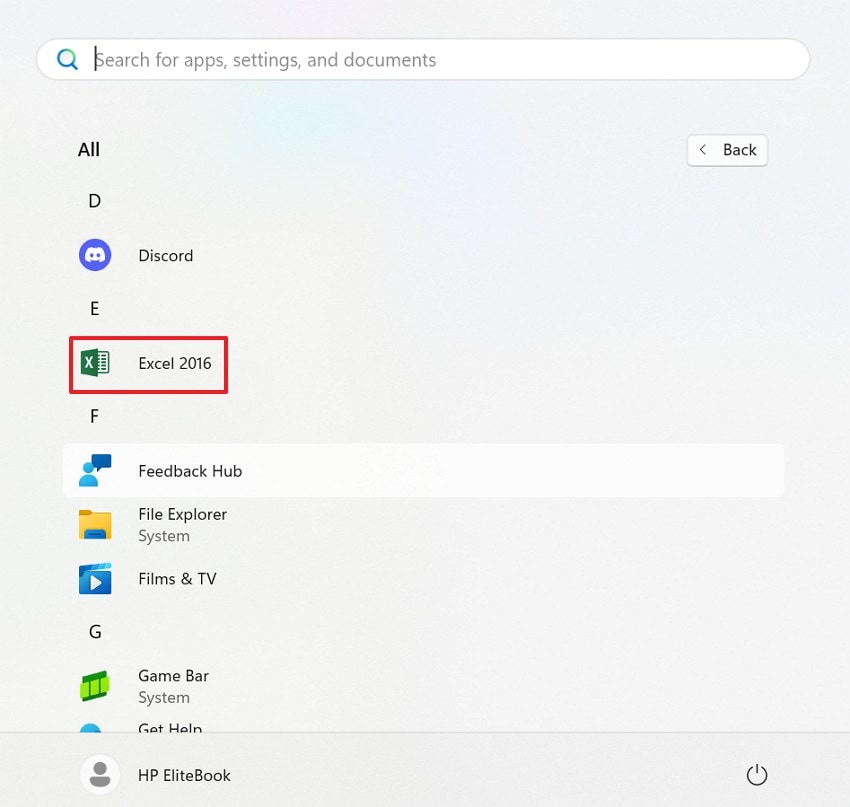
- Next, hold the "Ctrl" key and click the "Excel", later, hit the "Yes" button in the dialog box.
Pro Tip: Get Your Excel Files Back Safely with Recoverit Recovery Tool
Recoverit by Wondershare is a reliable data recovery software that helps to restore lost, deleted, and damaged files on Windows and macOS. It is compatible with more than 1,000 file formats, such as Excel files, and can be used with hard drives, USBs, SD cards, and crashed systems. When excel won't open in safe mode, Recoverit can recover damaged files safely without altering the original data.
Moreover, it uses deep-scan technology that searches sector by sector to locate recoverable files. The software also provides a preview capability, which allows one to see the contents of the Excel data and then restore it. It can also manage corruption due to unforeseen shutdowns, system failures, or poor storage devices. Recoverit has a high success rate of recovering critical Excel files, making it a reliable program.
Key Features
- Crash Recovery: Retrieve files even from a system that fails to boot using its System Crash Recovery Data module.
- Partition Restore: Recovers Excel files from lost, deleted, or RAW partitions, including drives affected by accidental deletion.
- Scan Resume: Allows you to pause a long scan and resume it later without losing any recovery progress.
Stepwise Guide to Recover Excel Files with Recoverit
Let's go through the step-by-step guide to recover lost Excel files safely using Recoverit:
- Select the Location to Recover
First, navigate to the "Hard Drives and Locations" option in the left panel to initiate the Recovery.
- Begin the Scan Process
After scanning starts, all recoverable files will appear under the "Name of Lost File" folder.
- Preview the Excel File and Recover
Finally, preview the Excel files and press the "Recover" button to complete the recovery.
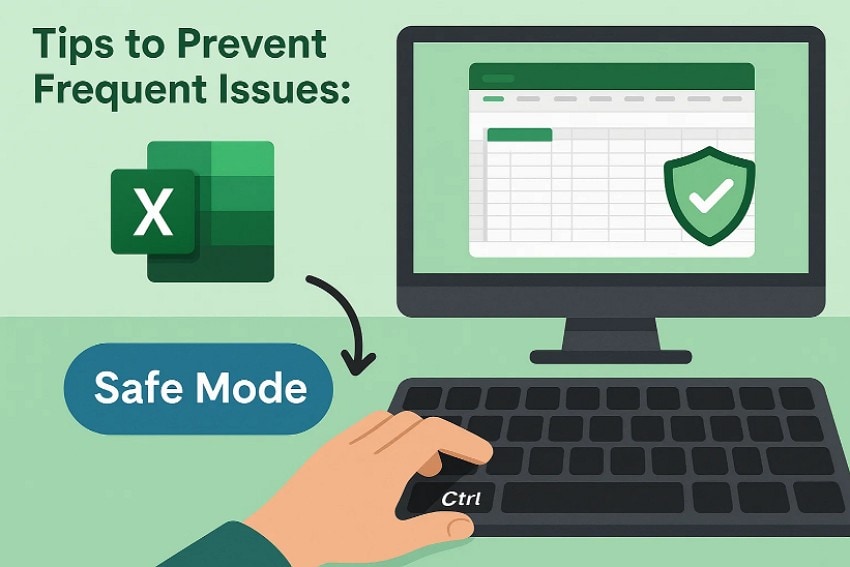
Part 3. Tips to Prevent Frequent Issues: How to Open Excel in Safe Mode?
The following tips can reduce the problems that make you open Excel in a safe mode often:
- Regular Updates: Keep Excel updated to avoid bugs that trigger common startup problems. New updates improve stability and reduce crashes during regular work sessions.
- Clean Add-ins: Remove unused add-ins that may cause crashes or slow loading times. Only keep trusted extensions that support stable performance during heavy tasks.
- Safe Storage: Store Excel files in reliable folders to avoid corruption or damage. Avoid unstable drives that may harm files during normal saving routines.
- Backup Files: Create backups often to protect important sheets from sudden corruption issues. A backup ensures you recover work quickly after unexpected software failures.
- Limit Macros: Disable risky macros that may break files during normal operations. Use macros only from trusted sources to maintain stable program behavior.
Conclusion
To sum up, Safe Mode will enable you to debug Excel problems without loading dangerous add-ins or other custom tools. This article has described how to open Excel in safe mode using the shortcuts, the Run command, and the Start menu. Even if your files are lost or unreadable, you can still recover valuable information in Excel using a safe program, like Recoverit.
FAQ
-
1. Why does Excel keep crashing on my computer?
Excel can crash because of faulty add-ins or corrupted files, and the failure is repeated. Safe Mode helps identify issues by loading only essential program elements during startup. -
2. Does Safe Mode delete any of my Excel data?
Safe Mode only disables extra tools and does not remove your stored files. Your sheets remain completely safe while Excel runs with minimal active features. -
3. Can I edit my Excel files while in Safe Mode?
Yes, you can edit most files, but some advanced features remain unavailable temporarily. Basic tools work normally, allowing clean access without risky add-ins loading. -
4. What should I do if Excel still won’t open in Safe Mode?
You may have deeper file corruption blocking Excel from loading required components properly. Recoverit can restore damaged Excel files safely when Safe Mode fails entirely.


