 TL;DR:
To repair Windows stability issues caused by corrupted operating system files, execute the `sfc /scannow` command in an administrator Command Prompt to automatically replace them with healthy internal backups.
● If the scan fails because the system's internal backups are also damaged, you must first repair the system image by running the `DISM /Online /Cleanup-Image /RestoreHealth` command before retrying SFC.
● This built-in utility strictly targets protected Windows system components and cannot fix physical hardware failures or restore personal files.
● If personal media or work documents are missing or damaged, you must use a dedicated data recovery software like Recoverit to retrieve them from the drive.
Ask AI for a summary
 ChatGPT
 Perplexity
 Gemini
 Claude
 Grok
Grok
A stable computer depends on healthy system files. Right? Well, yes! These files control how Windows starts, runs, and closes. When even one critical file breaks, your device may not work as it should. Small issues can turn into bigger problems. They can stop apps from opening. They can slow your desktop. They can make tasks harder.
Many users panic when this happens. Some look online for long fixes. Others restart many times. Most people feel nervous because they think repair needs advanced skills. Yet a simple tool already exists inside Windows. It offers a safe first step. It can solve many problems without help from a technician. This guide explains how the System File Checker tool works. It also explains related methods and recovery choices.
Table of Contents
Part 1: What Is System File Checker (SFC)
System File Checker is a trusted tool already built into Windows. You do not need to install anything to use it. It checks key operating system files to ensure they are correct. If any protected files are damaged or missing, the tool repairs them. It replaces them with healthy versions stored inside the system. This keeps the operating environment steady.
Some users learn about this tool only after facing system issues. Many begin with simple steps like restart or update. These steps often help. Yet deeper problems need stronger inspection. That is where this tool proves helpful. It addresses unsafe file changes that may come from power loss, software bugs, or malware. These changes can weaken the system. Once repaired, the device becomes more reliable again.
Below are six key benefits of this tool.
- Protects system files and keeps them working
- Restores original versions when current ones break
- Helps correct blue screens
- Improves general stability
- Removes strange alert messages
- Can help prevent failure at startup
Sometimes users face repeated errors in their operating system. They may notice odd behavior. They may see text missing. They may find icons that no longer open. At this stage, it becomes time to take action. Early use of this tool can prevent bigger damage. That is why this guide encourages regular checks.
This tool gives users confidence. They feel calm while handling system concerns. Anyone can start a scan with a single command. The process reduces stress. It improves performance. It helps keep the device steady for work or daily use.
Part 2: How to Use System File Checker
System File Checker offers a direct repair method. It does not require deep technical skill. It works well during slow performance, sudden glitches, or unexpected freezing. If apps stop responding, this tool may restore normal function. If you see warnings you do not understand, this tool may help.
Running this feature takes only a few steps. Many people feel uneasy at first when they open a command window. Yet the process is simple. The window is just a place to type instructions. That is all. The main action takes place inside the system afterward.
Below are the basic steps.
Step 1
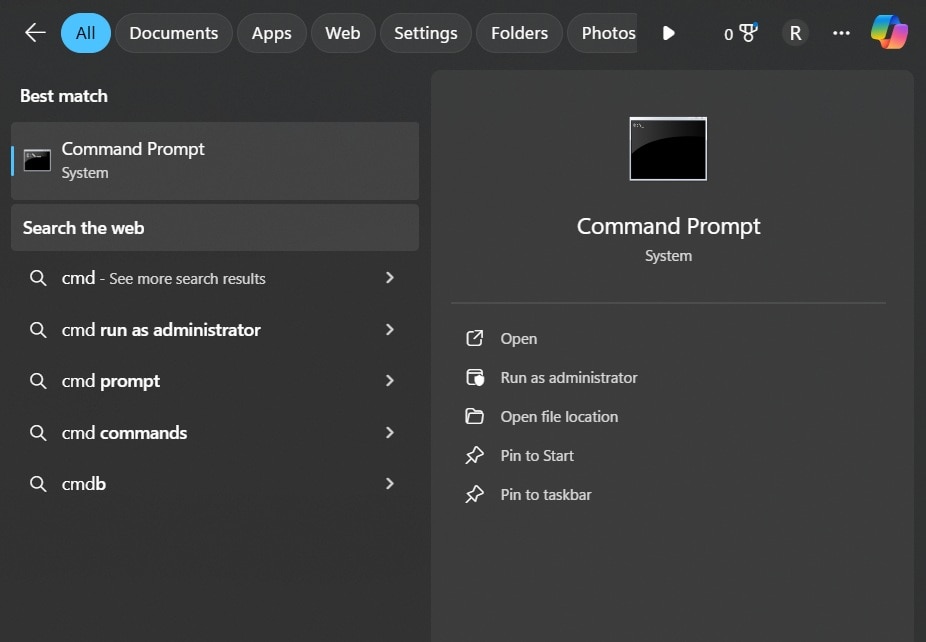
Open the Command Prompt. You should run it with admin rights. Use the search to locate it. Right-click. Select run as administrator.
Step 2
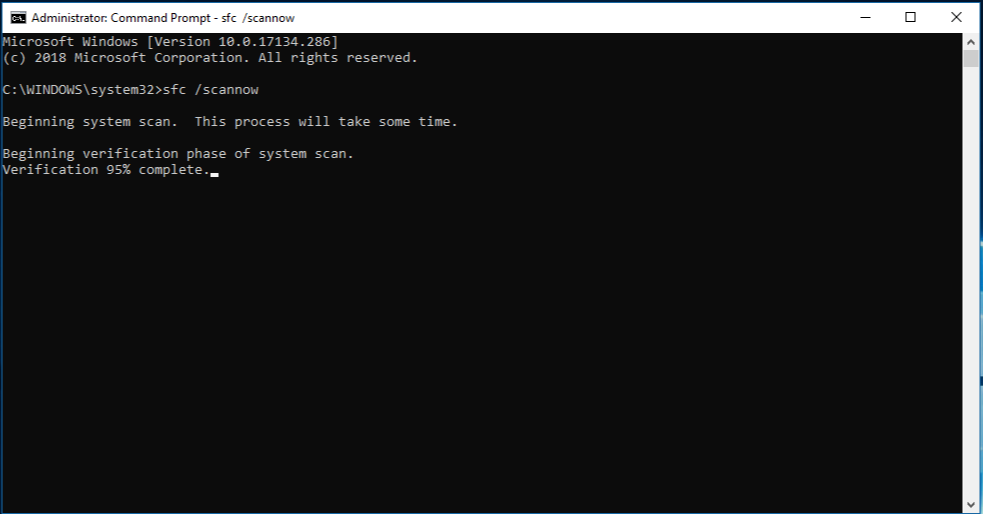
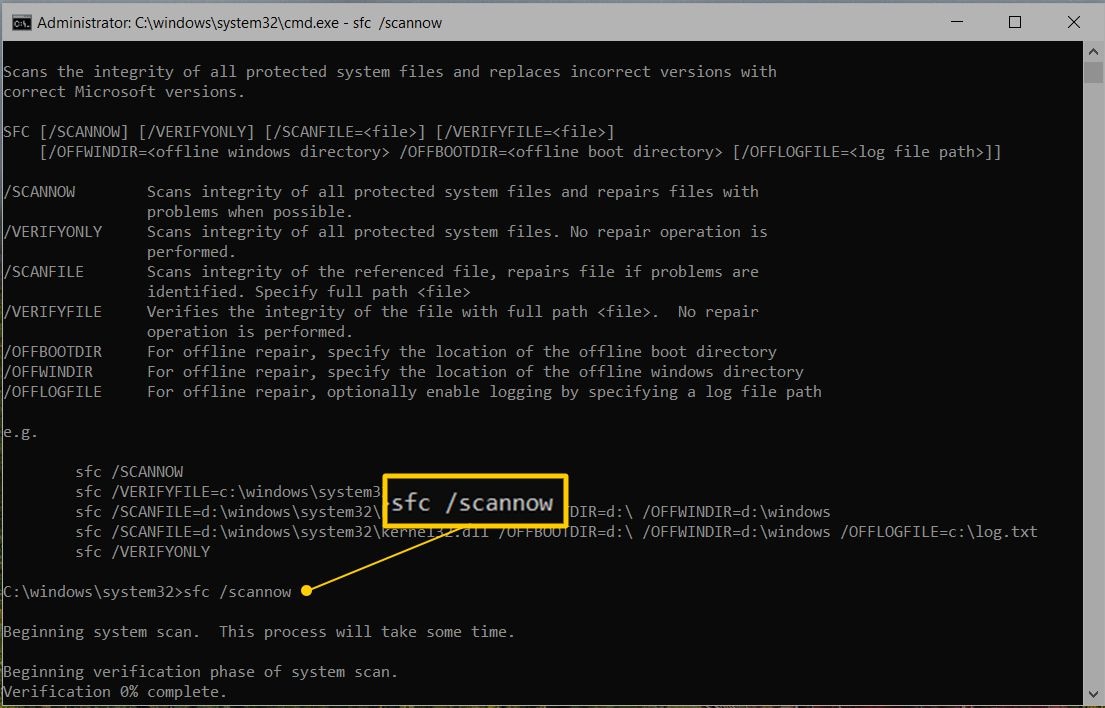
Type the sfc/scannow command. Next, press Enter. The scan begins at once. It examines protected files. It looks for replaced or missing versions. The process can take time depending on what it finds. You can watch a progress indicator. You do not need to press anything while it works.
Step 3
Restart your device. This allows repaired items to load. If the problem is solved, your system will feel normal again. Your apps will open without trouble.
If your system still behaves oddly, do not worry. You can repeat the process. It does not harm your device. It works with many versions of Windows. Older and recent systems follow the same steps. If the scan cannot repair some files, you may need more tools. One option is explained next.
Part 3: Advanced Troubleshooting with DISM
Some problems sit deeper than expected. You may finish the first scan. You may restart. Yet the system still behaves oddly. This can confuse many users. They wonder why the repair did not succeed. One reason is that the stored copies used for repair may also be damaged. The tool needs clean backup files in order to restore your system. If those backups are flawed, the repairs will fail.
When this happens, a stronger method is needed. DISM checks the health of the system image. The system image is a secure set of original files. It holds verified copies of important elements. If any part of that image is damaged, DISM attempts to fix it. Once repaired, the other tool can work again. This process is helpful in many cases of deep system trouble.
How DISM helps
- Repairs broken image files that SFC depends on
- Replaces unsafe materials with healthy breeds
- Allows deeper repair results
- Restores paths that the repair tool needs
Steps:
- Use these commands in order. Open Command Prompt as administrator for each.
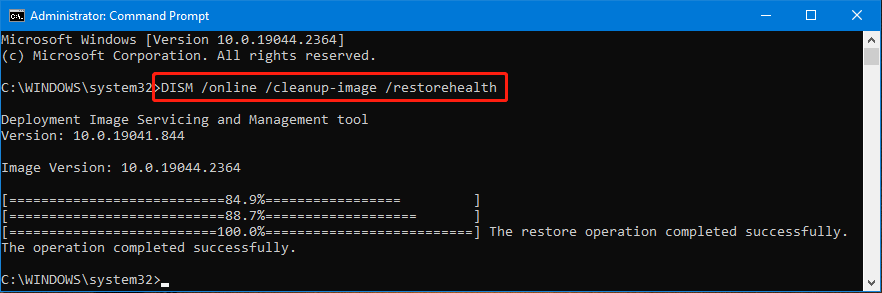
- Check if the image is flagged as bad: DISM /Online /Cleanup-Image /CheckHealth
- Scan the image for corruption (this may take time): DISM /Online /Cleanup-Image /ScanHealth
- Repair the image: DISM /Online /Cleanup-Image /RestoreHealth
Part 4: Viewing and Understanding SFC Logs
Every time you run this tool, it creates a record. This record lives inside the system. It gives a written view of what was checked. If any files were repaired, the record notes them. If no files were fixed, it shows that as well. A log helps you track what changed. It helps you learn if something is wrong again later.
Some people skip logs because they seem technical. Yet you can read basic parts with little trouble. The record has many details. The list shows paths that were checked. It notes if replacement took place. It also gives dates. These details can be helpful. You can send logs to support teams. They can review your system history. This helps find deeper issues.
Logs can help in many ways
- Show items that were repaired
- Show items still broken
- Guide support teams
- Help advanced repair methods
Below are the steps.
Step 1
Open the Command Prompt. Copy the log details into a text file. Press Enter. The text file will appear where you can reach it. It does not change your system. It simply makes reading easier.
Step 2
Open the text file. Look for entries. Focus on lines that mention repair results. If the tool fixed something, it shows. If the tool tried and failed, the log reports that too. This information tells you what to do next.
If logs show that repairs did not complete, you might try the deeper tool. You can decide another path. You may choose a recovery plan. This is useful when personal items are missing or damaged.
Part 5: Common Limitations of SFC
This tool works well for many system issues. It can solve several common troubles. Yet there are limits. Some users run the scan many times. They hope it will fix everything. It cannot. It handles only protected system files. It does not repair personal items. It cannot solve issues related to physical drive failure. It also depends on clean backup copies. If the backup copies are damaged, it cannot help.
Below are the main limits.
- Restores only protected system files
- Needs usable source files
- Cannot fix all hardware issues
- Sometimes needs deeper image repair
- Might take longer on larger systems
- Does not fix private files
If the scan does not work, stay calm. You may need another method. If important work files are broken, you must use a separate recovery method. This is where a dedicated tool helps. The next section explains how to recover files.
Part 6: Use Recoverit as an Alternative for File Recovery
Many users try the standard tool when their device misbehaves. Some succeed.
A data recovery tool like Recoverit helps in such cases. You can repair important personal items. You can save them from complete loss. These items may hold work history, pictures, and memories. It feels painful when they break. A working method offers relief.
This software rescues damaged items. When simple repairs fail, it can find copies still on the disk. It can restore them to a safe place. This gives users peace. Many people depend on this choice at work. It reduces fear. It allows them to resume tasks quickly.
This recovery method supports a wide range of items. It works with pictures. It works with videos. It works with office files. These formats are common. Many devices hold large collections of such content. These files are at risk when the system acts up. A useful tool keeps them safe.
Below are seven key features.
- Simple interface
- Recovers deleted material
- Restores photos safely
- Handles video repairs
- Works with documents
- Reads many storage types
- Protects from further loss
Below are the basic steps.
Step 1

Open the Recoverit software. Pick the drive or folder. This tells the software where to look.
Step 2

Allow the tool to search. It checks the drive. It finds possible material. It lists the results.
Step 3

Select results. Save items in a safe location. Do not store them on the original drive. Keep them on another device or folder.
This plan offers relief when simple repairs do not work. It protects what matters most to users. It keeps their files within reach. It avoids stress. It allows normal work to continue.
Part 7: Tips for Preventing System File Corruption
Prevention offers the best protection. You can take small steps. These steps lower the chance of trouble. They reduce the need for repair. They protect your system for a long time. You do not need special skills. You only need steady habits.
• Update often. New fixes protect system parts • Install trusted apps. Poor apps cause damage • Clear waste. Clean folders improve health • Scan drives. Early checks prevent bigger harm • Avoid sudden shutdown. Protects system state • Make backups. Keeps data safe • Use protection. Stops harmful code • Watch storage. Replace aging drives
Safe habits keep your device strong. They keep your files safe, too.
Conclusion
This guide explains how to repair system issues on a Windows device using the System File Checker tool. It introduces the basic method first. It gives easy steps. It explains how records help. It shows deeper fixes. This guidance helps anyone take control.
For some users, deeper repairs are needed. They may use stronger methods like Recoverit. If private files are damaged, a recovery tool helps. It can protect important pictures and documents. It gives peace after loss. This offers a complete safety plan. Combined steps help keep devices healthy and user data safe.
Try Recoverit to Recover Lost Data
 Security Verified. Over 7,302,189 people have downloaded it.
FAQs
-
Why does the scan not always repair the system
Sometimes the base files are damaged. When that happens, the basic work fails. You can try a deeper repair. After that, results improve. -
Can I use the tool on new systems?
Yes. It works on new versions and older versions too. The process remains the same. You only need admin rights. -
Can I fix my private files with this feature?
No. The basic tool only protects system items. To fix your private items, try a recovery plan. That method helps you save important things.



