 TL;DR:
Secure your files using Windows Recovery Environment or external bootable media before resetting a Windows 11 PC that fails to start after the KB5121003 update, as current evidence points to specific driver conflicts rather than widespread file deletion.
● Players experiencing ARC Raiders or THE FINALS crashes should only apply Embark's temporary workaround to delete inpoutx64.sys if that specific kernel driver is currently installed and active on their system.
● Unbootable computers can be reverted by selecting Uninstall latest quality update or System Restore within WinRE, which strictly requires the correct BitLocker recovery key if the Windows volume is encrypted.
● Recoverit can retrieve missing files or scan an unbootable drive using separate USB media, but the software cannot bypass BitLocker encryption, repair physically failing hardware, or restore data overwritten by SSD TRIM.
Ask AI for a summary
 ChatGPT
 Perplexity
 Gemini
 Claude
 Grok
Grok
If Windows 11 started crashing, rebooting, or failing to start after KB5121003, do not begin with a reset or clean installation. First determine whether the problem is an application crash, a driver conflict, a Windows boot failure, or actual file loss. The safest repair is different in each case.
This guide separates Microsoft-confirmed facts from Embark's game-specific statement and individual user reports. It then explains how to protect accessible data, recover missing files, start Windows Recovery Environment, remove the latest quality update when necessary, and recover data from an unbootable PC with Wondershare Recoverit.
TL;DR: What to do right now
- If Windows still starts: Back up irreplaceable files before uninstalling drivers, removing KB5121003, running repair tools, or resetting Windows.
- If files appear missing: Confirm the signed-in profile, search the other folders under
C:\Users, check OneDrive and existing backups, and avoid writing new data to the affected drive. - If the PC will not boot: Use Windows Recovery Environment for Startup Repair, Safe Mode, System Restore, or Uninstall latest quality update. Recover important files before Reset this PC or reinstalling Windows.
- If ARC Raiders or THE FINALS crashes: Embark linked the crash to
inpoutx64.sysand published a temporary workaround. Do not remove that driver for unrelated crashes. - If the drive disappears, clicks, reports the wrong capacity, or repeatedly drops offline: Stop DIY recovery and contact a professional lab. Software cannot safely repair failing hardware.
In this article
Part 1. KB5121003 Crash Status: What Is Confirmed?
Current status as of August 17, 2026: KB5121003 is a real Microsoft security update for Windows 11 24H2 and 25H2. Microsoft currently lists no known issues on the update page. Separately, Embark has acknowledged a new crash affecting some ARC Raiders and THE FINALS players after the update and linked it to the third-party kernel driver inpoutx64.sys. Community reports also describe game crashes, system hangs, and occasional unexpected reboots.
These facts can coexist. Microsoft's known-issues table reflects issues the company has formally recognized for the update. It does not prove that every configuration is unaffected, especially when the failure involves an interaction with third-party software or a driver installed by a hardware utility.
Official Update Details
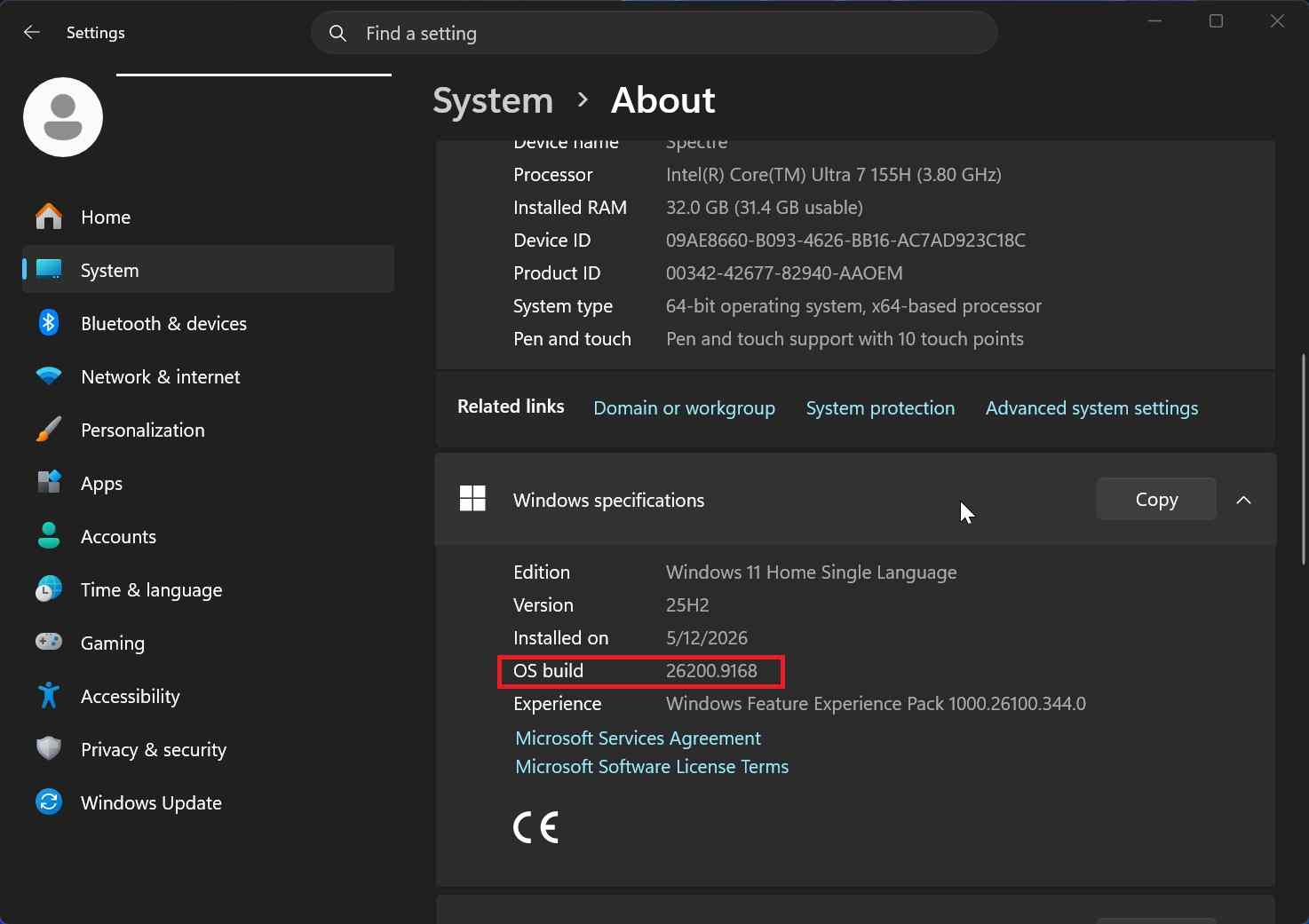
Microsoft released KB5121003 on August 11, 2026. It advances Windows 11 25H2 to OS Build 26200.9168 and Windows 11 24H2 to OS Build 26100.9168. The package includes Windows security improvements, additional Secure Boot certificate targeting, AI component updates for applicable Copilot+ PCs, and servicing stack update KB5123304.
Coverage saying the update fixed more than 400 vulnerabilities needs context. The 400-flaw count applies to Microsoft's broader August 2026 Patch Tuesday releases across products. It should not be described as 400 defects contained only in KB5121003. Microsoft directs readers to the August 2026 Security Update Guide for the vulnerabilities addressed by the month's releases.
| Claim | What the evidence supports | Status |
| KB5121003 was released on August 11, 2026 | Confirmed on Microsoft's release page. | Official |
| 25H2 becomes Build 26200.9168 and 24H2 becomes Build 26100.9168 | Confirmed on Microsoft's release page. | Official |
| Microsoft lists no known issues | The page currently says Microsoft is not aware of any issues with the update. | Official as of August 17 |
| ARC Raiders and THE FINALS can crash after the update | Embark acknowledged a new crash and published a temporary workaround. | Studio-confirmed compatibility issue |
| Some crashes trigger a full Windows restart | Individual players have reported restarts and bugchecks. | User reports, not universal |
| KB5121003 broadly deletes personal files | No Microsoft advisory or reliable evidence currently establishes widespread file deletion by this update. | Not confirmed |
Embark Statement and User Reports
In an Embark Discord message reported on August 16, the studio said it was aware of a new crash introduced with KB5121003 and was working on a fix. Embark later connected the crash to inpoutx64.sys, a third-party kernel-level port-access driver used by some hardware tools, and posted a temporary removal procedure.
Windows Latest documented affected users seeing errors such as Hang detected on GameThread and EXCEPTION_ACCESS_VIOLATION. The publication also linked user reports of full-system restarts, display behavior changes, and isolated Windows Hello problems. Those additional symptoms remain reports and should not be presented as Microsoft-confirmed known issues.
A restart while KB5121003 is installing is not automatically evidence of the same bug. Cumulative updates normally restart Windows, and the Secure Boot certificate rollout can involve additional installation activity. The concerning pattern is a new crash or reboot that begins after installation during normal use, especially when it repeats under the same application or driver conditions.
How to Check Whether KB5121003 Is Installed
- Check Update history: Open Settings, select Windows Update, choose Update history, and look under Quality Updates for KB5121003.
- Check the OS build: Press
Windows + R, typewinver, and press Enter. Build 26200.9168 identifies the August update on 25H2; Build 26100.9168 identifies it on 24H2. - Match the timing: Compare the installation time with the first crash. Timing alone does not prove causation, but a clean before-and-after pattern helps narrow the investigation.
- Record the error: Photograph a blue-screen stop code, copy the game crash text, and note whether the system restarted, froze, or only closed one application.
- Check reliability history: Search Start for
View reliability historyand look for application failures, Windows failures, or driver-related events beginning after the update.
Part 2. Protect Your Files Before You Repair Windows
A Windows repair and a file recovery are different jobs. Removing an update may make Windows boot again, but it does not reconstruct a document that was deleted or overwritten. Conversely, a recovery scan can retrieve files without correcting the driver or update conflict that caused the crash.
If the files matter more than restoring Windows quickly, preserve the data first. Microsoft also recommends backing up important files before recovery operations because Reset, reinstall, and some other options can remove data.
Choose the Correct Path by Symptom
| What you see | Likely situation | Best first action |
| Only ARC Raiders or THE FINALS crashes, while Windows remains stable | Possible inpoutx64.sys compatibility conflict. |
Back up important work, confirm the driver, and follow the game-specific section. |
| Windows starts, but Desktop or Documents looks empty | Different user profile, cloud-sync state, redirected folders, or actual deletion. | Check profile paths and backups before scanning for deleted files. |
| Windows starts, but specific files saved during a crash are missing or corrupt | The application may not have completed its write. | Check autosave, temporary files, version history, and backups, then scan if needed. |
| Windows enters a reboot loop after the update | Driver, boot, or update rollback failure. | Enter WinRE and recover critical files before reset or reinstall. |
| Windows will not boot, but the internal drive is detected | The OS may be damaged while the storage remains readable. | Use WinRE or bootable data recovery and save files to an external drive. |
| The internal drive is missing from BIOS or repeatedly disconnects | Possible hardware or controller failure. | Stop repeated boot and scan attempts; use a professional lab. |
Actions That Can Reduce Recovery Chances
- Do not reset or reinstall Windows before securing files: Even Keep my files removes applications and changes the system. A clean installation can overwrite recoverable data.
- Do not install recovery software on the affected C drive: Installation writes new blocks and may overwrite deleted content. Use another computer, another physical drive, or bootable media where possible.
- Do not save recovered files to the source drive: Restore them to an external SSD, HDD, or another physical disk.
- Do not run repeated forced restarts: Additional boots create logs, caches, update transactions, and other writes. On an unstable drive, repeated access can make the hardware condition worse.
- Do not run CHKDSK as a deleted-file recovery method: CHKDSK repairs file-system structures and can change metadata. Recover or image important data first.
- Do not delete
inpoutx64.sysfor an unrelated problem: The workaround is specific to the Embark-reported conflict and may affect the hardware utility that installed the driver. - Do not assume BitLocker can be bypassed: WinRE, System Restore, an enclosure, or recovery software may require the BitLocker recovery key to unlock the Windows volume.
Part 3. Recover Missing Files When Windows Still Boots
Do not jump directly to deep scanning. After a Windows problem, files that appear deleted may still exist under another profile, in a cloud recycle bin, in an application autosave folder, or in a previous backup. Locating an intact copy is safer and preserves filenames, folder structure, and metadata.
Rule Out a Different or Temporary User Profile
- Confirm the current profile path: Open Command Prompt and run
echo %USERPROFILE%. A normal result resemblesC:\Users\YourName. - Inspect the Users folder: Open
C:\Usersand look for your normal account folder, an older account name, or another folder with a recent modified date. - Search the old profile directly: Check Desktop, Documents, Downloads, Pictures, Videos, and any project folders inside the original user folder.
- Sign out rather than moving everything immediately: If Windows loaded a temporary or different account, sign out and return to the intended account. Copy important files before changing profile or registry settings.
- Check custom folder locations: If Desktop or Documents was redirected to OneDrive, another disk, or a network share, confirm that location is connected and signed in.
Do not over-rely on Windows.old: KB5121003 is a monthly cumulative quality update, not a feature-version upgrade. The patch alone would not normally create a complete Windows.old installation. Check that folder if it already exists from a recent 24H2 to 25H2 upgrade or reinstall, but do not treat it as the primary KB5121003 recovery path.
Check Backups, Cloud Copies, and Previous Versions
- OneDrive: Check the OneDrive web interface, its recycle bin, and version history. Make sure an unwanted local deletion has not synchronized before restoring.
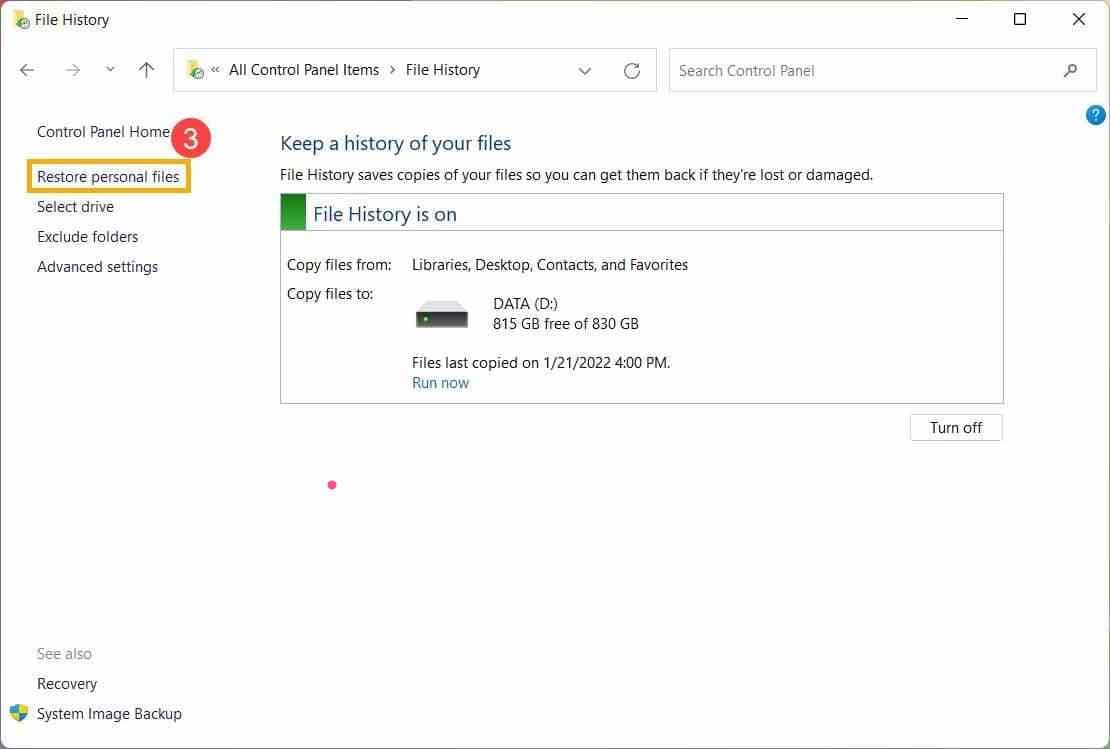
- File History: If it was enabled before the crash, open Control Panel, select File History, and choose Restore personal files.
- Previous Versions: Right-click the folder that held the file, select Properties, and open Previous Versions. Results depend on File History or available restore snapshots.
- Application recovery folders: Word, Excel, Adobe applications, editors, and creative software may keep autosave or recovery copies separate from the original project.
- External and NAS backups: Disconnect the source from active sync first if you suspect deletion, then restore to a separate folder rather than overwriting the current version.
System Restore is not a personal-file backup. Microsoft states that it reverts system files, registry settings, and installed programs without affecting personal files. It may fix Windows, but it should not be expected to bring back a deleted photo or document.
Recover Files That Were Actually Deleted
If the correct profile and backups do not contain the files, minimize use of the affected disk. SSD recovery can become difficult quickly because Windows and the drive may process TRIM for deleted blocks. No recovery tool can guarantee data that has been overwritten or erased internally by the SSD.
Recoverit Data Recovery Free can scan readable Windows storage for deleted or lost files and currently provides preview, filtering, disk-image recovery, support for more than 1,000 file types and more than 2,000 storage-device types, with up to 500MB of recovery in the free edition. Those are vendor-listed capabilities, not a promise that every post-update deletion is recoverable.

- Prepare another destination drive: It should have enough free space for the files you hope to recover.
- Avoid installing on the affected physical disk: If the lost files were on C, use a second working PC, a separate physical drive, or the bootable workflow in Part 5 where practical.
- Select the correct source: Scan the original folder, volume, or physical disk that contained the files.
- Filter the results: Use file type, extension, size, date, and name where metadata survives.
- Preview representative files: Confirm that important documents open and media content is intact. Preview availability varies by file type and condition.
- Recover elsewhere: Save the selected files to the prepared external drive, not back to C.
- Verify before repairing Windows: Open the recovered files from another computer and maintain at least two copies before reset or reinstall.

For additional profile, backup, and deletion scenarios, see the Recoverit guide to recover files after a Windows 11 update.
Part 4. Fix a PC That Will Not Boot After KB5121003
When Windows no longer reaches the desktop, use the least destructive recovery option that fits the symptom. The following order prioritizes boot repair while keeping reset and reinstall at the end.
Enter Windows Recovery Environment
- From the sign-in screen: Hold Shift, choose Power, and select Restart.
- From Settings: If Windows remains usable, open Settings, System, Recovery, and choose Restart now under Advanced startup.
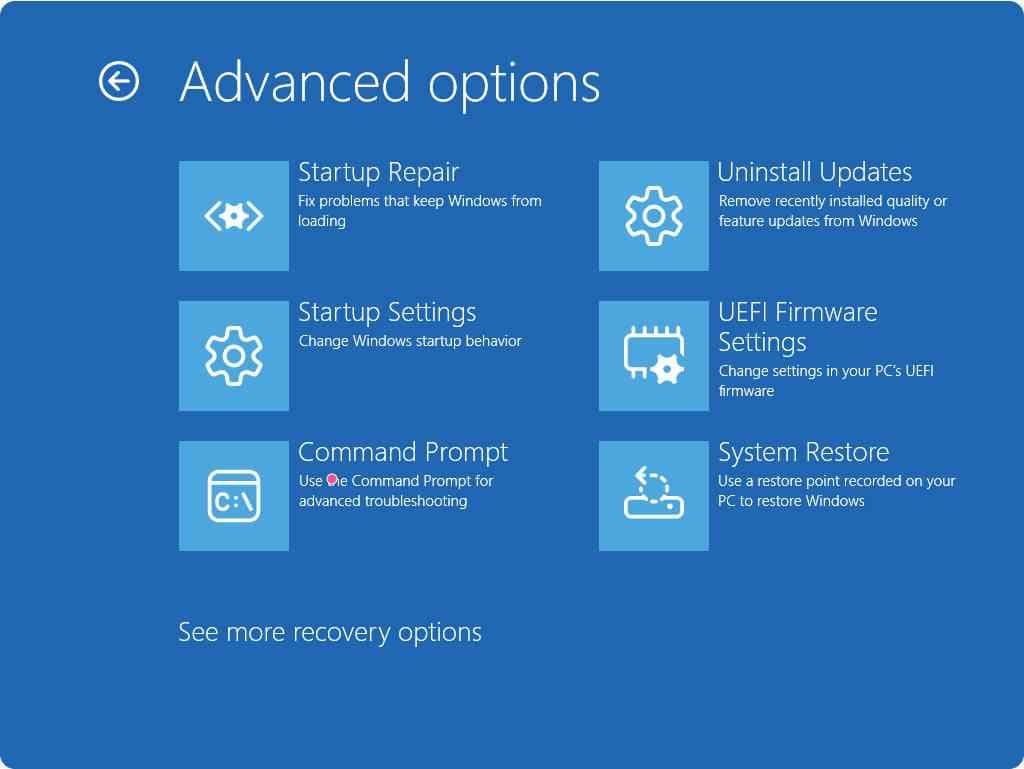
- From Automatic Repair: A PC that fails to start repeatedly may enter Windows Recovery Environment automatically. Choose Advanced options.
- From Microsoft installation media: On another computer, create official Windows 11 installation media, boot the affected PC from it, and select Repair your computer rather than Install now.
If device encryption or BitLocker is active, have the recovery key ready. Microsoft explains how to find a BitLocker recovery key through the account or organizational location where it was backed up. Recovery software cannot legitimately bypass that encryption.
Try Startup Repair or Safe Mode
- Run Startup Repair: In WinRE, choose Troubleshoot, Advanced options, and Startup Repair. This targets startup files and configuration rather than personal content.
- Try Safe Mode: Select Troubleshoot, Advanced options, Startup Settings, Restart, and then Enable Safe Mode. Microsoft describes Safe Mode as a limited state using essential files and drivers.
- Back up from Safe Mode: If Windows opens, copy critical documents and projects to an external drive before removing software or making more changes.
- Observe the difference: If the crash disappears in Safe Mode, a nonessential driver, service, startup utility, overlay, or application becomes more likely than physical disk failure.
Safe Mode is a diagnostic state, not proof that KB5121003 is defective. It narrows the problem to components that do not load in the limited environment.
Uninstall the Latest Quality Update
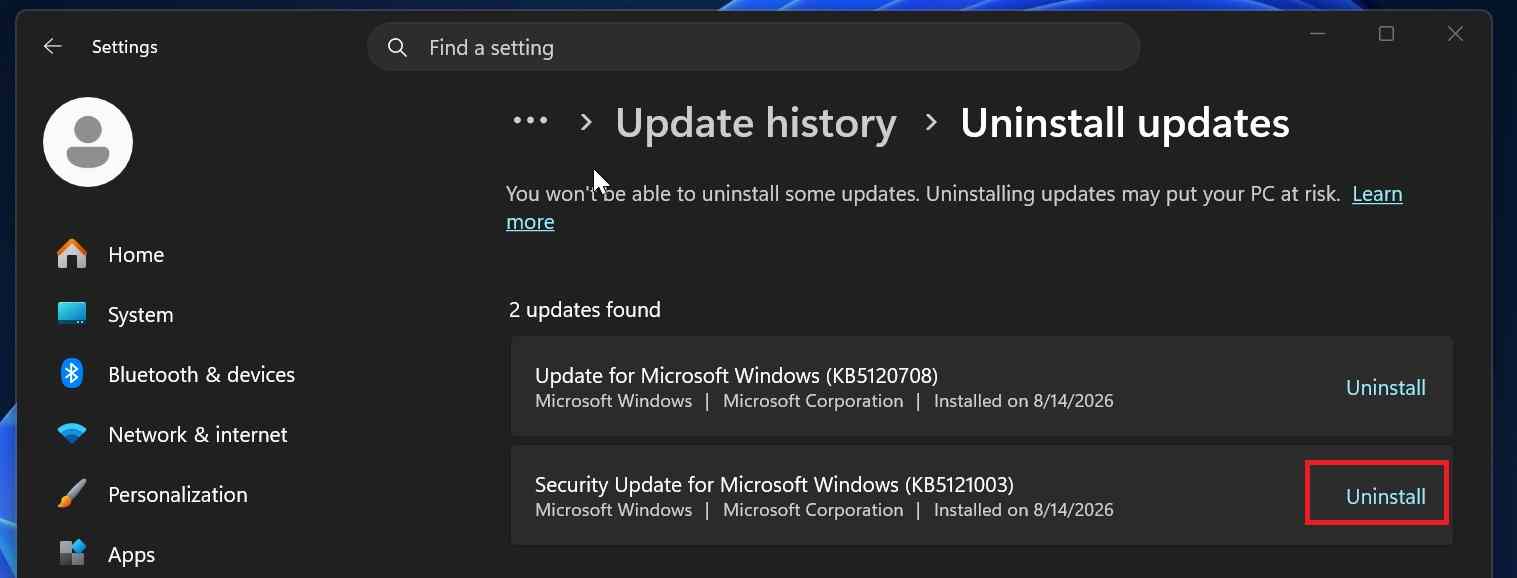
Microsoft's official uninstall instructions support removing an update from Settings or Windows RE, although some updates cannot be uninstalled.
- Open the WinRE uninstall tool: Select Troubleshoot, Advanced options, and Uninstall Updates.
- Choose the quality update: Select Uninstall latest quality update. KB5121003 is a monthly cumulative quality update, not a feature upgrade.
- Provide credentials or a recovery key if requested: Follow the on-screen prompts and allow Windows to complete the rollback.
- Boot and verify: Confirm the OS build with
winver, test the original failure, and immediately back up important files if Windows is stable. - Plan to restore protection: An uninstall is a troubleshooting step, not a permanent security strategy. Monitor Microsoft's page, Embark's status, and subsequent Windows updates for a corrected path.
Use System Restore
If a restore point exists from before August 11, Microsoft System Restore can revert system files, registry settings, drivers, and installed programs to that earlier state without targeting personal files.
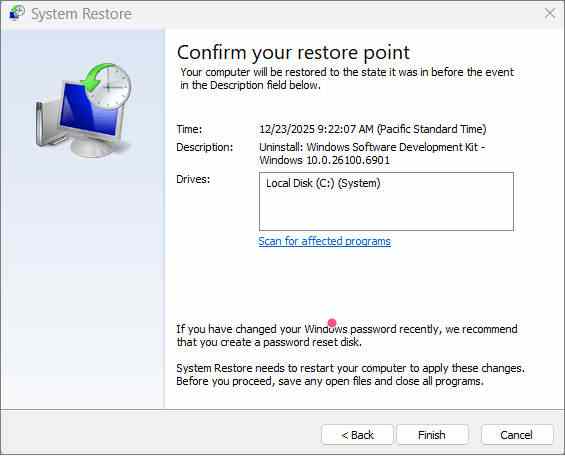
- In WinRE, select Troubleshoot, Advanced options, and System Restore.
- Select a restore point created before KB5121003 or the driver change associated with the crash.
- Use Scan for affected programs to review what will change.
- Complete the restore and restart Windows.
- Back up important files and test the original crash before reinstalling applications or drivers.
If Startup Repair, update uninstall, and System Restore all fail, do not automatically choose Reset this PC. Recover important files first unless you already have a verified backup.
Part 5. Recover Files from an Unbootable PC with Recoverit
When Bootable Recovery Is the Right Choice
Bootable recovery is appropriate when Windows cannot start but the internal SSD or HDD remains detected and readable. It allows the computer to start from separate media instead of loading the damaged Windows installation. This reduces the need to write recovery software onto the source system disk.
Recoverit's current Windows product includes a crashed-computer bootable toolkit in paid editions. The workflow requires another working computer and a blank USB drive that can be erased. The bootable environment is for copying or recovering accessible data. It does not repair KB5121003, unlock BitLocker without the key, restore overwritten sectors, or stabilize physically failing storage.
Wondershare Recoverit for a Crashed Windows 11 PC
- Creates bootable recovery media on a separate working computer.
- Scans a readable internal drive without starting the damaged Windows installation.
- Filters and previews supported file types before recovery.
- Saves recovered files to another physical drive instead of the affected system disk.
Step-by-Step Crashed PC Recovery

- Use a separate working PC: Download and install Recoverit on a computer that is functioning normally.
- Connect a blank USB drive: Copy anything important off the USB first because creating bootable media formats it.
- Create the bootable drive: Open the crashed-computer or system-crash recovery feature and follow the prompts to prepare the USB.
- Connect a destination drive: Attach an external SSD or HDD with enough space for the recovery. Do not plan to save recovered files onto the Windows system disk.
- Boot the affected PC from USB: Use the device manufacturer's boot menu key and select the prepared USB. The exact key varies by PC and motherboard.
- Unlock the drive if required: Enter the BitLocker recovery key when Windows storage is encrypted. Stop if you do not have authorized access to the key.
- Select and scan the internal drive: Confirm the disk capacity and partition before starting. If the drive disconnects or produces hardware errors, stop.
- Preview and recover: Select important user folders and files, then recover them to the external destination.
- Validate on another computer: Open documents, photos, databases, and projects before attempting Reset, reinstall, or further repair.
The Recoverit tutorials for recovering data from unbootable Windows 10 or 11 and recovering data when a PC will not boot cover the bootable-media and external-drive alternatives in more detail.
Part 6. Fix ARC Raiders and THE FINALS Crashes
What Embark Identified
Embark's current statement identifies a crash related to inpoutx64.sys. This is not a normal ARC Raiders or THE FINALS game file. It is a kernel driver that may be installed by hardware access, monitoring, firmware, fan-control, RGB, or update utilities. One community investigation cited by Windows Latest traced its copy to a Razer update-tool directory, but the driver can be bundled by other software.
The relevant causal statement is narrower than “KB5121003 crashes every game.” The available evidence supports a compatibility problem on systems where the affected driver and software path are present. Users without inpoutx64.sys should investigate GPU drivers, anti-cheat, game files, overlays, memory stability, and other crash evidence rather than applying an unrelated removal procedure.
Use the inpoutx64 Workaround Carefully
Important: Use these steps only if your crash matches Embark's KB5121003 notice and inpoutx64.sys exists on the PC. Removing a kernel driver can disable or alter the hardware utility that installed it. Back up important files and create a restore point first. Organization-managed PCs should be handled by IT.
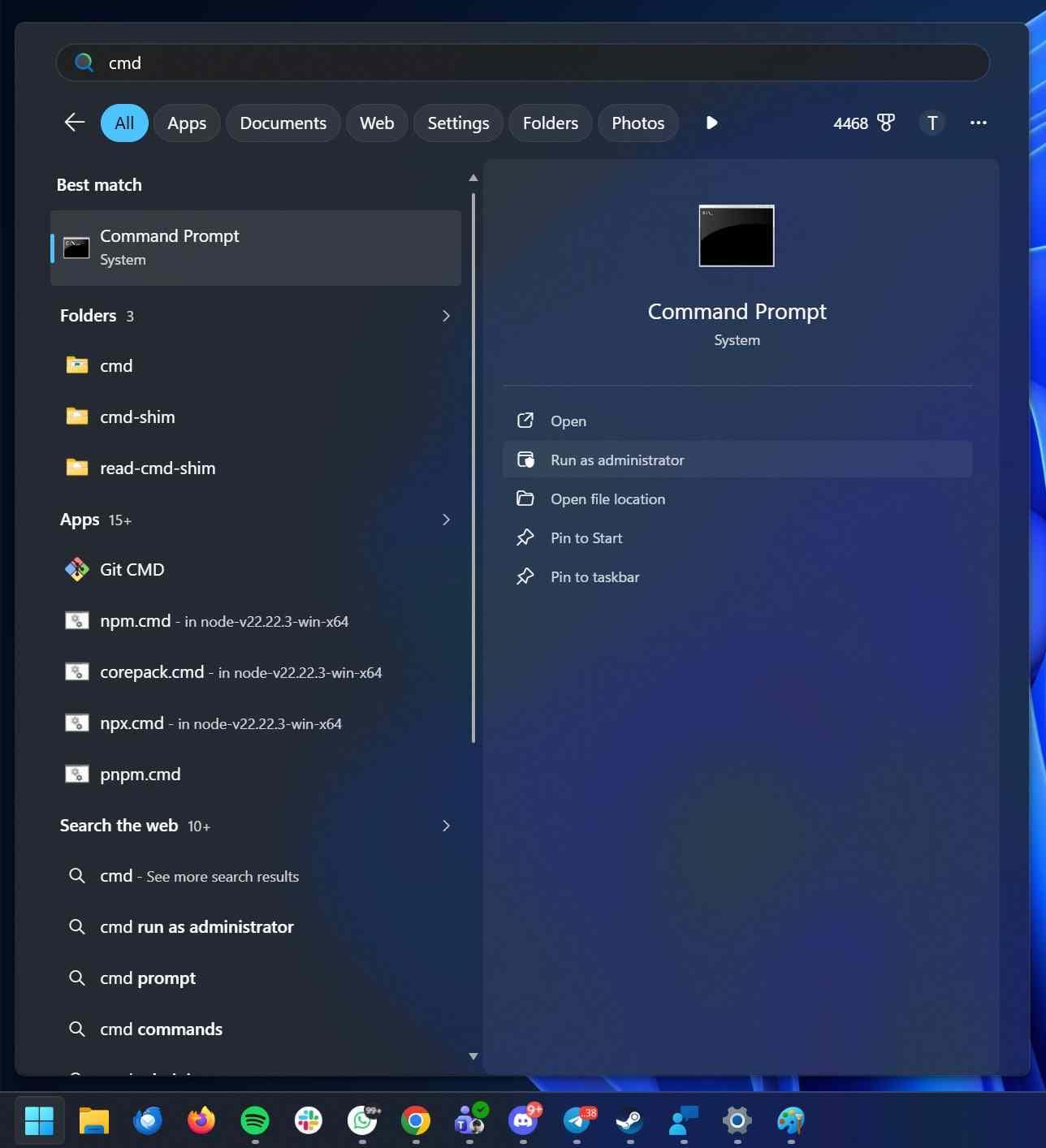
- Confirm the service exists: Open Command Prompt as administrator and run
sc query inpoutx64. If Windows reports that the service does not exist, do not continue with this workaround. - Identify related software: Check recently installed motherboard, laptop, peripheral, fan-control, RGB, firmware, or hardware-monitoring utilities. Prefer an official update or uninstall path from that vendor when available.
- Stop the driver service: Embark's temporary instructions use
sc stop inpoutx64. - Remove the service registration: Embark then instructs users to run
sc delete inpoutx64. - Remove the driver file: Navigate to
C:\Windows\System32\drivers\and deleteinpoutx64.sysonly after confirming the name exactly and following the studio's guidance. - Restart and test: Launch the affected game and monitor whether the crash returns. Also verify that the hardware utility that installed the driver still behaves as expected.
Do not download a replacement inpoutx64.sys from an unofficial driver site. Embark describes its procedure as a temporary workaround while it works toward a long-term fix. Check the studio's current announcement before applying it because the advice may change after this article's fact-check date.
Part 7. Should You Uninstall KB5121003?
Do not uninstall KB5121003 automatically just because one application crashed. The update is a security release, and the broader August Patch Tuesday fixed 400 vulnerabilities, including zero-day issues across Microsoft's products. Removing the Windows update may restore compatibility on one PC, but it also removes security fixes delivered to that installation.
| Situation | Recommended decision | Reason |
| Only an Embark game crashes and the affected driver is present | Back up data and evaluate Embark's targeted workaround first. | A narrow driver fix preserves the security update. |
A game crashes but inpoutx64.sys is absent |
Do not apply that workaround. Verify game files, drivers, anti-cheat, and crash logs. | The documented conflict may not match your system. |
| The whole PC repeatedly reboots and became unusable immediately after the update | Secure data, then temporarily uninstall the latest quality update as a diagnostic step. | System stability and data access may justify a controlled rollback. |
| The PC will not boot | Recover critical data, then use WinRE to uninstall the latest quality update or apply System Restore. | Data preservation should precede destructive recovery. |
| The PC is stable and you have no affected software | Keep the update installed. | There is no evidence that every installation is affected. |
| The PC is managed by an employer or school | Contact IT before removing the update or kernel driver. | Security policy, BitLocker keys, and device management may control the repair. |
If you remove the update, pause only long enough to prevent an immediate reinstall while you test or wait for corrected guidance. Do not disable Windows Update indefinitely. Reinstall a fixed or superseding security update as soon as Microsoft or the relevant software vendor resolves the compatibility problem.
Part 8. Did KB5121003 Delete Your Files?
There is currently no verified evidence that KB5121003 broadly deletes personal files. The confirmed Embark issue is a crash involving a third-party driver. A crash or restart can still cause data loss indirectly, especially for a file that was open, being written, synchronized, or saved when the system failed.
| Missing-file pattern | More likely explanation | Best recovery source |
| Only the latest edits are missing | The application had not completed autosave or disk write before the crash. | Application recovery folder, temporary files, version history, or backup. |
| The entire Desktop looks new or empty | Different account, temporary profile, redirected folder, or OneDrive sign-in issue. | Original folder under C:\Users, cloud account, or prior profile. |
| One game save or configuration is missing | Cloud-sync conflict, local application data corruption, or incomplete write. | Steam or game cloud, application backup, previous version, or recovery scan. |
| A folder disappeared after Reset or reinstall | The repair action, not necessarily KB5121003, may have removed or relocated data. | Backup, Windows.old if created, or sector-level recovery. |
| The partition is inaccessible or asks to be formatted | File-system or storage problem. | Disk image and recovery scan before CHKDSK or formatting. |
| Files open but contain corrupt or zero-length data | The write was interrupted or content was overwritten. | Autosave, backup, alternate copy, or a previous version. |
Recoverability depends on what happened after the loss. Continued use writes browser caches, updates, logs, page files, and application data. On SSDs, TRIM can make deleted blocks unavailable even without obvious overwriting. Encryption and hardware condition also determine whether a recovery program can read the source.
Part 9. Compare Every Recovery Method
| Method | What it actually does | Best use | Main limitation |
Check profiles and search C:\Users |
Finds files that were moved or hidden by account changes. | Blank desktop or missing user folders. | Cannot reconstruct deleted data. |
| OneDrive, File History, or existing backup | Restores a previously saved copy. | Files protected before the crash. | Requires a prior synchronized or backed-up version. |
| System Restore | Rolls back system files, registry, drivers, and programs. | Windows instability after an update or driver change. | Not a personal-file recovery tool. |
| Uninstall latest quality update | Removes the recent cumulative update. | Boot or compatibility failure that began after KB5121003. | Does not recover deleted files and removes security fixes. |
| Windows File Recovery | Scans a readable drive from the command line for deleted files. | Technical users with a stable, bootable system and separate destination drive. | No graphical preview; source and destination must be different drives. |
| Recoverit desktop scan | Scans a readable volume or disk and previews supported results. | Actual deletion when Windows still runs or the drive is attached elsewhere. | Cannot recover overwritten or inaccessible encrypted data. |
| Recoverit bootable recovery | Starts a separate recovery environment to access a readable system drive. | Windows will not boot but the drive remains detectable. | Requires another PC, an erasable USB, and an appropriate license. |
| Professional recovery lab | Diagnoses and stabilizes physical or controller-level failures. | Missing drive, wrong capacity, repeated disconnects, or high-value data. | Higher cost and turnaround time. |
Part 10. Prevent Data Loss During Future Windows Updates
- Keep a separate file backup: A restore point repairs system state but is not a substitute for copies of documents, photos, projects, and game saves.
- Use the 3-2-1 principle for irreplaceable work: Keep three copies on two types of storage, with one copy off-site or in a protected cloud service.
- Create a restore point before major changes: Verify System Protection is enabled before installing drivers, firmware utilities, or large Windows updates.
- Record the BitLocker recovery key: Confirm that it is backed up to the correct Microsoft account, work account, printed copy, or approved organizational system.
- Leave enough free system space: Low disk space increases the chance of update and rollback failures and leaves less room for temporary operations.
- Update hardware utilities deliberately: Old kernel drivers bundled with firmware, RGB, fan, or monitoring tools can become compatibility risks after Windows security changes.
- Verify update health before broad deployment: Businesses should test monthly updates on representative hardware before company-wide rollout.
- Do not postpone security patches indefinitely: A short compatibility hold is different from permanently disabling updates. Apply vendor fixes and superseding Windows updates promptly.
- Close and save active work before restarting: Confirm cloud sync and application saves have completed before allowing Windows Update to reboot the PC.
Part 11. Final Verdict
KB5121003 is a security update with a confirmed compatibility problem on some Embark game systems, not a confirmed universal file-deletion event. Microsoft still reports no known issues on its update page as of August 17, while Embark has acknowledged a crash related to inpoutx64.sys. That difference makes precise diagnosis more valuable than a blanket rollback.
If Windows still boots, protect important files and determine whether they are hidden under another profile, preserved in a backup, or actually deleted. If Windows will not boot, use WinRE and recover data before Reset this PC or a clean installation. Recoverit is relevant when files are genuinely missing or Windows is unbootable but the underlying drive remains readable. It is not a substitute for a BitLocker key, a fix for failing hardware, or a guarantee against overwritten SSD data.
Uninstall KB5121003 only when the stability problem is serious, the targeted driver workaround does not apply, or WinRE rollback is needed to regain access. Treat the uninstall as temporary and restore security protection through a corrected or superseding update as soon as a reliable fix is available.
FAQ
-
Does Windows 11 KB5121003 delete personal files?
No widespread personal-file deletion is confirmed for KB5121003 as of August 17, 2026. Confirmed reporting centers on application crashes involving a third-party driver. Files can still be lost indirectly when a crash interrupts an unsaved write, corrupts an open file, or is followed by a destructive reset or reinstall. -
Why did my PC crash after installing KB5121003?
One confirmed scenario involves a compatibility conflict with inpoutx64.sys on some systems running ARC Raiders or THE FINALS. Other crashes may have different causes, including GPU drivers, anti-cheat, overlays, hardware utilities, memory instability, or storage problems. Match the error and installed driver before applying a fix. -
Has Microsoft acknowledged problems with KB5121003?
Microsoft's KB5121003 release page currently says it is not aware of any issues. Embark has separately acknowledged a game crash after the update and published a temporary workaround. A vendor-confirmed compatibility issue can exist before it appears in Microsoft's known-issues table. -
Should I uninstall KB5121003?
Keep it installed if the PC is stable. If the computer repeatedly crashes, reboots, or cannot start and a narrower fix does not apply, back up or recover important files and use uninstall as a temporary diagnostic step. The update contains important security fixes, so install a corrected or superseding update as soon as possible. -
How do I remove KB5121003 if Windows will not boot?
Enter Windows Recovery Environment, select Troubleshoot, Advanced options, Uninstall Updates, and Uninstall latest quality update. You may need account credentials or a BitLocker recovery key. Some updates cannot be uninstalled, and critical files should be secured before more destructive repair options. -
Can System Restore recover files lost after KB5121003?
System Restore rolls back system files, registry settings, drivers, and installed programs. Microsoft states that it does not target personal files, so it can repair Windows but should not be relied on to recover a deleted document, photo, or project. -
Can Recoverit recover files from a PC that crashed after the update?
Recoverit can scan deleted data on a readable drive and can use bootable recovery media when Windows does not start. Recovery depends on the drive being detected, authorized access to encrypted storage, the absence of overwriting, SSD TRIM behavior, and hardware condition. -
Should I check Windows.old for missing files?
Only as a secondary check. KB5121003 is a cumulative quality update and would not normally create a full Windows.old folder by itself. Windows.old is more relevant after a feature upgrade or reinstall that preserved the previous installation. -
Is it safe to delete inpoutx64.sys?
Do not delete it for a general Windows crash. Embark's temporary workaround applies to a specific game-crash conflict after KB5121003. Confirm the service and driver exist, back up data, identify the utility that installed it, and check Embark's latest guidance. Removing it may affect that hardware utility.



