 TL;DR:
When an SD card fails to show up in Windows 11 File Explorer, verify its detection status in Disk Management or Device Manager first, and always extract your files using a tool like Recoverit Memory Card Recovery before applying destructive system repairs.
● If the SD card appears in Disk Management but remains invisible in File Explorer, right-click the volume and choose Change Drive Letter and Paths to assign a new drive letter so Windows can successfully mount the partition.
● When the card is completely missing from Disk Management, the failure is hardware or driver-based; open Device Manager to verify if the card reader is disabled, requires an updated driver via Windows Update, or needs you to run Scan for hardware changes.
● Strictly avoid running CHKDSK /f, formatting the card to exFAT or FAT32, or creating a New Simple Volume for Unallocated space until all data is recovered, because these actions rewrite the storage structure and permanently destroy existing files.
Ask AI for a summary
 ChatGPT
 Perplexity
 Gemini
 Claude
 Grok
Grok
If your SD card is not showing up in Windows 11, do not format it right away. The card may be missing only from File Explorer, still visible in Disk Management, blocked by a missing drive letter, affected by a card reader driver, or corrupted at the file-system level. The right fix depends on where Windows can still detect it.
This guide shows how to diagnose a full-size SD card or micro SD card not showing up in Windows 11, recover important files with Recoverit Memory Card Recovery before risky repairs, and then fix drive letters, card reader drivers, RAW cards, corrupted file systems, and formatting issues safely.
Try Wondershare Recoverit to Perform Data Recovery
 Security Verified. Over 7,302,189 people have downloaded it.
In this article
-
- Fix 1. Reinsert the SD Card and Restart Windows 11
- Fix 2. Try Another USB Port, Card Reader, or Computer
- Fix 3. Enable the SD Card Reader in Device Manager
- Fix 4. Scan for Hardware Changes
- Fix 5. Update the SD Card Reader Driver
- Fix 6. Uninstall and Reinstall the Card Reader Driver
- Fix 7. Install Optional Driver and Windows Updates
- Fix 8. Roll Back a Recent Driver Update
Part 1. What Does "SD Card Not Showing Up" Mean in Windows 11?
"Not showing up" can mean several different things in Windows 11. The card may be absent from File Explorer, visible in Disk Management, visible but inaccessible, or not detected at the hardware level. Match your symptom first before applying fixes.
| Symptom | What it means | Best first check |
| SD Card Missing From File Explorer | The card is not mounted as a browsable drive. | Open Disk Management and check whether the card appears there. |
| SD card visible in Disk Management but not File Explorer | Windows sees the card, but it may be offline, missing a drive letter, unallocated, RAW, or unformatted. | Check status, partition, and drive letter before formatting. |
| SD Card Detected but Inaccessible | The card mounts, but Windows cannot open the file system. | Recover files first, then repair file-system errors. |
| SD card reader missing from Device Manager | The reader or USB controller may not be recognized. | Test another reader, USB port, or computer. |
| Card not detected anywhere | The card, adapter, reader, or card controller may have failed. | Try one more known-good reader, then consider professional recovery. |
Microsoft describes Disk Management as a built-in Windows tool for managing disks and volumes, including creating and formatting volumes and changing drive letters. It is the best place to separate a display problem from a detection problem.
Part 2. Why Is the SD Card Not Showing Up in Windows 11?
These are the most common reasons a Windows 11 SD card is not showing up. Start with connection and reader checks before assuming the card has failed.
- Loose or dirty connection: dust, a loose adapter, or incomplete insertion can stop the card from connecting.
- Faulty card reader or USB port: external readers and USB ports can fail or disconnect intermittently.
- Missing drive letter: Windows may detect the card but not show it in File Explorer without an assigned letter.
- Offline disk status: Disk Management may show the card as Offline.
- Disabled card reader: the reader may be disabled in Device Manager.
- Corrupted or outdated driver: the SD card reader driver may be damaged or incompatible after an update.
- Unsupported or corrupted file system: the card may show as RAW, unformatted, or inaccessible.
- Missing or damaged partition: the card may appear as Unallocated or have a broken partition table.
- Windows update or optional driver issue: a recent driver update may cause a reader that previously worked to fail.
- Physical SD card damage: bent contacts, cracked casing, worn flash memory, or controller failure can prevent detection.
Part 3. What to Do Before Fixing the SD Card
Before you format, create a new volume, run CHKDSK, or repair the card, confirm whether important files are still on it. These checks protect recoverable data.
| Step | What to do | Why it matters |
| Test the card on another device | Try a phone, camera, another Windows PC, or another card reader. | This tells you whether the issue follows the card or the computer. |
| Try another reader or USB port | Use a different USB port, external reader, or microSD adapter. | A reader problem can look like card failure. |
| Check another SD card in the same reader | Insert a known-good card into the same slot. | This isolates the reader or built-in slot. |
| Check Disk Management | Right-click Start and choose Disk Management. | This shows whether Windows detects the card without mounting it. |
| Check Device Manager | Look under Disk drives, Memory technology devices, or Universal Serial Bus controllers. | A warning icon or missing reader points to a driver or hardware issue. |
| Stop using the card if files are missing | Do not copy new files, take new photos, or format the card. | New writes may overwrite recoverable files. |
| Avoid format, initialize, new volume, and CHKDSK first | Do not accept repair prompts before recovering data. | These actions can rewrite the card structure. |
Part 4. Recover SD Card Data Before Formatting or Repairing
If the SD card or microSD card contains important photos, videos, documents, or camera files, recover them before trying destructive repairs. This is especially important when the card is RAW, inaccessible, unallocated, asks to be formatted, or shows missing files.
When Recoverit Can Help
Recoverit Memory Card Recovery can help recover files from a readable SD card, microSD card, SDHC, SDXC, or memory card when Windows can still detect the device through a built-in slot, USB reader, Disk Management, or the recovery software.
- Card appears in Disk Management: scan it before assigning risky repairs to a damaged file system.
- Card has no drive letter: Recoverit may still scan detected storage even when File Explorer does not show it.
- Card is RAW or inaccessible: deep scan can search past damaged file-system records.
- Card was formatted or files disappeared: recovery may be possible if data has not been overwritten.
- Card contains camera files: preview recoverable photos, videos, and documents before saving.
How to Recover SD Card Data with Recoverit
Connect the card with a reliable reader. Install Recoverit on your computer drive, not on the SD card. Then follow these steps.
Step 1. Choose SD Card Recovery. Launch Recoverit, open SD Card Recovery, select the detected card, and click Start Scan.

Step 2. Let Recoverit scan the card. Wait for scanning to finish. Filter by File Type, format, path, size, or date to locate required files faster.

Step 3. Preview and recover files. Select the files, click Recover, and save them to another drive or folder. Do not save recovered files back to the same card.

Try Wondershare Recoverit to Perform Data Recovery
Security Verified. Over 7,302,189 people have downloaded it.
When Software Recovery May Not Work
Recoverit cannot repair a physically failed SD card, fix the Windows driver problem itself, guarantee recovery, or recover overwritten files. If no computer, phone, camera, reader, or recovery tool detects the card at all, test one more known-good reader and then consider a professional recovery service for important data.
Part 5. Fix an SD Card That Appears in Disk Management but Not File Explorer
If the card appears in Disk Management, Windows is detecting the device. Focus on status, drive letter, partition, and file-system issues. Microsoft notes that Disk Management in Windows 10 and Windows 11 has no feature differences, so the same built-in workflow applies to Windows 11.
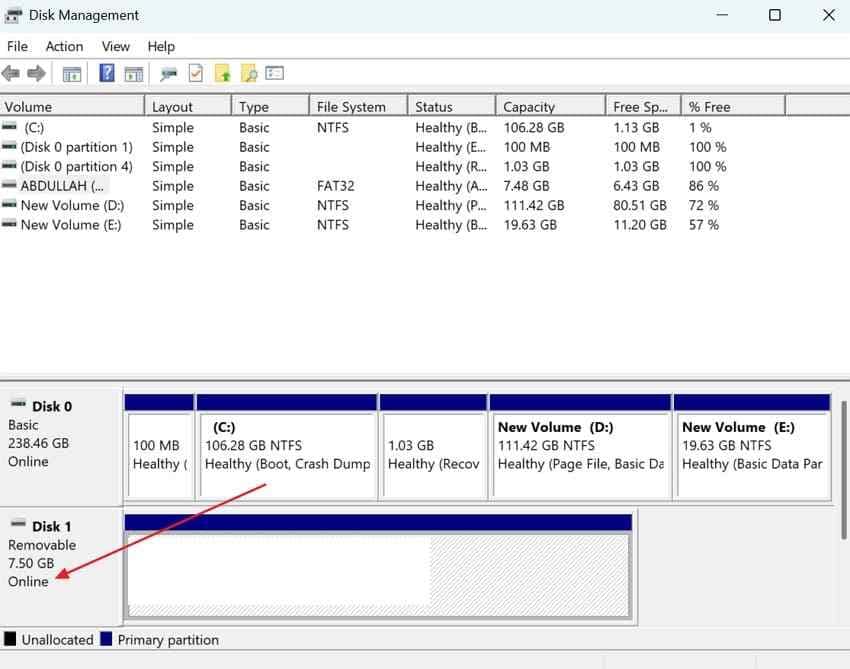
Fix 1. Bring the SD Card Online
A card or removable disk marked Offline will not appear normally in File Explorer. Bring it online only if you are sure it is the correct card.
Instructions: Right-click Start, choose Disk Management, locate the SD card marked Offline, right-click the disk label, and choose Online if the option appears. Wait a few seconds and check File Explorer.
Fix 2. Assign or Change the SD Card Drive Letter
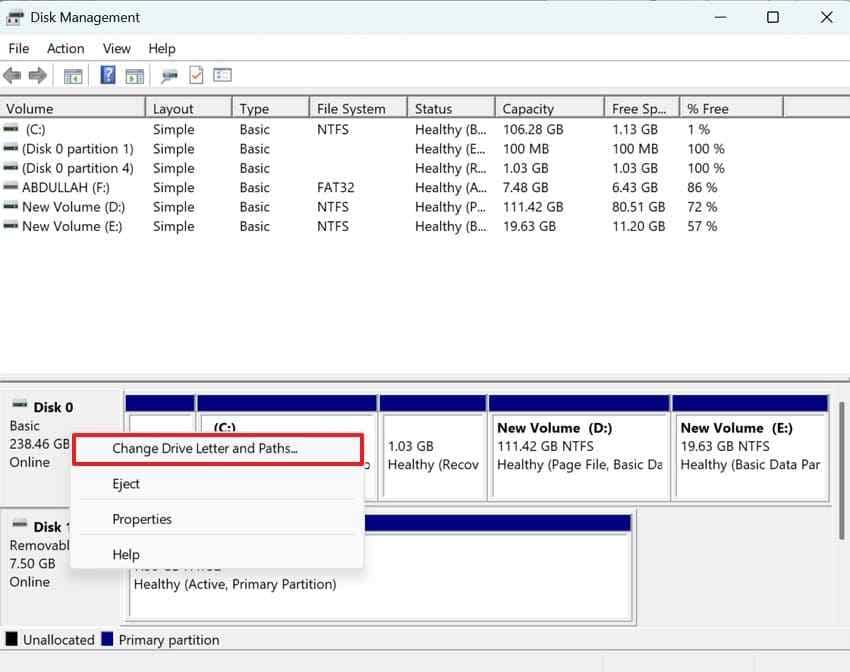
A missing drive letter is one of the most common reasons an SD card appears in Disk Management but not File Explorer. Microsoft provides a Disk Management procedure to change or assign a drive letter.
Step 1. In Disk Management, right-click the card volume and choose Change Drive Letter and Paths.
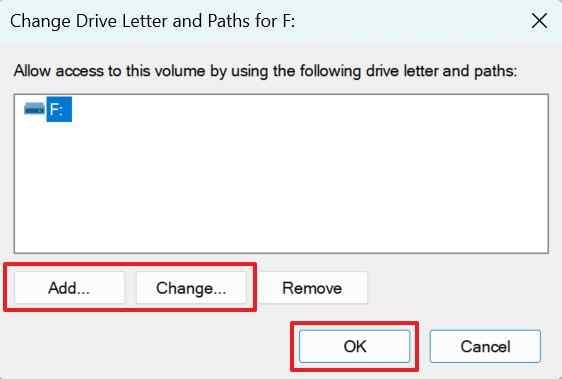
Step 2. Click Add or Change, choose any available drive letter, and click OK.
Fix 3. Create a New Volume Only After Recovery
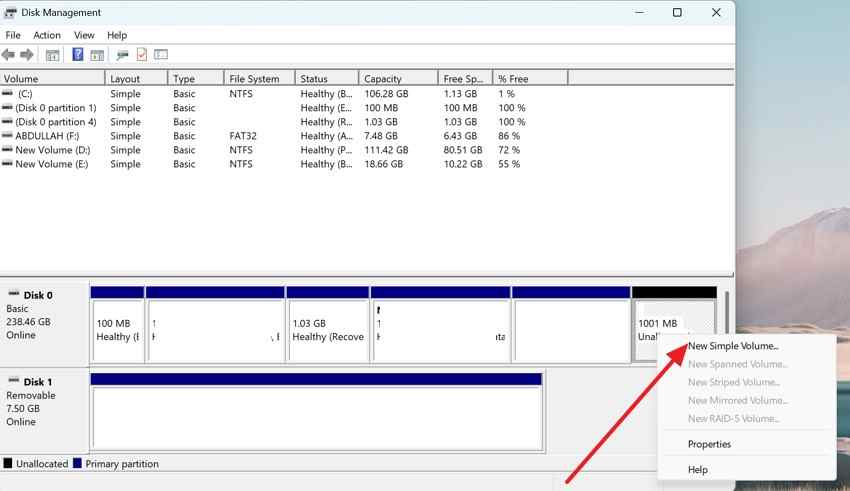
If the card appears as Unallocated, Windows has no usable partition to mount. Creating a new volume can overwrite partition information and make old data harder to recover. Use this only after recovery or when the card has no important data.
Instructions: After recovering files, open Disk Management, right-click the unallocated area, choose New Simple Volume, and follow the wizard.
Fix 4. Format the Card Only After Recovery
Formatting may make the SD card usable again, but Microsoft warns that formatting a volume destroys any data on that partition. Recover or back up files before formatting.
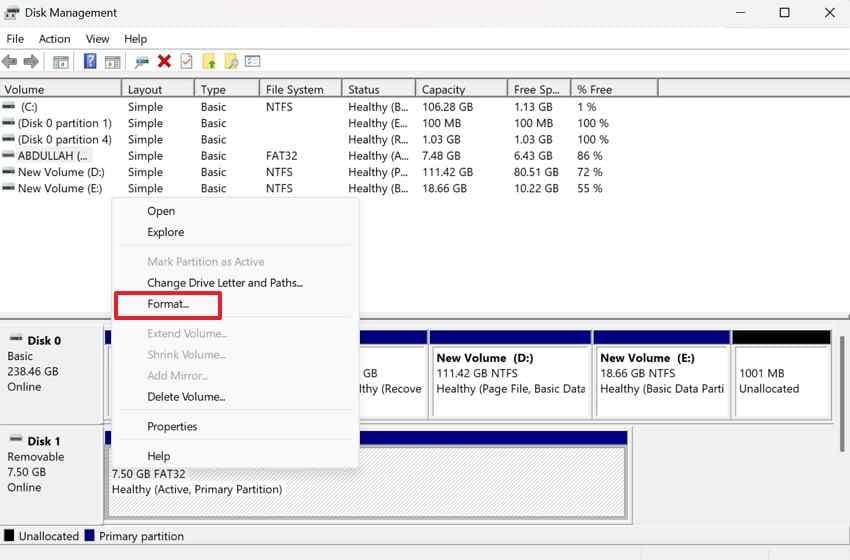
Step 1. In Disk Management, right-click the SD card volume and choose Format.
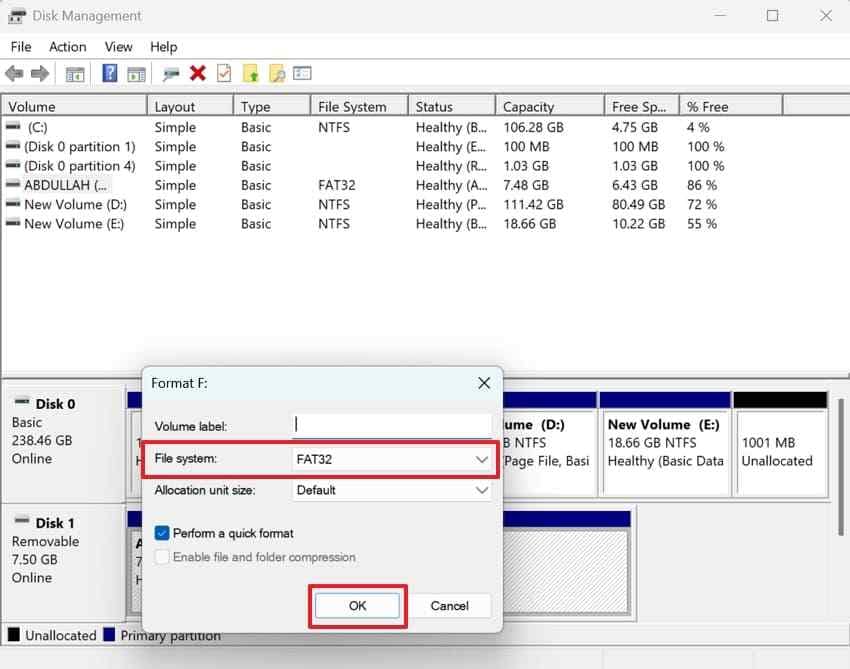
Step 2. Choose exFAT for most larger SDXC cards or FAT32 when required by an older device. Keep Perform a quick format selected, then click OK.
Part 6. Fix an SD Card Reader or Driver Problem in Windows 11
If the card does not appear in Disk Management, the reader, USB port, adapter, or driver may be responsible. Start with hardware checks, then move to driver actions.
Fix 1. Reinsert the SD Card and Restart Windows 11
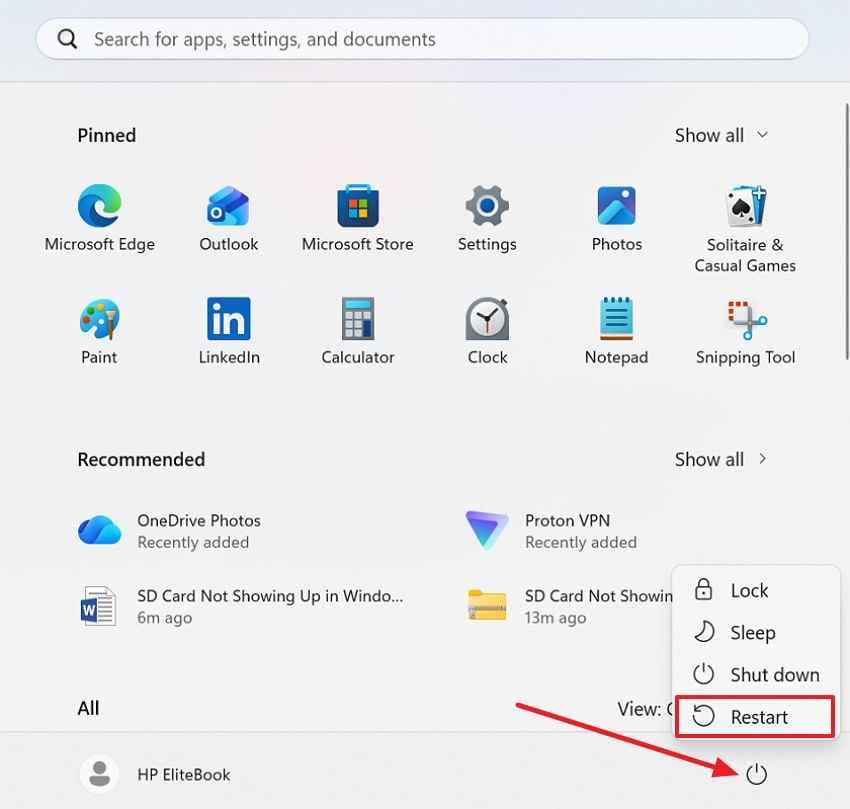
Remove the card, inspect the contacts, check the microSD adapter if you use one, and insert the card firmly. Restart Windows 11 from Start > Power > Restart, then check File Explorer, Disk Management, and Device Manager again.
Fix 2. Try Another USB Port, Card Reader, or Computer
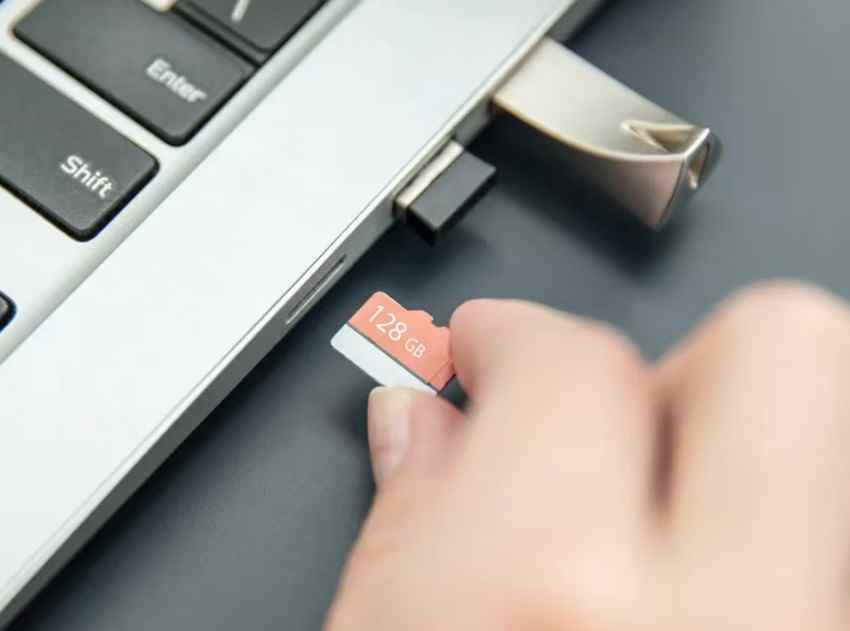
Test the card with another USB port, another external reader, or another computer. If a different reader works, the original reader or built-in slot is likely the problem. If the card fails everywhere, the card itself may be corrupted or damaged.
Fix 3. Enable the SD Card Reader in Device Manager
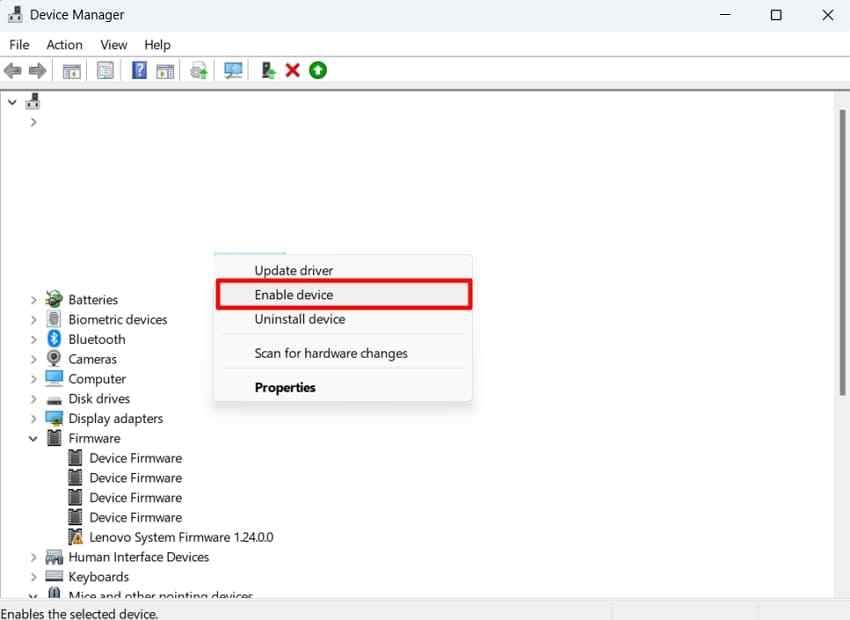
A disabled reader can keep an SD card from appearing anywhere in Windows. Open Device Manager and check whether the reader has a downward arrow or warning icon.
Instructions: Search for Device Manager, expand Disk drives, Memory technology devices, or Universal Serial Bus controllers, right-click the card reader, and choose Enable device if available.
Fix 4. Scan for Hardware Changes
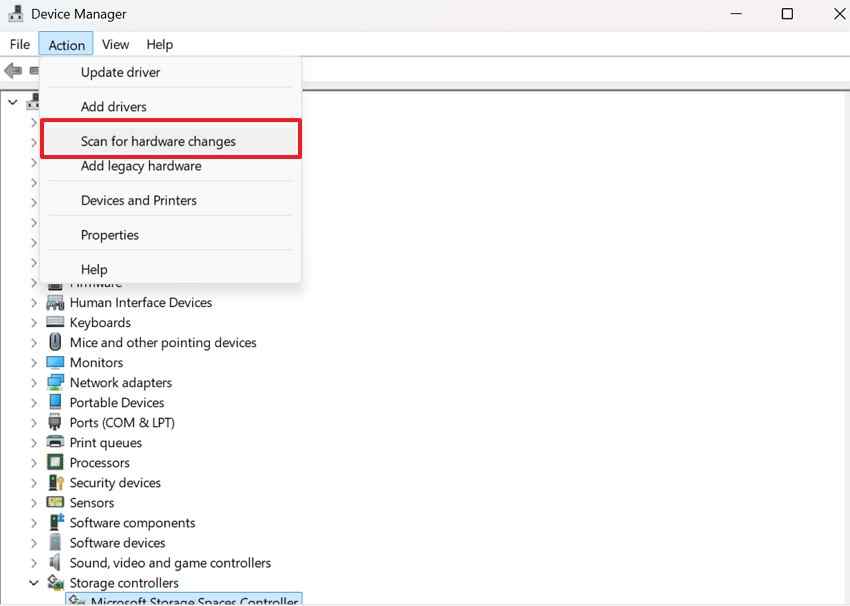
Microsoft's Device Manager troubleshooting guidance includes scanning for hardware changes after uninstalling or reinstalling drivers. You can also use it to force Windows to re-detect a card reader.
Instructions: In Device Manager, select your computer name or a device category, open Action, and choose Scan for hardware changes.
Fix 5. Update the SD Card Reader Driver
Windows uses drivers to communicate with connected hardware. Microsoft says Windows Update can install recommended drivers automatically, while optional drivers are not installed automatically.
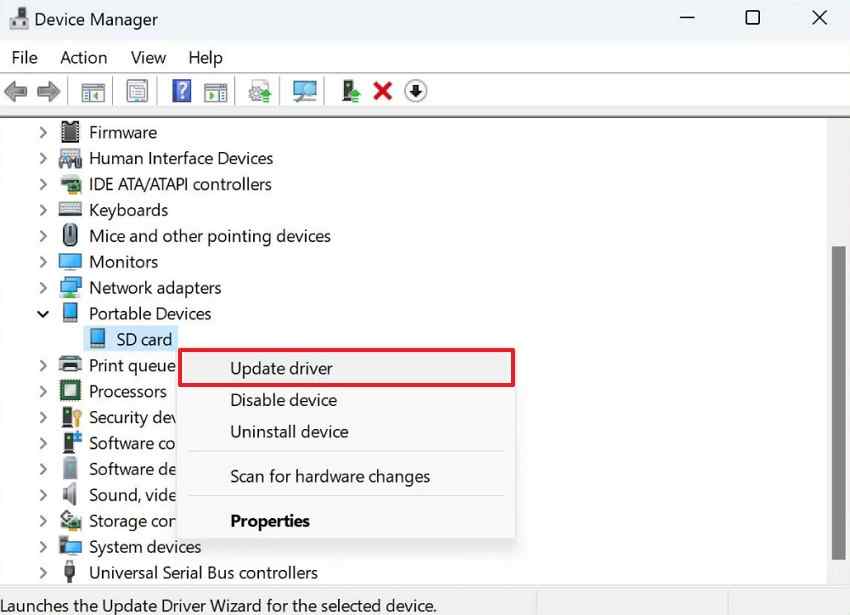
Step 1. In Device Manager, right-click the card reader and choose Update driver.
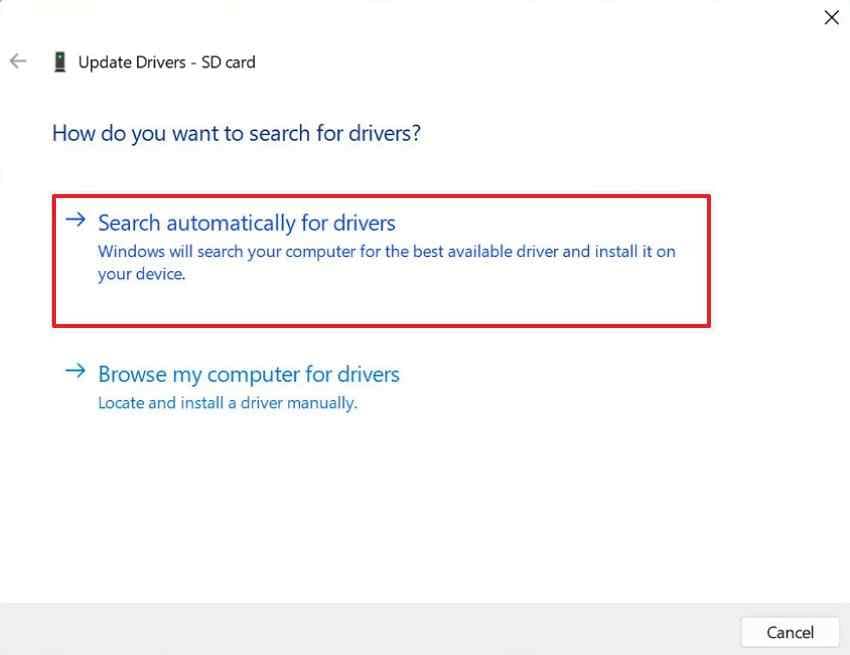
Step 2. Choose Search automatically for drivers. Restart Windows after the update finishes.
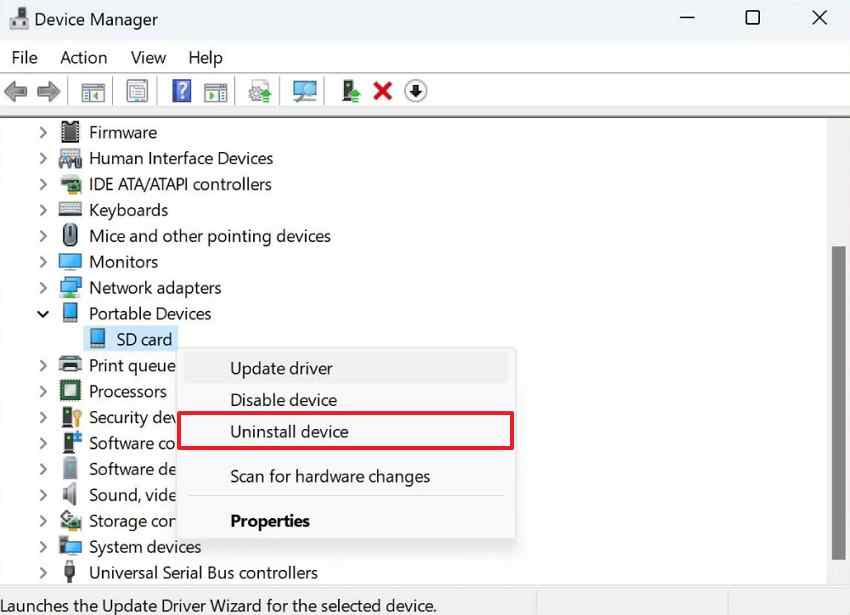
Fix 6. Uninstall and Reinstall the Card Reader Driver
If the driver is corrupted, uninstalling and reinstalling it can help. Microsoft Device Manager guidance for some driver errors recommends uninstalling the driver, restarting, and scanning for hardware changes.
Instructions: In Device Manager, right-click the card reader, choose Uninstall device, restart the computer, and let Windows reinstall the driver. If Windows asks for a driver, use the PC or reader manufacturer's official driver page.
Fix 7. Install Optional Driver and Windows Updates
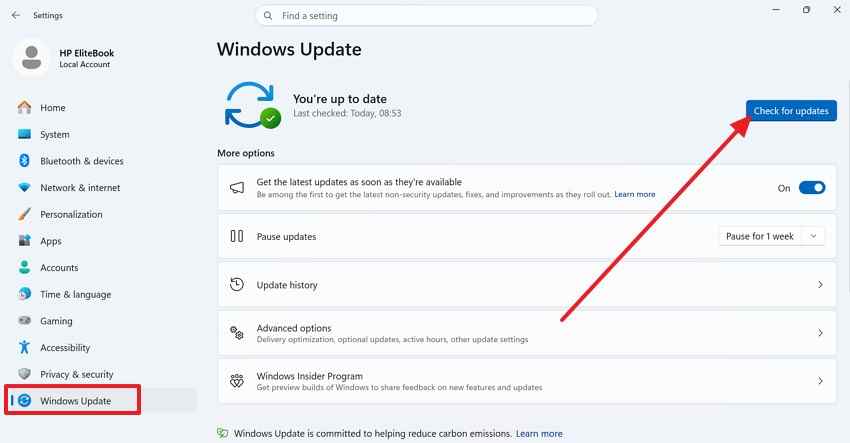
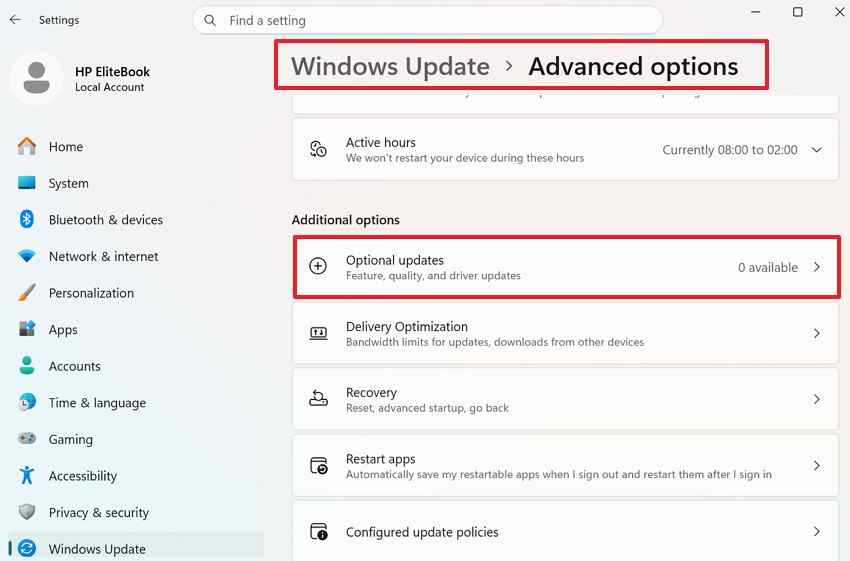
Microsoft explains that Windows 11 can manually install optional driver updates from Windows Update when they are available. This is useful when a card reader needs a storage, USB, chipset, or reader driver update.
For Windows updates: Open Settings > Windows Update and choose Check for updates.
For optional drivers: Open Settings > Windows Update > Advanced options > Optional updates > Driver updates. Select relevant storage, USB, chipset, or card reader drivers, then choose Download and install.
Fix 8. Roll Back a Recent Driver Update
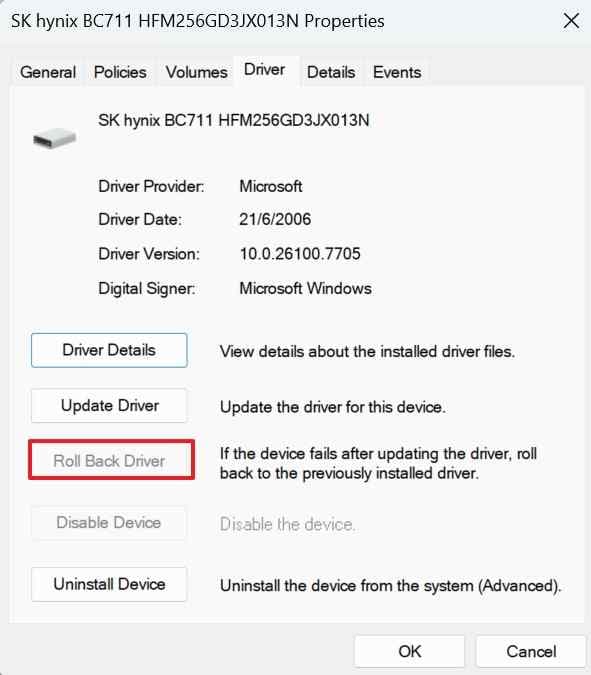
If the card reader stopped working immediately after a driver update, rolling back the driver may restore the earlier working version.
Instructions: In Device Manager, open the card reader Properties, go to the Driver tab, and choose Roll Back Driver if the option is available.
Part 7. Fix an Inaccessible or Corrupted SD Card After Recovery
Use these fixes only after your files are recovered or backed up. These actions can change the file system and are not the first step when files matter.
Fix 1. Run CHKDSK After Recovering Important Files
CHKDSK checks the file system and file-system metadata for logical and physical errors. With /f, it fixes disk errors. Because repair can modify the card, recover data first.
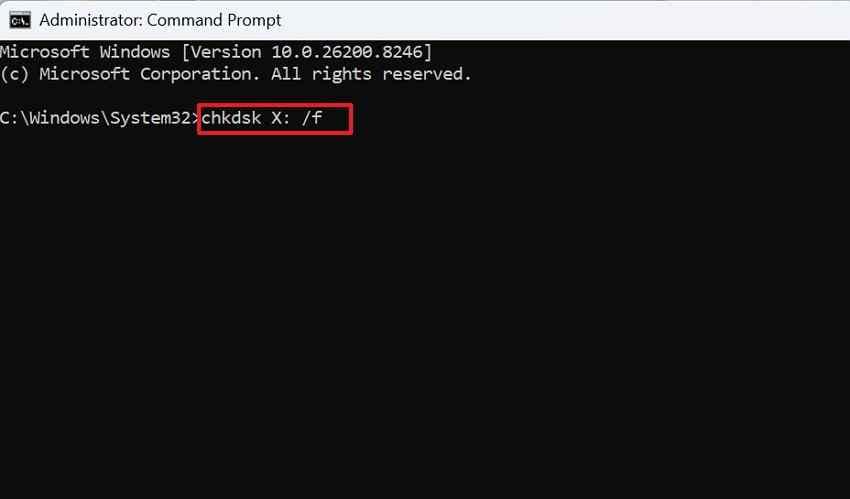
Instructions: Open Command Prompt as administrator, type chkdsk X: /f, replace X with the SD card drive letter, and press Enter.
Fix 2. Repair the File System if the Card Is Accessible
If the card opens but shows errors, Windows Error Checking may help with minor file-system problems. Back up or recover important files first.
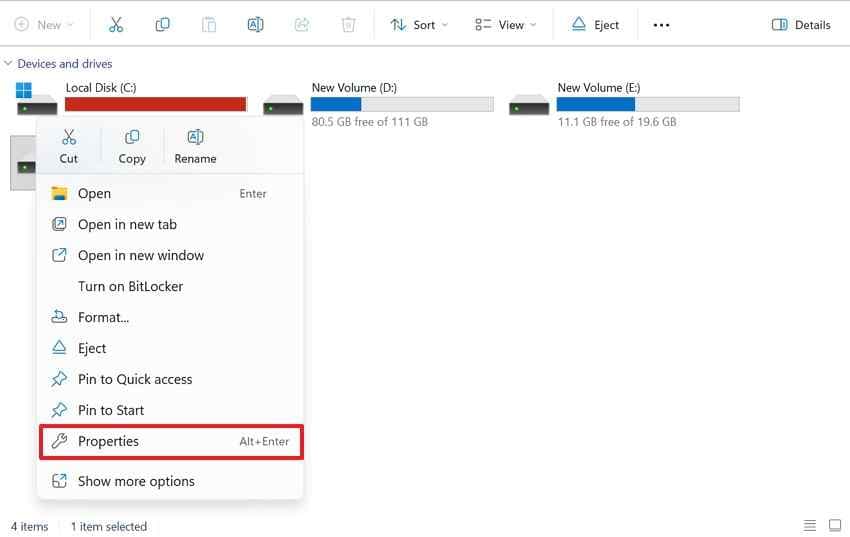
Step 1. Open File Explorer, right-click the SD card, choose Properties, and open the Tools tab.
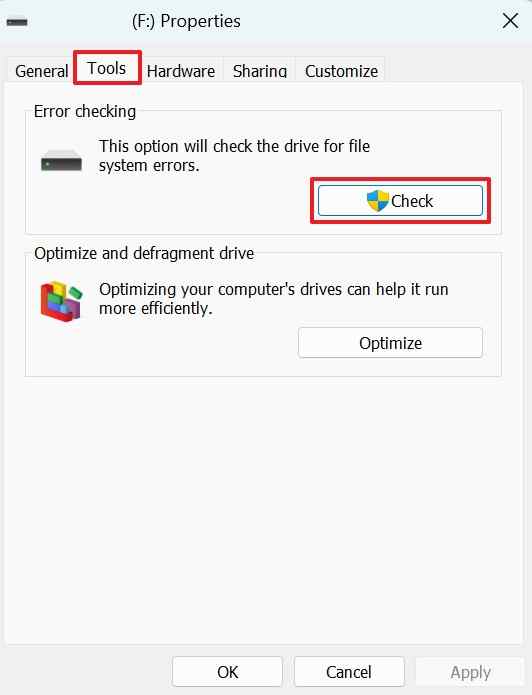
Step 2. Under Error checking, click Check, choose Scan drive if prompted, and wait for Windows to finish.
Fix 3. Reformat the SD Card After Recovery
If repair fails and the card is still not showing up correctly in Windows 11, reformat it only after files are recovered or confirmed unnecessary.
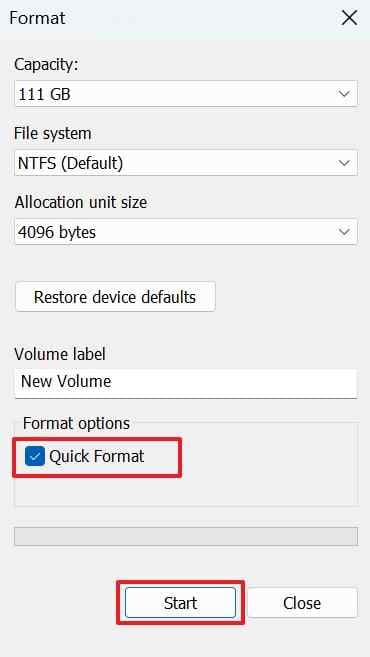
Step 1. Open File Explorer, right-click the SD card, and select Format.
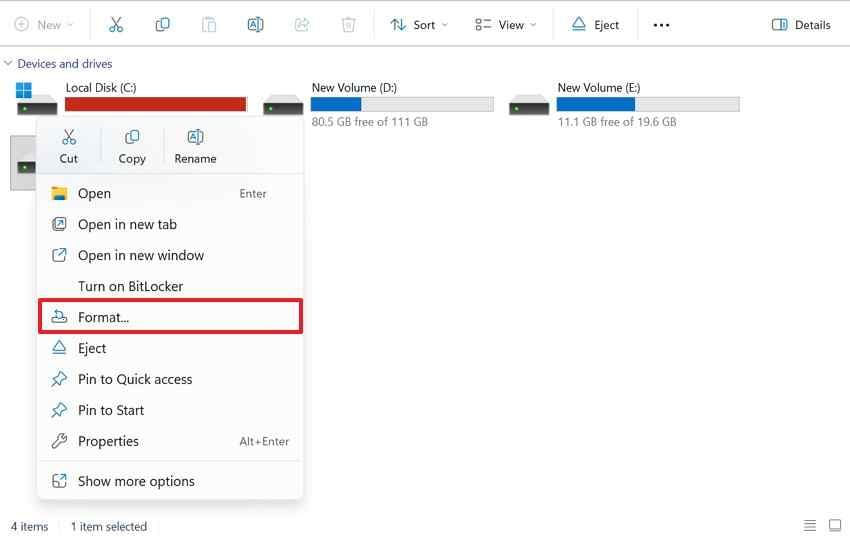
Step 2. Choose exFAT or FAT32, keep Quick Format selected, click Start, confirm the warning, and wait for formatting to finish.
Fix 4. Replace the Card if Errors Keep Returning
An SD card that repeatedly disappears, corrupts files, needs CHKDSK often, or fails again after formatting is no longer trustworthy. Replace it and keep a backup of important files.
More related articles you can't miss:
- How to Fix SD Card Not Detected Windows 10/11[9 Solutions]
- How to Fix SD Card Not Showing Up on Windows PC?
- How to Fix SD Card Not Showing Up on Mac
Part 8. How to Prevent SD Card Detection Problems in Windows 11
After fixing the current issue, these habits reduce the chance of another Windows 11 SD card not showing up problem.
- Safely eject removable storage: use the Windows safely remove option before pulling out the card or reader.
- Use a reliable card reader: cheap or damaged adapters are a common source of detection failures.
- Keep Windows and drivers updated: install relevant Windows, chipset, USB, and reader updates from trusted sources.
- Avoid removing the card during transfer: wait until copy, move, import, and camera-write operations finish.
- Back up important files: keep copies on a computer, cloud storage, or another external drive.
- Replace aging or frequently corrupted cards: repeated corruption usually means the card is wearing out or unreliable.
Conclusion
When an SD card is not showing up in Windows 11, start by checking whether Windows detects it in Disk Management or Device Manager. If the card is detected but inaccessible, recover files before formatting, creating a new volume, or running repair tools. If the reader is missing, troubleshoot the reader, USB port, and driver first.
Recoverit can help recover files from readable SD or microSD cards before risky repairs, while Windows tools can help fix drive letters, drivers, and file-system errors afterward. If the card is not detected anywhere or shows signs of physical damage, stop DIY attempts and consider professional recovery for important files.
FAQ
-
Why does my SD card show in Disk Management but not File Explorer?
This usually means Windows detects the card, but it has no drive letter, is offline, has no usable partition, or has a file-system problem. Assigning a drive letter may fix it when the partition is healthy. -
Why is my micro SD card not showing up in Windows 11?
A microSD card may not show up because of a loose adapter, bad USB reader, missing drive letter, disabled reader, driver issue, corrupted file system, or physical card failure. Test another reader and check Disk Management first. -
Will formatting fix an SD card not showing up in Windows 11?
Formatting can make a corrupted or unformatted card usable again, but it erases the file system and can reduce recovery chances. Recover important files before formatting. -
Can Recoverit recover data from an undetected SD card?
Recoverit can help when the SD card is readable enough to be detected by Windows or the recovery software. If no device or reader detects the card, software recovery may not work and professional recovery may be needed. -
Should I run CHKDSK when my SD card is not showing up?
Run CHKDSK only after recovering or backing up important files and only when the card has a drive letter. CHKDSK can repair file-system errors, but repair actions may modify card data.



