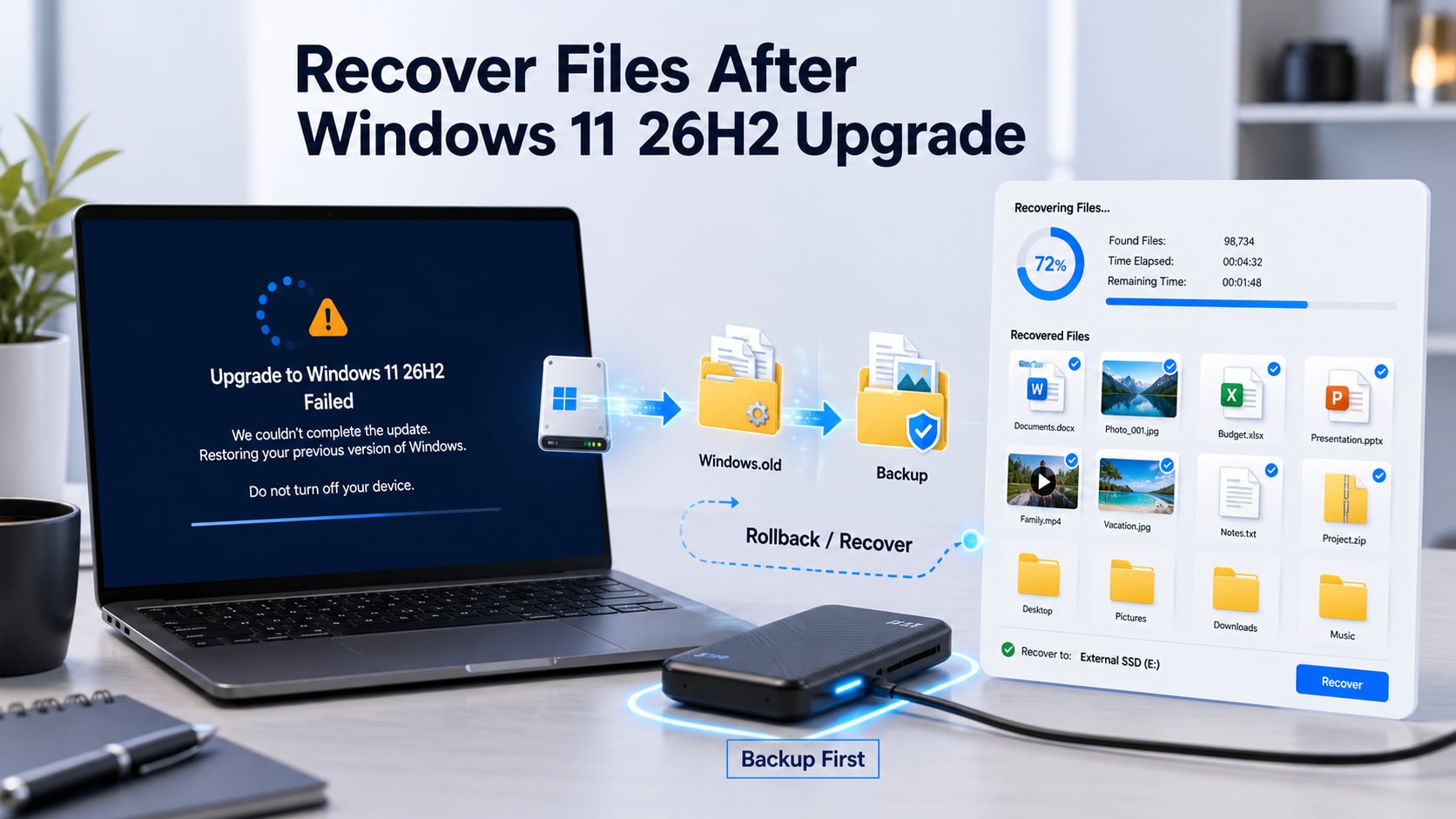
 TL;DR:
Since Microsoft has not confirmed a Windows 11 26H2 file-deletion bug, treat missing files as a profile or sync issue first by checking C:\Users, OneDrive, and the 10-day Windows.old folder before scanning the drive with recovery software like Wondershare Recoverit.
● Save any recovered data to a separate physical drive to prevent overwriting, as continuing to use the affected SSD can trigger TRIM commands that permanently erase deleted blocks.
● If the upgrade makes the PC unbootable or the volume appears RAW, do not run CHKDSK, format the drive, or use the 10-day system rollback feature until you have extracted essential files using a bootable recovery USB.
● Data recovery software cannot bypass Windows encryption, meaning you must provide the legitimate 48-digit BitLocker recovery key to unlock the volume before any file scan can succeed.
Ask AI for a summary
 ChatGPT
 Perplexity
 Gemini
 Claude
 Grok
Grok
Quick answer: When files disappear after a Windows 11 26H2 upgrade, first stop using the affected drive and determine whether the files are misplaced, unsynced, deleted, encrypted, or inaccessible because Windows cannot boot. Check Search, C:\Users, OneDrive, Windows.old, and backups in that order. If the files are not available there, scan the original volume without saving recovered data back to it. Repair, rollback, or reinstall Windows only after the important files are safely copied elsewhere.
Microsoft's August 27 announcement does not report a confirmed Windows 11 26H2 file-deletion issue. This guide covers the recovery risks that can accompany any preview upgrade, interrupted installation, rollback, storage failure, or destructive troubleshooting step; it does not assume that 26H2 itself erased the files.
Fact-checked on August 31, 2026: The 26H2 release status and recovery procedures were checked against current Microsoft Windows Insider, Windows Support, Windows Release Health, BitLocker, OneDrive, File History, and Windows recovery documentation.

In This Article
Part 1. What Windows 11 26H2 Release Preview Means
Microsoft released Windows 11 version 26H2 Build 26300.9278 to the Release Preview Channel on August 27, 2026. The company says 26H2 will be delivered through an enablement package, or eKB, and will reach general availability later in 2026.
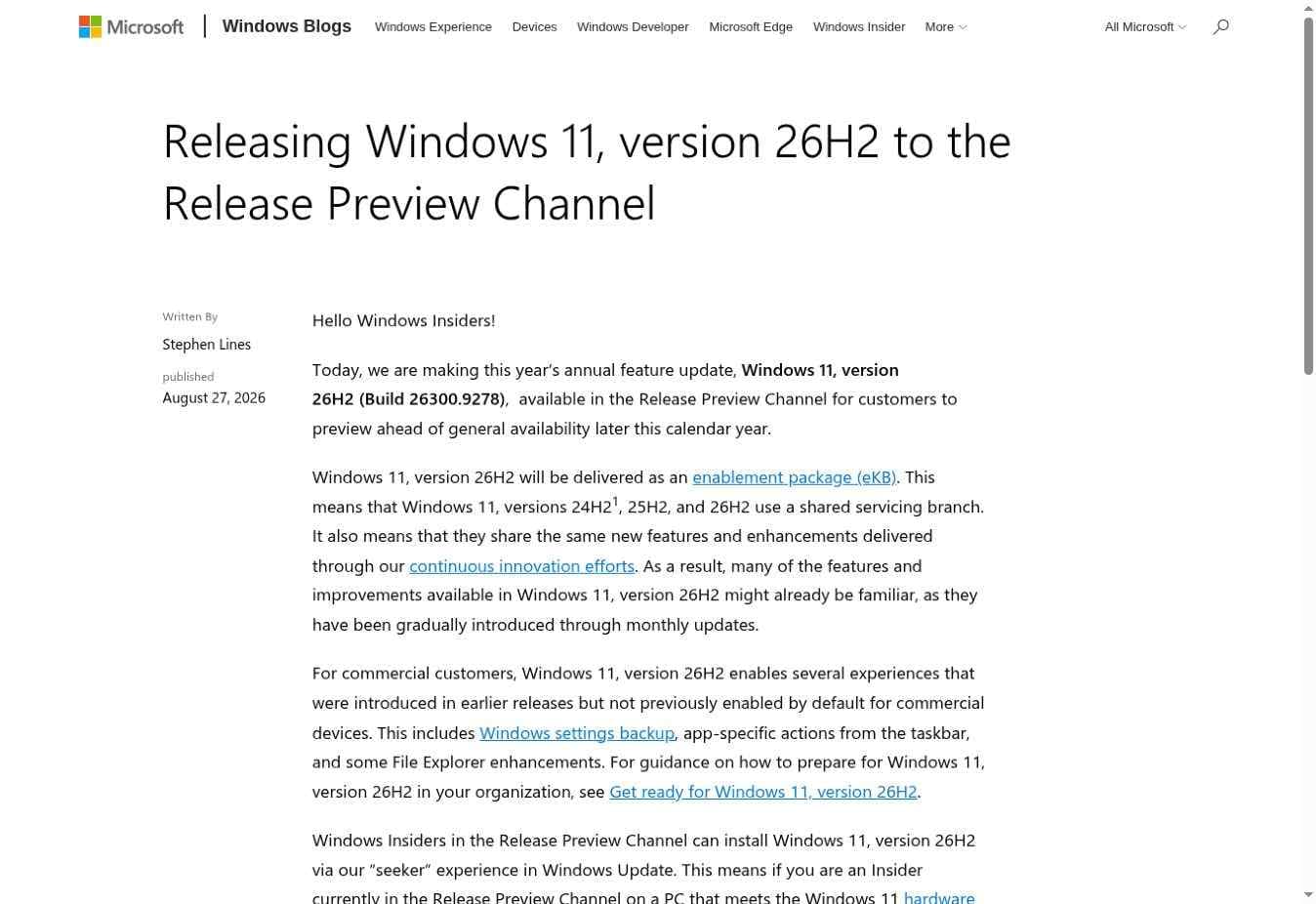
An enablement package is a small switch that activates features already staged through the shared servicing branch. Microsoft states that Windows 11 versions 24H2, 25H2, and 26H2 share that branch. This generally makes the version transition faster than a full operating-system replacement, but it does not eliminate ordinary update, storage, power, driver, encryption, or user-profile risks.
| Current 26H2 Fact | What It Means | What It Does Not Mean |
| Official Release Preview | Windows Insiders in Release Preview can seek the compatible update through Settings > Windows Update. | 26H2 is not yet the general-availability release for every Windows 11 PC. |
| Build 26300.9278 | This is the first announced 26H2 Release Preview build. Current build details belong in Microsoft's official release notes. | A later preview update may change the build number or known-issue status. |
| eKB Delivery | The new version can activate features through a small enablement package and restart. | An eKB does not guarantee that Windows.old will be created or that an unhealthy drive cannot fail during the restart. |
| No Confirmed File-Loss Incident In The Announcement | Missing-file troubleshooting should begin with profiles, sync, backups, and the storage device. | Users should not describe 26H2 as deleting files without evidence tied to a verified issue. |
Before changing the system, confirm what is actually installed. Press Windows + R, enter winver, and check the version and OS build. For known issues that may emerge after publication, use the current Windows release health dashboard rather than relying on a static symptom list.
Part 2. Protect The Recovery Chance Before You Begin
A missing Desktop after an update is not the same as a deleted folder, and an unbootable PC is not proof that the SSD has lost its data. Identify the symptom before attempting a repair.
| Symptom | Likely Situation | First Safe Action |
| The desktop opens, but familiar folders look empty | Temporary profile, different account, changed Known Folder location, or OneDrive sign-in/sync change | Search the entire PC and inspect every legitimate profile before running recovery software. |
| Only a few files or folders are missing | Moved, deleted, unsynced, excluded from backup, or overwritten | Check Search, Recycle Bin, OneDrive, Previous Versions, and the original path. |
| Windows.old exists | A previous installation's personal files may remain temporarily | Copy needed files out immediately; Windows normally removes most Windows.old content after 10 days. |
| Windows loops, crashes, or enters recovery | The Windows installation may be damaged while the drive remains readable | Recover or copy data with another PC or bootable media before reinstalling. |
| The volume appears RAW or unallocated | File-system or partition metadata may be damaged | Do not format, initialize, repartition, or run CHKDSK before data recovery. |
| BitLocker requests a recovery key | The encrypted volume is locked after a security-sensitive change | Use the legitimate 48-digit recovery key to unlock it; recovery software cannot bypass BitLocker. |
| The drive clicks, disappears repeatedly, reports zero capacity, or is not detected in firmware | Possible hardware or controller failure | Stop powering or scanning the drive and contact a qualified recovery laboratory for high-value data. |
If local files may have been deleted, minimize activity on the affected drive. Do not download utilities to it, enable Storage Sense, empty Recycle Bin, run Disk Cleanup, format a RAW partition, use Reset this PC, or perform a clean installation. On an SSD, Windows may issue TRIM for deleted blocks; once flash cells are erased or new data overwrites them, software recovery cannot reconstruct the original content.
Also prepare a different destination with enough free space. Recovered files must be saved to an external drive, another internal physical disk, or a network location—not back to the source being scanned.
Part 3. Recover Missing Files When Windows Still Starts
When Windows reaches the desktop and the volume opens normally, begin with non-destructive checks. Many post-upgrade “lost file” reports are account, profile, or sync-location problems that do not require a deep scan.
Method 1. Search The PC, User Profiles, And OneDrive
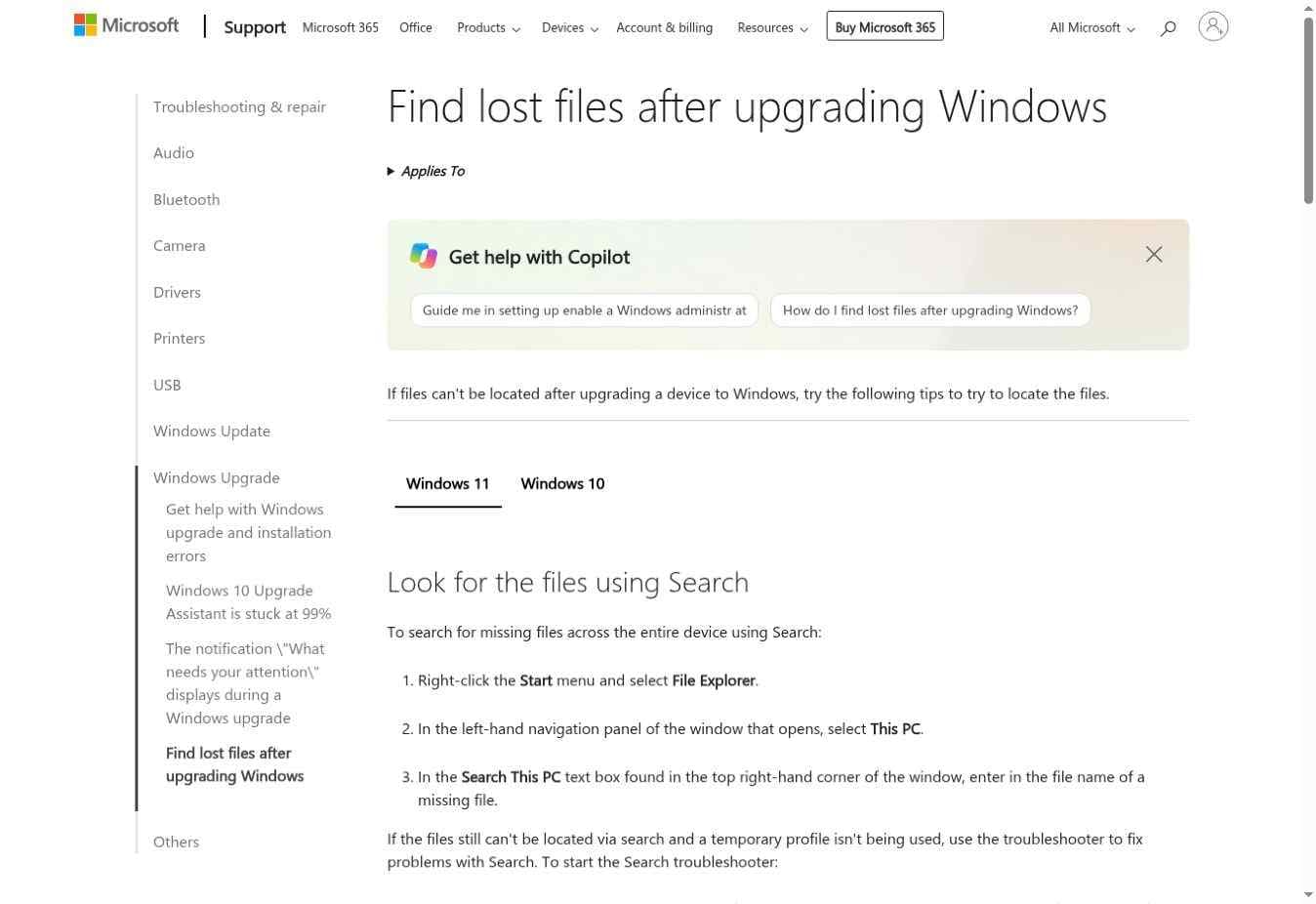
Microsoft's current lost-files-after-upgrade guidance starts with a whole-PC search, hidden files, backups, OneDrive, and account checks. Follow that sequence before assuming deletion.
- Search This PC: Open File Explorer, select This PC, and search an exact filename, part of a filename, or an extension such as
*.docx,*.xlsx,*.jpg, or*.psd. Sort results by Date modified when the name is unknown. - Inspect User Profiles: Open
C:\Usersand look for the previous account folder, a renamed profile, or duplicate folders. Check Desktop, Documents, Downloads, Pictures, Videos, Music, Favorites, and any custom work folders. Copy files out; do not delete profile folders. - Show Hidden Items: In File Explorer, select View > Show > Hidden items. App data and some redirected folders can be hidden, but do not move system files merely because they are visible.
- Check For A Temporary Profile: If Windows says you are signed in with a temporary profile, immediately copy any new work created during that session to another drive. Signing out can delete data stored in the temporary profile. Restart the PC once, then sign in again.
- Verify The Account: Open Settings > Accounts > Your info and confirm that the expected Microsoft, work, or local account is active. Also check whether an older administrator account was disabled during the upgrade.
- Check OneDrive Online: Sign in to OneDrive on the web, search all files, inspect Recycle Bin and Personal Vault, and verify that you are using the correct account. A sync-state or Known Folder Backup change can make the local Desktop look empty while the cloud copy still exists.
If Microsoft 365 OneDrive protection was already active, eligible subscribers may also be able to restore the whole OneDrive to an earlier point within the supported window. Follow Microsoft's current missing OneDrive files procedure and preview the effect before confirming a bulk restore.
Method 2. Retrieve Files From Windows.old
Windows.old can contain the previous installation's user folders, but it is a temporary opportunity rather than a guaranteed backup. Microsoft states that most of its content is automatically removed after 10 days. It is not created by Reset this PC, and a clean installation that formats the drive does not preserve the former installation.
- Open File Explorer and select This PC > Local Disk (C:).
- Open Windows.old > Users, then open the folder for the previous Windows account.
- Check Desktop, Documents, Downloads, Pictures, Videos, and any other personal folder.
- Copy the required files to an external drive or the current profile. Open several copied files to verify them.
- Repeat the check for other old user accounts. Do not run cleanup tools until every needed file has been validated.
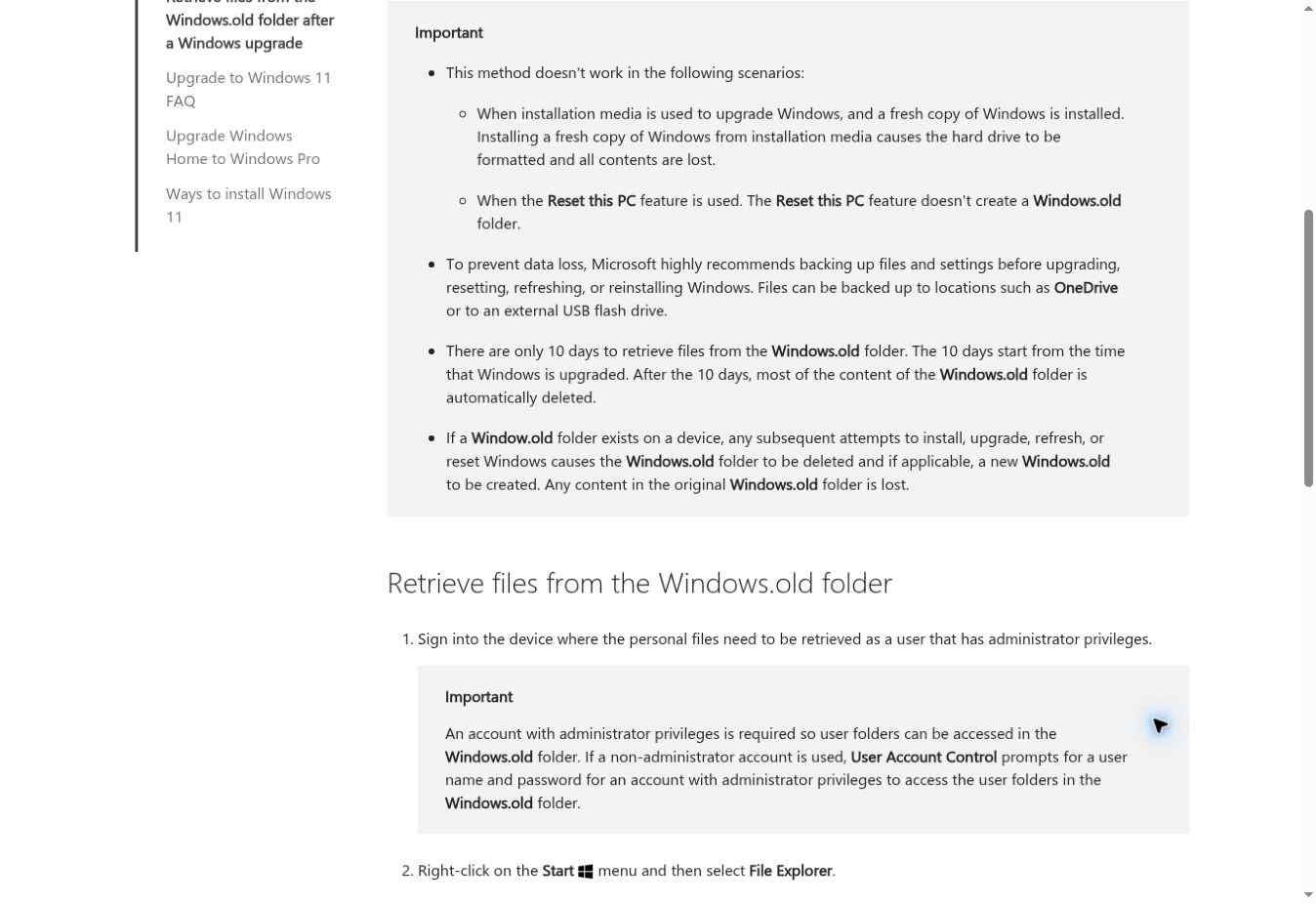
An eKB installation does not guarantee a Windows.old folder. If the folder does not exist, do not create one or attempt to recover from a similarly named folder created by a later reset. A subsequent installation, upgrade, refresh, or reset can remove the old Windows.old and replace it with a newer one. Microsoft's Windows.old instructions document these limits.
Method 3. Restore A File History Or Cloud Backup
A verified backup is safer than undelete scanning because it does not depend on deleted blocks remaining intact. If File History was configured before the 26H2 upgrade, restore a missing file or folder from an earlier version.
- Connect the drive that contains the File History backup.
- In File Explorer, browse to the folder that originally contained the missing item.
- Right-click the folder and select Restore previous versions.
- Select a version dated before the failed upgrade and choose Open to inspect it.
- Use Restore to and select another location when possible, so the current folder is not overwritten before verification.
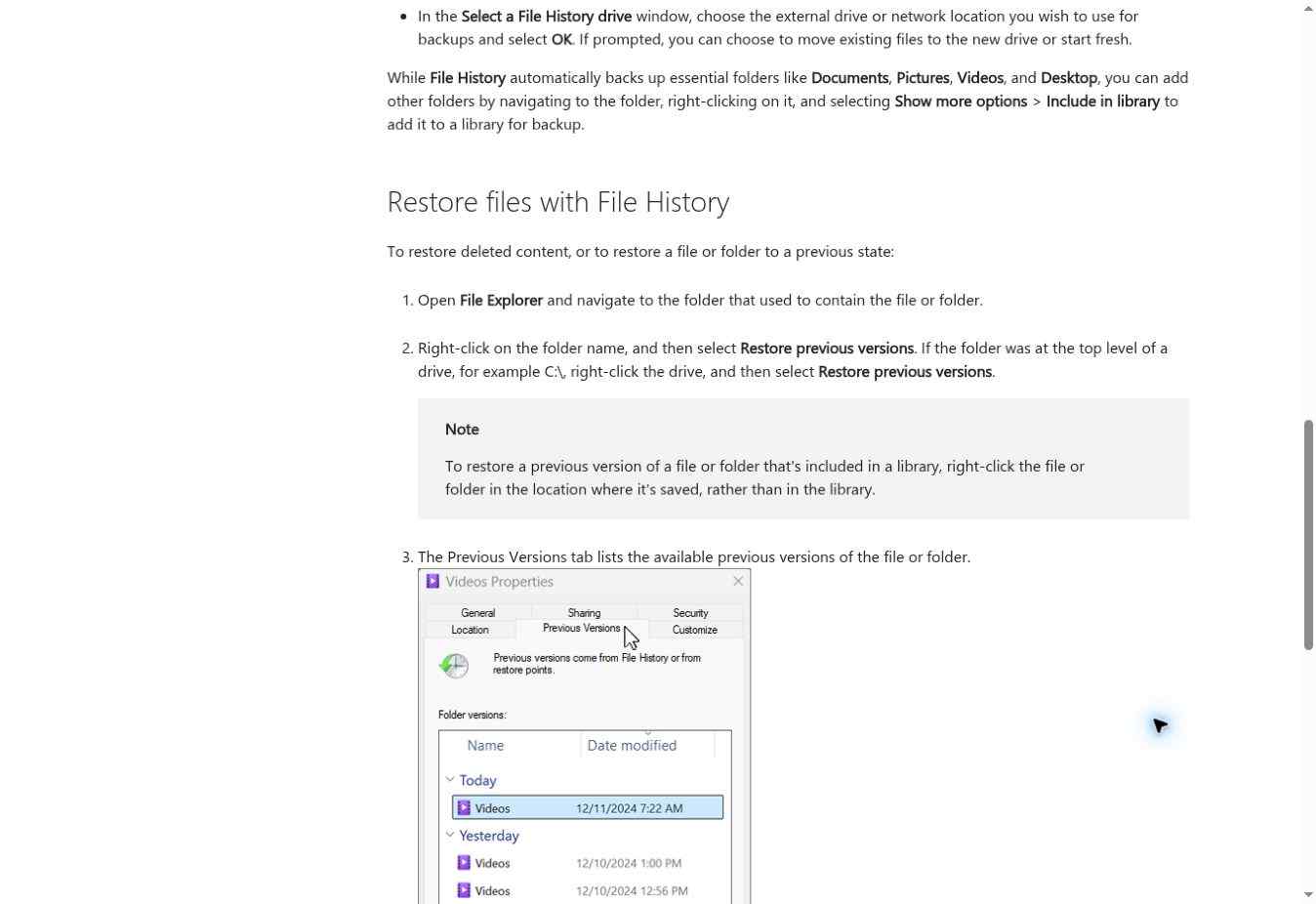
If the list is empty, the folder may not have been included or the backup disk may be disconnected. Check any Windows Backup, NAS, cloud, work-management, or application-specific backup separately. The current Microsoft File History guide also explains browsing backup versions directly.
Method 4. Recover Deleted Files With Recoverit
Use data recovery when the drive is detectable but the files remain missing after Search, profiles, OneDrive, Windows.old, Recycle Bin, and backups have been checked. Recoverit for Windows can scan a readable Windows volume for deleted or inaccessible files, but it should not be presented as a Windows repair tool or a way to bypass encryption.
If the affected data was on the system SSD, using the PC can write temporary files to that same disk. For irreplaceable data, shut down and connect the disk to a healthy computer where practical. If you must work on the original PC, install the software and save results on a different physical drive. Recovery is never guaranteed, especially after TRIM or overwrite.
- Select The Source Volume: Launch Recoverit and choose the Windows volume or exact location where the files were stored. Do not choose the external drive that will hold the recovered copies.

- Scan And Narrow The Results: Let the scan continue while filtering by file type, size, date, status, or path. Search for known filenames and examine both the original folder tree and discovered file categories.

- Preview Before Recovery: Preview representative documents, photos, videos, or archives when supported. A filename alone does not prove that the file content is intact.
- Recover To Another Drive: Select only the needed files and save them to an external disk or another physical drive. Open the recovered copies and verify project structure before any Windows repair.

Recover Deleted Files With Recoverit
 Security Verified. Over 7,302,189 people have downloaded it.
For a smaller deleted-file case, see the focused file recovery guide. If an entire partition disappeared, use the lost partition recovery workflow and avoid recreating the partition first.
Part 4. Recover Data When Windows Will Not Boot
A failed boot does not automatically mean the files are gone. Windows may be damaged while the internal drive remains readable. The safer sequence is to rescue data first and troubleshoot startup second.
Method 5. Use Recoverit Crashed Computer Recovery
Recoverit Crashed Computer Recovery creates a bootable USB on a working computer, starts the affected PC in a separate recovery environment, and copies recoverable files without first reinstalling Windows. The USB creation process erases the selected USB drive, so back it up and verify its capacity before confirming.
- On a healthy Windows PC, connect an empty USB drive, open Recoverit, and select System Crashed Computer.
- Select the correct USB drive and create the bootable recovery media. Do not unplug it while the environment is being written.
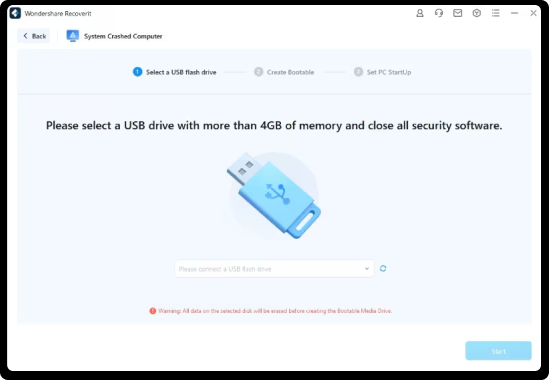
- When creation finishes, safely eject the USB and connect it to the unbootable 26H2 PC.
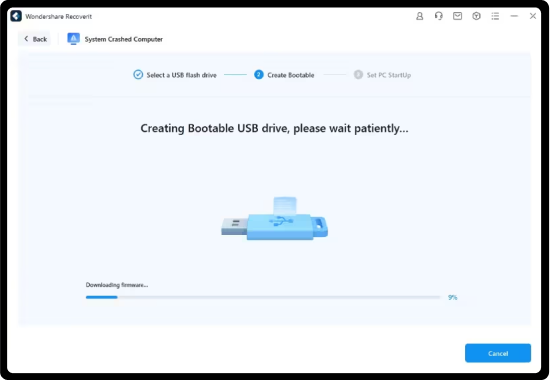
- Start the affected computer and use the manufacturer's temporary boot menu or UEFI settings to boot from the USB. Do not change random firmware storage settings.
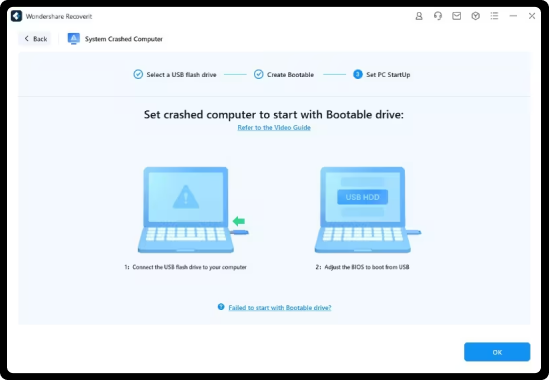
- Scan the internal drive, preview recoverable items, and save them to a second external drive—not to the Windows drive or the bootable USB if it lacks safe free space.
- Verify the recovered files on a healthy PC before using startup repair, rollback, reset, or reinstall.
If the internal disk is easy to remove and warranty terms permit it, connecting it as a secondary drive to a healthy computer can be another read-focused path. Do not repeatedly power a drive that clicks, vanishes, or reports the wrong capacity.
Handle RAW, Unallocated, BitLocker, And Failing Drives
| Condition | Do This | Avoid This |
| RAW Volume | Confirm the correct physical disk and scan the existing volume or disk for data. | Do not format it or run CHKDSK; CHKDSK requires a recognized file system and is not a RAW-data recovery tool. |
| Unallocated Space | Scan the disk for the missing partition and files. Use this unallocated disk recovery guide for the symptom. | Do not create a new volume, initialize the disk, convert its partition style, or install Windows over it. |
| BitLocker Recovery Screen | Match the first eight digits of the key ID and retrieve the legitimate 48-digit key from the correct Microsoft account, work or school account, printed copy, or USB backup. | Do not expect recovery software or Microsoft Support to recreate a missing key. |
| Physical Failure Signs | Power down and use a professional recovery service when the files justify the cost. | Do not keep rescanning, freezing, opening, striking, or repeatedly reconnecting the drive. |
Microsoft's current BitLocker recovery-key guidance confirms that Microsoft cannot retrieve, provide, or recreate a lost key. If no valid recovery option exists, resetting the device removes the files. Unlocking the correct volume therefore comes before any file scan.
Part 5. Repair Or Roll Back Windows After Recovery
Rollback and reinstallation can restore system usability, but neither is a substitute for recovering missing data. Perform these operations only after important files have been copied to a separate location and verified.
Method 6. Go Back From Windows 11 26H2
If the 26H2 preview causes a compatibility or stability problem and Windows still starts, the built-in Go back option may return the PC to the previous Windows version.
- Back up current personal files and export any new work created since the upgrade.
- Open Settings > System > Recovery.
- Under Recovery options, select Go back if it is available.
- Read the list of apps, drivers, and settings that will be removed or changed, then complete the guided rollback.
- After Windows starts, verify the build with
winverand confirm that the external backup still opens.
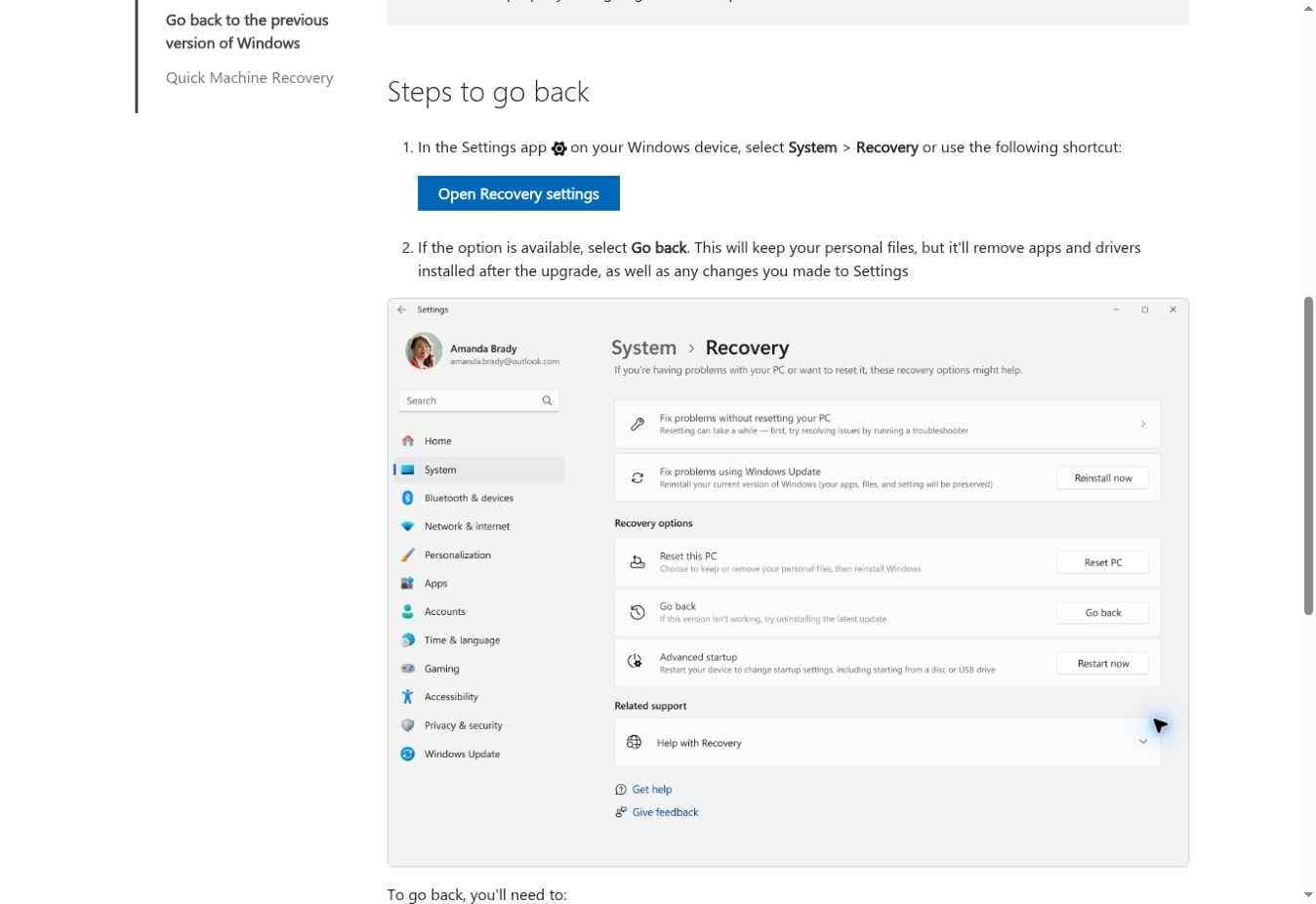
Microsoft says the option is available for only a limited time—usually 10 days after an upgrade—and requires the retained Windows.old and $Windows.~BT folders. Go back keeps personal files by design, but removes apps and drivers installed after the upgrade and reverses some setting changes. Back up first because rollback is not data recovery. Windows Insiders also remain enrolled after a rollback unless they separately change their Insider settings. See Microsoft's current Go back guidance for the exact limitations.
Method 7. Reinstall The Current Windows Version
When core Windows components are damaged but the PC still starts, Windows 11 may offer a repair reinstall that preserves apps, files, and settings.
- Confirm that recovery and backup are complete, then connect the PC to power and the internet.
- Open Settings > System > Recovery.
- Under Fix problems using Windows Update, select Reinstall now.
- Review the restart option and start the reinstall. Keep the PC powered until it completes.
- After sign-in, verify files, apps, update history, device encryption, and the installed build.
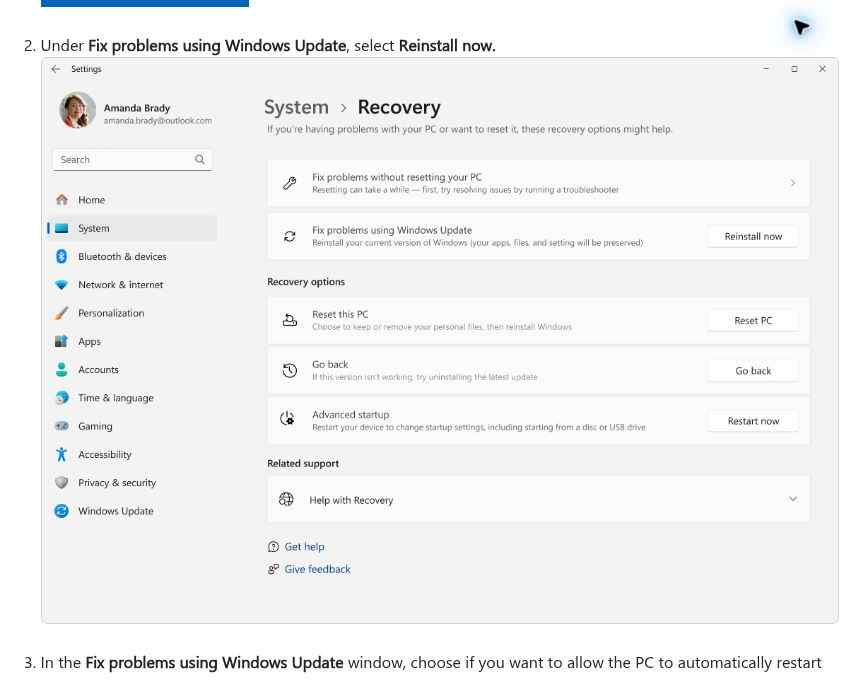
This feature reinstalls the same Windows version and repairs system files while preserving apps, files, and settings, according to Microsoft's repair reinstall instructions. It may be unavailable on managed devices or where organizational policy disables it. It cannot restore a file that was already deleted and trimmed.
Reset this PC and a clean installation are last-resort system actions. Even a keep-my-files option is not a substitute for a verified backup, while a clean install that formats the target drive is destructive. If the disk is RAW, unallocated, physically unstable, or still contains unrecovered data, do not reinstall onto it.
Part 6. Estimate The Real Recovery Chance
Recovery software does not manufacture missing content. Success depends on where the file was stored, what changed after loss, whether encryption is unlocked, and whether the storage media still returns reliable reads.
| Situation | Typical Outlook | Reason |
| File is in another profile, OneDrive, or a backup | Excellent | The file is not deleted; access or location needs correction. |
| Windows.old exists within its retention period | Good for files present there | The old user folder is still readable, but the copy is temporary and incomplete by design. |
| Deleted file on a lightly used HDD | Possible | Directory records may be gone while some file sectors remain unmodified. |
| Deleted file on an SSD with TRIM | Low to uncertain | The SSD controller may erase trimmed blocks before a scan can read the former content. |
| RAW or missing partition on a readable disk | Possible | Data may remain while file-system or partition metadata is damaged. |
| BitLocker volume with the correct key | Depends on disk condition | The volume can be unlocked and assessed normally. |
| BitLocker volume without any valid key | Not software-recoverable | Legitimate decryption credentials are required. |
| Overwritten content | Not recoverable from overwritten blocks | The original bytes no longer exist at those locations. |
| Clicking, undetected, or electronically failed drive | Professional evaluation required | DIY scans can increase media damage or produce unstable reads. |
Do not judge a recovery result only by the number of filenames. Preview representative files, confirm that their contents open, and verify related project folders. A recovered file with the right name but corrupted internal data is not a successful recovery.
Part 7. Prepare A PC Before Installing 26H2 Preview
Release Preview is closer to general availability than earlier Insider channels, but it is still pre-release software. A short preparation checklist reduces both downtime and data-loss exposure.
- Create An Independent Backup: Copy irreplaceable files to an external drive or another machine, and keep a cloud or off-site copy for critical work. Open sample files from the backup before updating.
- Save The BitLocker Key: Verify that the 48-digit recovery key is accessible from another device and corresponds to the PC's key ID.
- Check Drive Health And Free Space: Resolve existing storage warnings and maintain enough working space for servicing and rollback files.
- Record The Current State: Save the current build, edition, device model, storage configuration, critical app versions, and recovery media details.
- Connect Reliable Power: Keep laptops plugged in and do not force a shutdown while the update is servicing.
- Disconnect Nonessential Drives: Leave required input devices connected, but disconnect backup disks and unrelated removable storage to reduce target confusion.
- Pilot Before Broad Deployment: Test line-of-business applications, drivers, VPNs, security tools, and rollback on representative non-production devices before a wider organizational rollout.
If the computer holds the only copy of essential files, it is not ready for a preview upgrade. Backups protect against update mistakes, drive failure, theft, malware, and user error in a way that post-loss scanning cannot guarantee.
Conclusion
Windows 11 26H2 is currently an official Release Preview delivered through an enablement package, not a confirmed file-loss event or the final general rollout. If files appear missing, preserve the source, prove where the files are, and use the least destructive recovery path first.
Search every profile and OneDrive, copy from Windows.old while it exists, restore a verified backup, and then use Wondershare Recoverit only when the original files are genuinely deleted or inaccessible. For an unbootable PC, recover from a bootable environment or another healthy computer before rollback or reinstallation. This order protects the evidence on disk and avoids turning a recoverable problem into an overwritten one.
FAQ
-
Is Windows 11 26H2 available to everyone?
No. As of August 31, 2026, Microsoft has released Windows 11 26H2 Build 26300.9278 to the Release Preview Channel for eligible Windows Insiders who seek the update. Microsoft says general availability will come later in 2026. -
Does the Windows 11 26H2 eKB delete personal files?
Microsoft's August 27 announcement does not mention a confirmed 26H2 file-deletion issue. An eKB activates staged features, but missing files can still result from a different profile, OneDrive state, interrupted servicing, drive failure, user deletion, reset, format, or later troubleshooting. -
Where should I look first when files disappear after the upgrade?
Search This PC, check Recycle Bin, inspect every account folder under C:\Users, verify whether Windows loaded a temporary profile, search OneDrive online, and open Windows.old if it exists. Then check File History and other backups before scanning for deleted files. -
Will every 26H2 upgrade create Windows.old?
No. Enablement-package delivery does not guarantee Windows.old. Reset this PC does not create it, and a clean install that formats the drive does not preserve it. When Windows.old is created by an eligible upgrade, Microsoft normally removes most of its content after 10 days. -
Can going back to the previous Windows version recover deleted files?
No. Go back is a system-version rollback, not file recovery. It is usually available for 10 days, depends on retained upgrade folders, removes some recently installed apps and drivers, and cannot reconstruct file content that has been deleted or overwritten. -
Can I recover files if Windows 11 26H2 will not boot?
Possibly. If the internal drive is detected and readable, connect it to a healthy PC or use a bootable recovery environment to scan and copy files to another drive. Recover data before Startup Repair, reset, rollback, or reinstall. Stop DIY work if the drive is physically unstable. -
Should I run CHKDSK on a RAW partition after a failed upgrade?
No. A RAW volume lacks a recognized file system for CHKDSK to repair. Do not format, initialize, or create a new volume either. Scan or image the existing disk first, recover important files elsewhere, and repair or recreate the volume only after recovery. -
Can Recoverit unlock a BitLocker drive without the recovery key?
No. Recoverit does not bypass BitLocker. The encrypted volume must be legitimately unlocked with the correct password or 48-digit recovery key before accessible data can be scanned. Microsoft cannot recover a lost key for you. -
Can deleted files be recovered from an SSD after a Windows update?
Sometimes, but the chance can be low because Windows and the SSD may process TRIM for deleted blocks. Stop using the SSD immediately, recover to another physical drive, and understand that erased or overwritten blocks cannot be restored by software. -
Does Recoverit repair a failed Windows 11 26H2 installation?
No. Recoverit is used to retrieve accessible recoverable files. After the data is safe, use Windows Recovery, Go back, Fix problems using Windows Update, vendor diagnostics, or a clean installation as appropriate.


