
Few browser issues feel as jarring as Chrome crashing without reason. The 'Aw, Snap!' page often appears alongside the code STATUS_STACK_BUFFER_OVERRUN. This sudden crash can happen during browsing, streaming, or simple everyday tasks.
You may suddenly lose important tabs and unsaved work when this error occurs. Therefore, in this article, you will learn how to fix the STATUS_STACK_BUFFER_OVERRUN "Aw, Snap!" error in Chrome.
Try Recoverit to Perform Data Recovery
 Security Verified. 3,591,664 people have downloaded it.
In this article
Part 1. What Does the "Aw, Snap!" STATUS_STACK_BUFFER_OVERRUN Error Mean?
This error message means your browser crashed while loading a web page. Chrome stops the active process to protect your computer from further instability. It indicates that a browser process encountered a memory corruption issue. This issue acts as a browser safeguard against potential memory corruption and instability.
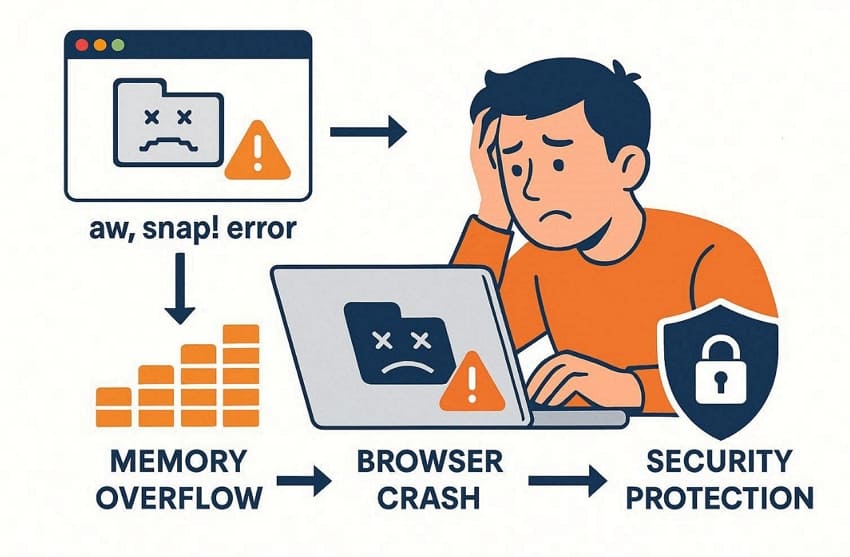
Your browser instantly shuts the broken tab to prevent any major data leaks. In addition, the crash happens when internal code exceeds its assigned storage space. This memory overload forces the application to terminate the tab for safety. Multiple hidden factors can trigger this confusing bug on your device.
Common Situations Where the Error Appears
Such an error usually happens when you stream videos or play heavy web games. Yet, the following detailed table shows exactly when this crash impacts your device:
| Common Situations | What Happens During the Crash |
| Media Streaming | High-definition videos freeze suddenly and trigger the "Aw, Snap!" screen. |
| Online Gaming | Complex 3D web games overload memory and force immediate browser shutdowns. |
| Multi-tab Browsing | Opening too many resource-heavy pages together breaks the active tab. |
| Filling Online Forms | Submitting large amounts of data causes a sudden stack buffer failure. |
Why Does Chrome Show the STATUS_STACK_BUFFER_OVERRUN Error?
Several internal system conflicts can cause this frustrating browser crash. Anyhow, let’s look at the main reasons why this specific error happens:
- Corrupted Extensions: Faulty browser add-ons interfere with normal web page rendering processes. This specific code conflict triggers an immediate shutdown inside your tab.
- Outdated Software: In case you run an old version of Chrome, it creates compatibility bugs. Your unpatched browser cannot handle modern web scripts without crashing.
- Malware Infections: Harmful software modifies critical system files without permission. These malicious programs inject bad code into active browser memory banks.
- Graphics Bugs: Broken display drivers cause severe video rendering failures during browsing. This hardware miscommunication forces the app to terminate the page.
- Memory Issues: Memory corruption, software conflicts, or unstable drivers can trigger browser crashes. The physical system component fails to process heavy web tasks reliably.
Part 2. Fix STATUS_STACK_BUFFER_OVERRUN Error in Chrome: Basic Checks
Users should perform a few quick checks prior to trying complex solutions. Thus, these 3 checks help you learn how to stop Chrome from crashing with STATUS_STACK_BUFFER_OVERRUN:
1. Confirm Chrome Is Up to Date
In some situations, you may be facing this error due to an outdated version of Chrome. The browser’s developers release updates to fix known bugs and security gaps. Therefore, missing these updates leaves your browser open to this specific crash type. An updated browser handles memory tasks more efficiently and safely overall. Individuals now follow these steps to check and update their browser:
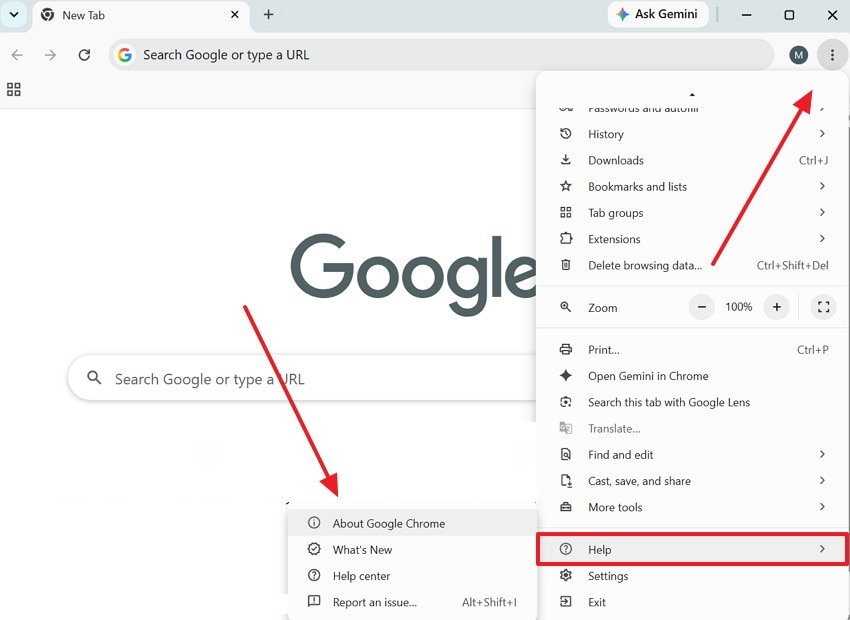
Step 1. Initially, you need to click the “Three Dots” icon and go to the “Help” section to select “About Google Chrome.”
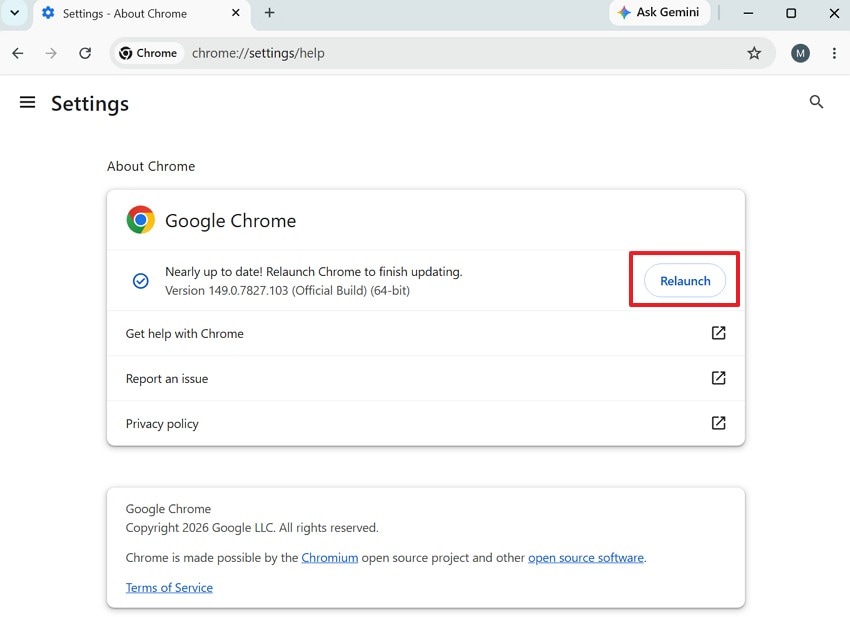
Step 2. After a few moments, press “Relaunch” as your Chrome gets updated.
2. Test Other Websites
You should check if this specific error happens across multiple distinct websites. To cater to this need, open a few different web pages to see if they load successfully. In case other sites work fine, the problem lies within that initial webpage. Many times, a poorly optimized script on that site might cause your browser to crash. Nonetheless, global crashes indicate a deeper problem within your actual application settings.
3. Note Recent System Changes
It’s also advisable to think about what changed right before this error first appeared. Common triggers include recent Chrome/Windows updates or new drivers, too. New antivirus programs or newly added extensions can also cause crashes. Individuals should write down or remember each change made to their computer recently. These small details help you undo whatever caused this specific instability.
Part 3. How to Fix the Chrome STATUS_STACK_BUFFER_OVERRUN Error
You can now implement several proven methods to resolve this issue. In this part, individuals will learn how to fix the STATUS_STACK_BUFFER_OVERRUN "Aw, Snap!" error in Chrome:
Fix 1. Reload the Page and Restart Chrome
Usually, temporary system bugs cause a sudden conflict that resolves upon restarting Chrome. Therefore, anyone who is facing an error should reload their web page. This quick action forces the software to refresh its internal code structure. You can also try to shut down the browser and restart it after a few moments. So, adhere to the steps required to stop the "Aw, Snap! Something went wrong" error in Chrome:
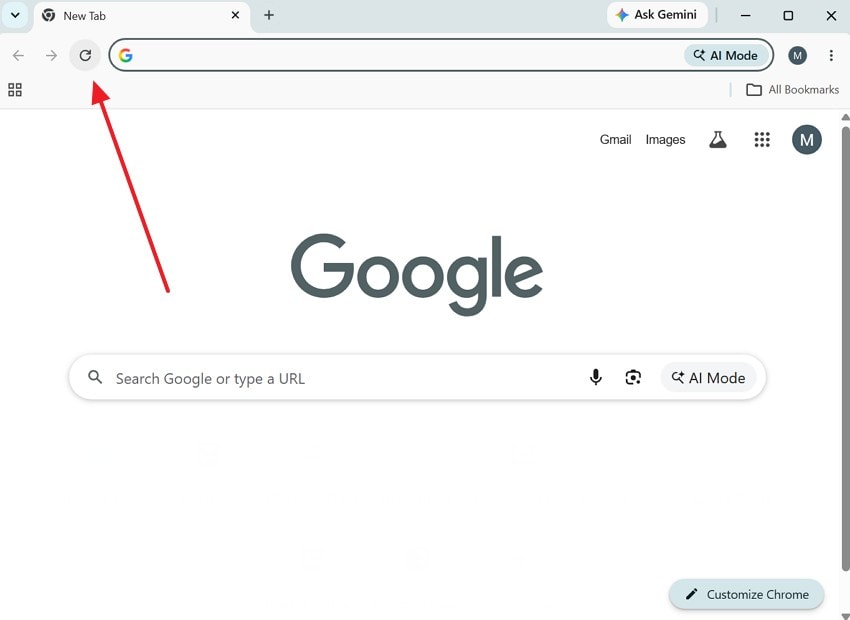
Instruction. When the "Aw, Snap!" page appears, click the “Reload” button. Users can also try to press “F5” on their keyboard to refresh the affected tab. If the error returns, close all Chrome tabs completely and launch the browser again.
Fix 2. Test in Incognito Mode
Such a specific mode runs your browser without loading any installed browser extensions or settings. Such a diagnostic test helps determine whether an extension causes the crash. In case the error disappears, an extension or profile likely caused it originally. If the crash still happens, the problem lies deeper within Chrome itself. Anyways, let us follow these steps to stop Chrome from crashing with STATUS_STACK_BUFFER_OVERRUN:
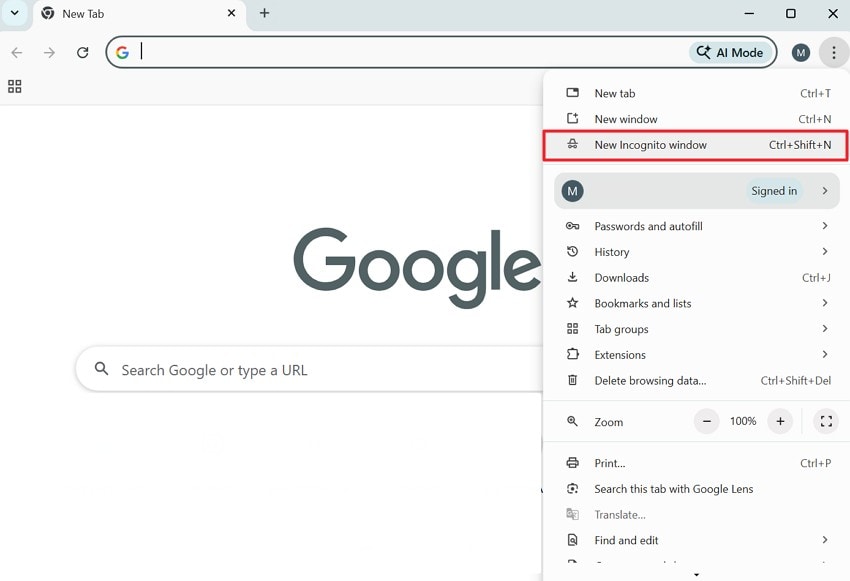
Step 1. Individuals need to press the “Three Dots” icon and opt for “New Incognito Windows”
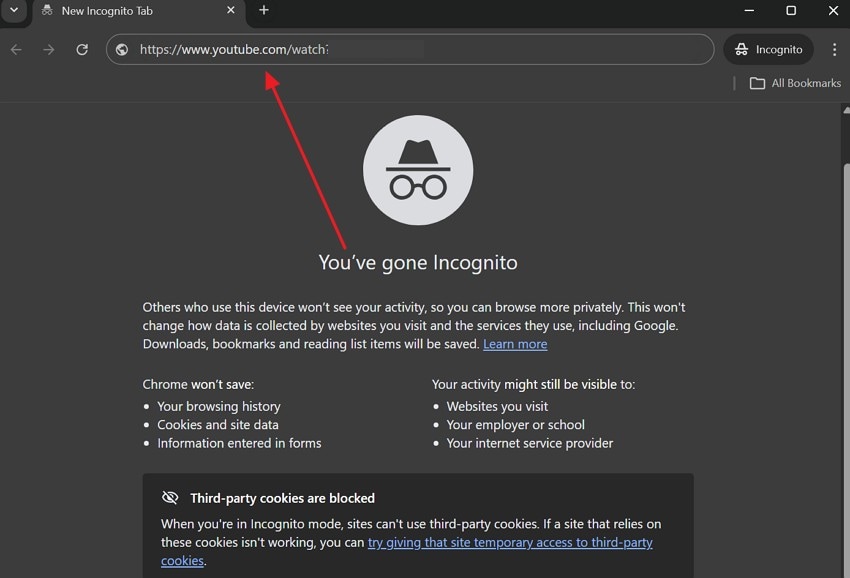
Step 2. In the newly opened private screen, input the webpage link that was causing the crash.
Fix 3. Disable Browser Extensions
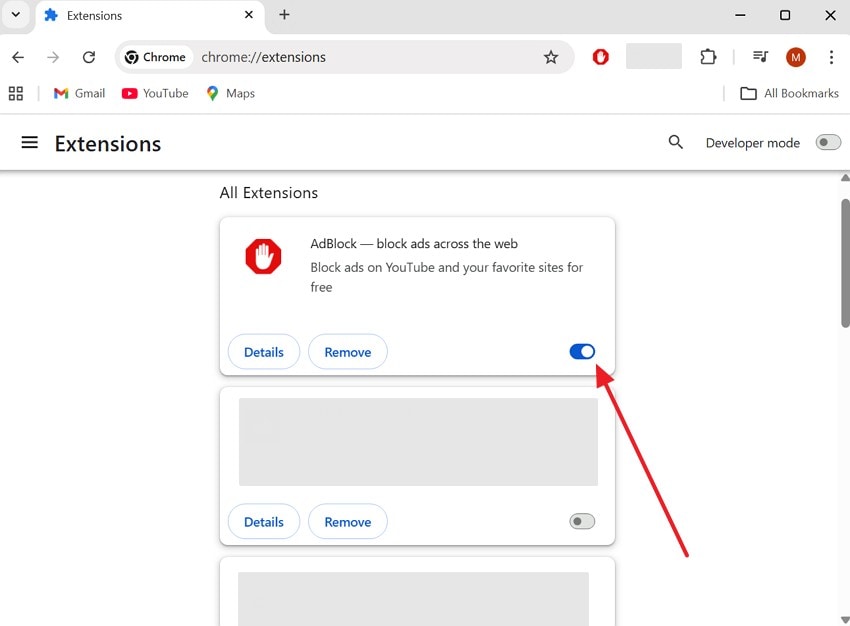
Sometimes, browser extensions may interfere with Chrome's memory management process quite a bit. People may try to disable every extension to remove this potential crash trigger. Furthermore, re-enabling each extension individually helps you spot the exact culprit. The crash returns once you re-enable the specific problematic extension itself. Therefore, take guidance from the process required to manage your extensions:
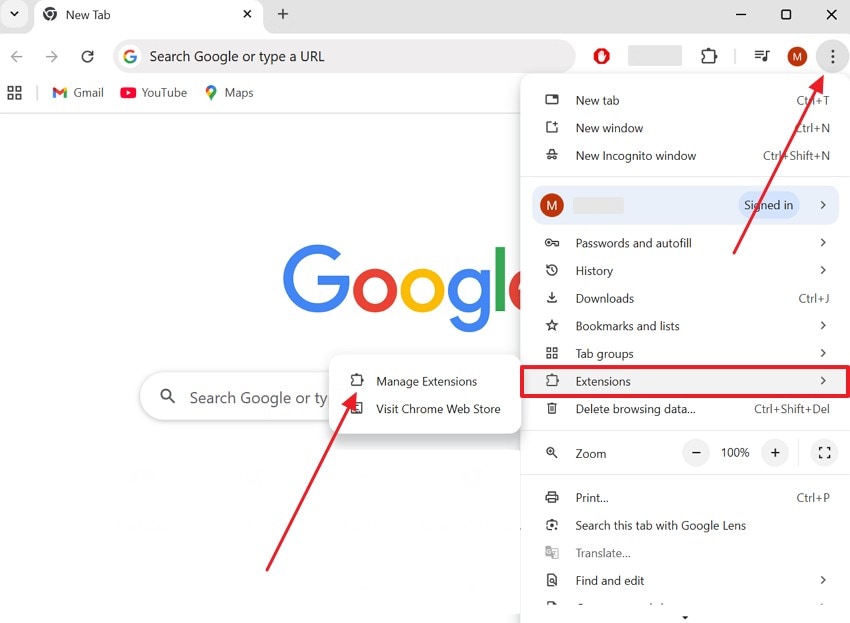
Step 1. Upon pressing “Three Dots,” move to the “Extensions” section and access “Manage Extensions.”
Step 2. Review the available extensions and switch off the toggle of any active add-on. After a few moments, revisit the website to see if the error no longer appears.
Fix 4. Change Chrome's Graphics Backend
Graphic processing issues also cause deep system conflicts inside your internet browser. In such cases, changing the internal ANGLE graphics backend bypasses broken display drivers. This advanced fix helps resolve sudden crashes that start after a Windows update.
Moreover, individuals can force the application to use a much more reliable framework. Users have to review the given steps below to stop the "Aw, Snap! Something went wrong" error in Chrome:
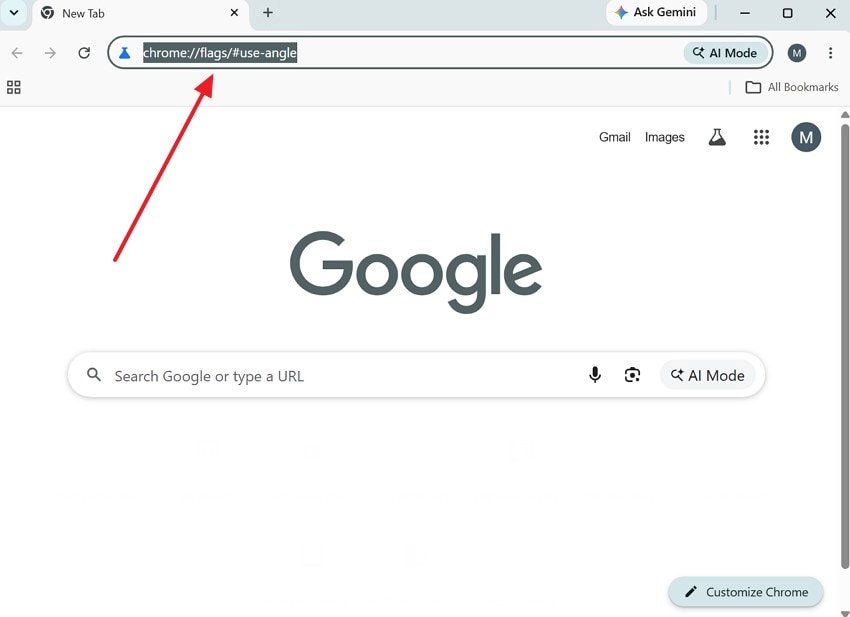
Step 1. Type in the “chrome://flags/#use-angle” address in your browser and press “Enter.”
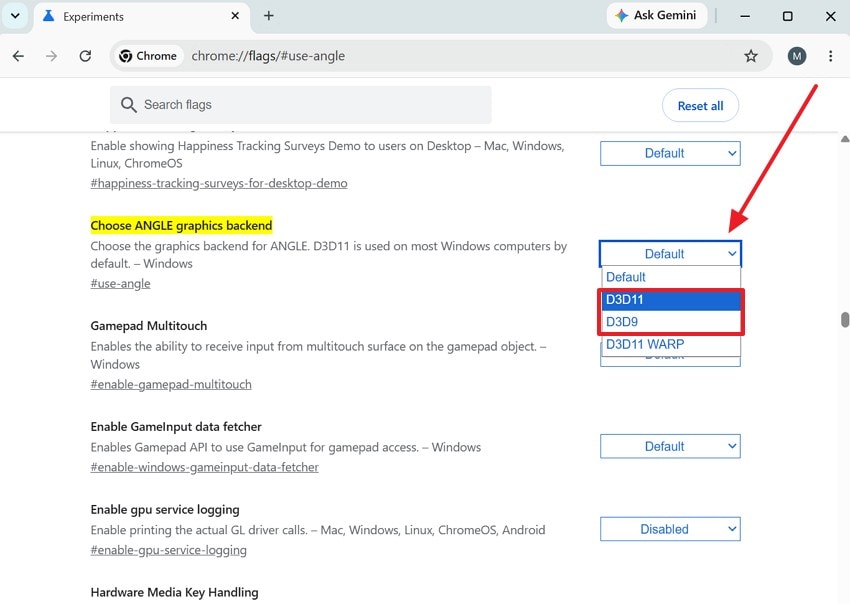
Step 2. Locate the option labeled “Choose ANGLE graphics backend” and open its drop-down box. Then, opt for either “D3D11” or “D3D9” from the available options and restart your browser.
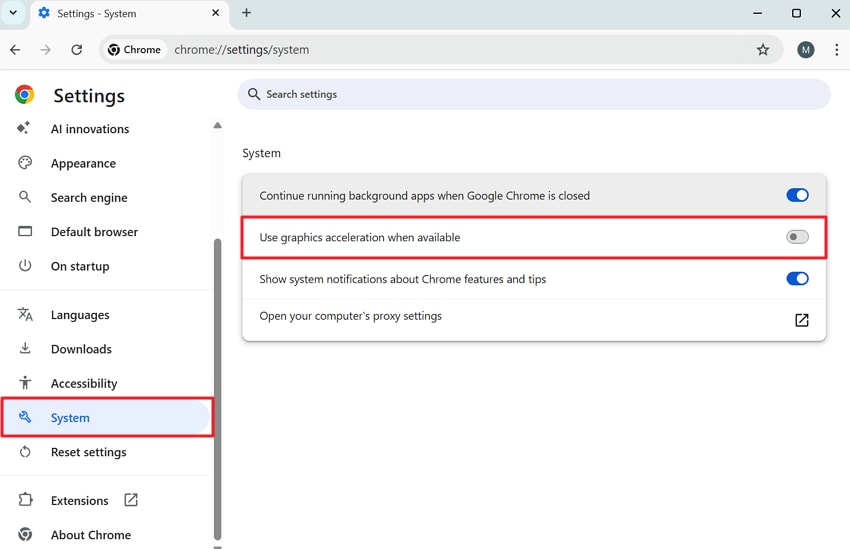
Fix 5. Disable Hardware/Graphics Acceleration
Mostly, this feature shifts certain tasks to your graphics card instead of the processor. Yet, the graphics card sometimes struggles, causing memory clashes and sudden tab crashes. To address it, you may disable this feature to shift the processing load back to your processor. A Google Support Thread also shows that turning it off can resolve graphics-related Chrome crashes. You now have to follow these steps to adjust your system settings:
Step 1. To initiate, select “Settings” upon clicking the browser’s “Three Dot” icon.
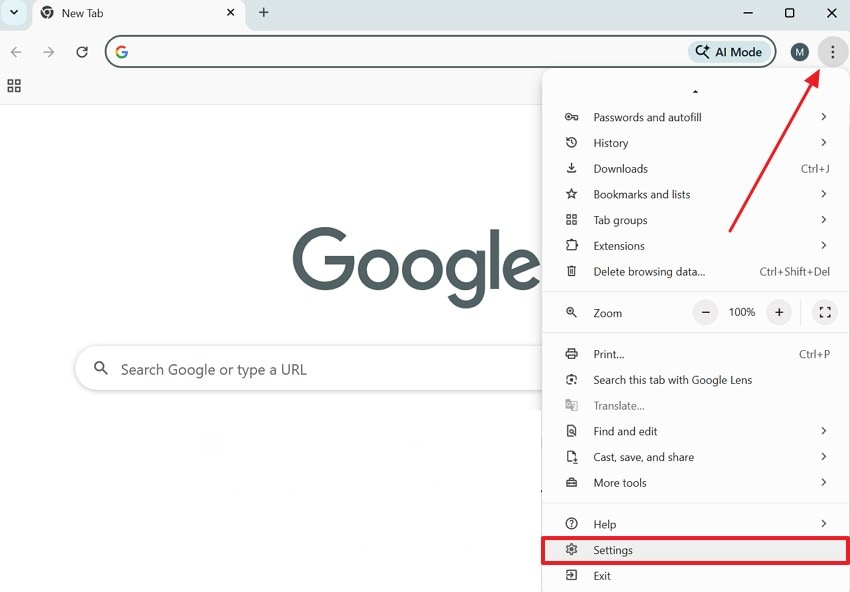
Step 2. Subsequently, go to the “System” section and turn off the option labeled “Use Graphics Acceleration When Available.”
Pro Tip. Recover Your Lost or Deleted Files Due to System Errors or Viruses via Recoverit
Sudden browser crashes often cause unexpected data loss while you work online. As an example, unsaved office documents or browser downloads disappear during failures. While learning how to troubleshoot STATUS_STACK_BUFFER_OVERRUN in Chrome, protecting information remains vital. That's why it's important to have a recovery tool in place in advance. Tools like Recoverit provide a smart solution for these unexpected situations.
Individuals can utilize its AI-powered scanning capability across 1 million+ storage devices. During scanning, Recoverit detects lost files after Chrome crashes, wiping out unsaved downloads. Furthermore, this program can retrieve more than 1,000 different file formats. Therefore, users can use Recoverit to recover any data, such as office documents and family photos. In addition, most scans complete quickly, averaging around 5 minutes per device.
Key Features
- BitLocker Data: Get files even from encrypted storage sectors that became unstable during failures.
- Custom Solutions: Delivers tailored recovery plans based on how your crash actually happened.
- Recycle Recovery: Retrieve permanently deleted items that were emptied from your recycling bin, too
Quick Guide to Recover Your Lost Files Due to Viruses via Recoverit
Anyone can recover their deleted files due to system errors without technical knowledge. Thus, go through the following quick guide to recover your missing files:
Step 1. Choose the Target Drive via Recoverit
When you access “Hard Drives and Locations,” click the drive where your deleted files were previously stored.

Step 2. Check the Scan Results for Recovered Files
Once the scanning process is complete, use the “File Type” filter to view your preferred data.

Step 3. Retrieve Files from Recoverit
Upon previewing, select the required ones and click “Recover” to export them to your device.

Conclusion
In conclusion, resolving browser crashes ensures a productive internet browsing experience. Therefore, after following our guide, you will understand how to fix the STATUS_STACK_BUFFER_OVERRUN "Aw, Snap!" error in Chrome. Regular system maintenance minimizes severe memory issues from impacting your desktop computer. Nonetheless, unexpected data loss can still happen during sudden system breakdowns. In such situations, try tools like Recoverit that can restore your files.
FAQ
-
Q1. Is STATUS_STACK_BUFFER_OVERRUN dangerous for my computer's hardware?
This error doesn't physically damage your computer's internal hardware components. It is software security protection that is activated when memory management issues occur. Thus, your system just stops the process to prevent deeper system instability issues. -
Q2. Will using an older computer cause frequent buffer overrun errors?
Limited system memory struggles to process heavy modern web design scripts. Furthermore, old processors crash when background activities exceed the available hardware storage space. Individuals should upgrade physical memory modules to protect their computer from crash loops. -
Q3. How does a faulty local user profile trigger this Chrome crash?
Corrupted account settings break internal communication lines inside the browsing platform. This profile damage forces the system to close active windows unexpectedly fast. Nonetheless, setting up a new profile ensures clean data management without errors. -
Q4. What happens if this crash happens while saving online documents?
Often, sudden errors may remove files that you were modifying online. In case files disappear, utilize a program such as Recoverit to search your storage drive. This tool can help users locate missing documents from their computer partition.


