

 TL;DR:
VHDX is a modern virtual disk container introduced in Windows Server 2012 for Microsoft Hyper-V that replaces the older VHD format by expanding the maximum storage limit from 2 TB to 64 TB and adding power failure protection.
● VHDX is best suited for enterprise environments and critical systems due to its advanced metadata logging and corruption protection, whereas the legacy VHD format lacks power failure safeguards and is limited to older setups like Windows Server 2008.
● Users running Windows 10 and later can natively open VHDX files without third-party software by double-clicking them in File Explorer or using Disk Management, provided they have administrative permissions to mount virtual disks.
● Opening VHDX files in unsupported platforms like Oracle VM VirtualBox requires command-line conversion to VDI format using the VBoxManage clonehd command, while lost or accidentally deleted VHDX files require deep-scan software like Wondershare Recoverit to retrieve the large file fragments.
Ask AI for a summary
 ChatGPT
 Perplexity
 Gemini
 Claude
 Grok
Grok
Virtual machines are widely used in homes, offices, and data centers. They allow users to run an entire operating system inside a single file. This makes testing, development, and backup tasks much easier. One common virtual disk format used in Windows environments is VHDX.
Many users often search what is VHDX when they first see this file type. Others want clear steps on how to open VHDX file without causing errors.
This guide explains everything in simple language. You will also learn about VHDX vs VHD, the difference between VHDX and VHD, the pros and cons of VHDX, how to convert VMDK to VHDX, and how to recover lost VHDX safely.
Table of Contents
What is VHDX?
Many users ask What is VHDX when they begin working with virtual machines. VHDX stands for Virtual Hard Disk v2. It is a file format that stores an entire hard drive inside a single file. This file can contain an operating system, applications, settings, and personal data.
If you are wondering what is VHDX in simple terms, it is a virtual container for disk storage. It was introduced with Windows Server 2012 and is mainly used with Microsoft Hyper-V. It replaced the older VHD format because of size limits and reliability issues. Today, VHDX is preferred for modern systems.
VHDX was designed to support larger storage needs. As businesses grew, the older 2 TB disk limit of VHD became a problem. Microsoft developed VHDX to handle larger workloads and reduce the risk of data corruption. It is now the standard choice in most Windows virtualization environments.
Key Features of VHDX
- Supports disk sizes up to 64 TB
- Offers better protection during sudden power loss
- Uses advanced metadata logging
- Improves performance on modern storage hardware
- Allows larger block sizes for better efficiency
- Reduces corruption risks
- Works smoothly with newer Windows systems
- Designed for enterprise and large-scale setups
Understanding what is VHDX helps you manage virtual systems with more confidence. It is stable, scalable, and built for modern IT environments.
VHDX vs VHD – Key Differences
When choosing a virtual disk format, many users compare VHDX vs VHD. Both formats serve the same purpose. They store virtual hard drive data in a file. However, they differ in size limits, reliability, and features. Knowing the difference between VHDX and VHD helps you make the right decision.
The older VHD format was created for earlier versions of Windows. It worked well at the time, but had limitations. VHDX was introduced later with improvements in size, safety, and performance.
Below is a detailed comparison to explain the difference between VHDX and VHD clearly.
| Feature | VHDX | VHD |
| Maximum Disk Size | 64 TB | 2 TB |
| First Released | Windows Server 2012 | Windows Server 2008 |
| Power Failure Protection | Yes | No |
| Performance | Optimized for modern hardware | Limited |
| Metadata Logging | Advanced logging system | Basic logging |
| Reliability | High | Moderate |
| Corruption Protection | Improved | Basic |
| Enterprise Use | Strong support | Limited support |
From this comparison, VHDX vs VHD clearly shows that VHDX is more advanced. The difference between VHDX and VHD becomes important when working with large storage environments or critical systems.
How to Open VHDX Files
Users often ask how to open VHDX file data without damaging it. The good news is that modern Windows systems support this format natively. In most cases, you do not need extra software. You can mount the file and access it like a normal drive.
However, different environments may require different methods. Below are four practical ways to open VHDX files safely.
Method 1: Double-click in Windows
This is the simplest method. Windows 10 and later versions can mount a VHDX file directly. The file appears as a new drive in File Explorer.
This method works well when the file is not corrupted. It does not require advanced tools.
You must have administrative permissions to mount virtual disks.
Steps:
- Locate the VHDX file in File Explorer. Double-click the file.
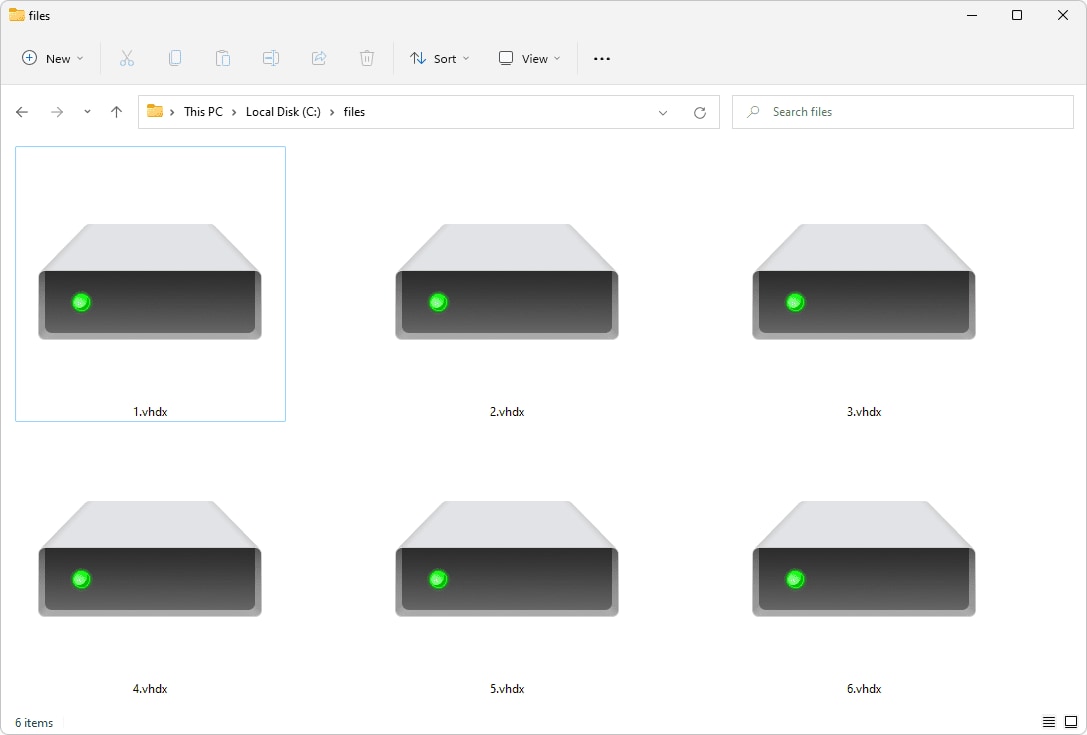
- Windows mounts it automatically. Open This PC and access the new drive.
Method 2: Disk Management
Disk Management offers more control over mounting operations. It is useful if the file does not mount automatically. This method also allows you to assign drive letters manually.
It helps in cases where the system does not recognize the file properly. Disk Management is available in all modern Windows versions.
You may need administrator rights to attach the virtual disk.
Steps:
- Right-click the Start button and select Disk Management. Click Action, then choose Attach VHD.
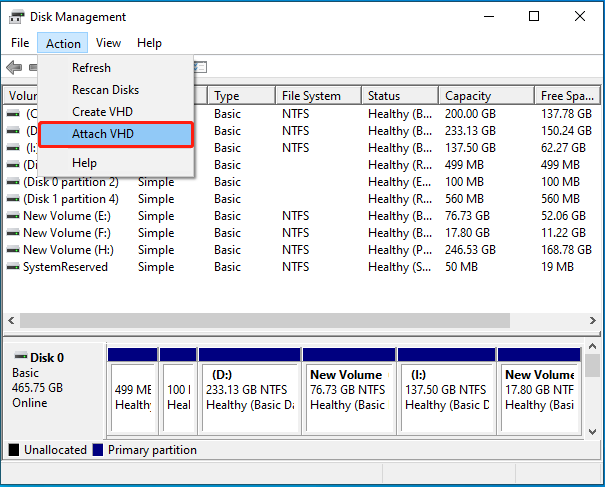
- Browse to the VHDX file and click OK. The disk appears in the list and can be accessed.
Method 3: Hyper-V Manager
If you are working in a virtual environment, this method is ideal. Hyper-V Manager is designed for managing virtual machines.
It allows you to attach VHDX files to virtual machines. This is common in server environments.
This method is useful when testing operating systems or restoring virtual backups.
Steps:
- Open Hyper-V Manager and select the virtual machine. Click Settings.
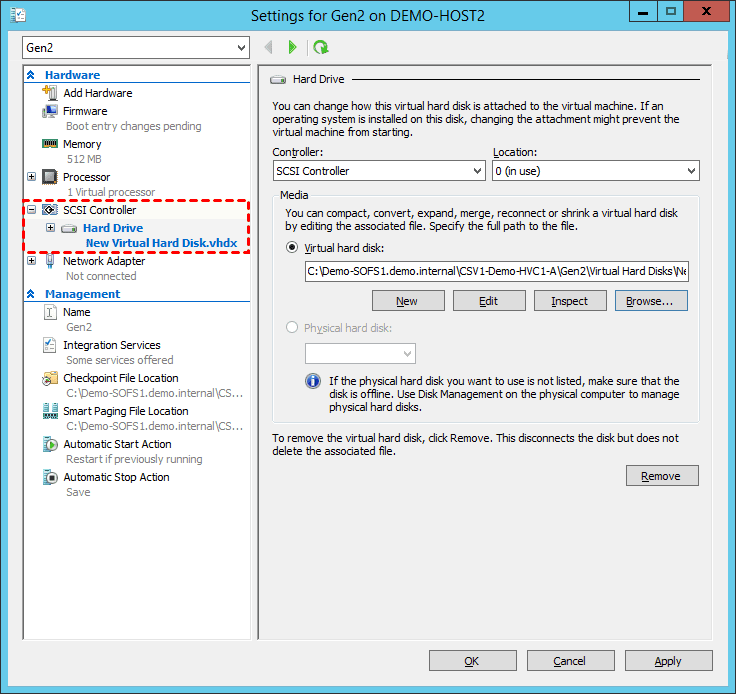
- Under IDE Controller or SCSI Controller, choose Hard Drive. Browse and attach the VHDX file.
Method 4: VirtualBox or Third-Party Tools
Some platforms do not support VHDX directly. In such cases, conversion may be required. Tools can help how to convert VMDK to VHDX or change VHDX into other formats.
This method is helpful when moving data between virtualization platforms.
Conversion tools must be used carefully to avoid corruption.
Steps:
- Install Oracle VM VirtualBox. Open Command Prompt and navigate to the VirtualBox installation folder. Use the following command to convert the file: VBoxManage clonehd "source.vhdx" "target.vdi" --format VDI Press Enter and wait for the conversion to complete.
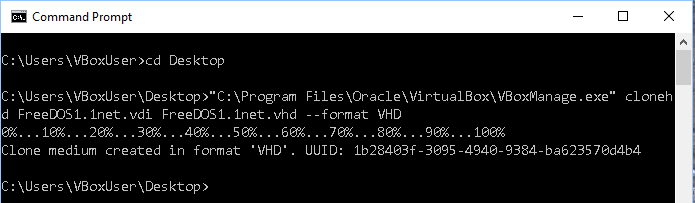
- Open Oracle VM VirtualBox. Create a new virtual machine. When prompted to select a hard disk, choose “Use an existing virtual hard disk file.” Browse and select the converted VDI file, then finish the setup.
If you are switching platforms, understanding how to convert VMDK to VHDX ensures compatibility and smooth migration.
Common Issues When Opening VHDX Files
Even though VHDX is reliable, users may still face issues. Problems can occur due to corruption, power failure, or improper shutdown. Understanding the pros and cons of VHDX helps you stay prepared.
Below are common problems users encounter:
- The file fails to mount due to corruption
- Sudden system crash during write operation
- Incorrect permissions prevent access
- File not recognized in older Windows versions
- Incomplete download or transfer error
- Antivirus blocks the mounting process
- Storage device failure
- File accidentally deleted
Knowing the pros and cons of VHDX is important. While it offers strong protection, no system is fully immune to errors.
How to Recover Lost/Deleted VHDX Files Using Wondershare Recoverit
Sometimes users accidentally delete virtual disk files while cleaning up storage or removing old virtual machines. In other situations, a sudden system crash, power outage, or disk error can make the file unreadable. The VHDX file may still be present, but it may fail to mount. When this happens, many users search for how to recover lost VHDX safely without causing further damage.
Wondershare Recoverit is a professional data recovery solution designed to handle such problems. It supports recovery from internal hard drives, SSDs, USB drives, memory cards, and even formatted partitions. The software performs a deep scan of the selected location. It searches for file signatures and lost fragments, including large virtual disk files like VHDX.
If you are dealing with corruption, accidental deletion, or formatting errors, understanding how to recover lost VHDX becomes essential. Acting quickly improves recovery success. The tool offers a guided process with simple steps, so even non-technical users can follow it. It allows preview options before saving files, which helps confirm that the recovered data is intact and usable.

Why Use Recoverit
- Supports recovery of large files: The software is capable of restoring very large files, including virtual disk images. This is important because VHDX files are often several gigabytes in size.
- Works on Windows and Mac: It is compatible with both Windows and macOS systems. This allows users to perform recovery regardless of their operating system.
- Deep scan technology: The program uses advanced scanning methods to search every sector of the selected drive. This improves the chances of finding deleted or hidden files.
- User-friendly interface: The interface is simple and well-organized. Even beginners can follow the instructions without technical knowledge.
- Preview before recovery: Users can preview recoverable files before saving them. This helps confirm that the correct data has been found.
Recovery Steps
Step 1: Install and launch Recoverit. Select the drive where the VHDX file was stored.

Step 2: Start scanning. After the scan completes, locate the file and click Recover to save it in a secure location.

Step 3: Verify the recovered file by mounting it carefully.

If the issue is serious, professional recovery may be required. Learning how to recover lost VHDX early reduces permanent data loss risks.
Pro Tips for Working with VHDX Files
Working with virtual disks requires care. Although the pros and cons of VHDX show many benefits, proper handling is still important.
- Always keep backup copies: Create regular backups of your VHDX files. Store copies on a separate drive or external storage. This protects you from accidental deletion or system failure.
- Avoid forced shutdowns: Do not turn off the system abruptly while a virtual machine is running. Sudden shutdowns can damage the virtual disk structure and lead to corruption.
- Store files on healthy drives: Save VHDX files on reliable storage devices. Avoid using drives that show bad sectors or unusual noise. Faulty hardware increases the risk of data loss.
- Monitor disk health regularly: Check the condition of your physical drive from time to time. Use built-in Windows tools or SMART monitoring utilities to detect early warning signs.
- Use updated Windows versions: Keep your Windows system updated with the latest patches. Updates often fix bugs and improve compatibility with virtual disk formats.
- Secure admin access properly: Limit administrative permissions to trusted users only. Incorrect changes to virtual disk settings can cause serious system issues.
- Maintain enough free storage space: Ensure that your physical drive has sufficient free space. Low disk space can affect virtual machine performance and may cause write errors.
Conclusion
VHDX is a modern virtual disk format designed for performance and safety. If you ever wondered what is VHDX, now you know it is a powerful file type for virtual machines. It supports large storage sizes and protects against common failures.
We also explored VHDX vs VHD and clearly explained the difference between VHDX and VHD. You learned how to open VHDX file safely, how to convert VMDK to VHDX for compatibility, and how to recover lost VHDX using recovery tools. With proper care and backups, VHDX files can be managed safely and efficiently.
FAQs:
-
1. Is VHDX better than VHD?
Yes, in most modern environments, it is a better choice. When comparing VHDX vs VHD, VHDX supports much larger disk sizes and offers improved protection against sudden power failure. The difference between VHDX and VHD is also clear in terms of performance and corruption resistance. VHDX uses advanced logging and works well with newer versions of Windows, which makes it more reliable for business and enterprise use. -
2. Can I open a VHDX file without Hyper-V?
Yes, you can access it without using Hyper-V. Windows allows you to mount it directly through File Explorer by double-clicking the file. You can also use Disk Management and choose Attach VHD. This makes it easy to understand how to open a VHDX file without installing virtualization software, as long as you are using a supported Windows version. -
3. Can VHDX files be converted?
Yes, VHDX files can be converted to other virtual disk formats depending on your needs. Many virtualization tools support format conversion. Users often search for how to convert VMDK to VHDX when migrating from VMware to a Hyper-V environment. During conversion, it is important to verify disk integrity and ensure enough storage space to avoid data corruption.


