

 TL;DR:
Fixing the Hades II fatal error requires clearing corrupted data, updating system drivers, and removing background conflicts that interrupt the game's startup sequence.
● Disable in-game overlays from Steam, Discord, and GeForce Experience, and manually remove any installed mods or third-party visual injectors from the game's local files.
● Repair broken data by selecting "Verify integrity of game files" in Steam, and delete potentially corrupted config and cache files located directly in `%USERPROFILE%\Documents\Saved Games\Hades II`.
● Perform a clean installation of your GPU drivers, and if the crashes resulted in lost save progress, use a tool like Recoverit to scan the specific save folder without overwriting existing data.
Ask AI for a summary
 ChatGPT
 Perplexity
 Gemini
 Claude
 Grok
Grok
Facing crashes during launch can quickly disrupt the pace of Hades II. This Hades II fatal error fix guide outlines practical steps for recovery. It addresses common causes, including corrupted files, outdated drivers, overlay conflicts, and system-level compatibility issues.
The guide explains verification checks, updates, and compatibility adjustments clearly and safely. Each solution is presented clearly, making troubleshooting easier for affected players who want to get back into the game without wasting time.
Try Recoverit to Perform Data Recovery
 Security Verified. 3,591,664 people have downloaded it.
In this article
Part 1. Hades II Fatal Error Explained: What It Does to Gameplay
The Hades II fatal error occurs during launch or active gameplay sessions. It is commonly linked to corrupted files, outdated drivers, or system conflicts. When triggered, the game may freeze, close suddenly, or fail to open properly.
Furthermore, the Hades II fatal error directly affects gameplay stability and progress. It can cause sudden shutdowns during combat or key narrative sequences. In some cases, it prevents save data from loading correctly, which makes the issue even more frustrating for players.
Part 2. What Causes the Fatal Error in Hades II?
A clear understanding of Hades II fatal error causes helps prevent repeated crashes. This section outlines key triggers so you can troubleshoot issues more effectively.
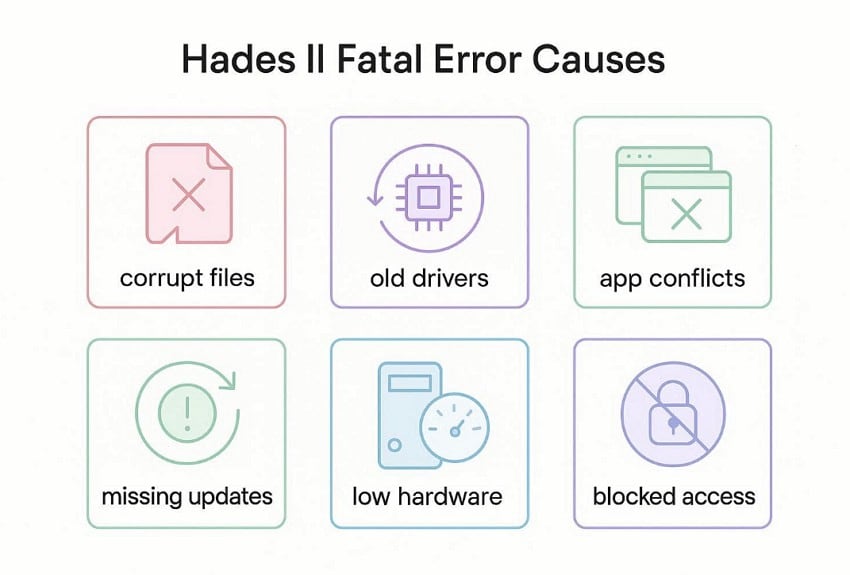
- Corrupt Files: Broken game files can have a direct effect in loading the right data. This causes the game to crash, freeze, or even fail to launch properly.
- Old Drivers: Old graphics drivers can stop Hades II from running the right way. That is why players may see crashes, lag, or screen issues.
- App Conflicts: With the game running, other apps can get in the way and slow down or suddenly crash the game.
- Missing Updates: Missing updates can make Hades II work badly with your system. So, the game may crash, freeze, or fail to open fully.
- Low Hardware: Weak hardware can make the game harder to run without problems. This may lead to lag, heat, or crashes while playing the game.
- Blocked Access: System settings can block Hades II from using needed game files. As a result, the game may not start or load well.
Part 3. First Aid for Hades II Crashes: Quick Checks to Try in Minutes
Before applying deeper fixes, try these quick steps for the Hades II fatal error. These simple checks can resolve crashes fast and restore smoother gameplay quickly.
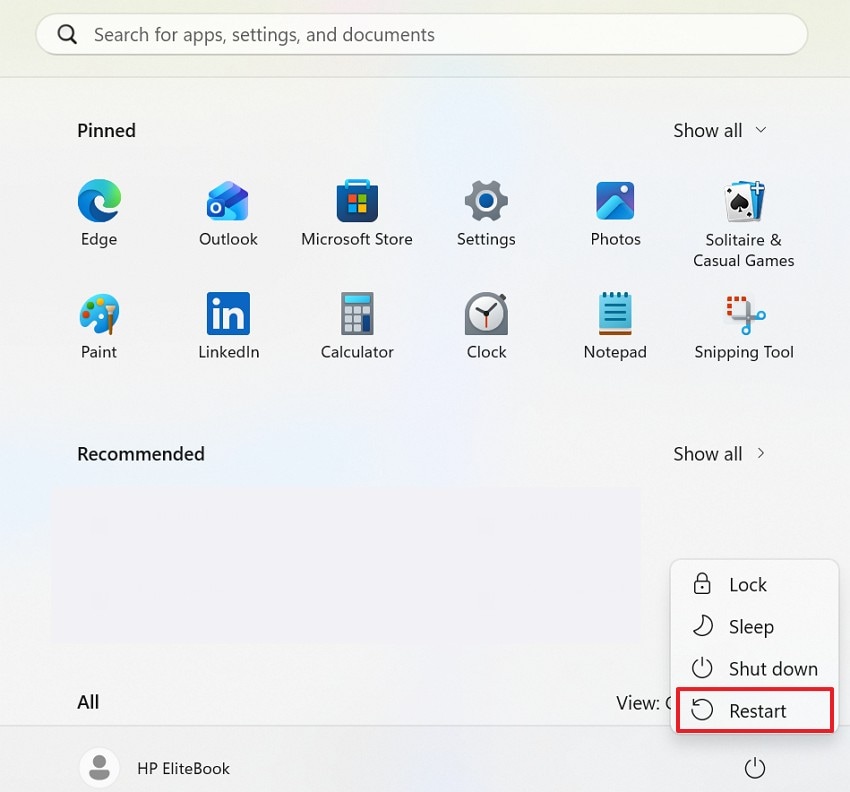
Restart PC, Game Launcher, and Hades II
This fix clears short-term system problems that build up during use. It helps remove stuck background tasks, refresh memory, and reset game services fully. As a result, Hades II may launch more smoothly after the restart.
- Close Hades II completely, exit the launcher, and restart your PC properly.
- Once Windows loads again, reopen the launcher and start the game.
Check for Hades II Updates and Launcher Updates
Running the latest game and launcher versions improves file stability and system support. New patches often replace broken data, remove known bugs, and fix crash-related issues. That makes updates one of the fastest ways to reduce recurring launch failures.
For Hades II Update
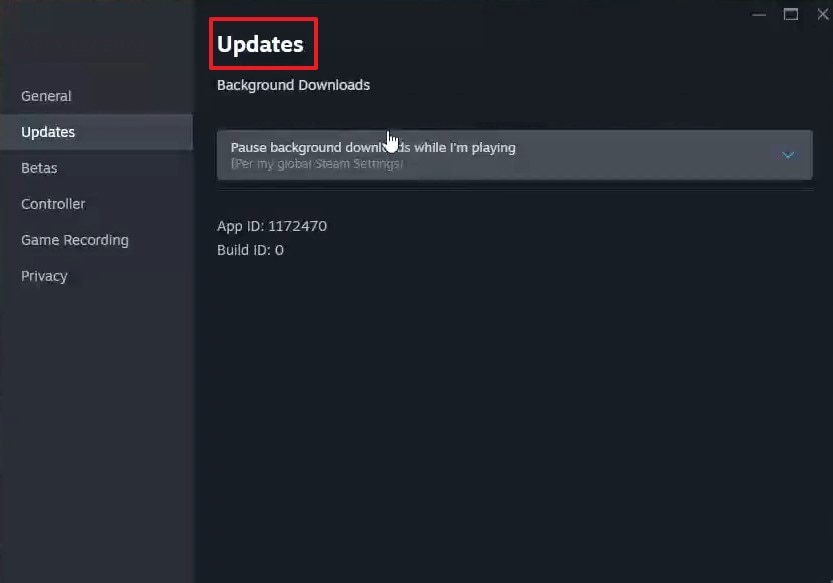
- Navigate to Library, right-click the game, and select Properties.
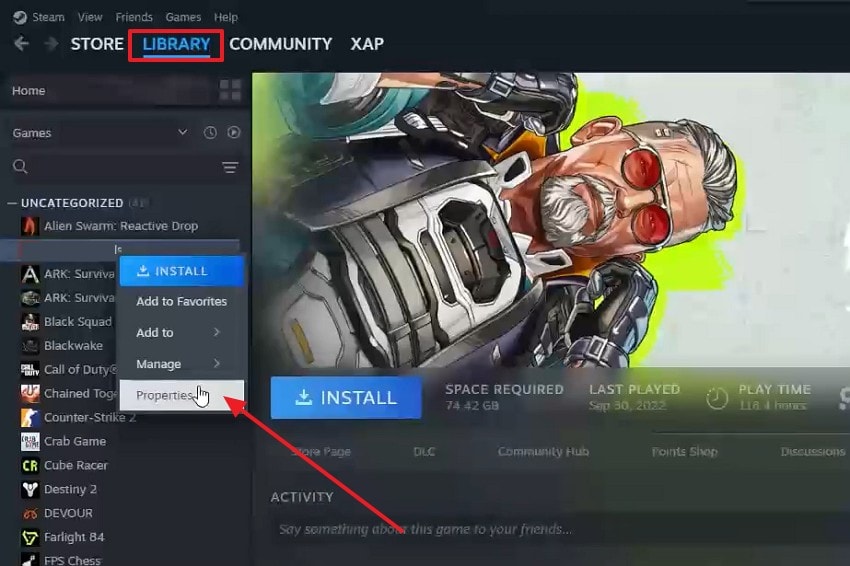
- Choose the Updates option in the next window to check for available updates.
For Launcher Update
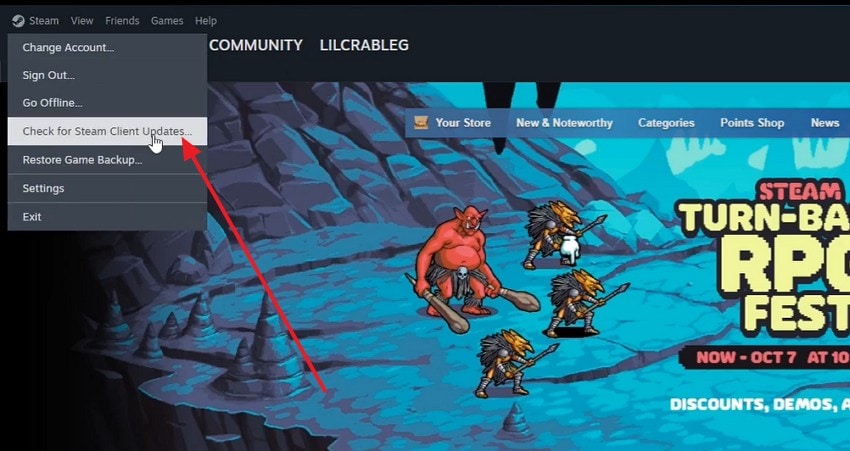
- Click Steam in the top-left corner, then select Check for Steam Client Updates from the dropdown menu to update the launcher.
Temporarily Disable Overlays (Steam, Discord, GeForce Experience)
Background overlays add extra tools on top of the game screen. Those tools can interrupt loading, affect graphics behavior, or create conflicts during startup. Disabling them is useful when crashes appear before the game fully stabilizes.
For Steam
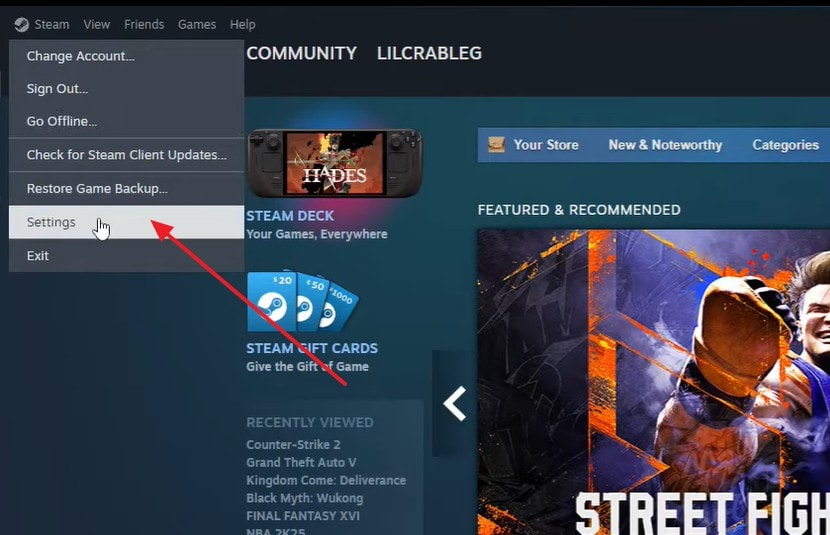
- Select Steam and then pick Settings from the dropdown menu.
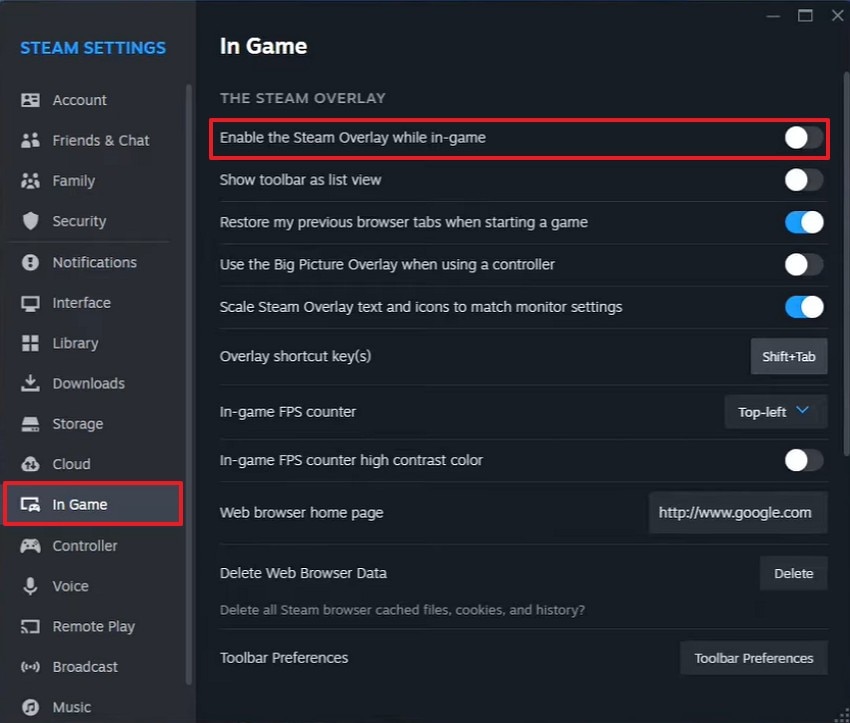
- Select In Game from the list, then toggle off the overlay setting.
For Discord
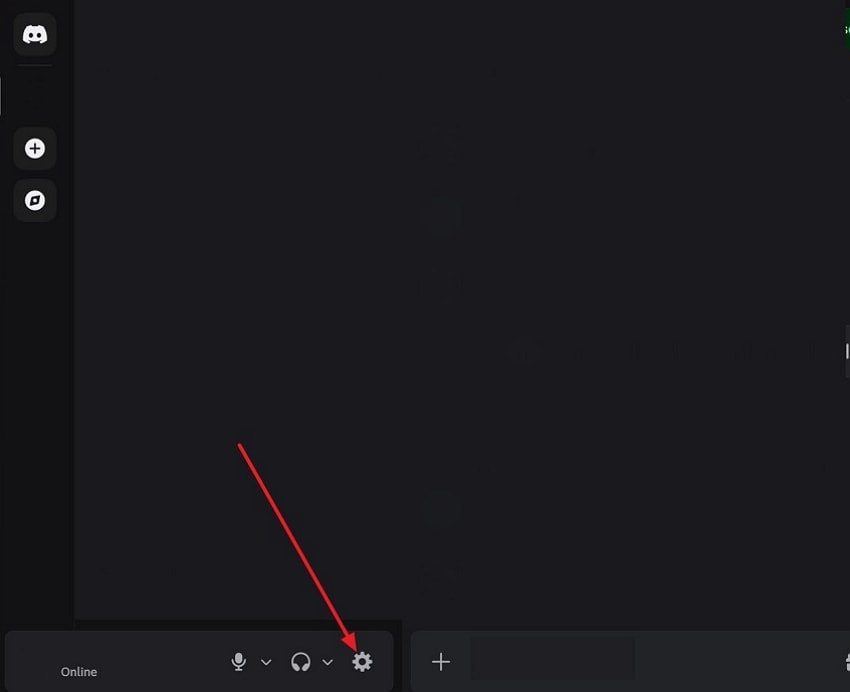
- Click the Gear icon at the bottom-left corner of Discord to open user settings.
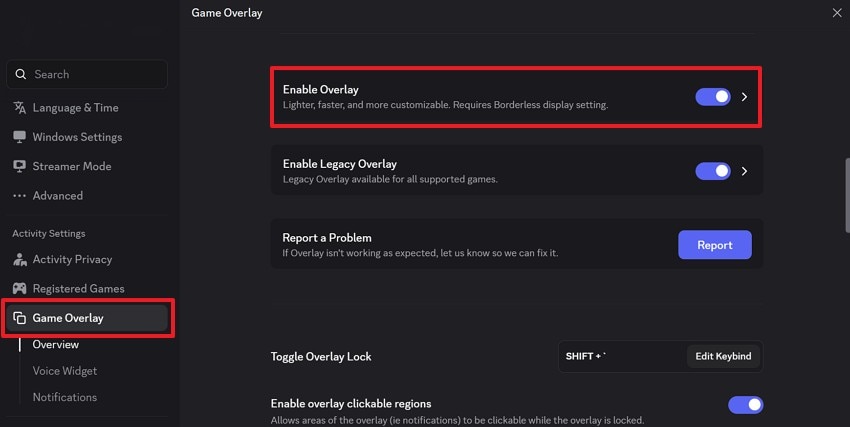
- Scroll down to Game Overlay from the left menu and toggle Enable Overlay off.
For GeForce Experience
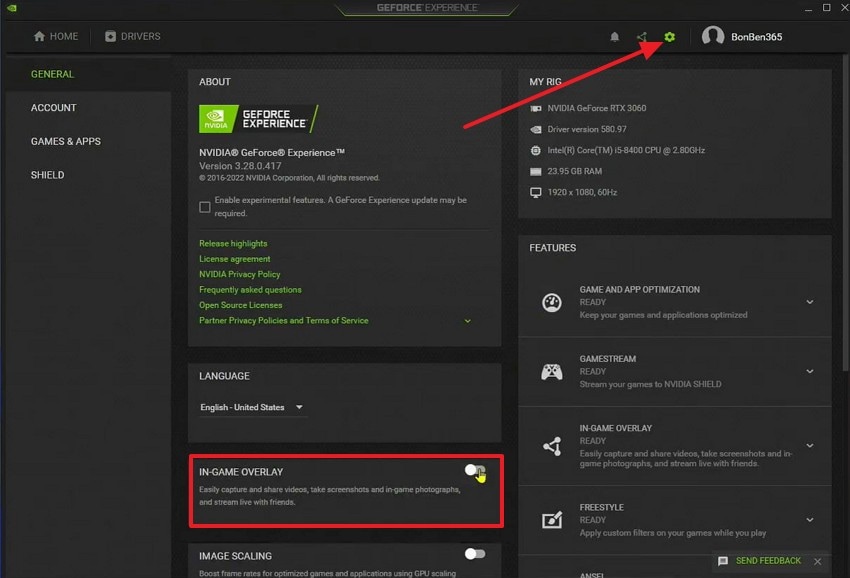
- Click the Settings icon in the top-right corner of GeForce Experience, scroll to In-Game Overlay, and toggle it off.
Part 4. System Checkpoint: Can Your PC Truly Handle Hades II?
Following this, start by checking whether your PC can support Hades II properly. These system checks mentioned below can reveal hidden limits behind repeated crashes.
Confirm Minimum and Recommended System Requirements
A system requirement check compares your PC parts with the game’s needs. It helps show whether your processor, memory, or graphics card falls short. This makes the check useful before moving on to more advanced troubleshooting.
Check GPU Drivers, Windows Updates, and Available Disk Space
This check reviews three core areas that affect game stability every day. Updated drivers improve graphics support, Windows updates fix system issues, and free space helps the game run without interruption.
For GPU Drivers
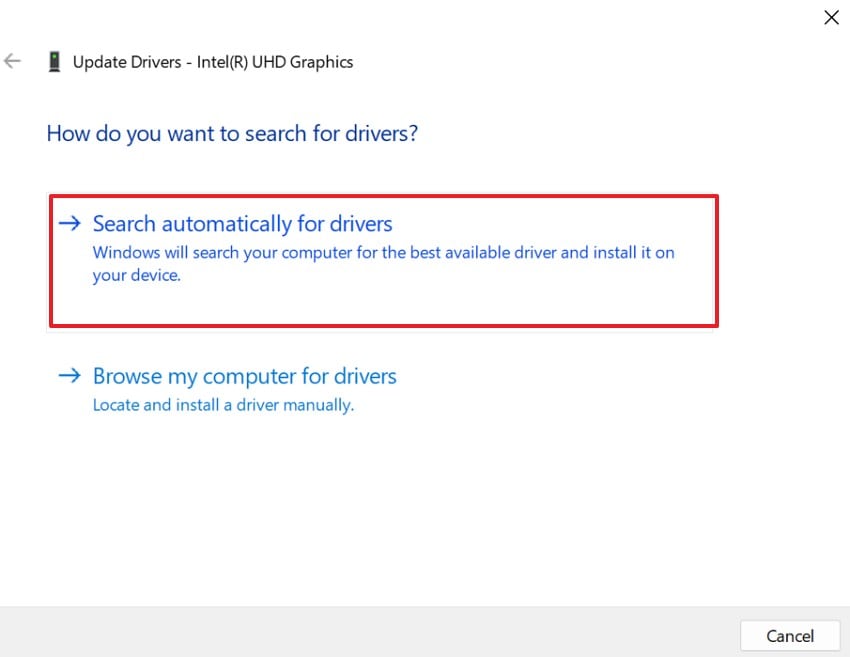
- Press Windows + X, select Device Manager, and expand Display adapters. Then right-click your GPU and select Update driver.
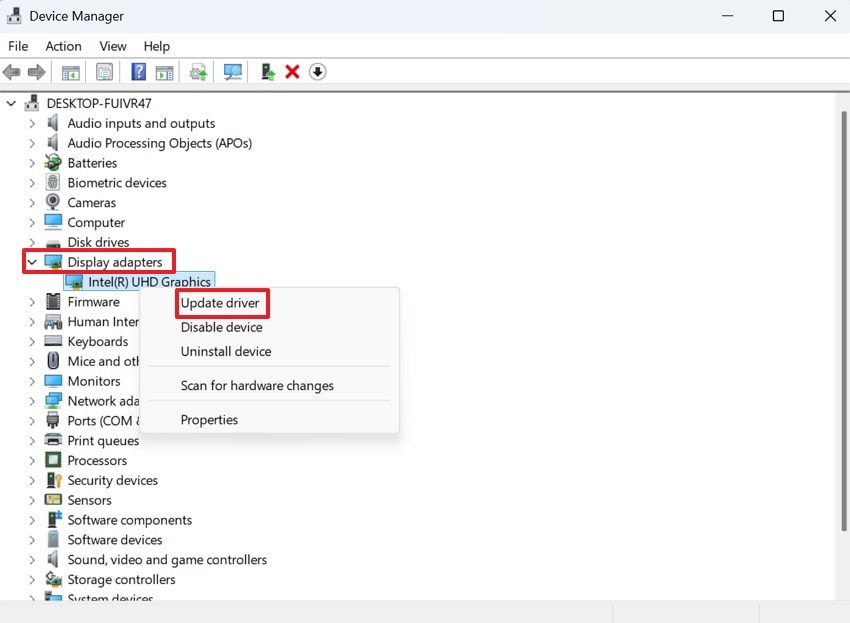
- Choose Search automatically for drivers to check for updates.
For Windows Updates
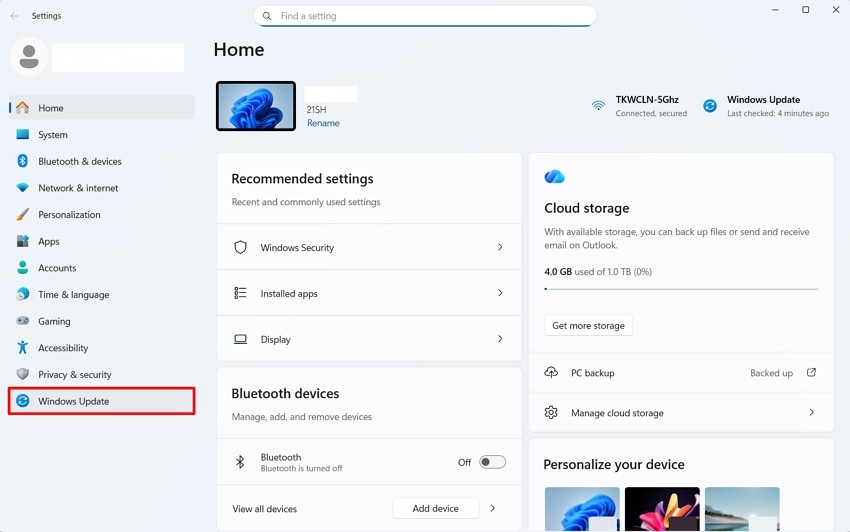
- Press Windows + I, then go to Windows Update.
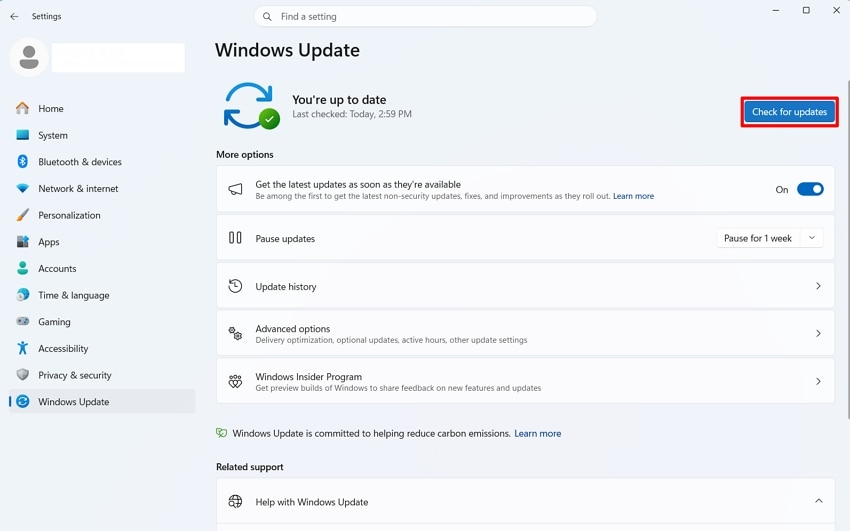
- Click Check for Updates, install all pending updates, and restart your system.
For Disk Space
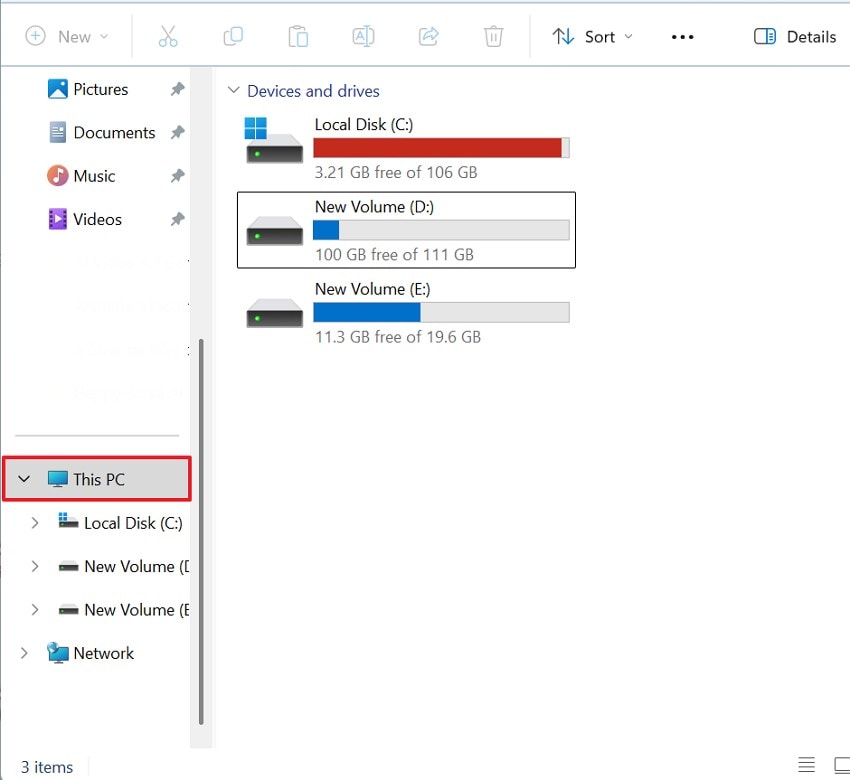
- Open This PC and review the available space on the drive where Hades II is installed. Delete unused files or apps, or use Disk Cleanup to clear more space if needed.
Disable Monitoring and Overclocking Tools
Some hardware tools run quietly while changing speed, heat, or power settings. These programs can conflict with Hades II and cause unstable game behavior. Checking them is useful before assuming the game itself is broken.
- Press Ctrl + Shift + Esc to open Task Manager, then go to the Processes tab and scan for monitoring tools.
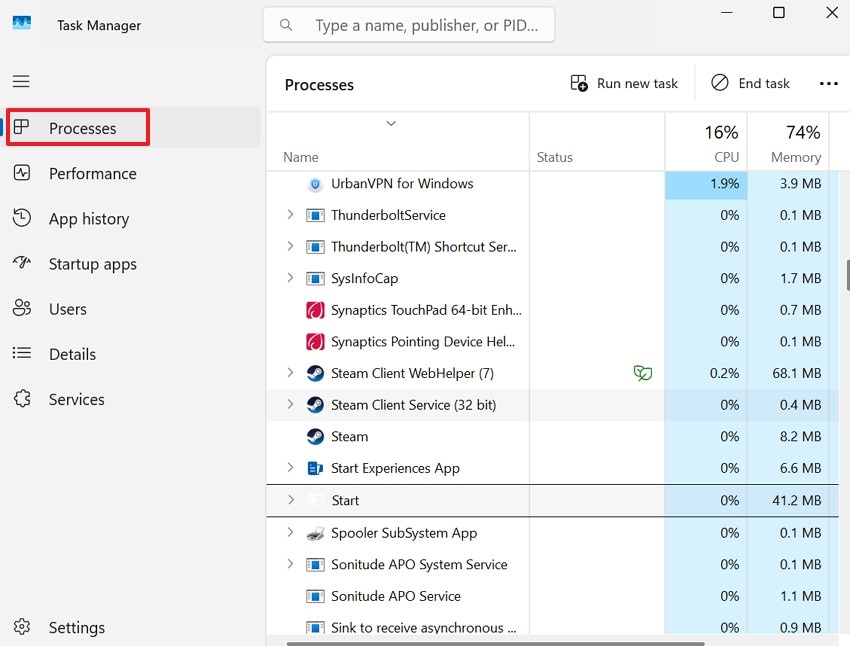
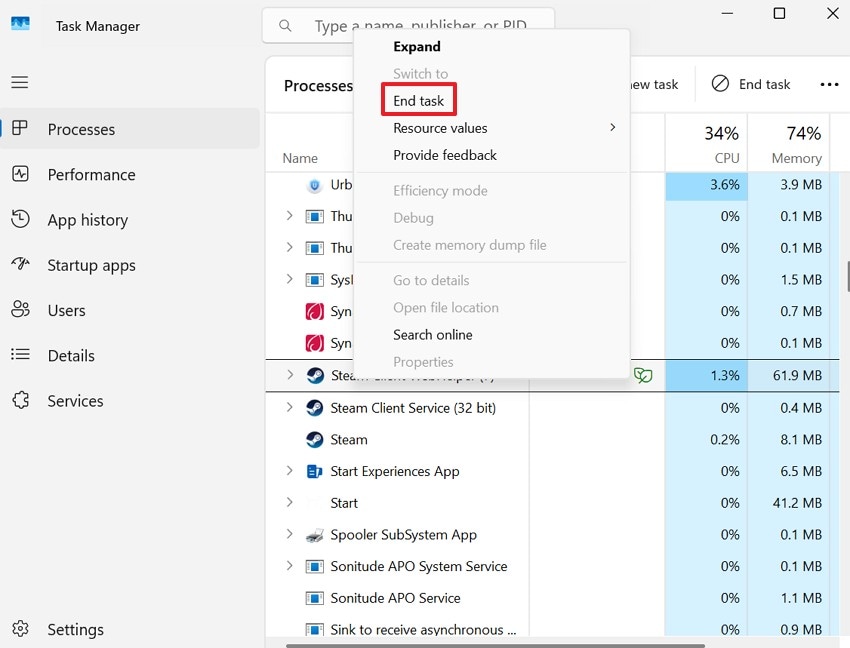
- Select each active overclocking tool and click End Task to fully close it.
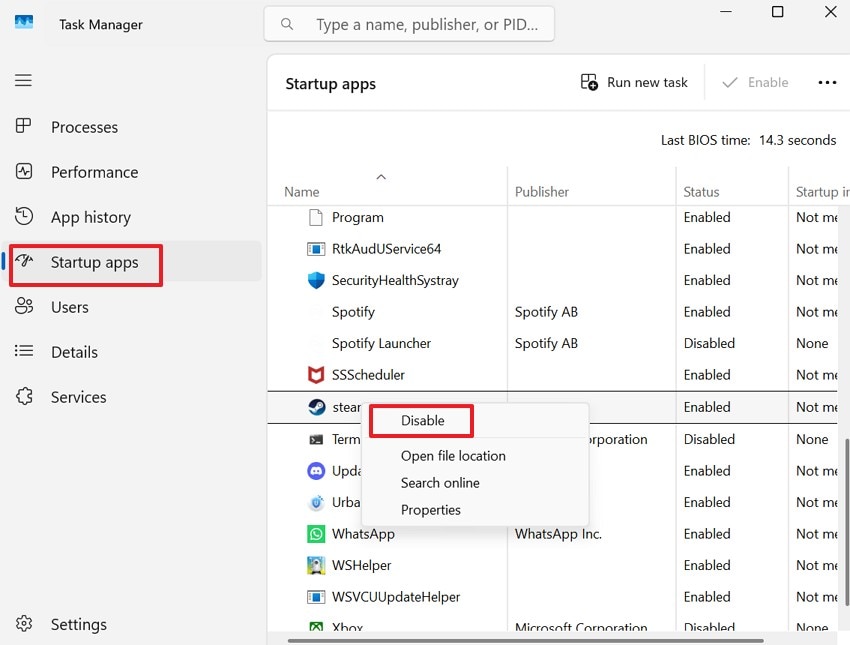
- Navigate to the Startup tab, disable these tools from auto-launch, restart your PC, and relaunch Hades II.
Part 5. Clean the Files: Verify, Repair, and Refresh Hades II Install
When quick fixes fail, cleaning game files often resolves deeper stability issues. The following methods refresh Hades II data and remove hidden corruption safely.
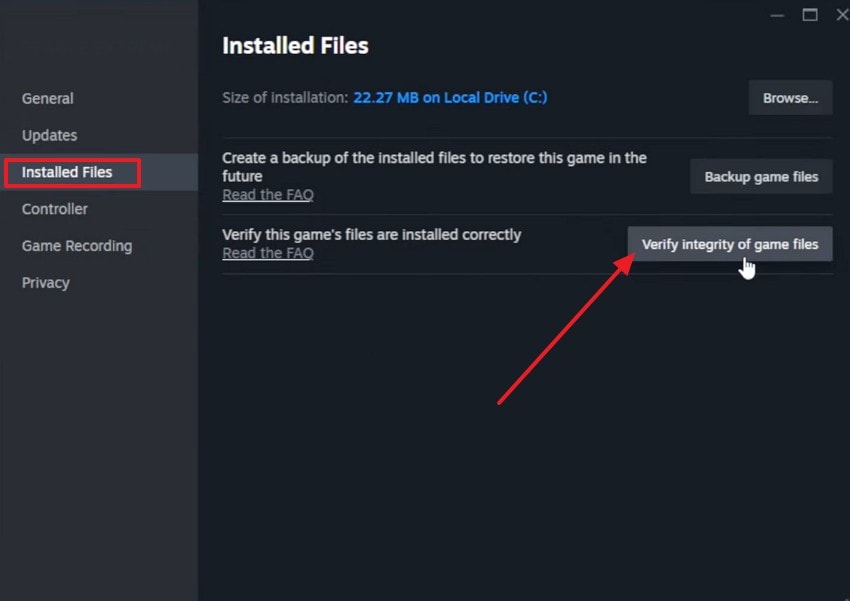
Verify the Integrity of Game Files in Steam
File verification scans your installed game files and replaces any damaged data. It helps fix missing or broken files that cause crashes or launch errors. This method is useful because it does not require a full reinstall.
- Navigate to Steam, select Library, and right-click the game to choose Properties.
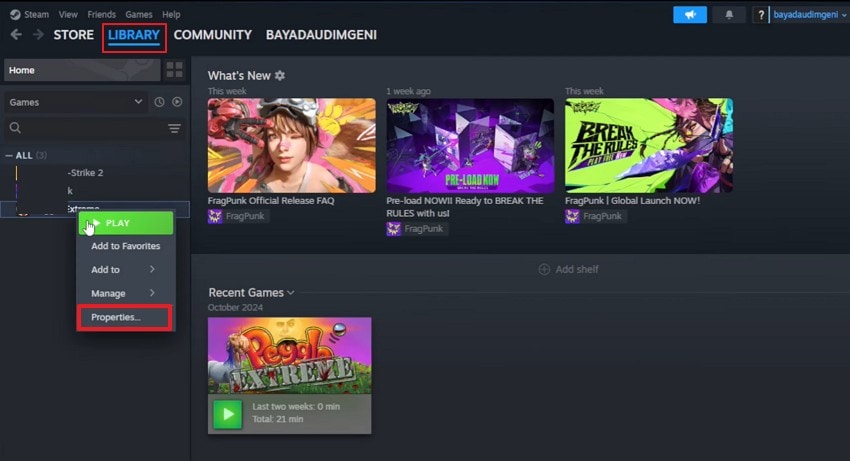
- Click Installed Files and press Verify integrity of game files.
Refresh Config and Cache Files
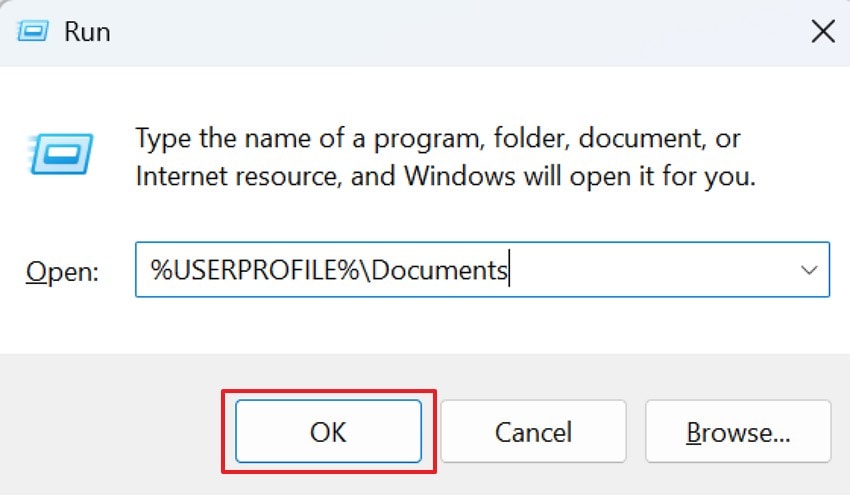
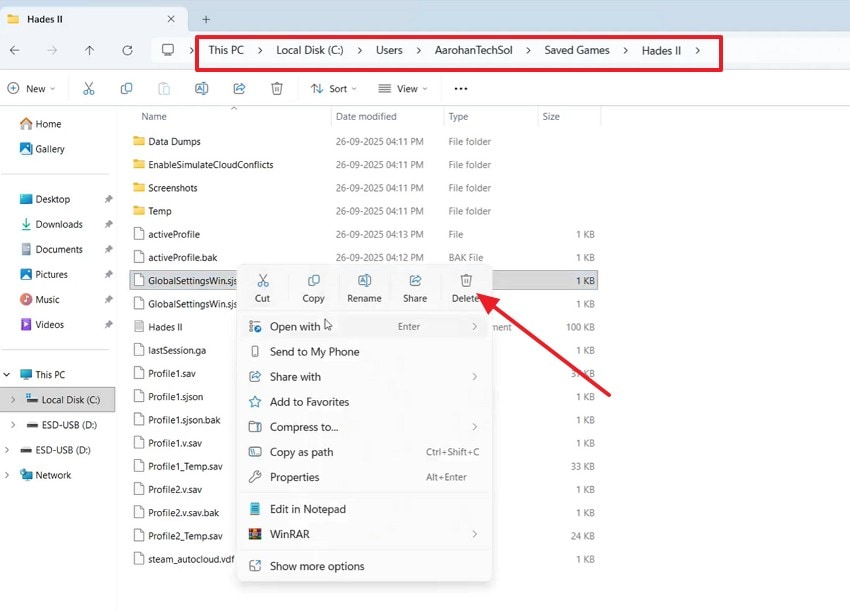
Config and cache files store temporary settings that may become corrupted over time. Resetting them helps resolve conflicts linked to the Hades II fatal error during loading or startup.
- Press Windows + R, type %USERPROFILE%\Documents, and hit OK.
- Open Saved Games > Hades II in File Explorer. Then right-click files like settings or config files and delete the corrupted items or move them temporarily for testing.
Reinstall the Game on a Different Drive
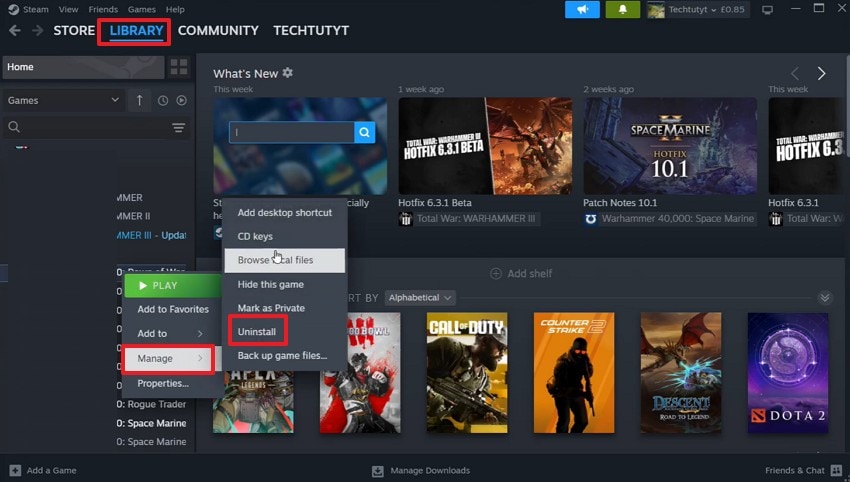
Reinstalling the game removes deeply corrupted files that verification cannot fix. Installing on another drive avoids possible disk-related errors or bad sectors. This method is useful when the current installation keeps failing even after repairs.
- Open Steam, go to the Library tab, right-click Hades II, select Manage, and press Uninstall. Confirm the action to remove the game from your device.
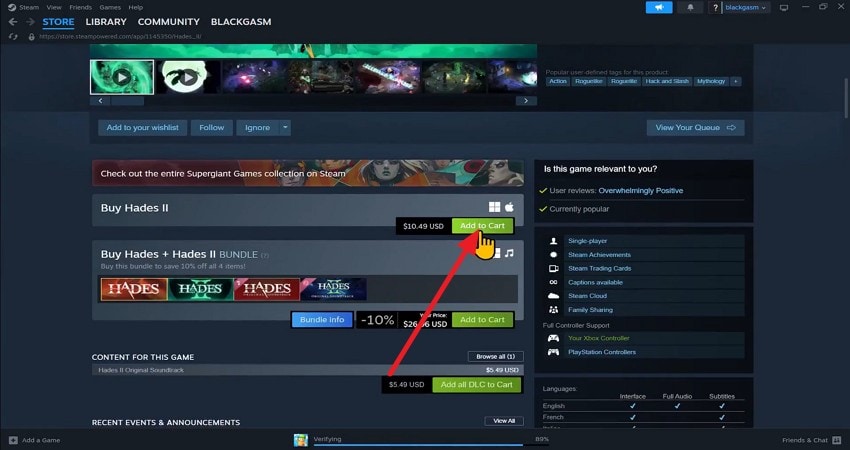
- Go to the Store section and search for Hades II. Open the official game page and install it again on a different drive if possible.
Part 6. Graphics & Mods: Tweaks That Often Stop Fatal Errors Cold
Graphics settings and add-on tools can affect game stability more than expected. This section focuses on small changes that often stop repeated crashes.
Lower Resolution and Graphics Settings
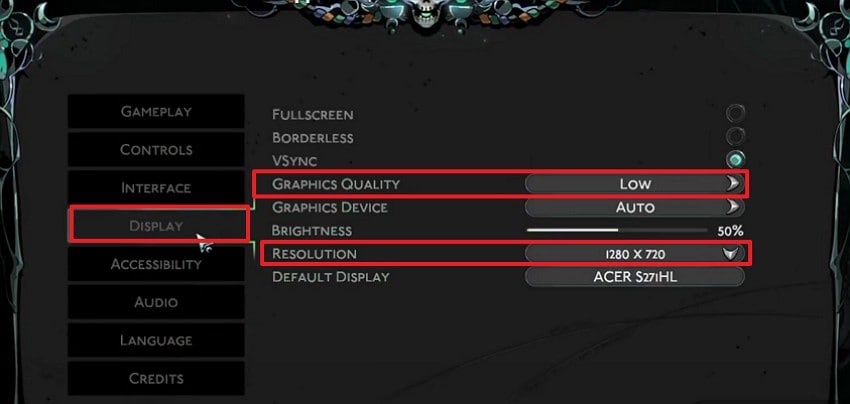
Reducing graphics settings lowers the pressure on your GPU and system memory. It helps test whether Hades II crashes happen because the game is asking too much. This fix is useful when launch failures appear on lower-end systems.
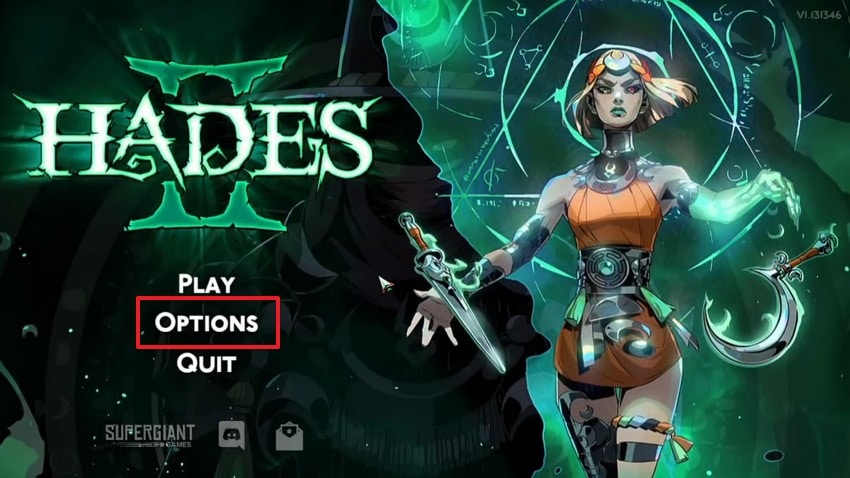
- Launch the game and navigate to the Options button to proceed.
- Locate the Display option, then adjust Graphic Quality and Resolution by lowering the screen resolution and switching the graphics preset to Low or another lighter setting.
Disable Visual Features One by One
Some graphics options can create conflicts with drivers or hardware behavior. Turning them off one at a time helps identify which setting causes instability. This fix is useful because it isolates the exact visual feature behind the crash.
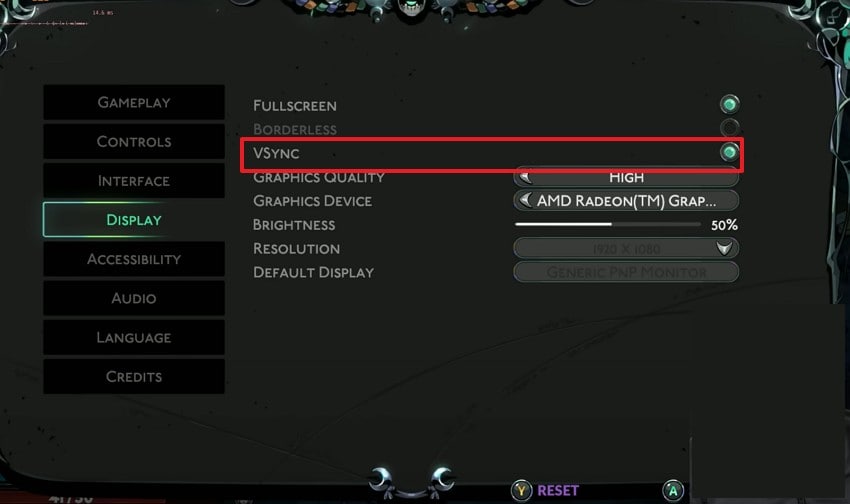
- Open Hades II, go to the Settings menu from the main screen, and navigate to the Display section.
- Locate visual options such as V-Sync and disable them one by one while testing the game after each change.
Remove Mods and Third-Party Tools
Mods, reshade presets, and injectors can change how game files behave. They may stop working properly after updates or create direct conflicts with loading. This fix is useful when crashes start after adding extra tools.
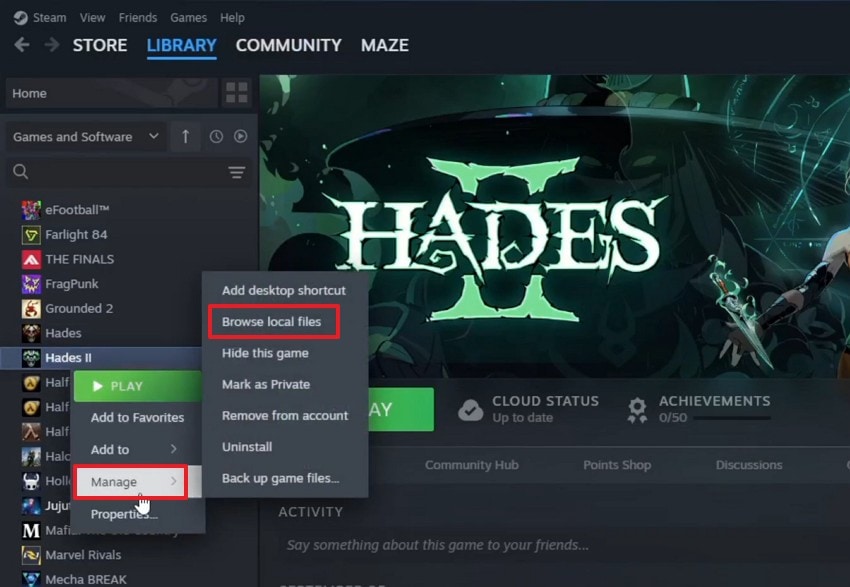
- Access Library, right-click Hades II, choose Manage, and select Browse local files.
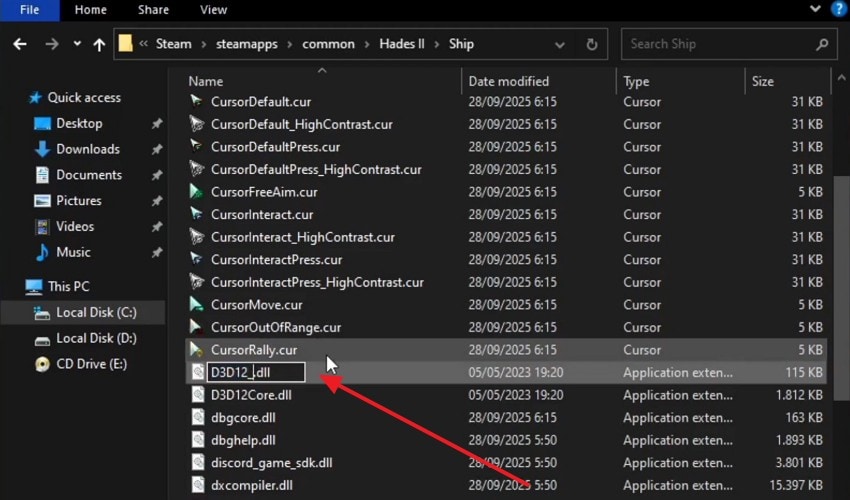
- Locate folders named mods, reshade, or injector files, then delete them or rename them temporarily to remove conflicts.
Part 7. Background Trouble: Apps and Settings That Crash Hades II
System activity outside the game can still affect performance in unexpected ways. These checks focus on reducing interference that often leads to sudden crashes.
Close Heavy Background Applications
Running heavy apps in the background can reduce system resources for gameplay. Browsers, recording tools, and RGB software may consume memory and processing power. This fix is useful when Hades II becomes unstable only during busy multitasking sessions.
Disable Overlays and Screen Recorders
Overlays and recording tools can interfere with how Hades II renders visuals. These tools may cause conflicts that lead to crashes or performance drops. Using this step helps isolate whether background display layers are the real problem.
Add Game to Antivirus/ Firewall Exceptions
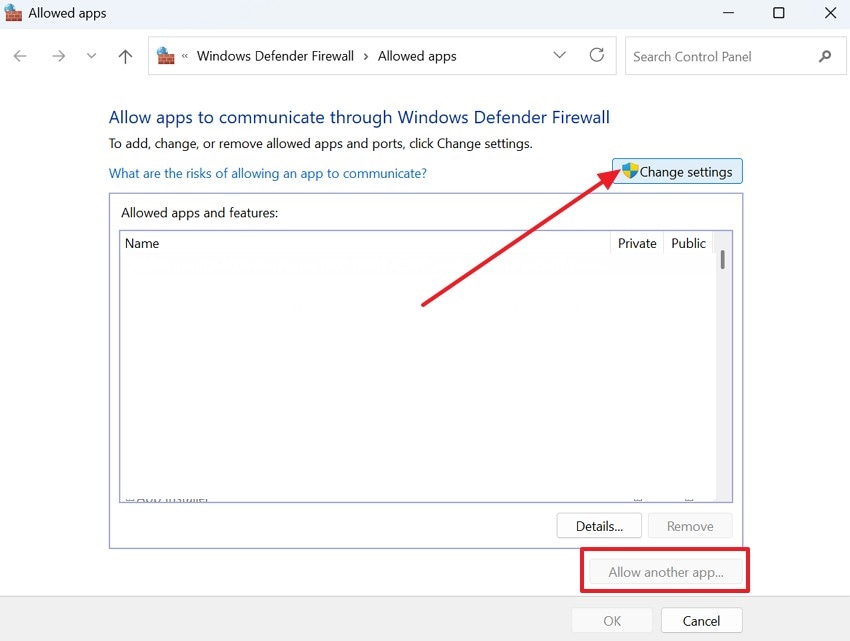
Security software can block game files or processes during execution. This may cause launch issues, freezes, or sudden crashes in some cases. Adding exceptions is useful because it allows Hades II to access required files without unnecessary interference.
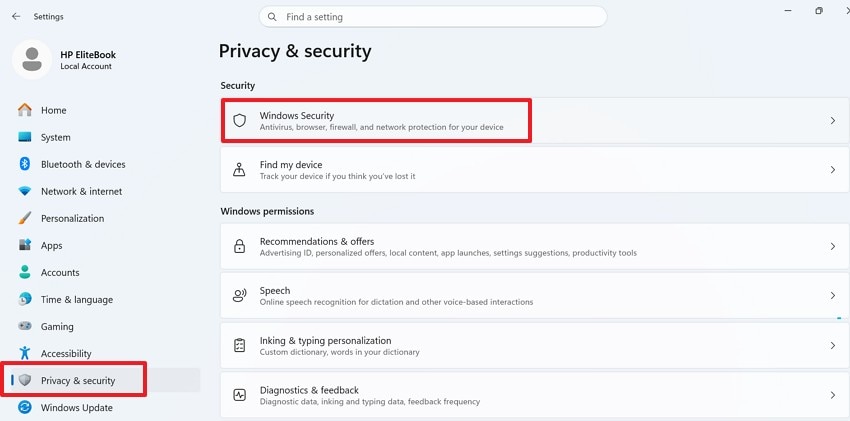
- Press Windows + I, go to Privacy & Security, and then select Windows Security.
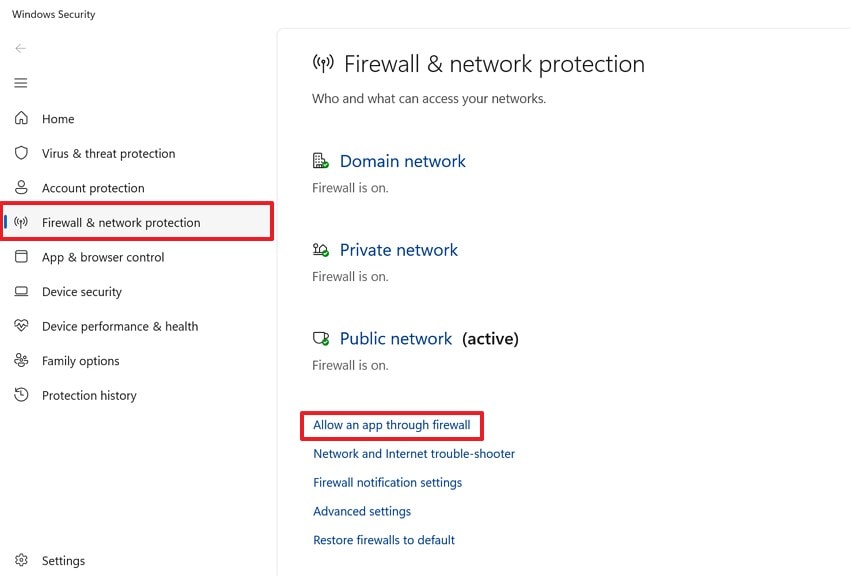
- Choose Firewall & network protection, then press Allow an app through firewall to proceed.
- Click Change settings, choose Allow another app, browse and select Hades II, then enable both Private and Public options.
Part 8. Last Resorts: Clean Drivers, New User Profile, or OS Repair
When standard fixes stop helping, deeper system resets may reveal the real cause. These last options can isolate stubborn Hades II fatal error issues more clearly.
Perform a Clean GPU Driver Install
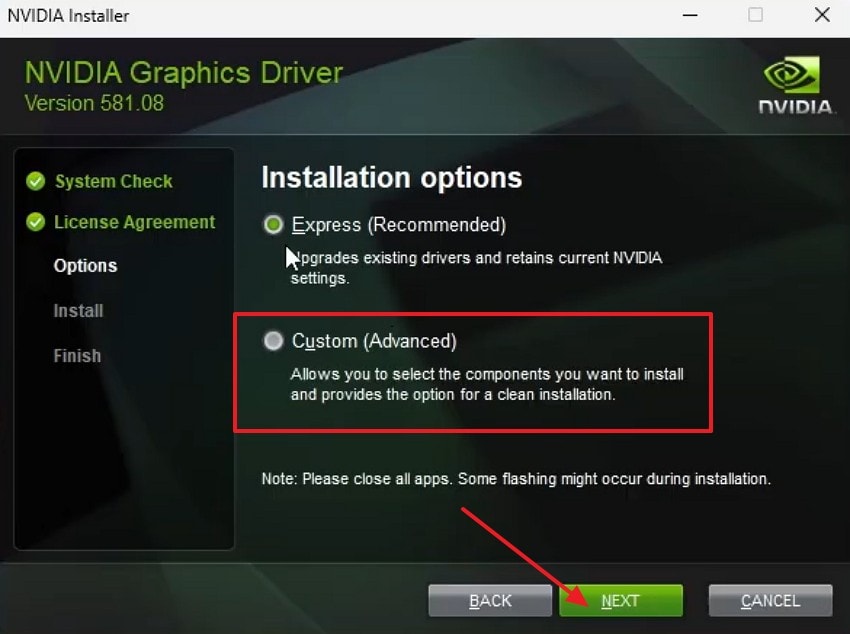
A clean driver install removes old graphics files and replaces them fully. It helps fix hidden driver conflicts that normal updates may leave behind. This option is useful when crashes persist after basic driver updates.
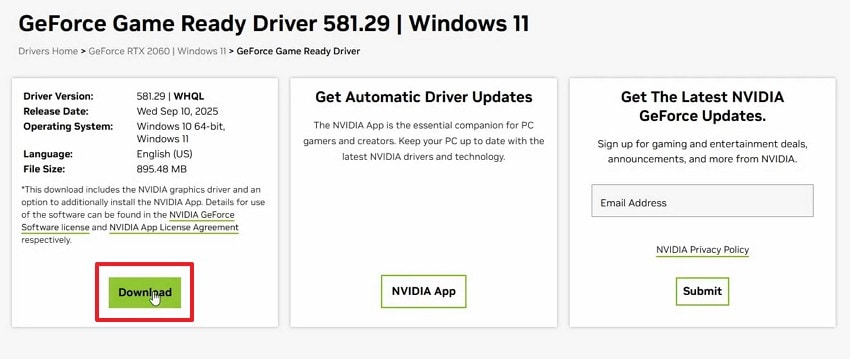
- Go to the official NVIDIA, AMD, or Intel website and download the latest GPU driver.
- Run the installer, select Custom or Clean Install, then complete the installation and restart your PC.
Test Hades II on a New Windows User Profile
A new Windows profile checks whether your current account has damaged settings. It helps rule out profile-level problems linked to permissions, cache, or user data. This fix is useful when the game works differently across Windows accounts.
- Open Settings, select Accounts, and then choose Other Users to proceed.
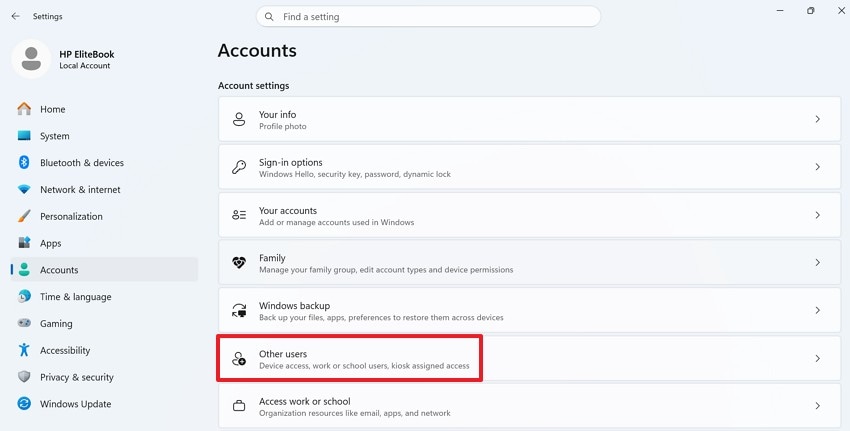
- Press Add account in the Other Users section and create a new local Windows user profile. Then sign in to the new profile, open your launcher, and run Hades II.
Pro Tip: When Files Go Missing: Recoverit Helps Rescue Hades II Data
Unexpected crashes can sometimes lead to missing or damaged game data files. These issues may trigger Hades II's fatal error or prevent saved progress from loading properly. In such cases, recovery software becomes more than a convenience.
Thus, Recoverit offers a focused solution for recovering lost or damaged game data safely. It supports deep scanning, file preview, and selective recovery for better control. This can be especially helpful when important Hades II saves or configuration files disappear after crashes.
Key Features
- Crash Recovery: Restores Hades II files lost after crashes, shutdowns, or unexpected fatal error events.
- Targeted Scan: Recoverit scans specific folders to find Hades II files quickly without scanning entire drives.
- Drive Recovery: Recovers Hades II data from formatted drives or storage issues without reinstalling everything.
Stepwise Guide to Recover Missing Files with Recoverit
When recovery becomes necessary, a guided process helps restore files safely and quickly. Follow the steps below to recover lost Hades II data using Recoverit.
- Choose Recovery Location to Start

First, open Recoverit and go to the Hard Drives and Locations panel. From there, choose the drive, external device, desktop, or folder where your lost Hades II files were stored before the crash.
- Scan and Filter Results

Next, let Recoverit scan the selected location for recoverable files. As the results appear, use the File Location and File Type options to narrow the list.
- Preview the Found Files and Recover

Finally, select the files you want to restore and click Recover. Choose a different save location instead of the original folder to prevent overwriting existing or lost data.
Conclusion
To conclude, fixing crashes in Hades II often takes a mix of quick checks and deeper system fixes. By working through each step, you can improve stability and return to the game with fewer interruptions. If missing files become part of the problem, Recoverit offers an additional safety net for rescuing valuable game data.
FAQ
-
1. What causes the Hades II fatal error?
Common causes include broken files, old drivers, overlays, and conflicting background applications. Low hardware resources and blocked access can also trigger repeated crashes. -
2. How can I fix the Hades II fatal error quickly?
Start by restarting your PC, launcher, and game to clear conflicts first. Then check updates and disable overlays before trying more advanced solutions afterward. -
3. Can mods cause crashes in Hades II?
Yes, mods and injectors can conflict with updates and core files directly. Removing them helps confirm whether the base game runs more stably again. -
4. Can Recoverit restore lost Hades II files?
Recoverit can restore lost saves, configs, and other important Hades II files. It is especially useful after crashes, corruption, accidental deletion, or drive issues.


