

 TL;DR:
To fix "The Binding of Isaac" crashing on startup, verify the integrity of your game files through Steam and temporarily disable custom content by renaming the game's mods folder to `mods-old`.
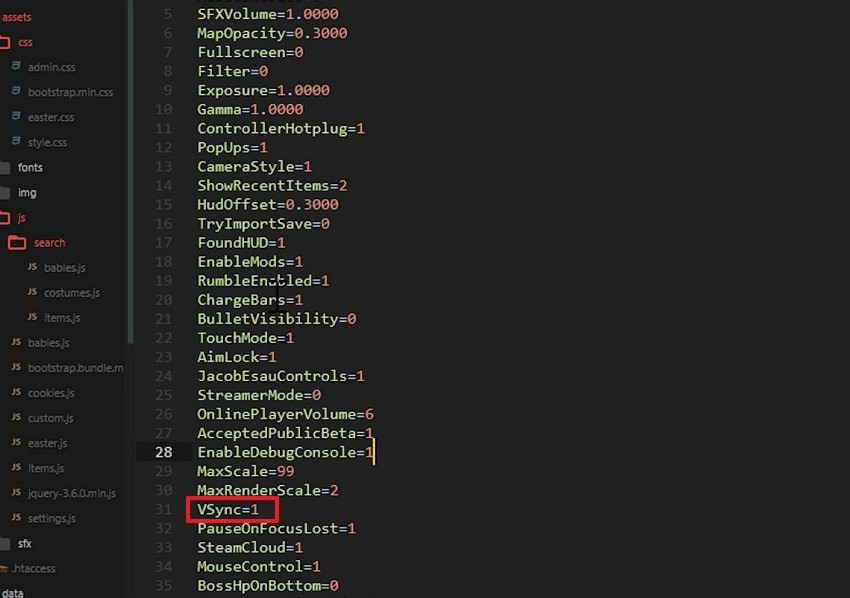
● Reset potentially corrupted display settings by navigating to `Documents > My Games > Binding of Isaac Repentance`, opening the `options.ini` file, and modifying the VSync value.
● Ensure all required system support files like Microsoft Visual C++ Redistributable (x86 or x64) are installed, and use Task Manager to shut down resource-heavy overlays from Discord, Steam, Xbox Game Bar, or GeForce Experience.
● If severe system crashes cause your local game saves or media to disappear, run Wondershare Recoverit to scan your storage drive and restore the fragmented or deleted files.
Ask AI for a summary
 ChatGPT
 Perplexity
 Gemini
 Claude
 Grok
Grok
Nothing feels more disappointing than a game failing before the action begins. For many players, that sudden stop creates confusion, stress, and immediate frustration. The Binding of Isaaccan sometimes test patience before the adventure starts. As a result, the excitement quickly shifts into disappointment and lingering uncertainty.
Still, startup problems often seem bigger than they really are at first. In many cases, the issue interrupts enjoyment more than overall game performance. Therefore, understanding the problem clearly helps players feel informed and prepared. Meanwhile, a clear explanation makes the experience feel less overwhelming altogether.
Try Recoverit to Perform Data Recovery
 Security Verified. 3,591,664 people have downloaded it.
In this article
-
- Fix 1: Verify Your Game Files
- Fix 2: Close Overlays and Background Apps
- Fix 3: Update or Roll Back GPU Drivers
- Fix 4: Install Required Runtimes
- Fix 5: Disable Mods and Custom Content
- Fix 6: Reset Game Config and Graphics Settings
- Fix 7: Run as Admin and Change Compatibility
- Fix 8: Temporarily Adjust Antivirus/Firewall\
- Fix 9: Clean Reinstall on a Different Drive
- Fix 10: Check Logs and Ask for Help
Part 1. The Binding of Isaac Keeps Crashing on Startup [Meaning and Causes]
This error means the game closes before it fully loads. It usually happens when important game files, settings, drivers, or startup processes are not working properly. As a result, The Binding of Isaac cannot launch normally, and players may crash before reaching the main menu or gameplay. Before trying the fixes, it helps to understand the following common causes behind this startup issue:
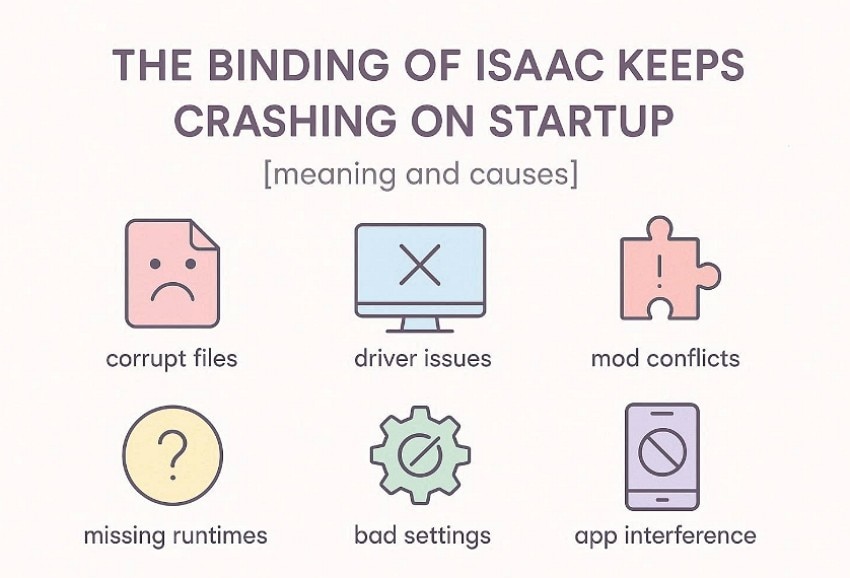
- Corrupt Files: Startup problems often begin with damaged or incomplete game files. Updates that fail midway, interrupted downloads, or sudden shutdowns can leave essential data unusable.
- Driver Problems: Graphics drivers play a major role in game stability. When they are outdated, buggy, or poorly matched with the system, crashes may happen before the game finishes loading.
- Mod Conflicts: Custom mods do not always stay compatible with the latest game version. If they alter important files or features, they can easily disrupt the startup process.
- Missing Runtimes: Some system support files are required for the game to launch properly. Without them, certain components may fail to initialize, causing the game to close early.
- Bad Settings: In some cases, the problem comes from saved configuration data rather than the game itself. Corrupted display or graphics settings can prevent normal loading and trigger a crash.
- App Interference: Not every startup issue comes from inside the game. Overlays, recording tools, or other background applications may interrupt system resources and force the game to shut down.
Part 2. How to Fix The Binding of Isaac Crashing on Startup Easily - 10 Fixes
Startup crashes can stop The Binding of Isaac before the game fully loads. The following fixes help identify the cause and restore a smoother game startup:
Fix 1: Verify Your Game Files
File verification scans installed data and compares it with official game records. This process repairs missing or damaged files that prevent proper launch behavior. When “The Binding of Isaac” stops opening, corrupted data is often responsible. Therefore, this fix saves time and restores stability without reinstalling everything. Now, follow these simple steps to check file integrity correctly:
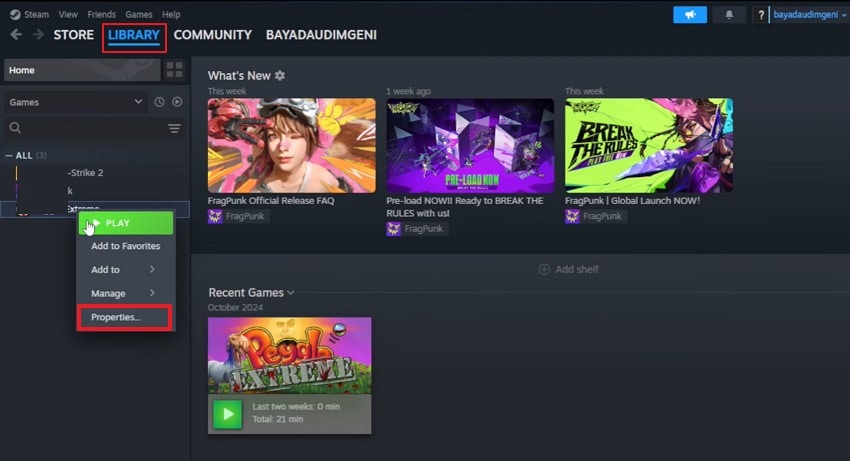
- Upon accessing the “Library” in Steam, right-click on the game to choose the “Properties” option.
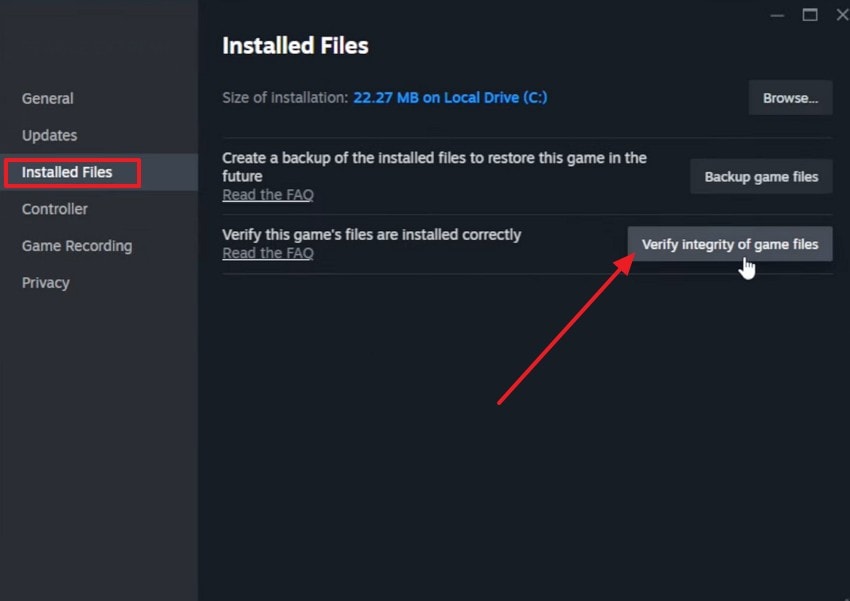
- Afterward, in properties select the “Install Files” tab and press “Verify integrity of game files,” then wait for completion fully.
Fix 2: Close Overlays and Background Apps
Background programs can quietly disrupt the game before it fully opens. Overlays, recording tools, and other active apps may compete for system resources or interfere with the launch process. When that happens, The Binding of Isaac may crash before reaching the main menu. Closing unnecessary programs first gives the game a cleaner environment to start properly. Follow these steps to shut down interfering apps and test the game again:
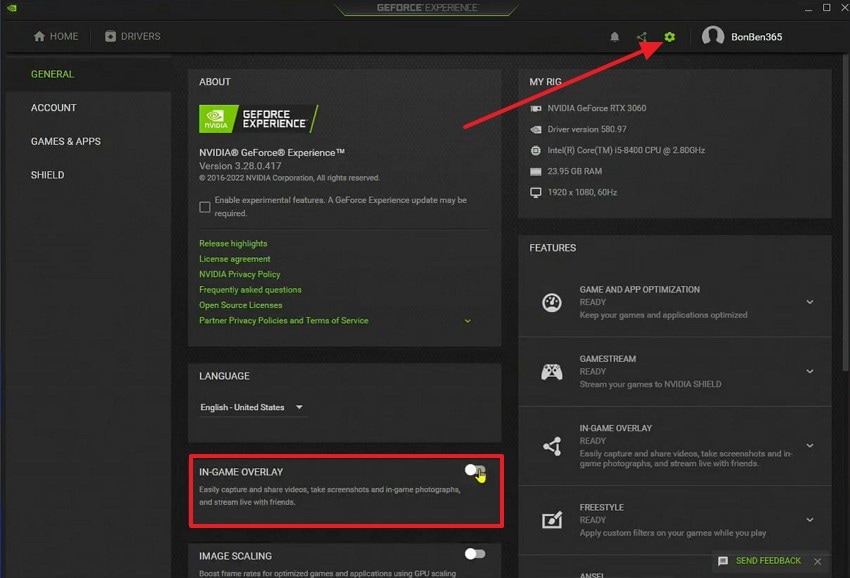
- First, disable overlays from Discord, Steam, Xbox Game Bar, or GeForce Experience. For example, in GeForce, click on the “Settings” icon, then toggle off the “In-Game Overlays” option.
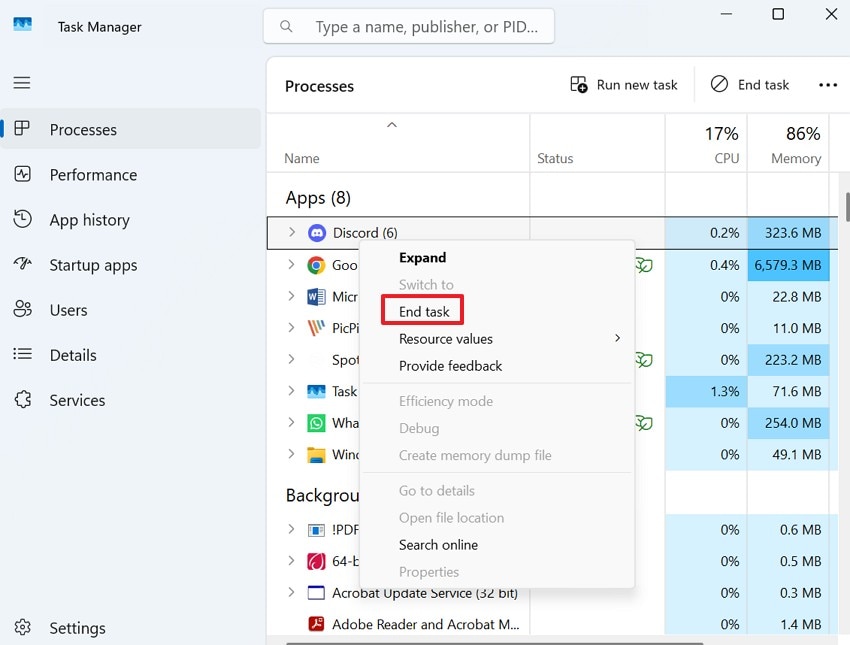
- Now, press “Ctrl + Shift + Esc” to open Task Manager, then right-click on the unnecessary background apps. Further, pick the “End Task” option to close the background apps.
Fix 3: Update or Roll Back GPU Drivers
GPU drivers control communication between your graphics card, Windows, and games. Outdated or unstable versions can trigger crashes during startup or rendering. When “TheBinding of Isaac” crashes on startup, drivers need to be checked. Accordingly, updating or rolling back can restore compatibility and smoother launching. Adhere to the steps below to see how to update GPU drivers:
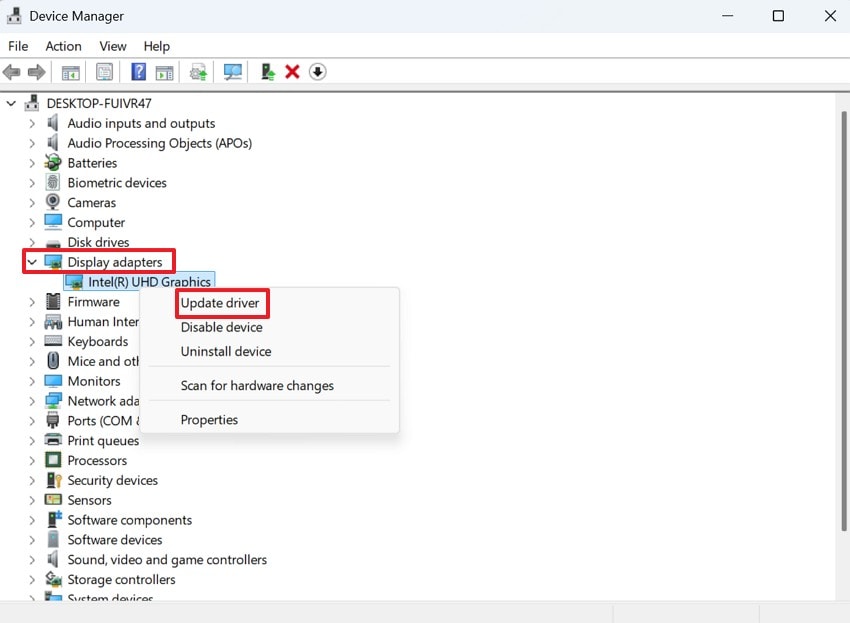
- Start by pressing “Windows + X” and selecting “Device Manager”, then expand “Display adapters.” After that, right-click your GPU and select “Update driver” to continue.
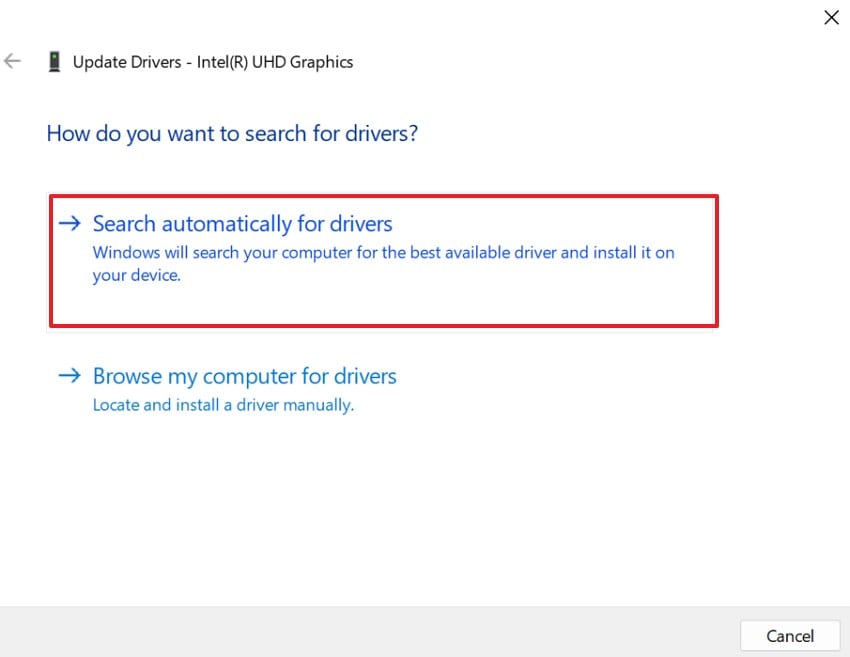
- Further, select the “Search automatically for drivers” to check for updates in the next window.
Fix 4: Install Required Runtimes
Missing runtimes can prevent important game components from opening correctly, even after installation succeeds. This fix targets errors linked to Microsoft Visual C++, DirectX, or .NET support files. If “The Binding of Isaac” will not launch properly, installing required runtimes fills those gaps and helps essential startup processes work reliably. The steps below show how to install Microsoft Visual C++ Redistributable as one common example:
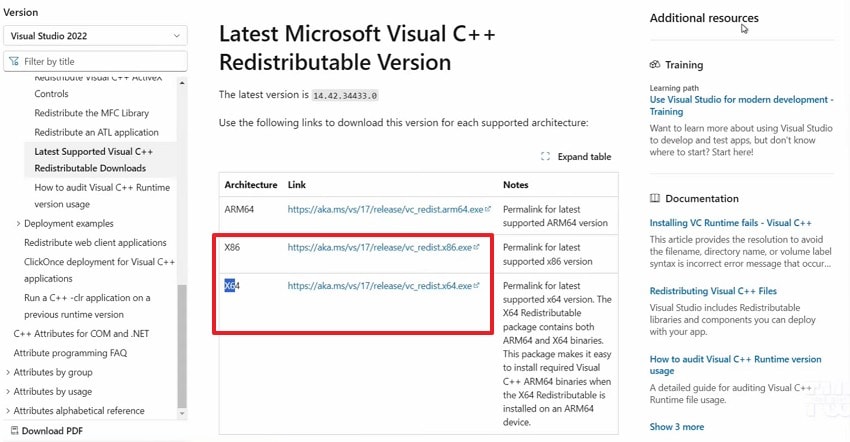
- Navigate to the “Microsoft Visual C++ Redistributable” download page, then choose the “x86” or “x64” version based on your system.
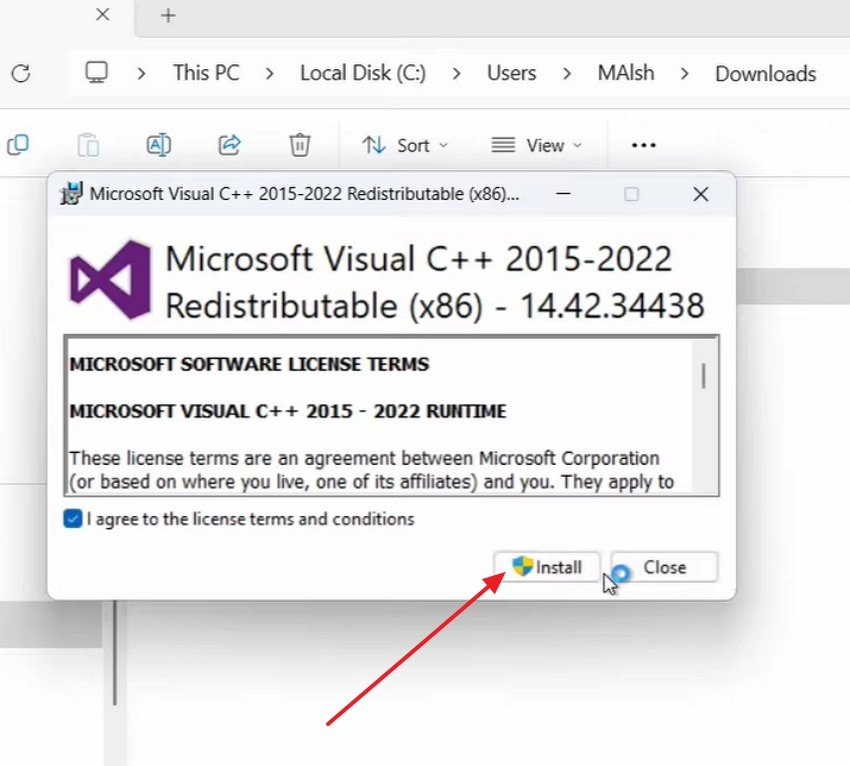
- After the file downloads, open the installer, keep the license box checked, and click “Install” to begin setup.
Fix 5: Disable Mods and Custom Content
Mods and custom content change game behavior beyond the official version. Sometimes those changes no longer match updates, causing startup instability. If “The Binding of Isaac” crashing began after tweaks or mods, the mods are suspect. Thus, disabling unofficial content helps identify conflicts without changing core files. Follow the steps mentioned below to try this fix with ease:
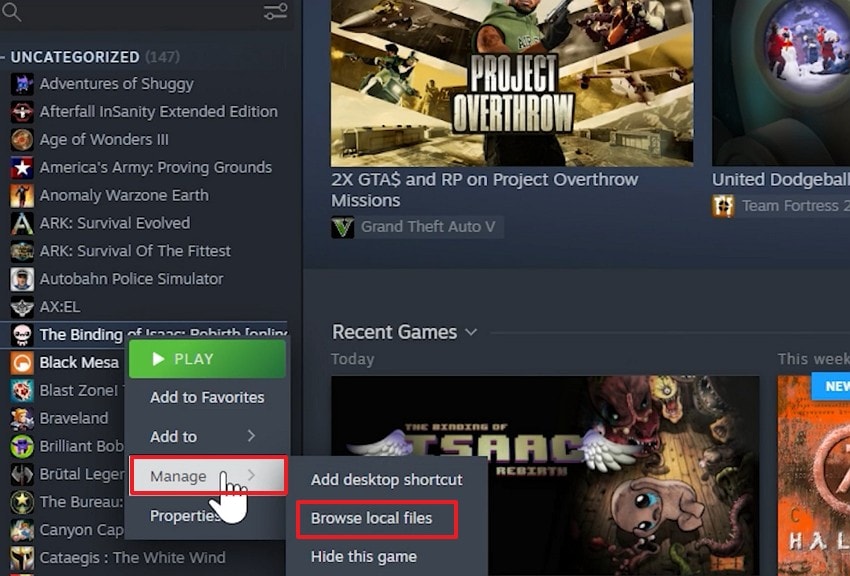
- Open Steam, right-click “The Binding of Isaac,” choose “Manage,” then click “Browse local files.”
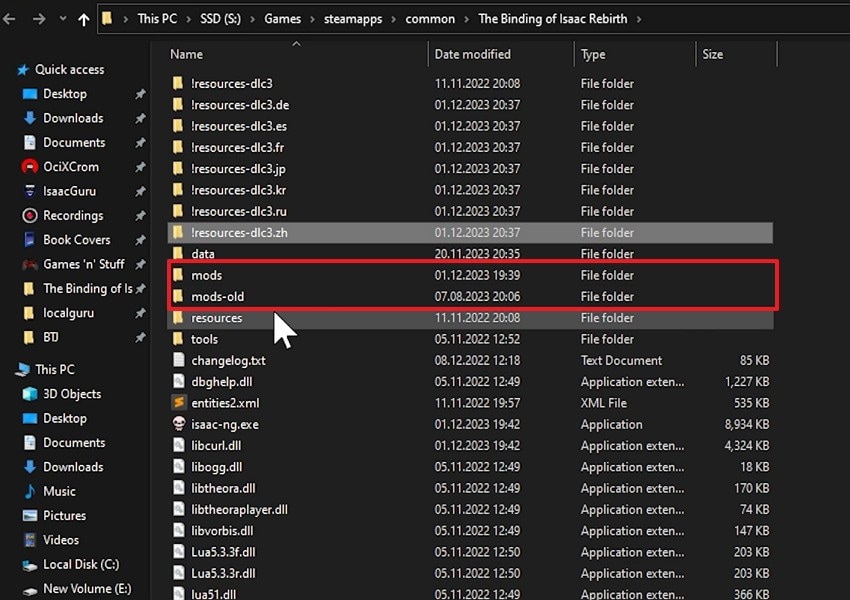
- Next, inside the game folder, find the mods folder and rename it to mods-old to disable installed mods temporarily.
Fix 6: Reset Game Config and Graphics Settings
The problem may come from corrupted configuration data instead of damaged game files. Saved launch preferences, resolution values, and graphics settings can all interfere with startup when they stop working correctly. Resetting these files brings the game back to its default state and can resolve crashes that appear before loading finishes. Now, use the steps below to refresh the settings safely:
- Start by locating “File Explorer,” go to “Documents > My Games > Binding of Isaac Repentance,” and choose the “options.ini” file.
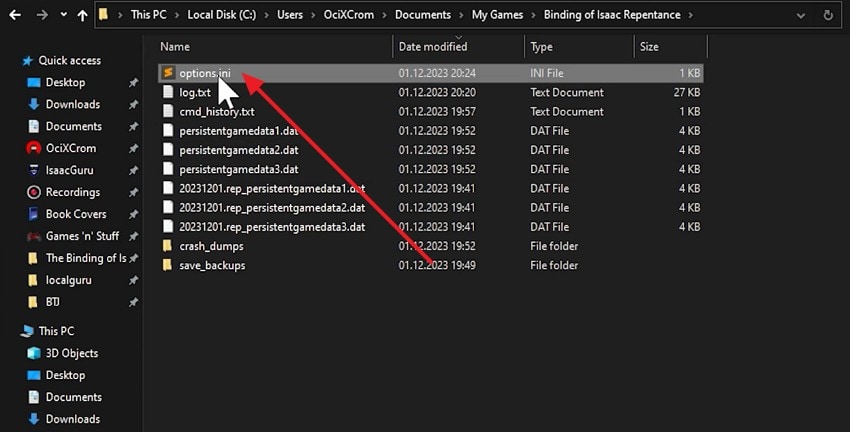
- Next, open options.ini, find the “VSync” setting, then change its value if needed and save the file before launching the game again.
Fix 7: Run as Admin and Change Compatibility
Administrator mode gives games broader permission to access needed system locations. Compatibility options also help older software behave better on newer Windows. When “The Binding of Isaac” will not open, permission conflicts may exist. Therefore, these settings can improve startup communication and launch reliability overall. Next, try the following steps to adjust permissions and compatibility settings properly:
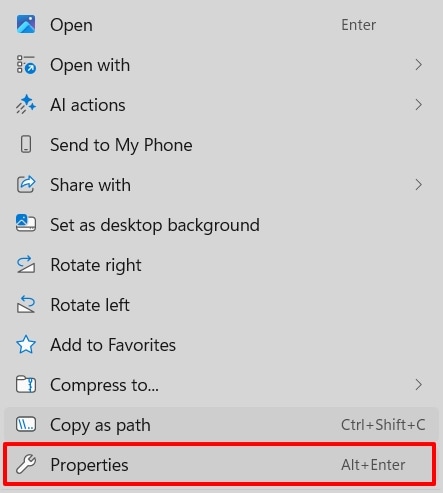
- Start by right clicking the game, then choose the “Properties” option from the list.
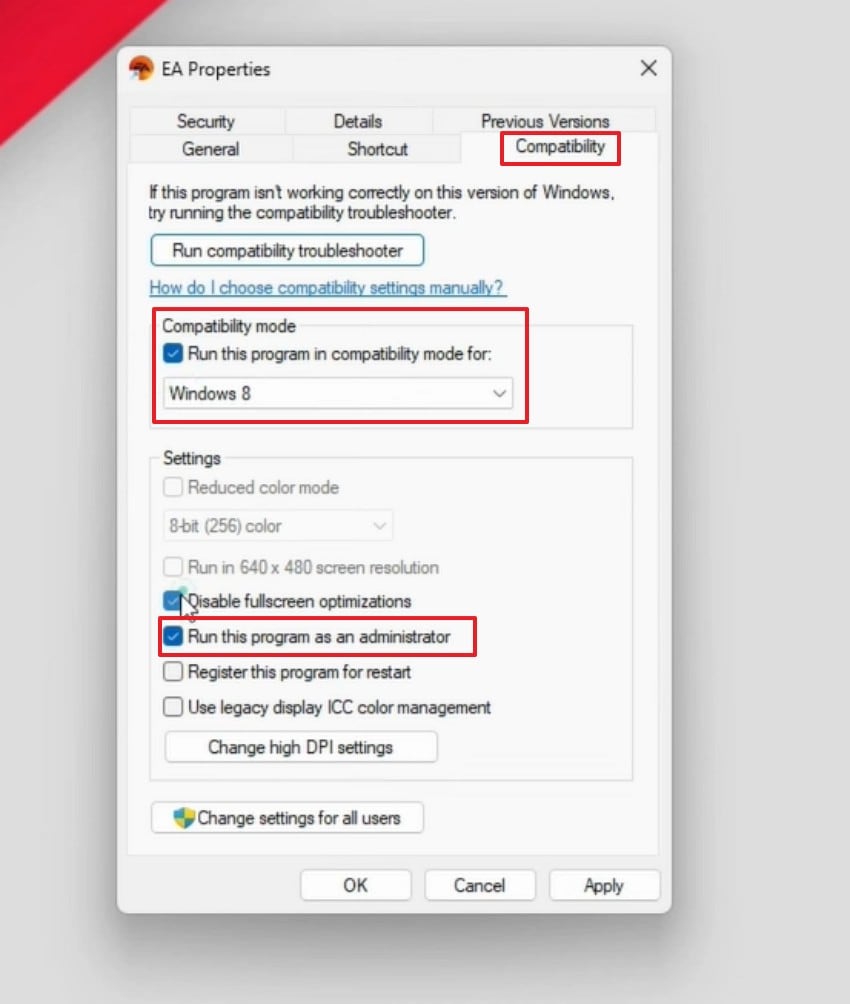
- Next, access the “Compatibility” tab, then enable “Run this program as administrator there” and change “Compatibility mode” if you want.
Fix 8: Temporarily Adjust Antivirus/Firewall\
Security software can mistakenly block game files, startup actions, or online checks that seem unusual. Thus, this fix tests whether protective tools are overreacting and interrupting launch. If the Binding of Isaac crashes begin after a scan or rule change, temporarily adjusting antivirus or firewall settings can safely remove false blocks. The following steps will walk you through adjusting the firewall temporarily:
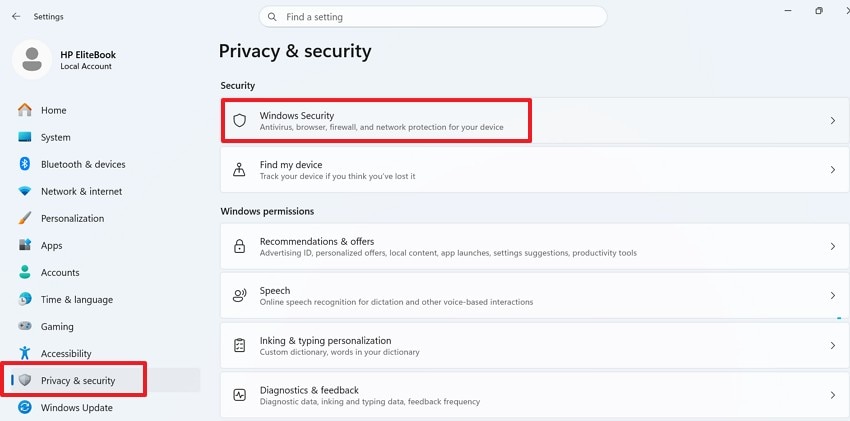
- To start, navigate to “Settings” and choose “Privacy & security” to further select the “Windows security” option.
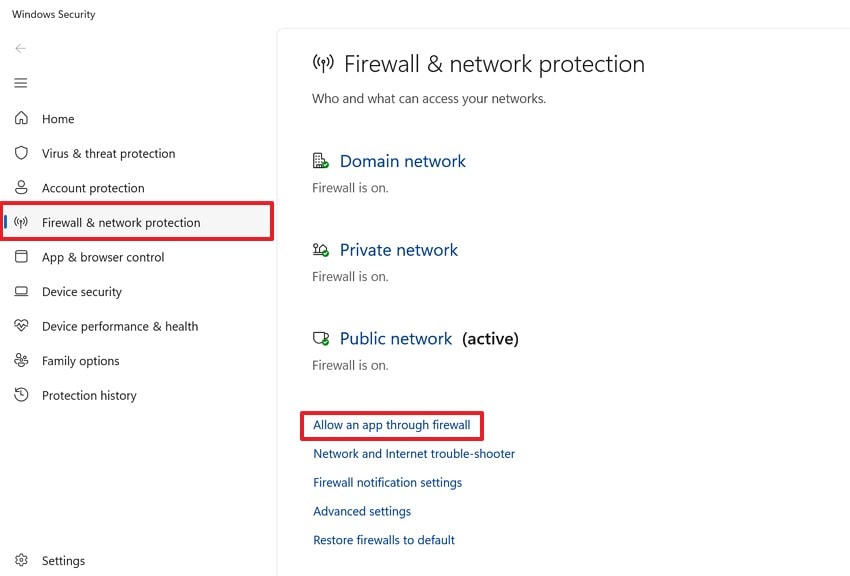
- Now, choose the “Firewall & network protection,” then press the “Allow an app through firewall” option to continue.
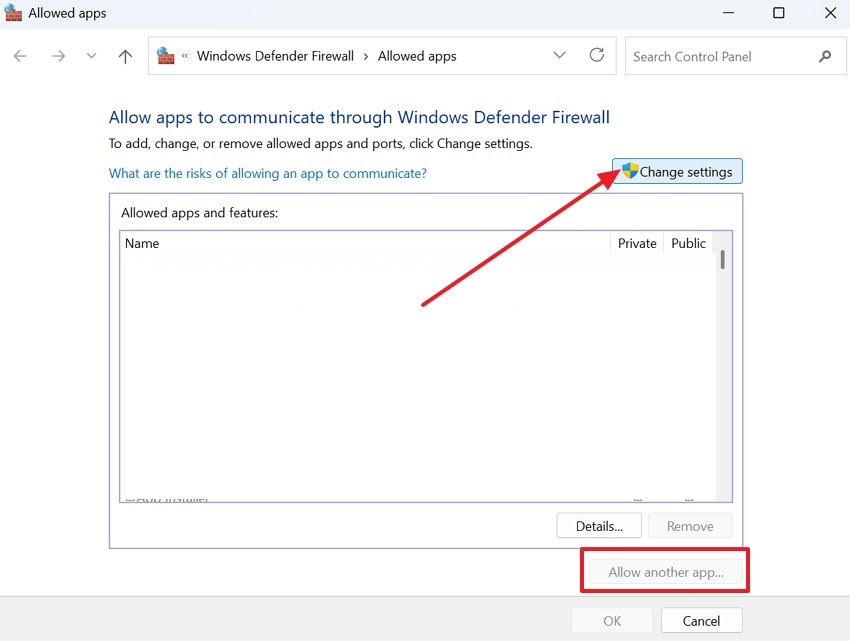
- In the next window, press the “Change Settings” option to allow another app to proceed.
Fix 9: Clean Reinstall on a Different Drive
A clean reinstall removes leftover files that ordinary uninstall steps may miss. Installing on another drive also avoids hidden storage or permission issues. For cases where The Binding of Isaac crashes on startup repeatedly, reinstalling the game can remove hidden installation problems. Finally, this method provides the freshest installation environment for testing again. Now, adhere to the steps below to reinstall cleanly on another drive:
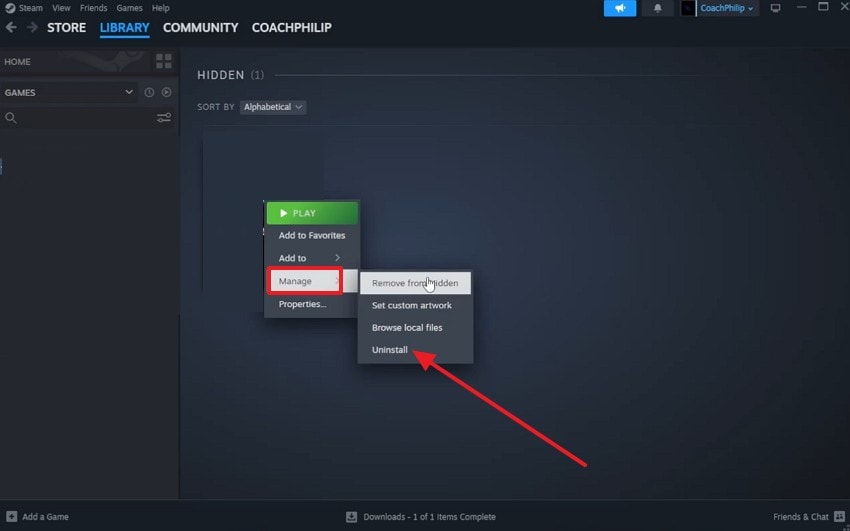
- Navigate to the “Library” tab in Steam and then choose the game, right-click to pick the “Manage” option, and then select the “Uninstall” option.
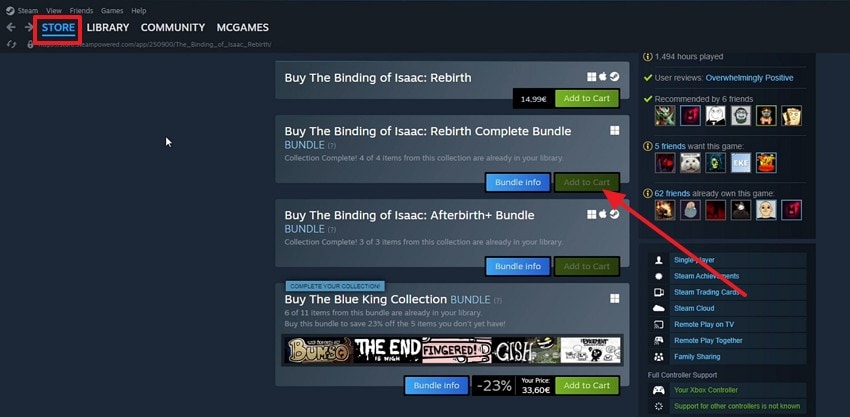
- Upon launching Steam, navigate to “Store” and choose The Binding of Isaac, and select “Add to Cart” to install it.
Fix 10: Check Logs and Ask for Help
Crash logs can show what the game was doing just before it failed, which makes troubleshooting more precise. This step is especially helpful when basic fixes do not clearly explain the problem. If The Binding of Isaacstill does not launch, reviewing and sharing the crash logs may reveal the exact error. It can also help support forums or communities to suggest faster and more accurate solutions.
Pro Tip: Lost Data After Crash? Recover Isaac Files with Ease with Recoverit
Crash problems can sometimes do more than interrupt your progress or gameplay. Sometimes, they also make important saves, screenshots, or recordings disappear unexpectedly. When “The Binding of Isaac” fails, missing files can add extra stress. That situation feels worse when deleted data seems impossible to restore properly. So, using a recovery tool becomes helpful after a serious crash-related file loss.
Therefore, Recoverit helps by scanning drives deeply for lost saves and media files. It can restore screenshots, videos, documents, and game-related files quickly. It also supports 1000-plus file types, making recovery more flexible overall. Additionally, its preview options help you check files before restoring them fully first. For players facing sudden crashes, Recoverit offers a practical safety net.
Key Features
- Enhanced Recovery: Rebuilds video fragments, helping recover Isaac clips after crashes, corruption, or interrupted recordings with cleaner results.
- Crash Recovery: Recovers files from crashed computers, which helps when Isaac issues lead to boot failures.
- NAS Recovery: Restores files from NAS and Linux storage, useful for backed-up Isaac media.
Guide to Recover “The Binding of Isaac” Files with Ease with Recoverit
If important game files go missing after a crash, recovery becomes necessary. Follow the stepwise guide below to restore them more easily with Recoverit:
- Pick the Location of Lost Isaac Files
Launch Recoverit and locate the “Hard Drives and Locations” panel first. Then, choose the location where your lost Binding of Isaac files were originally saved.

- Scan the Selected Location and Sort the Results
Next, let Recoverit scan the selected location for recoverable files. After a while, results appear, then use the “File Location” and “File Type” options to narrow the list more clearly.

- Preview Game Files and Restore Them Safely
Finally, preview the files you want to restore and press the “Recover” button. After that, save them in a different folder so lost Binding of Isaac data does not get overwritten.

Part 3. Keep Isaac Running Smoothly: 6 Crash Prevention Tips
These simple habits can reduce future crashes and keep gameplay more consistent. With “The Binding of Isaac,” small preventive steps mentioned below often make stability much better:
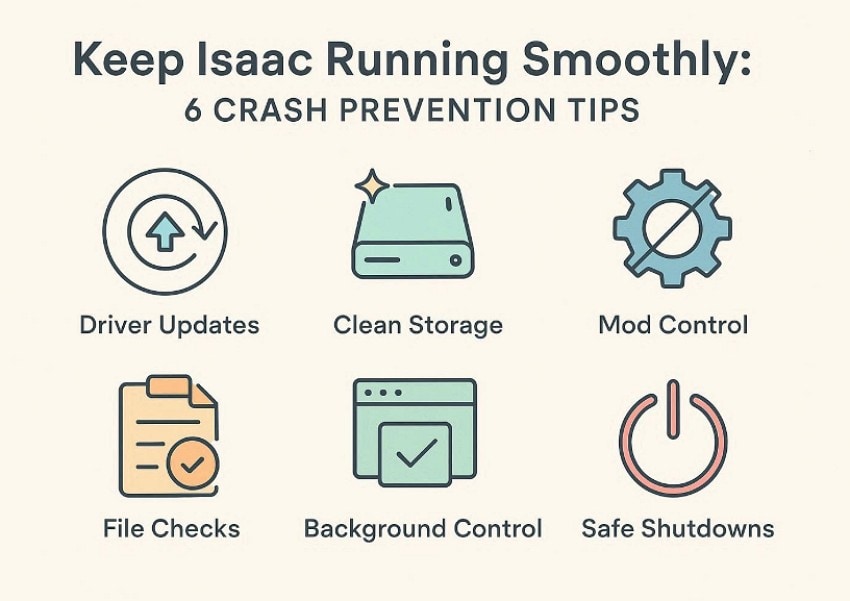
- Driver Updates: Update graphics drivers before blaming the game for every sudden startup crash. Even minor driver mismatches can trigger freezes, black screens, or failed launches.
- Clean Storage: Think of free storage as breathing room for updates and saves today. Packed drives slow down routine tasks and sometimes break temporary files unexpectedly altogether.
- Mod Control: Mods look harmless until one outdated file quietly wrecks the entire launch. Add them gradually, then remove suspects the moment crashes start appearing again.
- File Checks: After a bad update, invisible damage can linger inside core game files. A quick verification often catches what manual troubleshooting would completely miss otherwise.
- Background Control: Before launching Isaac, clear the stage and close unnecessary background programs first. Less competition for memory usually means fewer random interruptions during startup overall.
- Safe Shutdowns: Rage quitting feels fast, but it can leave important game data unstable. A proper exit today can prevent tomorrow's crash entirely.
Conclusion
To conclude, startup crashes can feel frustrating, but the right fixes often restore normal gameplay quickly. By checking files, settings, drivers, and interference sources, players can solve many launch problems without replacing their setup. If “The Binding of Isaac”is also crashing and missing files after a crash, Recoverit offers a practical way to restore important data with confidence.
FAQ
-
1. Why does The Binding of Isaac keep crashing on startup?
Several issues can interrupt the game before it fully opens, including broken files, unstable drivers, bad settings, or mod conflicts. The fastest way to narrow it down is to test each area individually. -
2. Can mods make Isaac crash before launch?
Yes, outdated mods can conflict with updates and break normal startup behavior. Disabling custom content helps confirm whether unofficial files are causing instability today. -
3. Do I need to reinstall the game immediately?
No, simpler fixes often solve startup crashes before reinstalling the whole game. First, verify files, reset settings, and close interfering background apps or overlays. -
4. Can Recoverit restore lost Isaac files after a crash?
Yes, Recoverit can scan drives for lost saves, videos, screenshots, and documents. Its preview and recovery tools help restore important “The Binding of Isaac” files safely today.


