

 TL;DR:
You can resolve "REPLACED" game crashes by disabling Steam overlays, clearing system temporary files, running the game as an administrator, and verifying your local installation data.
● To eliminate background software conflicts, navigate to Steam's "In Game" settings tab and toggle off the "Enable Steam Overlay while In Game" option.
● Clear cached system data that causes performance drops by opening the Run dialog, typing "%temp%", and deleting the localized temporary files.
● If sudden shutdowns corrupt your game saves or screenshots, you can utilize Wondershare Recoverit to scan your drive and restore up to 500 MB of lost data for free.
Ask AI for a summary
 ChatGPT
 Perplexity
 Gemini
 Claude
 Grok
Grok
A game launches smoothly, but moments later, the screen freezes, and the app suddenly closes. Frustrating crashes like these can quickly ruin the experience, especially when they happen repeatedly. Many players have recently reported the Replaced crashing issue on different devices, preventing them from enjoying the game without interruptions.
While the problem may seem complicated at first, most cases can be resolved with a few straightforward troubleshooting steps. In this guide, you will learn the main causes of these crashes and discover simple solutions to stabilize the game.
Try Recoverit to Perform Data Recovery
 Security Verified. 3,591,664 people have downloaded it.
In this article
-
- Fix 1: Restart REPLACED and Your Device
- Fix 2: Check Storage, RAM, and Network
- Fix 3: Update REPLACED and Your System
- Fix 4: Clear Cache and Temporary Data
- Fix 5: Reinstall REPLACED Cleanly
- Fix 6: Disable Conflicting Apps and Overlays
- Fix 7: Check Save Files and Game Data
- Fix 8: Run as Administrator
- Fix 9: Advanced Options (New Profile or System Reset)
Part 1. Crash 101 – Why REPLACED Keeps Closing on You Suddenly
When REPLACED crashed repeatedly on your device, it is usually a sign of system conflicts, damaged files, or performance limitations. Below are some of the most common reasons why the game may keep closing unexpectedly:
- Outdated Graphics Drivers: Old or incompatible GPU drivers can cause rendering issues, leading the game to freeze or crash during startup or gameplay.
- Corrupted Game Files: Missing or damaged installation files may prevent the game from running properly and trigger unexpected crashes.
- Insufficient System Resources: Low RAM, limited storage space, or high CPU usage can make it difficult for the game to operate smoothly.
- Software Conflicts: Background applications, overlays, or security software can sometimes interfere with the game’s performance.
- Outdated Operating System: Running an older version of Windows or other operating systems may lead to compatibility problems with newer games.
Part 2. “REPLACED” Crash Fix Guide for Smooth Performance
After understanding the common causes behind sudden shutdowns, the next step is applying the right fixes. If the REPLACED game crashed repeatedly during startup or gameplay, try the following fixes:
Fix 1: Restart REPLACED and Your Device
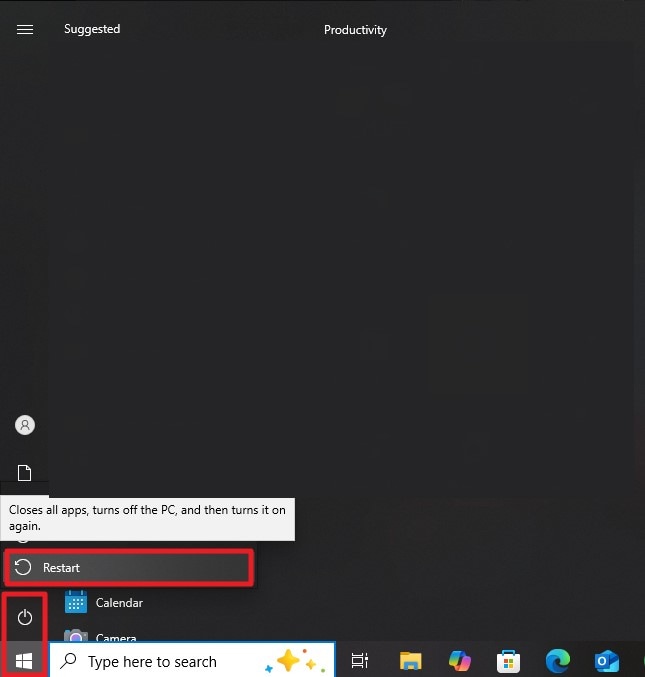
Restarting apps and devices often solves temporary glitches. When REPLACED stops responding or suddenly closes, a simple restart can refresh system processes. It clears minor conflicts and reloads background services. This quick step can help the game launch again and run more smoothly. Follow the instructions mentioned below to learn how to restart your device:
Instructions. Click the Windows icon in the bottom-left corner of your screen, then open the “Power” menu. From the available options, select “Restart” to shut down active processes and reboot your system.
Fix 2: Check Storage, RAM, and Network
Limited system resources can affect gameplay stability. If REPLACED crashed during loading or gameplay, checking available storage and memory can help. Network stability also matters. Ensuring these resources are available can support smoother performance and reduce sudden shutdowns. To learn how to perform this fix, read the instructions provided below:
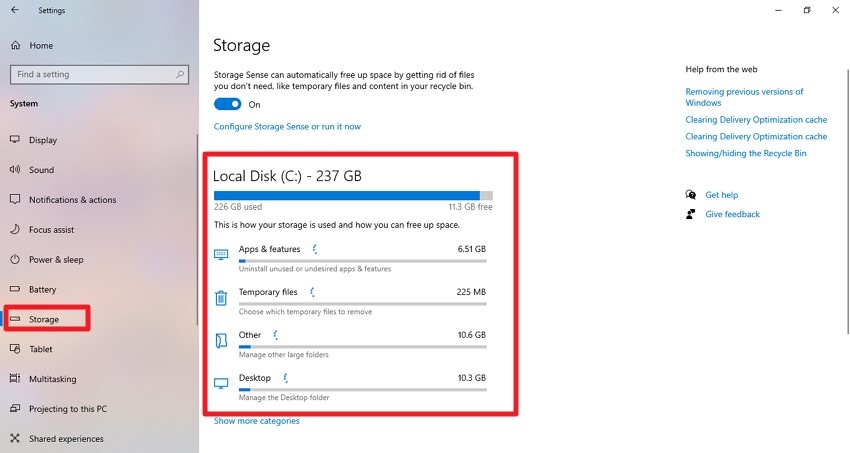
Check Storage Space
Instructions. To check available space on your computer, open “Settings,” then select “System” and go to “Storage.” This section shows how much space is available on your main drive. Make sure there is enough free storage for the game to run smoothly.
Check RAM Usage
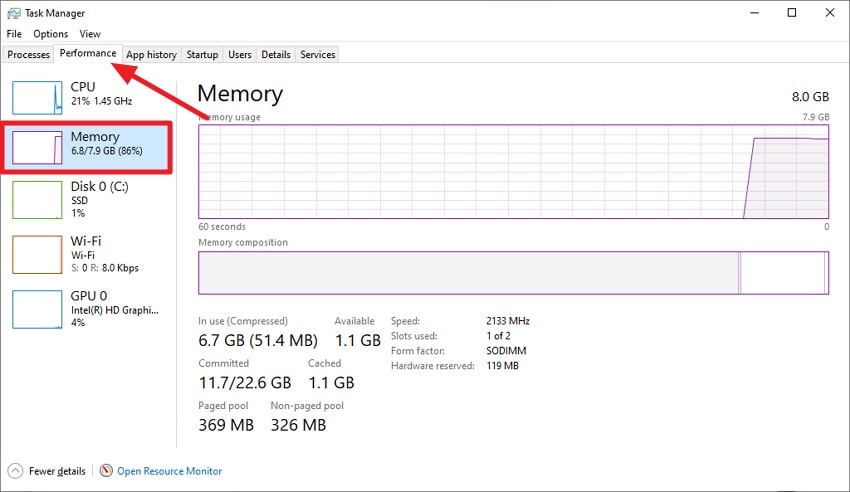
Instructions. Press “Ctrl + Shift + Esc” to open “Task Manager.” Then choose the “Performance” tab and click “Memory.” This panel displays total RAM and how much is currently in use.
Check Network Connection
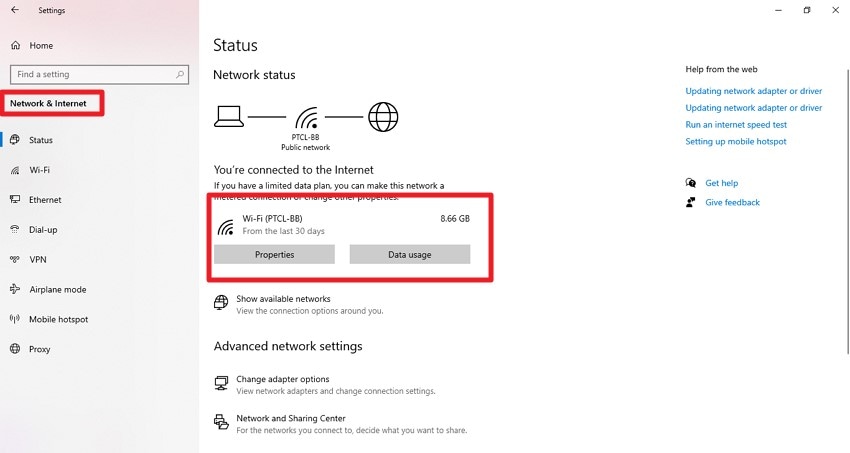
Instructions. To check your connection, open “Settings” and select “Network & Internet.” Here you can confirm whether your device is connected to Wi-Fi or not.
Fix 3: Update REPLACED and Your System
Keeping software updated is important for compatibility. When the REPLACED game crashed frequently, outdated versions may be involved. Updating the game and the operating system ensures better support for new features. It can also improve stability and overall gameplay performance. Read the steps provided below to learn how to perform this fix:
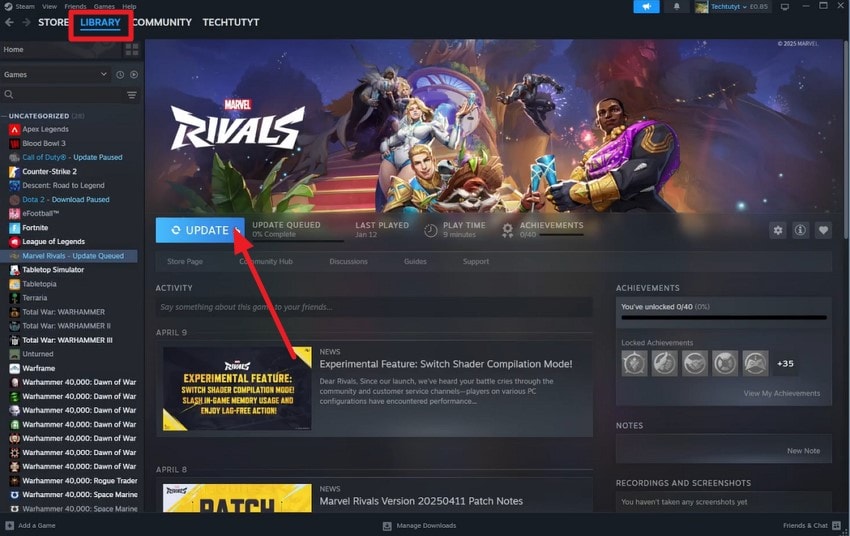
Update Game
Instructions. Open your game launcher where REPLACED is installed. Go to your “Library,” find the game, and select “Update” if a new version is available.
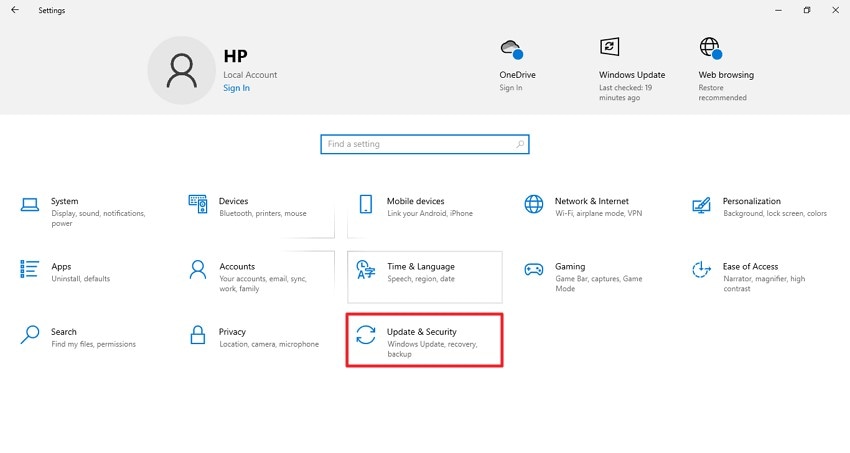
Update Windows
- Open the Settings app, scroll down, and click on the “Update & Security” section.
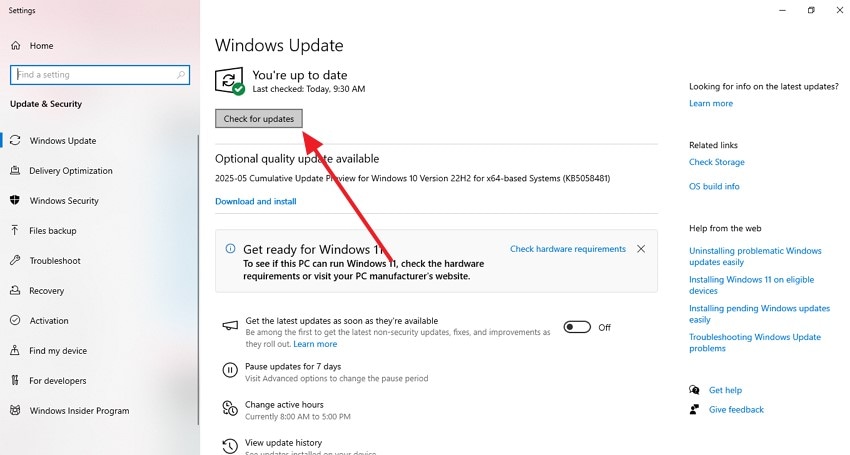
- Press the “Check for Updates” button to start downloading and installing any available Windows updates on your system.
Fix 4: Clear Cache and Temporary Data
Temporary files build up over time and can slow applications and affect stability. Clearing cached data refreshes the system environment. Doing this regularly helps REPLACED run more smoothly and prevents unnecessary performance issues. If you do not know how to clear cache and temporary data, read the instructions mentioned next:
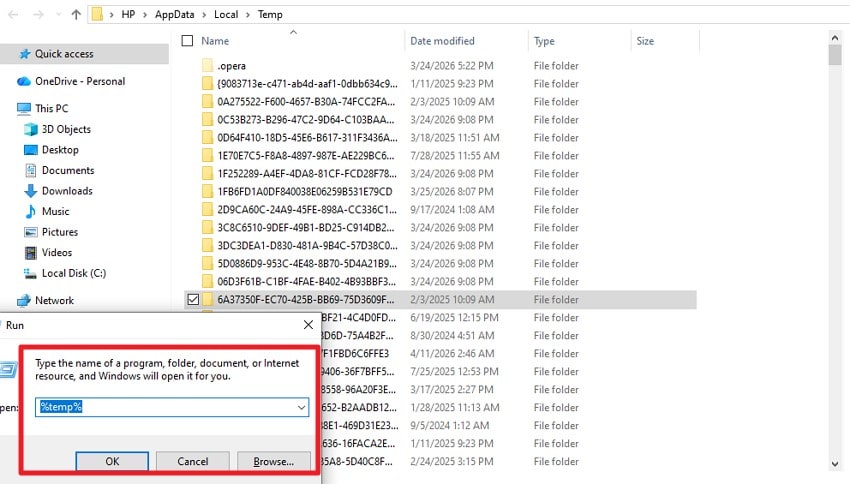
Instructions. Press “Windows + R” to open the Run dialog, type “%temp%”, and press “OK.” This opens the temporary files folder. Select the unnecessary files and delete them to free up space and improve performance.
Fix 5: Reinstall REPLACED Cleanly
A fresh installation can resolve hidden file problems. When REPLACED crashed repeatedly, reinstalling the game may help. It replaces missing or damaged files. This clean setup can improve stability and help the game run properly again. Follow the steps mentioned below to learn how to reinstall the game on Steam:
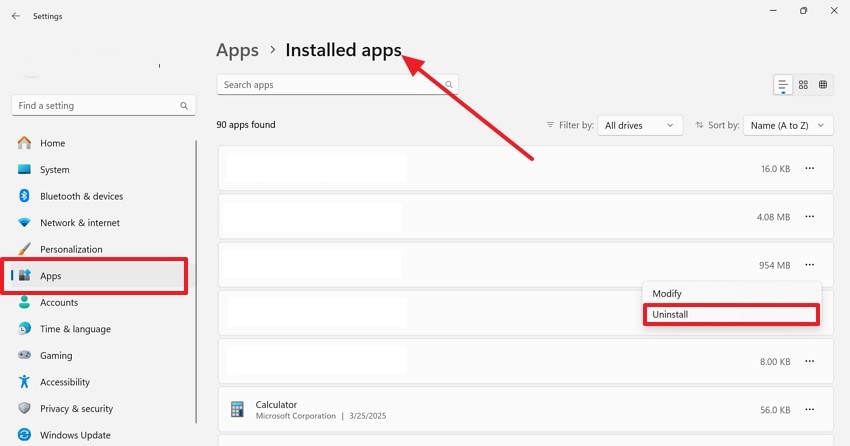
- Open “Settings” on your system and go to the “Apps” menu, then select “Installed Apps.” Scroll through the list to find REPLACED or the game launcher such as Steam. Click on it and choose “Uninstall” to fully remove the game or launcher from your device.
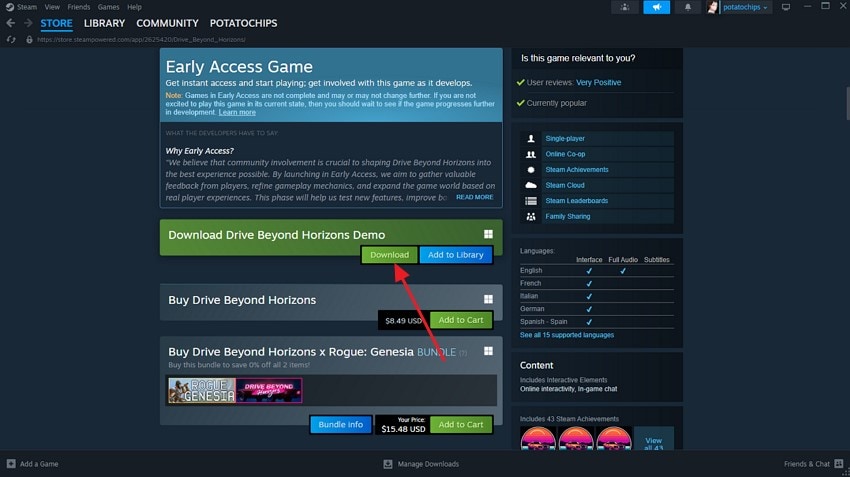
- Open Steam again and use the search bar to find REPLACED. Once it appears in the results, click “Install” or “Download” to reinstall a fresh copy of the game.
Fix 6: Disable Conflicting Apps and Overlays
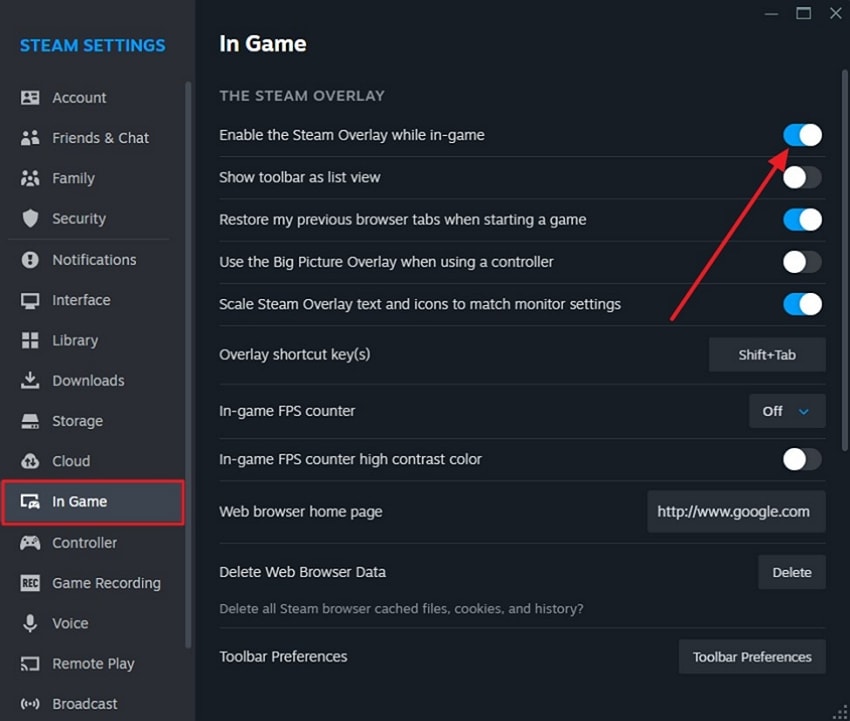
Background apps sometimes interfere with game processes. Overlays and monitoring tools may also affect performance. If the REPLACED game crashed during gameplay, reducing these background tools can help. A cleaner system environment often leads to smoother gameplay. If you do not know how to disable overlays in Steam, read the steps mentioned below:
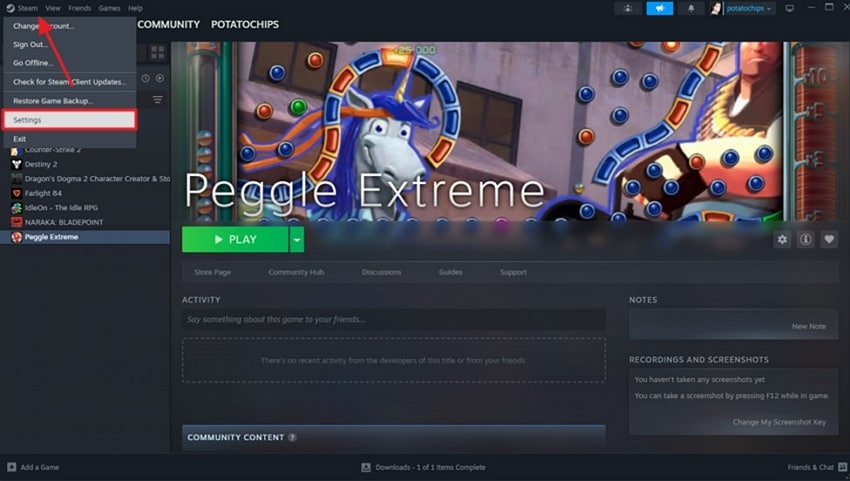
- Open “Steam” from the top-left corner of the application window. From the dropdown menu, select “Settings” to access the configuration options.
- Go to the “In Game” tab on the left side. Find the option labeled “Enable Steam Overlay while In Game.” Turn the toggle off to disable the overlay feature.
Fix 7: Check Save Files and Game Data
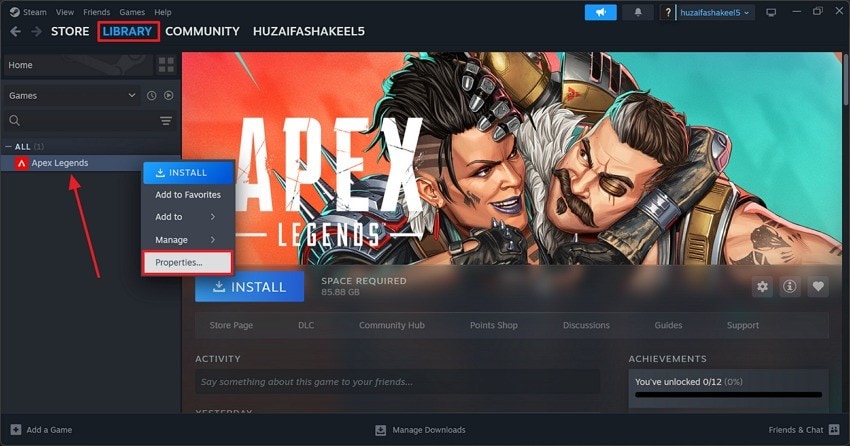
Game data plays an important role in stability, and sometimes, saved progress files may not load correctly. When this happens, REPLACED may struggle to run smoothly. Reviewing stored data can help maintain better game performance. Provided below are the steps to check the game files within the Steam environment:
- Open Steam and go to the “Library” section. From your list of games, find REPLACED, then right-click on it and select “Properties” from the menu to open its settings.
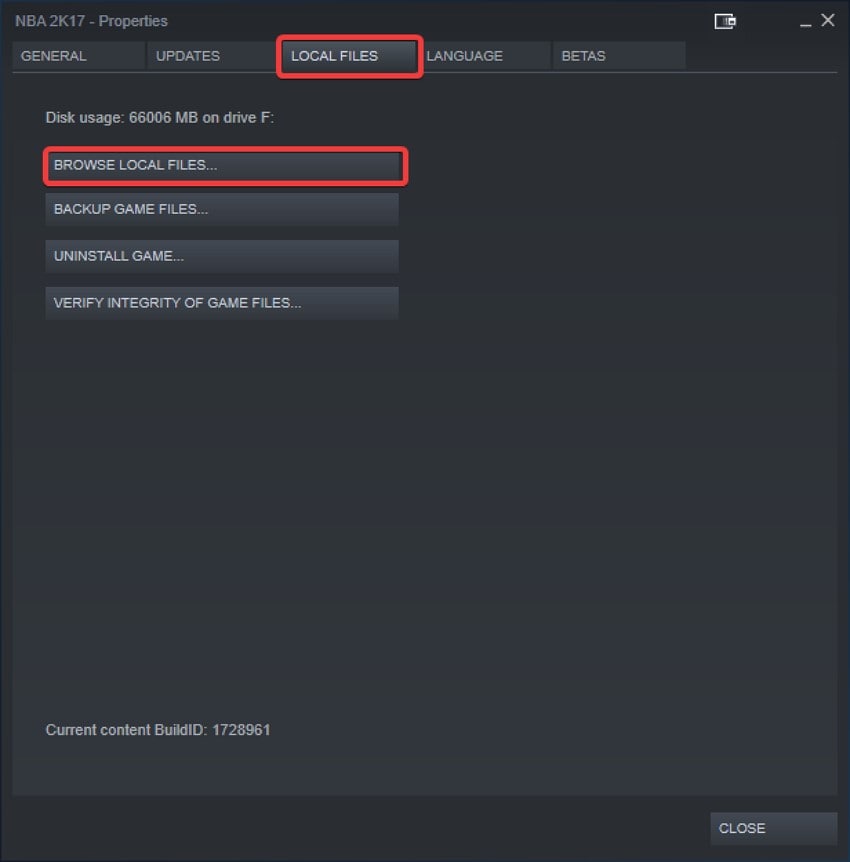
- In the “Properties” window, go to the “Local Files” section. Click on “Browse Local Files” to open the exact installation folder of REPLACED on your system.
Fix 8: Run as Administrator
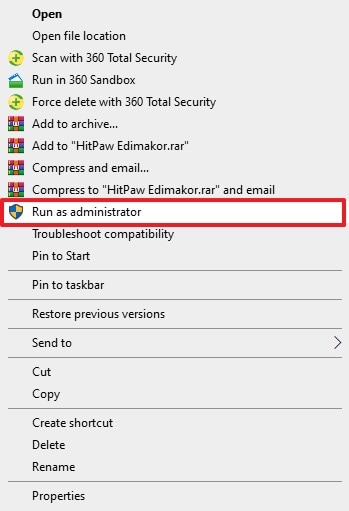
Some games need full system permissions, and running them with administrator access can help. If REPLACED crashed during startup, launching it with elevated permissions may improve compatibility. This can allow the game to access required system resources. If you do not know how to run the game as admin, read the instructions provided next:
Instructions. In File Explorer, locate the game file and right-click on it to view the action menu. Select “Run as Administrator” from the available options. When prompted by Windows, confirm by clicking “Yes.”
Fix 9: Advanced Options (New Profile or System Reset)
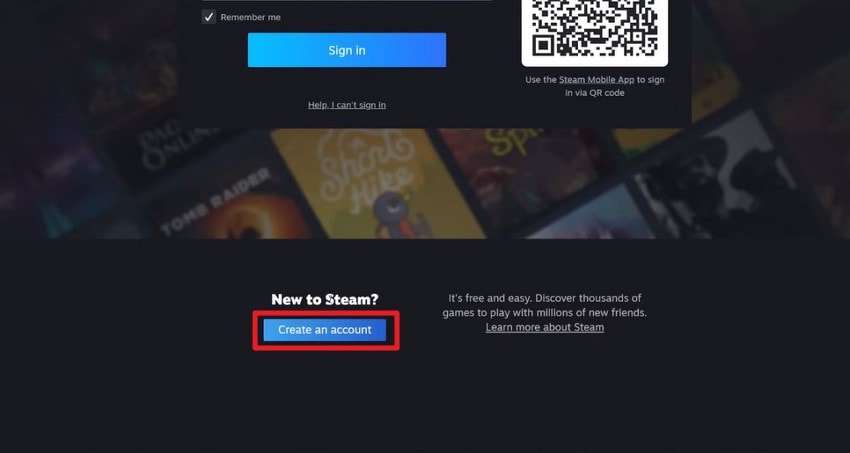
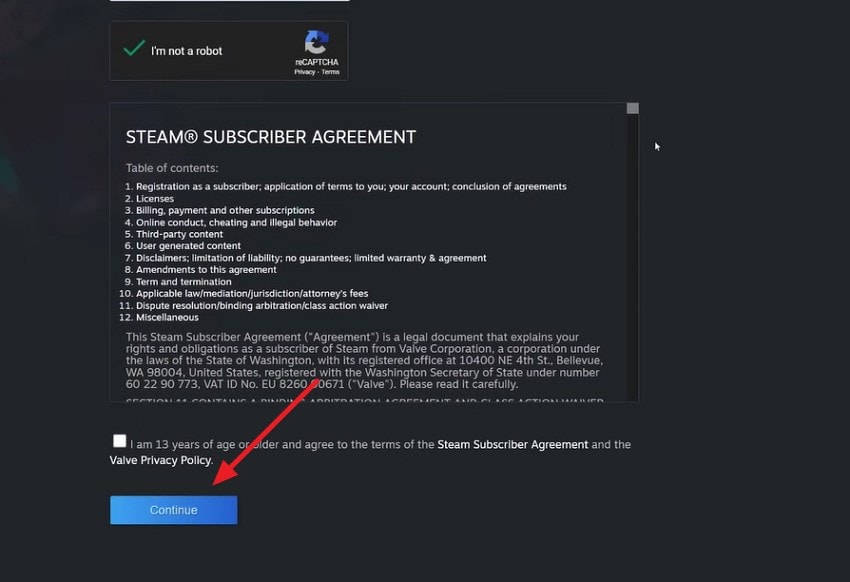
If the REPLACED game crashed even after basic fixes, advanced options may help. Creating a new user profile or resetting certain system settings can sometimes restore stable performance. Here is how you can create a new Steam profile:
- Head to the official Steam website and log out of your existing account. Now scroll down a bit and select the “Create Account” option.
- Next, input your details and press the "Continue” button to successfully create a new user profile.
Pro Tip: When REPLACED Corrupts Files – Use Recoverit to Rescue Lost Data
Repeated crashes can sometimes do more than interrupt gameplay. When REPLACED shuts down unexpectedly, files being accessed at that moment may become corrupted. This can affect saved game progress, recorded gameplay clips, screenshots, or even unrelated documents. Sudden crashes during saving or updating data may leave files incomplete, making them difficult to open later.
Wondershare Recoverit is designed to scan storage devices such as internal drives, external hard disks, USB drives, and SD cards to locate recoverable data. The software performs a deep scan to detect files that were deleted, corrupted, or lost due to crashes and system errors. Users can preview recoverable files before restoring them. Another helpful benefit is that users can recover up to 500 MB of data for free.
Key Features Offered By Recoverit
- Bulk Data Recovery: Recoverit allows users to restore multiple lost or corrupted files at once, making large-scale data recovery faster and more convenient.
- Search File with Filter: The tool includes smart filtering options that help users quickly locate specific recovered files by type, size, or date.
- Multiple File Format Support: Recoverit supports recovery for a wide range of file formats, including documents, videos, photos, audio files, and game data.
Step-by-Step Guide to Recover Lost or Corrupted REPLACED Files Using Recoverit
As discussed earlier, sudden crashes can sometimes damage or delete important game data. In such cases, Recoverit provides a reliable way to retrieve lost or corrupted files quickly. Follow the steps below to recover REPLACED files using this tool:
- Launch Recoverit and Select the File Location
Open Recoverit on your computer. From the main interface, choose the drive or folder where the REPLACED game files were originally stored.

- Start the Scan to Find Lost Game Files
After selecting the location, start the scanning process. Recoverit will search the selected drive and display all recoverable files. Look through the results and locate the missing or corrupted REPLACED files.

- Recover and Save the Files Safely
Select the files you want to restore and click the “Recover” button. Once the process finishes, choose a safe location on your system to save the recovered files.

Conclusion
To sum it up, this article provided a detailed guide on how to fix the REPLACED crashing issue. By applying the suggested fixes, users can improve stability and reduce unexpected shutdowns during gameplay. However, if crashes lead to lost or corrupted game data, using Recoverit can help recover important files quickly. Its powerful scanning and recovery features make it a reliable solution for restoring damaged or missing game data.
FAQ
-
1. Why does REPLACED keep crashing on my device?
REPLACED may crash due to outdated drivers, corrupted game files, insufficient system resources, or conflicts with background applications. Checking updates and verifying game files can often help resolve the issue. -
2. How can I stop REPLACED from crashing during gameplay?
You can try restarting your device, updating the game and system software, clearing temporary data, or reinstalling the game. These steps often improve stability and reduce frequent crashes. -
3. Can crashes in REPLACED cause file corruption?
Yes. Sudden shutdowns while the game is saving or loading data can sometimes corrupt game files, screenshots, or recorded gameplay. In such cases, using Recoverit can help recover lost or damaged files. -
4. What should I do if my REPLACED save files disappear after a crash?
First, check the game’s save folder and backup locations. If the files are missing or corrupted, a recovery tool like Recoverit can scan your drive and restore deleted or damaged saved data.


