

 TL;DR:
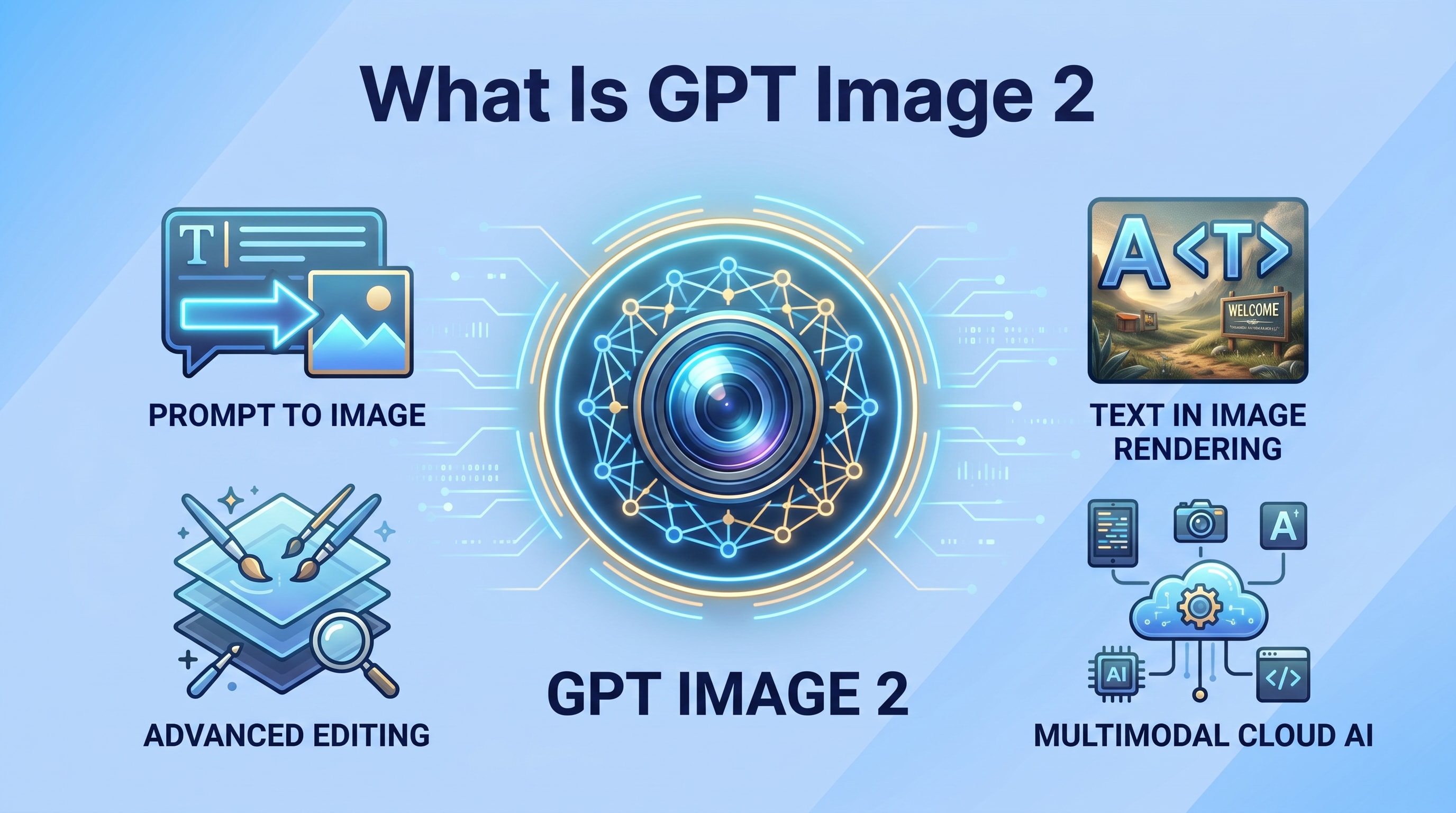
gpt image2 is a generative AI system that synthesizes new visuals from natural language prompts using diffusion-based neural networks, requiring strict storage management to handle the massive volume of rapidly generated assets.
● The generation pipeline relies on prompt encoding, iterative noise reduction, and optional upscaling, functioning either as a direct text-to-image creator or a workflow-focused hybrid tool for restyling existing visual compositions.
● Generating dozens of variations per idea creates a high risk of file sprawl and accidental deletion, necessitating a strict 3-2-1 backup strategy, descriptive file naming, and the physical separation of draft versions from final assets.
● If local or external drive failures cause data loss, users must immediately stop saving new data to the affected drive to prevent overwriting, then utilize Wondershare Recoverit to deep scan, selectively preview, and restore the missing high-resolution AI outputs.
Ask AI for a summary
 ChatGPT
 Perplexity
 Gemini
 Claude
 Grok
Grok
gpt image2 is an advanced AI image generator that turns text prompts into detailed and realistic visuals. From concept art and marketing graphics to product mockups and social media content, this type of model helps creators produce images in seconds instead of hours. As more teams rely on GPT image2 for digital assets, properly organizing, backing up, and recovering these AI generated files becomes critical. This guide explains what gpt image2 is, how it works, where it is most useful, and how to keep your images safe so you can easily restore them if they are deleted or lost.
Try Recoverit to Perform Data Recovery
 Security Verified. 3,591,664 people have downloaded it.
In this article
What Is gpt image2
GPT image2 refers to a class of AI-powered image generation models that convert natural language prompts into new images. Instead of starting with a camera photo or blank canvas, you type in a detailed description, and the model synthesizes a brand-new visual that matches your request.
These models are built on deep learning and generative AI, trained on huge collections of images and associated text. By learning patterns that connect words, styles, objects, and compositions, a generative AI images system like gpt image2 can:
- Create illustrations, product renders, or concept art for creative projects.
- Generate marketing visuals, social media graphics, and ad creatives at scale.
- Produce stylized images that match a particular brand look or artistic style.
Because gpt image2 works from text prompts, it lowers the barrier to visual content creation. Non-designers can quickly experiment with ideas, while professionals can iterate faster, produce variations, and prototype designs before committing to full production work.
How Does gpt image2 Work
Under the hood, GPT image2 uses a combination of neural networks and probabilistic modeling to map text to pixels. While implementations vary, most modern image generation model pipelines involve four key stages:
- Understanding your text prompt
- Mapping the text to a visual concept
- Generating an image in a step-by-step refinement process
- Optionally upscaling and enhancing the output
1. Prompt understanding and encoding
First, the system reads your prompt (for example, "a futuristic product mockup of a wireless headset on a dark gradient background, cinematic lighting"). A language encoder turns these words into numerical vectors that capture meaning: objects, style cues, colors, perspective, and context.
2. Visual concept generation
The encoded text is then used to guide a generative network. Many modern systems use diffusion-based models that start from random noise and iteratively "denoise" it into an image that aligns with the text. At each step, the model decides what should appear in the scene and how it should look.
3. Iterative refinement and upscaling
After an initial image is produced, some platforms apply additional enhancement models, such as super-resolution upscalers, face refiners, or style filters, to:
- Increase resolution for print or high-quality web use.
- Sharpen key elements and reduce artifacts.
- Fine-tune style, colors, or lighting.
4. Why this matters for data protection
Because gpt image2 can produce many iterations very quickly, you often end up storing hundreds or thousands of versions of your visuals. These can be scattered across folders, temporary directories, and external drives, increasing the risk of misplacement or accidental deletion.
Organized storage and robust backup strategies, combined with a reliable image file recovery tool like Recoverit, ensure that even if things go wrong — disk errors, formatting, or human mistakes — your best AI-generated designs remain recoverable.
| Stage | What Happens in gpt image2 |
|---|---|
| Prompt encoding | The text you type is converted into a rich numerical representation that captures objects, styles, and context. |
| Image generation | The model transforms random noise into a coherent image that reflects your prompt, step by step. |
| Enhancement & output | Optional upscaling and refinement produce a polished image ready for download, editing, or publishing. |
What are the Types of gpt image2
Different deployments of GPT image2 focus on different tasks. Understanding these variations helps you pick the right tool for your workflow and manage your files more effectively.
Text-to-image gpt image2 models
These are the most common and widely recognized form of gpt image2. They directly transform natural language into visuals.
Typical uses include:
- Concept art and illustration: Quickly visualize characters, environments, or product ideas.
- Marketing assets: Social media posts, blog headers, thumbnails, and ad creatives generated on demand.
- Education and training: Diagrams, storyboards, and explainer images for tutorials and presentations.
In many tools, you can specify parameters such as style (realistic, 3D render, flat illustration), aspect ratio, or color palette to shape the final output.
Specialized and workflow-focused gpt image2 tools
Beyond general-purpose text-to-image generation, there are targeted or hybrid versions of gpt image2 designed for particular industries or workflows:
- Design and branding helpers: Generate logo concepts, UI mockups, or branded templates that can later be refined in traditional design software.
- Photo and video workflows: Use AI images as backgrounds, overlays, or storyboard frames in larger multimedia projects.
- Image-to-image and editing hybrids: Some platforms let you upload a base image and use gpt image2 to restyle, extend, or fill in missing areas while still keeping the original composition.
Regardless of the type, these tools may create large, high-resolution files, layered source documents, or project archives. All of these assets should be covered by your backup and recovery plan, especially when they represent client work or irreplaceable creative iterations.
Practical Tips for gpt image2
To get the best results from GPT image2 and avoid losing valuable work, combine prompt-writing skills with disciplined file management.
Write clear, structured prompts
Good prompts help the model understand what you want and reduce the number of trial-and-error generations you need.
- Specify subject and key objects: Who or what is the main focus of the image?
- Describe style and mood: For example, "cinematic, high contrast lighting" or "flat vector illustration".
- Mention composition and perspective: "Close-up portrait", "isometric view", or "wide shot of a city skyline".
- Refine iteratively: Start simple, then add or remove details based on the previous output.
Optimize your workflow and storage
gpt image2 can generate dozens of variations per idea. Without a plan, your folders can quickly become chaotic and prone to accidental deletion.
- Use a consistent folder structure: Group assets by project, date, platform (web, social, print), or client.
- Name files descriptively: Include the date, use case, aspect ratio, or version (for example, "brandX-hero-banner-16x9-v3.jpg").
- Separate "final" vs. "draft" files: Keep your approved images in clearly labeled folders for quick reference.
- Combine local and cloud storage: Sync important gpt image2 outputs to cloud services in addition to local drives.
Protect and back up gpt image2 assets
Stable storage practices are essential when AI-generated images are core to your business or creative portfolio.
- Follow the 3-2-1 rule: Keep three copies of important files, on two different types of media, with one copy offsite (for example, cloud).
- Use external drives or NAS: Store large, high-resolution project archives on well-maintained hardware.
- Enable version history: For shared folders or collaboration tools, enable versioning to roll back over-edited or overwritten files.
- Prepare for recovery: Install a trusted data recovery solution like Recoverit in advance, so you are ready if files disappear.
How to Use Recoverit to Recover Lost Data
Even with careful organization, it is easy to misplace, delete, or overwrite GPT image2 outputs, especially when experimenting and generating many variations. Recoverit official website provides a professional data recovery solution from Wondershare that helps you restore lost or deleted images, project files, and other assets from your storage devices.
Recoverit is designed for creators, businesses, and everyday users who need a reliable way to recover deleted images and other data after accidental deletion, formatting, OS crashes, or drive corruption.
Key Features Offered by Recoverit
- Supports recovery of photos, videos, documents, and AI-generated image files from local disks, external drives, SD cards, USB sticks, and more.
- Intuitive interface with guided scanning modes that help beginners and professionals quickly run quick or deep scans for image file recovery.
- Preview and selectively restore only the GPT image2 outputs and related assets you need, saving time and storage space.
Step-by-Step Guide on How To Recover Lost Data
1. Choose a Location to Recover Data
Launch Recoverit and select the drive or specific folder where your gpt image2 files were stored before they went missing. This can be a system disk, external hard drive, memory card, or USB flash drive. Confirm your selection so Recoverit knows exactly where to search for lost or deleted images.

2. Deep Scan the Location
Click Start to initiate a scan of the selected location. Recoverit will perform an in-depth analysis to detect recoverable items, including photos, graphics, and AI-generated gpt image2 outputs. You can watch files appear in real time and pause or stop the scan if you already see the assets you want to restore.

3. Preview and Recover Your Desired Data
After scanning, browse the results using file type, path, or search filters. Use the preview function to check each candidate image or project file so you only recover what you really need. Select your desired items, click Recover, and save them to a safe, different location to avoid overwriting any remaining recoverable data.

Conclusion
GPT image2 represents a new wave of AI tools that convert written ideas into compelling visuals. By understanding how these AI image generator systems work, the main categories available, and the best practices for prompts and storage, you can speed up your creative workflow while maintaining consistent quality.
Because AI-generated assets are now central to many professional and personal projects, protecting and backing up your gpt image2 outputs is essential. When files are accidentally deleted, misplaced, or lost due to hardware failures, Recoverit provides a straightforward way to scan your devices, preview recoverable content, and restore your valuable images so your visual content pipeline stays on track.
Next: Gpt Image2 Recovery
FAQ
-
What is gpt image2?
gpt image2 is a generative AI system that creates images from text prompts. When you describe the scene, style, and composition you want, the model synthesizes an entirely new visual that matches your instructions rather than editing an existing photo. -
How is gpt image2 different from traditional photo editing tools?
Traditional photo editors adjust or enhance images you already have, while gpt image2 produces new images from scratch using AI. You focus on describing the outcome in words instead of manually drawing, compositing, or applying complex edits step by step. -
Can I use gpt image2 images for commercial projects?
Many platforms allow commercial use of gpt image2 outputs, but policies vary. Always review the terms of service, licensing rules, and content restrictions of your chosen provider before using generated images in ads, client work, or products. -
What should I do if my gpt image2 files are accidentally deleted?
Stop saving new data to the affected drive to avoid overwriting deleted files, then run a data recovery solution like Recoverit to scan the device. If the images are still recoverable, you can preview them in Recoverit and restore them to a secure location. -
How can I prevent losing gpt image2 outputs in the future?
Use a clear folder structure, save important work to at least two different storage locations, enable cloud sync or version history when possible, and schedule regular backups. Keeping Recoverit installed also ensures you have a safety net if unexpected data loss occurs.


