

 TL;DR:
Lost GPT Image2 creations can generally be restored by immediately halting all new data writes to the affected drive to prevent overwriting, and then extracting the remaining file data using system histories or specialized software.
● First, verify manual recovery locations such as the Recycle Bin, default browser download paths, GPT image tool built-in galleries, and auto-syncing cloud services like Google Drive or iCloud.
● For complex data loss involving formatted partitions, emptied trash, or system crashes, utilize a professional tool like Wondershare Recoverit to deep scan the raw disk sectors for specific file signatures (PNG, JPG, WEBP).
● When using recovery software, always preview the reconstructed thumbnails to confirm the exact AI images you need, and save the final output to a completely different storage drive to avoid corrupting remaining hidden files.
Ask AI for a summary
 ChatGPT
 Perplexity
 Gemini
 Claude
 Grok
Grok
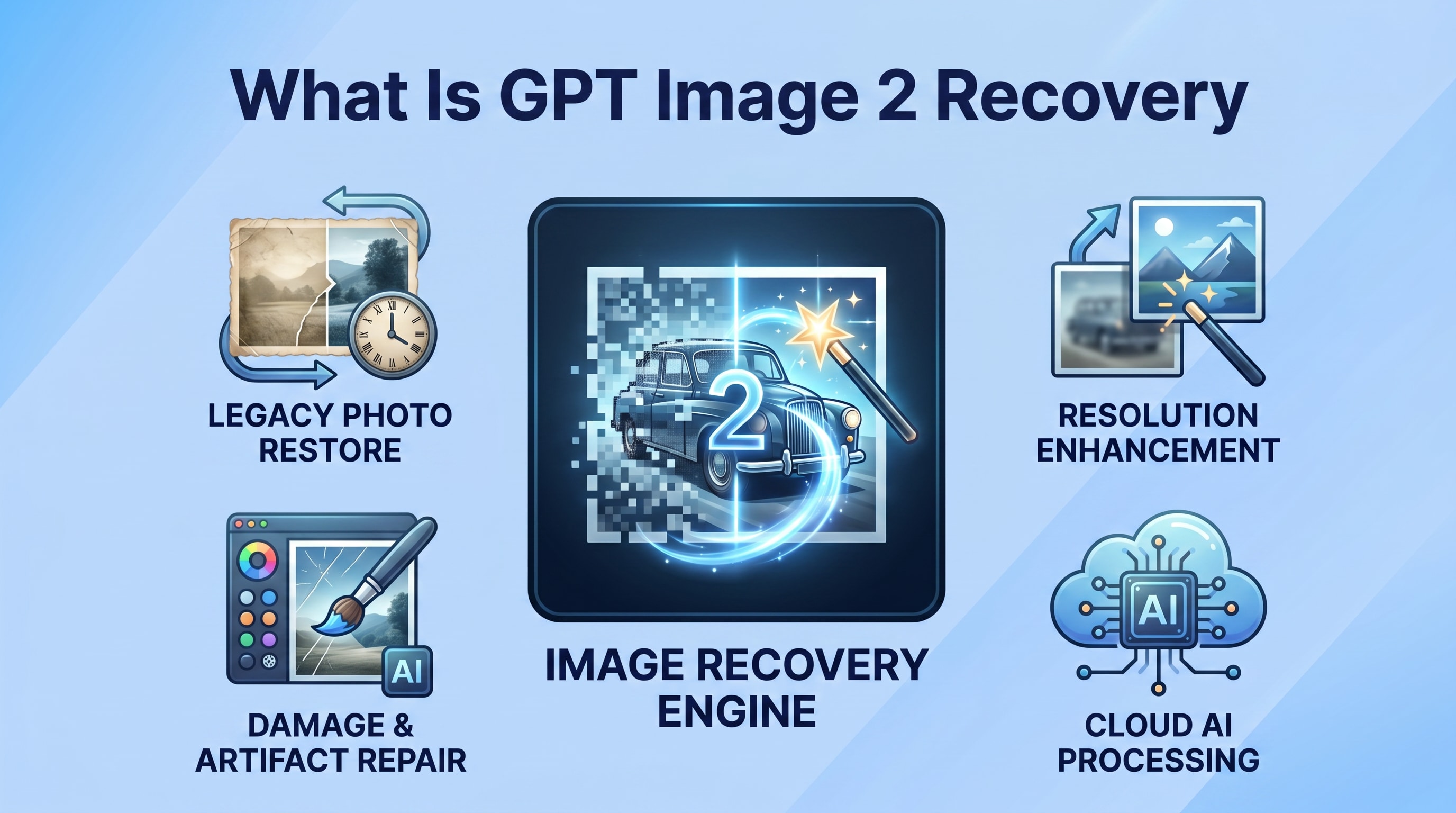
GPT image2 recovery refers to the process of finding and restoring AI generated images that have been deleted, lost, or corrupted while using GPT based image tools. Whether your GPT Image2 creations disappeared after a system crash, accidental deletion, or storage error, they may still be recoverable if you act quickly and use the right methods. This guide explains how GPT image2 recovery works, the main causes of image loss, and step by step ways to bring your files back, including using a professional data recovery solution like Recoverit.
Try Recoverit to Perform Data Recovery
 Security Verified. 3,591,664 people have downloaded it.
In this article
What Is gpt image2 recovery
GPT image2 recovery is the process of locating and restoring AI-generated images produced by GPT Image2 or similar models after they have been deleted, lost, or damaged on a device or storage medium. These images are regular files (such as PNG or JPG) that sit on your disk, cloud drive, or temporary cache folders.
When you delete a GPT Image2 picture or your browser crashes, the file data often remains on the storage device until it is overwritten. GPT image2 recovery tools and techniques scan those areas, identify recoverable image data, and rebuild the files so you can save them again in a safe location.
Depending on how and where the images were saved, GPT image2 recovery may involve checking browser download folders, restoring from cloud history, or using dedicated data recovery software like Recoverit to perform a deep scan of your computer or external drive.
How Does gpt image2 recovery Work
To understand how GPT image2 recovery works, it helps to know how operating systems handle file deletion and corruption. When a GPT Image2 image is removed, the file entry in the directory is marked as free space, but the actual pixel data generally remains intact until another file overwrites it.
Data recovery utilities take advantage of this behavior. They scan the raw sectors of your disk or memory card, searching for file signatures that match image formats such as PNG, JPG, WEBP, and others. Once found, they reconstruct the file structure and list potential recoverable images for you to preview.
Below is a simplified look at what happens in typical GPT image2 recovery processes:
| Stage | What Happens During gpt image2 recovery |
|---|---|
| Scanning | The recovery tool analyzes your selected drive or folder, looking for deleted GPT Image2 images, temporary render files, and cached thumbnails. |
| Reconstruction | The software pieces together file fragments, repairs damaged headers if possible, and prepares a list of intact or partially recoverable images to preview and restore. |
Because disk sectors can be overwritten at any time, GPT image2 recovery is most effective when you stop writing new data to the affected drive. That means pausing large downloads, file transfers, or new AI generations until the recovery is complete.
What are the Types of gpt image2 recovery
There are multiple angles from which you can approach GPT image2 recovery, from simple built-in options to advanced scans with specialized software. The best method depends on the cause of loss, how long ago it happened, and whether the files were stored locally or in the cloud.
Common gpt image2 recovery Scenarios
GPT Image2 creations can disappear for many reasons. Understanding the most frequent scenarios will help you choose the right GPT image2 recovery technique.
- Accidental deletion from local storage: You remove GPT Image2 image files from the downloads folder or desktop, then empty the Recycle Bin or Trash.
- Application or browser crash: The tab or app that rendered the AI image crashes mid-save, leaving incomplete or missing output files.
- Drive formatting or partition issues: A disk, USB drive, or SD card that stored your GPT Image2 pictures is reformatted, corrupted, or becomes inaccessible.
- File system or OS errors: Sudden power loss, OS updates, and improper shutdowns can damage the file system where images are stored.
- Cloud sync conflicts: Misconfigured sync clients or account changes may remove or hide GPT Image2 folders from local view.
In most of these cases, GPT image2 recovery is still possible as long as the underlying sectors on the drive have not been heavily overwritten.
Main Methods Used for gpt image2 recovery
Once you know what happened, you can match it with one or more GPT image2 recovery methods. Here are the primary categories:
| Recovery Method | When to Use It for gpt image2 recovery |
|---|---|
| Manual and built-in options | Suitable for quick fixes such as restoring from Recycle Bin/Trash, checking browser download history, viewing GPT Image2 app histories, or using built-in OS tools like "Previous versions" on Windows or Time Machine on macOS. |
| Professional data recovery software | Best for serious GPT image2 recovery cases like formatted drives, unrecognized partitions, emptied Recycle Bin, or when images disappeared after crashes or file system damage. |
In many workflows, you first exhaust the manual conveniences (trash folders, cloud versions, and app history) and then move to a specialized tool like Recoverit for a thorough scan and recovery of lost GPT Image2 pictures.
Practical Tips for gpt image2 recovery
Following best practices during and after an incident can dramatically raise your chances of successful GPT image2 recovery. Use the tips below as both reactive steps after loss and proactive habits to minimize future risk.
- Stop using the affected drive immediately when you notice GPT Image2 files are missing. This avoids overwriting sectors that may still contain recoverable images.
- Check simple locations first: Recycle Bin or Trash, default downloads folder, recent files list, and the GPT image tool's built-in gallery or history.
- Search for common image extensions such as .png, .jpg, .jpeg, and .webp using your system search to find misplaced GPT Image2 outputs.
- Review your browser's download history or the "Save as" path used when exporting GPT Image2 images to ensure they were not stored under a different directory.
- Look at your cloud storage: services like OneDrive, Google Drive, Dropbox, or iCloud may auto-sync your output folders and preserve older versions.
- When software recovery is required, perform the scan from a clean environment and save recovered GPT Image2 images to a different drive than the one being scanned.
- Enable automatic backups for your main AI projects folder and periodically export final GPT Image2 assets to external drives or secure cloud locations.
How to Use Recoverit to Recover Lost Data
For complex or severe GPT image2 recovery situations, a professional data recovery application is the most reliable choice. Recoverit from Wondershare is designed to scan local disks, external drives, SD cards, USB sticks, and more to locate and restore GPT Image2 outputs, project assets, and other lost files. You can learn more and download the software for Windows or macOS from the Recoverit official website.
Key Features Offered by Recoverit
- Supports recovery of images, videos, documents, and other media from computers, external drives, memory cards, and USB devices used to store GPT Image2 files.
- Offers fast and deep scanning modes that search for deleted, lost, or formatted data, improving the success rate of GPT image2 recovery even on damaged or corrupted file systems.
- Provides a preview function before recovery so you can visually confirm GPT Image2 thumbnails and full-size images, ensuring you restore only the files you truly need.
Step-by-Step Guide on How To Recover Lost Data
1. Choose a Location to Recover Data
Launch Recoverit and, on the main interface, select the drive or folder where your GPT Image2 images were last saved. This may be your system disk, the default downloads directory used by your browser, or an external storage device. Once you have highlighted the correct location, confirm the choice so Recoverit can begin preparing a targeted GPT image2 recovery scan.

2. Deep Scan the Location
After choosing the source, Recoverit will start scanning for deleted and lost files on that volume. Let the deep scan run until it completes, especially if you are working with large drives or heavily used SSDs. During this phase of GPT image2 recovery, you can monitor progress, filter the list by image file types, and pause or stop only after enough potential GPT Image2 items have been detected.

3. Preview and Recover Your Desired Data
When the results appear, browse through the discovered folders and use the preview feature to inspect GPT Image2 pictures, thumbnails, and related project files. Select the images you want to restore and click the recover button. Always choose a different, safe destination drive to store the recovered content to avoid overwriting data that could still be useful for additional GPT image2 recovery attempts.

Conclusion
GPT image2 recovery focuses on retrieving AI-generated images that have been lost through deletion, crashes, or storage failures. Because GPT Image2 outputs are stored as ordinary image files, many of them remain recoverable as long as their underlying data blocks are not overwritten.
By reacting quickly, avoiding unnecessary writes to the affected drive, and following organized steps for locating, scanning, and restoring data, you can dramatically improve the odds of saving important AI artwork. Combining safe daily habits like backups and careful storage management with a dedicated recovery tool such as Recoverit ensures you are well prepared to handle future data loss incidents involving GPT Image2 projects.
Next: Gpt Image2
FAQ
-
What is gpt image2 recovery?
GPT image2 recovery is the process of locating and restoring AI-generated images created with GPT Image2 tools after they become deleted, lost, or corrupted on your computer, external drive, or cloud-synced folder.
-
Can I recover GPT Image2 files after emptying the Recycle Bin?
Yes, it is often possible to restore deleted GPT Image2 images even after emptying the Recycle Bin or Trash. Use a data recovery tool like Recoverit as soon as possible and avoid writing new data to the affected drive to prevent overwriting.
-
How long does gpt image2 recovery usually take?
The duration of GPT image2 recovery depends on factors such as drive size, speed, damage level, and scan depth. Small SSDs can sometimes be scanned in minutes, while large or failing disks may require significantly longer to complete a deep scan.


