

 TL;DR:
To resolve the MOUSE: P.I. For Hire fatal error on PC, stabilize your system by verifying Steam game file integrity, updating graphics drivers, and deleting unsupported mods or third-party injectors.
● Prevent background software from blocking essential game processes by temporarily disabling Windows real-time antivirus protection and turning off the Steam In-Game Overlay.
● Bypass system privilege restrictions by locating the game in File Explorer to run it as an Administrator, or configure it to run in a specific Windows Compatibility Mode.
● If sudden crashes corrupt or delete your local save files, you can use Wondershare Recoverit to scan your drive and restore up to 500 MB of lost game data for free.
Ask AI for a summary
 ChatGPT
 Perplexity
 Gemini
 Claude
 Grok
Grok
You are ready to continue your progress, but as soon as MOUSE: P.I. For Hire starts, it crashes without warning and displays a fatal error. The sudden interruption ruins your gaming experience and leaves you searching for answers. Such issues typically arise from corrupted files, outdated drivers, or background software conflicts interfering with performance.
While the problem may seem serious, it can usually be resolved with a structured approach. This guide explains the most effective fixes to help you troubleshoot the error, stabilize the game, and prevent future crashes so you can enjoy uninterrupted gameplay again.
Try Recoverit to Perform Data Recovery
 Security Verified. 3,591,664 people have downloaded it.
In this article
-
- Fix 1: Restart Game, Launcher, and PC
- Fix 2: Check System Requirements and Updates
- Fix 3: Verify and Repair Game Files
- Fix 4: Update Graphics Drivers and Runtimes
- Fix 5: Disable Antivirus, Firewall Blocks, and Overlays
- Fix 6: Lower In‑Game Graphics Settings
- Fix 7: Remove Mods and Third‑Party Injectors
- Fix 8: Run as Administrator and Change Compatibility
- Fix 9: Reinstall Game or Use New User Profile
Part 1. Case File Opened: What Is the MOUSE P.I. Fatal Error?
The MOUSE P.I. fatal error is a critical runtime exception that forces the game to shut down unexpectedly during execution. It occurs when the application fails to complete essential processes required for stable operation, resulting in an immediate termination. This error interrupts normal gameplay flow and prevents the program from continuing beyond the affected stage until it is properly resolved.
What’s Behind the MOUSE P.I. Fatal Error Issue? - 5 Causes
When MOUSE P.I. For Hire suddenly crashes with a fatal error, it usually points to underlying technical problems affecting game stability. Below are the most common causes behind this issue:
- Corrupted Game Installation Files: Missing or damaged game files can prevent the game from launching or running properly, leading to an immediate crash.
- Outdated Graphics Drivers: Old or incompatible GPU drivers may fail to support the game’s rendering requirements, causing sudden termination.
- Insufficient System Resources: Low RAM, CPU overload, or background processes can interrupt game execution and trigger fatal errors.
- Software Compatibility Issues: Conflicts between the game and operating system versions or missing runtime libraries can stop proper initialization.
- Overheating or Hardware Stress: Excessive system heat or unstable hardware performance may force the game to close unexpectedly for protection.
Part 2. Try 9 Fixes for MOUSE P.I. For Hire Fatal Error
Now that the main causes behind the MOUSE P.I. For Hire fatal errors are clear, the next step is applying practical solutions. The following fixes are designed to address each potential issue and get the game running smoothly again:
Fix 1: Restart Game, Launcher, and PC
A simple restart often helps restore normal performance when theMOUSE: P.I. For Hire fatal errorappears unexpectedly. This basic refresh can quickly bring stability back to MOUSE: P.I. For Hire and clear temporary glitches affecting gameplay. To learn how to perform this fix, read the instructions provided next:
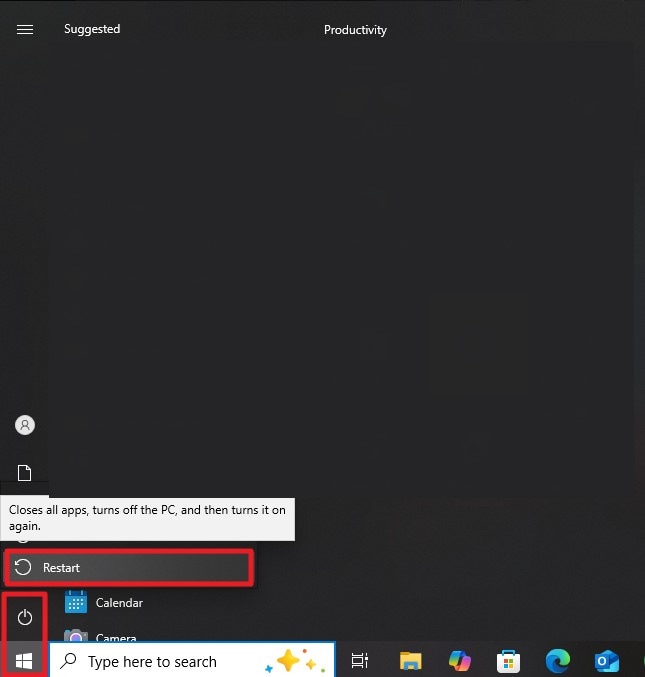
Restart PC
Instructions. Click the Windows Start button in the bottom-left corner of your screen, then open the “Power” menu. From there, select “Restart” to shut down all active programs and reboot your computer for a fresh system start.
Fix 2: Check System Requirements and Updates
Before troubleshooting further, ensure your system is fully compatible with MOUSE: P.I. For Hire. Many MOUSE: P.I. For Hire fatal error issues occur when updates or basic requirements are not properly aligned with the game environment. Here is how you can check the system requirements for your game:
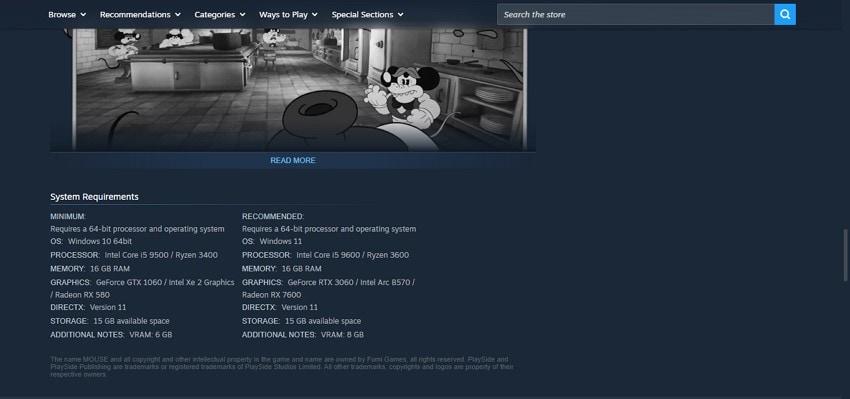
Check System Requirements
Instructions. Head to the official site of Steam and search for MOUSE: P.I. For Hire. Now scroll through the page and check its system requirements. Now compare your PC specifications with the official requirements to ensure compatibility.
Check System Updates
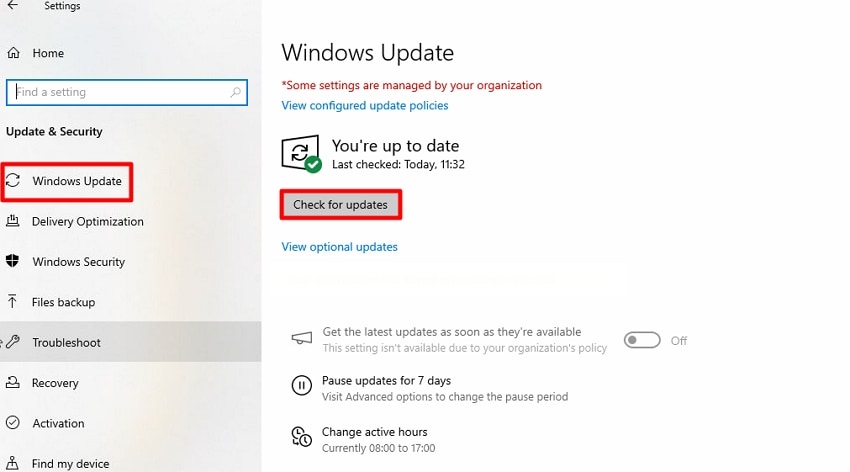
Instructions. Open the “Start” menu and go to “Settings” on your PC. From there, select “Windows Update” in the left panel. Click “Check for updates” to scan for available system updates. If any updates are found, click “Install Now,” then restart your computer to apply the changes properly.
Fix 3: Verify and Repair Game Files
File integrity plays a major role in MOUSE: P.I. For Hire stability. When MOUSE: P.I. For Hire fatal error happens, checking game files helps restore proper structure and ensures smooth loading without interruptions. Follow the steps below to learn how to verify and repair game files:
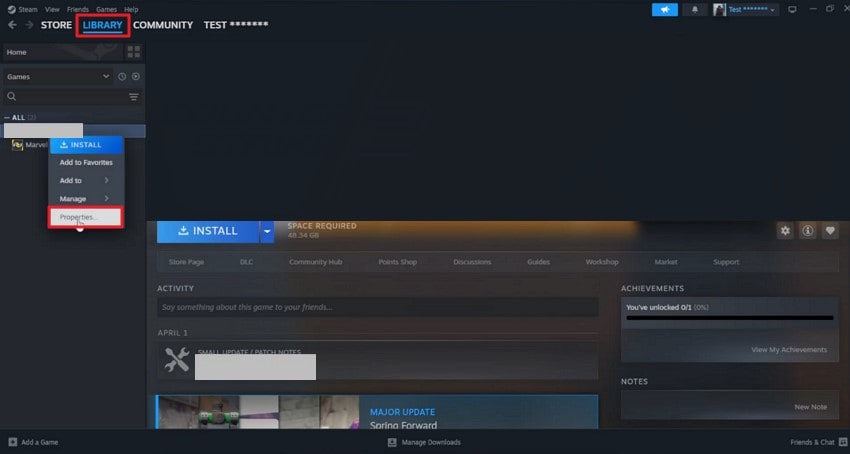
- After locating the game in your Steam library, right-click on it and select “Properties” from the dropdown menu.
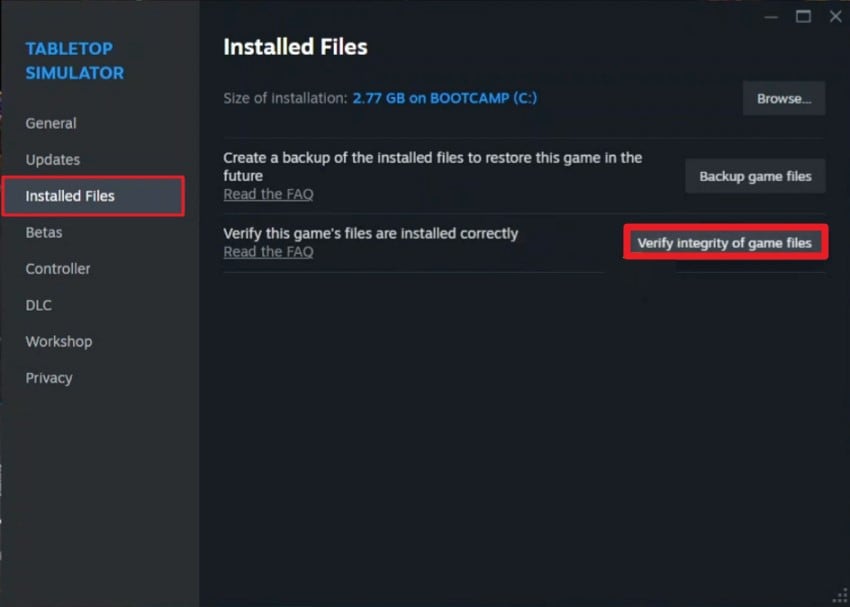
- Then go to the “Installed Files” section and click “Verify Integrity of Game Files” so Steam can scan and confirm that all game files are intact and working properly.
Fix 4: Update Graphics Drivers and Runtimes
Keeping drivers updated is essential for running MOUSE: P.I. For Hire efficiently. Outdated components can often trigger MOUSE: P.I. For Hire fatal error, affecting performance and preventing the game from launching correctly. To learn how to update graphics, read the steps provided below:
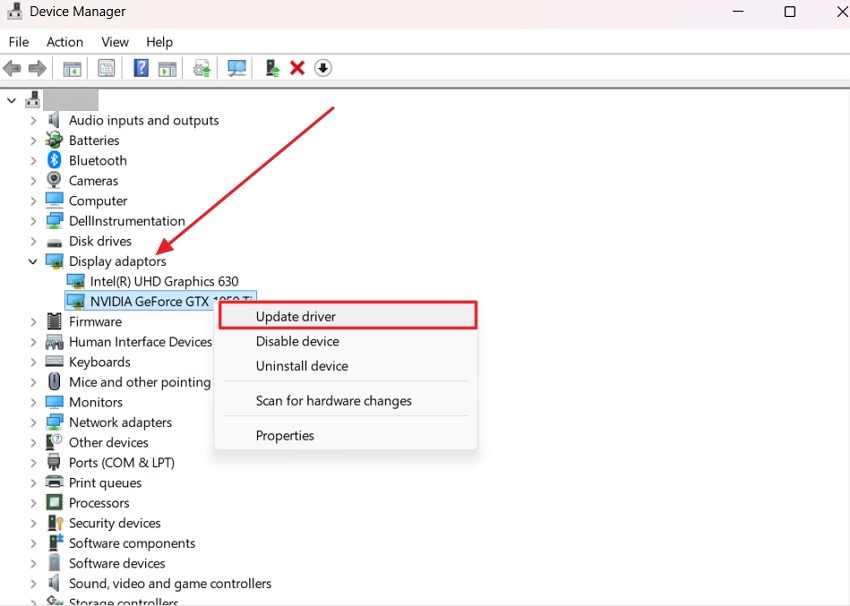
- Launch Device Manager on your system, then expand the “Display Adapters” category from the list. Find your graphics card driver, right-click it, and choose “Update Driver” to start the updating process.
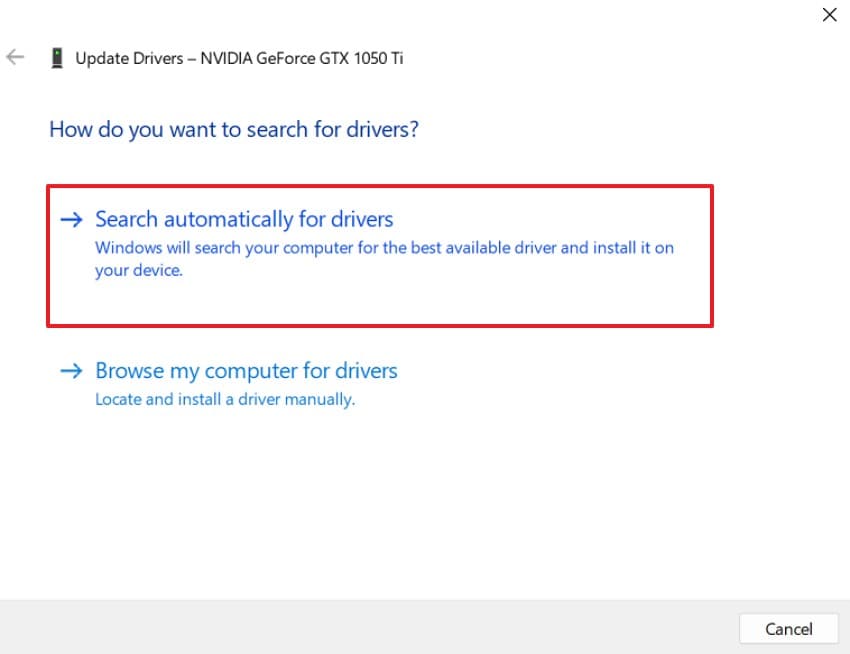
- When prompted in the next window, select “Search Automatically for Drivers” so Windows can locate, download, and install the newest available graphics driver updates automatically.
Fix 5: Disable Antivirus, Firewall Blocks, and Overlays
Security tools and overlays sometimes interfere with MOUSE: P.I. For Hire. In many cases, MOUSE: P.I. For Hire fatal error appears when background protection restricts essential game processes from running smoothly. If you do not know how to perform this fix, read the steps mentioned next:
Disable Antivirus
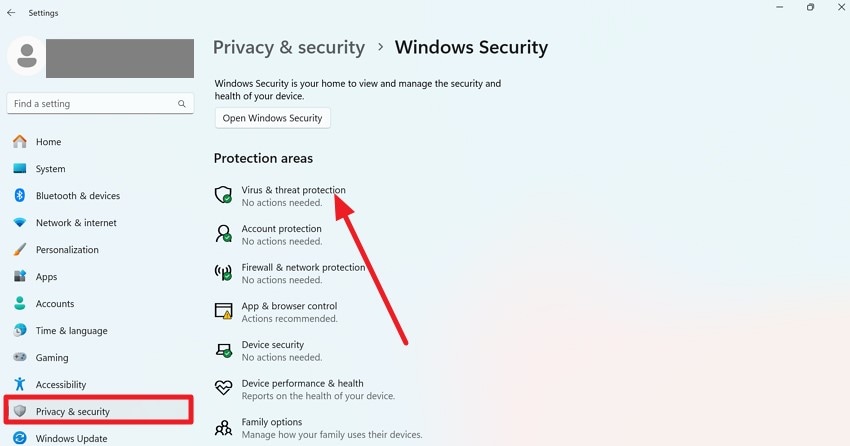
- Open System Settings, then click “Privacy & Security” from the left-side menu. After that, locate and select “Virus & Threat Protection” to continue.
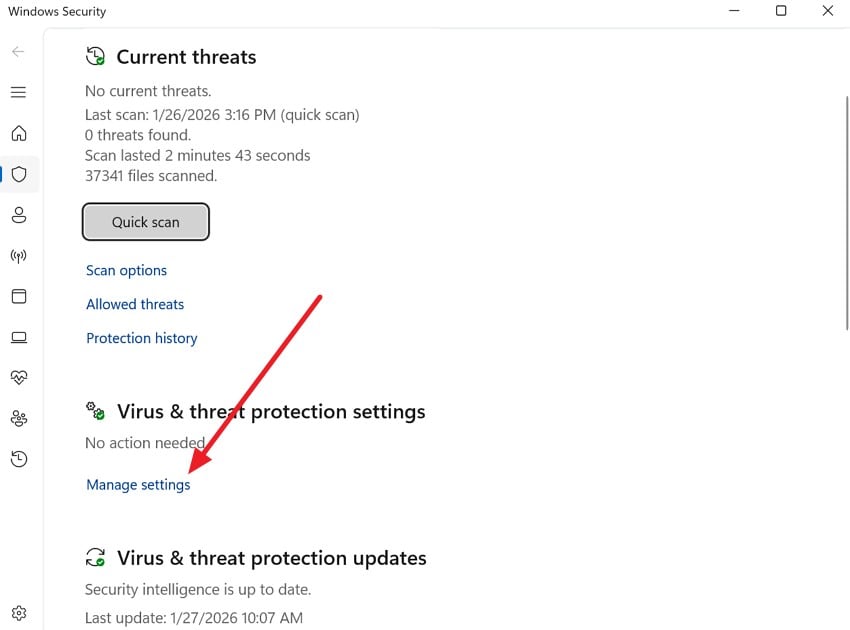
- On the next screen, click “Manage Settings” under the “Virus & Threat Protection” section.
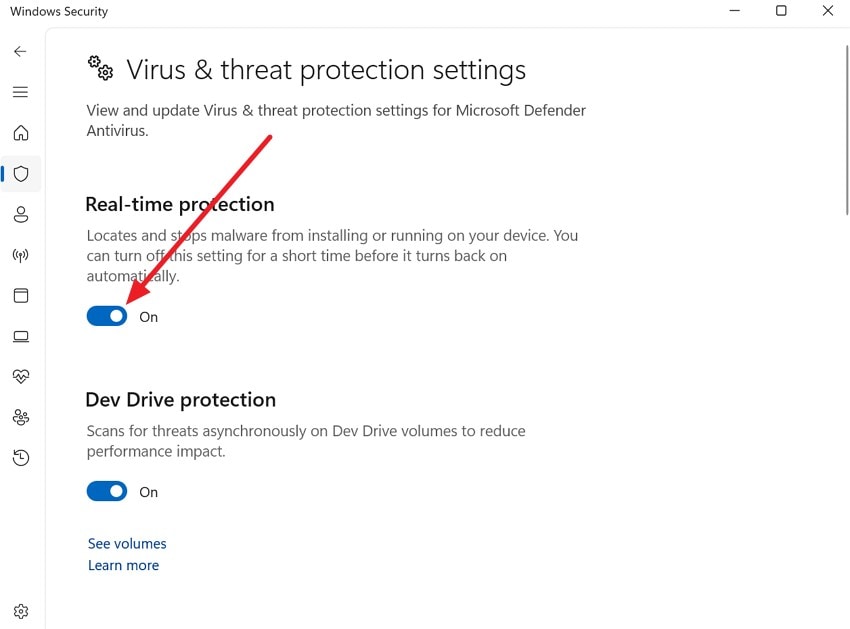
- Finally, turn off the “Real-time Protection” switch to temporarily disable antivirus protection on your device.
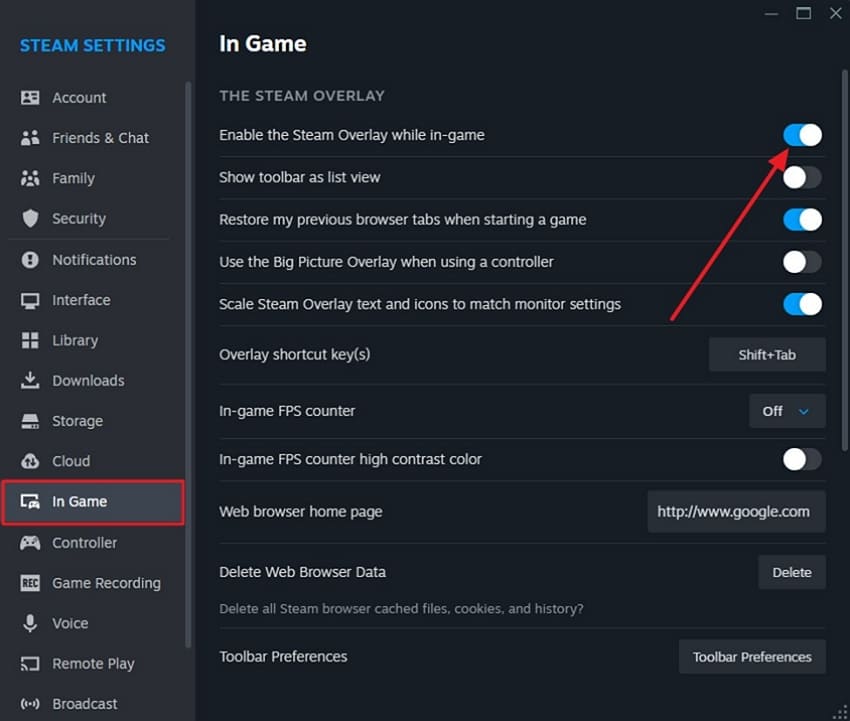
Disable Steam Overlay
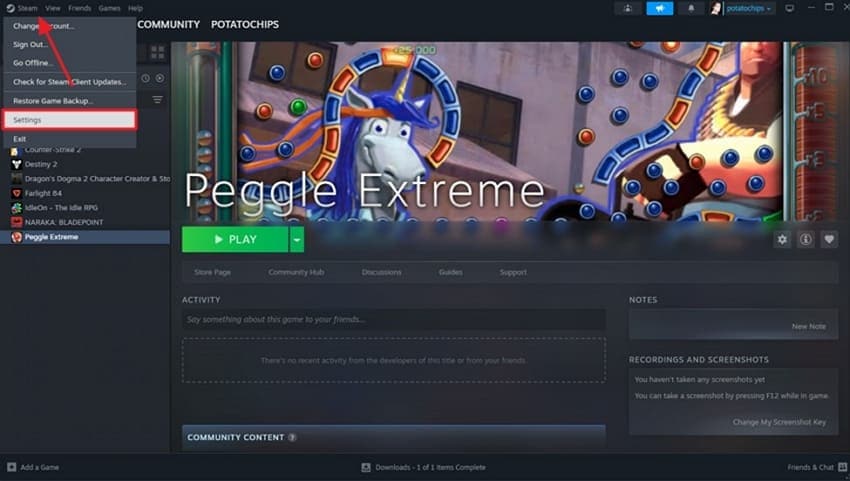
- Move to the top-left corner of the Steam window and click on the “Steam” menu. From the dropdown list, select “Settings” to continue.
- After that, go to the “In Game” section from the left panel and find the option “Enable Steam Overlay while In Game,” then switch its toggle off.
Fix 6: Lower In‑Game Graphics Settings
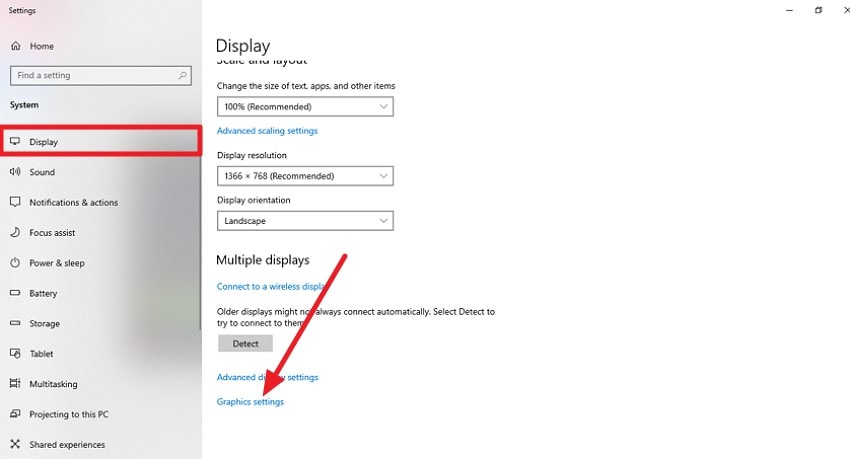
Performance overload can impact MOUSE: P.I. For Hire stability during gameplay. Adjusting visual settings often helps reduce the fatal error occurrences and improves overall responsiveness. Read the steps mentioned below to learn how to lower these utilities within your PC:
- Launch the system settings on your PC, then go to the “Display” tab from the left panel. Scroll down and click on “Graphics Settings” to open the configuration menu.
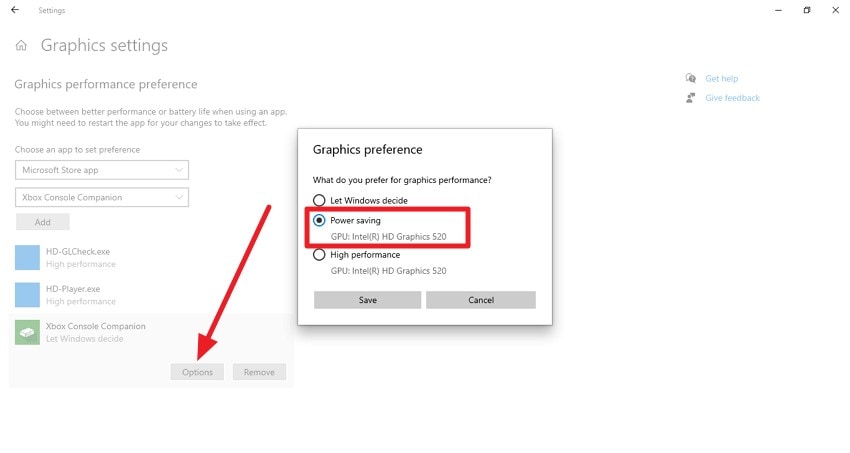
- Inside “Graphics Settings,” locate your game from the list of installed applications and select the “Options” button. After that, choose “Power Saving” mode to reduce GPU usage and adjust performance settings accordingly.
Fix 7: Remove Mods and Third‑Party Injectors
External modifications can disrupt the normal behavior of the game. When MOUSE: P.I. For Hire fatal error occurs, unsupported add-ons may be contributing to unexpected crashes and instability. Follow the instructions below to learn how to remove mod files and injectors:
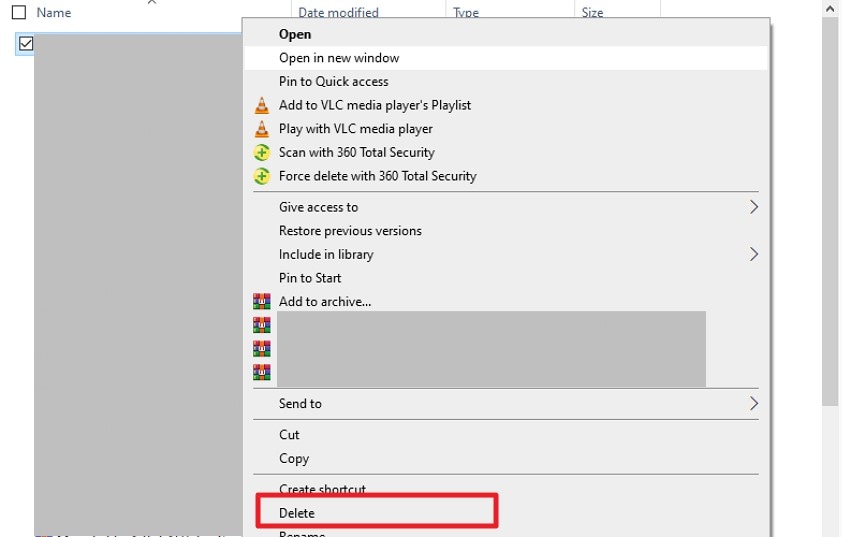
Instructions. Start by opening the game’s installation folder and checking for any added mod files, scripts, or injector tools that were not part of the original setup. Carefully identify and delete these extra files or move them to a backup folder if needed.
Fix 8: Run as Administrator and Change Compatibility
Running MOUSE: P.I. For Hire with proper permissions can improve system access. The fatal error may appear when the game lacks the necessary privileges or compatibility alignment. Follow the steps mentioned below to learn how to perform this fix:
Run as Admin
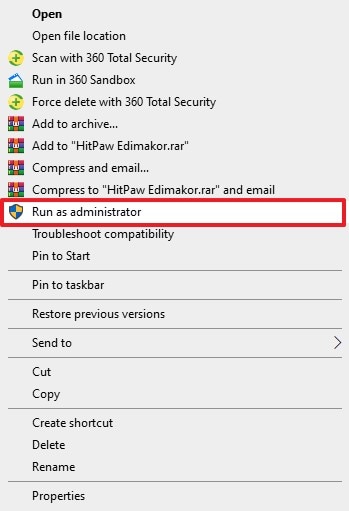
Instructions. After locating the game file in File Explorer, right-click it to open the context menu and view available options. From there, click on “Run as Administrator.” When Windows prompts for confirmation, select Yes to grant the game elevated permissions and allow it to start with full administrative access.
Change Compatibility
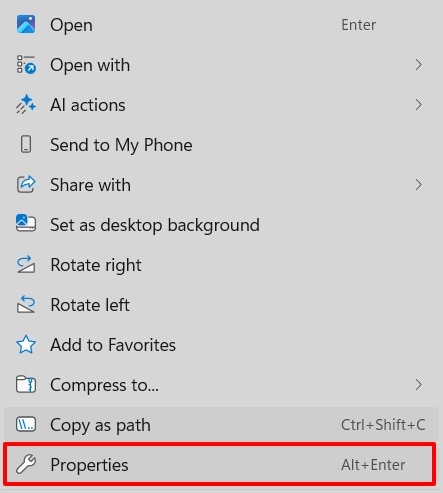
- Find the Steam application in File Explorer, then right-click on it and select “Properties” from the menu to continue.
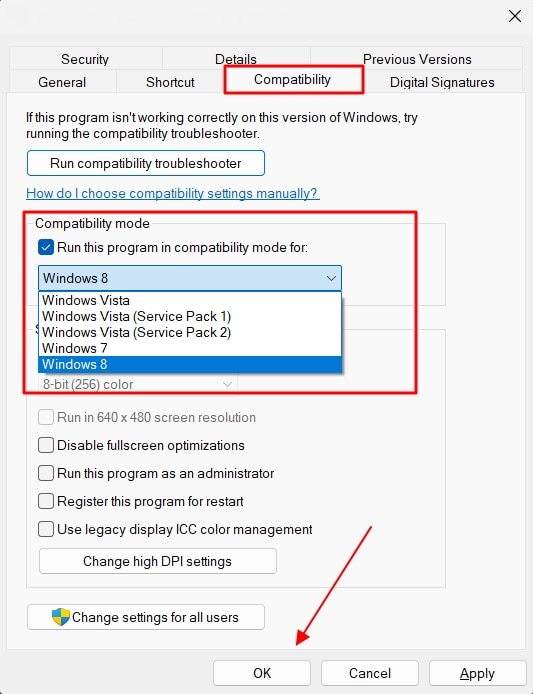
- In the “Properties” window, open the “Compatibility” tab and go to the “Compatibility Mode” section. Check the option “Run this Program in Compatibility Mode For,” then select a Windows version from the dropdown. Finally, click “Apply” and then “OK” to save the changes.
Fix 9: Reinstall Game or Use New User Profile
A fresh installation of the game can resolve deep-rooted issues. Persistent MOUSE: P.I. For Hire fatal error cases often require resetting the environment to restore clean and stable performance. Here is how you can reinstall the game on your PC:
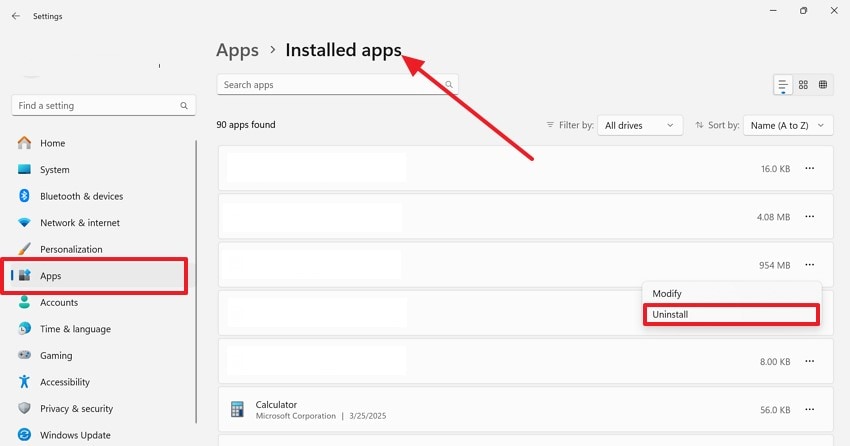
- Open your device settings, then navigate to the Apps section and select “Installed Apps.” Look for MOUSE P.I for Hire or Steam in the list and click “Uninstall” to remove the selected program.
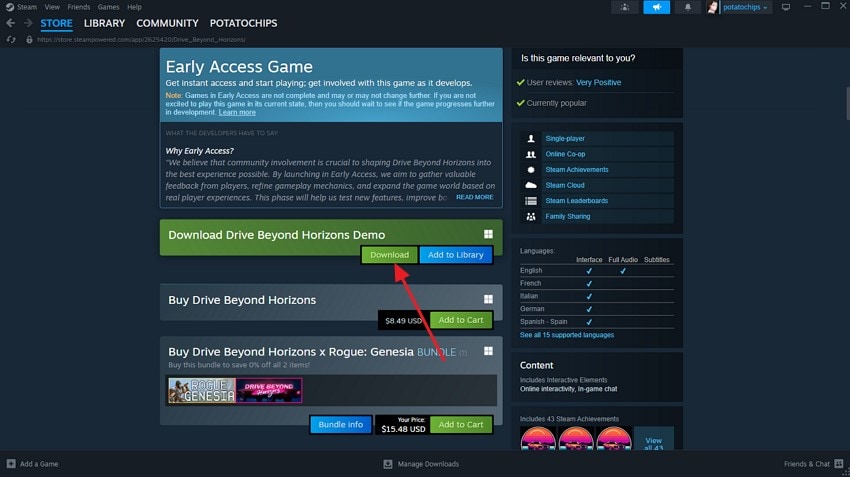
- Launch Steam, search for MOUSE: P.I. For Hire using the search bar and click “Download” to install a fresh copy of the game on your device.
Pro Tip: When the Case Gets Tough: Use Recoverit to Rescue Lost Game Data
When game errors become too severe to fix manually, using a dedicated recovery solution can make a significant difference. Recoveritis a powerful data recovery tool designed to help users restore lost, deleted, or corrupted files from their system, including important game data. Whether your game files were accidentally removed, damaged during installation, or lost due to system crashes, Recoverit provides a reliable way.
It supports a wide range of file types, making it useful not only for games but also for documents, videos, and other media. One of its key advantages is that users can recover up to 500 MB of data for free, allowing them to test its capabilities before upgrading. With an easy-to-use interface and strong recovery performance, Recoverit helps gamers quickly restore essential MOUSE: P.I. For Hirefiles.
Key Features of Recoverit
- Preview Before Saving: This feature allows users to view recoverable game files before restoring them, ensuring they select only the needed data.
- Search for Files: It helps quickly locate specific lost or corrupted game files by filtering results during the recovery scan.
- Pause and Start Scan: This option gives users control to pause the scanning process anytime and resume it later without losing progress.
Detailed Steps to Recover Lost or Corrupted Game Files Using Recoverit
As explained earlier, Recoverit can effectively restore deleted or damaged game data, including saves and settings files. Follow these easy steps to recover your MOUSE: P.I. For Hire fatal error progress or related files:
1. Select the Drive or Folder
Open Recoverit from your system and begin on the main screen. Choose the storage drive or specific location where MOUSE: P.I. For Hire files were previously stored.

2. Perform a Scan for Game Files
After selecting the location, the tool will automatically scan for recoverable content. Once completed, review the scan results and look for MOUSE: P.I. For Hire save files and select using “Recover.”

3. Preview and Recover Data
Before final recovery, check the preview of MOUSE: P.I. For Hire files to ensure they are intact and usable. Then click the “Recover” button to restore them and securely save them back to your device.

Conclusion
All in all, this article discussed the top solutions to fix MOUSE: P.I. For Hire crashes and fatal errors, including quick troubleshooting, system checks, driver updates, file repair, and reinstall methods. These fixes help restore smooth gameplay and stability. If your game data is lost or corrupted during the process, Recoverit is highly recommended to safely recover important game files and progress.
FAQ
-
1. Why does MOUSE: P.I. For Hire keep crashing with a fatal error?
MOUSE: P.I. For Hire may crash due to system conflicts, corrupted files, or performance issues. If important game data gets damaged, using Recoverit can help restore lost or corrupted files safely. -
2. How can I fix MOUSE: P.I. For Hire fatal error quickly?
Basic fixes like restarting the system, updating drivers, and verifying game files often resolve the issue. If the problem causes data loss, Recoverit is recommended to recover missing game progress and files. -
3. Can corrupted game files be recovered in MOUSE: P.I. For Hire?
Yes, corrupted or deleted files can often be restored using a reliable tool like Recoverit, which scans deeply and recovers game data, including saves and configuration files. -
4. Is reinstalling the game enough to fix the fatal error?
Reinstalling can fix many issues, but sometimes saved data may still be lost. In such cases, Recoverit helps recover important game files before or after reinstalling the game.


