

 TL;DR:
A Dell black screen with a cursor indicates Windows is partially running but the desktop shell failed to load, which can typically be fixed by pressing Ctrl + Shift + Esc to open Task Manager and manually running the explorer.exe task.
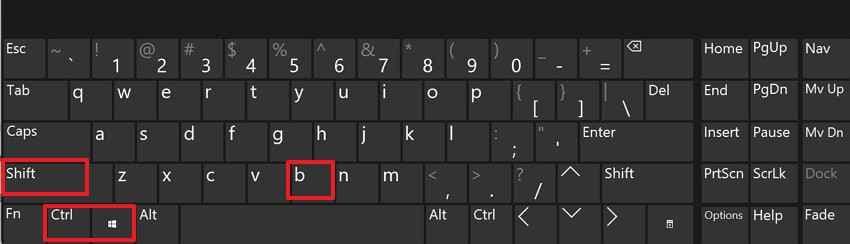
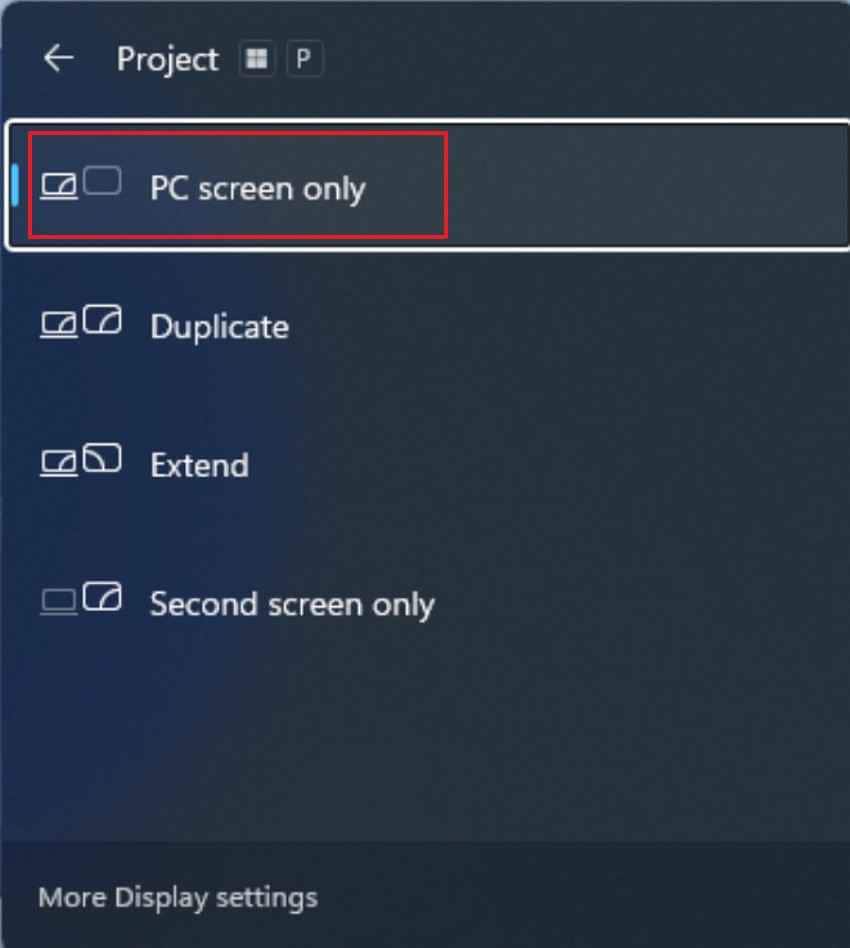
● Press Win + Ctrl + Shift + B to instantly refresh the graphics driver, or use Win + P to ensure the system is not mistakenly projecting the display to a disconnected external monitor.
● Verify if the issue is a physical hardware fault by holding the D key while pressing the Power button to run the Dell LCD Built-In Self-Test, or press F12 on startup for pre-boot diagnostics.
● Extract your personal files using a bootable USB recovery tool like Recoverit before attempting a final Windows reset, as factory resets or reinstallations risk permanent data loss.
Ask AI for a summary
 ChatGPT
 Perplexity
 Gemini
 Claude
 Grok
Grok
A Dell black screen with cursor usually means Windows is partly running, but the desktop is not loading correctly. You may be able to move the mouse, but the taskbar, icons, and desktop never appear. This often happens after startup or after signing in.
This issue is different from a completely dead screen. If you can see a cursor, Windows may still respond to keyboard shortcuts like Ctrl + Alt + Del or Ctrl + Shift + Esc. That is why the safest first steps are to open Task Manager, restart Windows Explorer, run explorer.exe, and check display output before trying resets or hardware repairs.
Follow the fixes below in order. If Windows remains inaccessible or you plan to reset, reinstall, or send the Dell for service, recover important files first.
In this article
-
- Fix 1. Wake the Screen and Refresh the Graphics Driver
- Fix 2. Switch Display Modes with Windows + P
- Fix 3. Restart Windows Explorer from Task Manager
- Fix 4. Sign Out or Restart from the Ctrl + Alt + Del Screen
- Fix 5. Boot Your Dell into Safe Mode
- Fix 6. Update, Roll Back, or Reinstall Dell Graphics Drivers
- Fix 7. Disable Startup Apps and Perform a Clean Boot
- Fix 8. Disable Fast Startup on Your Dell
- Fix 9. Run SFC and DISM to Repair Windows System Files
- Fix 10. Use System Restore or Startup Repair
- Fix 11. Create a New Windows User Profile
- Fix 12. Run Dell LCD Built-In Self-Test and Pre-Boot Diagnostics
- Fix 13. Reset or Reinstall Windows as the Last Resort
Part 1. Why Does Your Dell Show a Black Screen with Cursor?
Prior to trying any repair, understand the following reasons why a Dell computer's black screen with a cursor appears after startup:
- Windows Explorer or Desktop Shell Failed to Load: Windows may complete sign-in but fail to load Explorer, which controls the desktop, taskbar, and icons.
- Dell Graphics Driver or Display Output Problem: Windows may send the image to another display, or a graphics driver may fail after startup.
- Startup Apps or Services Blocking the Desktop: A background app, display utility, antivirus tool, or service may stop the desktop from loading normally.
- Windows Update, Fast Startup, or Login Session Error: Fast Startup or a saved login session may reload the same broken display state.
- Corrupted User Profile or System Files: If only one account is affected, the user profile may be damaged. If every account fails, system files or drivers may be involved.
- Dell Display, LCD, or Hardware Issue: If the black screen appears before Windows loads or external displays also fail, check Dell hardware diagnostics.
Part 2. Quick Checks Before You Start
After identifying possible causes, check simple display factors first to address a Dell laptop black screen with cursor issue afterward.
- Confirm Display, Brightness, and Cable Connections: Make changes to Windows only after ensuring the basics are visible. Brighten up the screen, attach the charger or video cable, and check that the screen is not completely blacked out.
- Disconnect Docks, USB Devices, and External Monitors: Extra devices can disturb startup when Windows detects them incorrectly. Remove docks, USB drives, adapters, and secondary screens, then restart with only essential hardware connected.
- Check Whether the Black Screen Appears Before or After Login: Timing gives an important clue about the source. A black screen before login often suggests display or boot issues, while one after login may involve Windows Explorer or profile loading issues.
- Test With an External Monitor or TV: Connecting another display helps separate screen failure from system failure. If the external monitor works normally, the Dell laptop panel or internal display cable may need attention.
Part 3. How to Fix a Dell Black Screen with Cursor
With quick checks covered, review the fixes below to restore the Dell desktop without risky or unnecessary repair steps:
Fix 1. Wake the Screen and Refresh the Graphics Driver
A Dell black screen with a cursor may simply mean the display signal or graphics response has stalled. Moreover, the quick refresh can revive the screen before deeper Windows repairs are needed. Follow the instructions below to refresh the graphic drivers:
- Press any key, move the mouse, and increase brightness using the Dell brightness keys.
- Then press “Win + Ctrl + Shift + B” and wait for the display to refresh.
Fix 2. Switch Display Modes with Windows + P
Windows sometimes pushes the display to a second screen, projector, or disconnected output. So, correcting the projection mode helps bring the desktop view back to the built-in Dell display. Adhere to the instructions below to try this fix:
- Press “Win + P” to open projection options, even if the screen looks mostly black.
- Use the arrow keys to choose “PC Screen only,” then press “Enter.” If nothing changes, connect an external monitor or TV and press “Win + P” again.
- Choose “Duplicate” to check whether Windows is showing the desktop.
Fix 3. Restart Windows Explorer from Task Manager
When a Dell computer's black screen with a cursor appears after signing in, the desktop shell may be missing. In that case, restarting Explorer can restore icons, the taskbar, and normal desktop control. Let’s walk through the steps below to restart the Windows Explorer:
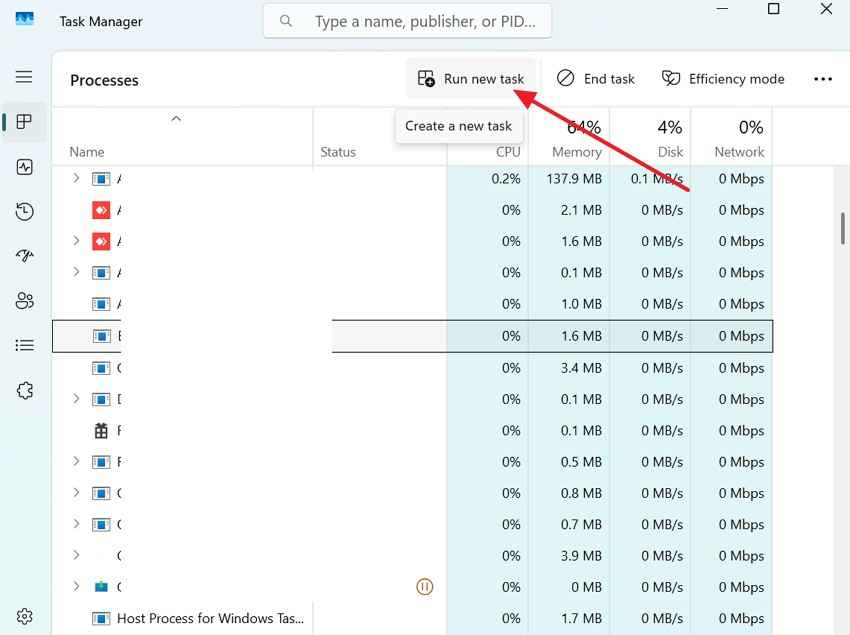
Step 1. Press “Ctrl + Shift + Esc” to open Task Manager, select “More Details,” then choose “File > Run New Task.”
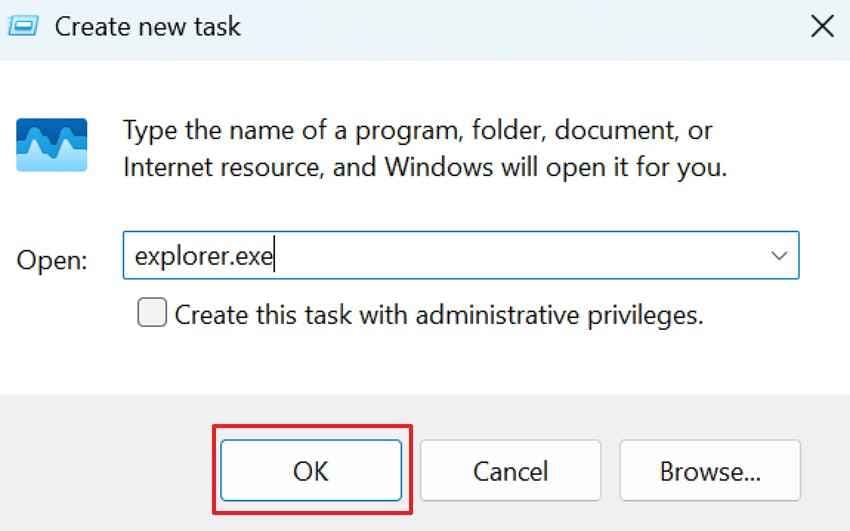
Step 2. Type “explorer.exe” in the box and press “Enter.” If the desktop appears, restart the Dell afterward to confirm the computer loads normally.
Fix 4. Sign Out or Restart from the Ctrl + Alt + Del Screen
Sometimes the user session fails to finish loading, leaving only a dark display while basic controls still function. Therefore, ending the session or rebooting can help Windows start fresh and restore normal access. Try the instruction mentioned below to see how this fix works:
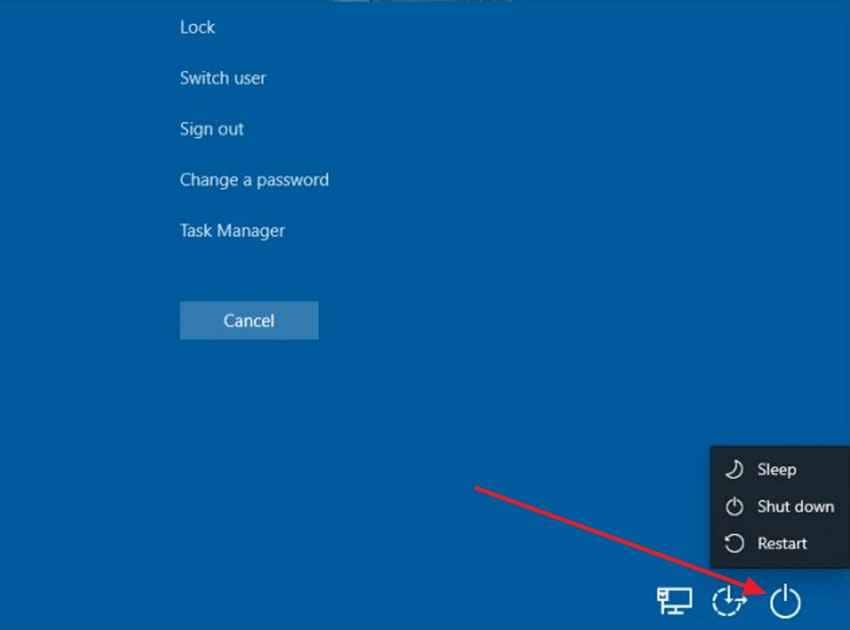
- Press “Ctrl + Alt + Del,” select the “Power” icon, and choose “Restart.”
Fix 5. Boot Your Dell into Safe Mode
Safe Mode helps test whether a Dell laptop's black screen with cursor comes from drivers, startup programs, or background services. It opens Windows with fewer components running, so review the instructions below to try:
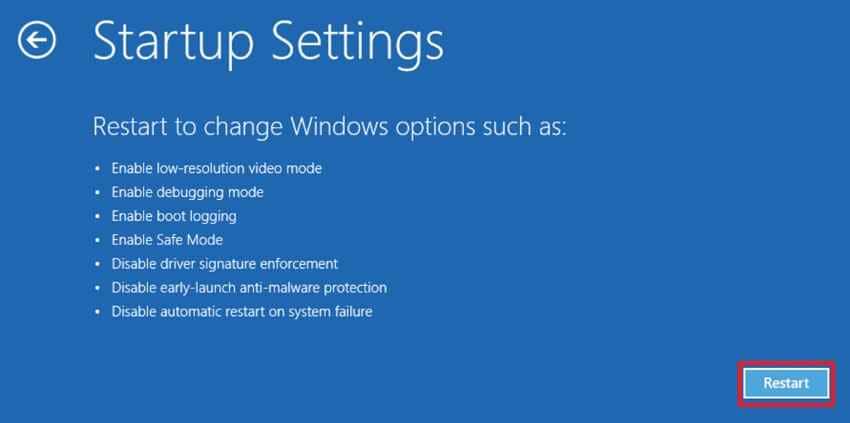
- If the screen stays black, force Windows Recovery by interrupting startup three times.
- Choose “Troubleshoot > Advanced Options > Startup Settings > Restart.”
- After the Dell restarts, press “4” or “F4” for Safe Mode, or “5” or “F5” for Safe Mode with Networking.
Fix 6. Update, Roll Back, or Reinstall Dell Graphics Drivers
Graphics drivers manage communication between Windows and your display. Thus, updating the driver can fix corruption, compatibility issues, or faulty updates that cause black screen problems. So, adhere to the following steps to update the graphics driver:
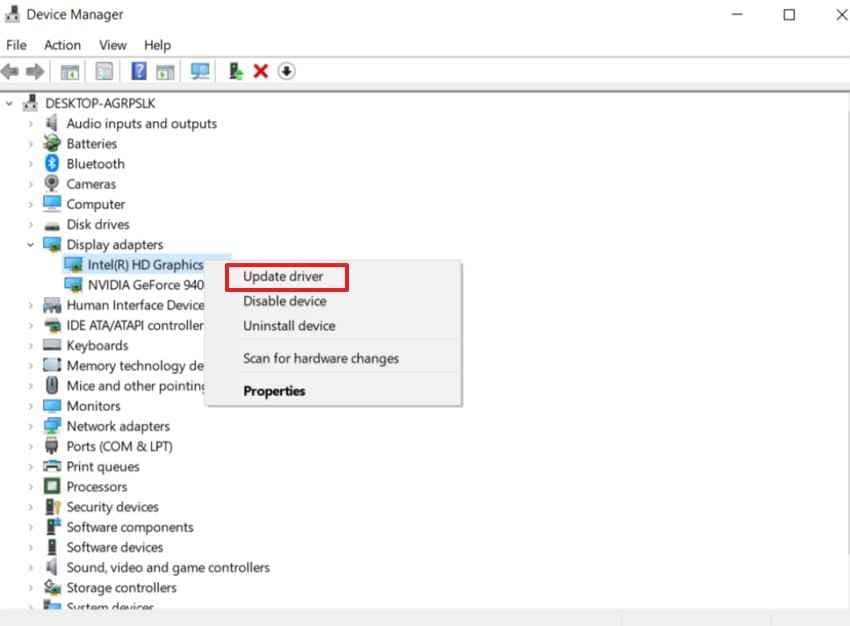
Step 1. Enter Safe Mode, right-click “Start,” and open “Device Manager > Display Adapters > Update Drivers.”
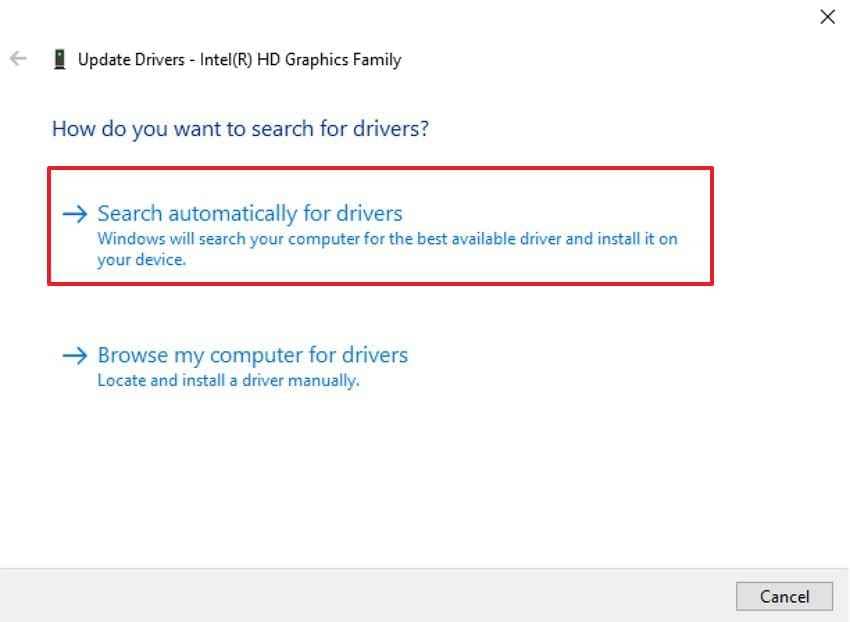
Step 2. Select “Search Automatically for Drivers” and follow on-screen prompts.
Fix 7. Disable Startup Apps and Perform a Clean Boot
Some background services can block Explorer during sign-in, causing a black Dell screen with a cursor. Follow the steps below to disable startup items and identify the conflicting service safely:
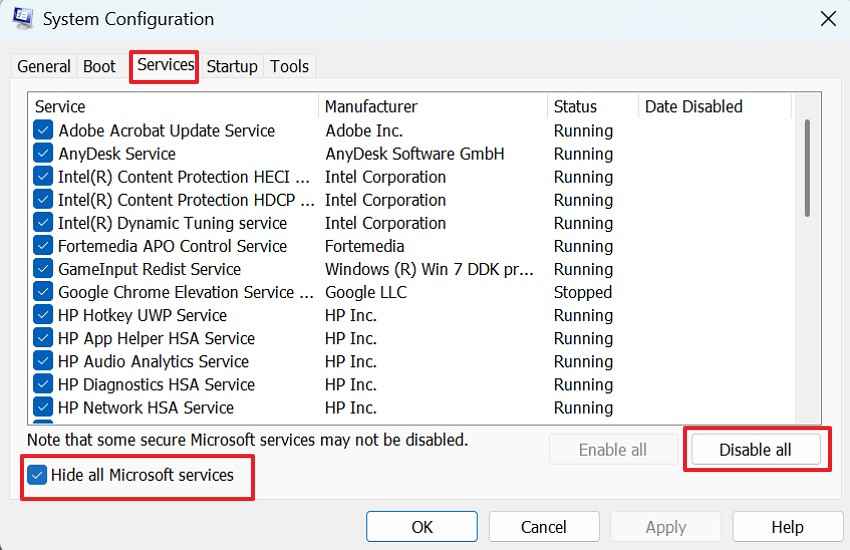
Step 1. In Safe Mode, press “Win + R,” type “msconfig,” and press “Enter.” Under “Services,” tick “Hide All Microsoft services,” then choose “Disable All.”
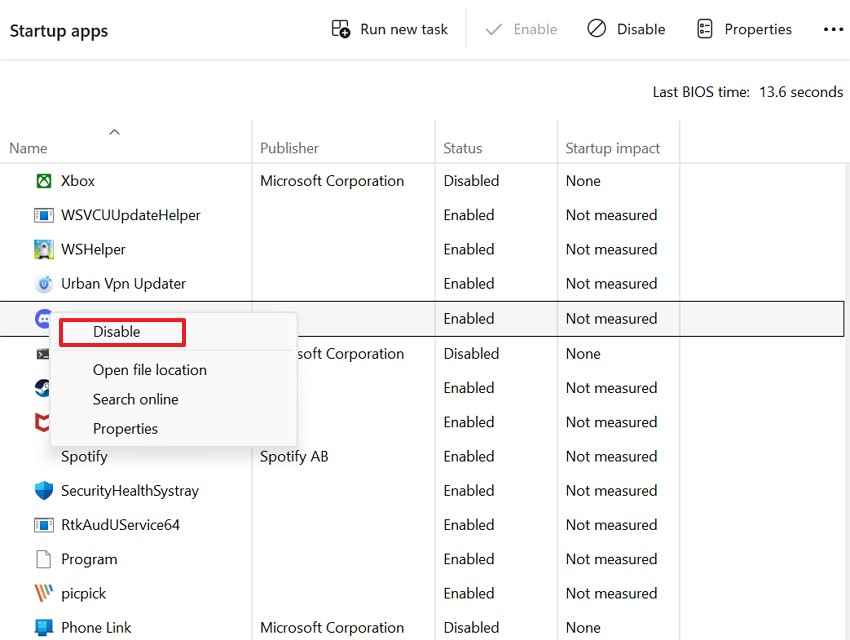
Step 2. Open “Startup > Open Task Manager” and disable nonessential startup apps to perform a clean boot.
Fix 8. Disable Fast Startup on Your Dell
Fast Startup can preserve a faulty shutdown state, so Windows reloads the same display issue. Use the steps below to disable it and force a cleaner boot on restart:
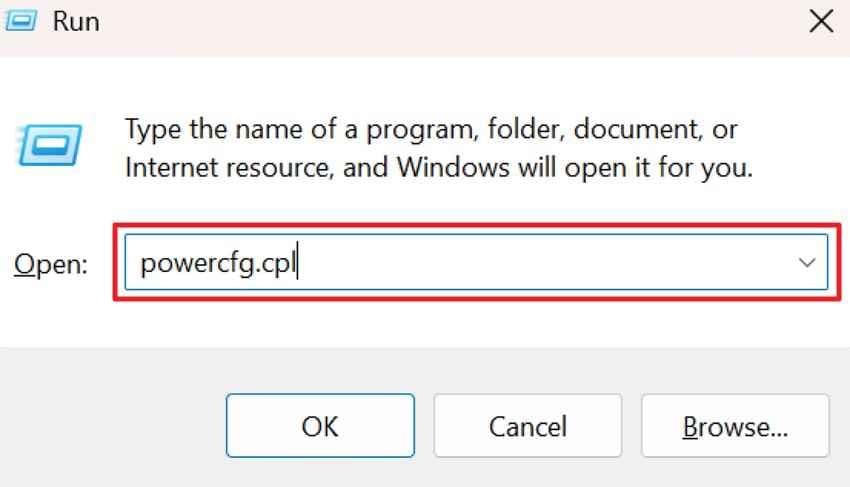
Step 1. In Safe Mode, press “Win + R,” type “powercfg.cpl,” and press “Enter.” Select “Choose What the Power Buttons Do” from the left panel.
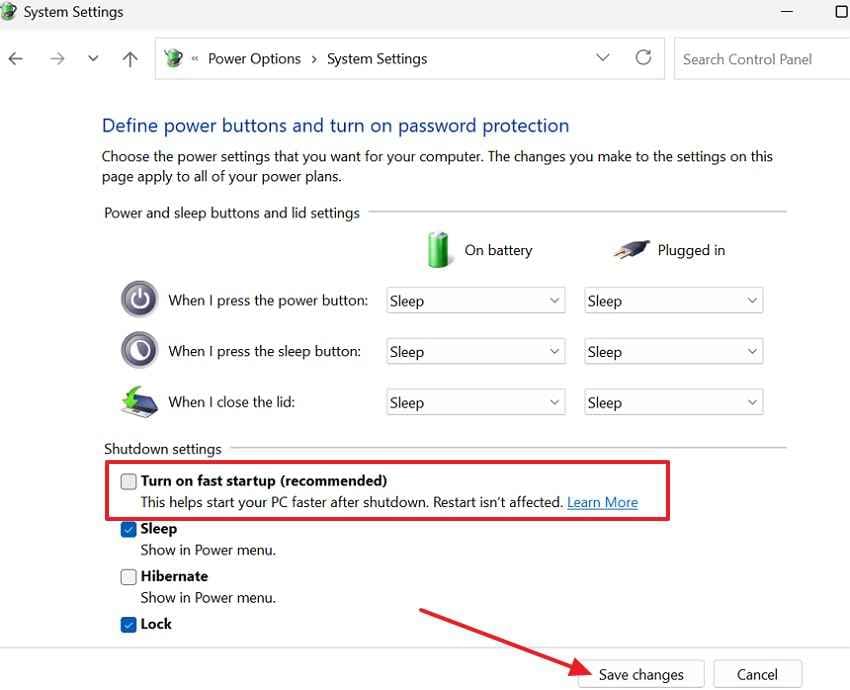
Step 2. Click “Change Settings That are Currently Unavailable,” uncheck the “Turn on Fast Startup,” and save changes.
Fix 9. Run SFC and DISM to Repair Windows System Files
A Dell computer's black screen with a cursor may come from damaged Windows components. Follow the instructions below to repair system files before trying reset or reinstallation options:
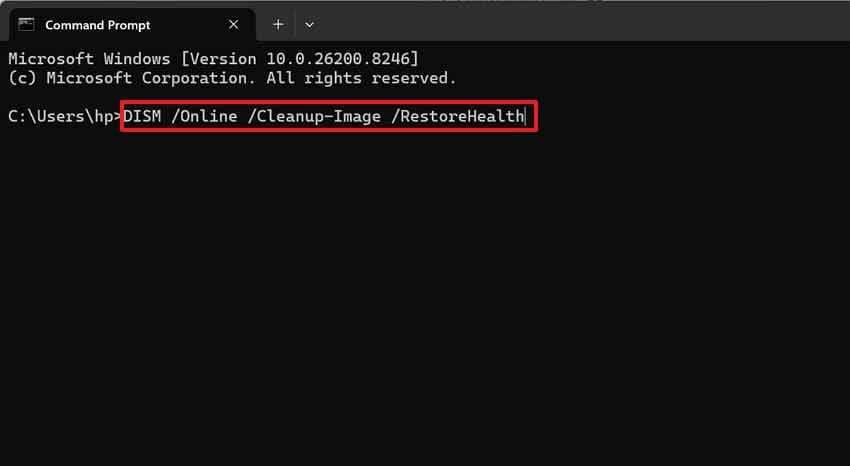
Step 1. Open Command Prompt as administrator in Safe Mode or Windows Recovery. Run “DISM /Online /Cleanup-Image /RestoreHealth.”
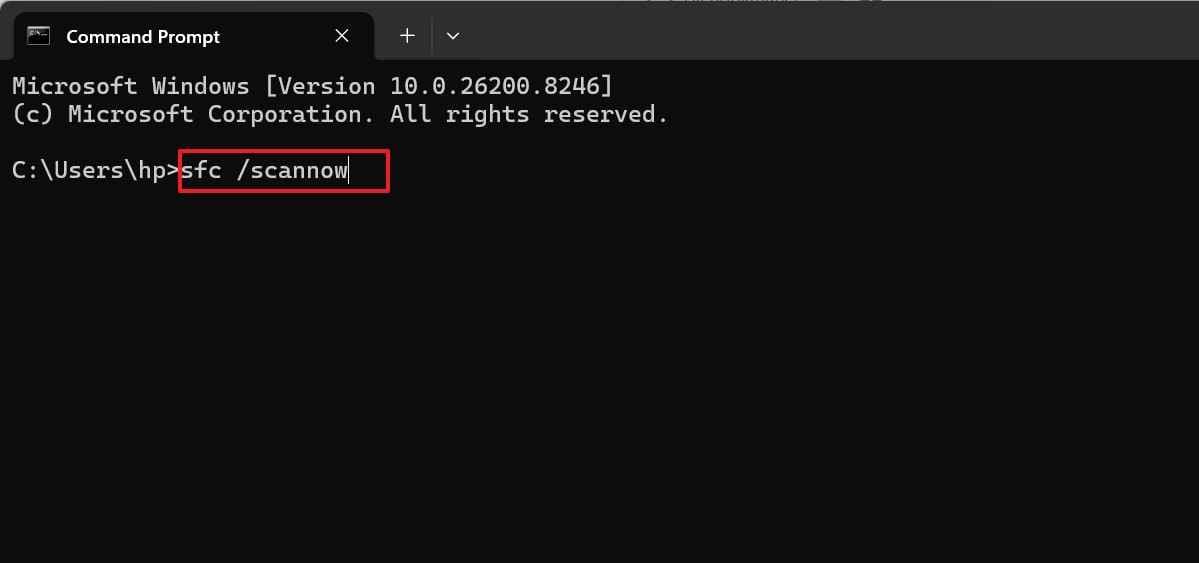
Step 2. Afterward, type “sfc /scannow” and restart to repair Windows system files.
Fix 10. Use System Restore or Startup Repair
System Restore reverses harmful changes, while Startup Repair handles boot faults. Try the instructions below when the black screen appears after updates, drivers, or failed startup attempts:
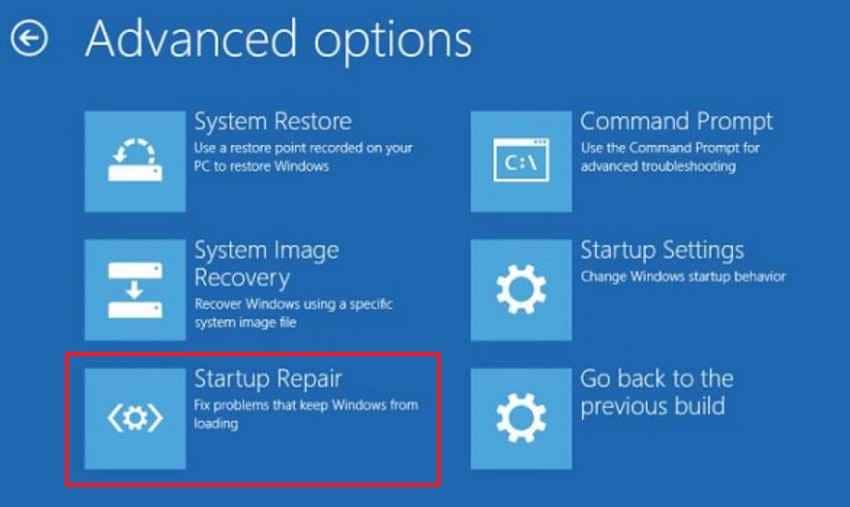
- Enter Windows Recovery, then choose “Troubleshoot > Advanced Options > Startup Repair.”
- If the issue began after a recent change, choose “System Restore” instead.
Fix 11. Create a New Windows User Profile
A Dell laptop black screen with a cursor after login may indicate profile corruption. Follow the instructions below to create another account and test normal desktop access:
- Boot into Safe Mode and open “Settings > Accounts > Other Users> Add Account.”

Fix 12. Run Dell LCD Built-In Self-Test and Pre-Boot Diagnostics
Dell diagnostics check the display and hardware outside Windows. Use the instructions below to confirm whether the black screen comes from software or physical screen faults:
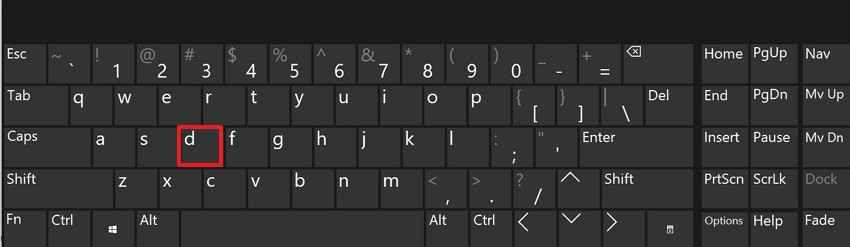
Step 1. Turn off the Dell completely. To run the LCD Built-In Self-Test (BIST), press and hold the “D” key, then press the “Power” button and release both when the screen displays solid colors. If the colors appear correctly, the LCD panel is likely working properly.
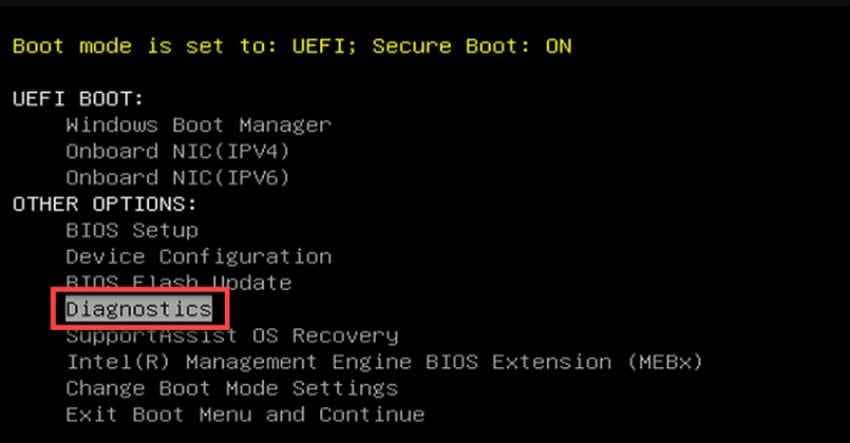
Step 2. Next, restart the Dell and repeatedly press “F12” when the Dell logo appears. From the One-Time Boot Menu, select “Diagnostics” and allow the hardware tests to run.
Fix 13. Reset or Reinstall Windows as the Last Resort
If a Dell black screen with a cursor remains after safer fixes, Windows may need rebuilding. Next, follow the final instructions below only after backing up important files:
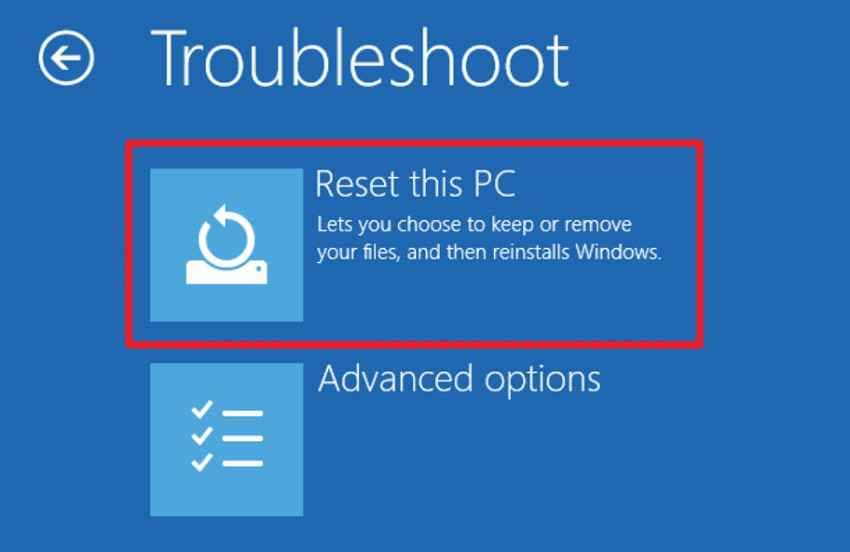
Step 1. Enter Windows Recovery and choose “Troubleshoot > Reset this PC.”
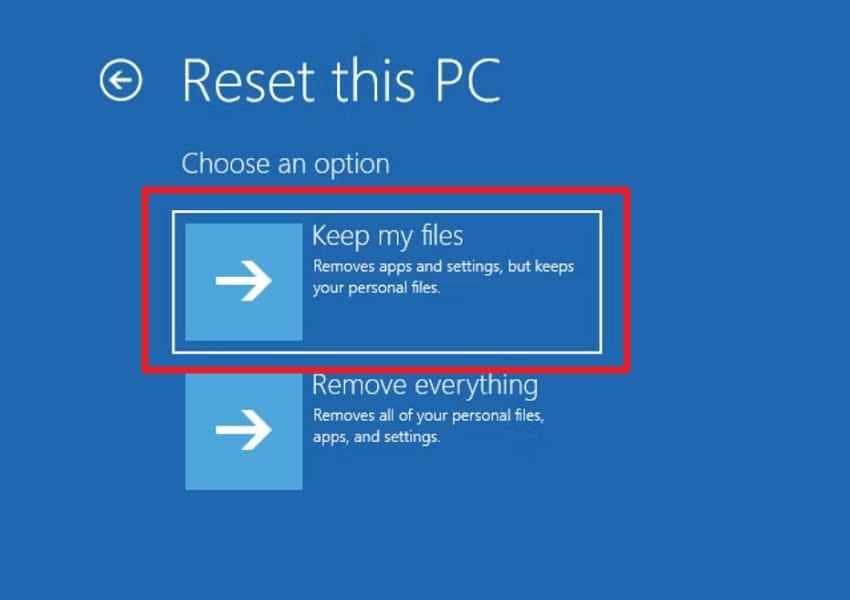
Step 2. Select “Keep My Files” if available, but recover important data first using Recoverit.
Pro Tip. Use Recoverit to Save Files if Your Dell Won’t Boot
Before performing advanced repairs or resetting Windows, recover important files first if the Dell will not boot properly.
Why You Should Recover Files Before Reset or Reinstall
Back up files prior to resetting or reinstalling, as the process can remove all your personal information, apps, or settings in case of a problem. If the Dell is not booting up, then saving documents, photos, and work files prioritizes avoiding unnecessary loss during more extensive repairs.
Recommended Tool: Recoverit Data Recovery
When a Dell black screen with a cursor blocks access, data protection matters first. Important files may remain on the internal drive, even without desktop access. Therefore, Recoverit Data Recovery helps recover documents, photos, videos, and work folders safely. Use it before resets, reinstalls, or repairs that may later affect storage.
Its bootable recovery option helps when Windows fails to start normally. Users can create recovery media and scan the affected Dell drive. In simple words, this gives safer control before reinstalling Windows or changing system settings again.
Key Features
- WinPE Recovery Environment: Runs from a separate WinPE space, avoiding reliance on the damaged Windows installation entirely.
- Crash Scenario Support: Supports recovery from black screens, blue screens, boot loops, and sudden restart failures safely.
- Multiple File Type Recovery: Restores many file categories, including documents, photos, videos, emails, archives, and compressed files.
How to Recover Files from a Dell Black Screen Computer
After understanding Recoverit’s bootable recovery features, follow these steps to recover files before repairing Windows:
Step 1. Start Recovery Setup on Another Computer
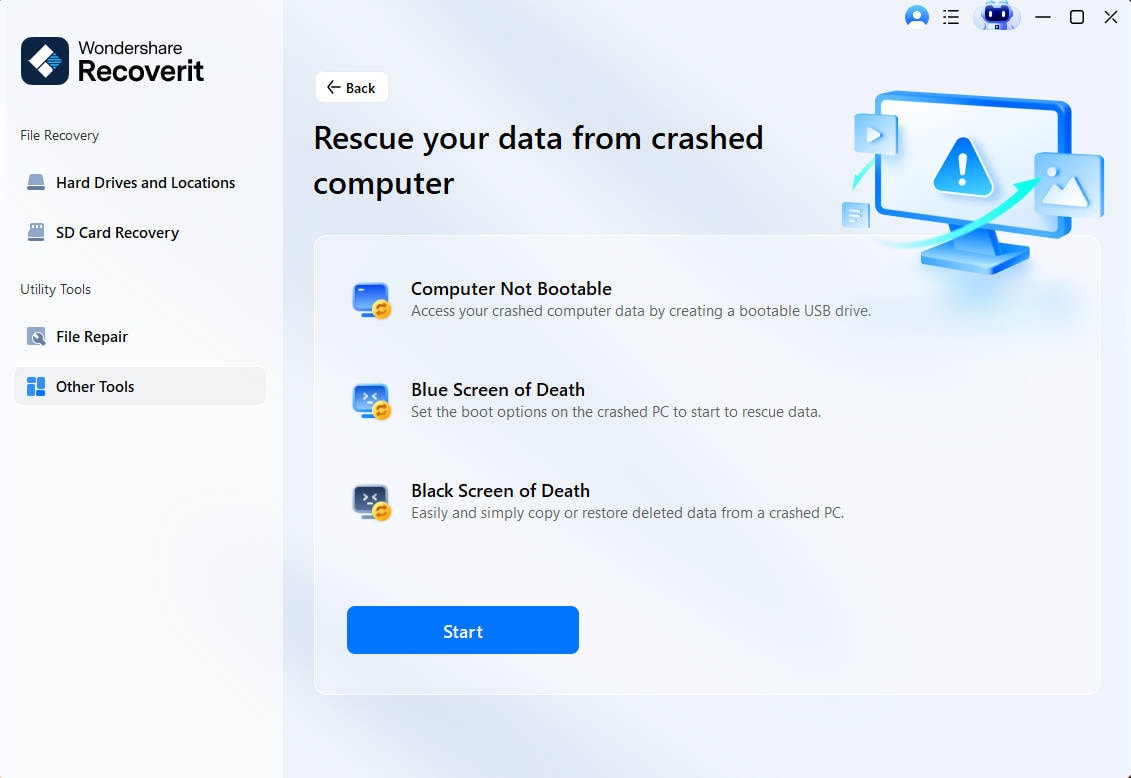
On a working PC, install and open Recoverit, then attach an unused USB drive. From the main interface, go to “Other Tools > System Crashed Computer > Start” to prepare the recovery process.
Step 2. Make the USB Bootable & Start the Dell with It
Pick the inserted USB drive and let Recoverit turn it into bootable media. Once finished, connect it to the affected Dell, enter BIOS, and move the USB drive to the first boot position.

Step 3. Copy Needed Data from the Failed Dell
After the Dell opens in Recoverit’s recovery environment, choose “Data Recovery” or “Hard Disk Copy." Scan the internal drive, review, and transfer important files to an external storage device.

Part 4. When to Contact Dell Support
If the Dell black screen with cursor continues after software repairs, the issue may need professional hardware diagnosis from Dell Support.
- Dell Diagnostics Shows an Error Code: An error or validation code usually points to a specific hardware fault. Share that code with Dell Support for accurate repair guidance.
- External Monitor Works but Built-In Screen Stays Black: When another screen displays normally, the laptop’s internal panel, display cable, or hinge connection may be faulty.
- Both the Dell Screen and the External Monitor Stay Black: If no display works, the issue may involve graphics hardware, motherboard power delivery, or deeper startup failure.
- The Black Screen Returns After Driver and Windows Repairs: Recurring failure after software fixes suggests the problem is not limited to Windows settings or display drivers.
- The Dell Device Is Under Warranty or Has Physical Damage: Repair costs can be decreased through warranty coverage, and if there are cracks, liquid damage, or impact marks, they should be professionally inspected.
Conclusion
To conclude, a Dell black screen with a cursor is usually fixable when users check display output, Explorer, drivers, startup apps, and Windows recovery options carefully. If repairs fail or a reset becomes necessary, protect important files first. Recoverit can help recover data from an unbootable Dell before major repairs begin safely.
FAQs
-
Why does my Dell show a black screen with cursor?
It usually means Windows is partly running, but Explorer, display output, a driver, startup app, or user profile is preventing the desktop from loading. -
How do I fix Dell black screen with cursor after login?
Open Task Manager, restart Windows Explorer, or run explorer.exe manually. Then check startup apps, graphics drivers, and user profile issues. -
What should I do if Task Manager opens on a black screen?
Restart Windows Explorer first. If Explorer is missing, use File > Run new task, type explorer.exe, and click OK. -
How do I run explorer.exe on a black screen?
Press Ctrl + Shift + Esc, choose File > Run new task, type explorer.exe, and click OK. -
Can a graphics driver cause a black screen with cursor?
Yes. A faulty or incompatible graphics driver can leave Windows running while the desktop remains black. -
Why does Safe Mode work but normal login shows a black screen?
This usually points to a driver, startup app, service, update, or display setting that loads only in normal mode. -
Should I reset Windows to fix Dell black screen with cursor?
Reset Windows only after safer fixes fail. Back up or recover important files first because Keep my files is not a full backup. -
Can I recover files before resetting a Dell with black screen?
Yes. If Windows is inaccessible or you plan to reset, reinstall, replace storage, or send the Dell for service, Recoverit can help recover files to external storage.


