

 TL;DR:
To safely resolve a Dell display issue, first isolate hardware from software by verifying cables, testing an external monitor, and resetting the graphics driver using the Windows + Ctrl + Shift + B shortcut.
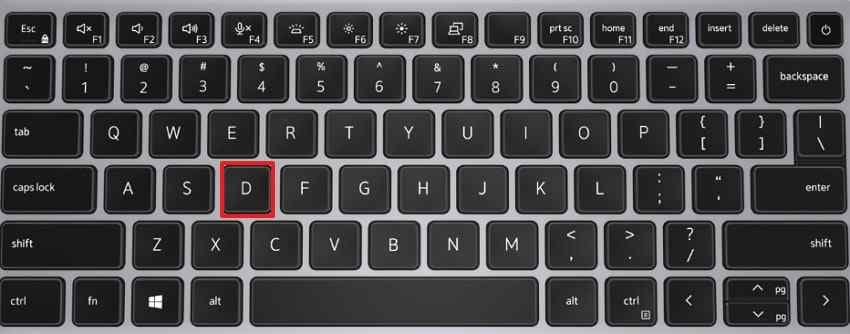
● Run the Dell LCD Built-In Self-Test by holding the D key and pressing the Power button while the system is completely off to check if the internal panel functions independently from the OS.
● Press F12 repeatedly at the Dell startup logo to execute Pre-Boot Diagnostics for hardware validation, or boot into Safe Mode to reinstall graphics drivers if the screen works initially but goes black after Windows login.
● Use a secondary computer to create a bootable USB data recovery drive to salvage inaccessible files before performing a system reset, OS reinstall, or hardware replacement.
Ask AI for a summary
 ChatGPT
 Perplexity
 Gemini
 Claude
 Grok
Grok
A Dell computer display problem can appear in different ways. Your Dell laptop screen may stay black while the keyboard lights are on. A Dell monitor may show No Signal. The display may flicker, look dim, show lines, or work only when connected to an external screen.
In many cases, the screen is not broken. The cause may be a loose cable, wrong input source, low brightness, incorrect display output, a graphics driver issue, Windows display settings, a failed update, a docking station problem, or a hardware fault.
This guide walks you through the checks in a safe order. Start by confirming power, cables, brightness, and display output. Then move to Safe Mode, graphics driver repair, Dell self-tests, Windows repair tools, and hardware service signs. If your Dell computer powers on but you cannot see or access Windows, recover important files before reset, reinstall, SSD replacement, or repair service.
In this article
-
- Fix 1. Power Cycle the Dell Laptop, Desktop, or Monitor
- Fix 2. Reseat or Replace Display Cables
- Fix 3. Restart the Graphics Driver and Switch Display Mode
- Fix 4. Run Dell LCD or Monitor Self-Test
- Fix 5. Boot Into Safe Mode
- Fix 6. Update, Roll Back, or Reinstall the Graphics Driver
- Fix 7. Check Display Resolution, Refresh Rate, and Scaling
- Fix 8. Use Startup Repair, System Restore, SFC, or DISM
- Fix 9. Run Dell Pre-Boot Diagnostics
- Fix 10. Consider Hardware Repair or Replacement
Part 1. What Type of Dell Display Problem Do You Have?
Before trying repairs, identify the exact display symptom. This helps you avoid unnecessary changes and choose the safest first step.
| Dell Display Problem | What It Usually Means | Start With |
| Dell laptop screen is black but keyboard lights or fan are on | The laptop has power, but video output, Windows, LCD, RAM, or motherboard may have issues | Hard reset, external monitor test, Dell diagnostics |
| Dell desktop powers on but monitor stays black | The PC may not be sending video, or the monitor, cable, or input may be wrong | Check monitor input, cable, GPU port, and power |
| Dell monitor shows No Signal | The monitor is on but not receiving video from the computer | Select correct input, reseat cable, test another port |
| Dell laptop display is dim | Brightness, backlight, adaptive brightness, or display cable may be involved | Increase brightness, flashlight test, LCD BIST |
| Dell laptop screen flickers or shows lines | Driver, refresh rate, app conflict, LCD panel, display cable, or overheating may be involved | Task Manager test, driver repair, diagnostics |
| External monitor works but laptop screen does not | Built-in LCD, backlight, display cable, or hinge cable may be faulty | Run Dell LCD Built-In Self-Test |
| Laptop screen works but Dell monitor does not | External monitor, cable, adapter, dock, input source, or port may be faulty | Run Dell monitor self-test |
| Display works before login but fails after login | Windows driver, startup app, user profile, or Explorer issue may be involved | Safe Mode, driver repair, startup cleanup |
Check Whether It Is No Power, No POST, No Boot, or No Video
Not every Dell display problem is caused by the screen. First, check whether the computer is actually starting correctly.
- No Power means the Dell computer shows no lights, no fan noise, no keyboard response, and no charging indicator. This is more likely a power adapter, battery, charging port, power supply, or motherboard issue.
- No POST means the computer powers on but does not complete the initial hardware check. You may see blinking LED codes, hear beep codes, or notice that Caps Lock and keyboard lights do not respond normally.
- No Boot means the Dell logo or BIOS screen appears, but Windows does not load. This may point to Windows startup damage, SSD failure, boot file problems, or a failed update.
- No Video means the computer appears to power on, but nothing appears on the built-in screen or external monitor. This may involve display output, graphics hardware, RAM, LCD panel, monitor, cable, or motherboard problems.
If the device has no power or cannot complete POST, focus on Dell hardware diagnostics and support before Windows repair steps.
Part 2. Quick Checks Before Trying Advanced Fixes
Prior to moving into deeper repairs, these quick checks can confirm whether Dell display issues come from power, settings, or connection faults:
- Check Power, Cables, and Input Source: Confirm the adapter, power light, HDMI, DisplayPort, and monitor input source first. A loose cable or wrong input can make the screen appear completely black.
- Check Brightness and Display Output on Dell Laptops: Raise the brightness, then press the display switch shortcut to check the screen output. Sometimes the laptop sends video to another display instead of the built-in panel.
- Test with Another Monitor or Computer: Connect the Dell device to another screen or test the monitor elsewhere. This separates computer-side graphics problems from monitor, cable, or panel faults.
Part 3. How to Fix Dell Display Issues
After completing the basic checks, use the fixes below to handle deeper Dell display issues safely and systematically:
Fix 1. Power Cycle the Dell Laptop, Desktop, or Monitor
A Dell display problem can happen when a temporary power state blocks normal display detection.
- Shut down the Dell computer and unplug its power adapter or cable.
- Remove connected USB devices, docks, external drives, and display accessories.
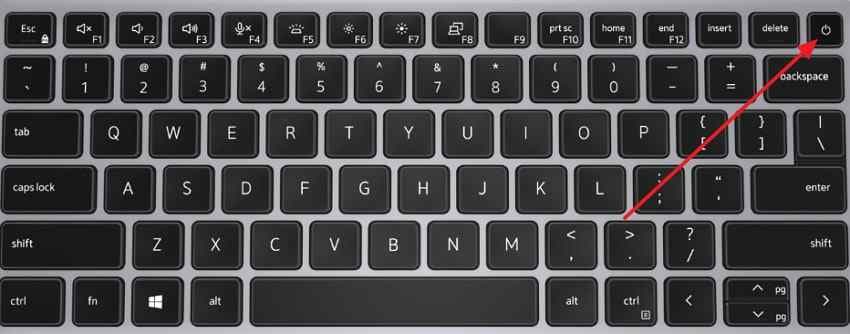
- Hold the “Power” button for 15 to 20 seconds. Reconnect power only, restart the device, and check whether the display returns.
Fix 2. Reseat or Replace Display Cables
Loose, damaged, or incorrectly connected display cables are common causes of Dell display issues, especially No Signal, flickering, lines, or intermittent black screens.
Fix 3. Restart the Graphics Driver and Switch Display Mode
A graphics driver freeze or wrong projection mode can make the display appear blank even when Windows is running.
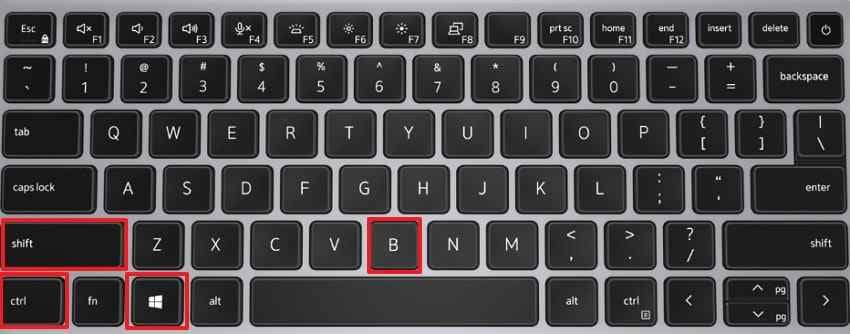
Step 1. Press “Windows + Ctrl + Shift + B” to reset the graphics driver. The screen may blink, and Windows may produce a short beep.
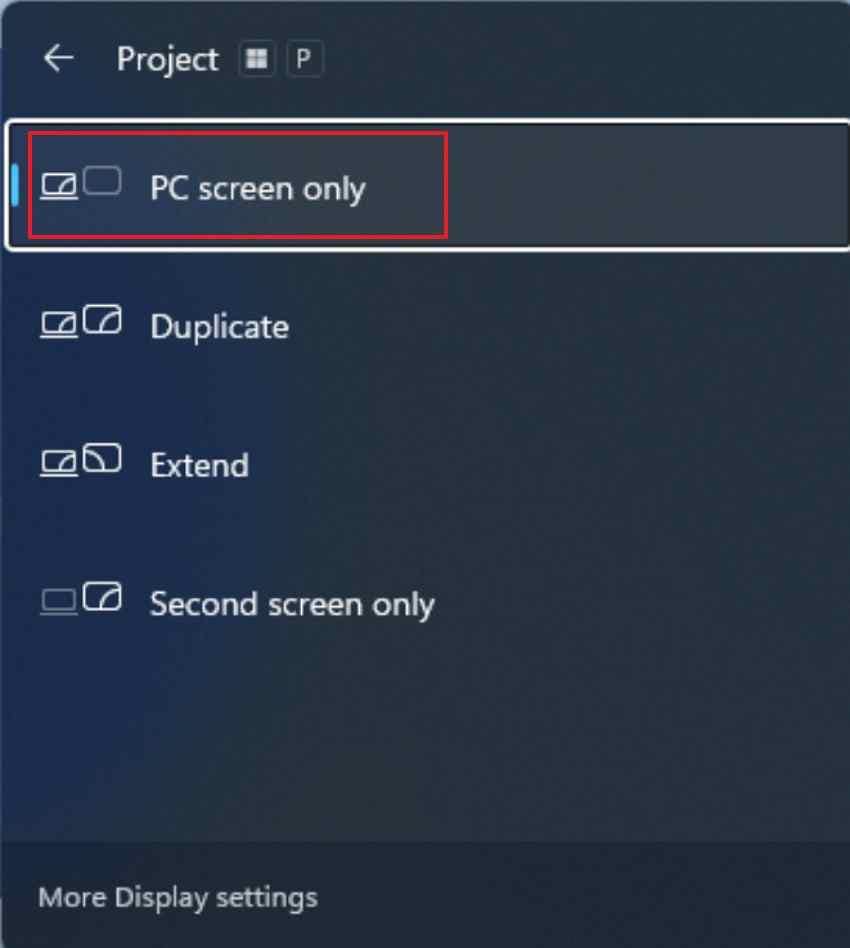
Step 2. After that, hold “Windows + P,” then choose “PC screen only,” “Duplicate,” or “Extend.” This checks whether Windows is sending output to the wrong display.
Fix 4. Run Dell LCD or Monitor Self-Test
Use this method when a Dell laptop screen is black, dim, flickering, distorted, or showing lines. LCD Built-In Self-Test helps check whether the built-in laptop panel is working independently from Windows.
Turn off the system completely, hold the “D” key, press “Power," and release after the color screen appears.
Fix 5. Boot Into Safe Mode
Safe Mode helps when the display works before Windows loads but becomes black, distorted, or unstable after login. It starts Windows with fewer drivers and startup programs.
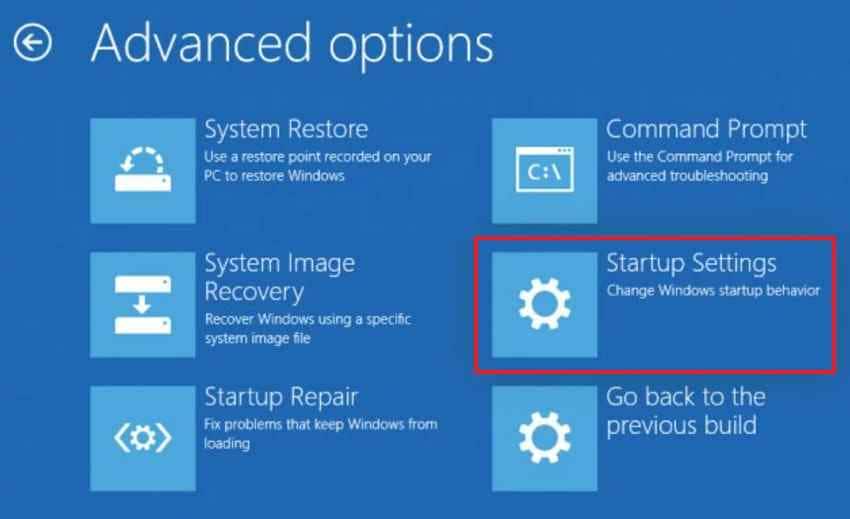
Step 1. Press and hold the “Shift” key, then select “Start > Power > Restart.” When the Windows Recovery Environment opens, go to “Troubleshoot > Advanced options > Startup Settings” and click “Restart.”
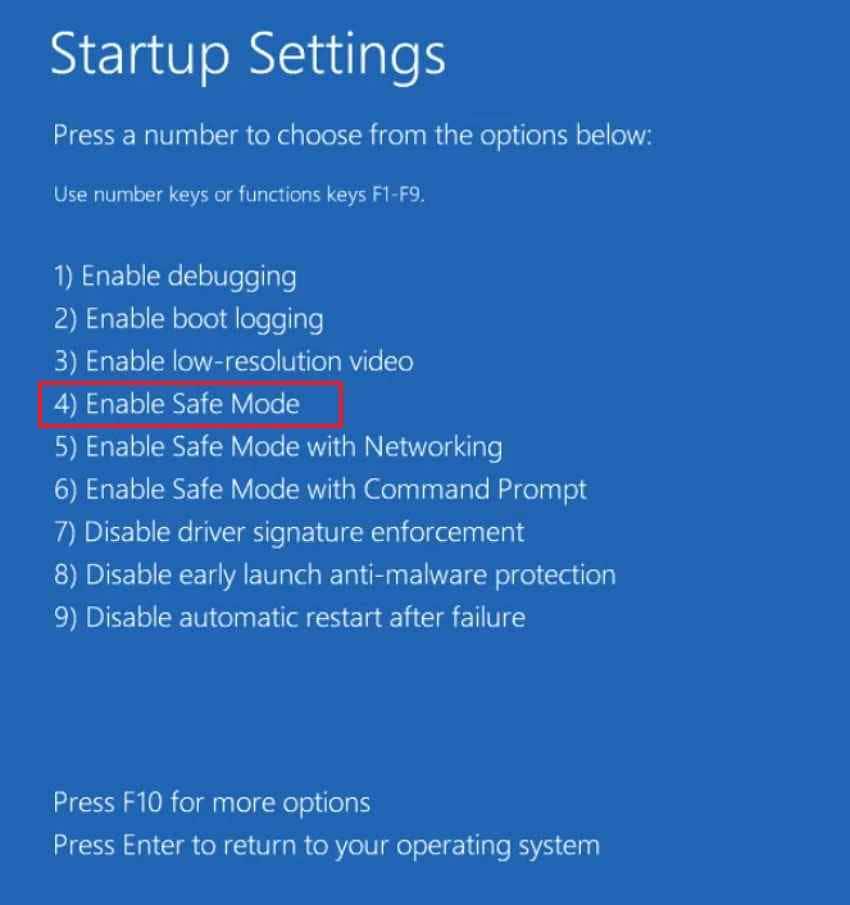
Step 2. After the computer restarts, a list of startup options will appear. Press “4” or “F4” to start Windows in Safe Mode, or press “5” or “F5” to start Safe Mode with Networking if you need internet access for troubleshooting.
Fix 6. Update, Roll Back, or Reinstall the Graphics Driver
Faulty graphics drivers can cause flickering, distortion, black screens, low resolution, or display failure after login. Try updating, rolling back, or reinstalling the driver depending on when the problem started.
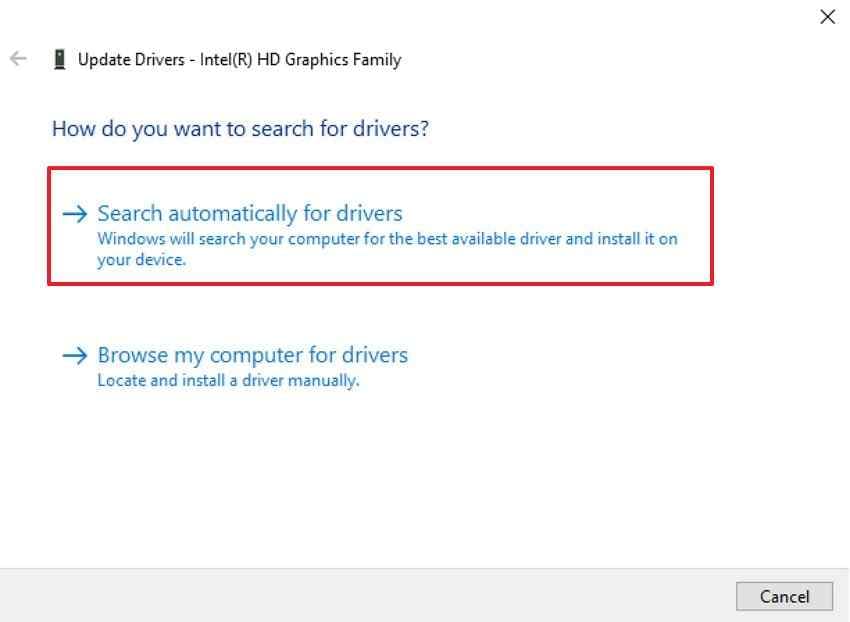
Step 1. In Safe Mode, press “Windows + X” and select “Device Manager.” Expand “Display adapters,” right-click your graphics card, and choose “Update Driver.”
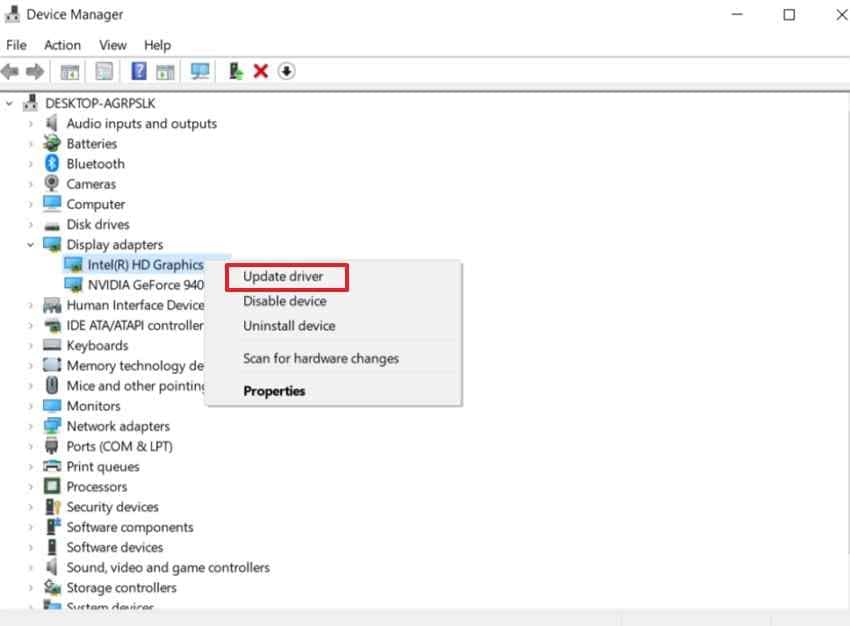
Step 2. Next, select “Search Automatically for Drivers” and follow the on-screen instructions to get the latest version.
Fix 7. Check Display Resolution, Refresh Rate, and Scaling
Incorrect display resolution, refresh rate, or scaling can cause flickering, blurry output, cut-off screens, or unstable display behavior.
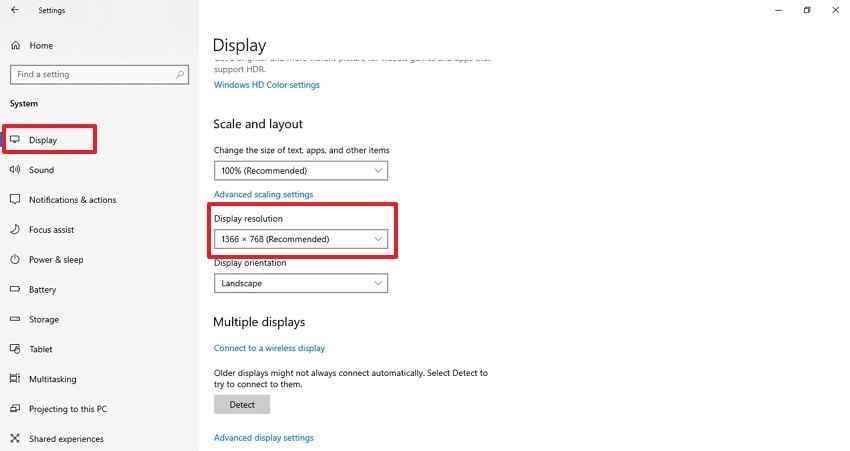
Step 1. If the screen is flickering but Windows is still usable, press “Windows + I > Settings> System > Display.” Then, scroll to “Scale and Layout” and set the recommended display resolution.
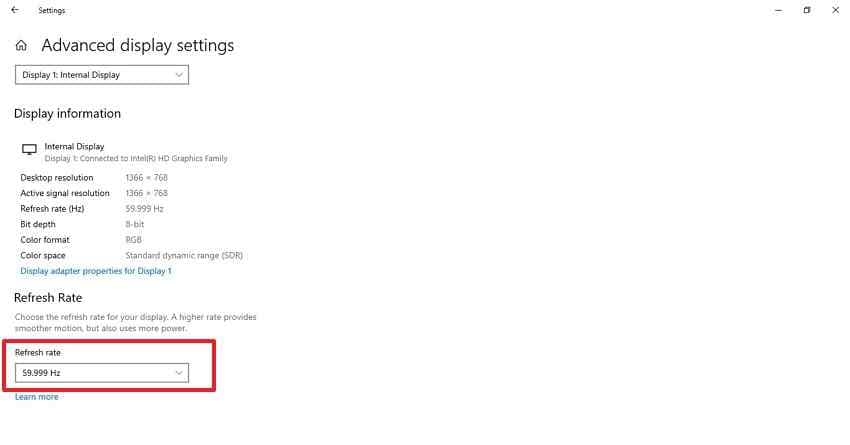
Step 2. Next, select “Advanced Display Settings” and choose a supported refresh rate.
Note: If the Dell monitor shows No Signal or the screen is completely black, do not blindly change resolution settings. First use Safe Mode, another monitor, or another cable so you can see what you are changing.
Fix 8. Use Startup Repair, System Restore, SFC, or DISM
Windows repair tools can help when a Dell display problem starts after a Windows update, driver change, crash, or system file corruption.
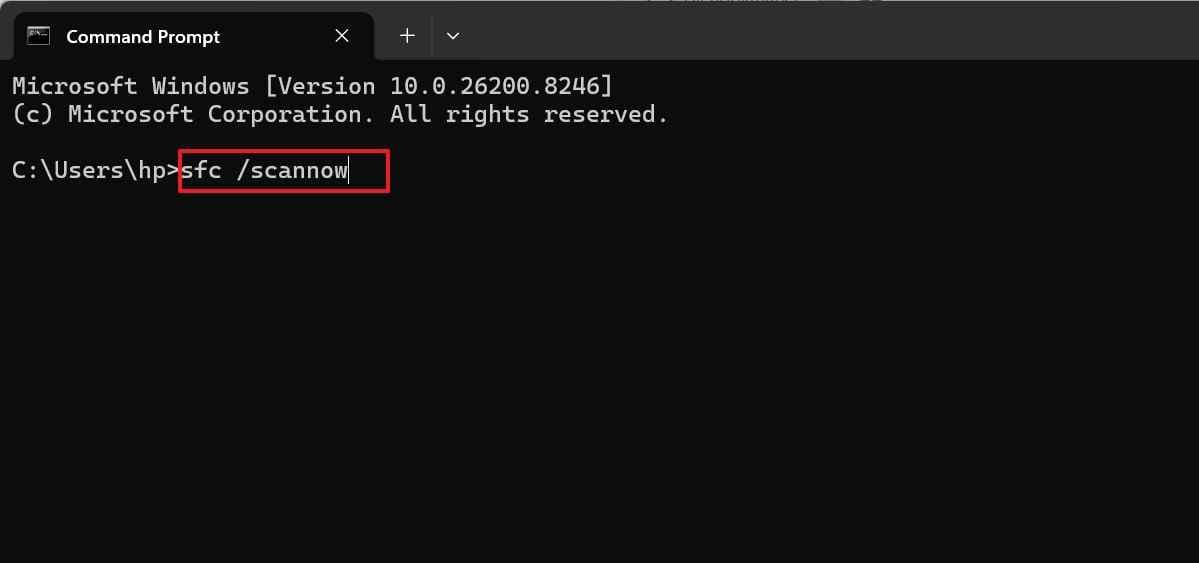
- Open Command Prompt in WinRE. Type “sfc /scannow” and press “Enter” to start the System File Checker scan.
- Wait for the scan to complete and follow any on-screen instructions.
- Restart the computer after the repair process finishes and check whether the display issue is resolved.
Fix 9. Run Dell Pre-Boot Diagnostics
If the Dell laptop display is not working or the computer may have hardware issues, Dell pre-boot diagnostics can test components before Windows loads.
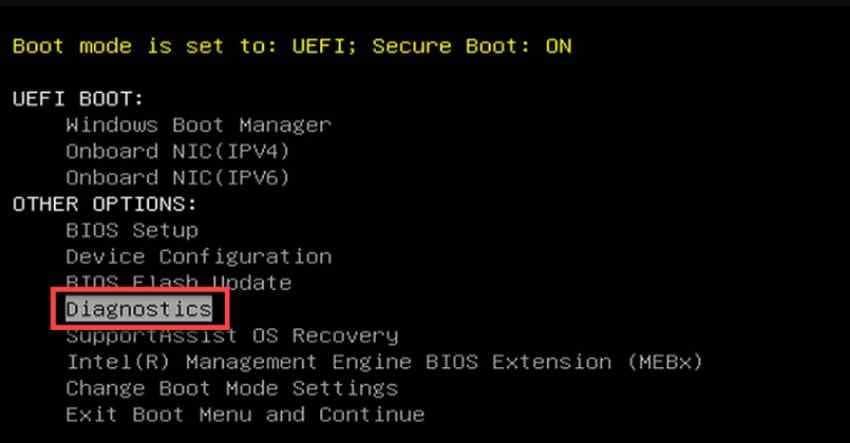
- Turn on the Dell computer and repeatedly press “F12” at the Dell logo.
- Select “Diagnostics” from the “One Time Boot Menu.” Let the quick test run and note any errors or validation code.
- Use "Advanced Test” if you need to test specific hardware.
Fix 10. Consider Hardware Repair or Replacement
If display problems continue after cable checks, driver repair, Safe Mode, Dell LCD BIST, monitor diagnostics, and Dell pre-boot diagnostics, hardware may be involved.
Pro Tip. Recover Files If Your Dell Display Will Not Work
A Dell display problem does not always mean your files are lost. If the issue is only the screen or monitor, you may still access files through an external display. But if the Dell computer cannot show Windows, both internal and external displays fail, or the device needs reset, reinstall, SSD replacement, or service, recover important files first.
Why Recover Files Before Major Repairs
Major repair steps can affect file access. Resetting Windows, reinstalling the system, replacing storage, repairing disk errors, or sending the device for service may change or remove data. Recovering files first gives you a safer backup before deeper troubleshooting.
Recommended Tool: Recoverit Data Recovery
Recoverit Data Recovery can help recover files from a Dell laptop or desktop when normal access is not available. It is useful before reset, reinstall, SSD replacement, disk repair, or hardware service. It is not a display repair tool. Its role is to help protect files when the display issue prevents normal access to Windows.
Key Features
- Bootable Recovery Media: Creates a bootable USB drive on another PC when the Dell computer cannot reach Windows normally.
- Crashed Computer Recovery: Helps recover files from a computer that cannot load the desktop.
- File Preview: Lets users preview supported files before recovery.
- External Save Support: Allows recovered files to be saved to another safe storage device.
Simple Recovery Steps to Recover Files If Your Dell Display Is Not Working
Once data protection becomes the priority, the following steps show how to recover files safely using Recoverit:
Step 1. Prepare the Recovery Tool on Another PC
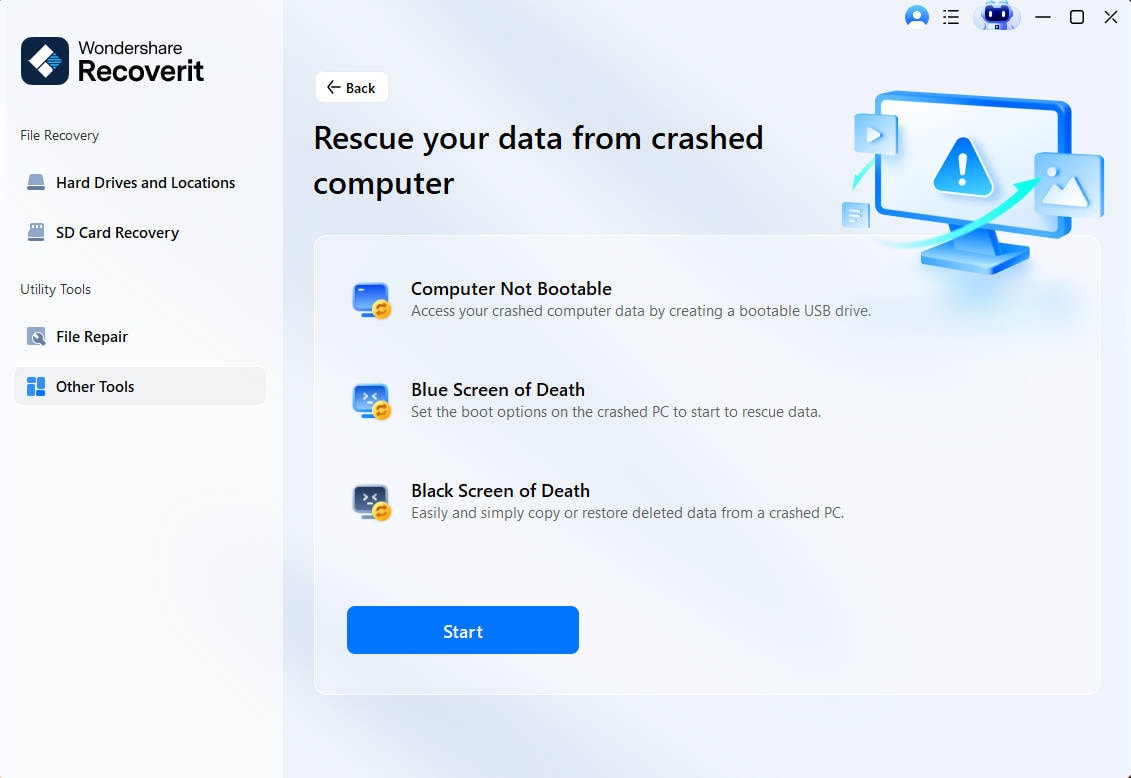
Use a working computer to install Recoverit and connect a blank USB drive. Open “Other Tools,” choose “System Crashed Computer,” and press “Start” to begin the recovery setup.
Step 2. Create the USB & Boot the Dell Computer
Select the inserted USB device, then click “Create” to make it bootable. Next, connect the USB to the affected Dell computer and choose it as the first boot device in BIOS.

Step 3. Scan the Drive and Save Needed Files
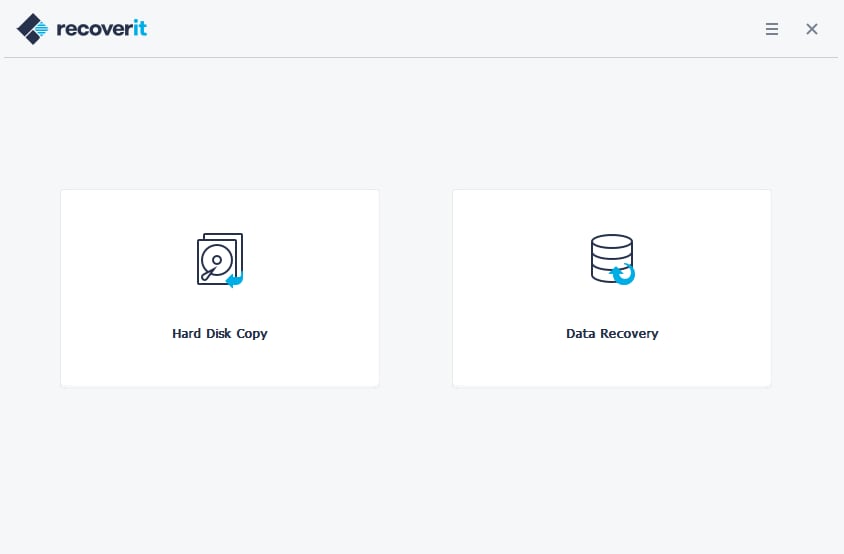
After the Dell computer starts from the USB, select “Data Recovery” or “Hard Disk Copy.” Scan the internal drive, choose important files, and export them to a separate safe storage device.
Part 4. When to Contact Dell Support
If a Dell display issue continues after safe troubleshooting, Dell Support can confirm whether repair service or replacement is needed.
- Persistent Black Screen: Contact support when the Dell screen stays black after power cycling attempts. This may indicate panel failure, motherboard faults, or serious internal cable damage.
- Diagnostic Error Codes: Seek help if Dell diagnostics show repeated display-related error codes during testing. These codes help technicians identify failing hardware without unnecessary part replacements later.
- Physical Screen Damage: When there is a crack, pressure mark, or liquid damage to the screen, it is considered Physical Screen Damage. Typically, the physical damage requires repair service more than just software troubleshooting steps.
- Ongoing Flicker or Lines: Get support if bright lines, color bands, or backlight failure continue. These symptoms are often a sign of panel, connector, or graphics card issues.
- Warranty or Service Concerns: If the device has a warranty or service concern, contact Dell Support prior to opening the device or replacing internal display parts. Unauthorized repairs may impact warranty coverage, service, or replacement options.
Conclusion
A Dell computer display problem can come from simple causes such as loose cables, wrong input source, low brightness, display output mode, or a frozen graphics driver. It can also come from Windows settings, graphics drivers, failed updates, LCD panel faults, monitor hardware, GPU problems, RAM issues, SSD errors, or motherboard failure.
Start with the safest checks first. Confirm the Dell computer is actually powering on, check cables and input source, test another monitor, restart the graphics driver, and use Dell LCD or monitor self-tests. If Windows is involved, try Safe Mode, driver rollback, display settings, Startup Repair, System Restore, SFC, and DISM.
If the display still will not work, run Dell F12 diagnostics and contact Dell Support with your Service Tag and any error codes. If you cannot access Windows and important files are stored on the device, use a data recovery option like Recoverit before reset, reinstall, SSD replacement, or repair service.
Frequently Asked Questions
-
1. Why is my Dell display not working?
It may fail because of loose cables, wrong input, drivers, or hardware faults. Start with power, brightness, external display tests, and Dell diagnostics before repair service. -
2. How do I fix Dell display issues?
Check power, cables, input source, brightness, and display mode before advanced troubleshooting. Afterward, update drivers, use Safe Mode, and run Dell diagnostics to identify hardware issues. -
3. Why does my Dell monitor say No Signal?
No Signal usually means the monitor is not receiving video from the computer. Check the cable, selected input source, graphics port, and computer power status. -
4. How do I know if my Dell laptop display is broken?
Test with an external monitor to compare the laptop screen and graphics output. Lines, cracks, backlight failure, or diagnostic errors may indicate screen damage clearly. -
5. Can a Dell display problem be caused by Windows?
Yes, Windows can cause display problems through drivers, updates, or incorrect settings. Safe Mode, driver rollback, and system repair tools can confirm software involvement. -
6. Can I recover files if my Dell computer display does not work?
Yes, you can still recover files even if your Dell computer display is not working. Using bootable recovery media, tools like Recoverit can access the drive and save important files to external storage.


