

 TL;DR:
A Dell laptop black screen occurring immediately after password entry is typically caused by a failed desktop shell, which can be safely bypassed by pressing Ctrl + Shift + Esc to open Task Manager and manually restarting the explorer.exe process.
● Press Windows + Ctrl + Shift + B to instantly reset the graphics driver, or hold the D key while turning on the laptop to run the LCD Built-In Self-Test to verify the physical screen is functioning.
● Boot into Safe Mode by interrupting the startup sequence three times to disable Fast Startup, roll back incompatible display drivers, or create a new user profile if the issue only affects a single account.
● Recover essential files using a bootable USB drive before attempting a full Windows Reset or contacting Dell Support, as these final actions risk permanent data loss.
Ask AI for a summary
 ChatGPT
 Perplexity
 Gemini
 Claude
 Grok
Grok
A Dell laptop black screen after login means the laptop starts normally, reaches the Windows sign-in screen, and accepts your password or PIN, but the desktop does not appear afterward. You may see only a black screen, a black screen with cursor, or a brief flash before the screen goes dark.
This issue is different from a Dell black screen on startup. If the problem happens before the Dell logo or before the Windows login screen, it may involve power, display, BIOS, or hardware. If it happens after login, the cause is more often Windows Explorer, display drivers, startup apps, a failed update, Fast Startup, or a damaged user profile.
Start with the safest checks first. Try Ctrl + Alt + Del, open Task Manager, restart Windows Explorer, and run explorer.exe manually. Then move to Safe Mode, driver repair, Clean Boot, system repair, and user profile fixes. If Windows remains inaccessible or you plan to reset, reinstall, or send the laptop for service, recover important files before risky repairs.
In this article
-
- Fix 1. Wake the Display and Refresh the Graphics Driver
- Fix 2. Switch Display Output with Windows + P
- Fix 3. Restart Windows Explorer from Task Manager
- Fix 4. Run Explorer.exe Manually
- Fix 5. Sign Out or Restart from the Ctrl + Alt + Del Screen
- Fix 6. Boot the Dell Laptop into Safe Mode
- Fix 7. Disable Fast Startup on Your Dell Laptop
- Fix 8. Update, Roll Back, or Reinstall Dell Graphics Drivers
- Fix 9. Disable Startup Apps and Perform a Clean Boot
- Fix 10. Uninstall Recent Windows or Driver Updates
- Fix 11. Run SFC and DISM to Repair Windows System Files
- Fix 12. Use System Restore or Startup Repair
- Fix 13. Create a New Windows User Profile
- Fix 14. Run Dell LCD Built-In Self-Test and Pre-Boot Diagnostics
- Fix 15. Reset This PC as a Last Resort
Part 1. Why Does Your Dell Show a Black Screen After Login?
Before you move to fixes for the Dell computer black screen after login, first read what is causing the problem:
- Windows Explorer or Desktop Shell Failed to Load: When Explorer crashes or never starts, you only see a black screen or maybe a mouse cursor. The system might be running in the background, but there is nothing drawing the desktop on your Dell’s screen.
- Dell Graphics Driver or Display Output Problem: With incompatible graphics drivers, you will see a black screen with a cursor, or a brief flash before it goes dark again. The display output is pushed to a different screen or mode that your laptop is not using.
- Startup Apps or Services Blocking the Desktop: A few apps or services that start with Windows can hang or interfere with the new system. When that happens, they can freeze the system right as the desktop is loading, leaving you with blackness.
- Fast Startup, Sleep, or Login Session Error: If Fast Startup or Sleep/Hibernation save sessions are corrupted, Windows can reload the same broken state. You get stuck in a loop where every “shutdown or login” just returns the same Dell black screen after login.
- Windows Update or Driver Conflict: After logging in, the system may hit the updated code and stop drawing the desktop screen normally. This screen issue often appears right after a big cumulative update or a GPU driver install that seems completely normal.
- Corrupted User Profile or System Files: Once the Windows user profile is damaged, Windows may accept your password but fail to load your personal settings. Users end up with a black screen or loading state because the profile data it needs is broken.
Part 2. Quick Checks Before Applying Fixes
These quick checks help you navigate if the Dell laptop's black screen after login is simple or something more serious:
- Confirm Brightness, Screen, and External Display: Increase brightness and press Windows + P to switch display modes. Choose PC screen only or Duplicate if an external monitor was used before.
- Disconnect Peripherals, Docks, and Extra Monitors: Turn off the Dell laptop, unplug docks, USB drives, external monitors, printers, and hubs, then restart with only the charger connected.
- Check Whether You Can See the Mouse Cursor: If the cursor appears on a black screen, Windows is probably running, but Explorer or display output may have failed.
- Check Whether Ctrl + Alt + Del or Task Manager Opens: Press Ctrl + Alt + Del. If the security screen appears, Windows is responsive. You can sign out, lock the PC, open Task Manager, or restart.
- Check Whether the Issue Happens on One Account or All Accounts: If another user account works normally, the original profile may be corrupted. If all accounts show a black screen, suspect drivers, updates, services, or system files.
Part 3. How to Fix a Dell Black Screen After Login
With a persistent Dell black screen after login, the following solutions might help you find what works for you:
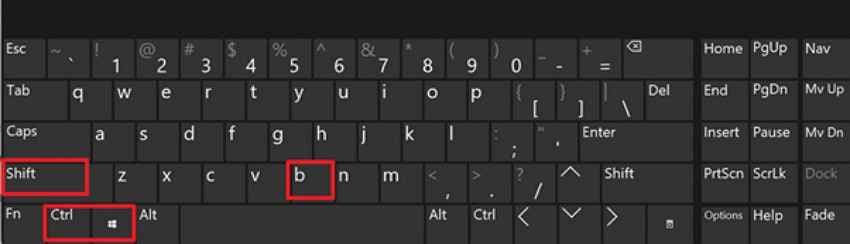
Fix 1. Wake the Display and Refresh the Graphics Driver
It can happen that Windows loads properly, but the graphics driver stops responding after login. A quick refresh can restore the display without needing to restart the system, as guided in the tutorial:
- Tap the touchpad > Press “Windows + Ctrl + Shift + B” > Windows resets the graphics driver.
Fix 2. Switch Display Output with Windows + P
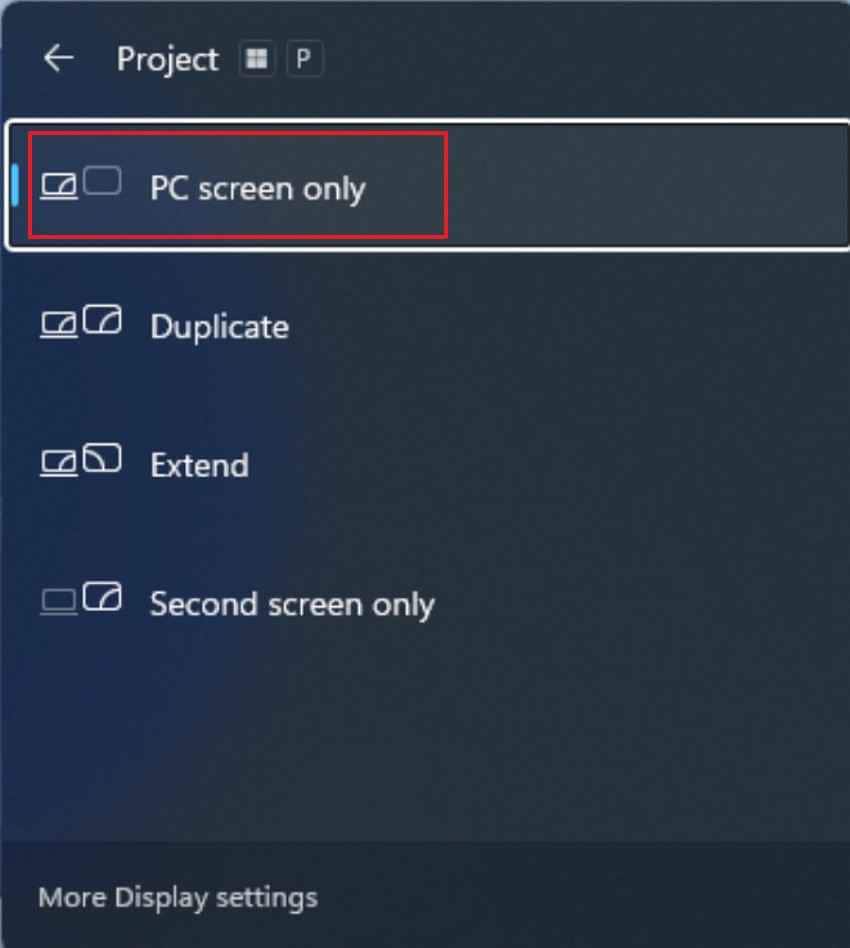
When your Dell sends display signals to a second monitor (one that is not connected), the laptop screen remains black. To restore normal viewing, follow the guidelines and switch Display Mode back to the laptop screen:
- Press “Windows + P” keys > Hold > Cycle between Display Modes (PC Screen Only or Duplicate).
Fix 3. Restart Windows Explorer from Task Manager
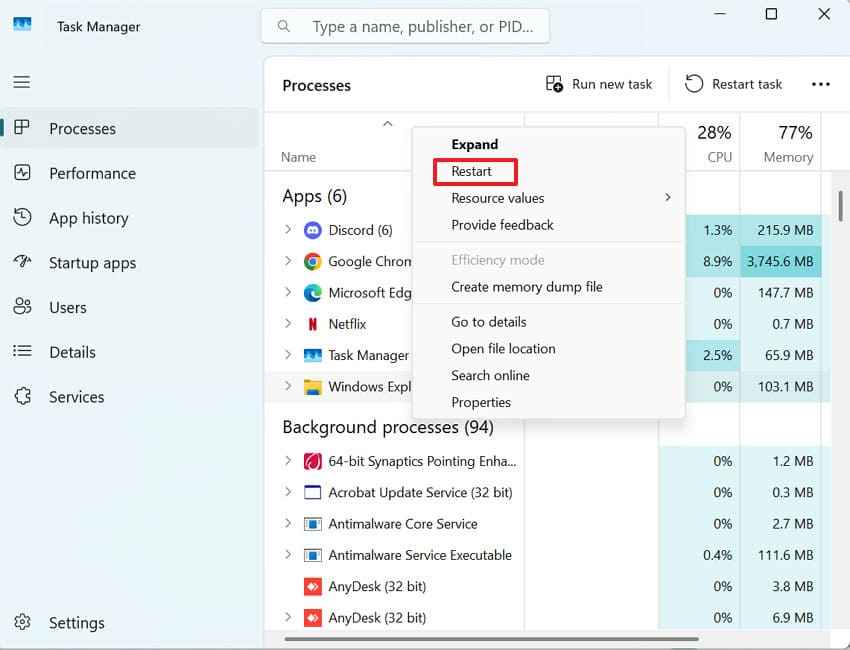
If Windows Explorer crashes or fails to start, you may only see a black Dell laptop screen after login. A restart can reload the Windows desktop and bring everything back at once, as shown below:
- Access Task Manager through “Ctrl + Shift + Esc” keys > Locate “Windows Explorer” > “Restart.”
Fix 4. Run Explorer.exe Manually
Manual launch of Explorer.exe can force Windows to display the desktop, icons, and taskbar again as usual. Learn how to manually access Windows Explorer through Task Manager with the Dell screen still black:
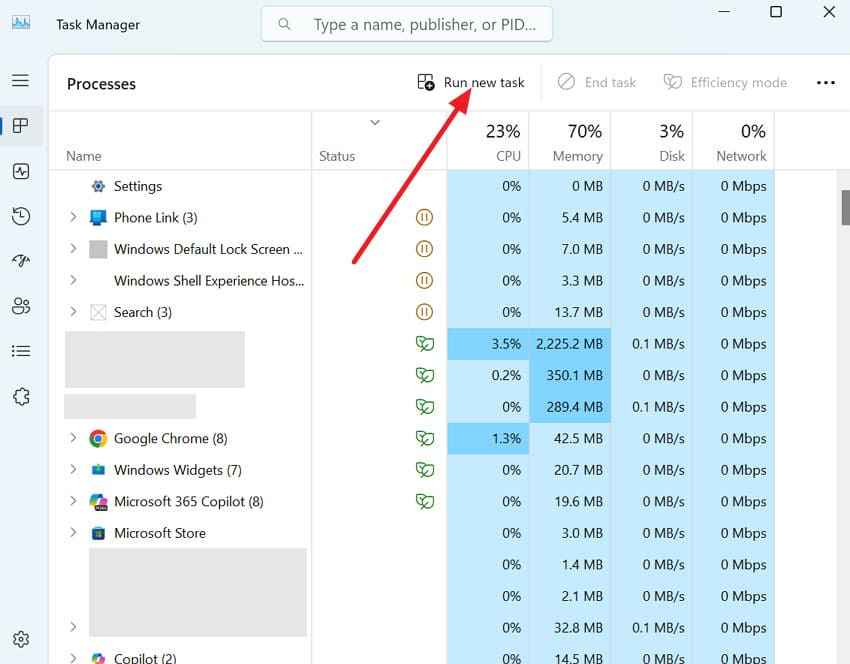
Step 1. Hold “Ctrl + Shift + Esc” for Task Manager > Press “Run New Task.”
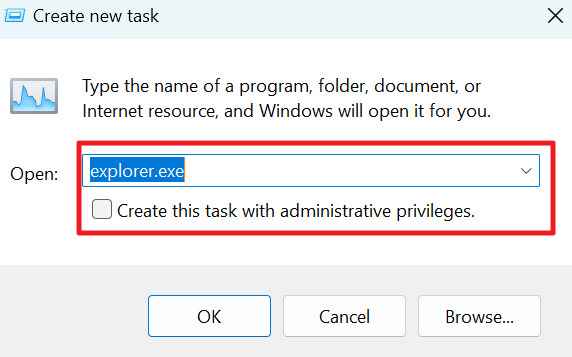
Step 2. Type “explorer.exe” > Check “Create This Task with Administrative Privileges” > Press “Enter.”
Fix 5. Sign Out or Restart from the Ctrl + Alt + Del Screen
Signing out or restarting can refresh Windows processes and clear all temporary errors. To prevent a temporary Windows glitch that causes a Dell black screen after login, follow the tutorial:
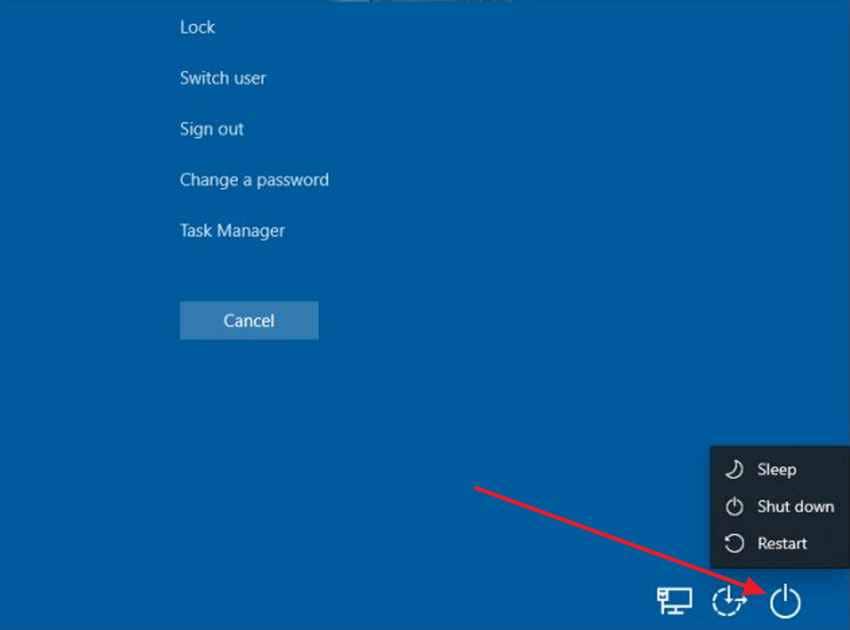
- Hit “Ctrl + Alt + Delete” for Security Screen > “Power” icon > Hold “Shift” > Choose “Restart.”
Fix 6. Boot the Dell Laptop into Safe Mode
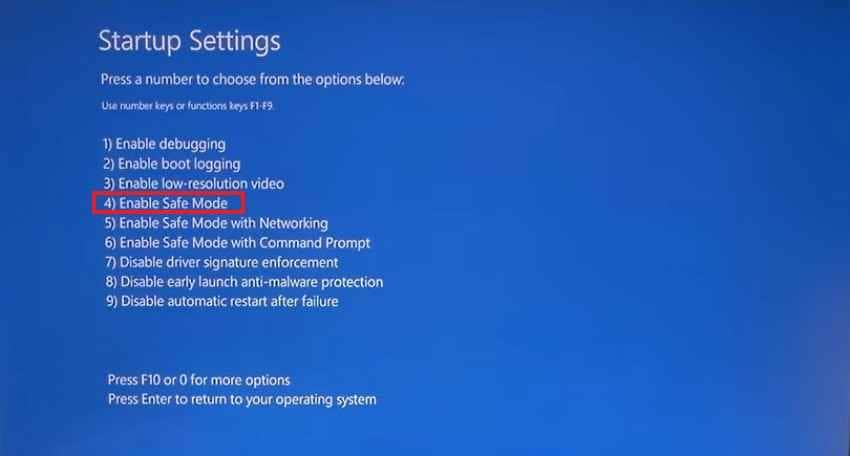
Dell laptop boot into Safe Mode helps identify whether the issue is being caused by a driver or an update. Follow the guidelines and start Windows with only the essential services for “Dell black screen after login”:
Step 1. Interrupt boot process for 3 times > WinRE > “Troubleshoot” > “Advanced Options” > “Startup Settings” > “Restart.”
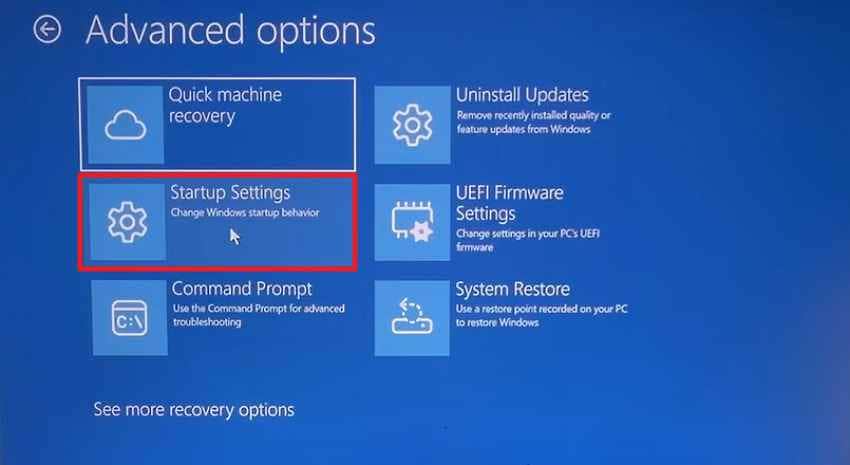
Step 2. From Startup Settings > Press “4” or “5” to Enable Safe Mode.
Fix 7. Disable Fast Startup on Your Dell Laptop
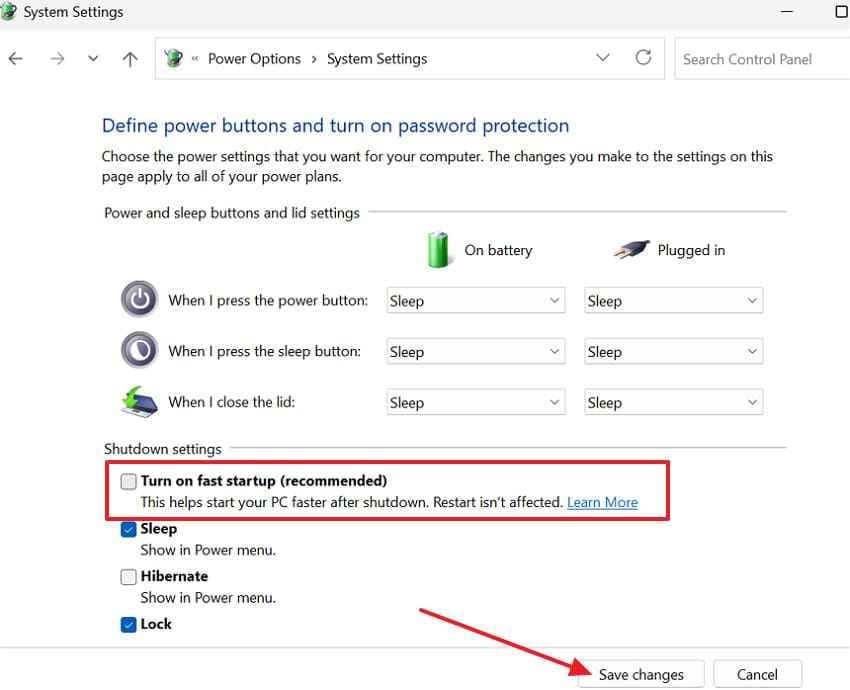
During startup, if key drivers or system services fail to load properly, your Dell may display a black screen. Disable the Fast Startup feature and fix the display-related problems through the guided tutorial:
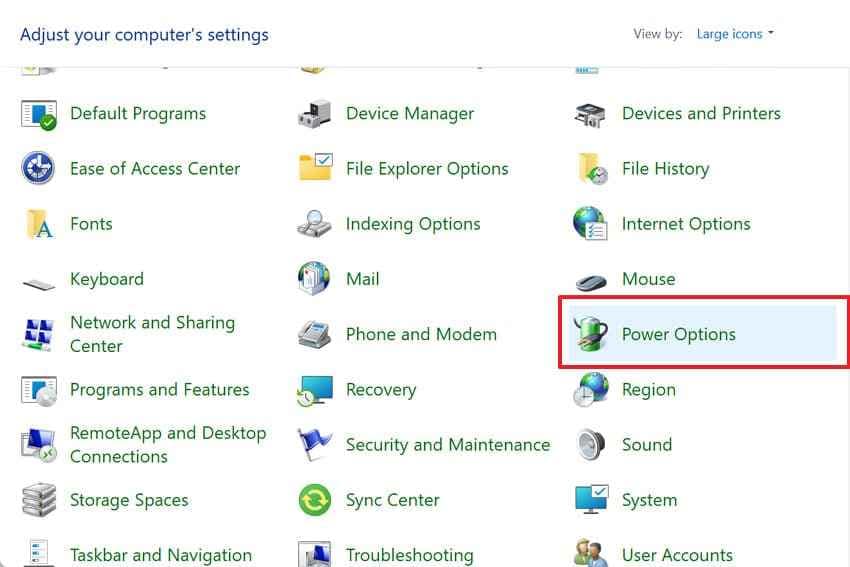
Step 1. Start Dell in Safe Mode > “Control Panel” > “Power Options” > “Choose What Power Buttons Do.”
Step 2. Click “Change Settings” > Uncheck “Turn on Fast Startup” > “Save Changes.”
Fix 8. Update, Roll Back, or Reinstall Dell Graphics Drivers
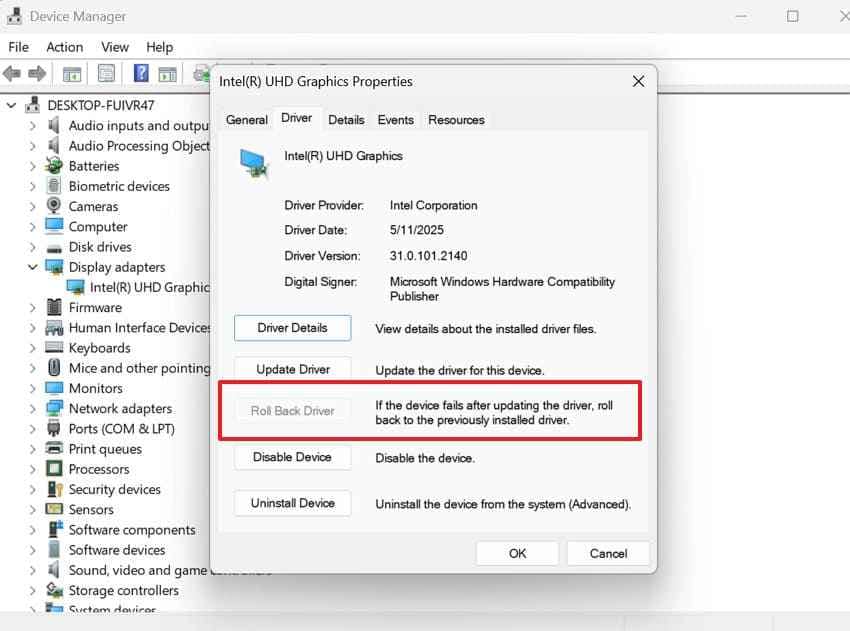
With an incompatible or corrupted graphics driver, you may experience a Dell laptop black screen after login. Consider updating or rolling back the driver to restore proper communication between Windows and the screen, as guided:
- Within Safe Mode > Open “Device Manager” > Right-click driver > “Properties” > Access “Driver” tab > “Roll Back Driver.”
Fix 9. Disable Startup Apps and Perform a Clean Boot
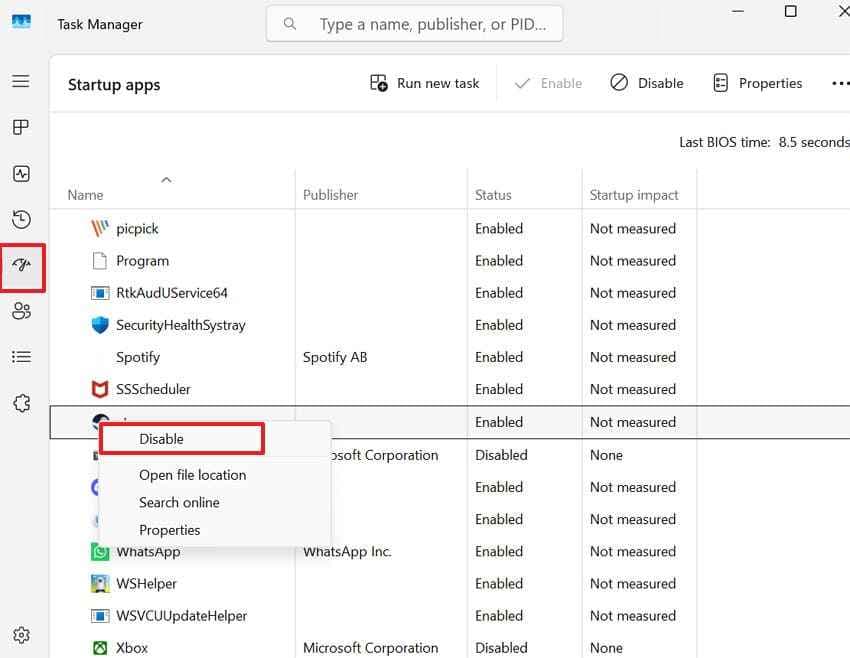
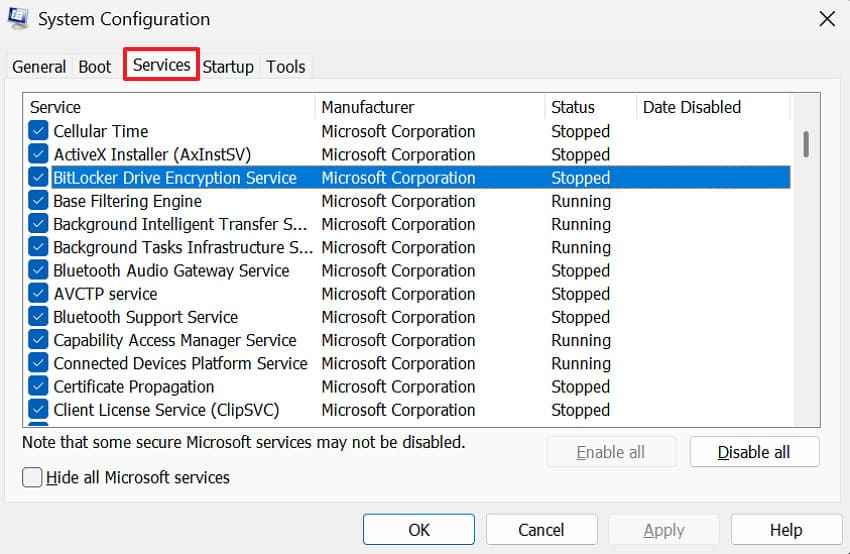
If any of the startup apps are damaged or incompatible, it may prevent the desktop from loading properly. Thus, disable startup apps and perform a clean boot to identify software conflicts through the guidelines below:
Step 1. Start Dell in Safe Mode > Open “Task Manager” > Startup tab > Disable unwanted apps.
Step 2. Run “msconfig” > “Services” > Enable “Hide all Microsoft Services” > Press “Disable All.”
Fix 10. Uninstall Recent Windows or Driver Updates
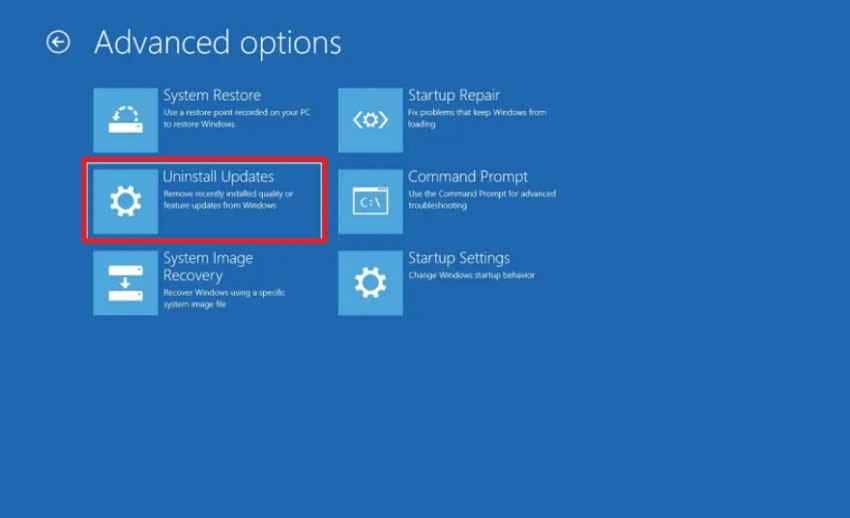
Any new software may be causing the compatibility issue if the black screen appears shortly after a Windows update. At this point, follow the manual and remove the recent updates to restore your system stability:
Step 1. Force restart the PC to enter WinRE, then choose “Troubleshoot > Advanced Options > Uninstall Updates.”
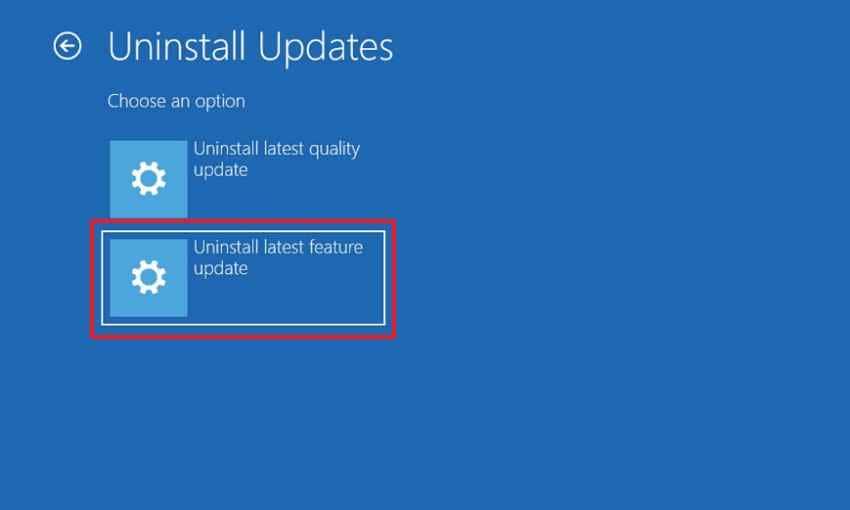
Step 2. After that, choose “Uninstall Latest Feature Update” to uninstall the recent update.
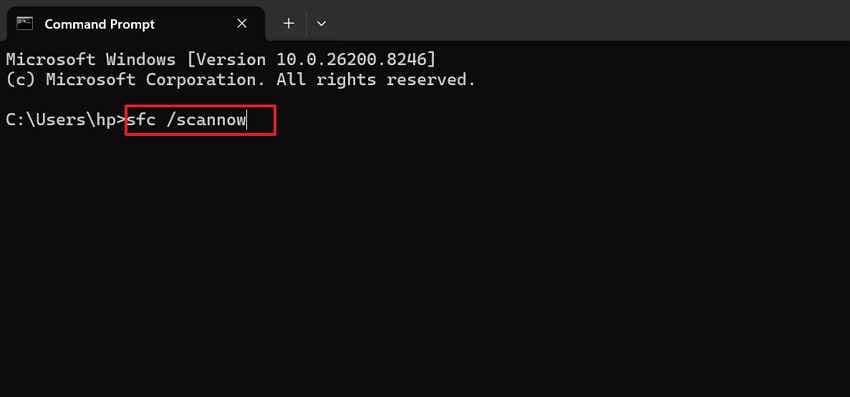
Fix 11. Run SFC and DISM to Repair Windows System Files
Even a single corrupted or missing system file can stop Windows from loading the desktop after login. Run SFC and DISM tools to scan Windows for damaged files and repair them to overcome the Dell black screen after login:
- In Safe Mode > “Command Prompt” > Type “DISM /Online /Cleanup-Image /RestoreHealth” > Enter > Type “sfc /scannow” > Enter.
Fix 12. Use System Restore or Startup Repair
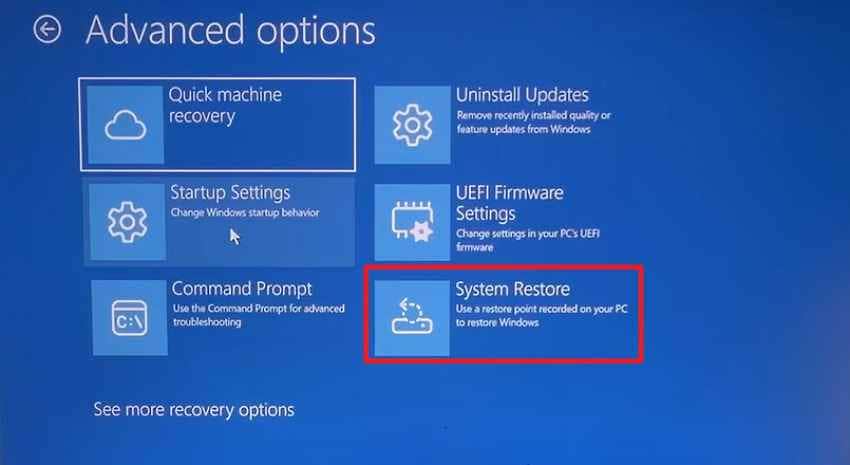
If you think the black screen problem started recently, a system change, such as a Windows update, can be responsible. Dive into the tutorial and use the System Restore to return your computer to an earlier working state:
- In WinRE > “Troubleshoot” > “Advanced Options” > Select “System Restore” and continue.
Fix 13. Create a New Windows User Profile
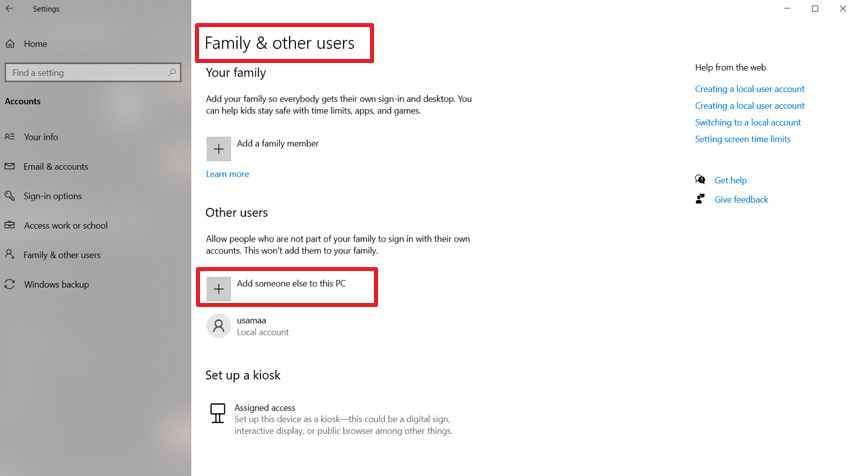
Dell laptop black screen after login sometimes appears because the current Windows user profile has become damaged. In this case, create a new user account through the guidelines and determine whether the problem is related to the profile:
- Boot Windows in Safe Mode > Access “Settings” > “Accounts” > “Family & Other Users” > Click “Add Someone Else to This PC.”
Fix 14. Run Dell LCD Built-In Self-Test and Pre-Boot Diagnostics
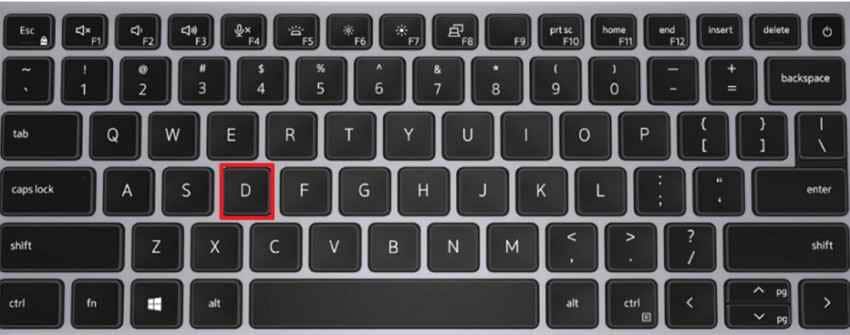
Dell offers a built-in diagnostic tool that checks hardware without loading Windows at all. Follow the tutorial and run the Dell LCD Self-Test to identify hardware or internal component faults:
Step 1. Turn off the Dell laptop. Press and hold the “D” key, then press the “|Power” button. If colored screens appear, the LCD panel is receiving power and can display images.
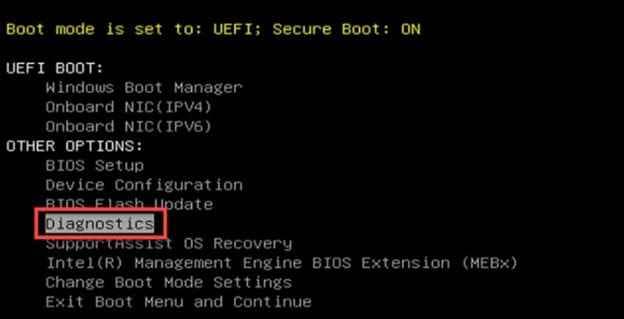
Step 2. Restart the laptop and repeatedly press “F12” at the Dell logo. From the “One Time Boot Menu,” choose “Diagnostics” and let the Pre-Boot test run.
Fix 15. Reset This PC as a Last Resort
When all fails, it's time to reset the PC to reinstall Windows and remove deeper software problems causing the black screen. Read the instructions and attempt to reset only if you’ve tested all other solutions, as it may remove installed settings:
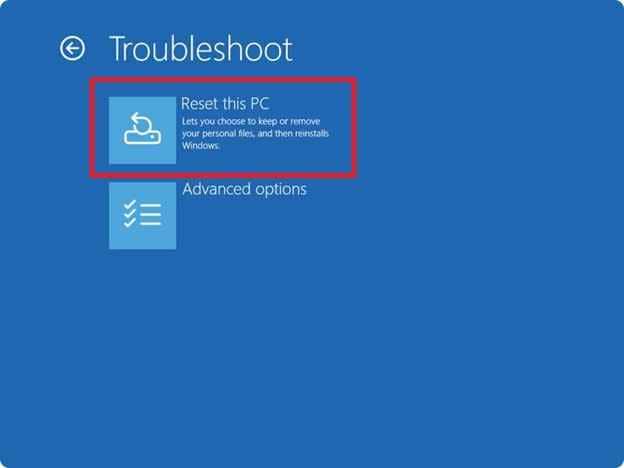
- Within WinRE > Access “Troubleshoot” > Choose “Reset this PC” > Press “Keep My Files” > Continue.
Pro Tip. Use Recoverit to Rescue Data from a Black-Screen Dell
A Dell black screen after login does not always mean your files are lost. You do not need data recovery for every fix above. Most basic checks, such as restarting Explorer, using Safe Mode, or rolling back a driver, are safe.
Recover files first if Task Manager cannot open, Safe Mode cannot access your files, Windows remains unusable, the SSD or HDD may have errors, or you plan to reset, reinstall, replace the drive, or send the laptop for service.
Recommended Tool: Recoverit Data Recovery
Recoverit Data Recovery can help recover files from a Dell laptop when Windows access is blocked. It is not a black screen repair tool. Its role is to help protect files before high-risk actions.
Key Features
- Works for Multiple Scenarios: Recoverit explicitly handles black screen crashes, unbootable systems, and Windows that do not start.
- Review Files Before Recovery: Once the scan finishes, the program lets you preview many files to make sure they are the right ones.
- Specified System Crashed Computer Mode: It offers a special “System Crashed Computer” mode for PCs that won’t boot or show only a black screen.
How to Recover Files from a Dell Laptop After Login Black Screen
A black screen after login does not always mean your files are gone because the tutorial below recovers them in seconds:
Step 1. Choose the USB Flash Drive
Access the "System Crashed Computer” tool on a working PC > Select blank USB > Click “Start."

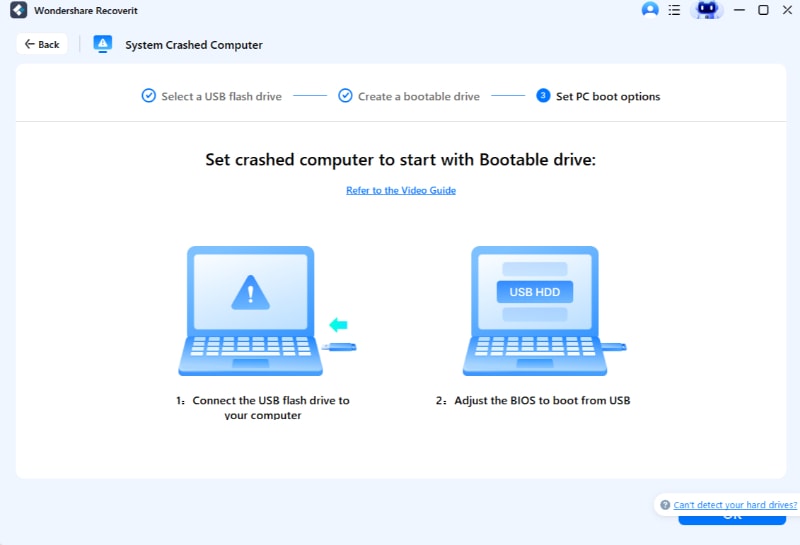
Step 2. Select USB as a Bootable Device
Connect USB to Dell > Enter BIOS > Choose “USB HDD” as boot device.
Step 3. Retrieve Files from Black-Screened Dell
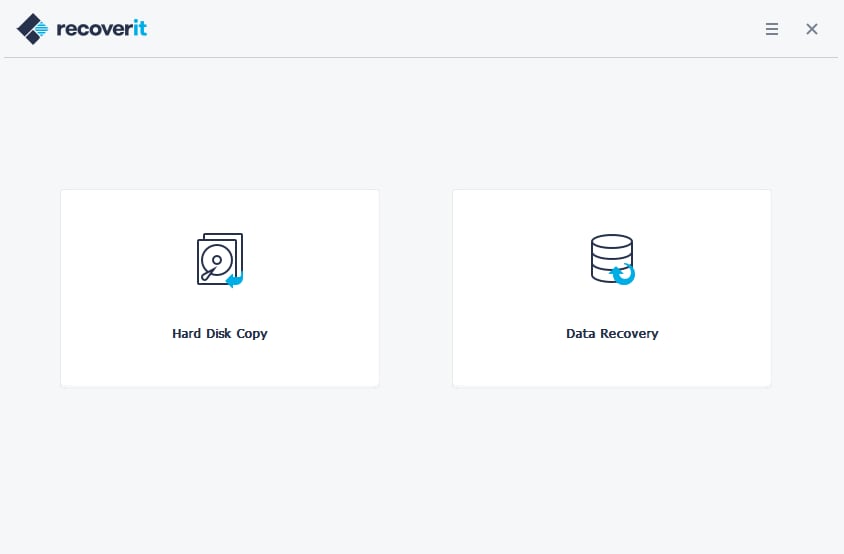
Choose “Data Recovery” > Scan affected drive > Recover files from Dell.
Part 5. When to Contact Dell Support
It might be time to get help from Dell Support if the Dell laptop's black screen after login remains after the listed steps:
| When to Contact Dell Support | Why It Is Needed |
|---|---|
| Dell Diagnostics Shows an Error Code | Confirms hardware fault requiring part replacement professionally. |
| External Monitor Works, But the Built-In Screen Stays Black | Points a bad laptop screen, requiring professional repair. |
| Black Screen Happens on all User Accounts | Deeper tools or reinstall are needed with Dell’s guidance. |
| Black Screen Returns After Driver and Windows Repairs | Repeated failures suggest an underlying hardware problem. |
| Laptop is Under Warranty or Shows Physical Damage | Dell support protects your warranty, giving you access to official parts. |
Conclusion
A Dell laptop black screen after login usually points to a Windows-level issue, not a startup power failure. Start with Ctrl + Alt + Del, Task Manager, Windows Explorer, and explorer.exe because the desktop shell often fails after login. Then check display output, Safe Mode, Fast Startup, graphics drivers, startup apps, Windows updates, system files, and user profiles.
If all software fixes fail, test Dell hardware with LCD Built-In Self-Test and Pre-Boot Diagnostics, and record any error codes before contacting Dell Support. If Windows stays inaccessible or you plan to reset, reinstall, replace storage, or send the laptop for repair, recover important files first.
FAQs
-
Why does my Dell laptop go black after login?
A Dell laptop may go black after login because Windows Explorer fails, the graphics driver crashes, startup apps block the desktop, Fast Startup reloads a bad session, Windows updates conflict, or the user profile is corrupted. -
How do I fix Dell black screen after login with cursor?
Open Task Manager with Ctrl + Shift + Esc, restart Windows Explorer, or run explorer.exe manually. If that fails, boot into Safe Mode and repair drivers or startup apps. -
What should I do if Ctrl + Alt + Del works but the desktop is black?
Use Ctrl + Alt + Del to open Task Manager, sign out, restart, or enter recovery options. If Task Manager opens, restart Explorer or run explorer.exe. -
How do I restart Windows Explorer on a black screen?
Press Ctrl + Shift + Esc, find Windows Explorer in Task Manager, right-click it, and choose Restart. If it is missing, go to File > Run new task, type explorer.exe, and click OK. -
Can a graphics driver cause Dell black screen after login?
Yes. A corrupted or incompatible graphics driver can fail after login and leave the screen black. Update, roll back, or reinstall the graphics driver in Safe Mode. -
Why does Safe Mode work but normal login shows a black screen?
If Safe Mode works, the issue is likely caused by a driver, startup app, service, Windows update, or display setting that loads during normal startup. -
How do I fix Dell black screen after login on one user account only?
Create a new Windows user profile in Safe Mode. If the new profile works, the old profile may be corrupted. -
Can I recover files from a Dell laptop with black screen after login?
Yes. If Windows remains inaccessible or you need to reset, reinstall, replace the drive, or send the laptop for service, Recoverit can help recover files to external storage before risky repairs.


