

 TL;DR:
A Dell laptop black screen on startup can stem from display hardware faults, graphics driver conflicts, or Windows boot errors, requiring you to isolate the root cause via external monitor tests, built-in Dell diagnostics, and the Windows Recovery Environment.
● If the screen remains black before the Dell logo appears, run the Dell LCD Built-In Self-Test by holding the "D" key while pressing the Power button, or press F12 to launch Pre-Boot Diagnostics to detect underlying motherboard, RAM, or BIOS failures.
● If the Dell logo displays but the screen goes black while Windows loads, repeatedly interrupt the startup to enter the Windows Recovery Environment, where you can safely utilize Startup Repair, System Restore, or Safe Mode to remove conflicting display drivers.
● Do not proceed with a factory reset, Windows reinstallation, or SSD replacement without first recovering your data using a bootable USB rescue drive, as these advanced repairs will alter or permanently delete your personal files.
Ask AI for a summary
 ChatGPT
 Perplexity
 Gemini
 Claude
 Grok
Grok
A Dell laptop black screen on startup can happen before the Dell logo appears, right after the Dell logo, or while Windows is loading. The laptop may still show power lights, keyboard backlight, fan noise, or charging activity, but the built-in screen stays blank.
This problem does not always mean the screen is broken. It may come from a stuck power state, wrong display output, failed Windows startup, graphics driver conflict, recent update, BIOS setting, RAM issue, SSD problem, or LCD hardware fault.
Start with the safest checks first. Confirm whether the Dell laptop powers on, test whether you can enter BIOS or the F12 boot menu, connect an external monitor, and run Dell display diagnostics. If Windows is the cause, try Safe Mode, Startup Repair, System Restore, driver repair, or Reset this PC only after safer fixes fail. If the laptop will not boot and important files are stored on it, recover your data before reset, reinstall, SSD replacement, or repair service.
In this article
-
- Fix 1. Wake the Screen and Refresh the Graphics Driver
- Fix 2. Force Shut Down and Perform a Fresh Boot
- Fix 3. Hard Reset the Dell Laptop to Clear Residual Power
- Fix 4. Disconnect External Devices and Boot with Minimum Hardware
- Fix 5. Test with an External Monitor or TV
- Fix 6. Run Dell LCD Built-In Self-Test
- Fix 7. Run Dell F12 Pre-Boot Diagnostics
- Fix 8. Enter Safe Mode and Remove Problem Drivers or Startup Apps
- Fix 9. Update, Roll Back, or Reinstall the Graphics Driver
- Fix 10. Use Startup Repair in Windows Recovery Environment
- Fix 11. Run System Restore to a Point Before the Startup Black Screen
- Fix 12. Repair Windows System Files with SFC and DISM
- Fix 13. Reset BIOS or UEFI Settings to Default
- Fix 14. Check RAM and SSD Seating if the Dell Model Is Serviceable
- Fix 15. Reset or Reinstall Windows as the Last Resort
Part 1. Why Does Your Dell Laptop Show a Black Screen on Startup?
Before you start any repair, you should try to grasp the root cause of a Dell laptop's blank screen on startup and the impact of each cause on the boot process.
- No Power, No POST, No Boot, or No Video Problem: A Dell laptop may stay black because power is not reaching key components, the system fails hardware checks, Windows cannot boot, or the laptop is powered on but not sending video to the display.
- Display Output, Brightness, or External Monitor Issue: The laptop may be running, but the image may be sent to another display. Low brightness or a wrong projection mode can also make the built-in screen look dead.
- Windows Startup or Boot File Error: Damaged startup files can stop Windows before the sign-in screen loads. This often happens after forced shutdowns, failed updates, interrupted repairs, or storage errors.
- Graphics Driver or Recent Windows Update Conflict: A graphics driver conflict can interrupt the display as Windows starts loading. A recent update may also replace drivers or reset display settings.
- BIOS, UEFI, RAM, SSD, or Motherboard Issue: If the laptop cannot reach BIOS, F12, or the Dell logo, the issue may involve hardware-level startup checks.
- Built-In Screen, Backlight, or Display Cable Failure: If the laptop works on an external monitor but not on the built-in screen, the internal LCD panel, backlight, display cable, or hinge cable may be involved.
Part 2. Quick Checks Before Trying Startup Repairs
After identifying the likely causes, try the following quick checks to confirm whether the Dell laptop's startup black screen comes from display or simple connection problems:
- Check Power Lights, Fan Noise, Keyboard Backlight, and Charging Status: Start by checking whether the laptop shows any sign of life. Power LEDs, fan sound, keyboard lighting, or charging response help separate display failure from a power issue.
- Confirm Brightness, Display Output, and External Monitor Connection: Increase brightness with the brightness-up key. Then press Windows + P if Windows may be running in the background. If you previously used an external monitor or dock, the laptop may still be trying to send video to another screen.
- Disconnect USB Devices, Docking Stations, and External Peripherals: Unplug USB drives, external hard drives, docking stations, printers, SD cards, and extra monitors. Restart the Dell laptop with only the charger connected. Faulty or bootable external devices can interfere with startup.
- Note Whether the Black Screen Appears Before or After the Dell Logo: A black screen before the Dell logo often points to display, POST, BIOS, RAM, motherboard, or power issues. A black screen after the Dell logo usually points more toward Windows startup, drivers, storage, updates, or boot files.
- Test Whether You Can Enter BIOS or the F12 Boot Menu: If BIOS or F12 opens, the screen and basic hardware are responding. The problem may be related to Windows startup, storage, boot files, or drivers. If BIOS and F12 do not open, the issue may involve firmware, keyboard input, POST failure, display hardware, or the motherboard.
Part 3. How to Fix a Dell Laptop Black Screen on Startup
After verifying that the problem is not a one-time event, it is time to proceed to realistic solutions to a Dell laptop's black screen on boot.
Fix 1. Wake the Screen and Refresh the Graphics Driver
This fix targets a Dell laptop's black screen on startup caused by temporary display freezing. Follow the instructions below when the laptop seems active, but the display stays unresponsive:
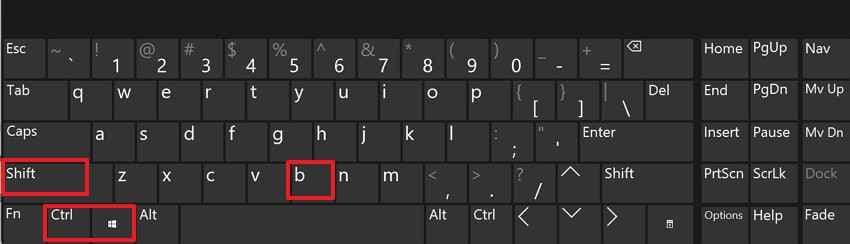
- Hold the Power button for 10 to 15 seconds.
- Wait until the laptop shuts down completely.
- Wait about 30 seconds.
- Press the Power button once.
- Check whether the Dell logo appears.
Fix 2. Force Shut Down and Perform a Fresh Boot
A forced restart helps clear a stuck startup state without changing system files. Use the following instructions when Windows or firmware appears frozen during early loading:
- Turn off the Dell laptop.
- Disconnect the charger.
- Remove USB devices, docks, external drives, and monitors.
- If your Dell model has a removable battery, remove it according to the model design.
- Hold the Power button for 20 to 30 seconds.
- Reconnect the charger.
- Restart the laptop.
Important: If your Dell laptop has a built-in battery, do not force the laptop open or remove the battery unless the model is designed for user service. Use the power-button reset instead or follow Dell’s official service manual.
Fix 3. Hard Reset the Dell Laptop to Clear Residual Power
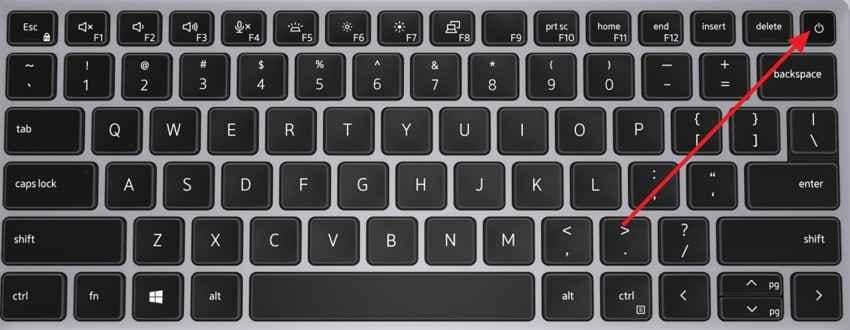
Normal startup may sometimes be interrupted by residual electrical charge on Dell laptops. Shut down the laptop, disconnect the charger, and disconnect any device. If the battery is removable, remove it as per the Dell model design. Press the Power button for 20-30 seconds and then reconnect the charger. Restart the Dell laptop and confirm that the startup screen comes back.
Fix 4. Disconnect External Devices and Boot with Minimum Hardware
External devices can interrupt startup or confuse boot detection.
- Turn off the laptop.
- Disconnect USB drives, docking stations, printers, external drives, SD cards, and external displays.
- Keep only the charger connected.
- Turn the laptop on again.
- Check whether the Dell logo appears.
Fix 5. Test with an External Monitor or TV
An external monitor test is one of the most important checks for Dell startup black screen problems.
- Connect the Dell laptop to an external monitor or TV using HDMI, USB-C, DisplayPort, or a supported adapter.
- Turn on the external display.
- Select the correct input source.
- Restart the Dell laptop while the external display is connected.
- Press Windows + P if Windows may be running.
How to interpret the result:
- If the external monitor works but the built-in screen stays black, the internal LCD panel, backlight, display cable, or hinge cable may be faulty.
- If the external monitor also stays black, the issue may involve GPU, RAM, BIOS, motherboard, POST failure, or Windows startup.
- If the external monitor shows the Dell logo and then goes black, Windows startup, drivers, or recent updates are more likely involved.
- If the external monitor works only after Windows loads, check projection mode and display driver settings.
Fix 6. Run Dell LCD Built-In Self-Test
This fix checks whether the internal LCD panel can display colors independently. Follow the instructions below when the laptop powers on, but the screen remains dark:
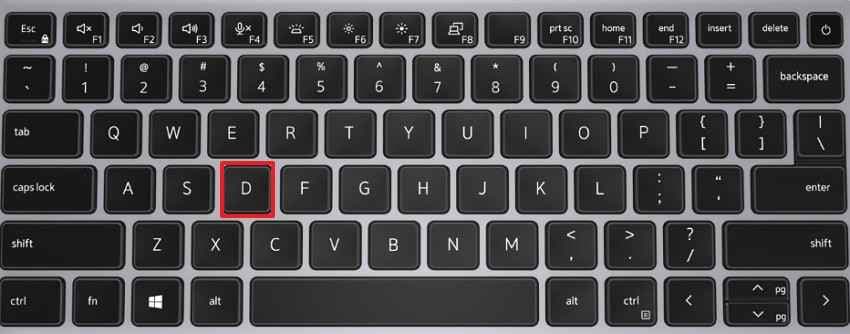
- Turn off the laptop, then hold the “D” key and press the “Power” button.
- If solid color screens appear, the LCD panel can display images, so the issue may be Windows, drivers, or display output.
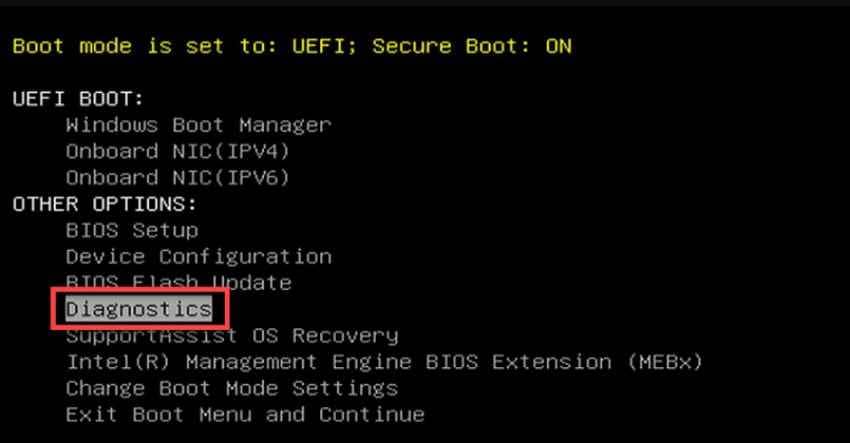
Fix 7. Run Dell F12 Pre-Boot Diagnostics
Dell diagnostics can reveal hardware faults behind a Dell black screen on startup before Windows loads. Faults of memory, storage, power, or board are suspected: use the following instructions:
- Turn on the laptop and repeatedly press “F12” when the Dell logo appears.
- Select “Diagnostics” in the “One Time Boot” menu and observe any error code displayed in the hardware test.
Fix 8. Enter Safe Mode and Remove Problem Drivers or Startup Apps
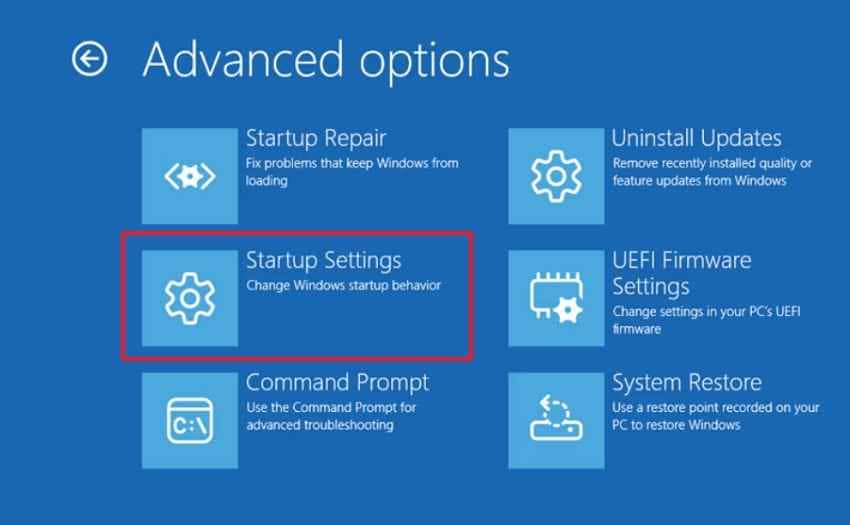
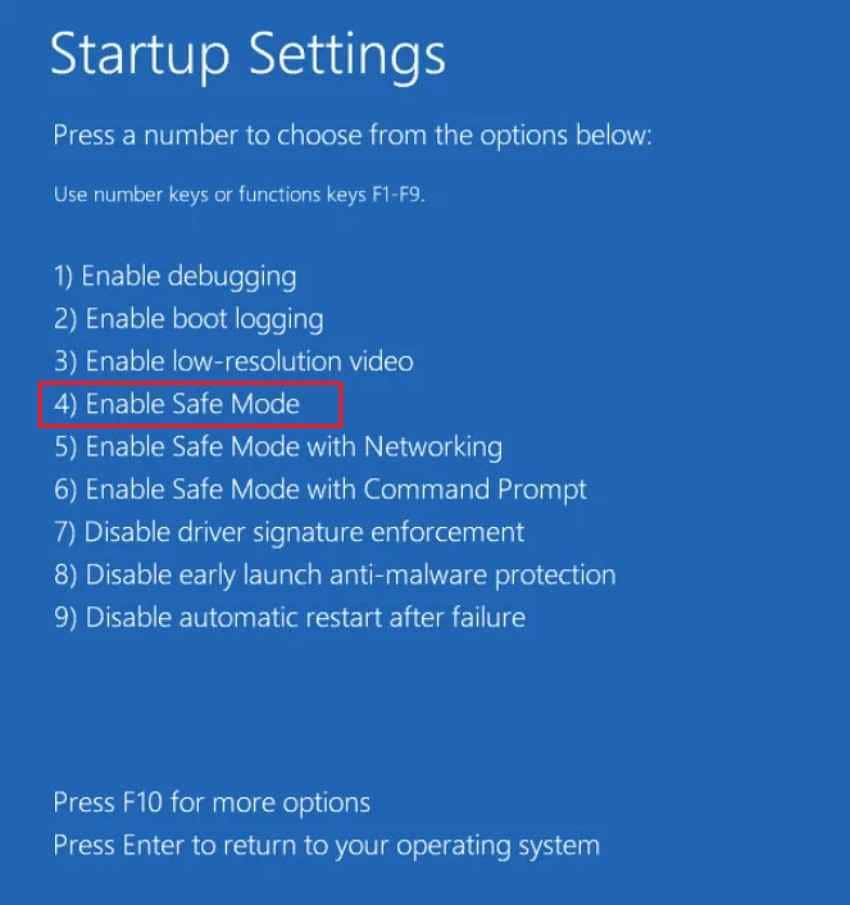
Safe Mode can assist in isolating software conflicts by loading fewer services in Windows. If the black screen appears after apps, updates, or drivers, continue with the following steps:
Step 1. Choose “Troubleshoot > Advanced Options > Startup Settings > Restart.”
Step 2. Then press “4” or “F4” to enable safe mode and remove any recently installed driver, update, or startup app.
Fix 9. Update, Roll Back, or Reinstall the Graphics Driver
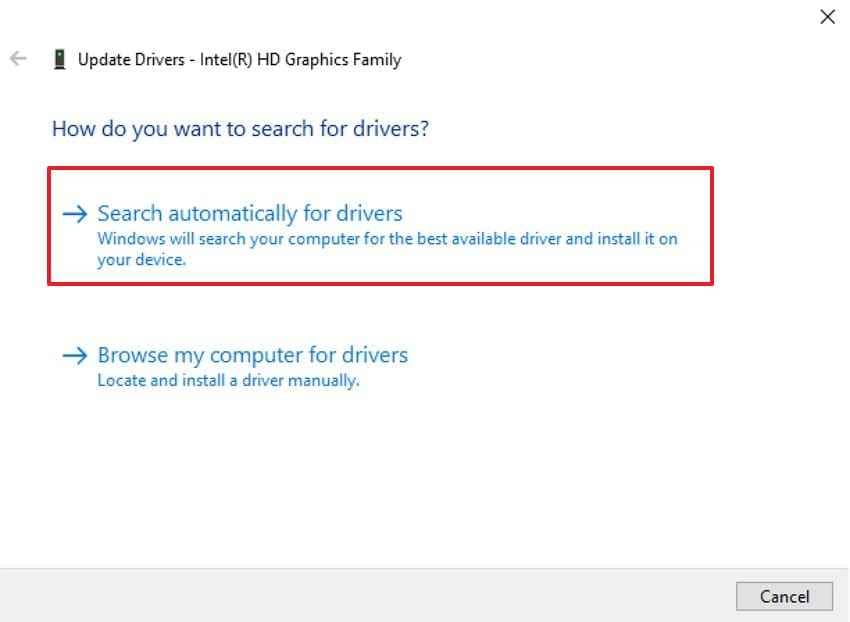
Display drivers control how Windows communicates with the screen and graphics hardware. Try the steps below to update the graphics driver to resolve the Dell computer's black screen on startup:
Step 1. In Safe Mode, right-click “Start,” and open “Device Manager > Display Adapters > Right-Click Graphics Driver > Update Drivers.”
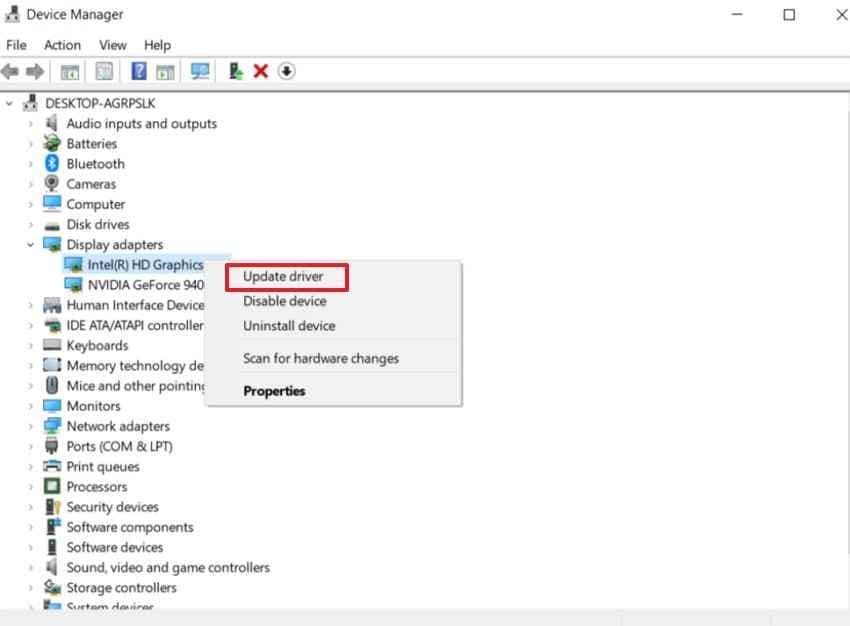
Step 2. Then, select “Search Automatically for Drivers” and follow on-screen prompts.
Fix 10. Use Startup Repair in Windows Recovery Environment
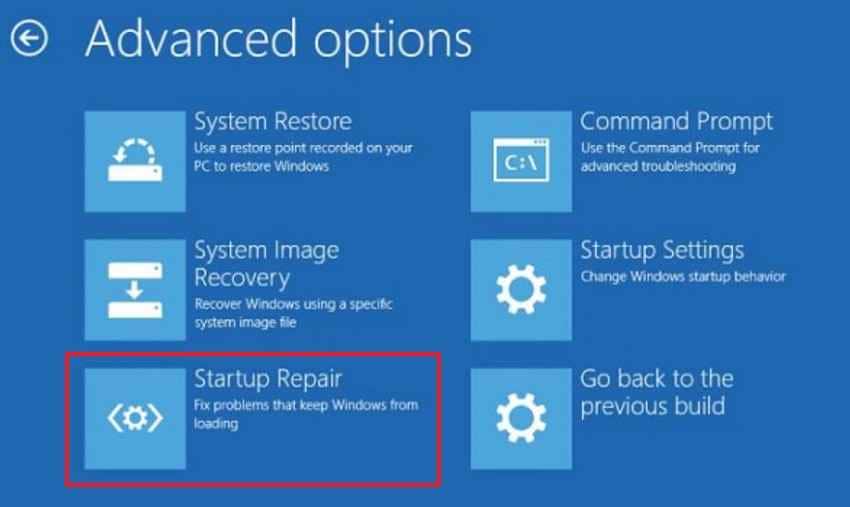
Startup Repair addresses boot-related problems that prevent Windows from loading correctly. Follow the instructions below when the Dell logo appears, but Windows fails afterward:
- Force Windows Recovery by interrupting the startup three times.
- Choose “Troubleshoot > Advanced Options > Startup Repair.”
Fix 11. Run System Restore to a Point Before the Startup Black Screen
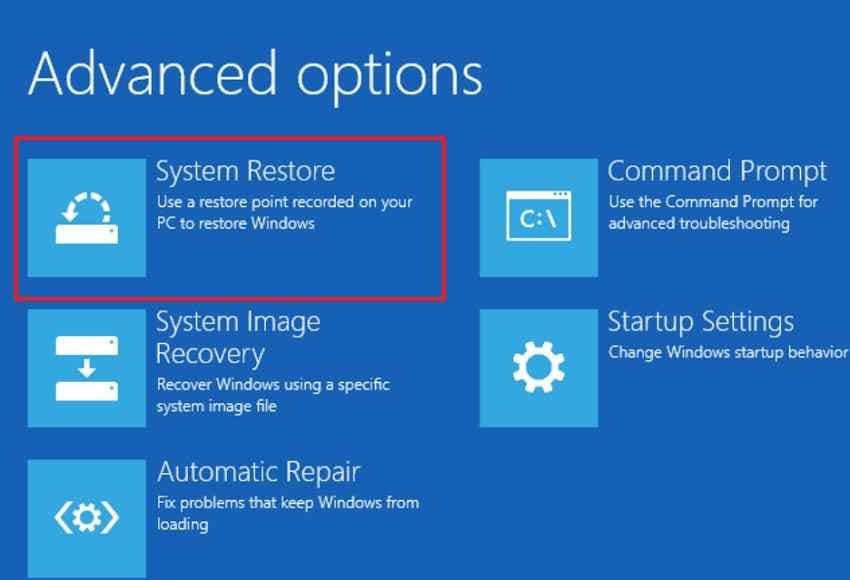
System Restore can undo recent system changes linked to Dell laptop black screen on startup problems. Use the following instructions when the issue began after updates or configuration changes:
- Open WinRE and choose “Troubleshoot > Advanced Options > System Restore > Select a restore point > Follow the prompts > Restart the Dell laptop.”
Fix 12. Repair Windows System Files with SFC and DISM
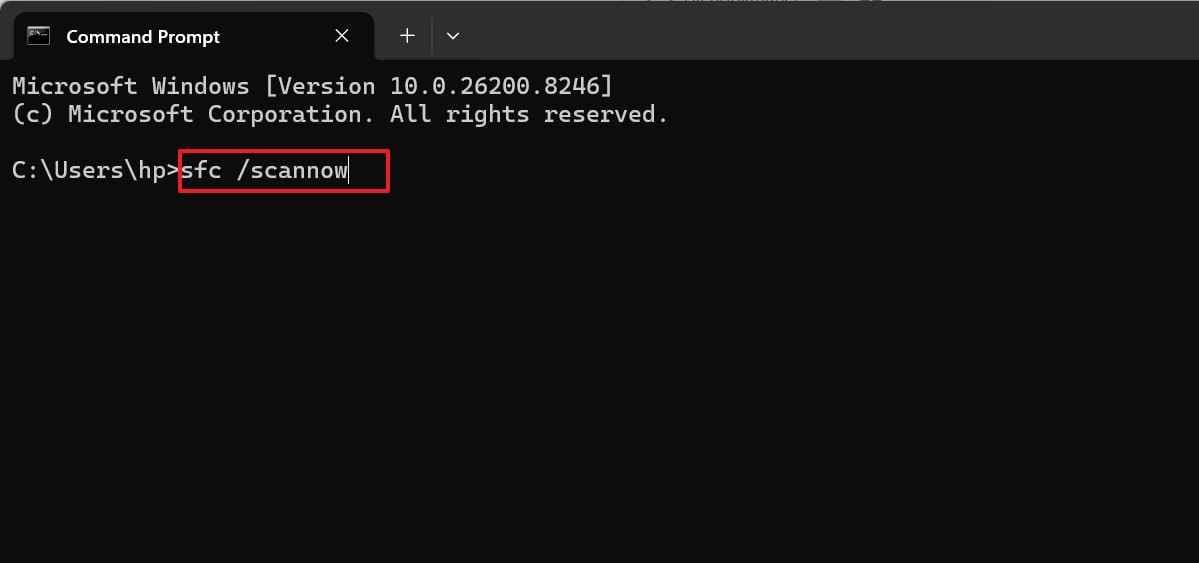
Damaged Windows files can stop the system from reaching the normal desktop. Follow the steps below to target system file damage without replacing personal data:
Step 1. From WinRE, choose “Troubleshoot > Advanced Options > Command Prompt.” Select the Windows account if required and enter the password to run “sfc /scannow” first.
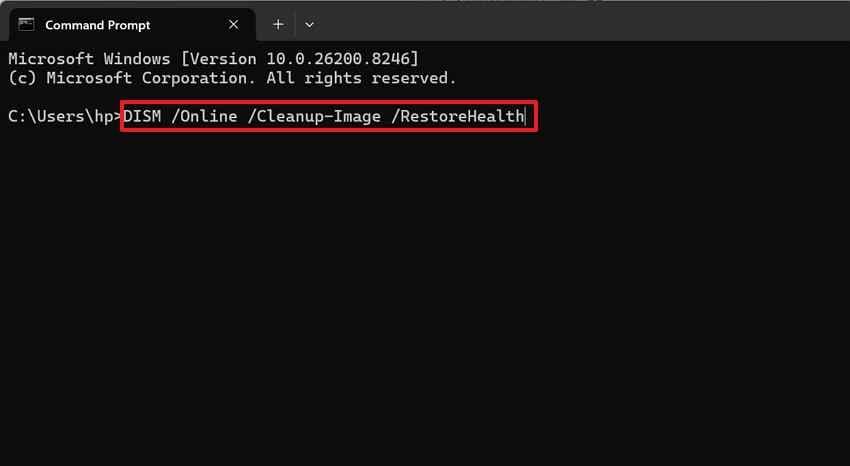
Step 2. Then, run the DISM repair command: “DISM /Online /Cleanup-Image /RestoreHealth.”
Fix 13. Reset BIOS or UEFI Settings to Default
Incorrect firmware settings can contribute to a Dell laptop's blank screen on startup. To reboot to the default BIOS/UEFI settings, check the following instructions:
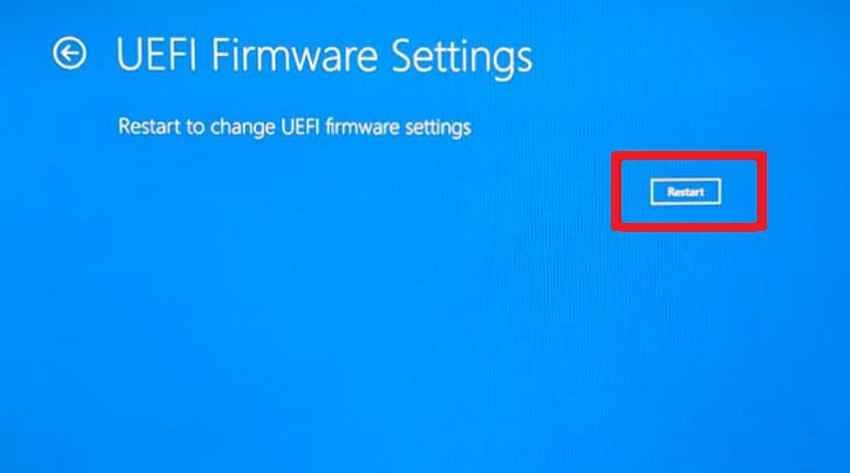
- From WinRE, click “Troubleshoot > Advanced Options > UEFI Firmware Settings > Restart" to enter the Dell BIOS or UEFI setup screen directly.
- Within BIOS or UEFI, select "Load Defaults,” “Restore Settings," or "BIOS Defaults,” depending on the Dell model.
Fix 14. Check RAM and SSD Seating if the Dell Model Is Serviceable
Loose internal parts can stop a Dell laptop from completing its startup sequence. This fix applies only when the model allows safe access to memory or storage.
Fix 15. Reset or Reinstall Windows as the Last Resort
A reset or reinstall becomes relevant when safer repairs do not restore startup. Adhere to the steps below to reset or reinstall Windows:
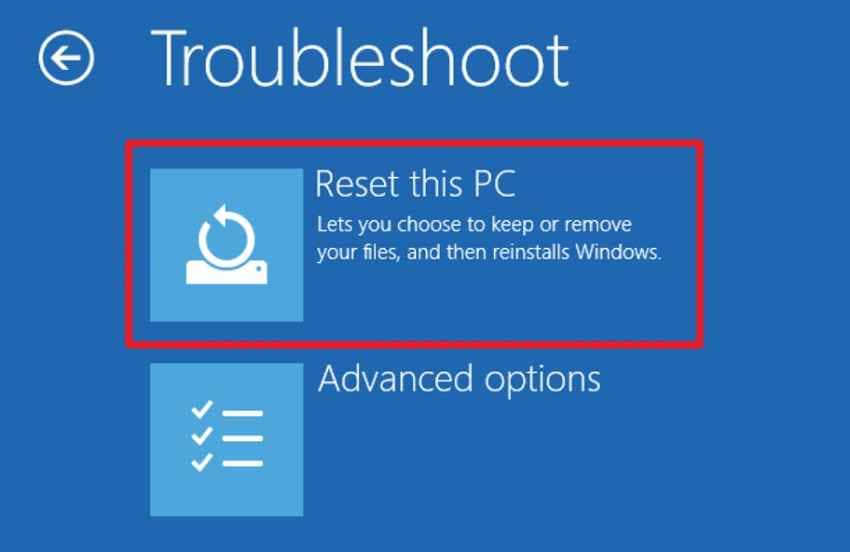
Step 1. Open Windows Recovery Environment and choose “Troubleshoot > Reset this PC.”
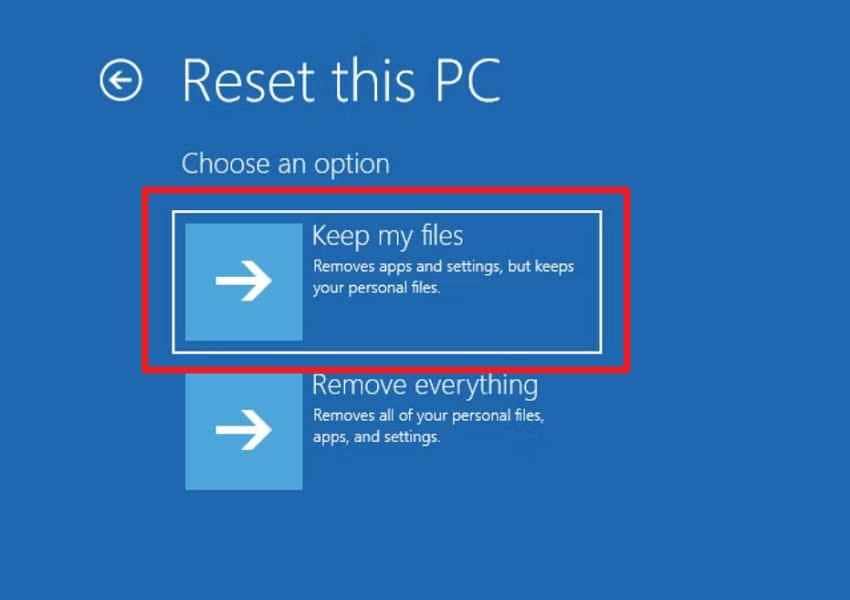
Step 2. Next, select “Keep My Files” first if you want to preserve personal files where possible.
Pro Tip. Use Recoverit to Rescue Files Before Reset or Reinstall
You do not need data recovery for every startup black screen. Many checks are safe, including fresh boot, hard reset, external monitor testing, LCD BIST, and F12 Diagnostics.
Recover files first if Windows is inaccessible, the Dell laptop will not boot, the SSD may be failing, or you plan to reset Windows, reinstall the system, replace storage, or send the laptop for repair.
Why You Should Recover Files Before Major Startup Repairs
Major repair steps can affect file access. Resetting Windows, reinstalling the system, replacing storage, or repairing disk errors may change or remove data. Recovering important files first gives you a safer backup before deeper troubleshooting.
Recommended Tool: Recoverit Data Recovery
Recoverit Data Recovery can help recover files from a Dell laptop that cannot boot normally. It is not a startup repair tool. Its role is to help protect important files before reset, reinstall, SSD replacement, disk repair, or hardware service.
Key Features
- Bootable Recovery Media: Creates a recovery USB on another computer when the Dell laptop cannot start normally.
- Crashed Computer Recovery: Helps recover files from an unbootable system drive.
- File Preview: Lets users preview supported files before recovery.
- External Save Support: Allows recovered files to be saved to another safe storage device.
How to Recover Files from a Dell Laptop That is Not Booting
With the understanding of why file protection matters, follow the steps below to recover important data using Recoverit:
Step 1. Prepare a Rescue USB on a Working PC
Install Recoverit on another computer, then plug in a blank USB drive. Go to “Other Tools > System Crashed Computer” and click “Start.”
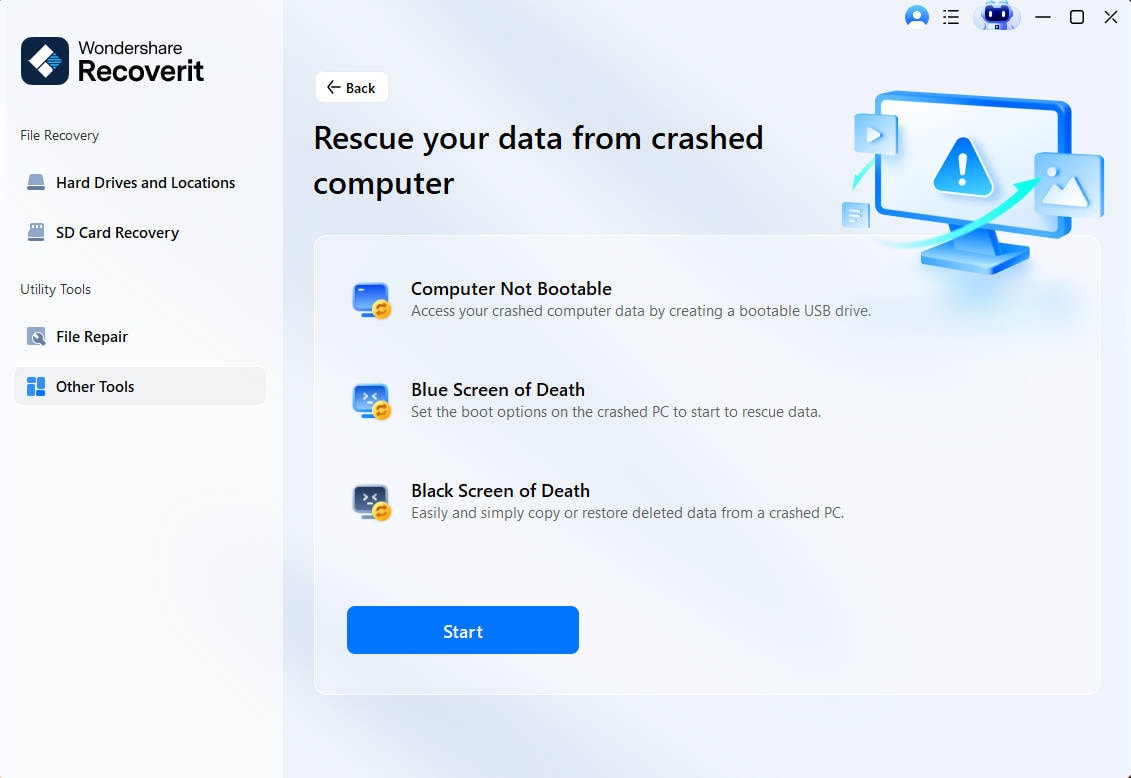
Step 2. Create and Launch the Bootable USB
Choose the inserted USB drive and click “Create” to generate the bootable recovery media. Once it is ready, plug the USB into the Dell laptop that won’t start.

Step 3. Retrieve Files from the Unbootable Dell Drive
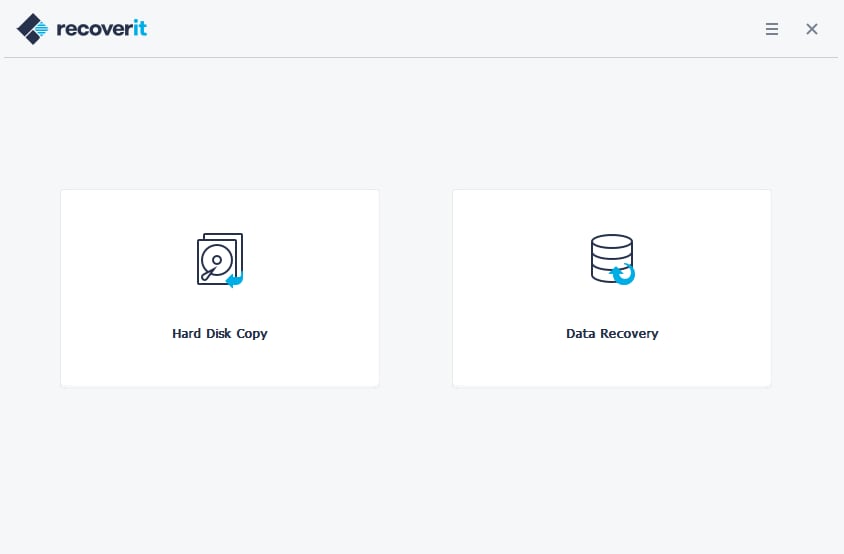
When the Dell laptop starts in Recoverit’s recovery environment, choose “Data Recovery” or “Hard Disk Copy.” Start scanning the review and save important data to another drive.
Part 4. When to Contact Dell Support or a Repair Shop
If the Dell laptop's black screen on startup continues after the fixes, professional support may be needed to check deeper hardware or warranty-related faults.
- Dell Diagnostics Shows an Error Code: Error codes point to specific hardware trouble, so record them before seeking Dell support.
- The Dell Laptop Cannot Enter BIOS or F12 Boot Menu: Failure to open BIOS or F12 often suggests firmware, motherboard, keyboard, or display hardware trouble.
- Both the Built-In Screen and the External Monitor Stay Black: When both screens remain blank, the problem likely extends beyond the laptop panel or cable.
- The Black Screen Appears Before Windows Starts Loading: Blackness before Windows loads usually means the fault begins during power-on checks or hardware detection.
- RAM, SSD, Screen, GPU, or Motherboard Failure Is Suspected: Suspected internal failure needs careful testing, especially when storage, memory, graphics, or display symptoms appear.
- The Dell Laptop Is Under Warranty or Physically Damaged: Warranty coverage or visible damage makes professional repair safer than opening the Dell laptop yourself.
Conclusion
A Dell laptop black screen on startup should be diagnosed by timing and behavior. First check whether the laptop powers on, whether the Dell logo appears, whether BIOS or the F12 boot menu opens, and whether an external monitor works. These checks help separate display hardware problems from Windows startup issues.
If the laptop reaches the Dell logo but Windows goes black, try Safe Mode, graphics driver repair, Startup Repair, System Restore, and system file repair. If the black screen appears before the Dell logo or both internal and external displays stay blank, run Dell LCD Built-In Self-Test and F12 Diagnostics, then contact Dell Support if hardware errors appear.
Recoverit should be used when file access is at risk, not as the first fix for every startup black screen. If Windows is inaccessible or you plan to reset, reinstall, replace the SSD, or send the laptop for repair, recover important files before continuing.
FAQs
-
Why is my Dell laptop screen black on startup?
Your Dell laptop screen may be black on startup because of a stuck power state, failed POST, display output issue, LCD panel problem, graphics driver conflict, Windows boot error, SSD issue, RAM problem, BIOS setting, GPU fault, or motherboard failure. -
How do I fix a Dell laptop blank screen on startup?
Start with a fresh boot, hard reset, external monitor test, Dell LCD Built-In Self-Test, and F12 Diagnostics. If the Dell logo appears but Windows goes black, use Safe Mode, Startup Repair, System Restore, or graphics driver repair. -
Why does my Dell laptop show a black screen before the Dell logo?
A black screen before the Dell logo usually points to No POST, LCD hardware, power, RAM, BIOS, GPU, motherboard, or display cable issues. Test the LCD, check whether F12 or BIOS opens, and run Dell diagnostics if possible. -
Why does my Dell laptop show the Dell logo and then go black?
If the Dell logo appears and then the screen goes black, Windows startup, display drivers, Fast Startup, a failed update, or corrupted boot files may be involved. Try Safe Mode, driver rollback, Startup Repair, or System Restore. -
How do I run Dell diagnostics when the screen is black on startup?
Turn off the Dell laptop, turn it on, and repeatedly press F12 when the Dell logo appears. Choose Diagnostics from the One-Time Boot Menu. Record any error code, validation code, or failed component. -
Can Safe Mode fix a Dell laptop startup black screen?
Safe Mode can help if the black screen happens after the Dell logo or while Windows loads. It lets you remove problem drivers, uninstall updates, disable startup apps, or run repair tools with fewer services loaded. -
Should I reset BIOS if my Dell computer has a black screen on startup?
Reset BIOS only if you can safely enter the BIOS or UEFI setup screen. Prepare the BitLocker recovery key if BitLocker is enabled, and do not change unfamiliar settings. If you cannot enter BIOS, contact Dell Support. -
Can I recover files if my Dell laptop will not boot past a black screen?
Yes. If the Dell laptop cannot boot normally and you need files before reset, reinstall, SSD replacement, or repair, Recoverit can help create bootable recovery media and save files to external storage.


