

 TL;DR:
Dell laptop screen flickering is typically caused by refresh rate mismatches, incompatible graphics drivers, or power-saving display features, and can be resolved by adjusting system display settings before assuming a hardware failure.
● To isolate the root cause, open Task Manager; if it remains stable while the screen flickers, an incompatible app or browser hardware acceleration is at fault, but if the screen flickers during the Dell LCD Built-In Self-Test (initiated by holding the "D" key and Power button), the LCD panel or display cable requires hardware repair.
● Disable battery-saving interventions by turning off automatic brightness in Windows Display settings and disabling "Panel Self Refresh" within the Intel Graphics Command Center, as these features frequently cause visible brightness pulsing when switching between battery and charging states.
● Do not attempt a BIOS update to fix display communication issues if the laptop has low battery, unstable power, or severe overheating, and strictly utilize bootable data recovery media to secure files before proceeding if the system becomes unbootable or requires an OS reset.
Ask AI for a summary
 ChatGPT
 Perplexity
 Gemini
 Claude
 Grok
Grok
A flickering Dell laptop screen can interrupt work, video calls, streaming, studying, and everyday browsing. The display may blink, flash, shake, glitch, show brightness pulses, or flicker only in certain apps. Some users notice it after a Windows 11 update, while others see it when the laptop switches between battery and charger.
The cause is not always a broken screen. Dell laptop screen flickering can come from refresh rate settings, adaptive brightness, Panel Self Refresh, graphics driver issues, hardware acceleration, Windows updates, power settings, or a loose display cable.
Start with the safest checks first. Identify when the flicker happens, test Task Manager, compare the built-in screen with an external monitor, and adjust display settings before trying driver repairs or BIOS updates. If the laptop becomes unstable, fails to boot, or needs reset, reinstall, SSD replacement, or repair service, recover important files before deeper repairs.
In this article
-
- Fix 1. Change the Screen Refresh Rate and Resolution
- Fix 2. Turn Off Adaptive Brightness and Display Power Saving
- Fix 3. Disable Panel Self-Refresh or Variable Refresh Rate
- Fix 4. Disable Hardware Acceleration in Browsers and Apps
- Fix 5. Update, Roll Back, or Reinstall the Graphics Driver
- Fix 6. Check Windows 11 Graphics and Power Settings
- Fix 7. Uninstall Recent Windows Updates That Started the Flicker
- Fix 8. Run a Clean Boot to Find Problem Apps or Services
- Fix 9. Boot Into Safe Mode to Check Driver or Software Issues
- Fix 10. Update Dell BIOS, Chipset, and Display Drivers
- Fix 11. Run Dell LCD Built-In Self-Test
- Fix 12. Run Dell Pre-Boot Diagnostics
- Fix 13. Consider LCD Panel, Display Cable, or Hardware Repair
Part 1. Common Dell Laptop Screen Flickering Symptoms
Before applying fixes, users should first observe how a Dell laptop's blinking screen behaves during startup, charging, browsing, or normal work.
- Dell Laptop Screen Flickering or Flashing Occasionally: Brief flickers that disappear quickly often relate to settings, driver behavior, or temporary system load.
- Dell Laptop Blinking Screen During Normal Use: Blinking during browsing or typing may signal driver conflict, refresh mismatch, or background display activity.
- Dell Laptop Screen Shaking or Jittering: Shaking text or icons usually suggests a resolution mismatch, weak connections, or minor graphics performance trouble.
- Dell Laptop Screen Glitching After Windows 11 Update: Post-update glitches may show flashes, lines, or brightness jumps when graphics settings change unexpectedly.
- Dell Laptop Screen Flickers Only on Battery or When Plugged In: A flicker that changes with charging often points to battery saver, adaptive brightness, or power mode.
Part 2. Why Is Your Dell Laptop Screen Flickering?
It is important to know what things may cause flickering on the screen to limit the potential solutions. Different flicker patterns may be linked to different causes.
- Graphics Driver Problems: A damaged, outdated, or incompatible graphics driver can cause the screen to blink, flash, or glitch. This often happens after Windows updates, driver updates, or failed installations.
- Wrong Refresh Rate or Display Resolution: If the display resolution or refresh rate does not match the Dell laptop panel, the screen may flicker, shake, or look unstable. This can happen after connecting an external monitor or changing display settings.
- Windows 11 Update or System Conflict: A Windows 11 update can replace display drivers, reset power settings, or create a conflict with graphics software. If the flicker started right after an update, check update history and driver status.
- Hardware Acceleration in Browsers or Apps: Browsers, meeting apps, video players, and design tools may use the GPU to render content. If hardware acceleration behaves poorly, flickering may appear only inside certain apps.
- Power Saving, Adaptive Brightness, or Panel Self-Refresh: Some Dell laptops adjust display brightness or refresh behavior to save battery. Features such as adaptive brightness, content adaptive brightness control, Battery Saver, and Panel Self Refresh can cause visible brightness pulsing or flicker.
- LCD Panel, Display Cable, or Hinge Cable Issues: If flickering continues outside Windows, appears during Dell LCD diagnostics, or changes when moving the laptop lid, the issue may involve the LCD panel, backlight, display cable, or hinge cable.
- Overheating or Hardware Stress: Heat can affect graphics performance and display stability. Flickering during gaming, video editing, or heavy workloads may be related to overheating, GPU stress, or blocked vents.
Part 3. Quick Checks Before Advanced Fixes
Prior to trying deeper repairs, simple checks below can show whether a Dell laptop flashing screen comes from Windows, the display driver, or the laptop panel itself:
- Check Whether Task Manager Flickers Too: Open Task Manager and watch whether it flickers along with the rest of the screen. A stable Task Manager while everything else flickers usually points to an incompatible app issue.
- Restart the Laptop and Refresh the Graphics Driver: Restarting removes temporary display glitches, and refreshing the graphics driver resets frozen graphics. To safely reload the driver, press “Win + Ctrl + Shift + B.”
- Test with an External Monitor: Connect the laptop to another monitor and compare both screens carefully. When the built-in display is the only one flickering, the problem may be related to the screen panel or display cable.
- Check Whether Flicker Happens in Safe Mode: Safe Mode has a reduced number of drivers and startup programs for Windows. If the flickering goes away in this mode, it may indicate a driver or program conflict with a third-party program.
Part 4. How to Fix a Dell Laptop Screen Flickering
Now that the main signs are clear, the next step is to fix the problem carefully. The following methods cover Dell laptop screen flickering, from the simplest display checks to driver and power setting changes.
Fix 1. Change the Screen Refresh Rate and Resolution
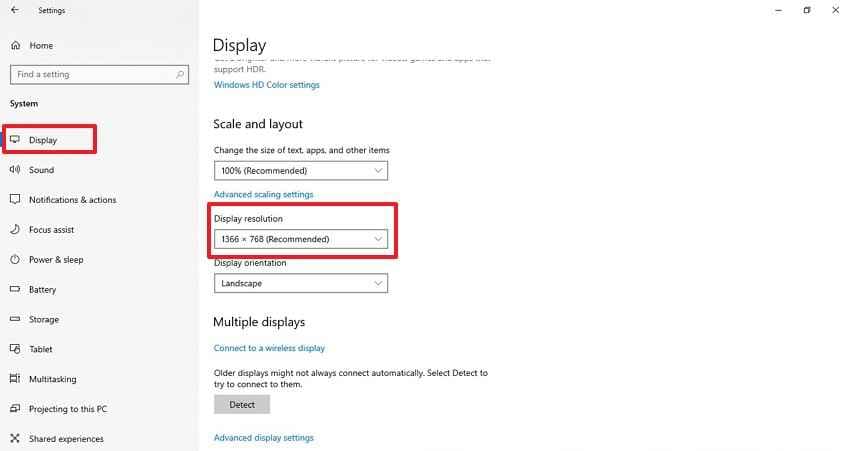
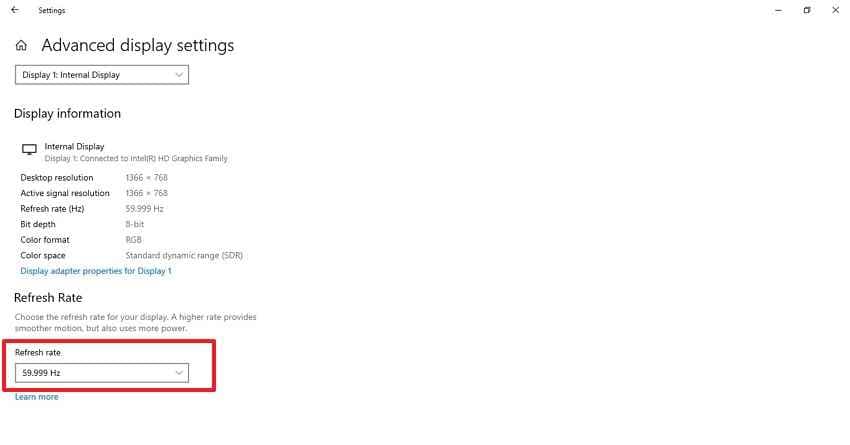
The problem with the Dell laptop screen flickering when switching to a display might be due to the mismatch of refresh rate and resolution with the display panel. To select the recommended resolution and refresh rate, follow this procedure:
Step 1. Press “Win + I” and open “System > Display.” Select the active display, then choose the “Recommended” option under “Display Resolution.”
Step 2. Scroll down and open “Advanced Display Settings > Refresh Rate,” preferably the default value recommended for the Dell laptop panel.
Fix 2. Turn Off Adaptive Brightness and Display Power Saving
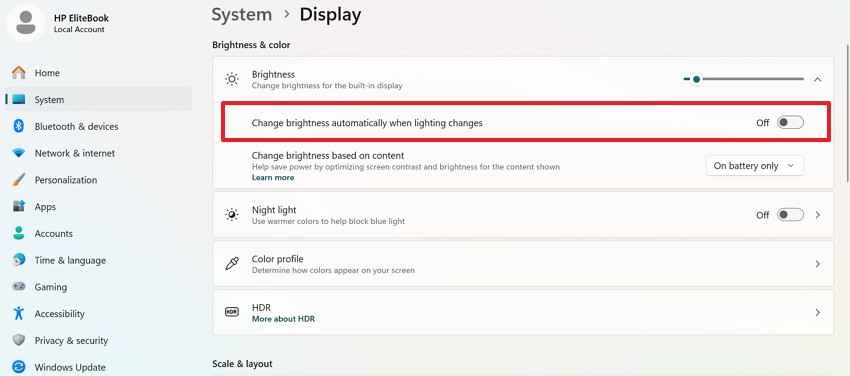
Use this fix when brightness pulses while charging or using battery power. Therefore, check Dell power settings before changing drivers or reinstalling anything with the instructions below:
Step 1. Open “Settings > System > Display” and expand the “Brightness” section. Turn off automatic brightness options, including content-based brightness control if available.
Step 2. Again, go to “Settings > System > Power & Battery.” Change the power mode to a balanced or stable option instead of aggressive battery saving.
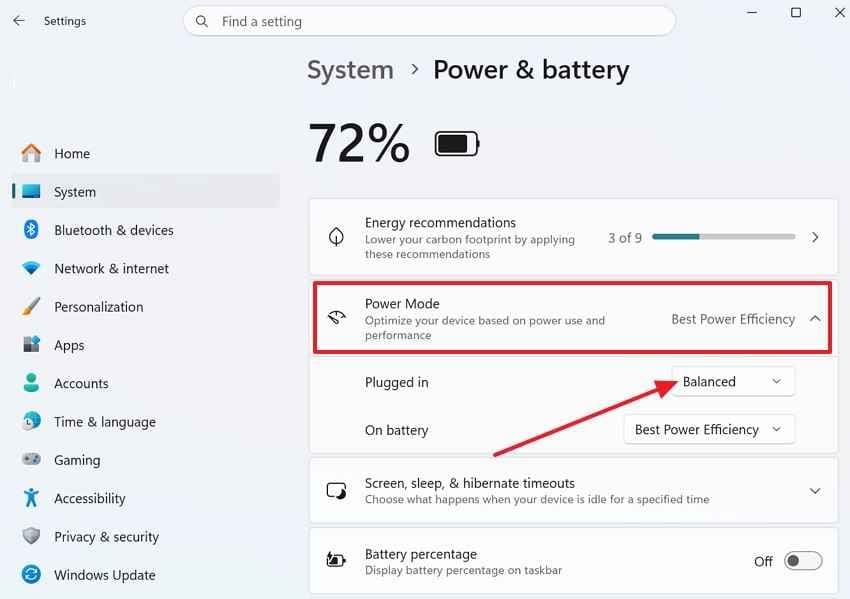
Note: These options may vary by Dell model, Windows version, display panel, and graphics driver.
Fix 3. Disable Panel Self-Refresh or Variable Refresh Rate
Panel Self Refresh can create a “Dell laptop flashing screen” during idle use. Meanwhile, variable refresh rate may disturb games, browsers, or video playback. Use the next steps to disable refresh saving features inside graphics settings:
Step 1. Access the “Intel Graphics Command Center> System > Power.”
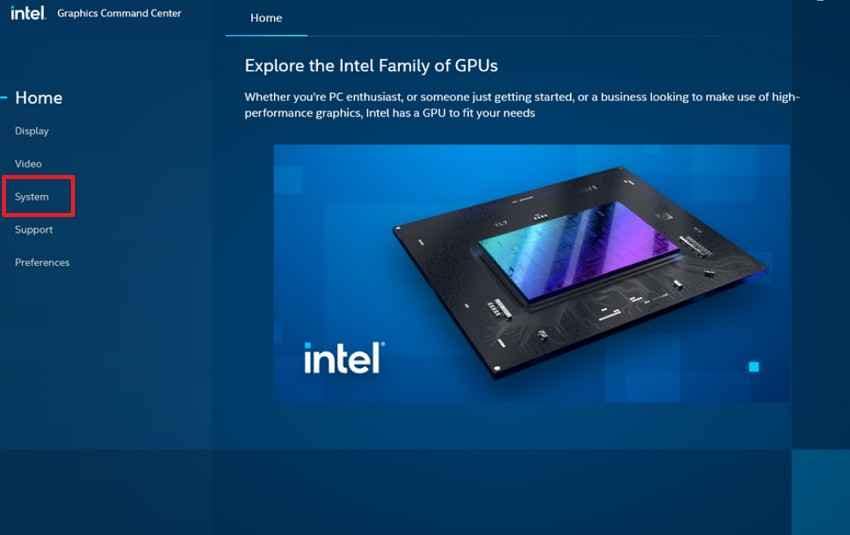
Step 2. Turn off “Panel Self Refresh” for both battery and plugged-in modes if available.
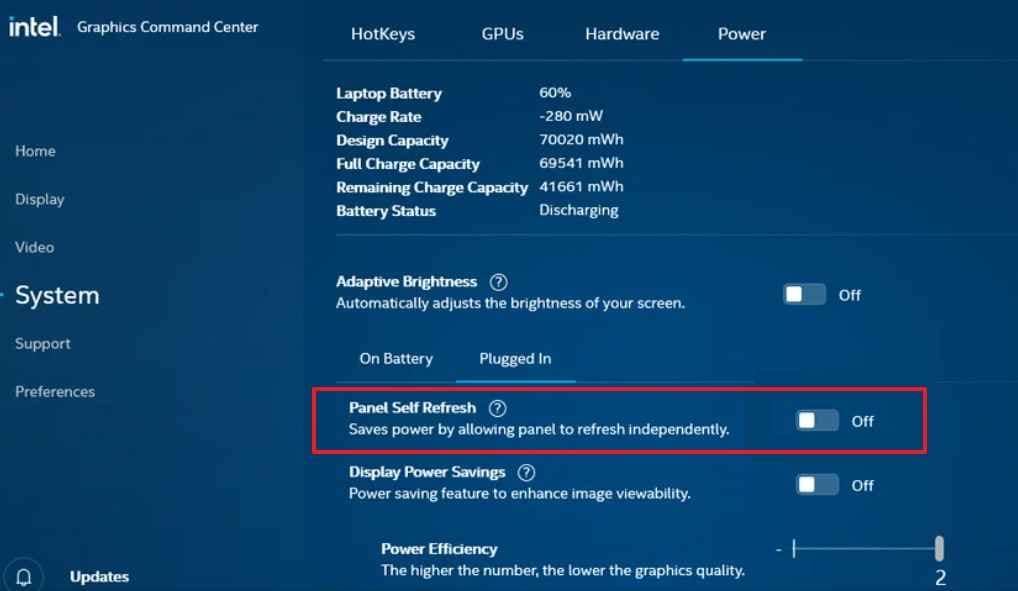
Note: Panel Self Refresh and VRR options do not appear on every Dell laptop. Availability depends on the display panel, graphics driver, Intel Graphics Command Center version, and Windows version.
Fix 4. Disable Hardware Acceleration in Browsers and Apps
Try this when a flicker appears mainly inside Chrome, Edge, or editing apps. Instead, hardware acceleration can strain GPU rendering during scrolling or previews. Follow the instructions below to turn it off inside affected programs:
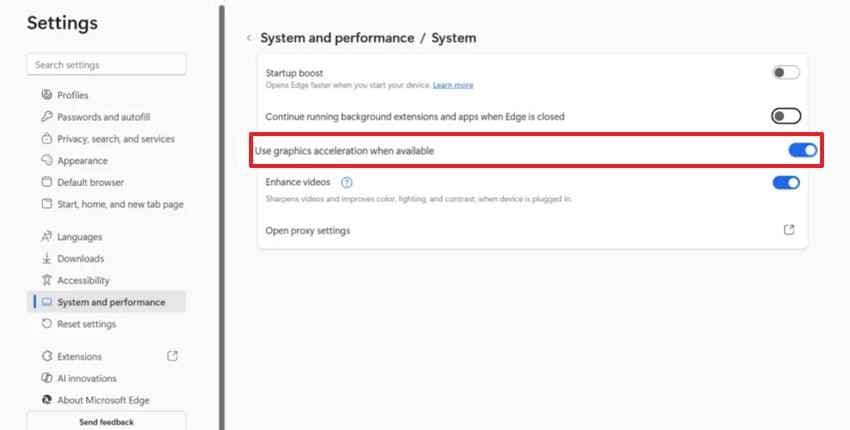
- In Chrome or Edge, go to "Settings > Search Graphics Acceleration or Hardware Acceleration” inside the settings search bar.
- Turn off “Use Graphics Acceleration When Available” or “Use Hardware Acceleration When Available.”
Fix 5. Update, Roll Back, or Reinstall the Graphics Driver
Graphics driver problems can cause Dell laptop screen flickering after updates, restarts, or driver conflicts. Try the option that fits your situation.
Option 1. Update the Graphics Driver
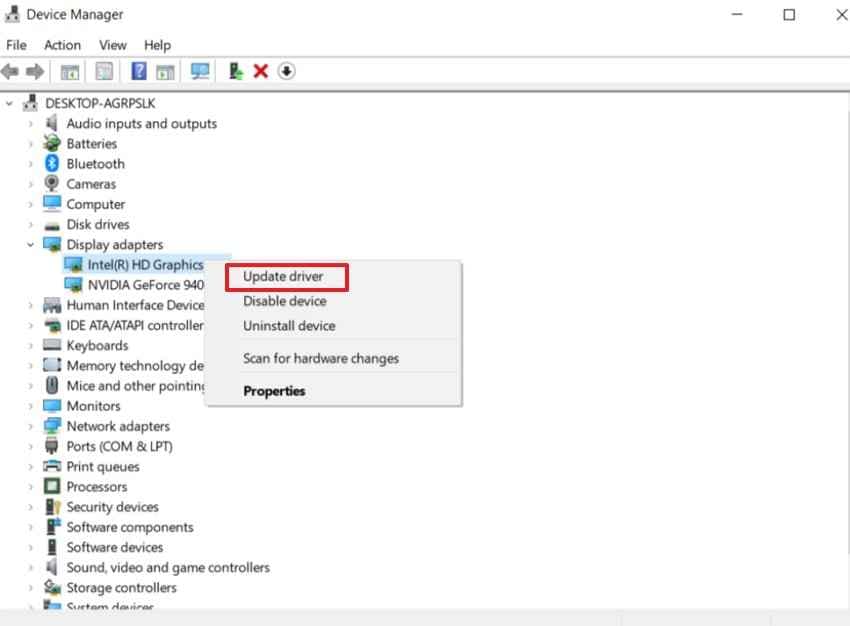
Step 1. Press “Win + X” and access “Device Manager > Display Adapter” and right click to choose “Update Drivers.”
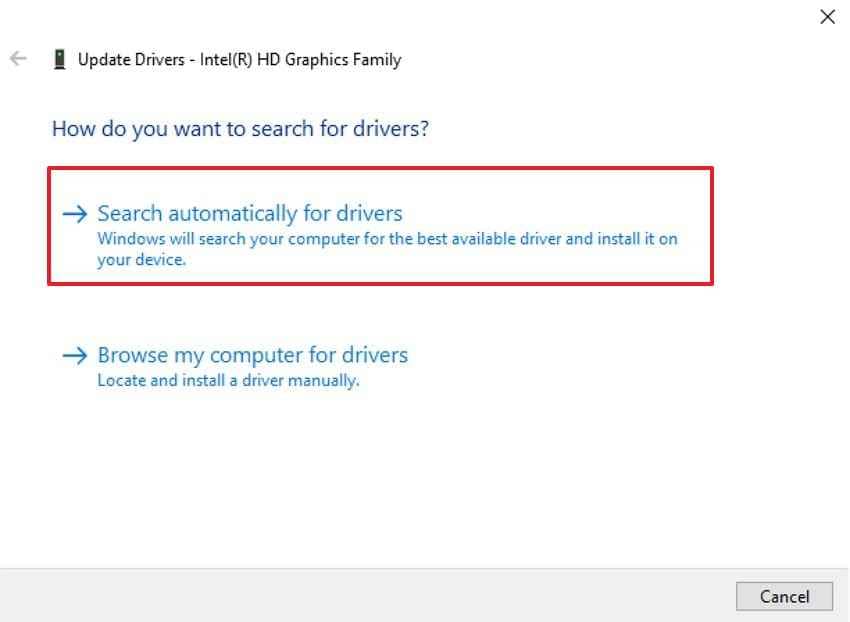
Step 2. Click “Search Automatically for Drivers” and follow the on-screen instructions.
You can also go to Dell Support, enter your Service Tag, and install the Dell-recommended display or graphics driver.
Option 2. Roll Back the Graphics Driver
Use this if the flicker started after a recent graphics driver update or Windows update.
- Open Device Manager.
- Expand Display adapters.
- Right-click the graphics device and choose Properties.
- Open the Driver tab.
- Click Roll Back Driver if available.
- Restart the laptop.
Option 3. Reinstall the Graphics Driver
Use this if the driver may be corrupted or rollback is not available.
- Open Device Manager.
- Expand Display adapters.
- Right-click the graphics device.
- Choose Uninstall device.
- Select Delete the driver software for this device if available.
- Restart the laptop.
- Install the Dell-recommended graphics driver from Dell Support.
Note: Dell-provided graphics drivers are often the safest first choice for Dell laptops. Some models may also need Intel, NVIDIA, or AMD stable drivers depending on the graphics hardware.
Fix 6. Check Windows 11 Graphics and Power Settings
Check this when Windows 11 assigns apps to unsuitable graphics hardware. Likewise, power mode changes can affect display timing on some models. Review these options first, then carefully follow the instructions below:
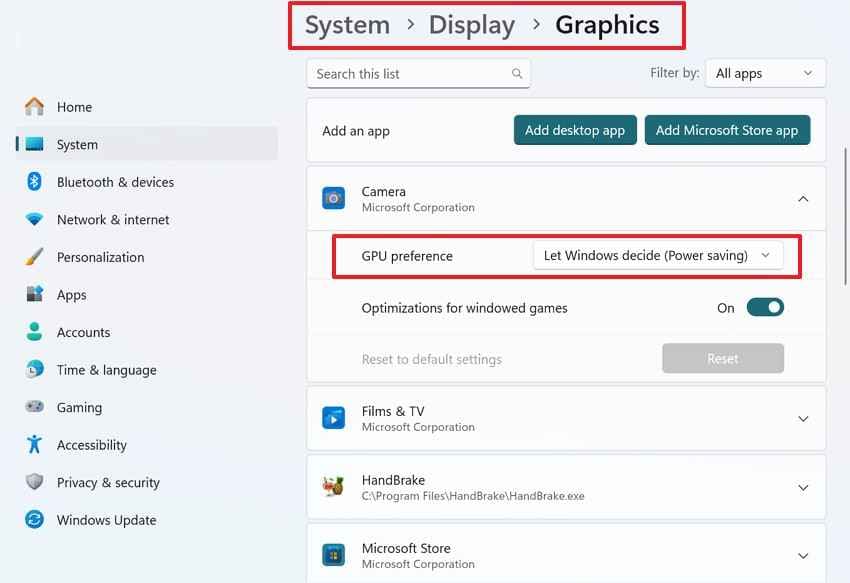
Step 1. Open “Settings > System > Display > Graphics.” Select the affected app and click “Options” to check its assigned GPU preference.
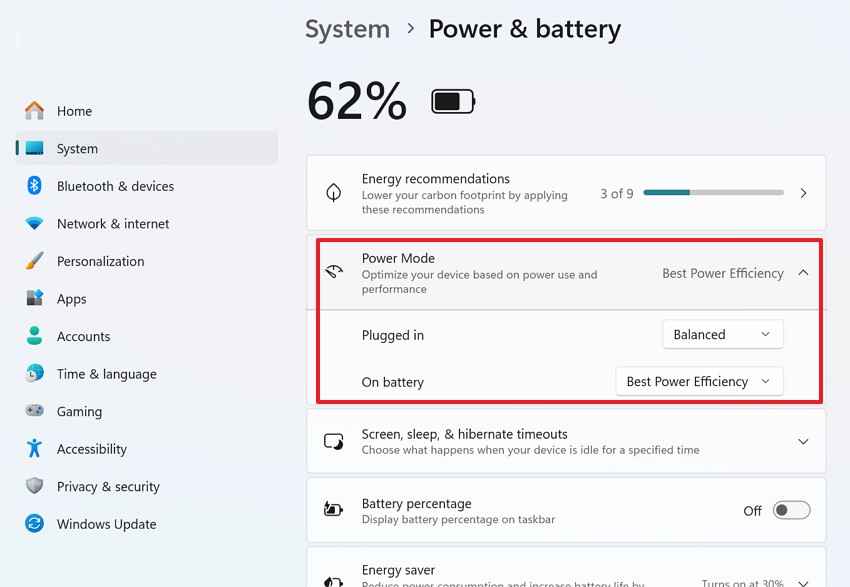
Step 2. Next in Settings, choose “System > Power & Battery” and check the current power mode.
Note: Not every Dell laptop has a dedicated GPU or switchable graphics. If your model only has integrated graphics, the GPU preference options may be limited.
Fix 7. Uninstall Recent Windows Updates That Started the Flicker
Use this fix for Dell laptop screen flickering in Windows 11 update cases. As a result, recent patches may replace display drivers or reset settings. Follow the steps below to remove only the suspected update first:
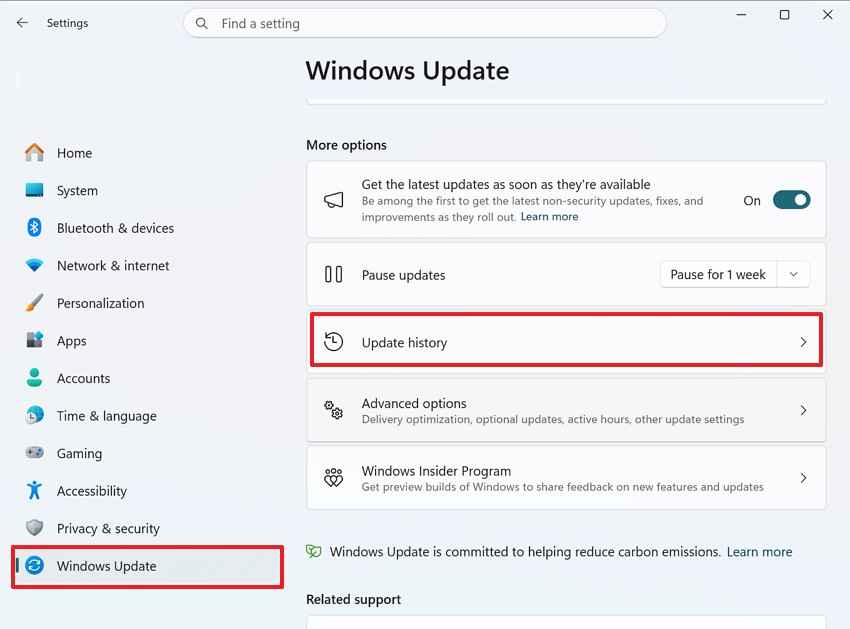
Step 1. In “Settings > Windows Update > Update History.” Check whether the flicker started after a recent cumulative, driver, or optional update.
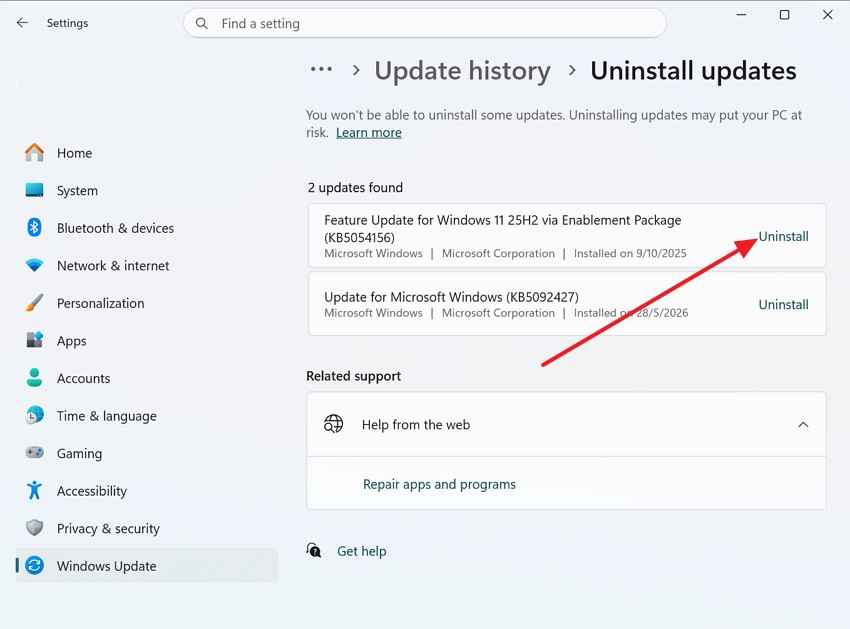
Step 2. Scroll down and click “Uninstall Updates.” Select the suspected update, press “Uninstall.”
Fix 8. Run a Clean Boot to Find Problem Apps or Services
Choose Clean Boot when the flicker begins soon after the desktop loads. Moreover, it disables non-Microsoft services without deleting installed programs or files. Use the following instructions to identify the conflicting startup item carefully:
Step 1. Press “Win + R,” type “msconfig,” and press “Enter.” Open the “Services” tab and tick “Hide All Microsoft Services.”
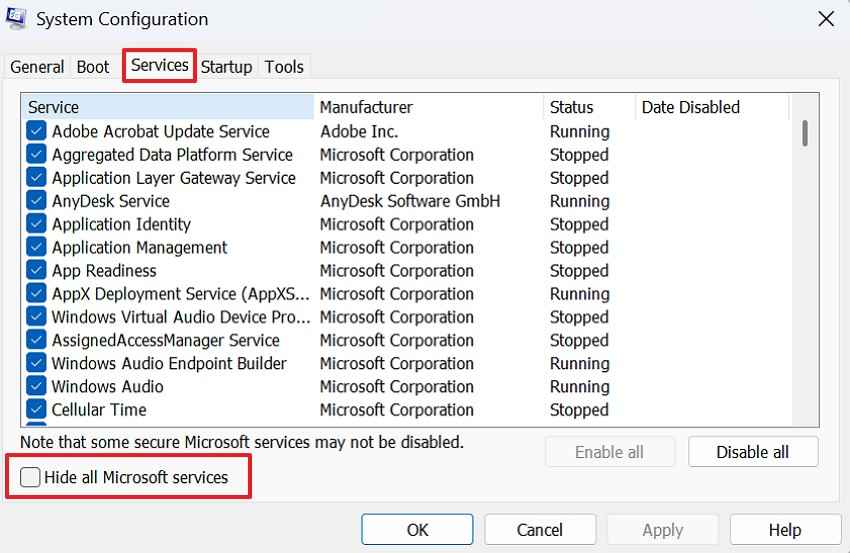
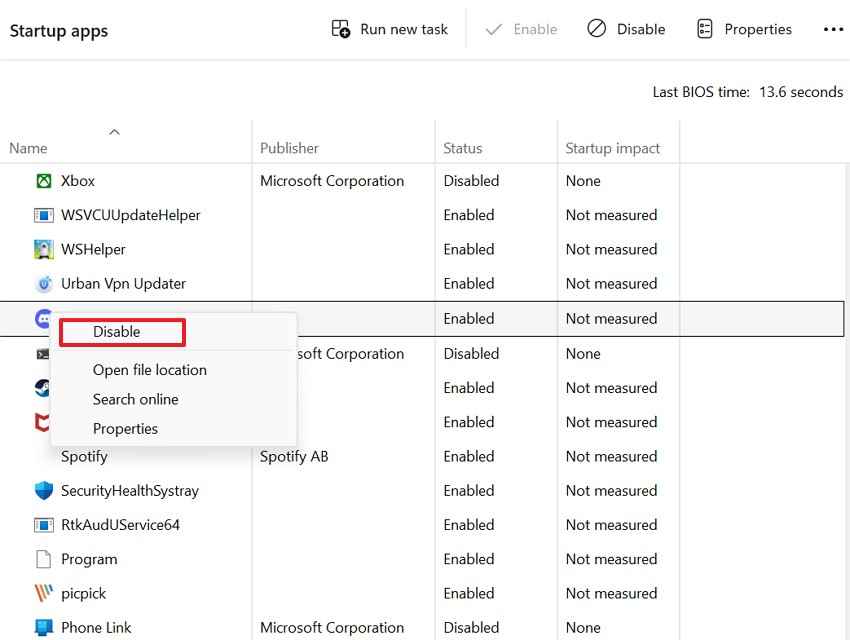
Step 2. Choose “Disable All,” then open the “Startup > Open Task Manager” to disable unnecessary startup apps one by one and restart your computer.
Fix 9. Boot Into Safe Mode to Check Driver or Software Issues
A Dell laptop screen shaking issue in normal mode may be software-related. In contrast, Safe Mode loads basic drivers for easier comparison during testing. Enter Safe Mode first, then follow the checking steps below:
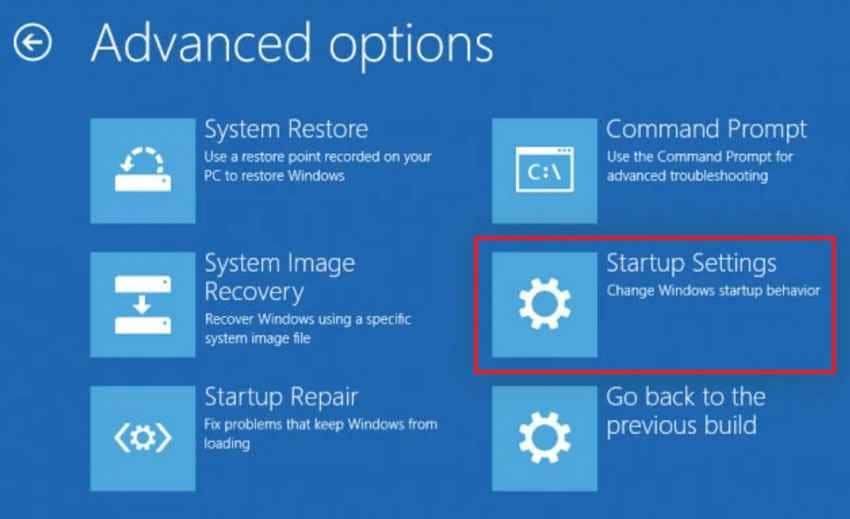
Step 1. Press and hold the “Shift” key, then press “Restart.” Next, select “Troubleshoot > Advanced Options > Startup Settings > Restart.”
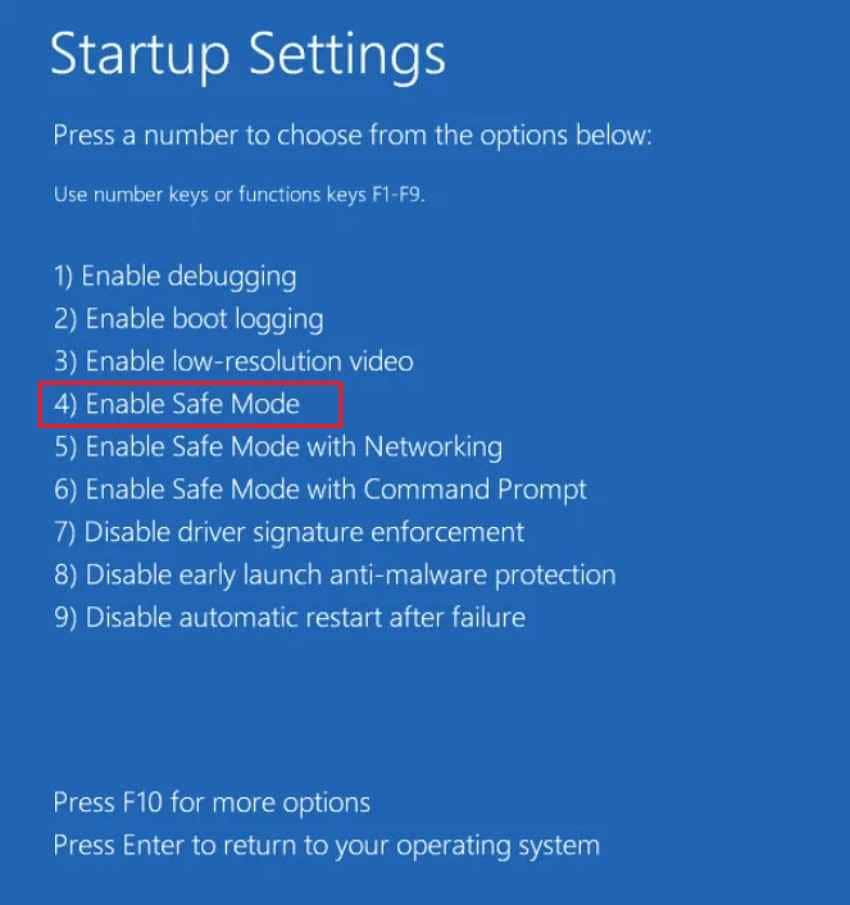
Step 2. After the PC restarts again, press “4” or “F4” on your keyboard to enable Safe Mode.
Fix 10. Update Dell BIOS, Chipset, and Display Drivers
BIOS and chipset updates affect graphics communication beneath Windows on Dell laptops. Likewise, display drivers handle brightness, refresh behavior, and power coordination on systems. Adhere to the instructions below to update Dell BIOS, Chipset, and Display Drivers:
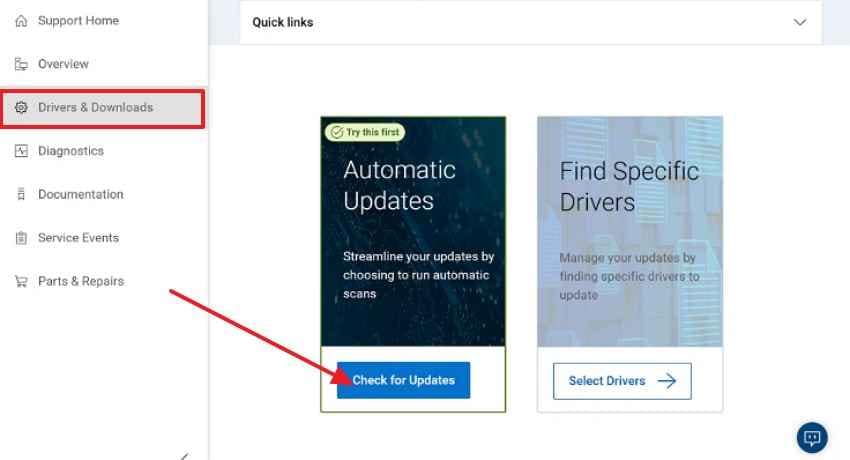
- On Dell Support, open “Drivers & Downloads > Check for Updates.”
- Let Dell scan the laptop, install the recommended BIOS, chipset, and display driver updates, then restart the system.
Important BIOS warning: Only install BIOS updates from Dell’s official support page or Dell SupportAssist. Keep the charger connected, do not close the lid, and do not interrupt the update. Avoid BIOS updates during low battery, unstable power, repeated crashes, or severe overheating. If the laptop is unstable and contains important files, back up or recover them before firmware updates.
Fix 11. Run Dell LCD Built-In Self-Test
A flickering screen on a Dell laptop during LCD BIST suggests panel trouble. Additionally, this test shows colors before Windows drivers can interfere with results. Run the screen test next, then follow the shown instructions:
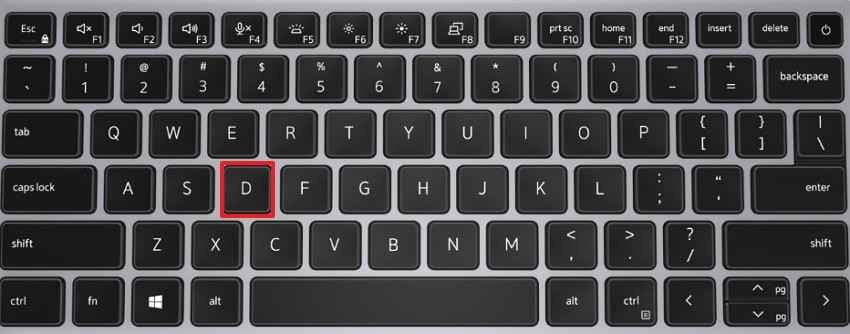
- Turn off the laptop completely and hold the “D” key, then press the “Power” button while still holding “D.”
- Release the keys when solid color screens appear. Watch each color screen carefully for flickering, lines, dimming, or distortion.
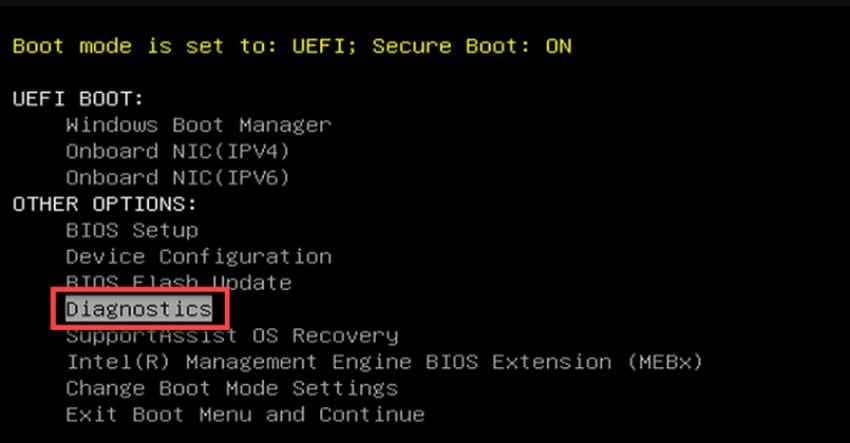
Fix 12. Run Dell Pre-Boot Diagnostics
Try Pre Boot Diagnostics when Windows tests cannot separate hardware faults clearly. Afterward, it checks core components before displaying drivers and loading startup software, so follow the instructions below:
- Restart the Dell laptop and repeatedly press “F12” at the Dell logo.
- From the One Time Boot Menu, select “Diagnostics.”
Fix 13. Consider LCD Panel, Display Cable, or Hardware Repair
Hardware repair may be needed if flickering continues during LCD diagnostics, appears before Windows loads, or changes when you move the laptop lid.
Possible hardware causes include:
- LCD panel failure
- Backlight issue
- Loose display cable
- Damaged hinge cable
- GPU problem
- Motherboard issue
- Overheating or physical damage
Contact Dell Support or a repair technician if the flicker appears during diagnostics, the screen shows lines or distortion, the lid angle changes the flicker, or the laptop has cracks, pressure marks, or liquid exposure.
Pro Tip. Protect Data Before Deep Repairs with Recoverit
Screen flickering usually does not damage files by itself. You do not need data recovery for every flickering issue. Many fixes above are safe, such as changing display settings, disabling hardware acceleration, testing Safe Mode, and running Dell diagnostics.
Recover files first if the laptop becomes unstable, the screen turns unreadable, Windows fails to boot, Safe Mode does not work, or you plan to reset Windows, reinstall the system, replace the SSD, or send the laptop for repair.
Why You Should Back Up Before Reset, Reinstall, or Repair
Major repair steps can affect file access. Resetting Windows, reinstalling the system, replacing storage, or sending the device for service may change or remove data. Backing up or recovering files first gives you a safer path before deeper troubleshooting.
Recommended Tool: Recoverit Data Recovery
Recoverit Data Recovery can help recover files if your Dell laptop becomes inaccessible during troubleshooting or after a failed repair. It is not a flickering screen fix. Its role is to help protect files before reset, reinstall, SSD replacement, disk repair, or hardware service.
Key Features
- Bootable Recovery Media: Creates a recovery USB on another computer when Windows cannot start normally.
- Crashed Computer Recovery: Helps recover files from a laptop that cannot reach the desktop.
- File Preview: Lets users preview supported files before recovery.
- External Save Support: Allows recovered files to be saved to another safe storage device.
How to Recover Files If Your Dell Laptop Becomes Unstable
If the Dell laptop becomes unstable or difficult to use, recover important files first with the steps below using Recoverit:
Step 1. Prepare a Working Computer and a Blank USB Drive
Install Recoverit on another working computer and connect a blank USB drive. Then go to “Other Tools> System Crashed Computer,” and press “Start.”
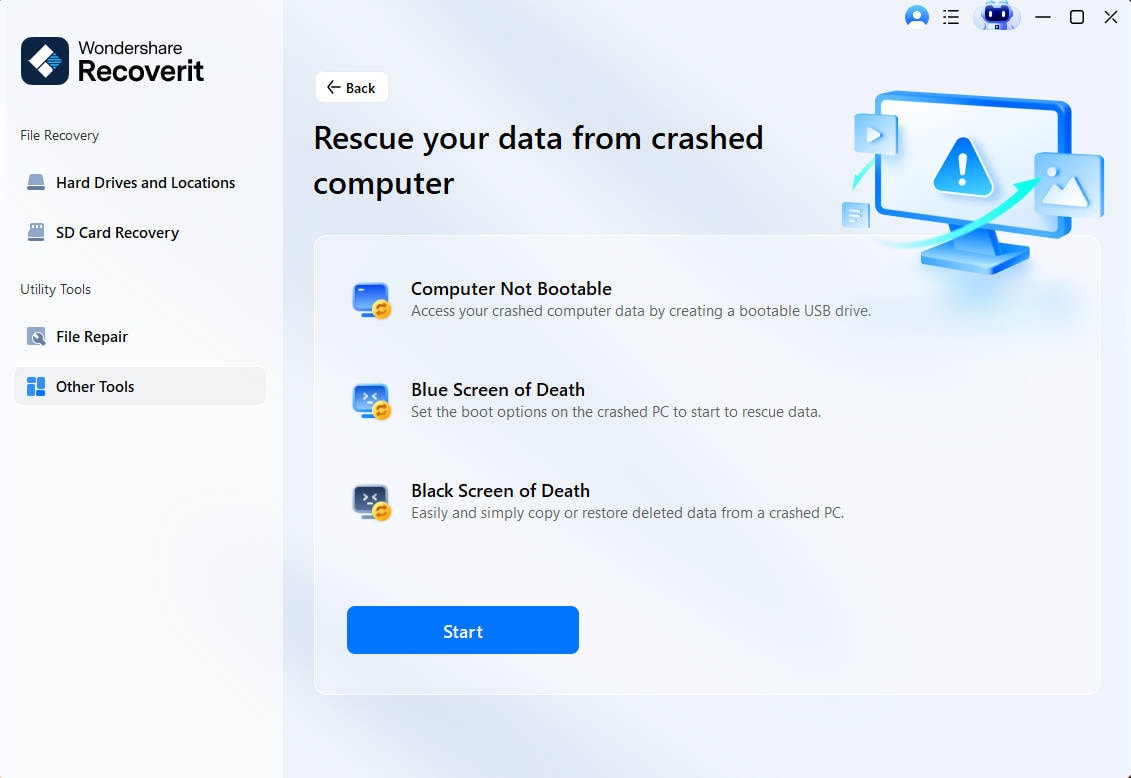
Step 2. Create and Use the Bootable USB Drive
Choose a connected USB drive and click “Create” to create bootable media. Then, plug the USB into the non-functional Dell Laptop, go into the BIOS, and choose the USB as the first boot device.

Step 3. Recover Files from the Crashed Dell Laptop
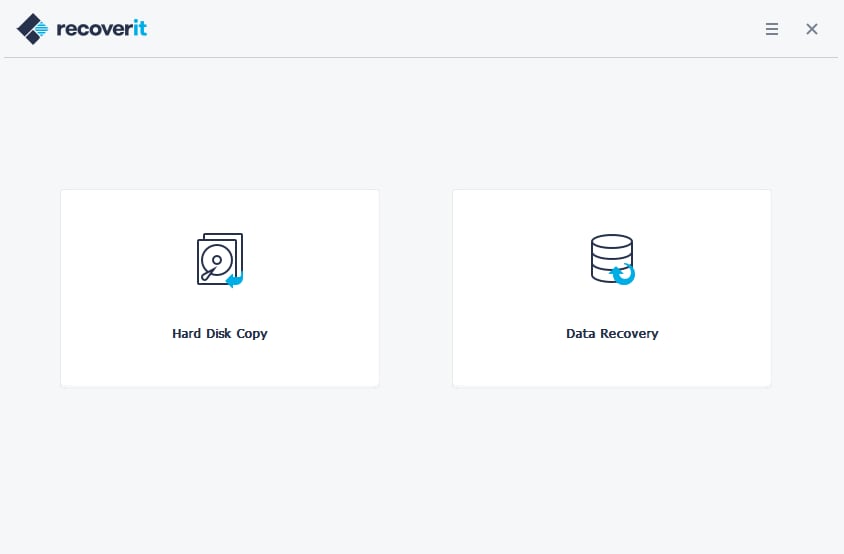
Once the Dell laptop boots through Recoverit, choose “Data Recovery” or “Hard Disk Copy.” Scan the affected drive and export the recovered files to an external hard drive.
Part 5. When to Contact Dell Support
If your Dell laptop screen is flickering and basic display fixes do not resolve the issue, Dell Support can help in the following situations:
1. Flickering Appears During Dell LCD Diagnostics: Flickering during LCD diagnostics suggests panel faults, so Dell Support should review the test result.
2. External Monitor Works, But the Dell Laptop Screen Flickers: If the external monitor stays clear, inspect the laptop screen, display cable, or hinge area professionally.
3. Flicker Changes When Moving the Laptop Lid: A flicker that changes with lid movement usually points to loose cables or stressed hinge wiring.
4. Dell Diagnostics Shows an Error Code: Save any Dell diagnostics error code because technicians can use it to identify failing hardware faster.
5. The Laptop is Under Warranty or Has Physical Damage: Use warranty support for hardware-related flicker, especially after cracks, pressure marks, or liquid exposure.
Conclusion
Dell laptop screen flickering can come from simple display settings, recent Windows updates, graphics drivers, app hardware acceleration, power-saving features, or refresh rate mismatches. Start with safe checks first: Task Manager, external monitor testing, refresh rate, adaptive brightness, Panel Self Refresh, hardware acceleration, and Windows power settings.
If the flicker continues, move to graphics driver repair, Safe Mode, Clean Boot, Dell BIOS and driver updates, LCD Built-In Self-Test, and Dell Pre-Boot Diagnostics. These steps help separate software problems from LCD panel, display cable, hinge cable, GPU, or motherboard issues.
Recoverit should be used only when file access is at risk. If your Dell laptop becomes unstable, cannot boot, or needs reset, reinstall, SSD replacement, or repair service, recover important files before continuing with high-risk repairs.
FAQs
-
Why is my Dell laptop screen flickering?
Your Dell laptop screen may flicker because of refresh rate settings, graphics driver problems, adaptive brightness, Panel Self Refresh, Windows updates, hardware acceleration, power settings, LCD panel issues, or a loose display cable. -
How do I fix a flickering Dell laptop screen?
Start by checking Task Manager, changing the refresh rate, disabling adaptive brightness, turning off Panel Self Refresh if available, disabling hardware acceleration, updating or rolling back the graphics driver, and testing with an external monitor. -
Why is my Dell laptop screen flickering on Windows 11?
Windows 11 may change graphics settings, install a new display driver, reset power settings, or enable display features that affect screen behavior. Check Windows Update history, graphics settings, power mode, and the display driver. -
Why is my Dell laptop screen shaking or blinking?
A shaking or blinking screen can be caused by a wrong refresh rate, driver conflict, app rendering issue, unstable power setting, or LCD panel problem. Use the recommended resolution and refresh rate first, then check drivers and hardware. -
Can a graphics driver cause Dell laptop screen flickering?
Yes. A corrupted, outdated, or incompatible graphics driver can cause flickering, blinking, flashing, or glitching. If the issue started after an update, roll back the driver. If the driver is damaged, reinstall the Dell-recommended driver. -
How do I know if flickering is caused by an app?
Open Task Manager with Ctrl + Shift + Esc. If Task Manager stays stable while the rest of the screen flickers, an app or service may be causing the issue. Disable hardware acceleration or use Clean Boot to find the conflict. -
How do I know if my Dell laptop screen flicker is hardware related?
Test with an external monitor and run Dell LCD Built-In Self-Test. If the external monitor is normal but the laptop screen flickers, or if the screen flickers during LCD BIST, the LCD panel, display cable, or hinge cable may be involved. -
Can I recover files if my Dell laptop becomes unusable during repair?
Yes. If the laptop becomes inaccessible, fails to boot, or needs reset, reinstall, SSD replacement, or service, Recoverit can help recover files to external storage before deeper repair steps.


