

 TL;DR:
Fix Dell XPS 13 screen flickering by pressing Ctrl + Shift + Esc to check if Task Manager flickers to isolate driver or hardware issues from app conflicts, then adjust power-saving features or update the Intel graphics drivers based on the result.
● If the screen flickers primarily on battery power or when displaying static content, disable Panel Self Refresh inside the Intel Graphics Command Center and turn off automatic brightness changes in Windows display settings.
● If the flickering is isolated to specific browsers or video applications like Chrome or Zoom, turn off hardware acceleration within those individual application settings to bypass rendering engine conflicts.
● Test for physical panel or cable defects by holding the D key while powering on the laptop to initiate the Dell LCD Built-In Self-Test, ensuring you back up essential files before attempting deeper BIOS firmware updates or system resets.
Ask AI for a summary
 ChatGPT
 Perplexity
 Gemini
 Claude
 Grok
Grok
A flickering Dell XPS 13 screen can interrupt reading, video calls, browsing, editing, or everyday work. The display may flash, blink, pulse in brightness, shake, or glitch for a few seconds at a time. In some cases, it happens only on battery power. In others, it appears after a Windows update, while charging, during video playback, or inside apps like Chrome, Edge, Teams, or Zoom.
The cause is not always a broken screen. Dell XPS screen flickering can come from adaptive brightness, Intel Panel Self Refresh, refresh rate settings, graphics drivers, hardware acceleration, power profiles, BIOS or firmware issues, or LCD hardware problems.
This guide helps you diagnose the flicker first, then apply the right fix in a safe order. Start with display and power settings, then move to graphics drivers, app conflicts, Dell updates, external monitor testing, and built-in diagnostics. If your XPS becomes unstable, crashes, or needs reset, reinstall, or repair service, protect important files before making deeper changes.
In this article
-
- Fix 1. Restart the XPS 13 and Check When Flickering Happens
- Fix 2. Use Task Manager to Separate Driver Flicker from App Flicker
- Fix 3. Disable Adaptive Brightness and Automatic Display Changes
- Fix 4. Turn Off Panel Self-Refresh in Intel Graphics Settings
- Fix 5. Change Screen Refresh Rate and Resolution in Windows
- Fix 6. Update, Roll Back, or Reinstall Intel Graphics Drivers
- Fix 7. Disable Hardware Acceleration in Browsers and Apps
- Fix 8. Check Power Plan, Battery Saver, and Dell Power Manager
- Fix 9. Update BIOS, Chipset, and Firmware Using Dell Support
- Fix 10. Run a Clean Boot to Find Problem Services or Startup Apps
- Fix 11. Test With an External Monitor
- Fix 12. Run Dell LCD Built-In Self-Test and Pre-Boot Diagnostics
Part 1. Quick Diagnosis: What Kind of Dell XPS 13 Screen Flicker Do You Have?
Before changing drivers or BIOS settings, identify when the flicker happens. The pattern often tells you whether the issue is related to display settings, power saving, apps, drivers, or hardware.
| Dell XPS 13 Flicker Symptom | Likely Cause | Start With |
| Flickers only on battery | Panel Self Refresh, adaptive brightness, or power-saving setting | Disable Panel Self Refresh and adaptive brightness |
| Flickers when plugged in or unplugged | Power profile, charger behavior, display switching, or Dell power setting | Check Windows power mode and Dell Power Manager |
| Flickers in Chrome, Edge, Teams, Zoom, or video apps | Hardware acceleration or app rendering issue | Disable hardware acceleration in the affected app |
| Task Manager flickers too | Display driver or hardware issue is more likely | Update, roll back, or reinstall graphics driver |
| Task Manager does not flicker | App or service conflict is more likely | Run Safe Mode or Clean Boot |
| Flickers after Windows update | Driver conflict or update-related display setting change | Roll back driver or uninstall recent update |
| Built-in screen flickers but external monitor is normal | LCD panel, display cable, hinge cable, or internal screen issue | Run LCD BIST and check hardware |
| Both built-in and external screens flicker | Graphics driver, GPU, dock, cable, or Windows issue | Test without dock, repair driver, check updates |
| Flickers during Dell logo, BIOS, or LCD test | Hardware issue is more likely | Run LCD BIST and Dell Diagnostics |
Part 2. Why Does Your Dell XPS 13 Screen Flicker?
Before fixing the display, it is recommended to understand the reasons that usually trigger flickering.
- Adaptive Brightness or Dynamic Display Features: Dell XPS 13 models may adjust brightness or contrast based on lighting, screen content, battery state, or power mode. These changes can look like flickering, pulsing, dimming, or sudden brightness shifts, especially when moving between bright and dark windows.
- Intel Panel Self Refresh: Many Dell XPS 13 models use Intel integrated graphics. Panel Self Refresh is designed to save power by letting the display panel refresh static content more efficiently. On some systems, it can cause visible flashes, brightness pulsing, or flickering, especially on battery power.
- Wrong Refresh Rate or Resolution: A mismatched refresh rate or unsupported resolution can make the screen blink, shake, or appear unstable. This may happen after a Windows update, driver change, external monitor connection, or display setting adjustment.
- Graphics Driver Conflict: Outdated, corrupted, or incompatible graphics drivers can cause Dell XPS 13 screen flickering. This is common after Windows updates, Dell driver updates, Intel driver updates, or failed installations.
- Hardware Acceleration in Apps: Browsers, video players, meeting apps, and creative software often use GPU acceleration. If the driver or app rendering engine is unstable, flickering may appear only inside specific apps.
- Battery Saver, Power Plan, or Dell Power Manager: Power-saving settings can change display brightness, refresh behavior, and graphics performance. If flickering happens mostly on battery or when plugging in the charger, power settings should be checked.
- BIOS, Firmware, or Chipset Issues: BIOS, firmware, and chipset drivers help hardware components communicate correctly. If they are outdated or unstable, display behavior may become inconsistent.
- LCD Panel, Display Cable, or Hardware Problem: If the flicker appears before Windows loads, during Dell diagnostics, or when moving the screen lid, the issue may involve the LCD panel, display cable, hinge cable, backlight, GPU, or motherboard.
Part 3. Dell XPS 13 Screen Flickering? 13 Fixes to Stop It
After the common causes are identified, practical solutions need to be put into place in a safe manner.
Fix 1. Restart the XPS 13 and Check When Flickering Happens
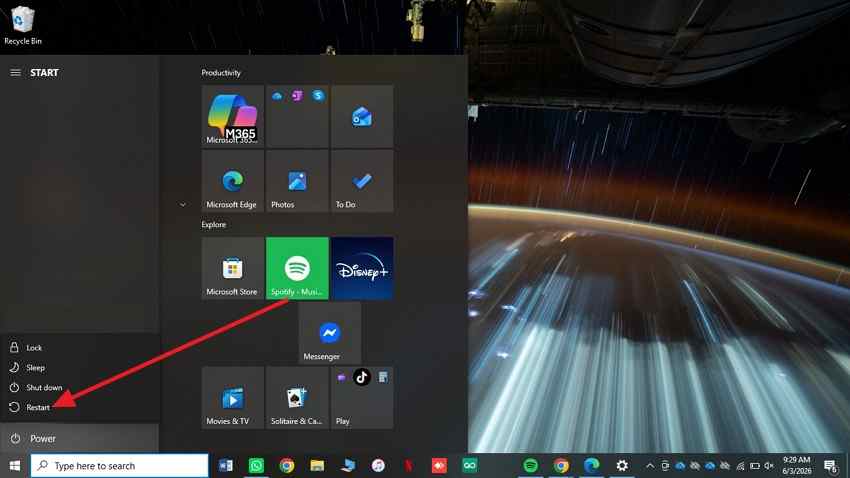
Start with a simple restart because temporary display glitches can clear after Windows reloads. Track whether the Dell XPS 13 flickering screen returns during login, charging, or app use. Begin here with the instructions below to restart the XPS 13:
- Click “Start,” choose the “Power" icon, and select "Restart."
- As Windows reboots, observe if flickering reoccurs at login, when charging, browsing, or one specific app before adjusting settings or drivers.
Fix 2. Use Task Manager to Separate Driver Flicker from App Flicker
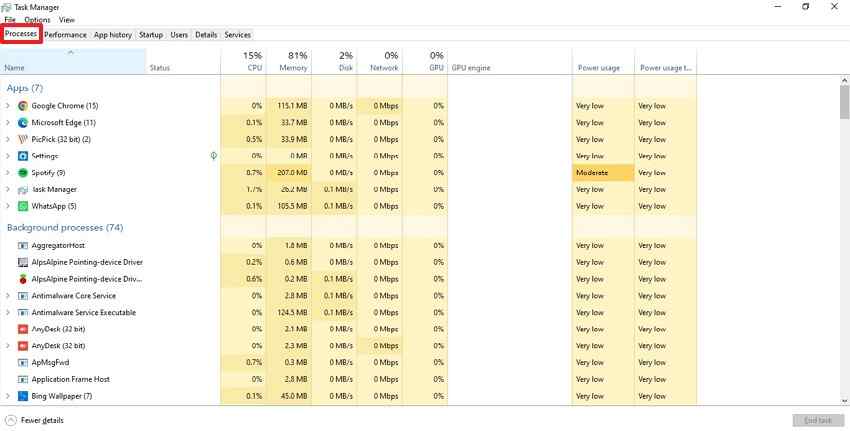
Task Manager gives a quick clue about the source of flickering. If it stays steady while the background flashes, one active app may be causing the issue. Check the instructions given below to use the task manager to separate driver flicker:
- Press “Ctrl + Shift + Esc” during flickering and watch “Task Manager.”
- If it flickers too, check display drivers; if it stays stable, inspect browsers, apps, or startup programs.
Fix 3. Disable Adaptive Brightness and Automatic Display Changes
Automatic brightness can make the display pulse when lighting or screen content changes. On some Dell XPS 13 models, this may look like screen flickering rather than a normal brightness adjustment.
Note: These options may vary depending on your XPS 13 model, Windows version, display panel, and graphics driver.
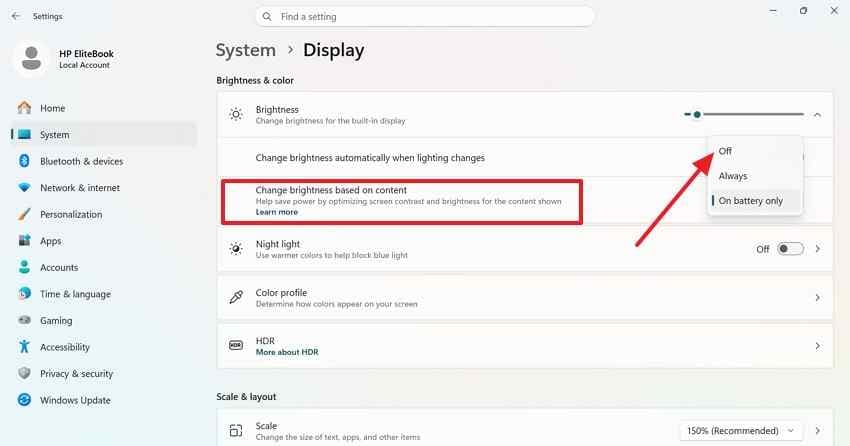
Step 1. Press “Win + I” and then select “System > Display.” If the option is available under “Brightness,” disable “Change Brightness Automatically When Lighting Changes.”
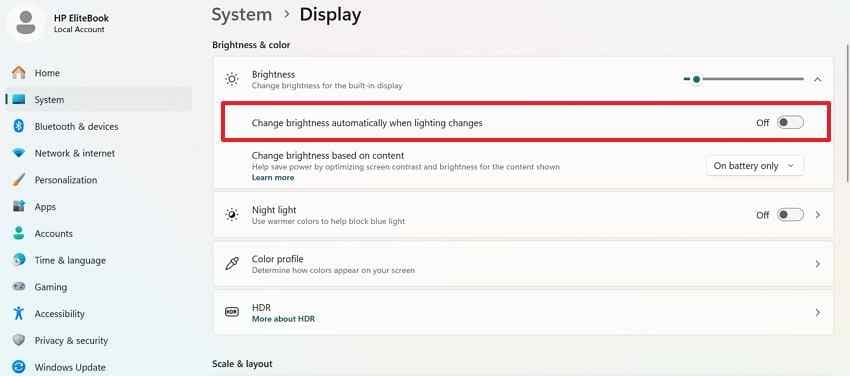
Step 2. In the same display area, disable the "Automatic Content based Brightness” options if available. Restart the laptop, then test the screen on battery and charger separately.
Fix 4. Turn Off Panel Self-Refresh in Intel Graphics Settings
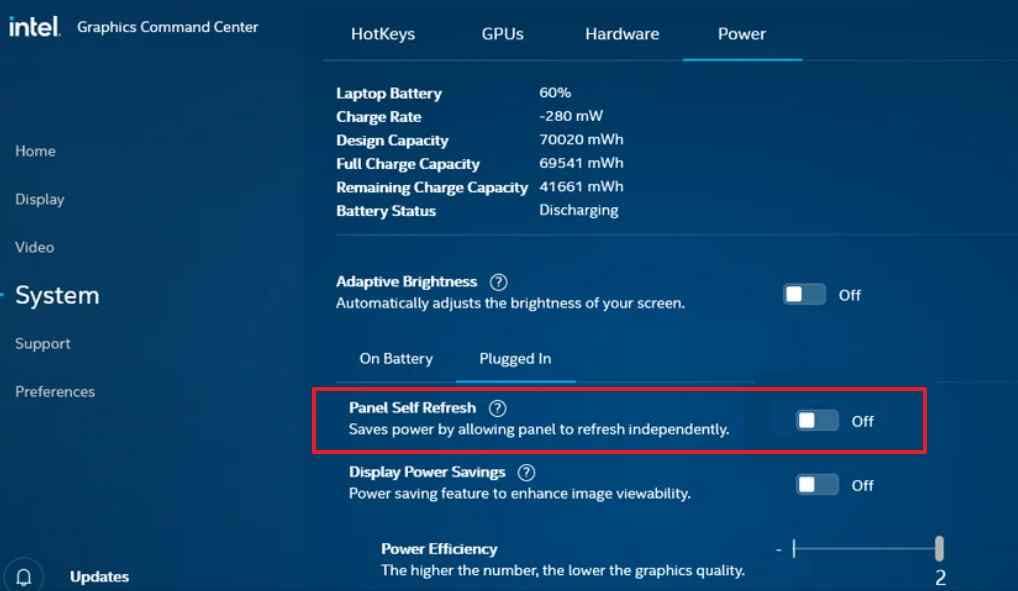
Intel Panel Self Refresh helps save battery by reducing unnecessary screen updates when the image is static. On some Dell XPS 13 models, it may cause flickering, flashing, or brightness pulsing, especially on battery.
Note: The Panel Self Refresh option may not appear on every Dell XPS 13. It depends on the Intel Graphics Command Center version, display panel, graphics driver, and XPS 13 generation. If you cannot find it, continue with refresh rate, driver, and power setting fixes.
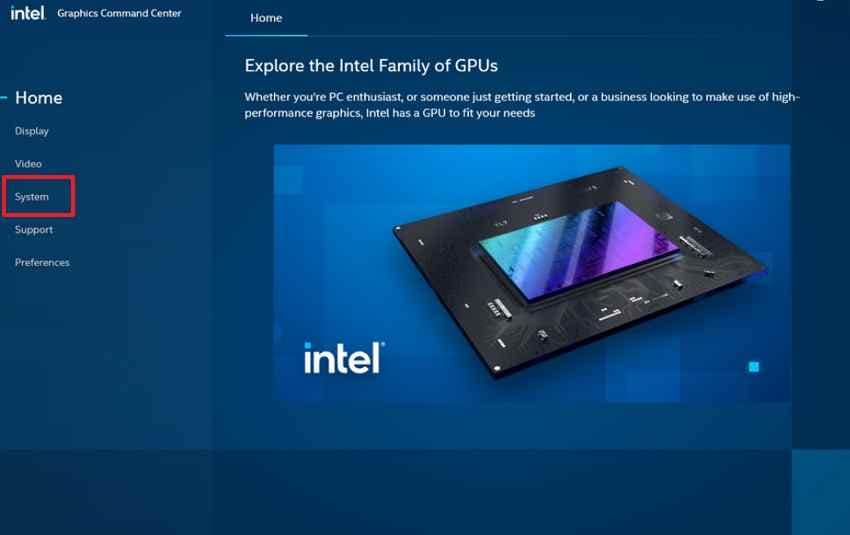
Step 1. Open the “Start" menu, then search for "Intel Graphics Command Center,” and launch it. From the left menu, choose “System > Power” tab.
Step 2. Find “Panel Self Refresh" and switch it off for battery and plugged-in modes if shown. Restart the XPS 13, then test scrolling and window switching again.
Fix 5. Change Screen Refresh Rate and Resolution in Windows
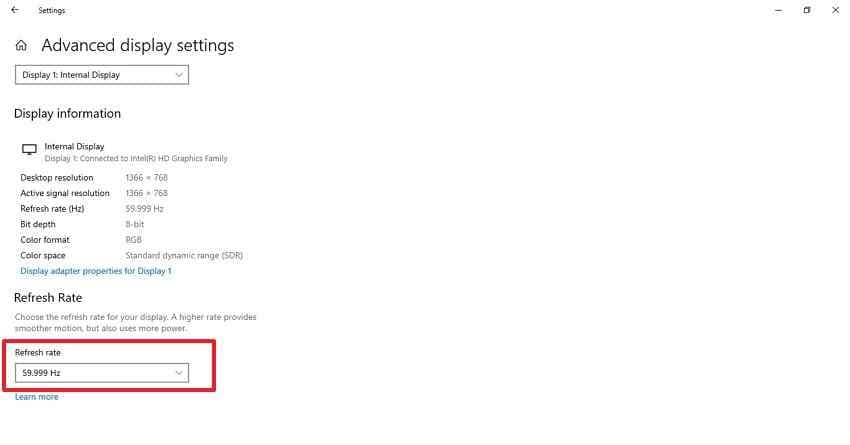
Display settings need to match the laptop panel’s supported output. A Dell XPS flickering screen may appear if Windows applies an unsuitable refresh rate or resolution. Review the steps below to change the screen refresh rate and resolution in Windows:
Step 1. Press “Win + I” and go to “System > Display.” Set “Display Resolution” to the value marked “Recommended” for the built-in screen.
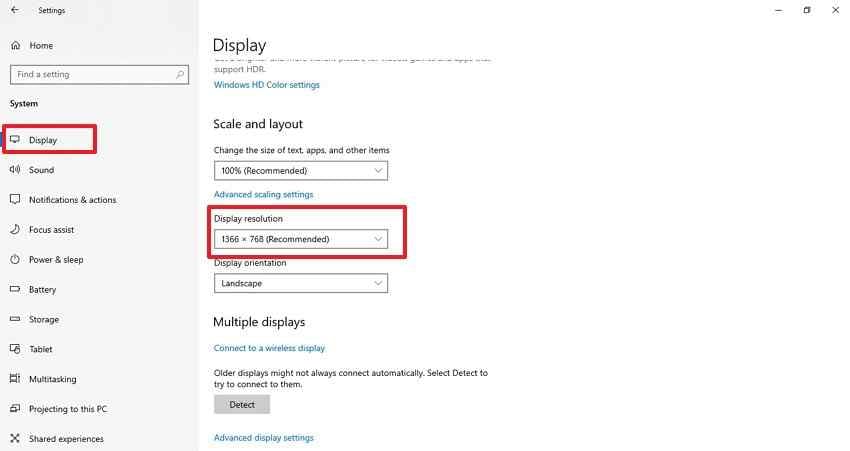
Step 2. Scroll down and open “Advanced Display > Refresh Rate,” select the recommended or standard panel rate, then check whether flickering stops
Fix 6. Update, Roll Back, or Reinstall Intel Graphics Drivers
Graphics drivers can become unstable after Windows updates, Dell updates, Intel updates, or failed installations. If the Dell XPS 13 screen flickering started recently, try updating, rolling back, or reinstalling the graphics driver.
Option 1. Update the graphics driver
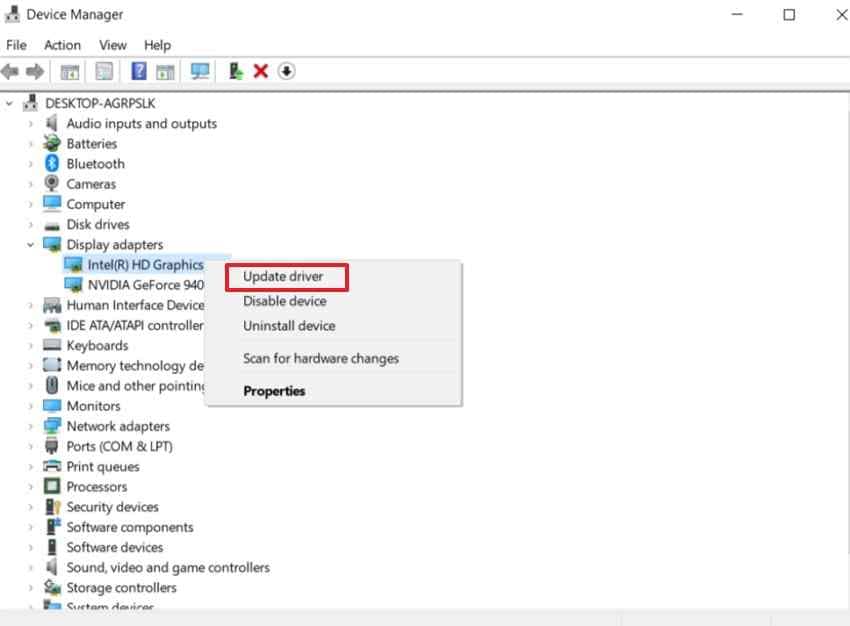
Step 1. Right-click "Start” and select “Device Manager > Display Adapters" and then right-click on the graphics drivers and select “Update Driver.”
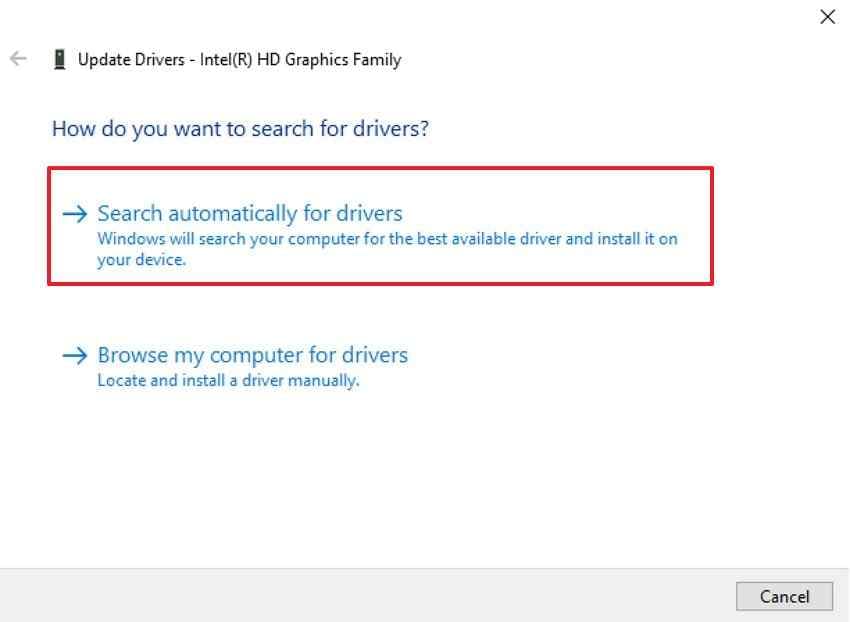
Step 2. Next, choose the “Search Automatically for Driver” option.
Option 2. Roll back the graphics driver
Use this if the screen started flickering after a recent driver or Windows update.
- Right-click Start and open Device Manager.
- Expand Display adapters.
- Right-click the Intel graphics device and choose Properties.
- Open the Driver tab.
- Click Roll Back Driver if the option is available.
- Restart the XPS 13 and test the display again.
Option 3. Reinstall the graphics driver
Use this if the driver may be corrupted or rollback is unavailable.
- Open Device Manager.
- Expand Display adapters.
- Right-click the Intel graphics device.
- Choose Uninstall device.
- If available, select Delete the driver software for this device.
- Restart the laptop.
- Install the correct Dell-recommended graphics driver from Dell Support.
Note: For Dell XPS 13 laptops, the Dell-provided graphics driver is usually the safest first choice because it is matched to the specific model. Advanced users may compare it with Intel’s latest stable driver if Dell’s driver does not solve the issue.
Fix 7. Disable Hardware Acceleration in Browsers and Apps
Some applications accelerate the loading of videos, animations, and pages using the GPU. Dell XPS screen flickering inside specific apps may stop after reducing this graphics load. Use these instructions to disable hardware acceleration in the browser and apps:
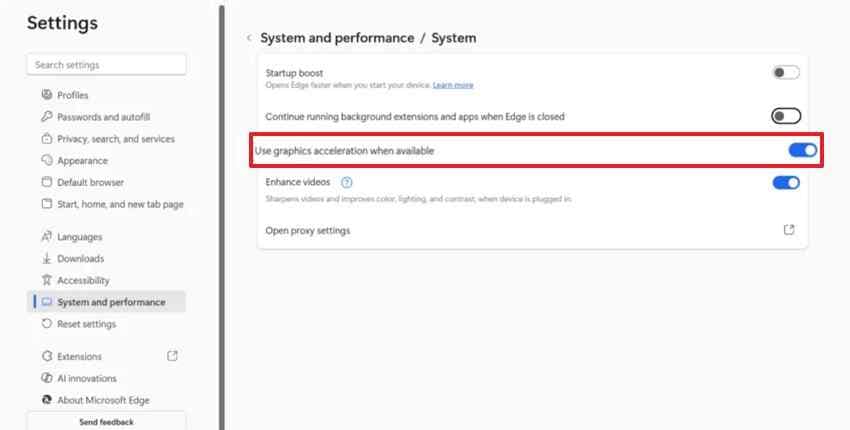
- In Chrome or Edge, open “Settings > System and Performance.”
- Turn off “Use Graphics Acceleration When Available,” then restart the browser.
- Repeat the same change inside editing, video, or meeting apps that flicker separately.
Fix 8. Check Power Plan, Battery Saver, and Dell Power Manager
Power settings can affect display brightness, refresh behavior, and graphics performance. This fix is especially useful if the XPS 13 flickers only on battery, only when plugged in, or when switching between power states.
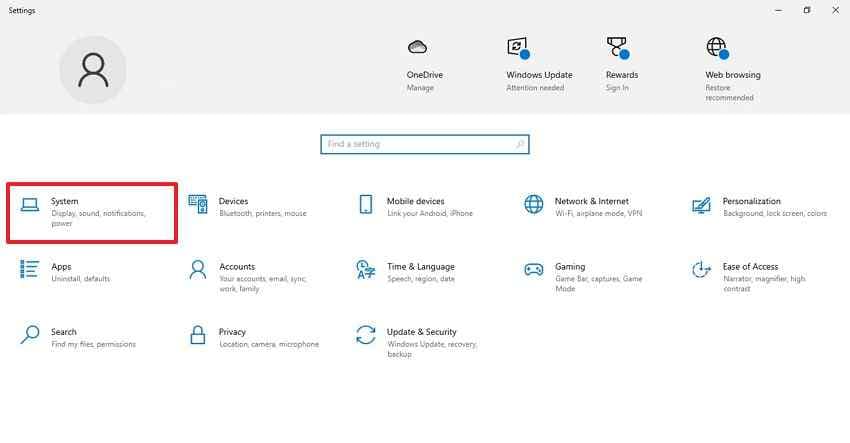
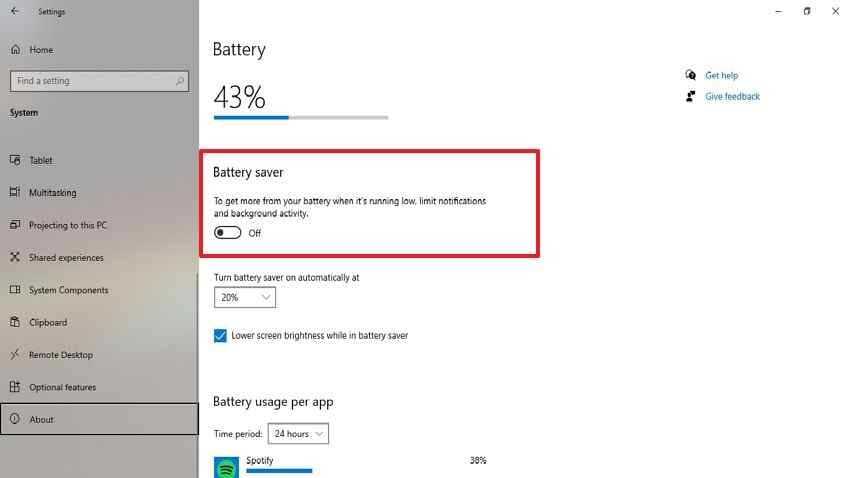
Step 1. Press “Win + I” and navigate to “System” and select “Battery.”
Step 2. After that, toggle off the “Battery Saver” option.
Fix 9. Update BIOS, Chipset, and Firmware Using Dell Support
Firmware and chipset updates affect how the screen, processor, and graphics hardware communicate. Dell Support can provide model-specific updates that may improve display stability before deeper testing, so follow the instructions below:
- If it is difficult to read due to flickering, attach the XPS 13 to an external monitor.
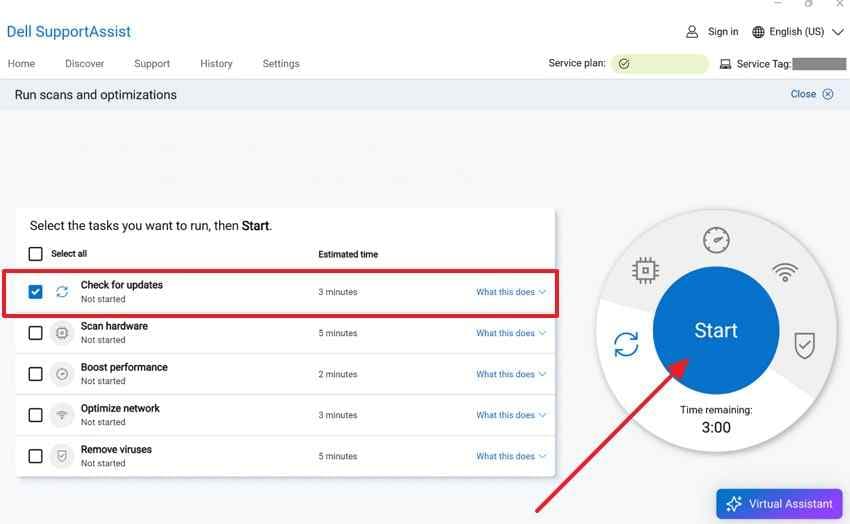
- Run “SupportAssist > Check for Updates> Start" to check Dell BIOS, chipset, firmware, and graphics card updates.
Important BIOS warning: Only update BIOS from Dell’s official support page or SupportAssist. Keep the charger connected, do not close the lid, and do not interrupt the update. Avoid BIOS updates during low battery, unstable power, system crashes, or severe overheating. If the XPS 13 is already unstable, back up or recover important files before firmware changes.
Fix 10. Run a Clean Boot to Find Problem Services or Startup Apps
A clean boot helps identify background apps or services that may cause flickering after normal startup. Use this after Safe Mode suggests a software conflict.
Step 1. Click “Shift > Power > Restart” then “Troubleshoot > Advanced Options > Startup Settings." From there, select “Restart” to bring up the Safe Mode options.
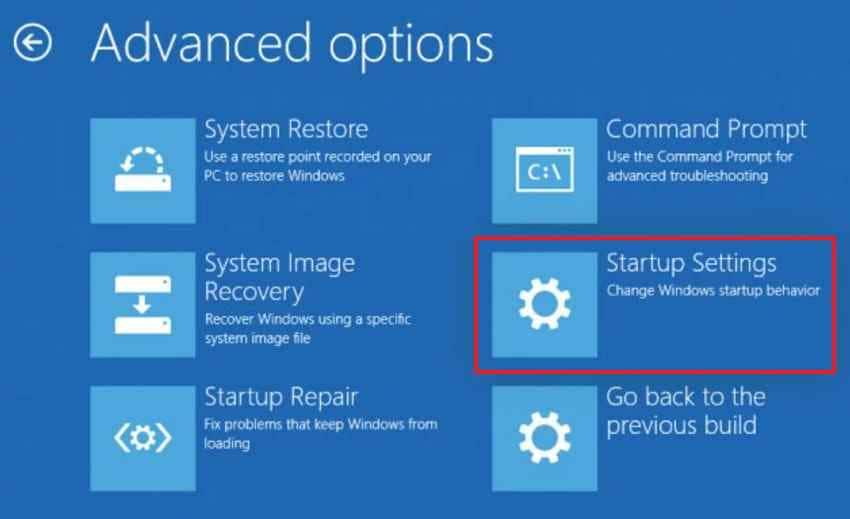
Step 2. Press “4” or “F4” for “Enable Safe Mode.” If flickering stops there, uninstall recently installed apps, display utilities, or startup programs that may affect the screen.
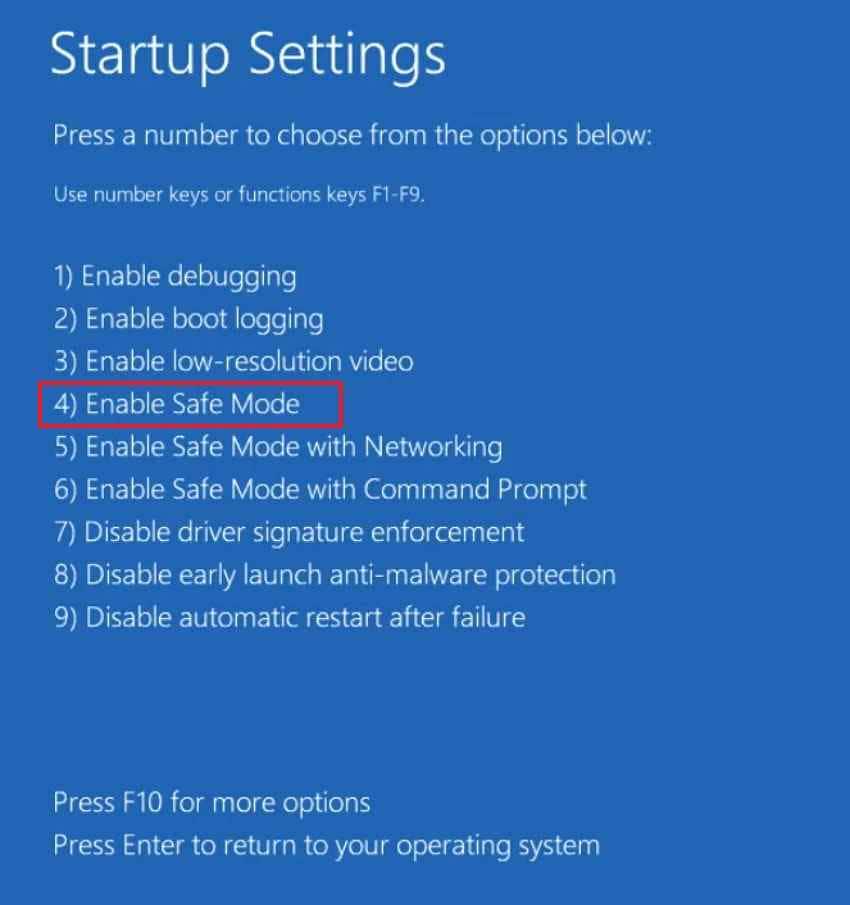
Note: If Windows is not readable, press the “Power” button until the XPS 13 turns off. Turn it on again, interrupt the startup the same way three times, then choose “Advanced options” when WinRE opens automatically.
Fix 11. Test With an External Monitor
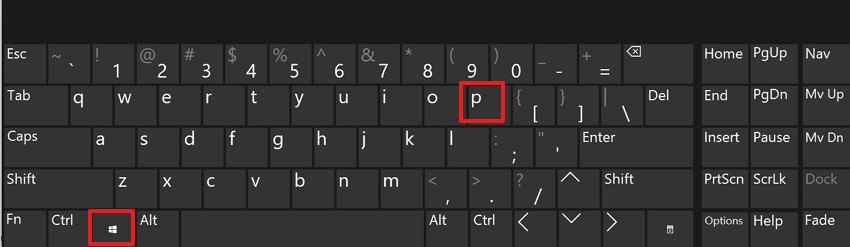
An external monitor can reveal whether flickering belongs to the built-in display or graphics output. Use the USB-C, HDMI, or dock to connect the XPS 13, and then press "Win + P” and select “Duplicate." If the laptop screen flickers, check the LCD panel, display cable, or hinge area more carefully.
Fix 12. Run Dell LCD Built-In Self-Test and Pre-Boot Diagnostics
When a Dell XPS flickering screen appears before Windows loads, built-in diagnostics can check possible panel faults. Running Dell’s pre-boot tests confirms hardware signs with these instructions below:
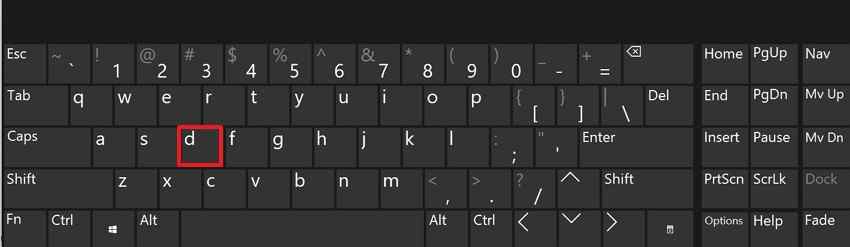
- Turn off the XPS 13, then hold “D” and press the “Power” button.
- Keep holding “D” until the screen shows solid test colors.
- If flickering appears during the color test, suspect the LCD panel or display cable.
- Restart and press “F12,” then choose “Diagnostics” for full pre-boot hardware testing.
Part 4. Protect Data Before Advanced Repairs with Recoverit
Screen flickering usually does not damage files by itself. However, deeper troubleshooting steps can carry risk, especially if the laptop is unstable, crashing, overheating, or about to undergo BIOS updates, Windows reset, reinstall, SSD replacement, or repair service.
Use Recoverit as a data protection option before high-risk repairs, not as a screen flicker repair tool.
When You Should Back Up Before Fixing Flicker
Back up or recover important files before:
- Resetting Windows
- Reinstalling Windows
- Updating BIOS on an unstable system
- Replacing the SSD
- Sending the XPS 13 for repair
- Running advanced disk repair
- Continuing after repeated forced shutdowns
- Troubleshooting a laptop that also freezes, crashes, or fails to boot
Recommended Tool: Recoverit Data Recovery
Recoverit Data Recovery can help recover files if your XPS 13 becomes inaccessible during troubleshooting or after a failed repair. It can scan the affected drive and recover documents, photos, videos, and other common file types before you continue with reset, reinstall, or hardware service.
Key Features
- Bootable Recovery Media: Creates a recovery USB on another PC when the XPS 13 cannot start normally.
- Crashed Computer Recovery: Helps recover files from a computer that cannot reach the desktop.
- External Save Support: Allows recovered files to be saved to another safe storage device.
How to Recover Files If Your XPS 13 Becomes Unstable
If screen flickering leads to failed updates, forced restarts, or missing files, recovery should come before more changes. The following steps show how to retrieve important files from the original storage location:
Step 1. Build Recovery Media on a Working Computer
Install Recoverit on another usable PC and plug in an empty USB drive. From “Other Tools,” select “System Crashed Computer,” then click “Start” to begin creating recovery media.
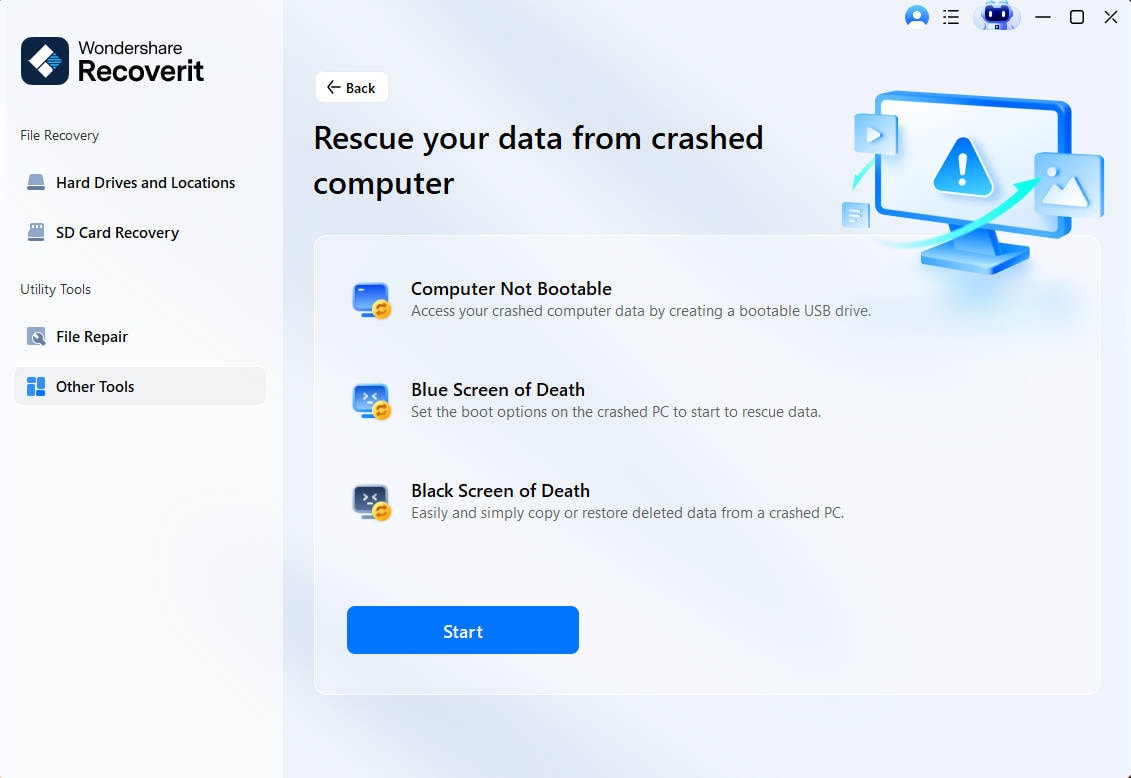
Step 2. Make the USB Bootable and Start the XPS 13
Choose the connected USB drive and press “Create” so Recoverit can prepare the bootable device. After that, insert it into the unstable XPS 13 and set USB as the first boot option in BIOS.

Step 3. Copy Important Files from the Affected Drive
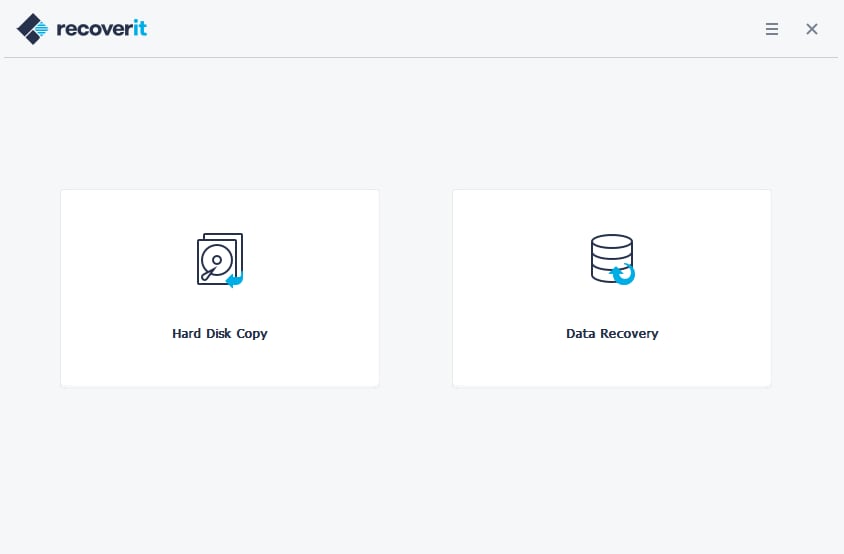
Once the XPS 13 loads through the USB, choose “Data Recovery” or “Hard Disk Copy.” Scan the internal drive, select the required files, and recover them to another safe storage device.
Part 5. How to Prevent Dell XPS 13 Screen Flickering from Coming Back
After fixing the Dell XPS 13 screen flickering, the following habits can keep the display stable and reduce repeat troubleshooting later:
- Install Display Updates Carefully: Use Dell-approved BIOS, graphics, chipset, and firmware updates. Restart fully after updates before changing more settings.
- Avoid Risky Display Tweaks: Use the recommended resolution and refresh rate. Avoid random scaling, custom refresh rate, or unsupported display changes after driver updates.
- Monitor Power Settings: Use a balanced power mode, and disable brightness or power-saving features that cause pulsing during battery use.
- Check External Accessories: Avoid long-term use of unstable docks, low-quality USB-C adapters, or damaged display cables. If flickering appears only through a dock, update the dock firmware or test a direct cable connection.
- Protect System Health: Avoid forced shutdowns during updates. Keep enough free storage for driver installation and system updates.
- Back Up Important Files: Keep important documents, photos, and work files synced or backed up before BIOS updates, Windows reset, or hardware repair.
Conclusion
Dell XPS 13 screen flickering is usually caused by display settings, Intel Panel Self Refresh, adaptive brightness, refresh rate problems, graphics driver conflicts, app hardware acceleration, power settings, BIOS or firmware issues, or LCD hardware faults.
Start with the safest checks first. See whether Task Manager flickers, turn off adaptive brightness, disable Panel Self Refresh if available, use the recommended refresh rate, and test app hardware acceleration. If the flicker continues, update or roll back the Intel graphics driver, check Dell power settings, update Dell firmware carefully, boot into Safe Mode, run a clean boot, and test with an external monitor.
If the flicker appears during Dell LCD Built-In Self-Test or before Windows loads, hardware may be involved. Run Dell Diagnostics and contact Dell Support if error codes appear. If the XPS 13 becomes unstable or needs reset, reinstall, SSD replacement, or repair service, recover important files first with Recoverit before continuing.
Frequently Asked Questions
-
Why does my Dell XPS 13 screen flicker?
Your Dell XPS 13 screen may flicker because of adaptive brightness, Intel Panel Self Refresh, wrong refresh rate, graphics driver conflicts, hardware acceleration in apps, power settings, BIOS or firmware issues, or LCD hardware problems. -
How do I fix Dell XPS 13 screen flickering?
Start by checking whether Task Manager flickers. Then disable adaptive brightness, turn off Panel Self Refresh if available, use the recommended refresh rate, update or roll back the graphics driver, disable hardware acceleration in apps, check power settings, and test with an external monitor. -
Why does my Dell XPS 13 screen flicker on battery?
Battery-only flicker is often linked to Panel Self Refresh, adaptive brightness, Battery Saver, or display power-saving settings. Turn off Panel Self Refresh in Intel Graphics Command Center if available, disable automatic brightness changes, and test with Battery Saver off. -
Should I disable Panel Self Refresh on Dell XPS 13?
If your XPS 13 flickers on battery or when the screen content is mostly static, disabling Panel Self Refresh is worth testing. It may slightly affect battery life, but it can improve display stability on some Intel-based laptops. -
Can a graphics driver cause Dell XPS screen flickering?
Yes. A corrupted, outdated, or incompatible graphics driver can cause flickering, flashing, or glitching. If the issue started after an update, roll back the driver. If the driver is damaged, uninstall and reinstall the Dell-recommended graphics driver. -
How do I know if XPS 13 flickering is caused by an app?
Open Task Manager with Ctrl + Shift + Esc. If Task Manager does not flicker while the rest of the screen does, an app may be causing the issue. Disable hardware acceleration in browsers or meeting apps, then use Safe Mode or Clean Boot to find the conflict. -
How do I know if Dell XPS 13 screen flickering is hardware related?
Connect an external monitor and run Dell LCD Built-In Self-Test. If the built-in screen flickers during the LCD test, or the external monitor works normally while the laptop screen flickers, the LCD panel, display cable, or screen hardware may be involved. -
Can Recoverit help if my XPS 13 becomes inaccessible during repair?
Yes. Recoverit can help recover files if your XPS 13 becomes inaccessible after crashes, failed repairs, reset problems, or boot issues. It should be used as a data recovery option before deeper repair, reinstall, or service steps, not as a screen flicker fix.


