 TL;DR:
A DWM crash on Windows 11 is rarely a standalone dwm.exe failure and is typically a symptom of a display driver timeout triggered by graphics stack conflicts, hardware instability, or problematic software overlays.
● Verify the exact failure using Reliability Monitor (perfmon /rel) to distinguish a direct dwm.exe process crash from a graphics-driver timeout or isolated application fault before attempting driver modifications.
● Roll back the display driver if instability began immediately after an update; for a clean reinstall, run the AMD Cleanup Utility in Safe Mode and prioritize OEM driver packages for laptops and all-in-one PCs.
● Revert custom GPU, CPU, and XMP/EXPO memory tuning to supported defaults and disable third-party overlays to isolate triggers, noting that file recovery software cannot repair system crashes or retrieve unsaved rendering losses.
Ask AI for a summary
 ChatGPT
 Perplexity
 Gemini
 Claude
 Grok
Grok
"For the last month or so, I've been having random crashes to a black screen due to dwm.exe crashing with no rhyme or reason." - PentagramJ2
A DWM crash on Windows 11 can look like a brief black screen, desktop redraw, taskbar reload, screen flicker, frozen visual elements, or an application that suddenly loses its display. dwm.exe is Desktop Window Manager, the Windows component that performs desktop composition and presents application windows on the screen. Microsoft documents DWM as part of the desktop-composition path rather than a stand-alone graphics app you should disable or replace.
Because DWM depends on the Windows graphics stack, a display-driver timeout can produce very similar symptoms. That is why AMD drivers crashing Windows 11 may appear to be a DWM problem even when dwm.exe is only where the display failure becomes visible. AMD is only one possible cause; overlays, capture software, high-refresh-rate or HDR combinations, Windows component damage, unstable tuning, RAM, power, or GPU hardware can also be involved. The safest approach is to confirm the failure first, then move from reversible fixes to driver cleanup and hardware checks.
Only use recovery software after real file loss: if files that were already saved are now deleted, missing, or inaccessible after repeated crashes, Wondershare Recoverit for Windows can scan a detectable drive for recoverable files. It is not a repair tool for DWM, AMD drivers, Windows graphics, or failing GPU hardware.
In This Article
Part 1. Identify a DWM Crash Before Reinstalling Drivers
Desktop Window Manager composes application surfaces into the desktop image shown on your display. On modern Windows, DWM is a core graphics component and desktop composition remains active during the user session. A problem that appears to involve dwm.exe can therefore be a direct DWM process crash, a graphics-driver reset underneath DWM, or a separate application crash that only looks similar.
DWM Crash vs. Display Driver Reset vs. App Crash
| What Failed | Typical Symptom | Useful Evidence | Best Next Step |
| DWM / dwm.exe | Desktop redraws, taskbar or windows briefly reload, visual composition resets | Application crash or reliability entry naming dwm.exe |
Check app/driver timeline, Windows components, and graphics conflicts |
| Display driver timeout/reset | Screen flickers or goes black briefly, then recovers while apps may remain open | Display-driver recovery message or related Event Viewer evidence | Investigate the GPU driver, overlays, tuning, display settings, and hardware |
| Application crash | One program closes while desktop remains stable | Crash record names that application rather than dwm.exe |
Troubleshoot the affected app first |
| Whole-system instability | Black screen, hard freeze, restart, changing stop codes, or crashes across unrelated apps | Multiple logs, hardware diagnostics, or repeated failures across workloads | Test Windows, RAM, storage, power, temperatures, and GPU stability |
Microsoft's Timeout Detection and Recovery (TDR) documentation explains that Windows can detect a graphics timeout, reset parts of the graphics stack, and restore the desktop. A successful recovery may only look like a brief flicker or black screen. That behavior should not automatically be labeled a DWM crash.
Check Reliability Monitor and Event Viewer
Before reinstalling a driver, confirm whether Windows repeatedly records the same process or driver failure. One isolated event is weaker evidence than several failures that happen with the same application, monitor configuration, or driver version.
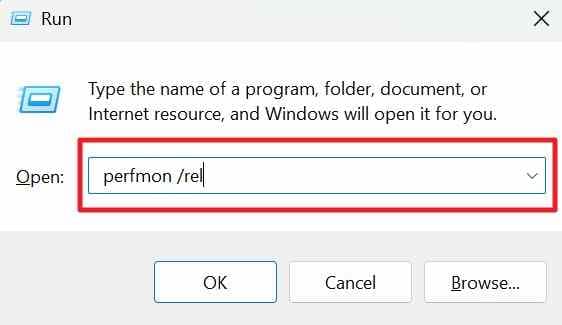
Step 1. Press Windows + R, type perfmon /rel, and press Enter.
Step 2. Select the day and time when the screen problem occurred. Open the relevant critical event and record the failing application or module, driver name if shown, and the exact time.
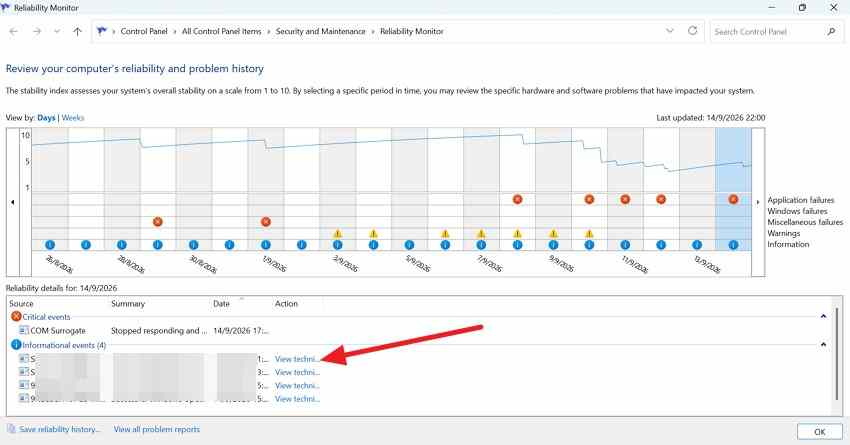
Then open "Event Viewer > Windows Logs > Application" and System around the same timestamp. A display-driver recovery record can support a graphics timeout diagnosis, but it still does not prove whether the root cause is the driver package, GPU load, an overlay, tuning, power, or hardware.
Why AMD Is Only One Possible Cause
If the computer uses Radeon graphics, an AMD driver is a reasonable suspect when the failure started after a driver update or only appears under GPU-heavy workloads. But do not assume AMD is involved just because the PC has an AMD Ryzen processor. Many laptops use Intel or AMD integrated graphics together with a separate NVIDIA or AMD GPU. Confirm the active display adapters first.
Part 2. Try the Fastest Reversible Fixes
Use these low-risk tests before removing a graphics driver. Test one change at a time so you know what actually affects the DWM crash Windows 11 behavior.
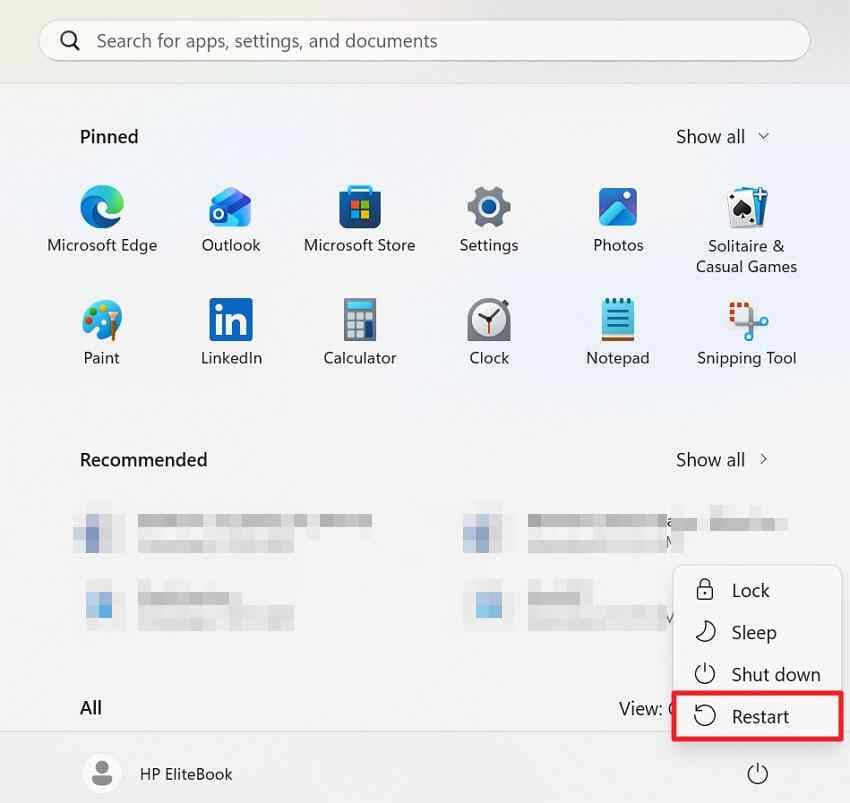
Fix 1. Restart Windows and Reproduce the Trigger
Restart once, reopen the same app or workload, and reproduce the action that preceded the crash. Record whether the problem is tied to a particular game, browser tab, video editor, remote session, recording tool, wake-from-sleep event, or monitor change.
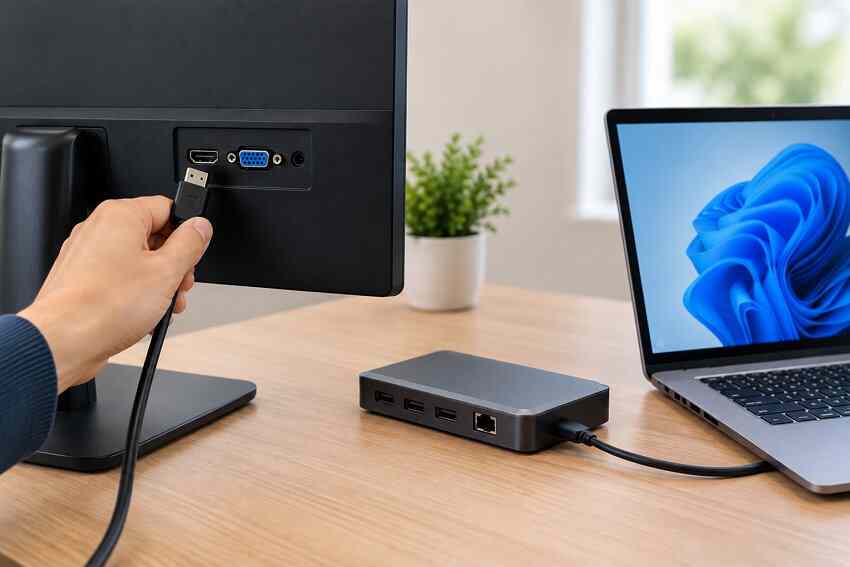
Fix 2. Disconnect Extra Displays, Docks, and Adapters
Shut down the PC, disconnect secondary displays, docks, USB display adapters, KVMs, and conversion cables, then test with one display connected directly where possible. If the issue stops, reconnect one device at a time. This is especially useful when the crash began after adding a high-refresh-rate display, changing ports, or moving through a dock.
Fix 3. Disable Overlays, Screen Recorders, and Desktop Customizers
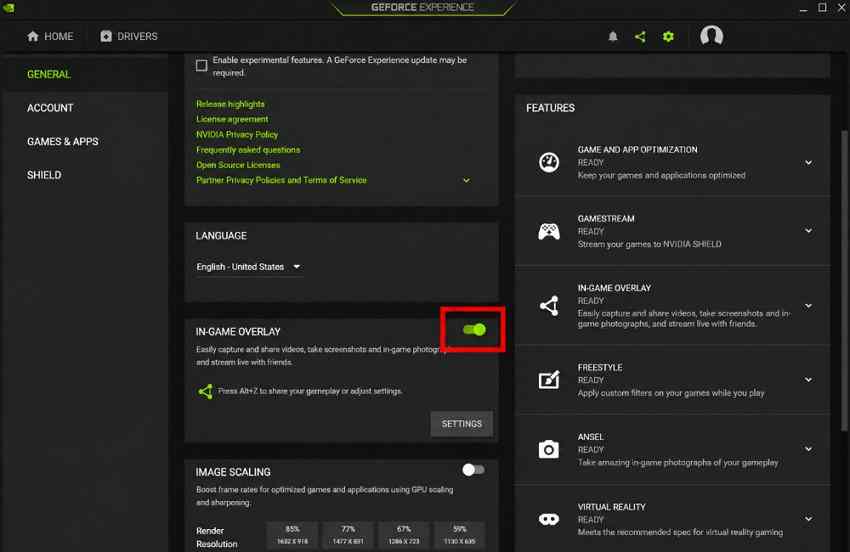
Overlays and capture utilities insert themselves into graphics workloads and can conflict with games, browsers, video apps, or the desktop compositor. Temporarily disable in-game overlays, FPS counters, RGB/desktop customization tools, wallpaper engines, recording hooks, and third-party window-management tools.
Step 1. In the relevant gaming, chat, capture, or GPU utility, turn off its overlay or in-game overlay option.
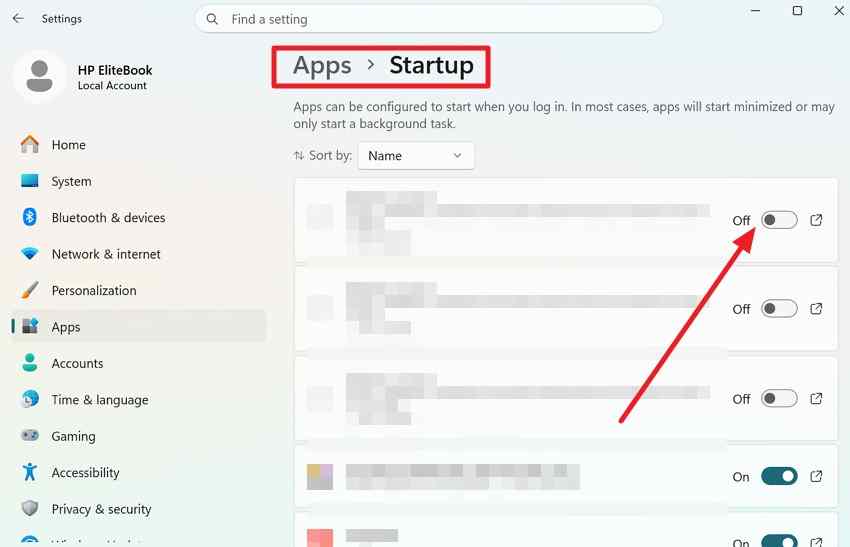
Step 2. Open "Settings > Apps > Startup" and temporarily disable related third-party customization or capture tools. Restart and retest.
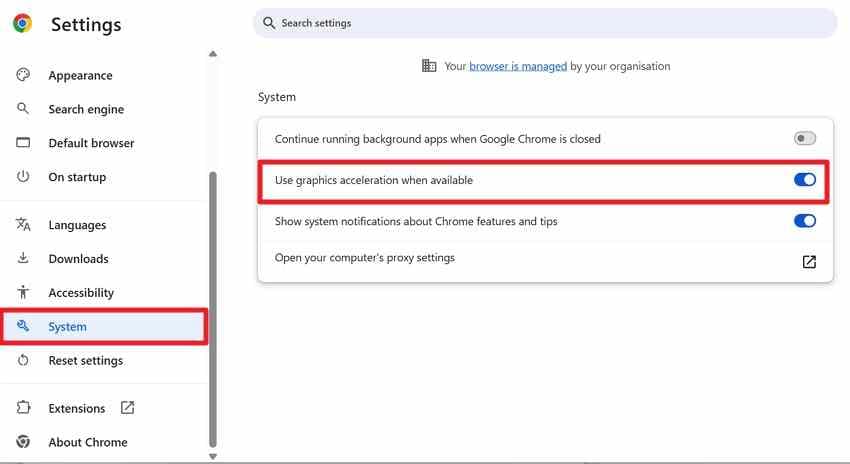
Fix 4. Turn Off Hardware Acceleration in the Affected App
If crashes happen only while one GPU-accelerated app is open, turn off that app's graphics acceleration as a diagnostic test. For Chrome, open "Settings > System", disable Use graphics acceleration when available, relaunch the browser, and reproduce the same workload. If nothing changes, restore the setting.
Fix 5. Install Current Windows Updates
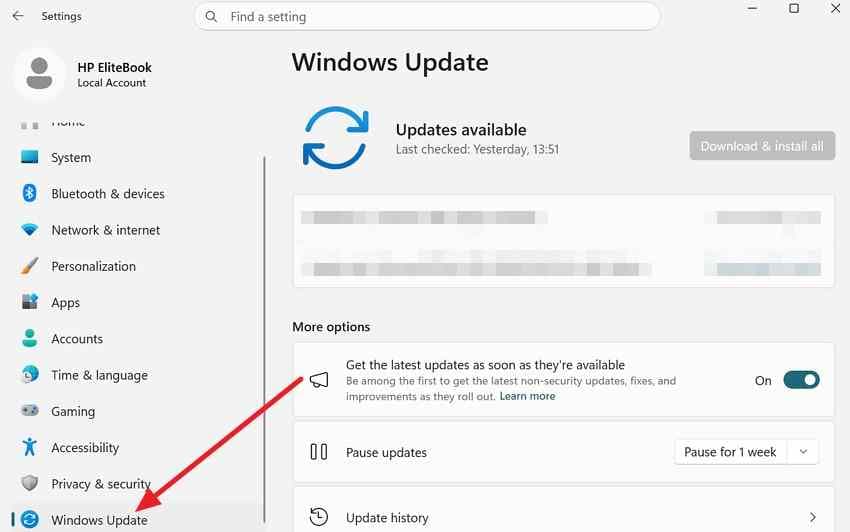
Open "Settings > Windows Update", install applicable Windows updates, restart, and test again. Review optional driver updates separately rather than changing multiple drivers at the same time.
Part 3. Repair the Graphics Driver Path
If the evidence points to a display-driver problem, use the supported driver path below. Microsoft also recommends update, rollback, or reinstall actions for display-driver symptoms such as flickering. See Microsoft's current screen-flickering driver guidance.
Fix 1. Identify the Exact GPU and Update From an Official Source
Step 1. Open "Device Manager > Display adapters" and note every GPU listed.
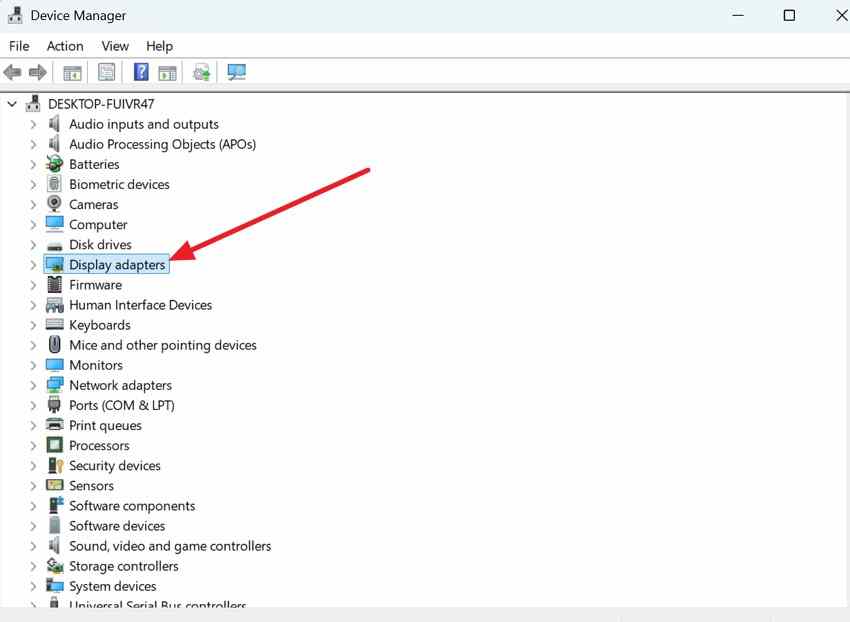
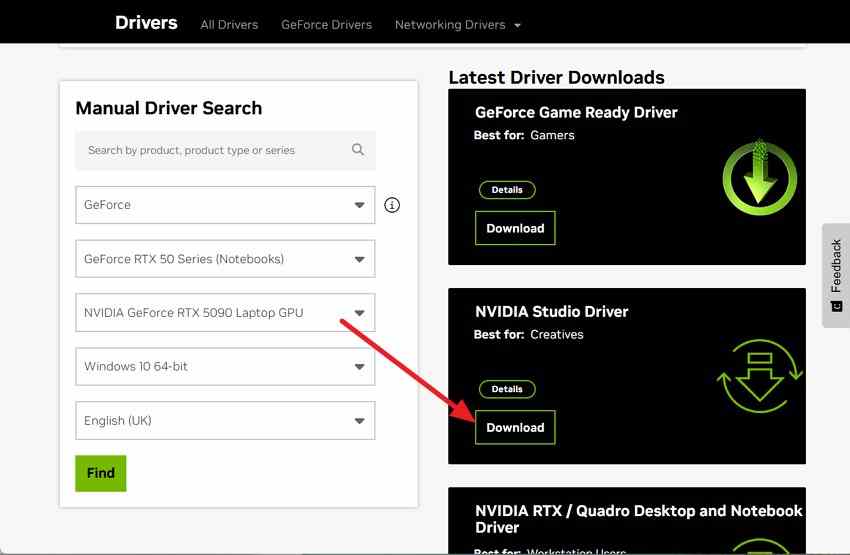
Step 2. For a desktop graphics card, use the GPU vendor's official support page. For laptops and all-in-one PCs, check the PC manufacturer's driver page first because OEM packages may include model-specific display, switchable-graphics, or power-management customizations. Download the correct Windows 11 driver and restart after installation.
Fix 2. Roll Back When the Crash Began After a Driver Update
If AMD drivers keep crashing Windows 11 immediately after a graphics-driver update, rollback is a targeted test. It only works when Windows retained the previous driver package.
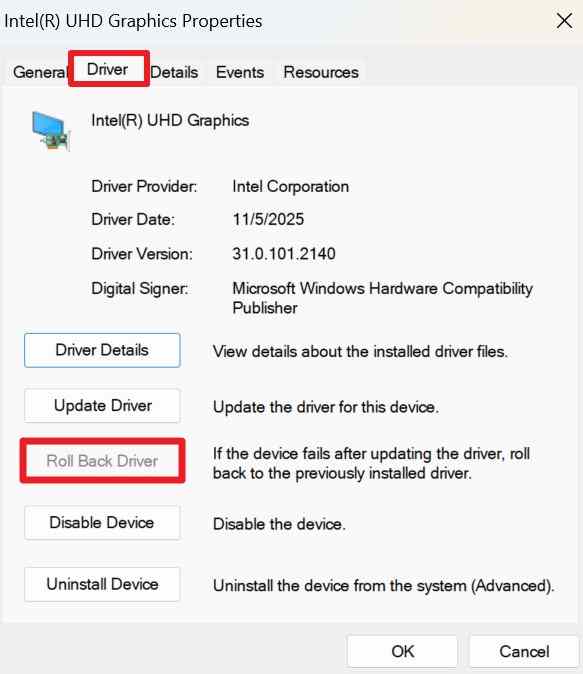
Step 1. Open "Device Manager > Display adapters", right-click the affected GPU, and choose Properties.
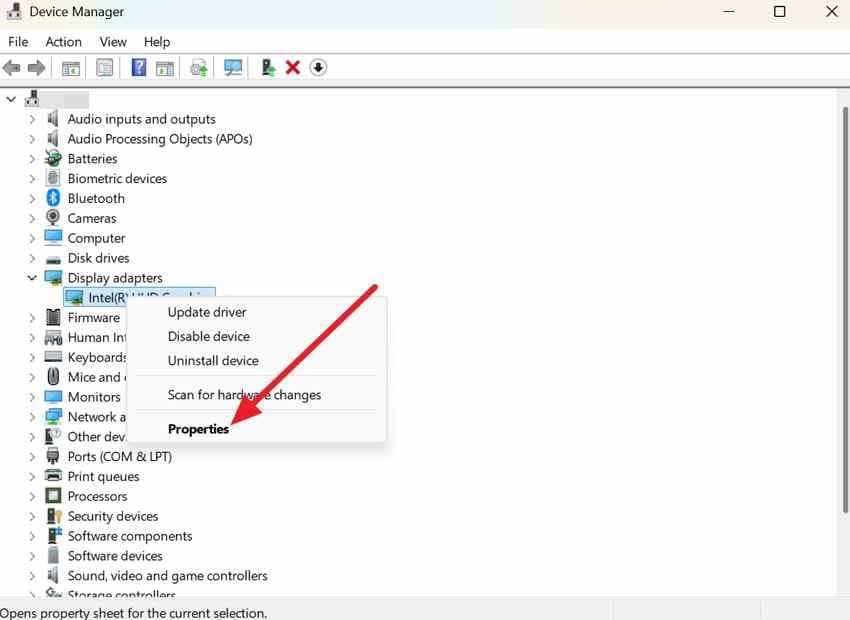
Step 2. Open the Driver tab and select Roll Back Driver if available. Restart Windows and retest the same trigger.
Fix 3. Reinstall the Display Driver Cleanly
Download the replacement package before removing the current driver. Then reinstall only one graphics package at a time.
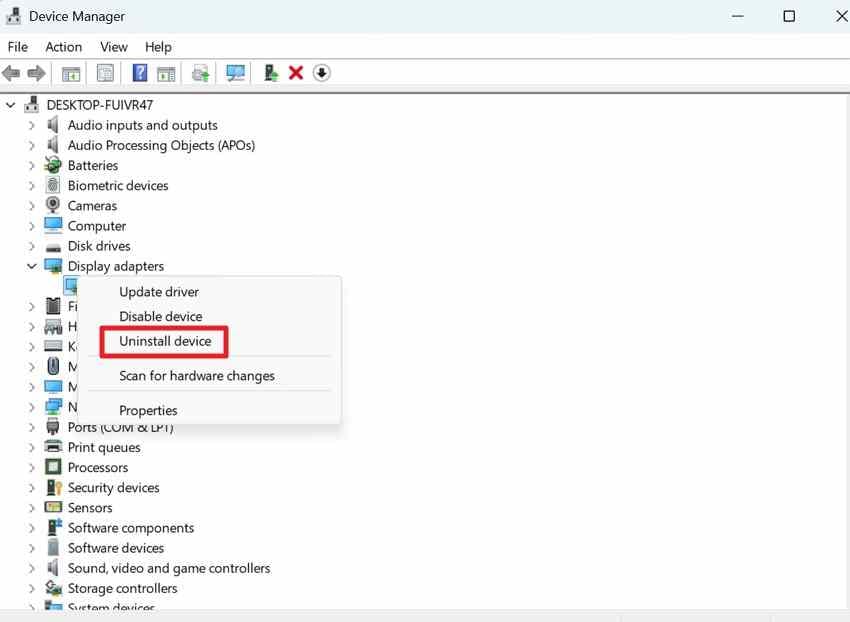
Step 1. In "Device Manager > Display adapters", right-click the GPU and choose Uninstall device.
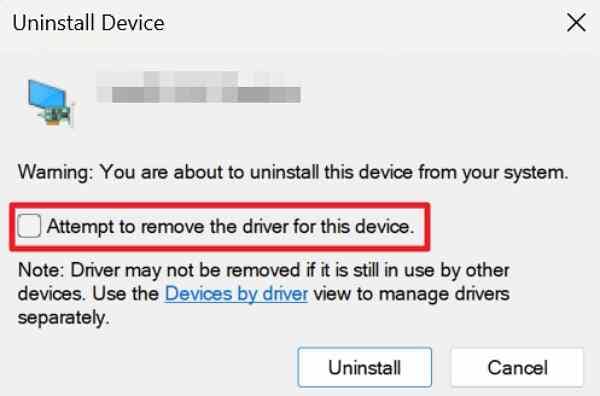
Step 2. If Windows shows Attempt to remove the driver for this device, select it only when you intend to replace the current package. Restart, install the official driver you downloaded, then restart again.
Do not use unofficial driver-download sites. A mismatched or modified driver can make the problem harder to diagnose and may introduce security risk.
Part 4. Fix an AMD-Related DWM Crash
Use AMD-specific tools only after confirming that AMD graphics are actually present and involved in the affected workload. This avoids treating every Ryzen-based PC as an AMD graphics problem.
Check 1. Confirm the PC Actually Uses AMD Graphics
AMD's guide for identifying the manufacturer and model of an AMD graphics card includes Windows Device Manager as a supported identification method.
Step 1. Open "Device Manager > Display adapters" and record each adapter.
Step 2. In "Task Manager > Processes", right-click a column header, enable GPU engine, and note which GPU engine the affected app uses. Match the GPU number to "Task Manager > Performance".
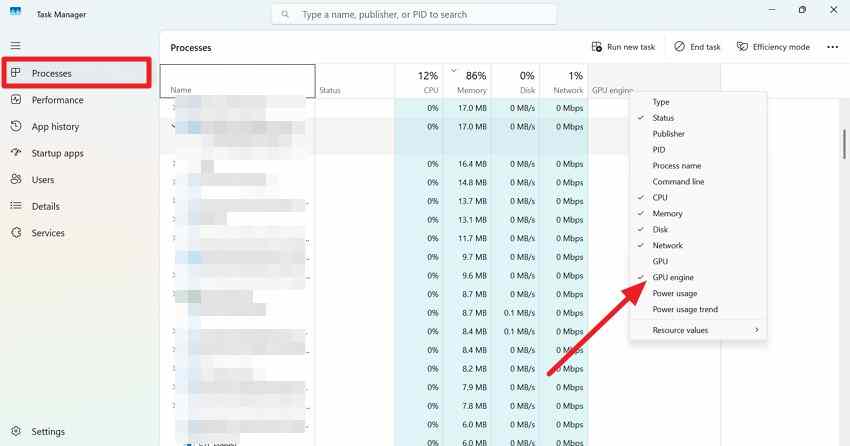
This confirms which GPU handles the workload; it does not prove that the GPU or driver caused the DWM failure.
Check 2. Compare the AMD Driver Version With the Crash Timeline
If the failures began directly after an AMD graphics update, test rollback first. If the installed driver is old or AMD/OEM release notes describe relevant stability fixes, test the current compatible package instead. For laptops and all-in-one systems, prefer the OEM package when the manufacturer provides one for that model.
Check 3. Use AMD Cleanup Utility Only When a Clean Removal Is Needed
AMD Cleanup Utility is designed to remove previously installed AMD graphics and audio drivers/software before a fresh graphics installation. AMD states that it does not remove or modify AMD chipset drivers and recommends running the utility in Safe Mode for best results.
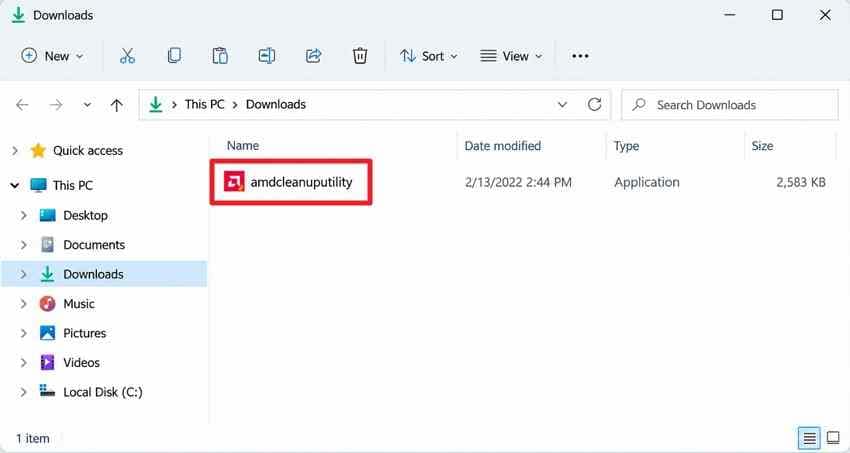
Step 1. Download AMD Cleanup Utility from AMD's official page, save open work, close applications, and run amdcleanuputility.exe.
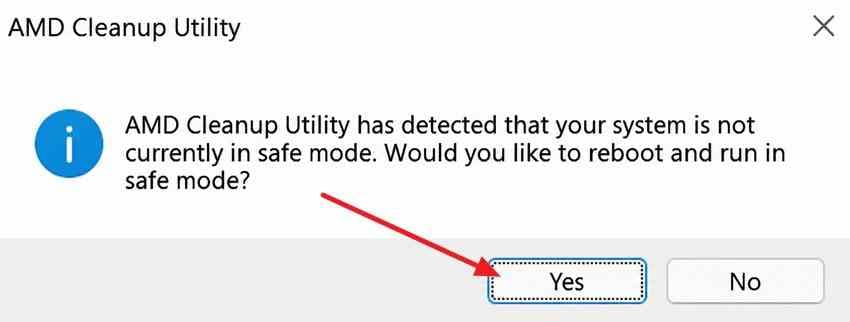
Step 2. When prompted, choose Yes to reboot into Safe Mode. Allow the cleanup to finish, restart Windows, and then install the correct graphics driver.
Check 4. Reinstall the Correct AMD Driver for the Exact Hardware
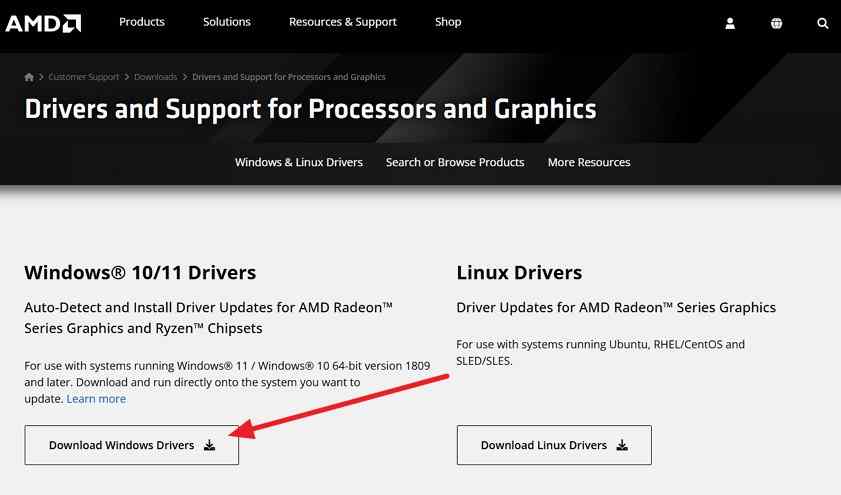
Use the AMD Drivers and Support page only after confirming the exact GPU. On laptops and AIO PCs, the system manufacturer's driver is often the safest first choice because AMD notes that OEM drivers may be customized and validated for system-specific features.
Part 5. Check Windows and App Conflicts
If driver update, rollback, or reinstall does not hold, move to shared Windows and software conflicts. Avoid changing several variables together.
Fix 1. Use a Clean Boot to Isolate Third-Party Services
Microsoft's clean boot procedure starts Windows with essential drivers and startup programs so you can isolate background conflicts.
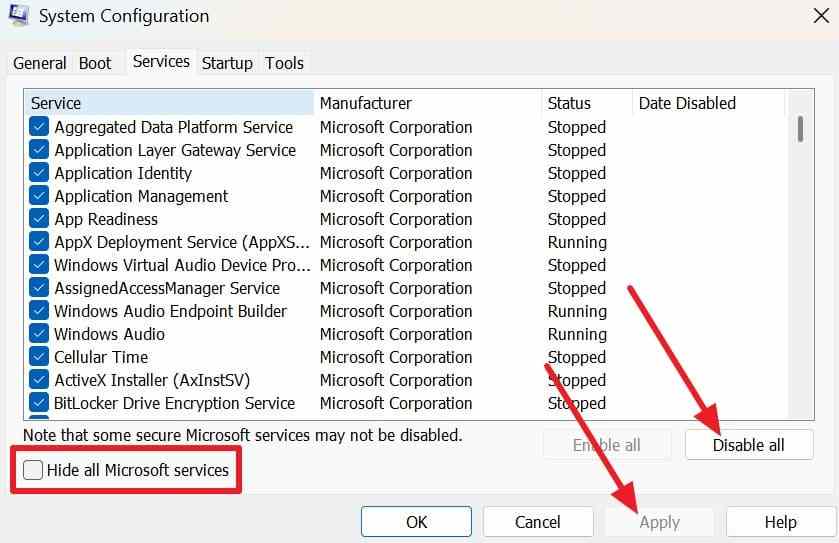
Step 1. Press Windows + R, type msconfig, press Enter, open Services, select Hide all Microsoft services, then choose Disable all.
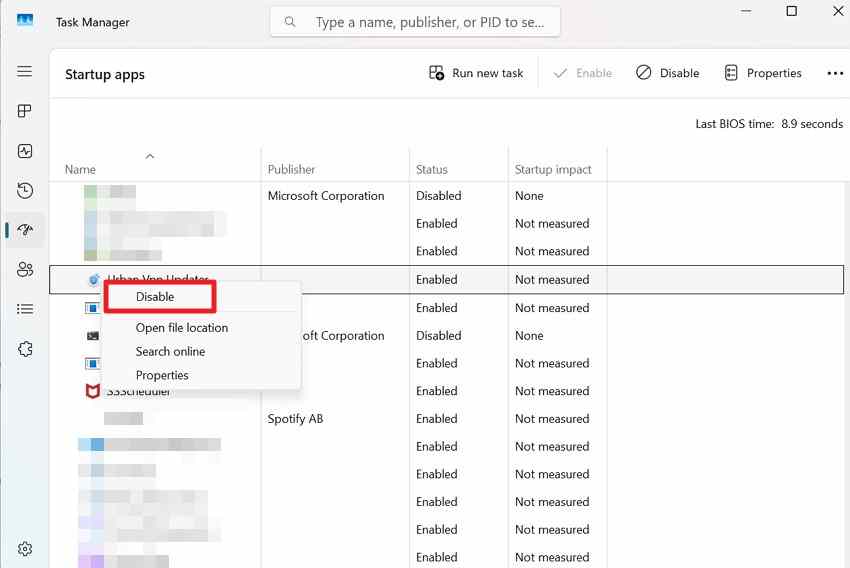
Step 2. Open "Task Manager > Startup apps", disable enabled startup items, restart, and reproduce the crash. Re-enable services and startup apps in groups until the problem returns.
Fix 2. Run DISM Before SFC
If several apps or Windows components are unstable, repair the component store before scanning protected system files. Microsoft's current DISM and SFC guidance recommends DISM first.
Step 1. Open Command Prompt as administrator and run:
DISM /Online /Cleanup-Image /RestoreHealth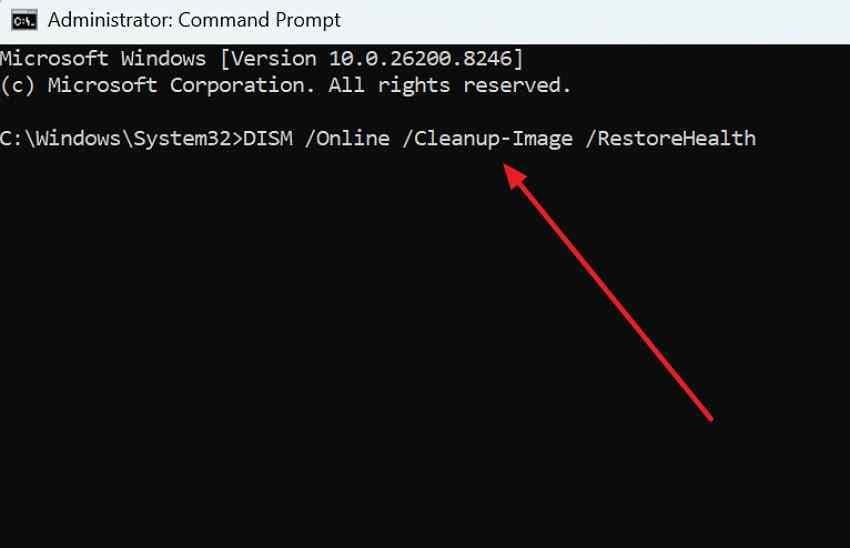
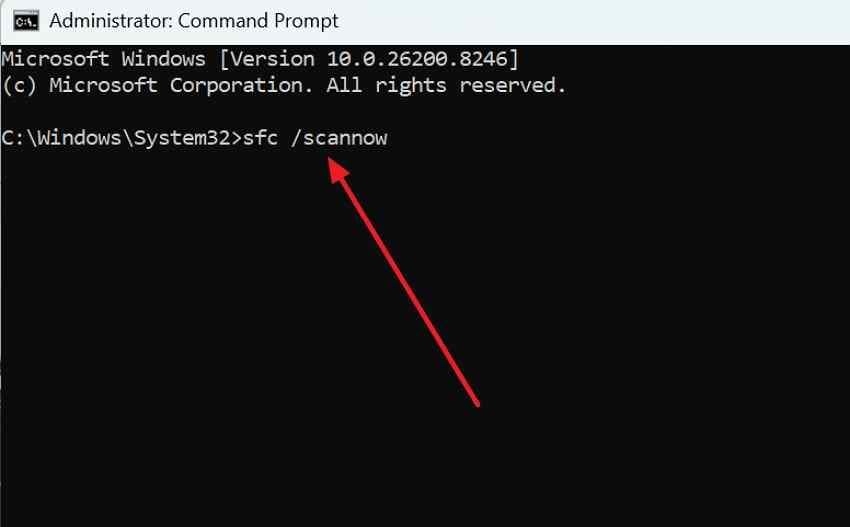
Step 2. After DISM completes, run:
sfc /scannowWait until verification completes, restart, and retest.
Fix 3. Test Refresh Rate, HDR, and Multi-Monitor Changes Individually
Display-mode changes are diagnostic tests, not universal fixes. If crashes started after switching monitors, enabling HDR, or increasing refresh rate, return one setting at a time and retest the same workload.
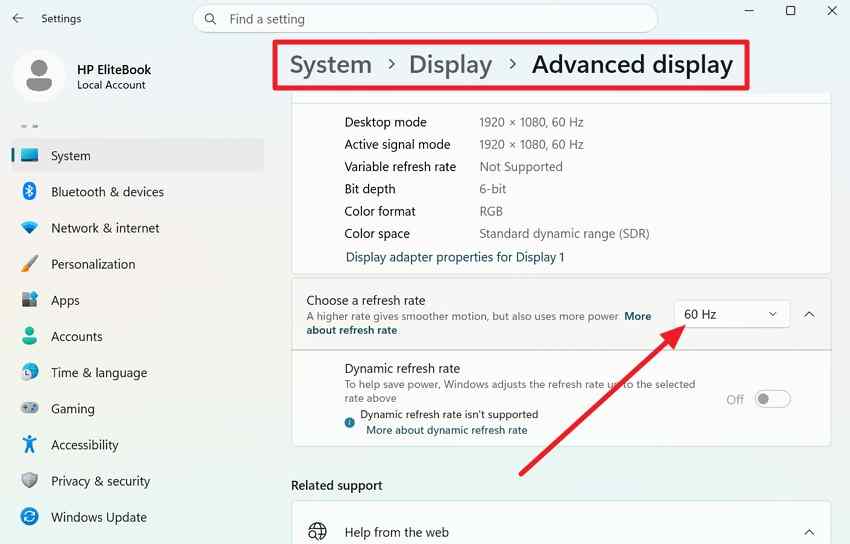
Step 1. Open "Settings > System > Display > Advanced display" and select a lower supported refresh rate. Microsoft documents refresh-rate changes on the current Windows display settings page.
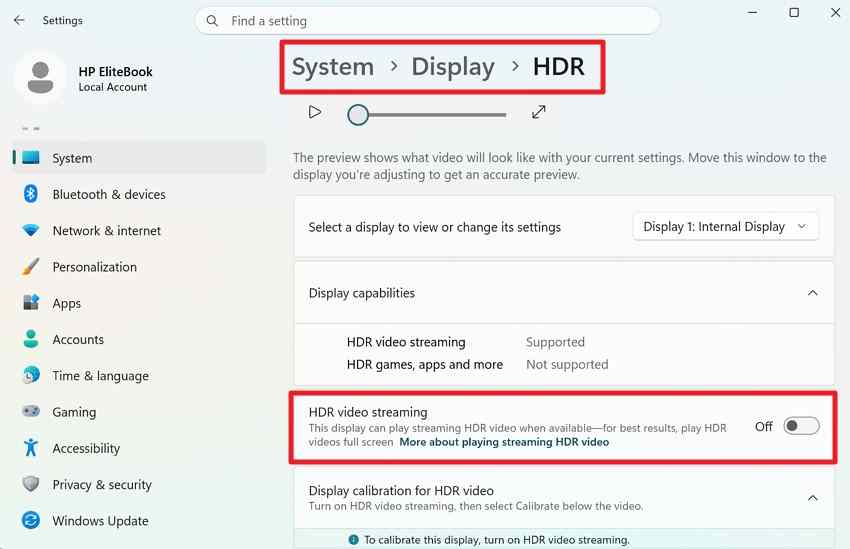
Step 2. If the display supports HDR, open "Settings > System > Display > HDR" and temporarily turn HDR off. Microsoft also recommends current graphics drivers and, in some display troubleshooting cases, lower refresh rates in its HDR guidance.
Fix 4. Check Remote Desktop, Capture, and Overlay Software
If crashes occur only during Remote Desktop, streaming, screen sharing, game capture, virtual displays, or GPU monitoring, temporarily remove that software from the test path. Update the affected utility from its official vendor, then restore features one at a time. This is especially important when the issue disappears during a clean boot.
Part 6. Test Hardware and Escalate Persistent Crashes
If an AMD driver keeps crashing Windows 11 after driver, Windows, and software checks, test system stability. A graphics timeout can be caused by the driver, but it can also be the symptom of unstable GPU clocks, memory, power delivery, heat, or other hardware faults.
Check 1. Check GPU Temperatures and Power Stability
Monitor GPU temperature while reproducing the workload. Confirm fans are spinning and vents are not blocked. On desktops, check that GPU power connectors are fully seated and that the power supply is appropriate for the installed hardware. If the PC shuts off or restarts under load rather than simply recovering the display, power or hardware becomes a stronger suspect.
Check 2. Return GPU, CPU, and RAM Tuning to Supported Defaults
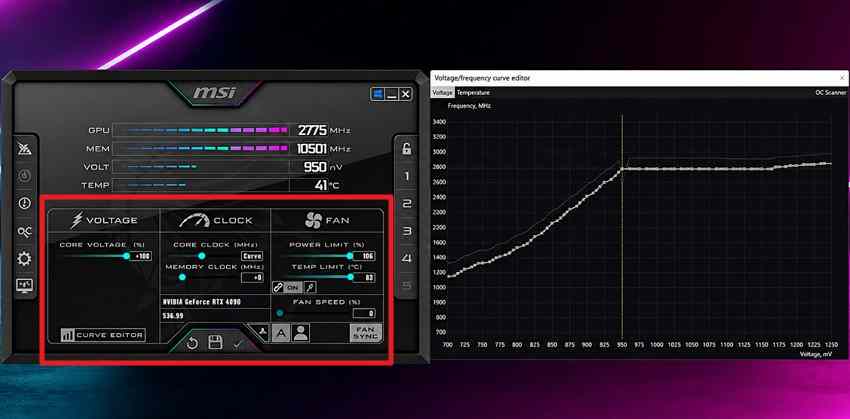
Temporarily remove GPU overclocks/undervolts, CPU tuning, XMP/EXPO memory profiles, and aggressive custom power limits. Restore stock settings, reboot, and retest before changing anything else.
Check 3. Test RAM and Storage When Broader Errors Appear
If unrelated applications also crash, stop codes vary, or Windows becomes generally unstable, test system memory. Microsoft's current support guidance still documents Windows Memory Diagnostic through mdsched on supported Windows installations. If the tool is unavailable on your build, use the PC or memory vendor's supported diagnostic instead.
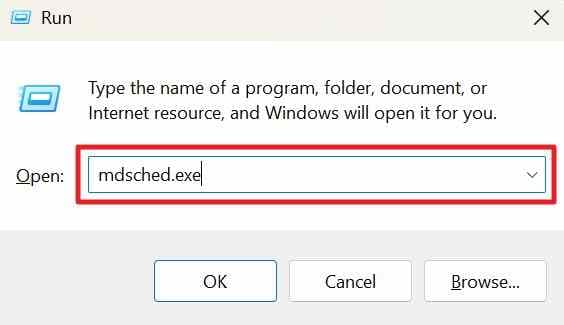
Step 1. Press Windows + R, type mdsched.exe, and press Enter.
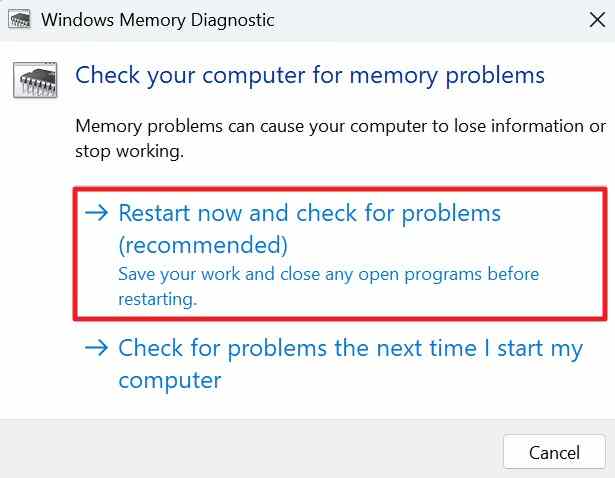
Step 2. Choose Restart now and check for problems and allow the memory test to finish.
Investigate storage only when you also see read errors, file-system warnings, missing files, or drive instability. CHKDSK checks the volume file system and metadata; it is not a complete SSD or HDD hardware-health test. If hardware failure is suspected, use the drive manufacturer's diagnostic and protect important files before repeated repair attempts.
Check 4. Escalate Confirmed Hardware Problems
Contact the PC or GPU vendor when crashes continue at stock settings, hardware diagnostics fail, the GPU disappears from Device Manager, or the system shows persistent power/thermal faults. Provide the crash timeline, graphics-driver version, Reliability Monitor/Event Viewer details, and results of your hardware tests.
Part 7. Recover Files Only After Actual Data Loss
A DWM or display-driver crash normally disrupts graphics rendering; it does not usually delete files that were already stored. First check the affected application's auto-recovery, Recent files, Recycle Bin, OneDrive/cloud history, and existing backups. Recovery software cannot recreate unsaved work that was never written to storage.
Use Recoverit Windows Data Recovery only when saved files are genuinely deleted, missing, or inaccessible and the source drive is still detectable. If repeated graphics crashes leave Windows unbootable, protect data before reset or reinstall by using Recoverit's Windows System Recovery workflow or the related guide to recovering files when a PC will not boot.

How to Recover Missing Files With Recoverit
Step 1. Select the Drive. Open Recoverit, choose Hard Drives and Locations, select the drive where the missing file was stored, and start the scan.

Step 2. Scan and Narrow the Results. Let Recoverit scan the selected location. Use file type, path, date, name, and available search/filter tools to narrow the results.

Step 3. Preview and Recover. Preview supported files, select what you need, click Recover, and save the recovered files to a different drive so you do not overwrite remaining recoverable data. Recoverit's current Windows recovery guide follows the same Select - Scan - Preview & Recover workflow.

Important: if the storage device is physically failing, not detected, repeatedly disconnecting, or making unusual mechanical noises, stop software recovery attempts and consider a professional recovery service.
Recover Missing Files With Recoverit
 Security Verified. Over 7,302,189 people have downloaded it.
Conclusion
When DWM crashed Windows 11, do not immediately blame dwm.exe or AMD. First separate a real DWM process crash from a display-driver timeout, an app crash, and broader hardware instability. Start with reversible display and software checks, then update or roll back the verified graphics driver, use AMD Cleanup Utility only when a clean AMD graphics removal is justified, and test Windows and hardware if the problem persists. Recoverit belongs only at the end of the workflow when a crash is followed by actual stored-file loss or Windows becomes inaccessible before a reset or reinstall.
FAQ
-
Why Does DWM Keep Crashing on Windows 11?
A repeated DWM crash can involve the graphics driver, overlays or capture software, damaged Windows components, monitor or HDR/refresh-rate conflicts, unstable tuning, RAM, power, heat, or GPU hardware. Check Reliability Monitor and Event Viewer first so the same evidence appears before you change drivers. -
Can AMD Drivers Cause DWM.exe to Crash?
Yes. DWM depends on the Windows graphics stack, so an AMD display-driver fault or timeout can disrupt desktop composition. However, the same symptom can come from non-AMD GPUs, third-party graphics software, unstable settings, or hardware, so an AMD driver should not be assumed without evidence. -
Why Does My AMD Driver Keep Crashing on Windows 11?
Possible causes include an incompatible or damaged driver package, a regression after an update, overlays, high-refresh-rate or HDR conflicts, overheating, unstable overclocking or undervolting, weak power delivery, RAM instability, or GPU hardware problems. Compare the crash timeline with the driver version and test one change at a time. -
Should I Update or Roll Back AMD Drivers After a DWM Crash?
Roll back when the crash began immediately after a graphics-driver update and Windows still has the previous driver available. Update when the installed driver is old or the PC/GPU vendor provides a newer compatible package that addresses stability or compatibility. On laptops and AIO PCs, check the OEM driver first.


