 TL;DR:
To fix recurrent Windows 11 File Explorer crashes, identify the exact action triggering the failure and apply the matching component-level fix rather than immediately running generic system repairs.
● If explorer.exe crashes when right-clicking a file, isolate and disable conflicting third-party shell extensions using Microsoft Sysinternals Autoruns.
● For crashes occurring exclusively inside media or document folders, disable the Preview pane, rebuild the thumbnail cache via Disk Cleanup, or change the folder optimization type to General items.
● If the crash happens immediately upon opening the application, change the startup location to This PC and clear the File Explorer history, reserving DISM, SFC, or tools like Recoverit strictly for broader system corruption or actual missing files.
Ask AI for a summary
 ChatGPT
 Perplexity
 Gemini
 Claude
 Grok
Grok
When File Explorer keeps crashing on Windows 11, the action immediately before the crash is often more useful than a generic repair checklist. A folder window may close, freeze, or show Not Responding. If explorer.exe restarts, the desktop and taskbar can briefly disappear while Windows reloads the shell.
Different triggers point to different components. A crash on right-click can implicate a third-party shell extension. A media folder that crashes only when previews load can point to thumbnails or preview handlers. A crash that follows one drive, network share, or user profile needs a different path again. This guide starts with reversible Explorer-specific checks and moves to Windows repair only when the evidence supports it.
If files become genuinely deleted, missing, formatted, or inaccessible during a separate drive problem, data recovery becomes relevant. Recoverit is included only for that situation, not as a repair tool for File Explorer or Windows.
In This Article
Part 1. Find What Triggers File Explorer Crashes
A Windows 11 Explorer crash is easier to troubleshoot when you first reproduce the same action and note exactly where it fails. Microsoft documents multiple types of Shell extension handlers, including shortcut-menu, thumbnail, icon, property, and metadata handlers. Some third-party handlers load directly into Explorer, so a faulty extension can make the shell itself hang or crash.
Match the Crash Trigger to the Likely Component
Use the trigger as a routing clue rather than treating every Explorer problem as damaged Windows system files.
| When It Crashes | Check First | Best Starting Point |
| Immediately after opening File Explorer | Home content, recent items, pinned locations, or a loaded extension | Part 2, then Part 4 if needed |
| Opening Home or Quick Access content | Recent files, favorites, pinned locations, or cloud-backed entries | Part 2 |
| Right-clicking a file or folder | Third-party context-menu or shell extension | Part 4 |
| Browsing photo, video, PDF, or document folders | Thumbnail generation, preview handler, codec, or one problematic file | Part 3 |
| Opening one drive, folder, mapped share, or cloud location | That location, its connection, or the underlying storage | Part 6 |
| Across unrelated folders and actions | Windows components, user profile, storage, or broader system instability | Parts 5-6 |
Know What an explorer.exe Restart Looks Like
explorer.exe hosts File Explorer windows and major parts of the Windows shell. If it crashes and restarts, the taskbar and desktop can briefly disappear and reload. That pattern does not, by itself, identify the root cause. The fault may still come from an extension, preview component, user-profile setting, update, or storage path that Explorer was processing at the time.
If the screen goes blank but Task Manager still opens, Microsoft also documents restarting Windows Explorer from Task Manager in its blank-screen troubleshooting.
Check Whether Only Explorer or Windows Is Unstable
Before changing Explorer settings, test a few unrelated applications. If Word, browsers, Settings, games, and other apps also freeze or close, skip ahead to Parts 5 and 6. A File Explorer freezing Windows 11 problem that is actually system-wide needs Windows, RAM, storage, or driver diagnosis rather than more Quick Access changes.
Part 2. Fix File Explorer Startup and Home Crashes
If File Explorer crashes when it first opens, while loading Home, or while resolving pinned locations, begin with these reversible fixes. Microsoft currently recommends checking updates and restarting the device when File Explorer will not open or start, and its general File Explorer guidance documents the current Windows 11 interface.
Restart Windows Explorer Properly
Restarting the shell clears a temporary Explorer hang without changing files or settings.
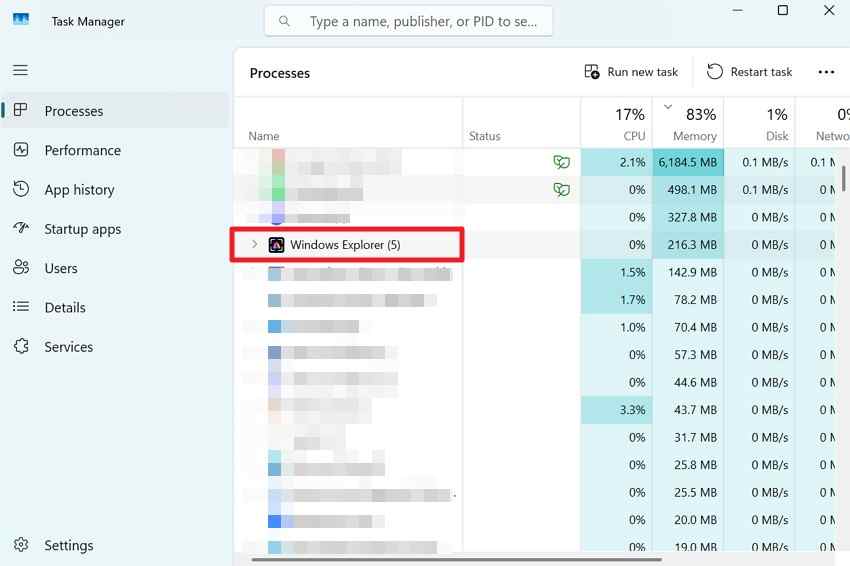
Step 1. Press "Ctrl + Shift + Esc" to open Task Manager. Stay on "Processes" and locate "Windows Explorer".
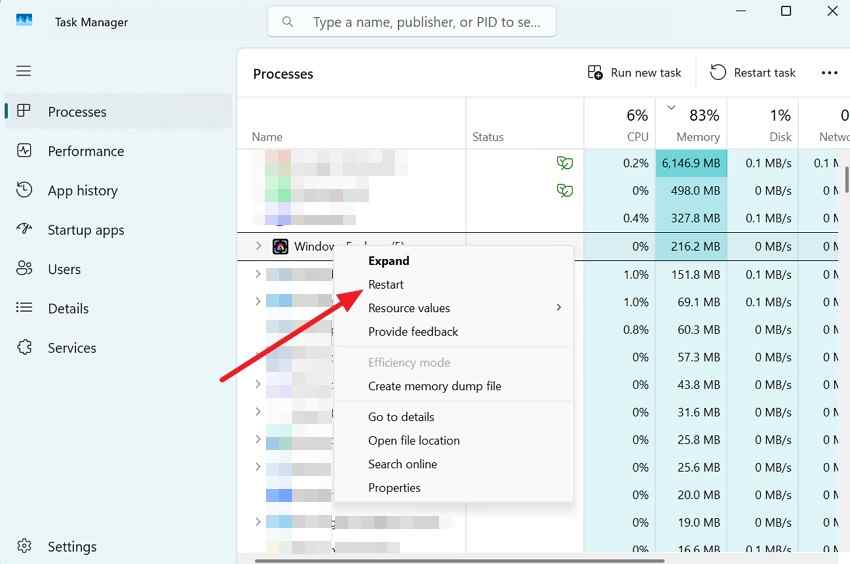
Step 2. Right-click "Windows Explorer" and choose "Restart". Wait for the taskbar and desktop to reload, then repeat the action that triggered the crash.
Change the Startup Location to This PC
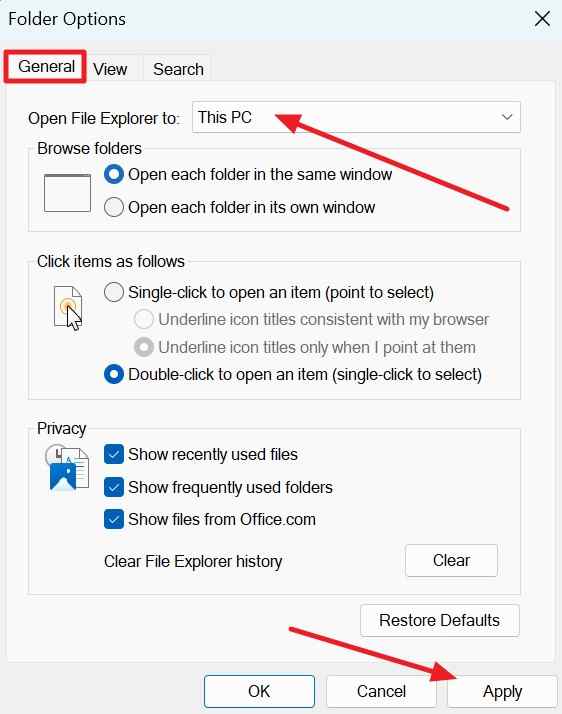
If Windows 11 Explorer keeps crashing while Home is loading, opening directly to This PC can separate Home-related recent items, favorites, and cloud-backed entries from the core File Explorer window.
Step 1. Open File Explorer, select the "Three-dot" menu, and choose "Options".
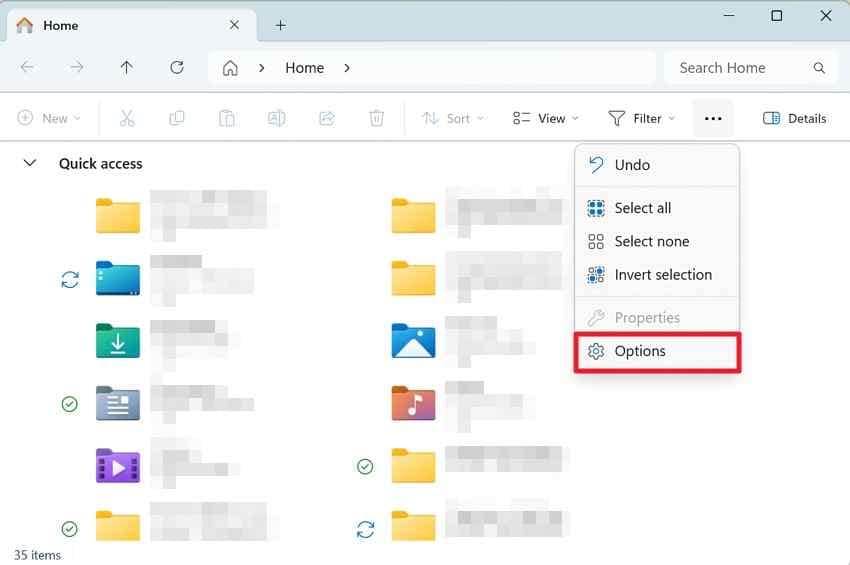
Step 2. On the "General" tab, set "Open File Explorer to" to "This PC", select "Apply", and reopen File Explorer.
Clear File Explorer History and Broken Quick Access Pins
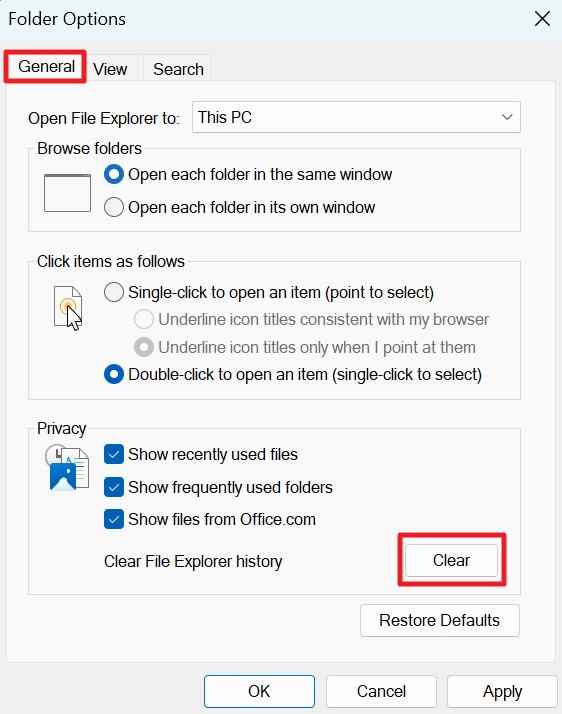
Stale recent-item references or unavailable pinned locations can make Home slower or unstable. Clearing history removes the stored activity list; it does not delete the underlying files.
Step 1. Open "File Explorer > Three-dot menu > Options".
Step 2. Under "Privacy" on the General tab, select "Clear" beside "Clear File Explorer history". Reopen File Explorer and test again.
If one Quick Access or Home item consistently hangs Explorer, unpin that location when Explorer remains usable. If the location is a disconnected drive or share, reconnect it first or remove the stale shortcut.
Restart Windows and Disconnect a Problematic Device
Restart Windows once after closing Explorer. If the crash began after attaching an external drive, card reader, dock, phone, or other removable device, disconnect nonessential hardware and test File Explorer again. If Explorer is stable without one device, troubleshoot that device, cable, driver, or file system instead of continuing with unrelated shell fixes.
Part 3. Fix Folder, Preview, and Thumbnail Crashes
If Windows 11 File Explorer crashes mainly inside photo, video, PDF, archive, or document folders, test the components that inspect those files before applying system-wide repairs.
Disable the Preview Pane for Diagnosis
Microsoft explains that preview handlers render a read-only preview of selected files without launching the associated application. Current Windows hosts preview handlers out of process, typically through Prevhost.exe, so disabling the pane is a useful isolation test even though it does not prove the preview handler itself is the only possible cause.
Instructions. Open File Explorer, choose "View > Show > Preview pane" to turn the pane off, then return to the folder that previously crashed and select the same files again.
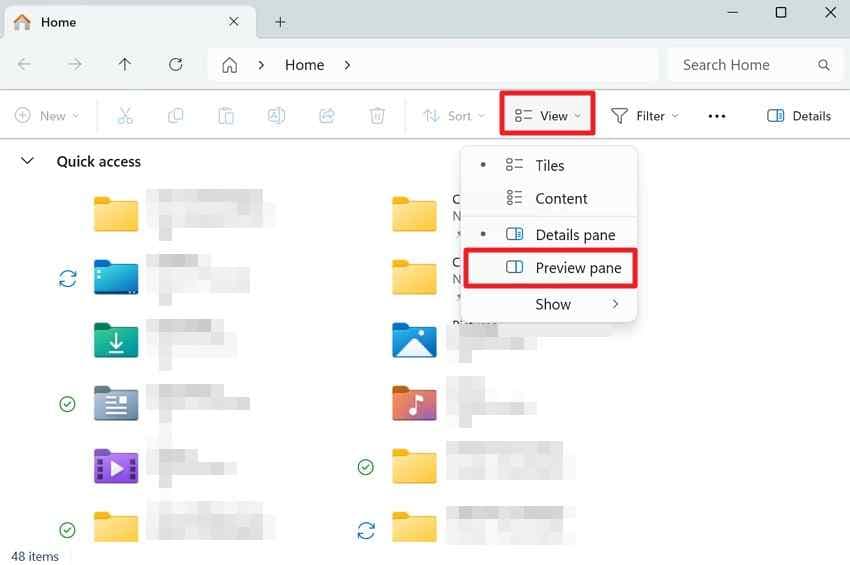
If the crash stops, update or remove the application that installed the related preview handler or codec before permanently giving up previews.
Clear and Rebuild the Thumbnail Cache
Windows caches thumbnails so media folders can load faster. If only thumbnail-heavy folders fail, rebuilding that cache is a reasonable low-risk test.
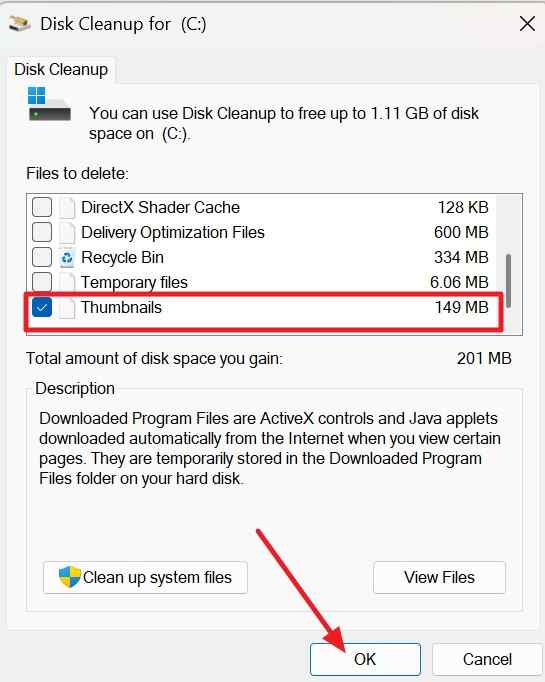
Step 1. Search for "Disk Cleanup", open it, and select the affected Windows drive when prompted.
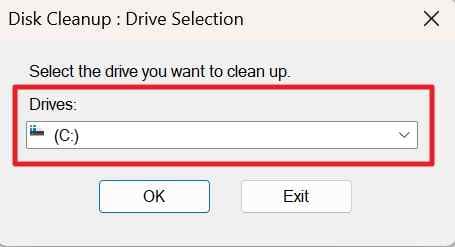
Step 2. Select "Thumbnails", choose "OK", and confirm the cleanup. Reopen the affected folder and let Windows regenerate thumbnails as needed.
Change the Folder Optimization Type
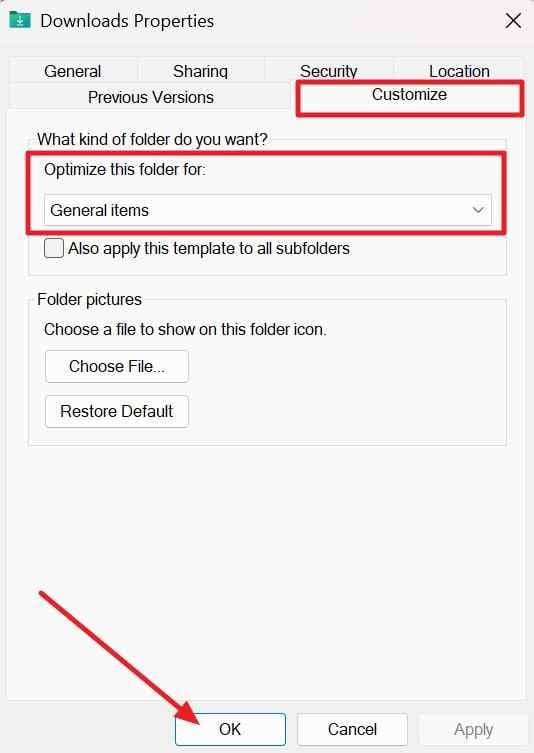
Windows can apply content-specific folder templates. If one folder repeatedly triggers a Windows 11 Explorer freeze, switching it to General Items helps test whether media-specific folder processing is part of the problem.
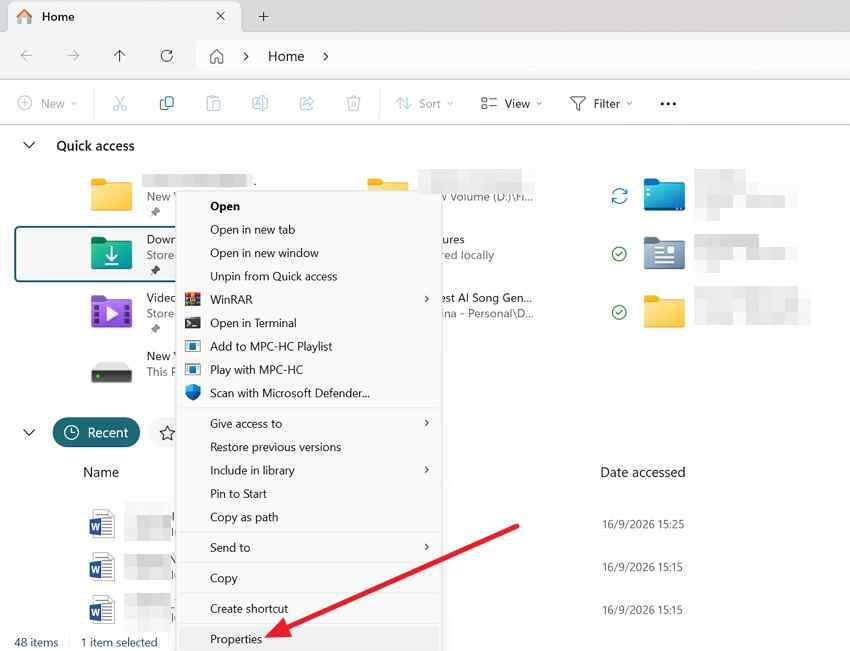
Step 1. Right-click the affected folder, choose "Properties", and open "Customize".
Step 2. Set "Optimize this folder for" to "General items". Apply the setting to subfolders only if that matches the folder structure you are testing, then select "OK".
Isolate a Suspect File, Codec, or Preview Handler
If the same file crashes Explorer whenever thumbnails, metadata, or previews are generated, avoid repeatedly opening it through Explorer. If the drive otherwise appears healthy, rename or move the suspect file from another interface such as Command Prompt, then test the folder again.
A crash that begins after installing a codec pack, archive tool, cloud client, PDF tool, media utility, or file-preview application is also worth correlating with that software's shell components. Update the software first; if the trigger remains reproducible, continue with the extension isolation in Part 4.
Part 4. Fix Right-Click and Shell Extension Crashes
Right-click failures are especially useful clues. Microsoft notes that shortcut-menu handlers are queried when matching files are right-clicked, and its current Shell extension documentation warns that in-process extensions can crash or hang Explorer if the extension fails.
Test Safe Mode or a Clean Boot First
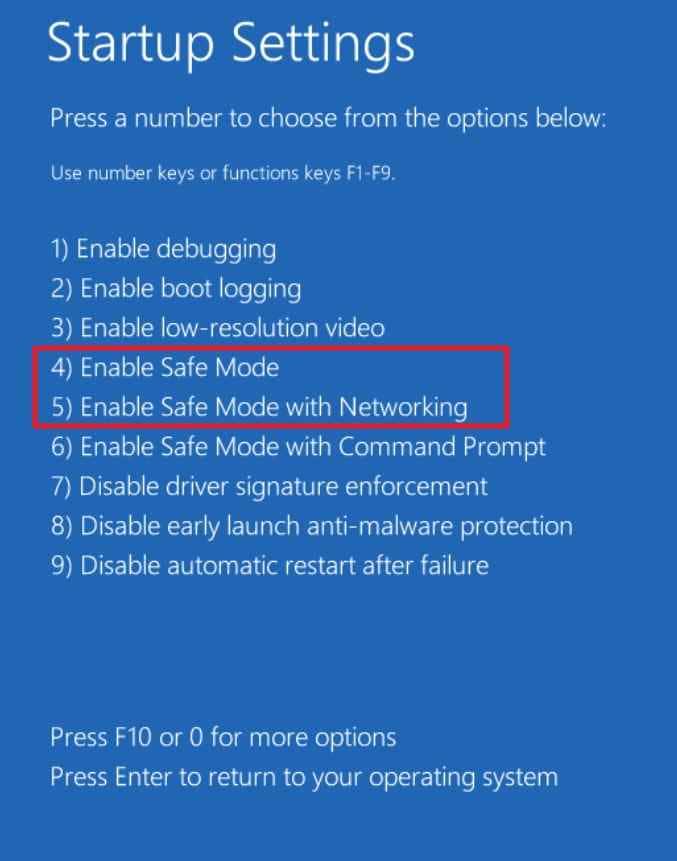
If a right-click or Explorer action fails in normal Windows but works in Safe Mode, a third-party driver, service, shell extension, or startup component becomes more likely. Microsoft documents Safe Mode under Windows Startup Settings.
Step 1. Open "Settings > System > Recovery" and select "Restart now" beside "Advanced startup".
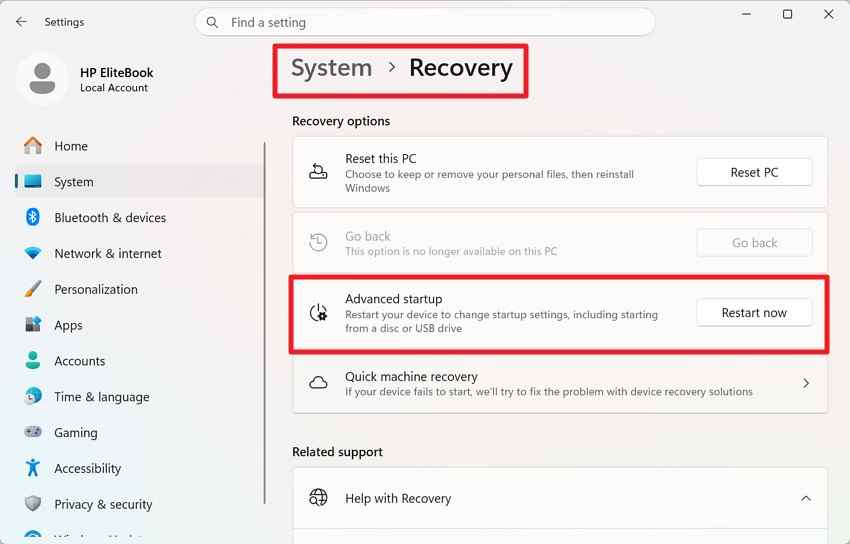
Step 2. In Windows Recovery Environment, choose "Troubleshoot > Advanced options > Startup Settings > Restart".
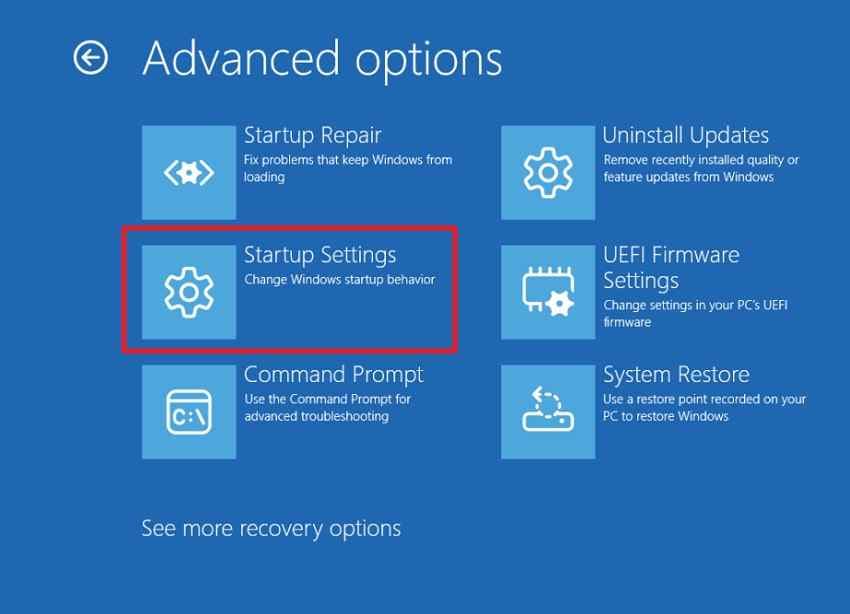
Step 3. After restart, select "4" or press "F4" for Safe Mode. Repeat the same Explorer action that caused the crash.
If the problem is broader than a single right-click action, a clean boot is another supported way to isolate third-party services and startup apps. Restore normal startup after testing; a clean boot is a diagnostic state, not a permanent configuration.
Audit Explorer Extensions With Sysinternals Autoruns
Microsoft Sysinternals Autoruns reports Explorer shell extensions and includes options that help narrow the display to third-party entries. The current Autoruns release documentation continues to list Explorer extensions among the locations it can inspect.
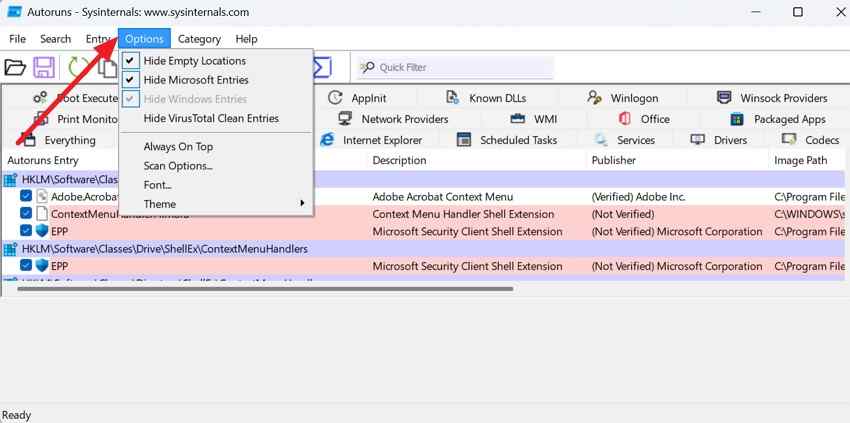
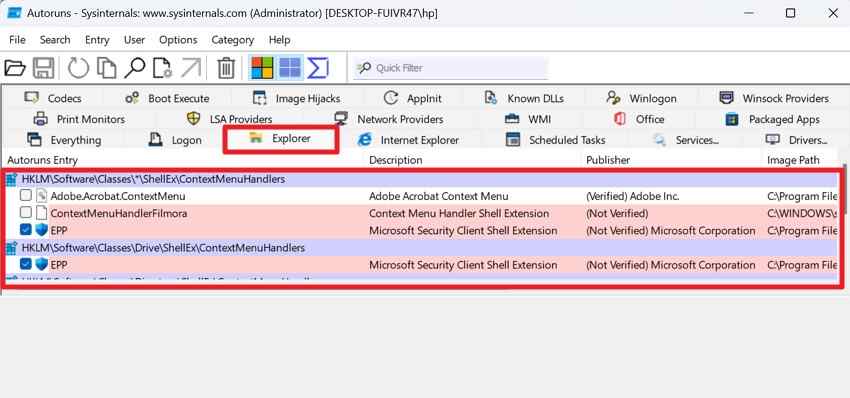
Step 1. Download Autoruns from Microsoft, run it as administrator, open "Options", and enable "Hide Microsoft Entries" and "Hide Windows Entries".
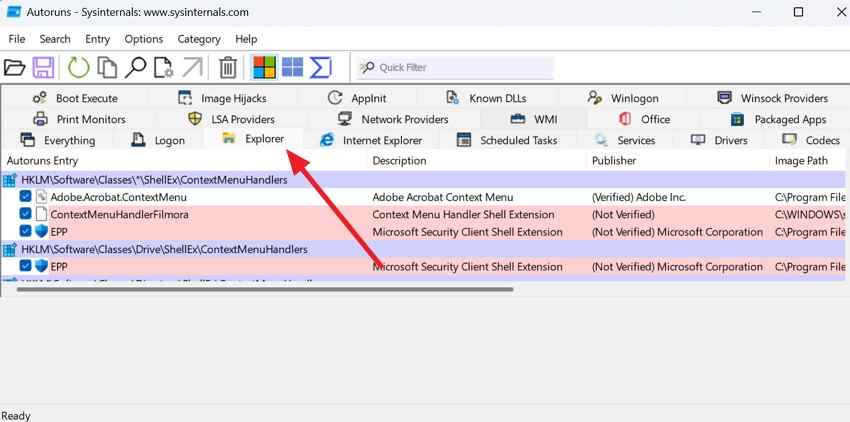
Step 2. Open the "Explorer" tab and review third-party entries that match the crash trigger, especially context-menu handlers when right-clicking causes Explorer to fail.
Disable Non-Microsoft Extensions in Small Batches
Do not delete registry entries or remove every extension at once. Temporarily clear a small batch of third-party entries, restart Explorer, and reproduce the same action. If the crash stops, re-enable part of that batch and repeat until the responsible extension is isolated.
Instructions. In "Autoruns > Explorer", re-enable about half of the disabled test group, restart Explorer, and reproduce the trigger. Continue narrowing the group until one entry correlates with the failure.
Update or Remove the Responsible Application
Once one extension is isolated, update, repair, or uninstall the application that installed it. Avoid downloading replacement DLLs or shell extensions from unofficial sites. If the extension belongs to business software, security software, cloud storage, or another managed application, check with the vendor or IT administrator before removing it.
Part 5. Repair Windows Components and Updates After Explorer Crashes
Move to Windows repair when File Explorer crashes across unrelated folders or when other evidence points beyond Home, previews, or one extension. This sequence keeps destructive recovery options out of the early troubleshooting path.
Install Current Updates and Check the Crash Timeline
Microsoft's current File Explorer support page recommends checking Windows Update when Explorer will not open or start. If the crash began after a specific update, compare the timing before uninstalling anything.
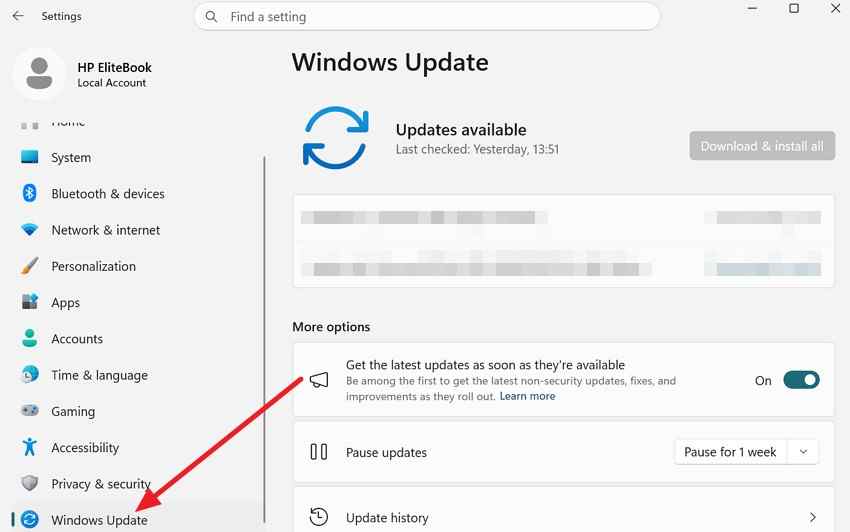
Step 1. Open "Settings > Windows Update", select "Check for updates", install current updates, and restart if prompted.
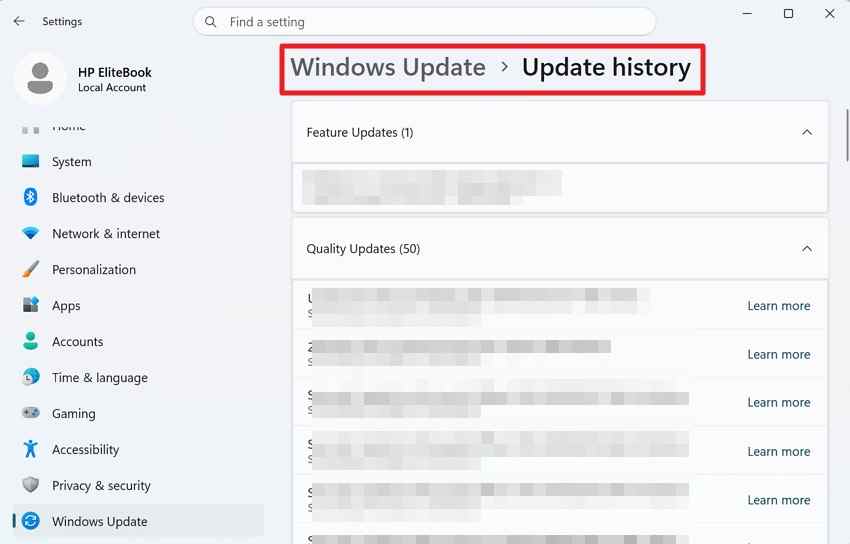
Step 2. Open "Settings > Windows Update > Update history" and compare installation dates with the first Explorer crash.
Before removing a recent update, check Microsoft's Windows release health and the Windows Update FAQ. Microsoft sometimes publishes a newer fix for a known regression, so the latest supported update can be safer than immediately rolling back.
Run DISM Before SFC
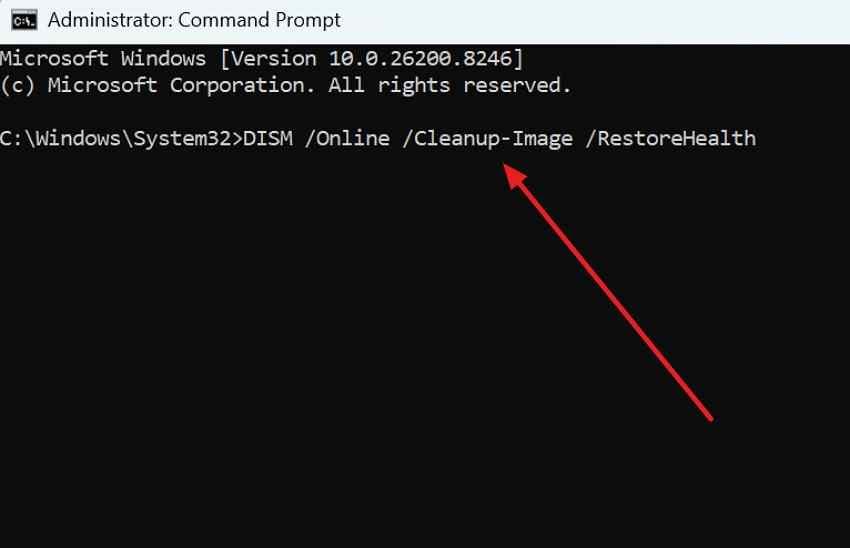
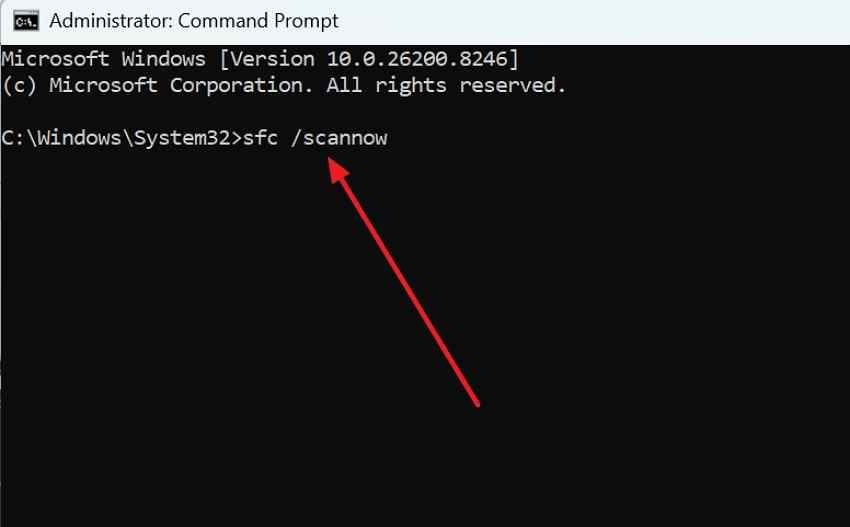
When Windows components may be damaged, Microsoft currently recommends using DISM to repair the component store before SFC checks protected system files. Follow the official System File Checker guidance rather than downloading replacement system DLLs.
Step 1. Open "Command Prompt" as administrator and run DISM.exe /Online /Cleanup-Image /RestoreHealth. Wait for it to finish.
Step 2. In the same elevated Command Prompt, run sfc /scannow. Let verification reach 100 percent, review the result, restart Windows, and test Explorer again.
Use System Restore When a Restore Point Fits the Timeline
Classic System Restore can undo recent system, driver, registry, and application changes without reverting your personal files. Use it only when a suitable restore point exists from before the Explorer crashes began.
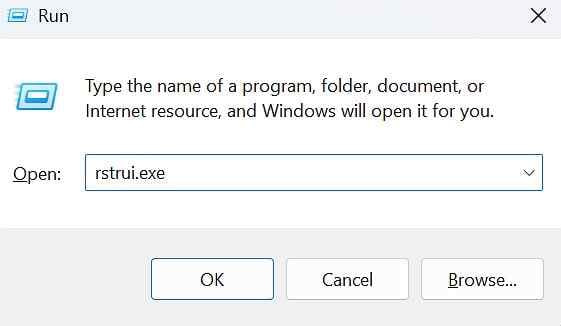
Step 1. Press "Windows + R", enter rstrui.exe, and select "Next". Choose a restore point from before the issue began and optionally select "Scan for affected programs" before continuing.
Note: Do not confuse classic System Restore with the newer Point-in-time restore available on some supported Windows 11 systems. Point-in-time restore can roll back personal files and other changes made after the selected snapshot, so review its data impact before using it.
Repair-Reinstall the Current Windows Version
On supported Windows 11 systems, "Fix problems using Windows Update" can reinstall the current Windows version while preserving apps, files, and settings. This is a deeper Windows repair than DISM/SFC but is less disruptive than Reset this PC or a clean install.
Step 1. Open "Settings > System > Recovery" and look for "Fix problems using Windows Update".
Step 2. Choose "Reinstall now" and follow the prompts. Keep the PC connected to power and the internet during the reinstall.
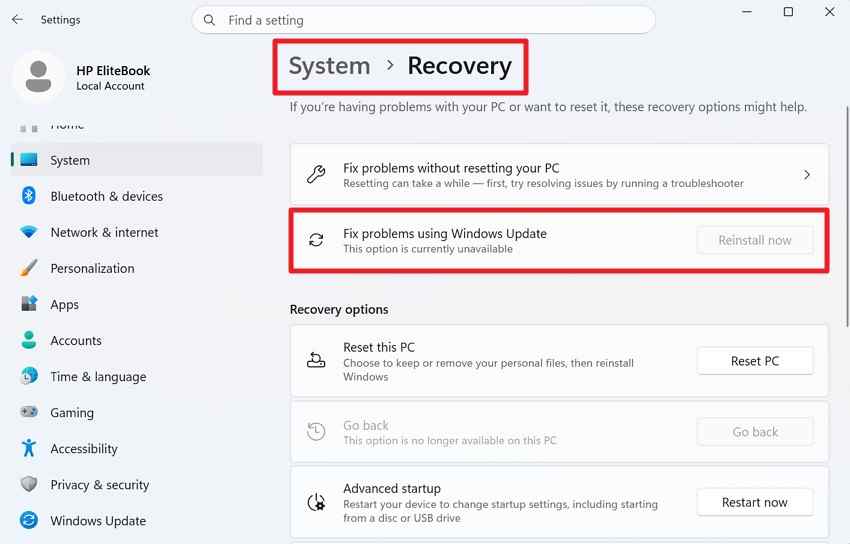
Microsoft's current repair-reinstall documentation notes that this option can be unavailable on managed PCs or systems that do not meet its update requirements.
Part 6. Check Profiles, Storage, and Network Locations
If Explorer still crashes after shell and Windows checks, separate profile-specific problems from location-specific or storage-related failures. Do not run drive repair commands first when files are already missing from a suspicious drive; protect or recover the data before changing the file system.
Test a New Windows User Profile
A damaged or conflicting user-profile configuration can affect File Explorer even when system files are healthy. Create a temporary local user and repeat the same Explorer action there.
Step 1. Open "Settings > Accounts > Other users" and select "Add account".
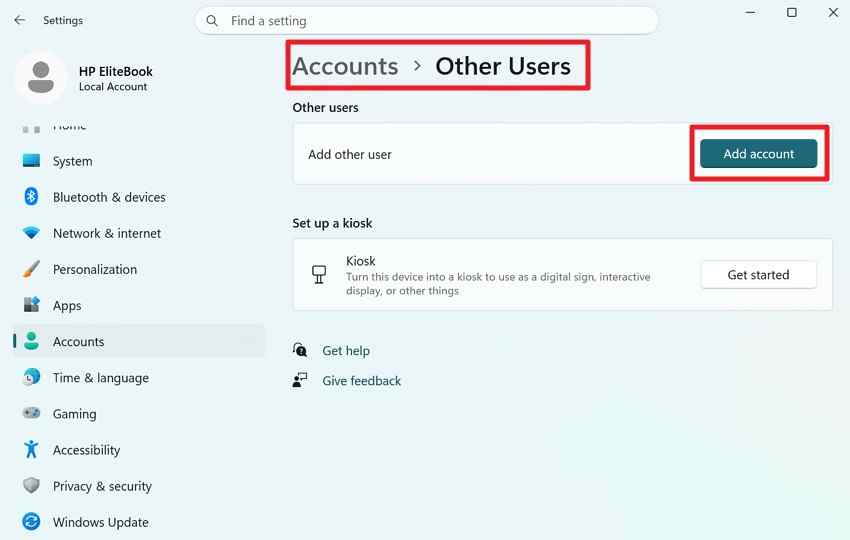
Step 2. Choose "I don't have this person's sign-in information" and then "Add a user without a Microsoft account". Sign in to the new account and repeat the trigger.
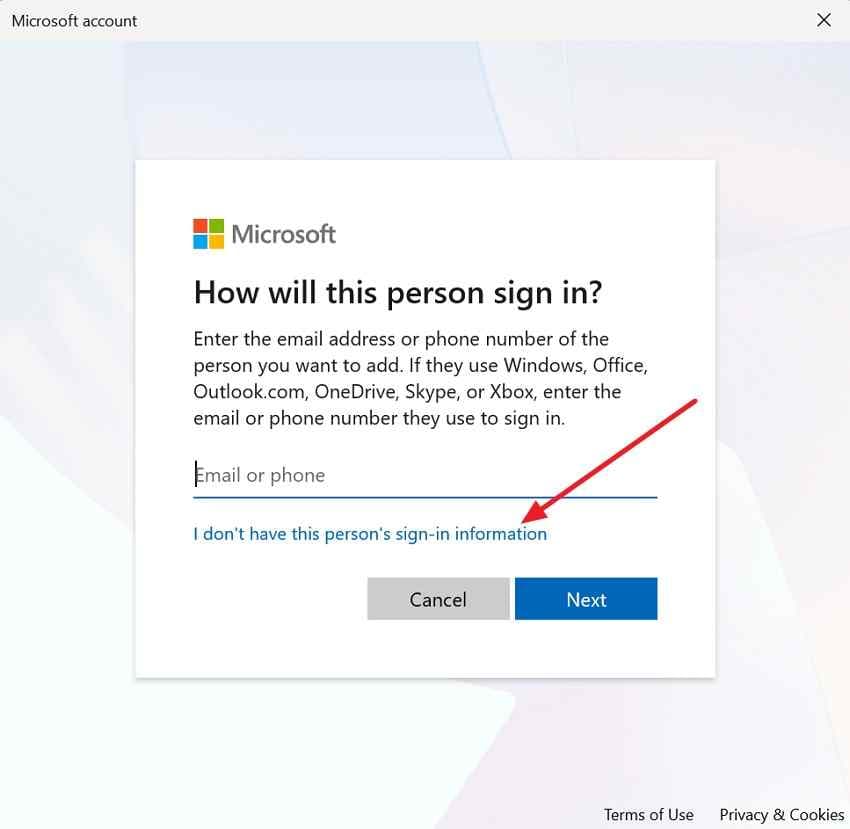
If Explorer is stable only in the new account, focus on the original profile's Explorer settings, shell integrations, cloud locations, and user-specific applications instead of resetting the entire PC.
Disconnect Unavailable Network and Cloud Locations
Mapped drives, offline servers, and cloud-backed folders can make Home or This PC wait while Windows tries to resolve an unavailable location. This check matters most when the crash or freeze follows a specific network or synced path.
Instructions. Open "This PC" and disconnect unavailable mapped drives or network locations. Check the relevant cloud-sync client, such as OneDrive, and make sure it is signed in and not reporting a sync error. Reopen Explorer and repeat the trigger.
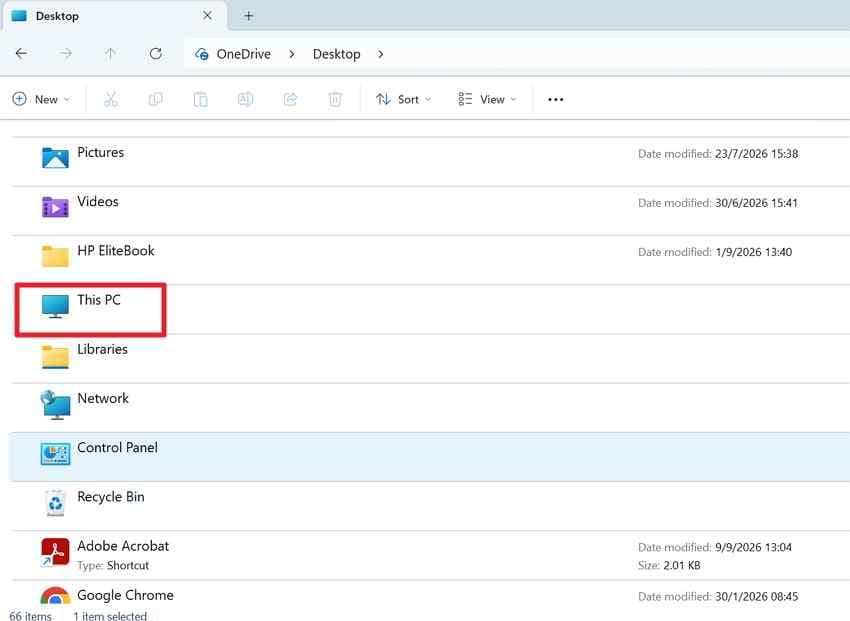
Check Drive Space, File-System Errors, and Hardware Signs
If only one drive or folder causes explorer.exe crashing Windows 11, test the storage path before assuming the shell is at fault.
Step 1. Open "This PC" and review available space on the system drive and the drive where crashes occur. If the source drive appears healthy and the files are accessible, copy the affected folder to another healthy drive and test the copy.
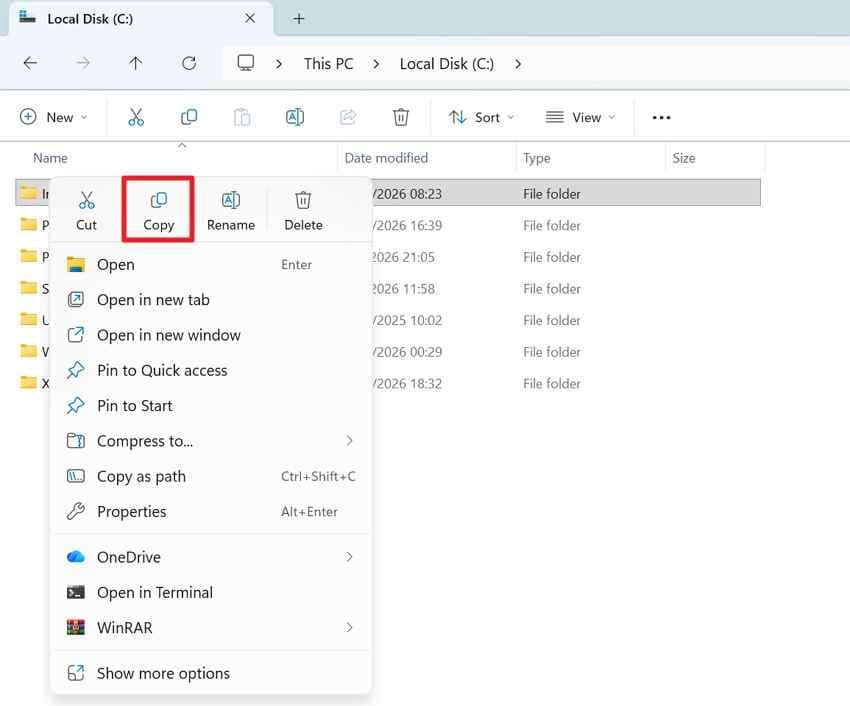
Step 2. If there is no active data-loss concern, open Command Prompt as administrator and run chkdsk C: /scan for an online file-system scan. Replace C: with the correct drive letter when testing another volume.
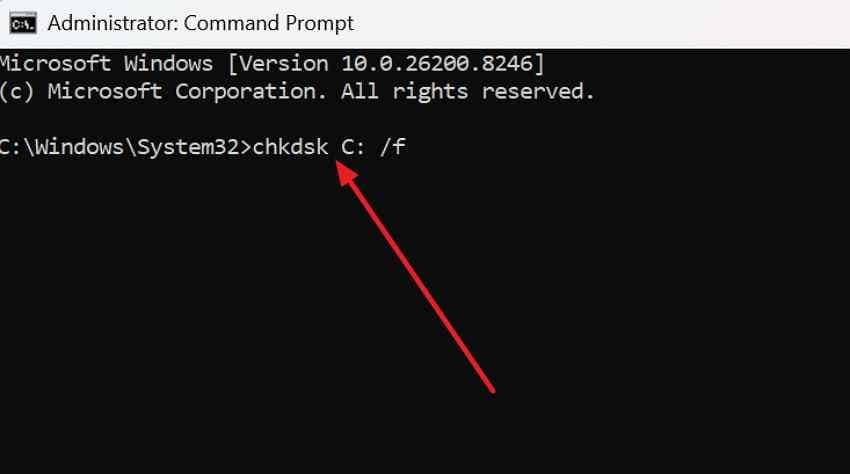
Note: CHKDSK is a file-system tool, not a complete physical-health test. If a drive clicks, repeatedly disconnects, disappears from firmware or Disk Management, becomes extremely slow, or reports hardware diagnostics failures, stop repeated DIY repair attempts and consider professional recovery.
Part 7. Recover Missing Files After an Explorer or Drive Failure
A File Explorer crash does not normally delete files by itself. If files are missing afterward, first determine whether the loss came from deletion, formatting, a sync change, file-system damage, or storage failure. The safest next step depends on whether the drive is still readable and stable.
Check Backups Before Recovery Software
Check the Recycle Bin, OneDrive or another cloud provider's version history, File History, and any other backup you already maintain. Microsoft's current backup and recovery guidance summarizes Windows recovery options.
If files were deleted from a local drive and are not in available backups, stop creating or downloading new files to that drive. New writes can overwrite recoverable data.
Know When Recoverit Is Appropriate
Wondershare Recoverit for Windows is relevant only when stored files are actually deleted, missing, formatted, or inaccessible and the affected storage can still be read reliably enough for a software scan. It does not repair explorer.exe, fix shell extensions, repair Windows, bypass BitLocker, or repair physical storage hardware.
For Windows 11-specific recovery options, see Recoverit's Windows 11 file recovery guide. If the problem centers on a logical hard-drive failure rather than Explorer itself, the hard drive recovery page explains the supported recovery workflow and physical-failure limits.
Recover Files to a Different Drive
If software recovery is appropriate, avoid installing recovery software onto the same affected non-system drive that contains the lost data, and never save recovered files back to the source being scanned.
Step 1. Select the Affected Drive
Launch Recoverit, open "Hard Drives and Locations", and select the drive or partition that previously contained the missing files.

Step 2. Scan and Narrow the Results
Let the scan run, then use the available file location, file type, date, size, tag, search, or filter controls that match the files you need.

Step 3. Preview and Recover
Preview supported files where available, select the items you need, choose "Recover", and save them to a different healthy drive.

If the drive is physically failing, repeatedly disappears, or produces unusual mechanical noises, stop using software and escalate to a professional data recovery service.
Conclusion
When Windows 11 Explorer keeps crashing, diagnose by trigger before applying broad fixes. Home or Quick Access failures call for history and startup-location checks; media-folder crashes call for preview and thumbnail isolation; right-click crashes call for shell-extension testing; and one-drive or network-location failures call for storage or connectivity checks. Use DISM, SFC, System Restore, or a repair reinstall only after the simpler trigger-specific paths fail. If a separate drive failure causes actual file loss, protect the source drive first and use data recovery only for the missing data.

FAQ
-
Why Does File Explorer Keep Crashing on Windows 11?
Common causes include third-party shell extensions, Home or Quick Access entries, preview handlers, thumbnail generation, Windows component damage, user-profile problems, unavailable network locations, and storage errors. The most useful first clue is the action that consistently triggers the crash. -
Why Does Windows 11 File Explorer Crash When I Right-Click?
A repeatable right-click crash often points to a context-menu or other shell extension installed by third-party software. Test the action in Safe Mode, then use Microsoft Sysinternals Autoruns to review and temporarily disable non-Microsoft Explorer extensions in small batches. -
Why Does File Explorer Freeze When Opening Certain Folders?
One folder can freeze because of thumbnail generation, a preview handler, a problematic file, a codec or shell component, or the folder's storage or network location. Disable the Preview pane, rebuild thumbnails, switch the folder to General Items, and test the folder from another healthy location when possible. -
Why Does explorer.exe Keep Crashing and Restarting on Windows 11?
explorer.exe can restart after a fault in the Windows shell, a third-party extension, a Windows component, the current user profile, or a storage path Explorer was accessing. If the taskbar and desktop briefly disappear and return, focus on reproducing the original trigger and isolate that component before resetting Windows.


