

 TL;DR:
To resolve the false "Reconnect your drive" File History warning triggered by the September 2026 Windows bug, install optional update KB5124010 for Windows 11 24H2 and 25H2, or update KB5124006 for Windows 11 26H1.
● If you are using Windows 11 23H2 or Windows 10 21H2/22H2, the issue remains officially unresolved as of September 28, 2026, requiring you to preserve your existing backup configuration and temporarily copy new critical files to an independent destination.
● Do not format the backup drive, initialize the disk, or delete the File History folder to bypass the error, as these actions will permanently destroy valid historical backups that the update would otherwise make accessible again.
● The patch cannot retroactively generate backup versions missed during the failure window, so if a needed file was deleted and not saved in another backup, you must stop writing to the source drive and use data recovery software.
Ask AI for a summary
 ChatGPT
 Perplexity
 Gemini
 Claude
 Grok
Grok
If File History suddenly says "Reconnect your drive" even though your external backup drive or network location is connected and working, the drive itself may not be the problem. Microsoft has confirmed a September 2026 Windows regression that can stop File History from creating or restoring backups while making a valid backup destination look disconnected.
The fix depends on your exact Windows version. Windows 11 24H2 and 25H2 received the official fix in KB5124010 on September 22, 2026. Windows 11 26H1 received the equivalent correction in KB5124006. As of September 28, 2026, Microsoft still lists the issue as unresolved for Windows 11 23H2 and for supported Windows 10 21H2/22H2 servicing channels.
Do not format the File History drive, delete its existing backup set, or initialize a disk just because Windows says it needs to be reconnected. First determine whether you are seeing the confirmed update bug or a real storage/network problem.
In This Article
Part 1. Is This the September 2026 File History Bug?
Microsoft's confirmed issue is more specific than a generic disconnected-drive warning. File History can fail to create or update backups to an external drive or network location even when the destination is connected and functional. Microsoft also documents related symptoms: the Last Backup time may stop changing, existing backups may appear as "No previous version available", and Event Viewer can record crashes involving FileHistory.exe and KERNELBASE.dll.
That distinction matters because the same "Reconnect your drive" wording can also appear when a USB drive really is disconnected or a network share is unavailable. Use the symptoms below before changing the backup disk.
| What You See | What It Suggests | Safest Next Step |
| The backup drive opens normally in File Explorer, but File History started failing after the September 2026 update. | The confirmed Windows regression is plausible, especially if Last Backup is frozen or previous versions disappear. | Check your Windows version and follow the version-specific Microsoft status in Part 2. |
| The external drive is missing from File Explorer and Disk Management, or repeatedly disconnects. | This is not just a File History service symptom. The cable, USB port, enclosure, power source, or drive itself may be involved. | Protect the disk from unnecessary writes. Check whether Windows detects it in Disk Management before changing File History settings, but do not initialize or format a previously used backup disk. |
| A network share cannot be opened outside File History. | The network destination itself is unavailable or authentication/connectivity has changed. | Restore access to the share first, then reselect it in File History. |
| The drive clicks, grinds, overheats, or repeatedly drops offline. | Possible physical storage failure. | Stop repeated scans and power cycles. Use a professional data recovery service if the data matters. |
| File History runs again, but the exact version you need is still absent. | The required version may never have been written while File History was failing, or it may no longer be retained. | Check other backups first. If the original file is actually deleted, move to the recovery decision in Part 6. |
File History is a versioned backup feature for personal files stored on an external drive or network location. This guide stays focused on the September 2026 failure, how to distinguish it from a real destination problem, and what to do when a needed version is unavailable.
Part 2. Which Windows Versions Are Fixed?
Do not install a KB just because its number appears in a forum post. Microsoft released different fixes for different Windows 11 branches, while some supported branches still show no resolution. Press Win + R, type winver, and check the version shown before you act.
| Windows Version | File History Status as of September 28, 2026 | What to Do |
| Windows 11 26H1 | Fixed | Install the September 22 preview update KB5124006 or a later Windows update that contains the fix. |
| Windows 11 25H2 | Fixed | Install KB5124010 or a later Windows update that contains the fix. |
| Windows 11 24H2 | Fixed | Install KB5124010 or a later Windows update that contains the fix. |
| Windows 11 23H2 | Known issue still unresolved | Microsoft's KB5129242 servicing page says a future update will provide the resolution. Preserve the current backup set and make a temporary second backup of critical current files. |
| Windows 10 22H2 / 21H2 on supported servicing channels | Known issue still unresolved | Microsoft added the issue to the Windows 10 21H2/22H2 servicing page on September 23 and says it is working on a future resolution. |
Windows 10 note: standard free support for Windows 10 ended on October 14, 2025. In 2026, update eligibility depends on the device's supported servicing channel, such as ESU or applicable LTSC editions. Do not assume that a Windows 10 KB offered to one servicing channel applies to every Windows 10 PC.
There is also a documentation detail worth handling carefully: some current Microsoft Windows 10 pages reuse wording that names the Windows 11 KB5124008 inside the symptom description. The important confirmed fact for Windows 10 is that Microsoft added the September 2026 File History problem as a known issue and has not yet published a Windows 10 fix on those pages. This guide therefore does not tell Windows 10 users to remove or install a Windows 11 package.
Part 3. Install Microsoft's File History Fix on Windows 11
If you are on Windows 11 24H2, 25H2, or 26H1, use Microsoft's official servicing route before rebuilding File History configuration. The update is the least destructive fix because it addresses the operating-system regression directly and does not require you to erase the backup drive.
Step 1. Confirm the Windows Version
- Press Win + R.
- Type
winverand press Enter. - Confirm whether the PC is on Windows 11 24H2, 25H2, or 26H1.
Step 2. Install the Correct Optional Update
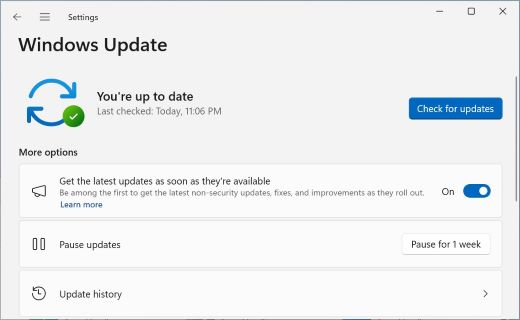
- Open Start > Settings > Windows Update.
- Open Advanced options > Optional updates. Microsoft lists this as the Windows Update route for the September 22 preview releases.
- For Windows 11 24H2/25H2, install KB5124010. For Windows 11 26H1, install KB5124006.
- Restart the PC after installation.
If the package is not offered to your PC, do not download a similarly numbered update for another Windows branch. Recheck winver and use the package instructions on the applicable Microsoft KB page. Microsoft notes that standalone MSU installation for these releases can involve checkpoint cumulative updates and version-specific ordering.
Step 3. Run File History Again
- Connect the same external backup drive, or make sure the same network location is reachable.
- Open Control Panel > System and Security > File History.
- Confirm that File History points to the intended destination.
- Select Run now and let a backup cycle finish.
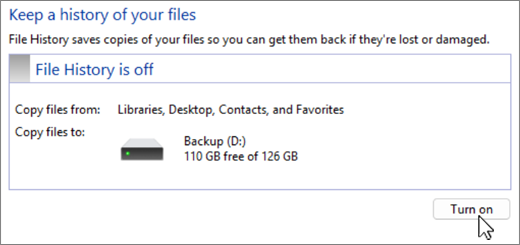
This follows Microsoft's current File History reconnection guidance: reconnect an external drive, or reselect the network location in File History, then wait for the scheduled backup or choose Run now.
Do not judge success only by the warning disappearing. Part 7 shows how to verify that Windows is actually writing and exposing restorable versions again.
Part 4. What to Do If Your Windows Version Still Has No Fix
As of September 28, 2026, Microsoft still says it is working on a resolution for Windows 11 23H2 and the current Windows 10 21H2/22H2 servicing pages. In that situation, the goal is to protect both sides of the problem: preserve any File History data that already exists and create another copy of files that are changing now.
1. Leave the Existing File History Backup Intact
Do not format the backup drive or delete the File History folder simply to clear the warning. The September regression can make valid backups appear unavailable, so destroying the existing set can turn a software problem into an actual loss of backup history.
2. Make a Temporary Independent Copy of Critical Current Files
Copy important working files to a different healthy destination while you wait for Microsoft's fix. This can be a second external drive, another trusted network location, or an approved cloud backup destination. Keep this copy separate from the existing File History folder rather than manually placing files inside File History's managed directory structure.
If files are already missing after an update rather than merely unprotected by File History, treat that as a separate data-loss problem instead of assuming every missing file is caused by this File History bug. Protect the affected source from new writes before you attempt recovery.
3. Avoid Uninstalling a Security Update as the Default Fix
Some community threads describe uninstalling the September update or pausing Windows Update. That may explain why older forum instructions appear in search results, but it is not the preferred path for this article: Microsoft now has an official fix for supported Windows 11 branches, and removing security updates creates a separate security tradeoff. On unresolved branches, preserving data and waiting for the official servicing fix is safer than treating rollback as a universal solution.
Part 5. If "Reconnect Your Drive" Remains After Updating
If the correct Windows 11 fix is installed but File History still says the drive is disconnected, stop treating the September bug as the only explanation. Separate the destination problem from the File History problem.
Case A. The External Backup Drive Does Not Open Normally
- Reconnect the drive directly to the PC instead of through an unstable hub.
- Try a known-good USB port and compatible cable.
- Check whether the disk appears in Windows Disk Management, but do not initialize or format a previously used File History disk just because Windows offers to do so.
- If the disk clicks, grinds, overheats, or repeatedly disconnects, stop software troubleshooting and consider a professional recovery lab.
If a used disk appears as RAW, unallocated, unknown, or not initialized, protect data before repair attempts. File History configuration changes cannot fix a physical or file-system-level storage failure.
Case B. The Network Backup Location Is Not Reachable
Open the network location outside File History first. If Windows cannot access the share, fix the network path, authentication, server/NAS availability, or connectivity before troubleshooting File History itself. Once the location is reachable, Microsoft recommends opening Control Panel > System and Security > File History and reselecting the network destination.
Case C. The Destination Is Reachable, but File History Still Points to the Wrong Place
Open File History, choose the correct drive or network location again, and run a manual backup. This is different from wiping File History's local configuration: start with the supported selection controls and preserve the existing backup set.
Case D. "No Previous Version Available" Persists
First check whether older versions become visible after the fixed File History service completes a successful run. Microsoft has documented "No previous version available" as one symptom of the September issue, so the message alone does not prove that the old backup files were physically erased.
However, an operating-system fix cannot retroactively create a backup version that was never written during the outage. If the version you need should have been created while File History was failing, search any other backups or synced copies. If the original file has also been deleted, use the recovery path in Part 6.
Part 6. Recover Missing Files When File History Has No Usable Version
Move to data recovery only after you have confirmed two things: the original file is genuinely missing or inaccessible, and File History or another backup does not contain a usable copy. If the original file still exists, stay with the File History troubleshooting steps above.
| Situation | Use Recovery Software? | Why |
| File History shows a false reconnect warning, but all original files are still present. | No | Install the Windows fix or repair the backup connection. Data recovery is unnecessary. |
| A needed File History version becomes visible again after the fix. | No | Restore the saved version through File History. |
| The required version was never backed up, and the original file was deleted from a detectable HDD, SSD, or external drive. | Potentially | Recovery software can scan the original storage for recoverable deleted data, subject to overwrite, SSD TRIM, encryption, and device condition. |
| The external drive is detectable but logically inaccessible or shows a damaged file system. | Potentially | Recover data before formatting or repair if the device remains readable enough to scan. |
| The drive is not detected anywhere, clicks, grinds, burns, or repeatedly powers off. | No software scan | Possible physical failure requires professional diagnosis and recovery. |
If recovery software is appropriate, Recoverit becomes relevant here—not as a File History repair tool, but as a way to scan a detectable source drive for deleted, formatted, or logically inaccessible files. If the loss happened specifically after a Windows update, see the dedicated Windows update file recovery guide.

Act before more data is written to the source. Deleted-file recovery depends on the original storage blocks still being available; new writes can overwrite them, and SSD TRIM can make deleted data unrecoverable sooner.
How to Recover a Missing File Safely
- Stop using the source drive. Avoid downloads, software installations, large updates, or new file creation on the volume where the missing file was stored.
- Launch Recoverit from a healthy location. In Recoverit, open Hard Drives and Locations and choose the original disk or detectable external drive that contained the lost file.

- Scan and narrow the results. Let the scan search for lost data, then use file type, path, name, or other available filters to reduce the result set.

- Preview before recovery. Preview the needed file when supported so you can confirm that it is the right content before saving it.

- Recover to a different healthy drive. Do not save the recovered file back to the same source location, because that can overwrite other recoverable data.

No recovery software can guarantee a deleted file after its data has been overwritten, and software recovery requires the source storage to remain detectable enough for the operating system or recovery environment to scan it.
Recover Missing Files When File History Has No Usable Version
 Security Verified. Over 7,302,189 people have downloaded it.
Part 7. Verify File History Is Working Again
A successful backup test is more meaningful than a clean status message. Microsoft documents File History as a versioned backup system for personal files and explains that you can restore previous versions from File Explorer. After applying the fix or restoring the connection, verify both backup creation and restore visibility.
- Create a small test document inside a location protected by File History, such as Documents.
- Run File History once, then edit the test document and save a second version.
- Run File History again and confirm that the Last Backup time advances.
- In File Explorer, right-click the file or its containing folder and choose Restore previous versions.
- Confirm that an earlier version appears. When testing a restore, use Restore to... and choose a different folder so you do not overwrite the current copy.
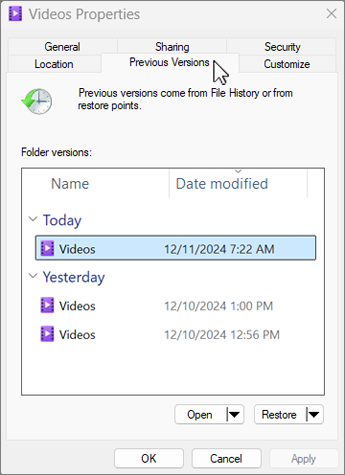
Microsoft's current File History backup and restore instructions specifically recommend Restore to... when you want to avoid replacing the current version. Keep your temporary second backup until File History has completed several normal backup cycles and you have verified that at least one restore works.
Conclusion
The practical lesson from the September 2026 incident is not that every "Reconnect your drive" warning means hardware failure. The warning can be an operating-system regression, a real disconnected destination, or a storage problem. Checking the Windows branch first, preserving existing backup data, and separating backup repair from actual data recovery prevents a routine Windows issue from becoming unnecessary data loss.
FAQ
-
Why does File History say "Reconnect your drive" when the drive is already connected?
In September 2026, Microsoft confirmed a Windows issue that can make File History fail to back up or restore to a working external drive or network location while incorrectly reporting that the drive needs to be reconnected. A real cable, drive, network, or authentication problem can produce a similar warning, so check whether the destination opens normally before assuming the cause. -
Does KB5124010 fix File History on Windows 10?
No. KB5124010 applies to Windows 11 24H2 and 25H2. Windows 11 26H1 uses KB5124006 for the September 22 File History fix. Microsoft's Windows 10 21H2/22H2 servicing page still lists the File History issue as unresolved as of September 28, 2026. -
Will installing the Windows fix bring back every missing previous version?
Not necessarily. The fix restores File History functionality, and versions that were already stored may become accessible again. But a Windows update cannot create a historical backup that File History never wrote while it was failing. If that exact version exists nowhere else and the original file was deleted, data recovery may be the remaining option. -
Should I format the File History drive to remove the reconnect error?
No, not as an early troubleshooting step. The September bug can make a healthy backup destination appear disconnected. Formatting destroys the current file system and can remove the backup history you are trying to preserve. Diagnose the Windows version and destination first. -
What if the File History external drive is not detected or makes unusual noises?
Test a known-good cable, port, power source, and another computer only if it is safe to do so. If the drive clicks, grinds, overheats, repeatedly disconnects, or is not detected anywhere, stop repeated software scans and seek professional data recovery help for important files.


