 TL;DR:
An ntdll.dll crash on Windows 11 indicates an application failed while routing through this system library, meaning the root cause is typically a faulty app, conflicting plugin, or hardware instability rather than a damaged DLL file.
● If only one application crashes, isolate the issue by disabling recently added plugins, mods, or graphics overlays and resetting the local app cache before attempting system-wide repairs.
● If multiple unrelated applications fail or trigger exception codes like 0xc0000005, run Windows Memory Diagnostic and DISM/SFC scans instead of downloading an untrusted replacement ntdll.dll from a third-party website.
● Data recovery tools cannot restore unsaved work lost during the interruption; they are only applicable if previously saved files are confirmed missing or inaccessible on a physically readable storage drive.
Ask AI for a summary
 ChatGPT
 Perplexity
 Gemini
 Claude
 Grok
Grok
"Hello, all. I went to play a couple games, and am getting constant ntdll.dll crashes...." - FridericMeier01 on Reddit
An ntdll.dll crash on Windows 11 usually means Windows recorded an application failure while code was passing through ntdll.dll. Microsoft documents ntdll.dll as the user-mode library that exposes native system-service entry points, so seeing it as the faulting module does not prove the DLL itself is damaged. The real cause may be the affected app, a plug-in or overlay, an injected third-party component, a driver, damaged Windows components, unstable memory, storage errors, or broader system instability.
Start by answering one question: does one application crash, or do several unrelated applications fail in the same way? If only one app is affected, troubleshoot that app first. If unrelated apps also crash with similar exception codes, move on to Windows, drivers, memory, and storage. Do not download a replacement ntdll.dll from a DLL website. If protected Windows files are actually damaged, use supported Windows repair tools instead.
If a crash only interrupted unsaved work, data recovery software cannot recreate data that was never written to storage. Recoverit is relevant only when a saved file is actually deleted, missing, or inaccessible after the crash.
In this article
Part 1. What an ntdll.dll Crash Really Means
If you searched for ntdll dll Windows 11 after seeing Event Viewer or Reliability Monitor name ntdll.dll, treat that entry as a diagnostic clue rather than a verdict. Microsoft explains that user-mode applications can reach native system services through entry points in Ntdll.dll. Because so many processes pass through that layer, a failure can surface there even when the defect started elsewhere.
| What You See | What It Suggests | Best First Move |
| Only one app crashes | App files, settings, plug-ins, overlays, or app-specific driver interaction | Use Part 2, then Part 3 |
| Several unrelated apps crash | Shared driver, Windows component, RAM, storage, or system instability | Use Parts 4 and 5 |
| Same action crashes the same app every time | Highly reproducible app or extension problem | Record the exact action and version before changing anything |
| Crashes are random and exception codes vary | Broader instability becomes more likely | Check drivers, memory, storage, and tuning |
| Windows will not boot after wider instability | The problem is no longer just an app crash | Protect important data before reset or reinstall |
Why ntdll.dll Appears as the Faulting Module
A crash record tells you where Windows detected the failure. It does not always identify the component that originally corrupted memory or passed bad data. For example, a third-party plug-in can damage process memory, but the invalid state may not be detected until a later ntdll.dll call. That is why the faulting application, exception code, loaded modules, recent changes, and reproducibility are more useful together than the module name alone.
Do not assume "faulting module name: ntdll.dll" means Windows itself is broken. A recent real-world Windows 11 case can involve third-party modules loaded into a crashing process, which is exactly why app-specific evidence should come before broad system repairs.
What Exception Codes 0xc0000005, 0xc0000374, and 0xc0000409 Mean
Exception codes narrow the failure type, but they still do not identify the root cause by themselves.
| Exception Code | Meaning | What to Investigate First |
| 0xc0000005 | Access violation: the process attempted an invalid read, write, or execute operation | The affected app, plug-ins, injected components, relevant drivers; then RAM if unrelated apps also fail |
| 0xc0000374 | Heap corruption was detected | App code, extensions, injected DLLs, drivers, or memory corruption; a dump is often more useful than generic repairs |
| 0xc0000409 | Fail-fast termination; the status can be used for security-check and other fast-fail conditions | App-specific evidence and dump analysis; do not treat the code as proof of one specific hardware fault |
Important: 0xc0000005 is not automatically a RAM diagnosis. It describes an invalid memory access. If only one application triggers it, start with that application and its add-ons. Hardware testing becomes more important when unrelated processes show similar access violations.
Why You Should Not Download a Replacement ntdll.dll
Do not download ntdll.dll from a third-party DLL site and do not replace the Windows copy manually. The replacement can be the wrong build, wrong architecture, modified, or incompatible with the rest of Windows. Generic advice to run regsvr32 ntdll.dll is also not a supported fix for ordinary application crashes.
If Windows protected files are actually damaged, use the Microsoft-supported DISM and System File Checker sequence in Part 4. That repairs Windows components through the operating system's servicing mechanisms instead of introducing an untrusted system DLL.
Part 2. Collect Evidence Before Changing Windows
Before reinstalling apps, rolling back drivers, or repairing Windows, capture the crash details. This prevents you from destroying the evidence that tells you whether the problem is app-specific or system-wide.
Check 1. Reproduce the Crash and Record the App Version
Record the exact application version, the file or project involved, the action that triggers the crash, and the time it happens. Adobe Acrobat is used below only as an example; use the equivalent About or version screen in the app that actually crashes.
Step 1. Open the affected application and find its version information. In Adobe Acrobat, for example, select Help > About Adobe Acrobat.
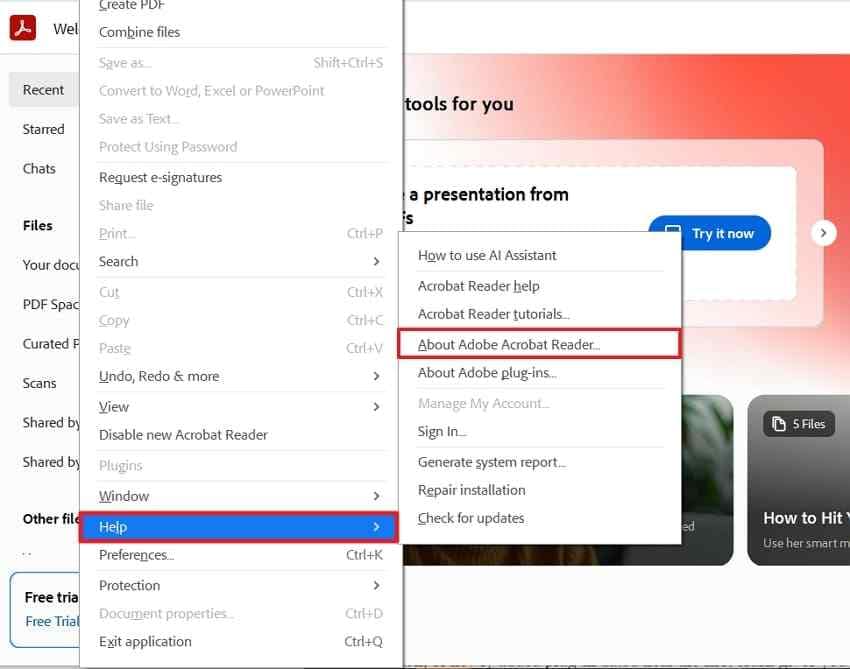
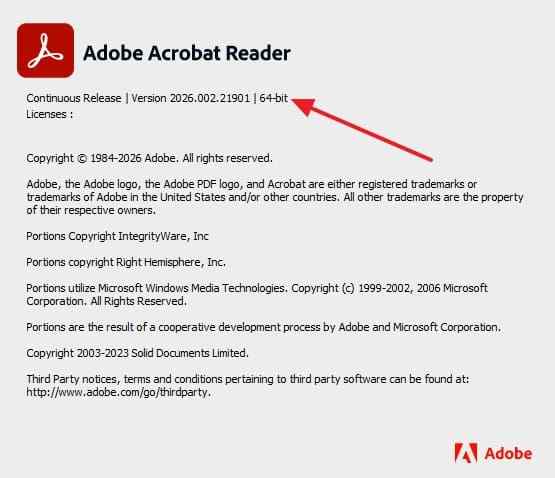
Step 2. Record the complete version number, then reproduce the crash once using the same action. Note the crash time and whether the behavior is repeatable.
Check 2. Review Reliability Monitor and Event Viewer
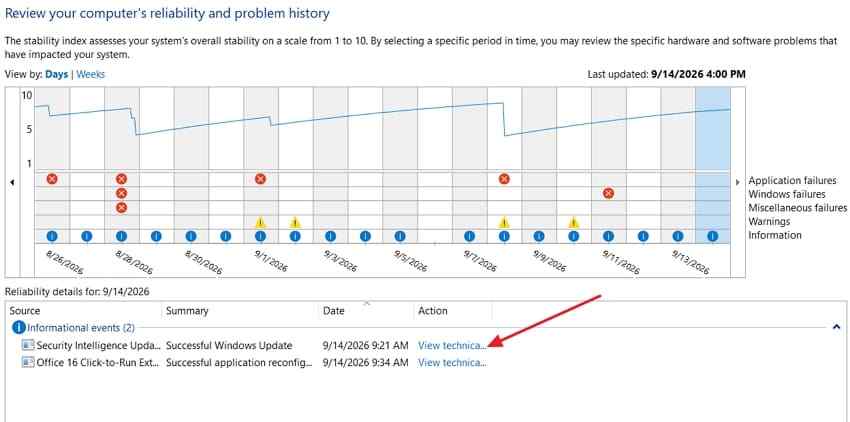
Reliability Monitor is useful for seeing whether failures began on a particular date. Event Viewer provides the lower-level event record. Microsoft notes that Application Error Event ID 1000 commonly records fields such as the faulting application, faulting module, exception code, and offset.
For Reliability Monitor: Search Reliability in Windows, open View reliability history, select a red application-failure event, and open View technical details.
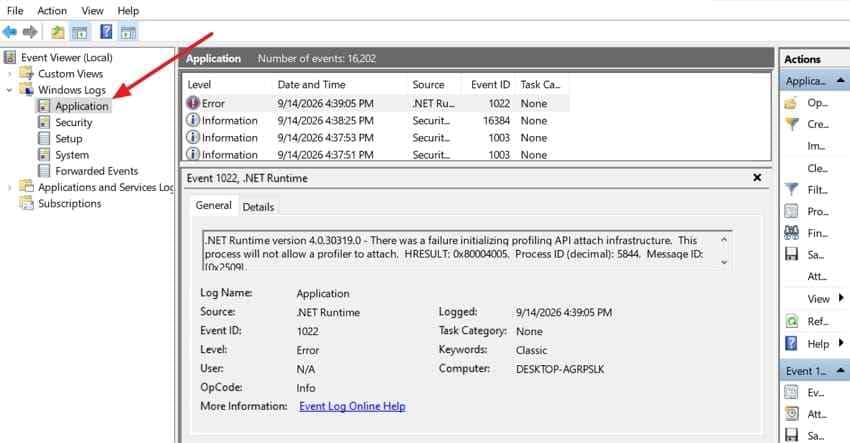
For Event Viewer, Step 1. Open Event Viewer > Windows Logs > Application. Find an error recorded at the same time as the crash.
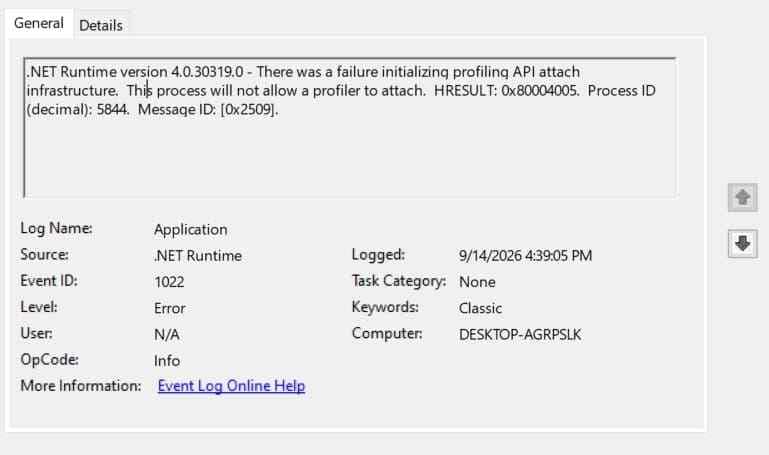
Step 2. Open the matching event and record these fields when present: faulting application name, faulting application version, faulting module name, exception code, fault offset, faulting application path, and faulting module path.
Check 3. Compare the Crash With Recent Changes
Use the date of the first reliable crash as your reference point. Then compare it with updates, drivers, plug-ins, security software, overlays, or hardware utilities added around the same time.
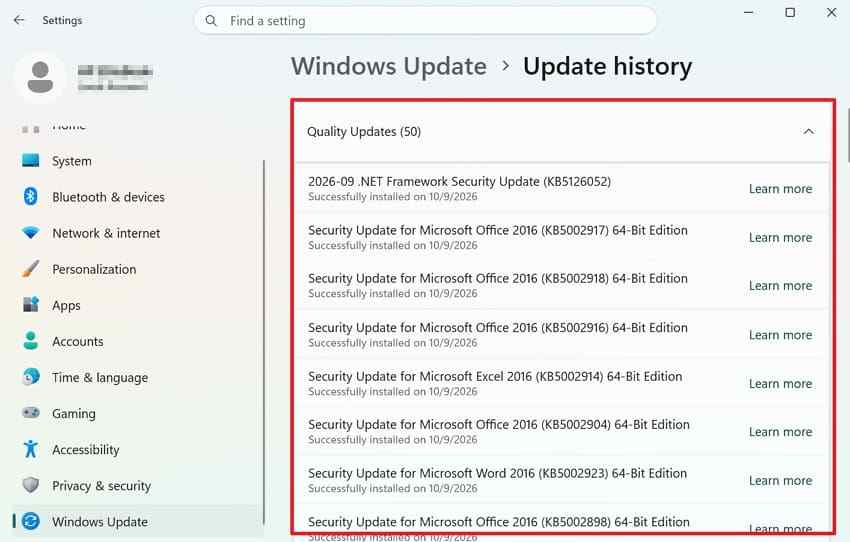
Check Windows updates: Open Settings > Windows Update > Update history. Microsoft's current Windows Update FAQ confirms this is the Windows 11 path for viewing installed updates.
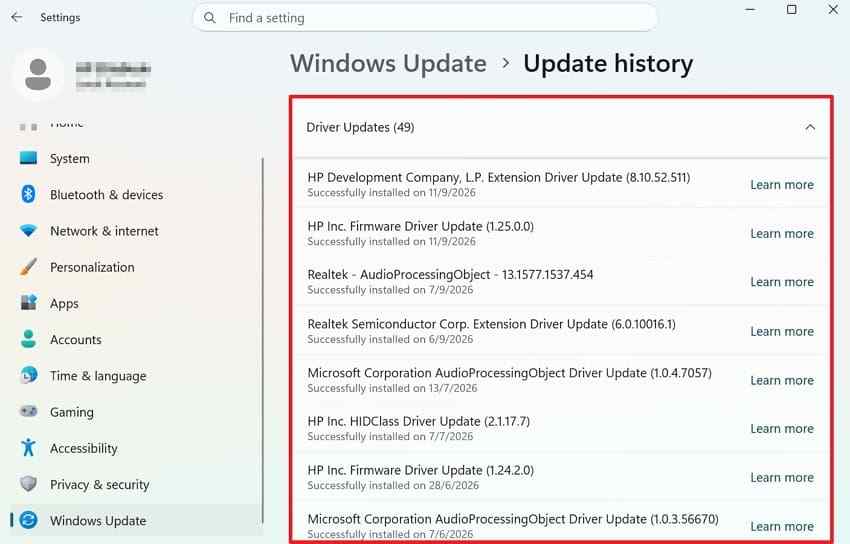
Check driver updates: In Update history, review Driver Updates. Also note any driver installed directly from a PC, GPU, audio, storage, printer, or peripheral vendor near the first crash.
Do the same for browser extensions, game mods, graphics overlays, antivirus tools, RGB utilities, PDF/printer add-ins, shell extensions, and other software that can load code into the affected process.
Check 4. See Whether Unrelated Apps Crash the Same Way
Compare at least two or three unrelated applications. If only one program crashes, Part 3 is the highest-value path. If unrelated apps show similar access violations, heap corruption, or random crashes, skip repeated reinstall attempts and move to Parts 4 and 5.
| Evidence Pattern | Interpretation | Next Section |
| One app, one repeatable action | Strongly app-specific | Part 3 |
| One app, only after a new plug-in or overlay | Likely extension or injected-component conflict | Part 3 |
| Several apps after one driver update | Shared driver becomes a stronger suspect | Part 4 |
| Several apps with varying exception codes | Memory, storage, tuning, or broader instability deserves attention | Part 5 |
Part 3. Fix an App-Specific ntdll.dll Crash
If one application is the only program failing, avoid jumping straight to RAM replacement or Windows reinstall. Work through the app's own files, extensions, settings, and background conflicts first.
Fix 1. Update or Repair the Affected Application
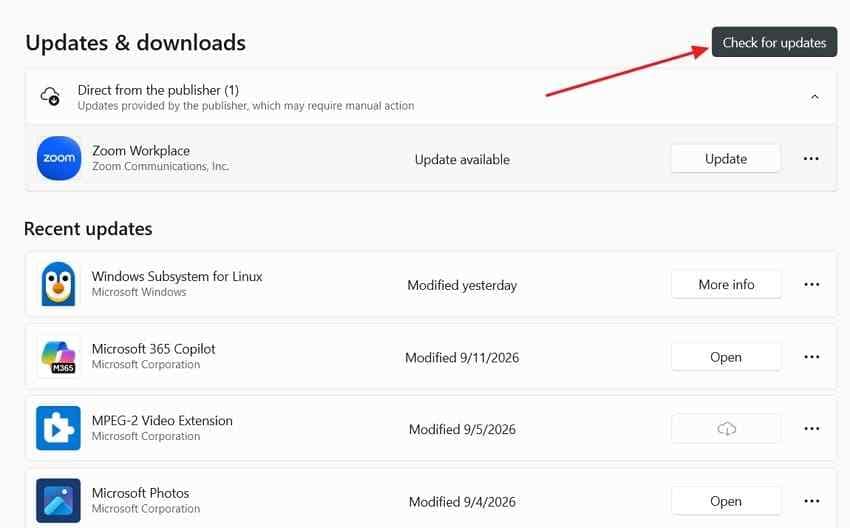
Update the app first. For Microsoft Store apps, open Microsoft Store and use Check for Updates. For other software, use the app's own updater or download the latest Windows 11-compatible build from the publisher's official site.
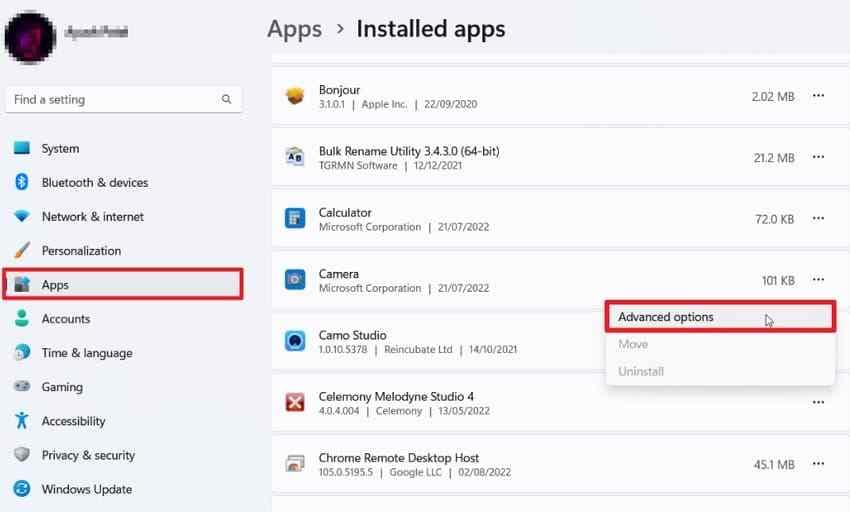
Repair the app when Windows offers the option. Open Settings > Apps > Installed apps, select the three-dot menu beside the affected app, and choose Advanced options if available.
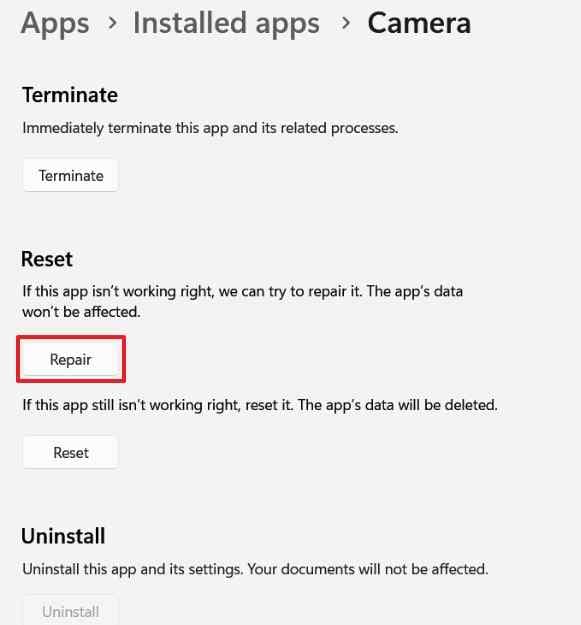
Select Repair before Reset. Microsoft notes that repair options are not available for every app; some desktop programs instead expose Repair or Change through Control Panel or their own installer.
Fix 2. Disable Recently Added Plug-Ins, Mods, or Overlays
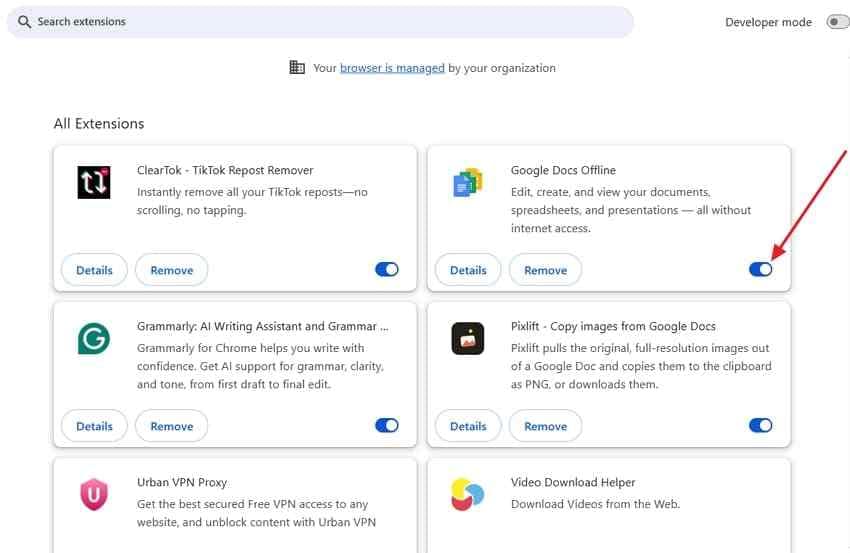
Third-party code loaded into the same process can corrupt memory or change behavior before Windows reports the failure in ntdll.dll. Disable recently added plug-ins, browser extensions, mods, graphics overlays, capture tools, or integration add-ons, then restart the app.
Re-enable them one at a time if the crash stops. This isolates the conflicting component without removing everything at once.
Fix 3. Reset the App's Local Configuration or Cache
A damaged preference file or cache can survive ordinary app updates and keep reproducing the same crash. Before resetting anything, back up presets, profiles, templates, local projects, or other user-created app data that is not already synchronized or stored elsewhere.
Step 1. Use the affected application's own Reset, Restore Defaults, Clear Cache, or Troubleshooting option when available. Menu names vary by vendor.
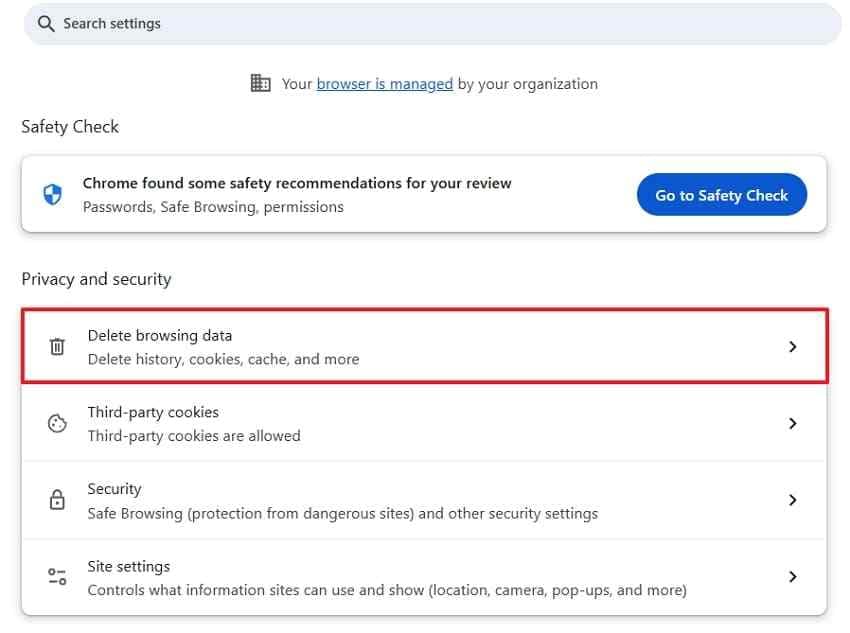
Step 2. Clear only the relevant cache or reset the app configuration, restart the application, and reproduce the exact action that caused the crash.
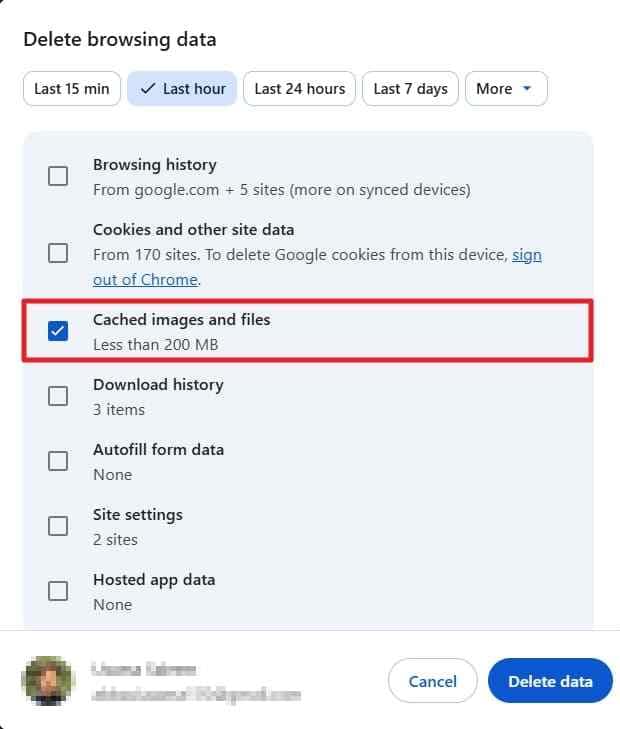
Do not confuse an app reset with a Windows reset. Some app-level Reset options can remove app data, so use Repair first and back up important local data before using a destructive reset option.
Fix 4. Reinstall the App and Test a Clean Boot
If repair, updates, plug-in testing, and configuration reset fail, reinstall the affected application from its official source. Back up local projects, presets, license information, and unsynchronized app data first. Reinstalling should not be used as a reason to delete user data blindly.
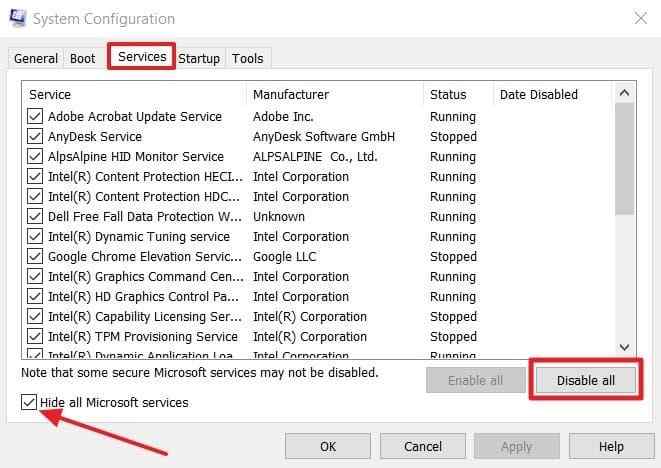
If a clean reinstall still crashes, use a Microsoft clean boot to test whether a third-party service or startup app conflicts with the program.
Step 1. Open System Configuration, select the Services tab, check Hide all Microsoft services, then choose Disable all.
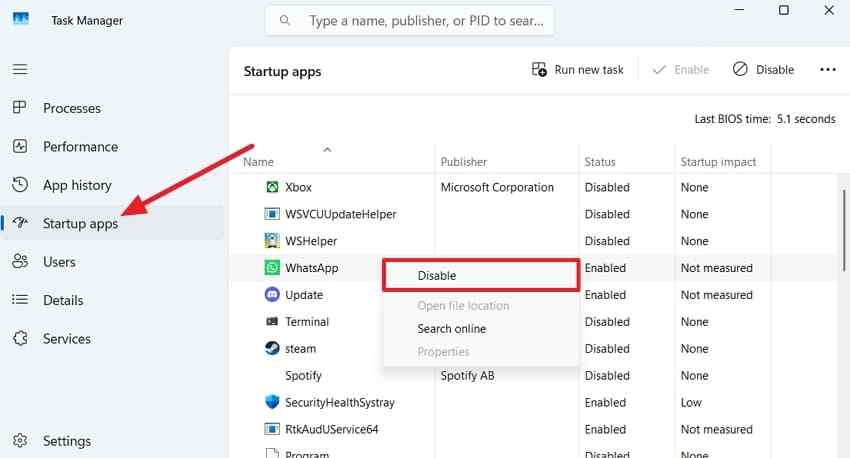
Step 2. Open Startup > Open Task Manager, disable enabled startup apps for the test, restart Windows, and launch only the affected application. Restore the disabled services and startup items after troubleshooting.
Fix 5. Use Compatibility Troubleshooting Only for Older Apps
Compatibility settings are for older software or programs with evidence of a Windows-version compatibility problem. Do not force a modern Windows 11 application into an older compatibility mode as a generic ntdll.dll fix.
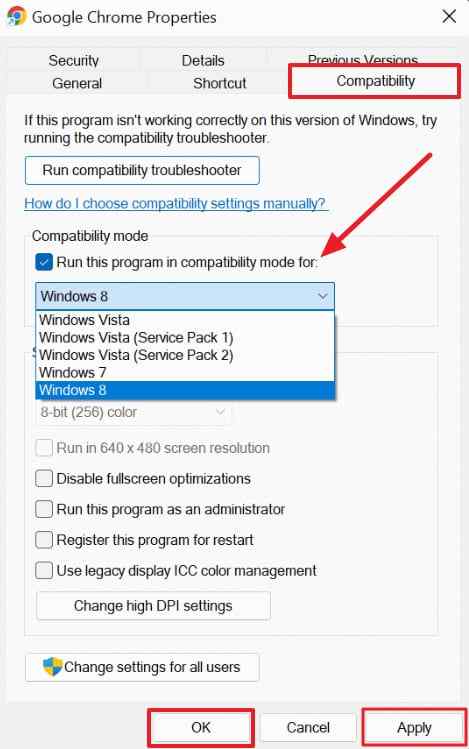
Microsoft's current guidance recommends the Program Compatibility Troubleshooter for older apps. If the vendor specifically recommends a manual compatibility mode, right-click the executable, open Properties > Compatibility, apply the documented setting, and test again.
Part 4. Repair Windows Components and Compatibility Problems
Move to system-level repairs when multiple unrelated apps crash, when the same problem continues after a clean app reinstall, or when the evidence points to shared Windows components or drivers.
Fix 1. Install Current Windows Updates
Open Settings > Windows Update, select Check for updates, install current updates offered for your device, and restart. Microsoft says Windows 11 updates deliver security and reliability fixes, but do not assume an update is related unless the timing or release notes support that conclusion.
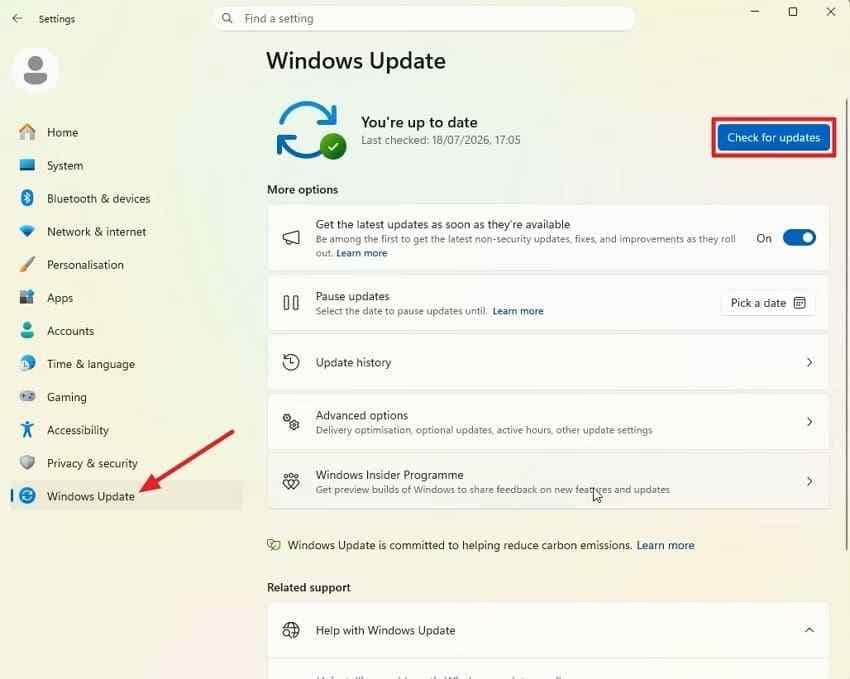
If the crash began immediately after a specific update, record that update's KB number and check Microsoft's update history or the affected software vendor's advisories before uninstalling anything.
Fix 2. Update or Roll Back Relevant Device Drivers
Focus on drivers that are plausibly involved in the crashing workload, such as the GPU for games or creative apps, audio drivers for DAWs, printer/PDF drivers for document apps, or storage drivers when I/O errors occur. Do not update every driver indiscriminately.
To update the driver, Step 1. Open Device Manager, expand the relevant category, and note the exact hardware model and current driver.
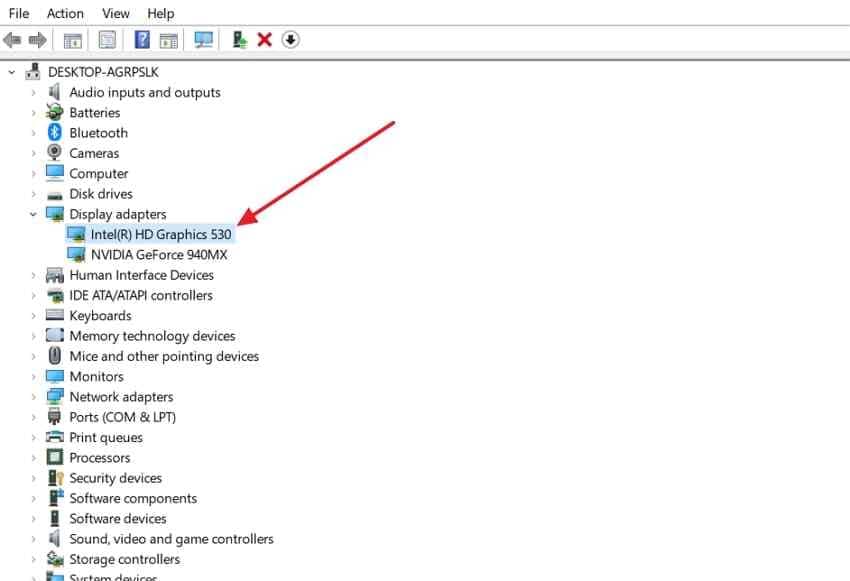
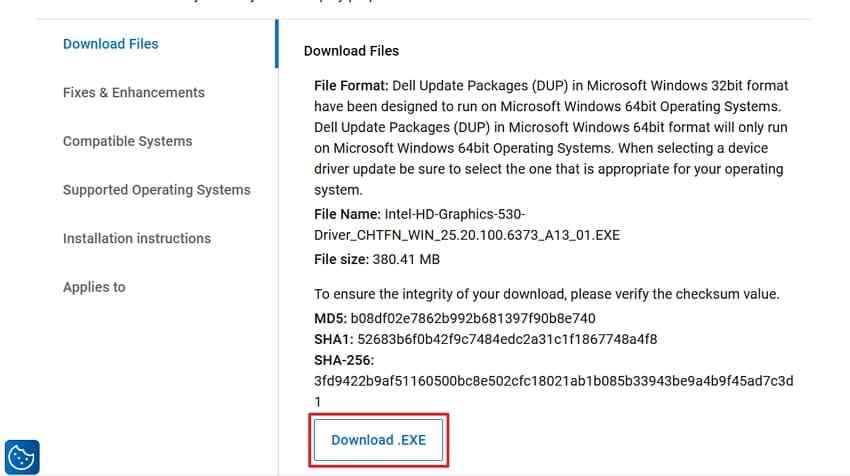
Step 2. Check Windows Update first. If Windows does not provide a suitable driver, Microsoft recommends using the PC or hardware manufacturer's official site for a compatible driver.
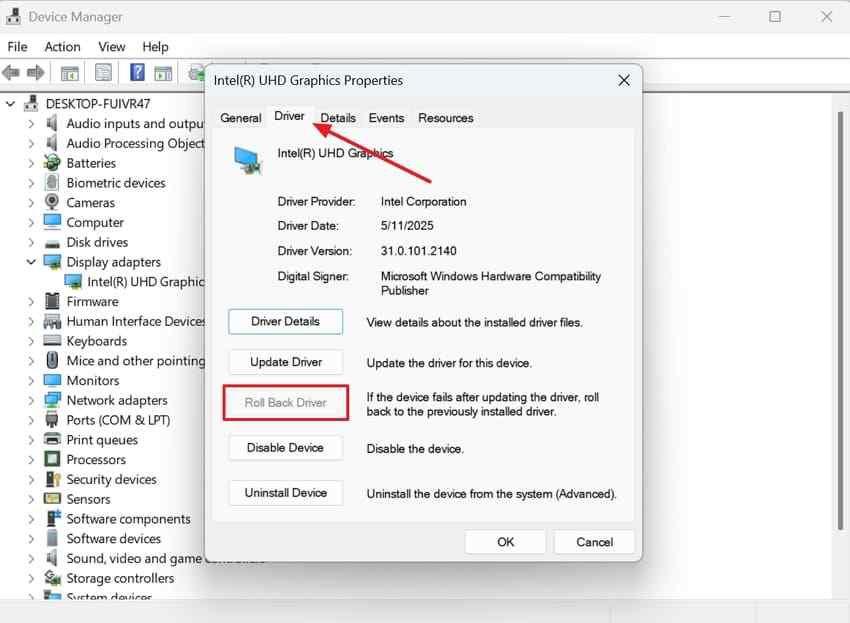
To roll back a driver: Only when the crashes began after a specific driver update, open Device Manager > relevant device > Properties > Driver and select Roll Back Driver if the option is available. Restart and retest.
Fix 3. Run DISM Before SFC
If Windows components may be damaged, use Microsoft's supported servicing tools instead of replacing ntdll.dll manually. Microsoft's System File Checker guidance recommends running DISM first.
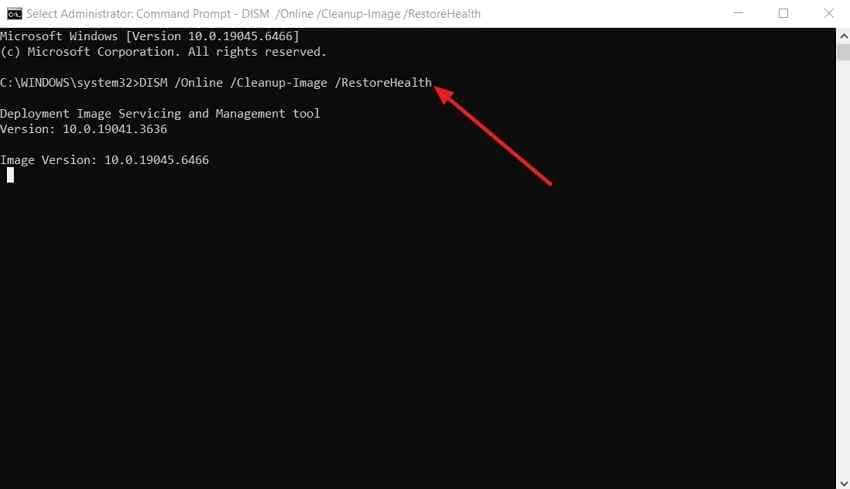
Step 1. Run DISM: Open Command Prompt as administrator and enter:
DISM.exe /Online /Cleanup-Image /RestoreHealth
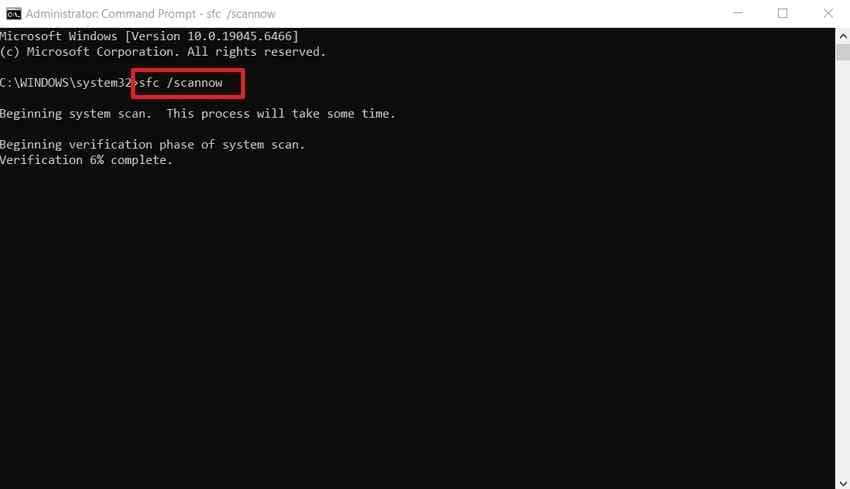
Step 2. Run SFC: After DISM completes, enter:
sfc /scannow
Wait for verification to reach 100%, restart Windows if repairs were made, and test the affected application again.
Fix 4. Scan for Malware With Windows Security
Malware and unwanted software can inject code, modify processes, or destabilize applications. Use the built-in Windows Security scanner rather than downloading an unknown "DLL repair" utility.
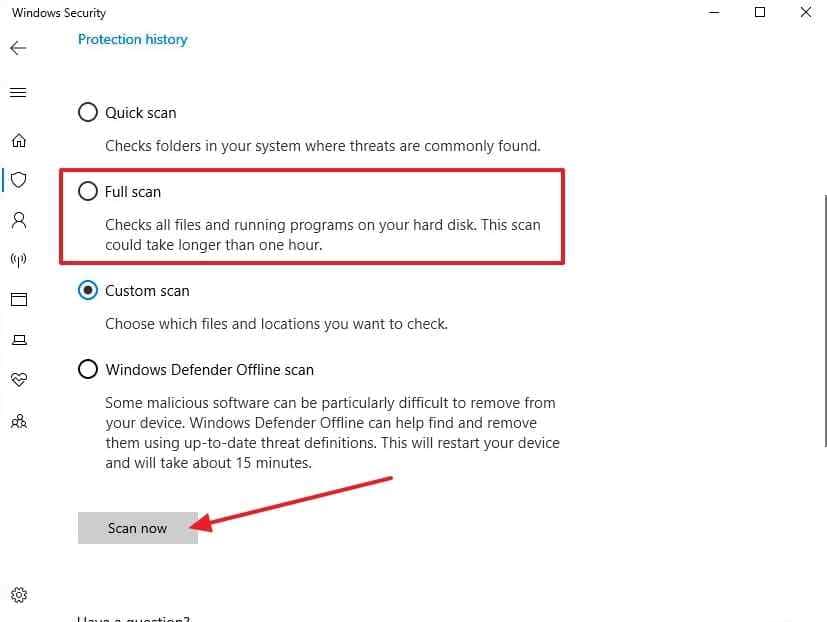
Open Windows Security > Virus & threat protection > Scan options, select Full scan, and choose Scan now. Follow Windows Security's recommended actions if anything is detected.
Part 5. Check Memory, Storage, and System Stability
Hardware and stability testing becomes more important when unrelated applications crash, exception codes vary, Windows also freezes or restarts, or software fixes do not change the pattern.
Check 1. Run Windows Memory Diagnostic
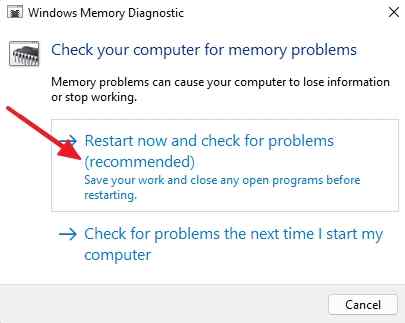
Faulty or unstable RAM can cause access violations and corrupted process state across unrelated apps. Save your work first because the memory test requires a restart.
Step 1. Search for Windows Memory Diagnostic or run mdsched.exe. Select Restart now and check for problems (recommended).
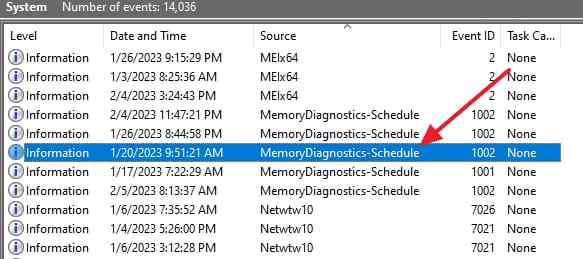
Step 2. Let the test finish and Windows restart. If the result notification does not appear, Microsoft documents reviewing MemoryDiagnostics results in Event Viewer as part of its current Windows memory troubleshooting steps. You can also search Event Viewer for MemoryDiagnostics-Results entries.
If errors are reported, stop treating ntdll.dll as the primary problem. Test memory at supported defaults and follow the PC or memory manufacturer's hardware guidance.
Check 2. Check the System Drive for File-System Errors
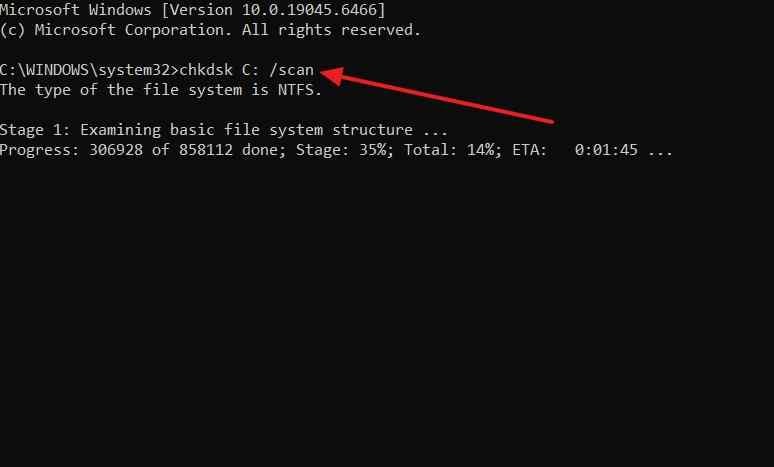
Storage problems can damage application files or interrupt reads, but chkdsk is a file-system tool, not a complete physical-drive health test. Start with a read-oriented online scan:
Instructions: Open Command Prompt as administrator, enter chkdsk C: /scan, and review the result. Microsoft's current CHKDSK documentation explains the available parameters.
If Windows reports repeated I/O errors, the drive disappears, SMART or vendor diagnostics report failure, or the storage makes unusual mechanical sounds, back up accessible files and avoid repeated repair scans. A physically failing drive may require professional recovery rather than more software writes.
Check 3. Return Overclocking and Undervolting to Defaults
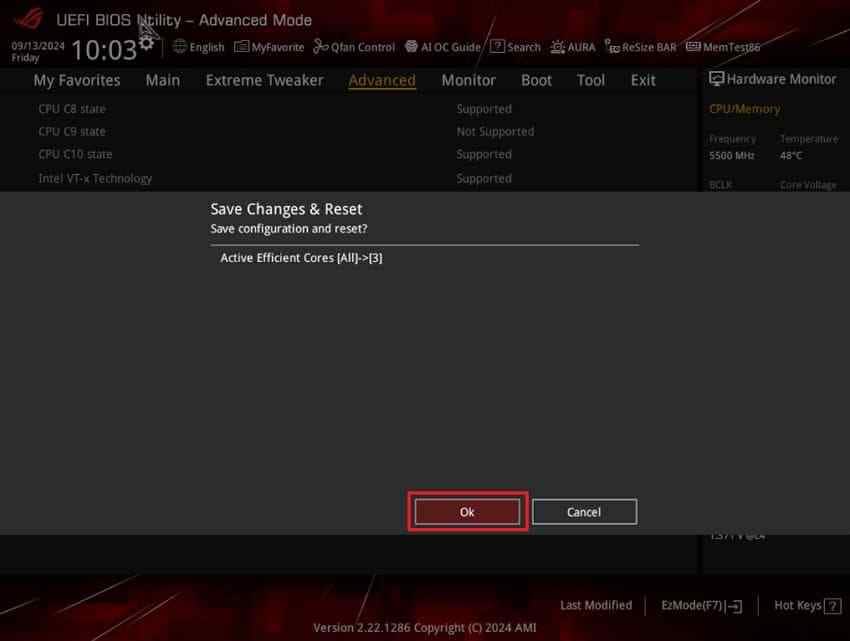
CPU, GPU, or memory overclocking and undervolting can create intermittent process crashes that look like software faults. If you intentionally changed tuning settings, restore the CPU, RAM, and related voltage/timing settings to the hardware or system manufacturer's supported defaults, then retest.
Do not make unrelated BIOS changes if the system has never been overclocked or undervolted.
Check 4. Treat Multi-App Crashes as a Broader Stability Problem
If several unrelated applications crash in ntdll.dll, especially with mixed 0xc0000005, 0xc0000374, freezes, or unexpected restarts, stop reinstalling each app individually. Compare common drivers and background software, run memory and storage checks, remove unsupported tuning, and consider OEM hardware diagnostics.
A consistent app-only crash points toward the app. A machine-wide pattern points toward shared software or hardware. That distinction is more useful than the ntdll.dll filename alone.
Part 6. Capture a Crash Dump for Advanced Diagnosis
If the crash is repeatable but the cause is still unclear, a user-mode crash dump can show loaded modules, exception context, and stack information that Event Viewer does not provide. This is especially useful when working with the affected software vendor.
Configure Per-Application Windows Error Reporting Dumps
Microsoft's Windows Error Reporting LocalDumps feature can collect dumps for one executable instead of every application.
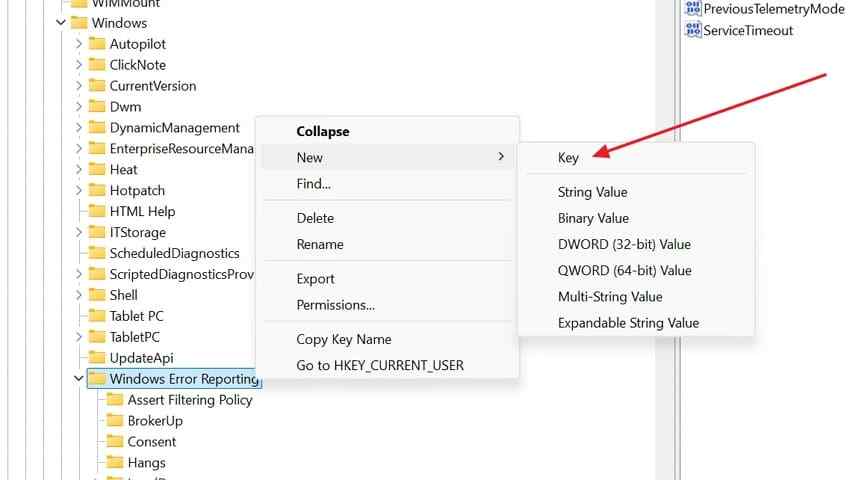
Step 1. Open Registry Editor and go to:
HKEY_LOCAL_MACHINE\SOFTWARE\Microsoft\Windows\Windows Error Reporting\LocalDumps
If LocalDumps does not exist, create it. Under LocalDumps, create a key named exactly after the crashing executable, for example AppName.exe.
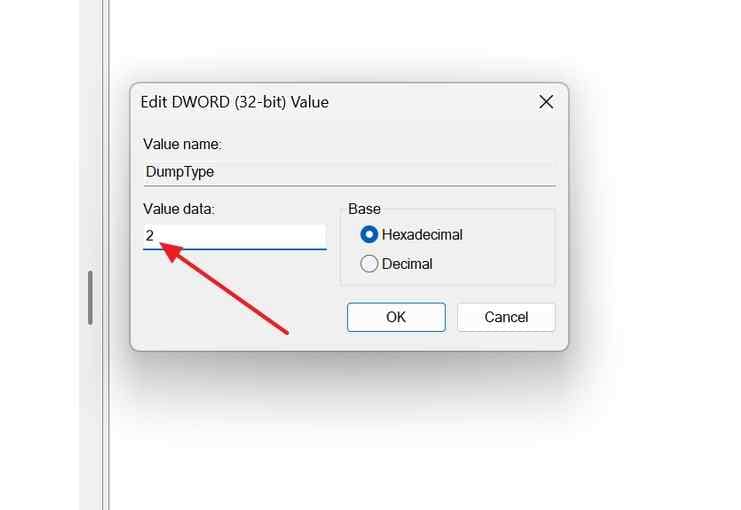
Step 2. Inside the application-specific key, create a DWORD (32-bit) Value named DumpType and set it to 2. Microsoft documents DumpType 2 as a full dump. By default, LocalDumps are written to %LOCALAPPDATA%\CrashDumps unless you configure a different DumpFolder.
Reproduce the Crash and Preserve the Dump
Reproduce the problem once, then copy the resulting .dmp file to a secure troubleshooting folder. A full process dump can be large and can contain document contents, tokens, strings, paths, or other sensitive data that existed in the process memory.
Share a dump only with a trusted software vendor or support professional. After you have captured the evidence you need, delete the application-specific LocalDumps registry key so Windows does not keep generating large dump files.
Analyze the Dump With WinDbg or Share It With the Vendor
Microsoft documents opening user-mode dumps in WinDbg. A practical first pass is to open the dump and run !analyze -v, then inspect the exception context and loaded modules. Vendor symbols may be required for a meaningful application-level diagnosis.
If you are not comfortable interpreting debugger output, send the dump, exact app version, reproduction steps, Event Viewer details, and any recent driver or plug-in changes to the software vendor. That evidence is far more actionable than simply reporting "ntdll.dll crashed."
Part 7. Recover Files Only if the Crash Caused Actual Data Loss
An ntdll.dll crash does not normally delete all files. First check the affected application's Auto-Recovery or recovery folder, Recycle Bin, cloud version history, File History, and other backups. If a file was never saved to storage, recovery software cannot reconstruct unsaved content that existed only in memory.
When Data Recovery Is and Is Not Appropriate
| Situation | Use Recoverit? | Best Action |
| The app crashed, but saved files still open normally | No | Fix the crash; back up important files |
| Unsaved edits were never written to disk | No guarantee of recoverability | Check the app's Auto-Recovery, temporary files, and cloud history first |
| A saved file was deleted or disappeared after the crash | Potentially | Stop unnecessary writes and scan the readable source drive |
| A folder or volume became inaccessible but the drive is still detected | Potentially | Recover important stored files before destructive repair |
| The drive is physically failing or not detected | Not the right first step | Use professional data recovery or hardware service |
For recently deleted files, you can also review the Recoverit guide to recover recently deleted files. If the wider system problem eventually leaves Windows unbootable, see Windows system recovery for files from a crashed PC before considering a reset or reinstall.
Recover Missing Stored Files With Recoverit
If stored files are genuinely deleted, missing, or inaccessible and the source drive is still readable, Recoverit for Windows can scan the drive for recoverable data. Recovery depends on drive condition, overwrite status, encryption, and detectability. Recoverit does not repair ntdll.dll, Windows, drivers, RAM, or the underlying application crash.

Step 1. Choose the drive containing the missing files. Open Recoverit, select Hard Drives and Locations, and choose the drive where the stored files existed before they disappeared.

Step 2. Scan and narrow the results. Let Recoverit scan the selected location. Use file type, path, date, size, or available search/filter options to reduce the result set. The current Recoverit Windows guide documents the normal select, scan, preview, and recovery workflow.

Step 3. Preview and recover the files. Preview supported files when available, select the items you need, and click Recover. Save recovered data to a different physical drive whenever practical so recovery writes do not overwrite other recoverable data on the source.

If the drive repeatedly disconnects, makes unusual noises, reports serious hardware errors, or is not detected at all, stop software scanning and consider professional data recovery.
Recover Missing Stored Files With Recoverit
 Security Verified. Over 7,302,189 people have downloaded it.
Conclusion
An ntdll.dll crash Windows 11 record is a starting point, not proof that ntdll.dll itself needs replacement. First determine whether one app or multiple unrelated apps are crashing, then collect the faulting application, exception code, timing, and recent-change evidence. Repair the app before Windows when the failure is isolated; move to drivers, DISM/SFC, memory, storage, and stability checks only when the evidence supports a broader problem. For unresolved repeatable crashes, a LocalDumps crash dump gives the software vendor much better evidence. Use Recoverit only if saved files are actually missing or inaccessible, and never as a substitute for fixing the underlying crash.
FAQ
-
Why Does Windows 11 Show ntdll.dll as the Faulting Module?
Windows can record ntdll.dll because the failure was detected while the process was executing through Windows native user-mode services. The module name identifies where the crash surfaced, but the original cause can still be the app, a plug-in, injected software, a driver, or corrupted process memory. -
Does an ntdll.dll Crash Mean the DLL Is Corrupted?
No. Seeing ntdll.dll as the faulting module does not prove the DLL is corrupted. If protected Windows files are suspected, use DISM and SFC rather than downloading or manually replacing ntdll.dll. -
How Do I Fix ntdll.dll Exception Code 0xc0000005?
0xc0000005 is an access violation. If only one app crashes, update or repair that app and disable recent plug-ins, mods, or overlays first. If unrelated apps also show access violations, check relevant drivers, Windows components, memory, storage, and system stability. -
Why Does ntdll.dll Crash Multiple Apps in Windows 11?
Crashes across unrelated apps can indicate a shared cause such as a driver, third-party background component, damaged Windows files, unstable RAM, storage errors, or unsupported overclocking or undervolting. Compare the exception codes and timing across apps before replacing hardware or reinstalling Windows.


