 TL;DR:
Diagnose an undetected SD card in Windows 10 by first testing it in another device to isolate a hardware fault, then use Device Manager to update card reader drivers, reinstall USB controllers, or check BIOS settings to ensure the built-in reader is enabled.
● Before changing system settings, insert the SD card into a phone or camera; a card that works in other devices points to a failing Windows adapter, USB port, or driver, whereas a card failing everywhere likely has physical damage.
● Fix driver-level detection issues by opening Device Manager to scan for hardware changes, enable a disabled card reader, or install the specific manufacturer card reader and chipset packages rather than relying on generic Windows drivers.
● Recoverit Memory Card Recovery can only scan for files if the SD card still appears in Disk Management as a physical device, RAW disk, or unallocated space; completely undetected or physically damaged cards require professional data recovery services.
Ask AI for a summary
 ChatGPT
 Perplexity
 Gemini
 Claude
 Grok
Grok
If your SD card is not detected in Windows 10, do not format, initialize, or repeatedly reconnect it before you know where the failure is happening. The problem may be the SD card, microSD adapter, card reader, USB port, Device Manager driver, USB controller, BIOS setting, or Windows update.
Microsoft confirms that Windows 10 support ended on October 14, 2025, but many PCs still run it. This guide helps you diagnose why Windows 10 is not seeing an SD card, apply safe fixes first, and use Recoverit Memory Card Recovery only when the card is still detectable enough for software recovery.
Try Wondershare Recoverit to Perform Data Recovery
 Security Verified. Over 7,302,189 people have downloaded it.
In this article
Part 1. What Does "SD Card Not Detected" Mean in Windows 10?
An SD card detection problem is not always the same as a missing drive letter. In Windows 10, "not detected" usually means Windows is failing to identify the card, the reader, or both at the hardware or driver level. The table below separates the common symptoms.
| Symptom | What it indicates | Best first check |
| SD card does not appear in File Explorer | Windows may detect the card internally but not mount it as an accessible drive. | Check Disk Management before changing anything. |
| SD card is not listed in Disk Management | Windows is not identifying the SD card as a connected storage device. | Test the reader, adapter, USB port, and Device Manager. |
| SD card missing from Device Manager | The reader or its driver may not be detected or loaded correctly. | Check card reader entries and USB controllers. |
| Reader is detected, but the SD card is not | The reader may work, while the SD card, adapter, contacts, or file system is causing failure. | Try another card in the same reader and this card in another reader. |
| SD card not recognized in Windows 10 | Windows may see some hardware response but cannot expose the card normally. | Match whether it appears in File Explorer, Disk Management, or Device Manager. |
Built-in and external USB card readers can show similar symptoms. A built-in reader often points to a Windows driver, chipset, or BIOS issue. An external reader makes hardware testing easier because you can move the reader and card to another USB port or computer.
Part 2. Identify Whether the Card, Reader, or Windows Is Faulty
Before installing drivers or changing BIOS settings, run a quick isolation test. It tells you whether the SD card, reader, or Windows 10 installation is the likely fault.
| Test | If this happens | It likely means |
| Card works in another device | The card opens in a phone, camera, another Windows PC, or another reader. | The original reader, USB port, driver, or Windows setup is likely the cause. |
| Another SD card works in the same reader | A known-good card is detected normally. | The reader works, and the original card or adapter is suspect. |
| Reader fails to detect every SD card | No card appears through that reader or slot. | The reader, USB port, BIOS setting, or reader driver is likely faulty. |
| Card fails in every device | No phone, camera, PC, or reader detects the card. | The SD card may have physical or controller failure. |
| Device Manager shows a warning icon | The reader appears with an error marker. | Windows detects the reader but cannot use it properly. |
| No response when the card is inserted | No sound, notification, Device Manager refresh, or Disk Management entry appears. | The connection, port, reader, adapter, or card hardware may be failing. |
Part 3. Why Is the SD Card Not Detected in Windows 10?
Most SD card not detected Windows 10 problems come from hardware contact, reader, driver, USB controller, firmware, or card failure. Check these causes in this order.
- Improperly inserted SD card: the card or microSD adapter may not be fully seated in the slot.
- Contaminated metal contacts: dust, fingerprints, oxidation, or corrosion can block communication.
- Faulty card reader, adapter, or USB port: a worn reader or unstable USB port can stop detection even when the card is healthy.
- Disabled card reader: Windows, Device Manager, or firmware settings may disable an integrated reader.
- Corrupted card reader driver: a missing, outdated, or damaged driver can stop Windows from identifying inserted cards.
- USB controller driver problem: external USB readers depend on the USB controller driver, not only the reader driver.
- Outdated chipset or storage controller software: older Windows 10 PCs may need manufacturer chipset or card reader packages.
- Incorrect BIOS or UEFI configuration: some PCs can disable the built-in Secure Digital card reader in firmware.
- Physical SD card failure: damaged contacts, worn flash memory, or controller failure can make the card unreadable everywhere.
Part 4. Basic Hardware Checks Before Troubleshooting Windows
Physical checks often solve SD card not detected on Windows 10 before you change system settings. They also help avoid unnecessary driver changes.
| Step | What to do | Why it matters |
| Test the SD card in another device | Try a camera, phone, another Windows PC, or another reader. | This is the fastest way to confirm whether the card itself still responds. |
| Test another SD card in the same reader | Insert a known-working card into the same slot or reader. | This isolates the reader from the card. |
| Try another reader, adapter, or USB port | Use a different microSD adapter, external reader, or USB port. | A bad adapter or port is a common cause of Windows 10 not seeing an SD card. |
| Inspect the card and adapter | Look for cracks, bent contacts, a warped body, or corrosion. | Visible damage often explains detection failure. |
| Clean the SD card contacts carefully | Wipe metal contacts with a dry, lint-free cloth. | Dirty contacts can stop otherwise healthy cards from connecting. |
| Stop using the card if files are missing | Do not write new files, format, initialize, or run repair commands. | New writes can overwrite recoverable data. |
Part 5. How to Fix SD Card Not Detected in Windows 10 Device Manager
If hardware checks do not solve the issue, move to Windows settings and drivers. Start with low-risk Device Manager fixes before reinstalling broader USB or chipset components.
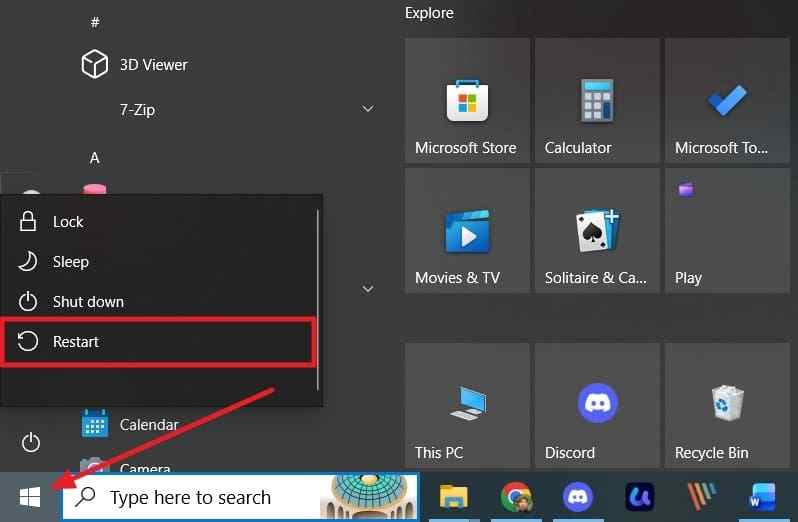
Fix 1. Restart Windows and Reinsert the SD Card
A restart clears temporary detection glitches, stuck USB states, and reader wake issues. Remove the card, inspect it for dust, restart Windows, then insert it again firmly.
Instructions. Remove the card > check the contacts > open Start > Power > Restart > reinsert the card after Windows loads.
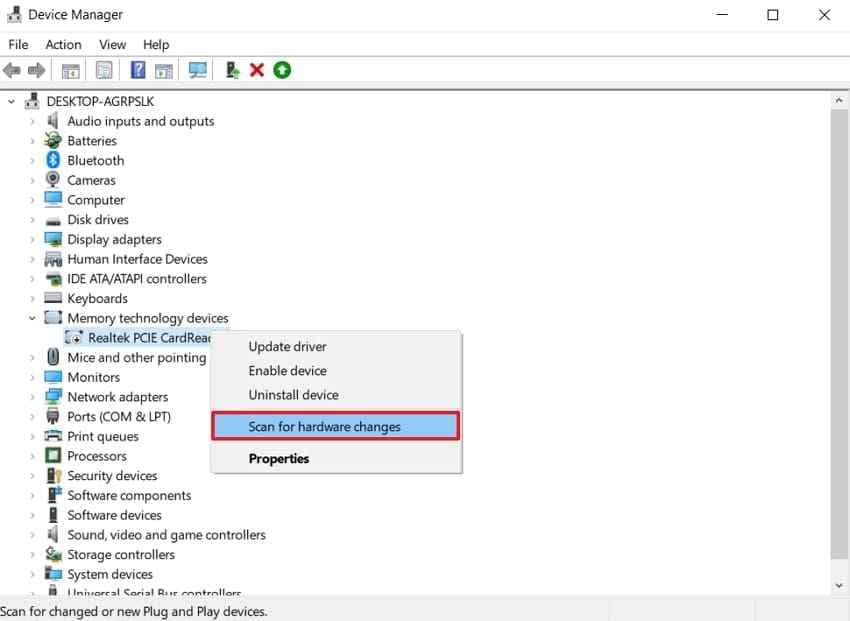
Fix 2. Scan for Hardware Changes
Device Manager can force Windows to look again for hardware that was missed during startup or after reconnecting the reader.
Instructions. Right-click Start > open Device Manager > select your computer name or reader category > open Action > choose Scan for hardware changes.
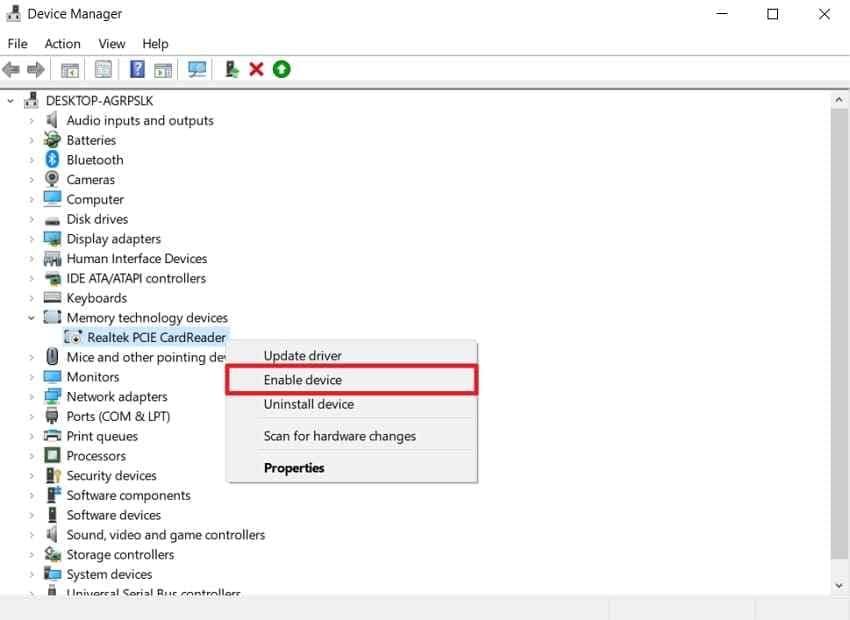
Fix 3. Enable the SD Card Reader
A disabled card reader can make every SD card appear undetected, even when the slot is physically fine.
Instructions. Open Device Manager > expand Disk drives, Memory technology devices, or Universal Serial Bus controllers > find the card reader > right-click it > choose Enable device if available.
Fix 4. Update the SD Card Reader Driver
An outdated or incompatible card reader driver can cause SD card not recognized Windows 10 issues after updates or hardware changes. Microsoft's Device Manager driver guide explains that drivers can be updated or reinstalled through Device Manager.
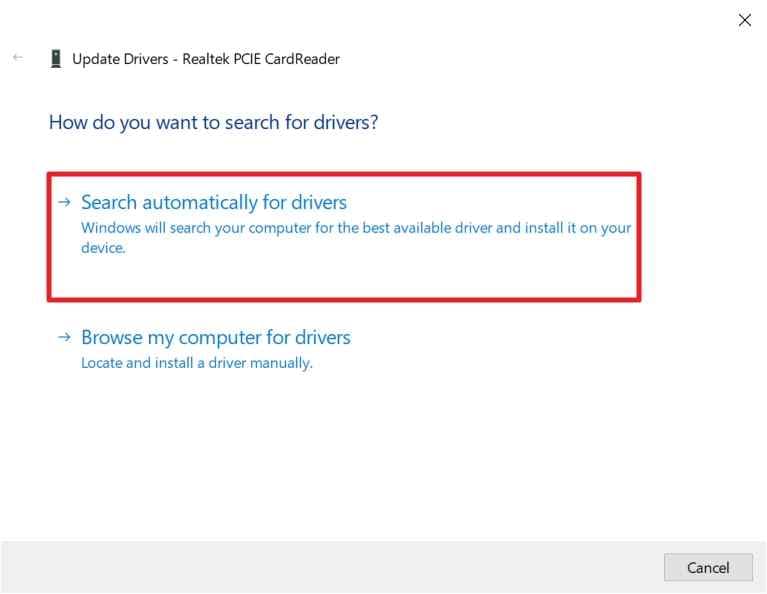
Step 1. In Device Manager, right-click the card reader and choose Update driver.
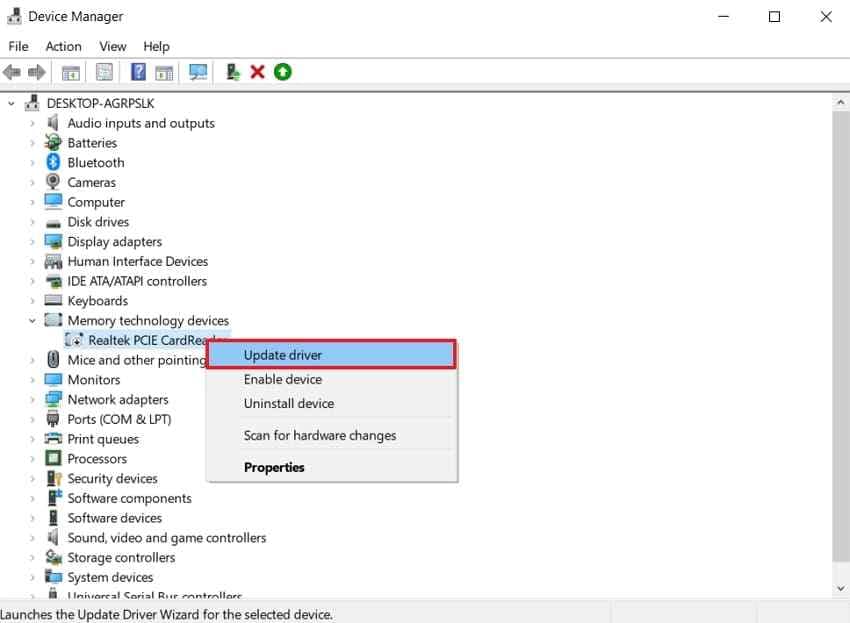
Step 2. Select Search automatically for drivers. Restart Windows after the update process finishes, then test the SD card again.
Fix 5. Uninstall and Reinstall the Card Reader Driver
If the reader driver is corrupted, a reinstall may work when a normal update does not.
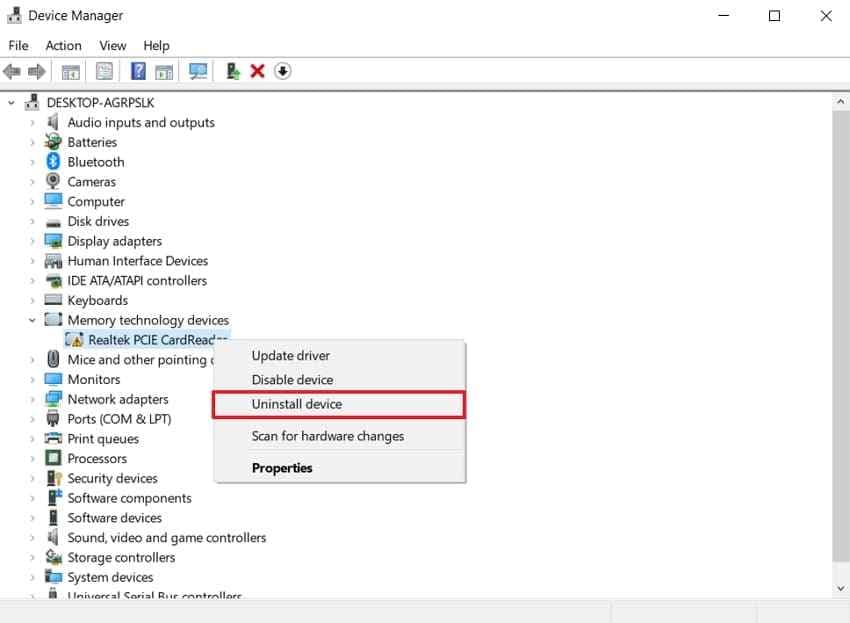
Instructions. In Device Manager, right-click the card reader > choose Uninstall device > confirm > restart the PC. Windows will try to reinstall the reader driver after restart.
Fix 6. Install the Manufacturer Card Reader or Chipset Driver
Generic Windows drivers do not always support older built-in card readers correctly. Use the PC manufacturer's official support site for the card reader, chipset, or storage controller package.
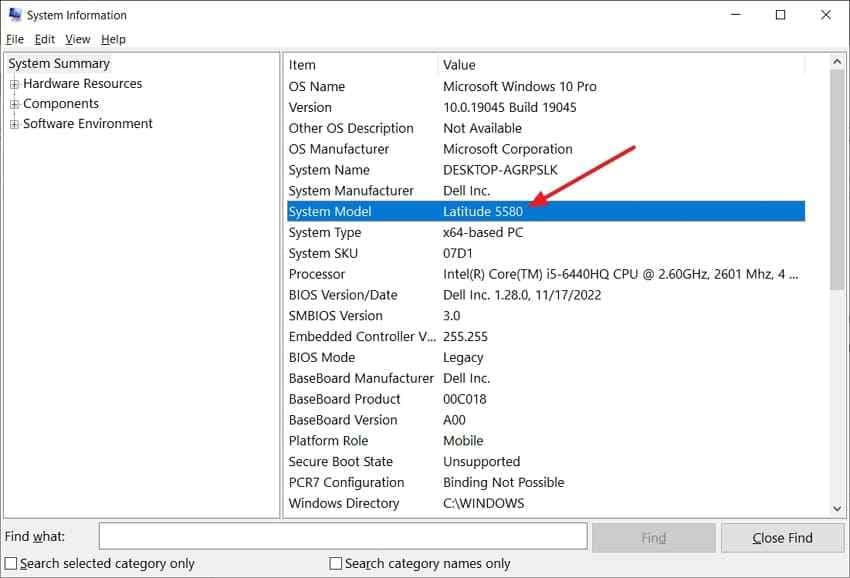
Step 1. Press Windows + R, type msinfo32, press Enter, and copy the System Model.
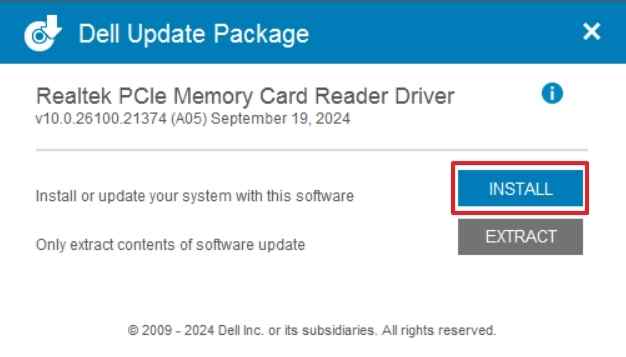
Step 2. Open the manufacturer's official support site, search the model, and download the matching Card Reader, Chipset, or Storage Controller driver for Windows 10.
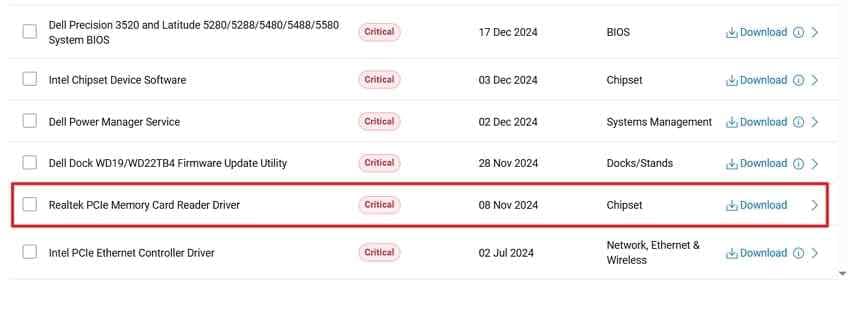
Step 3. Run the downloaded installer, follow the on-screen instructions, restart the PC, and test the SD card again.
Part 6. Fix USB Controller, BIOS, or Windows Update Issues
If Windows 10 still does not detect the SD card, the problem may sit below the card reader driver. Check USB controller, update, rollback, and BIOS settings.
Fix 1. Uninstall and Reinstall the USB Controller Driver
Use this method when external USB readers and other USB devices also behave incorrectly. A corrupted USB controller driver can affect every device connected through the same controller.
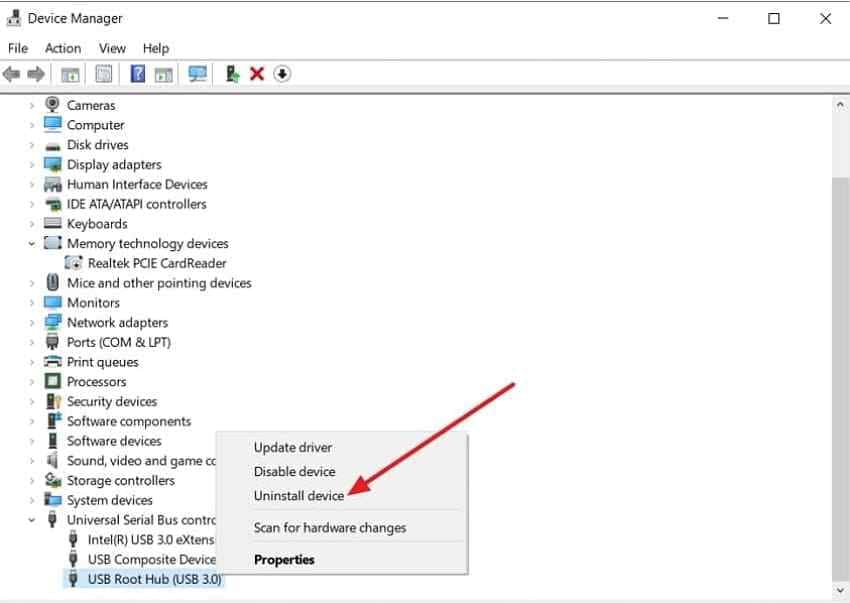
Instructions. In Device Manager, expand Universal Serial Bus controllers > right-click USB Root Hub or the affected USB controller > choose Uninstall device > restart the PC.
Fix 2. Install Available Windows and Optional Driver Updates
Windows Update may include card reader, chipset, storage, or USB driver fixes. Microsoft says Windows can install recommended drivers automatically, while optional driver updates may require manual selection through Windows Update driver settings.
Step 1. Open Settings > Update & Security > Windows Update > click Check for updates.
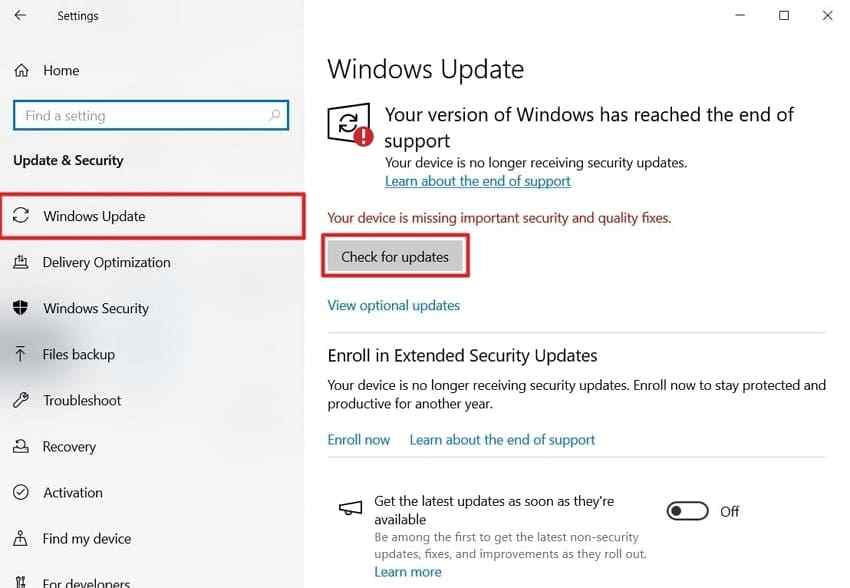
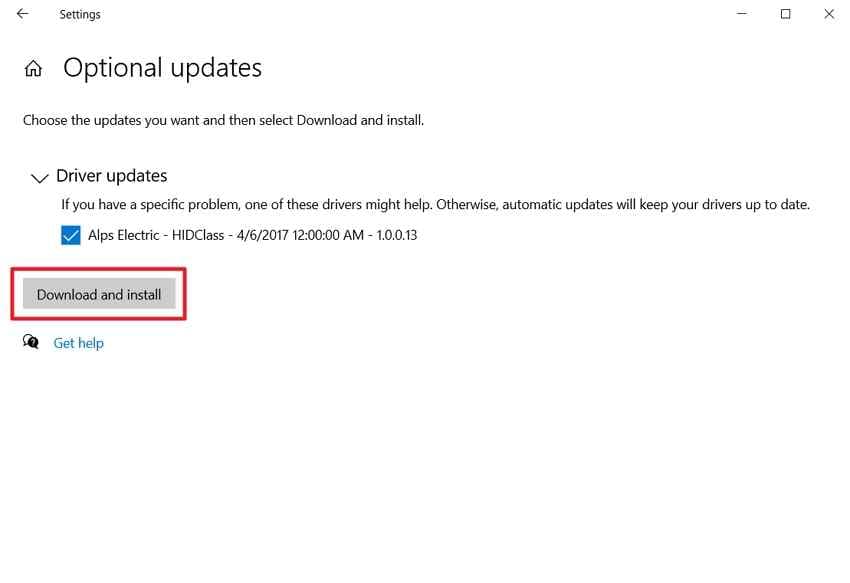
Step 2. If View optional updates appears, open it, select relevant driver updates, click Download and install, then restart Windows.
Fix 3. Roll Back a Recent Driver or Windows Update
If the SD card stopped being detected right after a driver or Windows update, rollback is more logical than replacing hardware immediately.
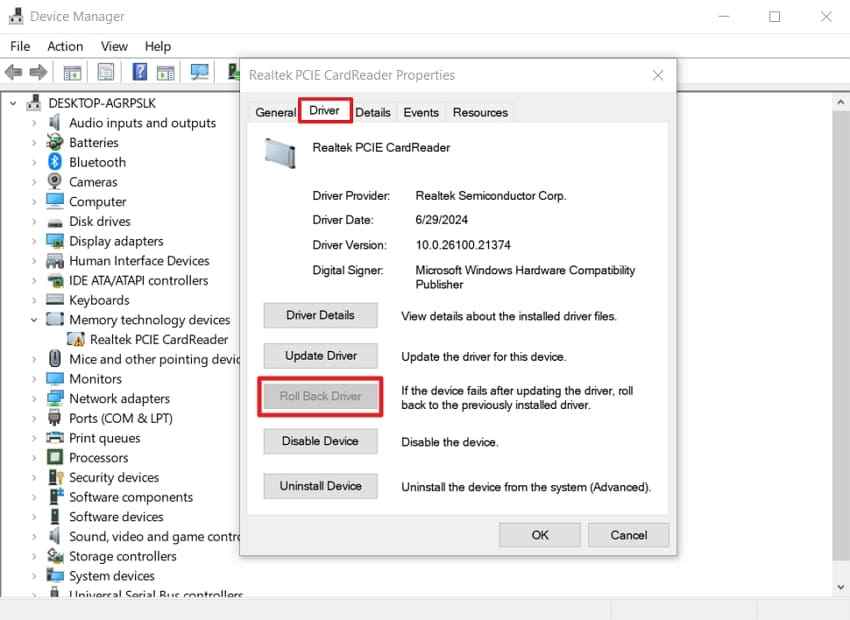
Roll back a recent driver. Open the reader's Properties in Device Manager > choose the Driver tab > click Roll Back Driver if available > restart Windows.
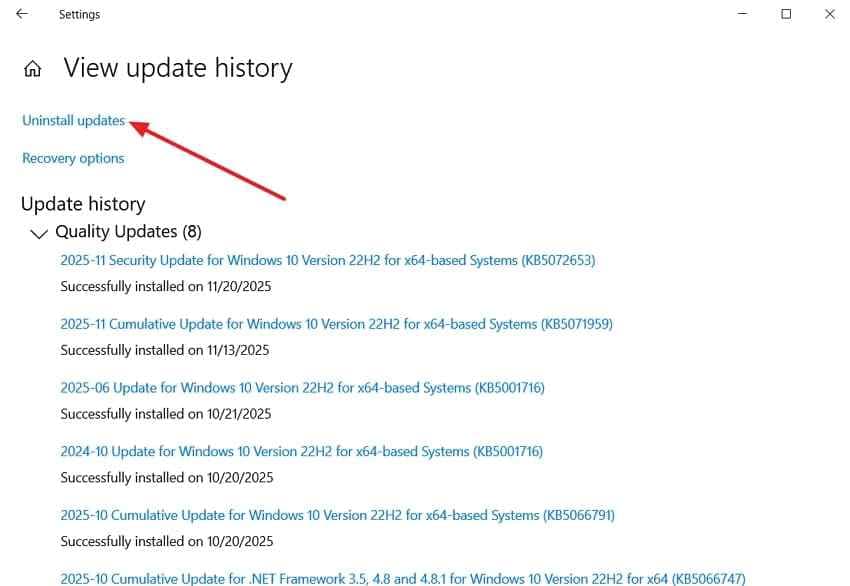
Step 1. Roll back a Windows update. Open Settings > Update & Security > Windows Update > View update history > Uninstall updates.
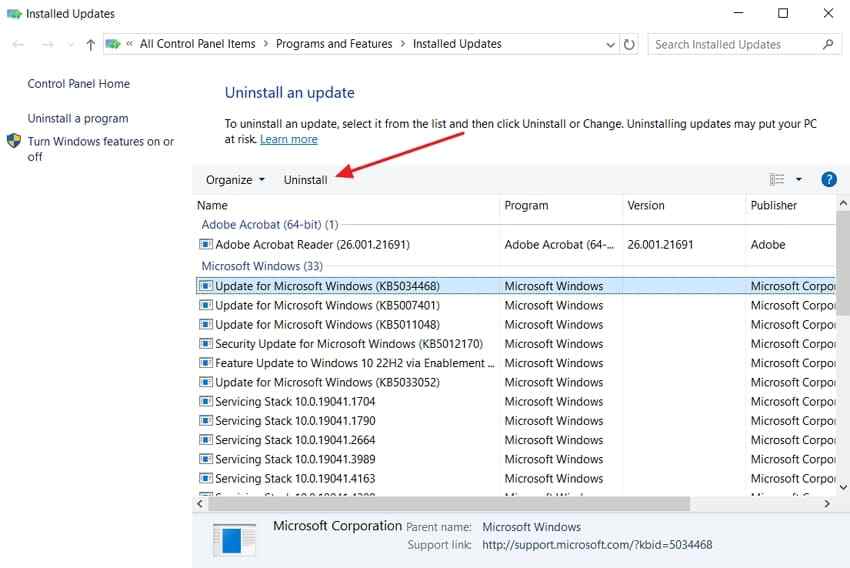
Step 2. Select the update installed around the time the SD card stopped working, click Uninstall, restart, and test the card reader again.
Fix 4. Check the Card Reader Setting in BIOS or UEFI
Some computers can disable the built-in SD card reader in BIOS or UEFI. Dell's support guidance notes that some BIOS or UEFI screens include options such as Secure Digital (SD) card, Card Reader, or SD Reader. The exact path varies by manufacturer.
Step 1. Restart the PC and enter BIOS or UEFI using the key shown by your manufacturer, such as F2, F7, F10, F12, or Delete.
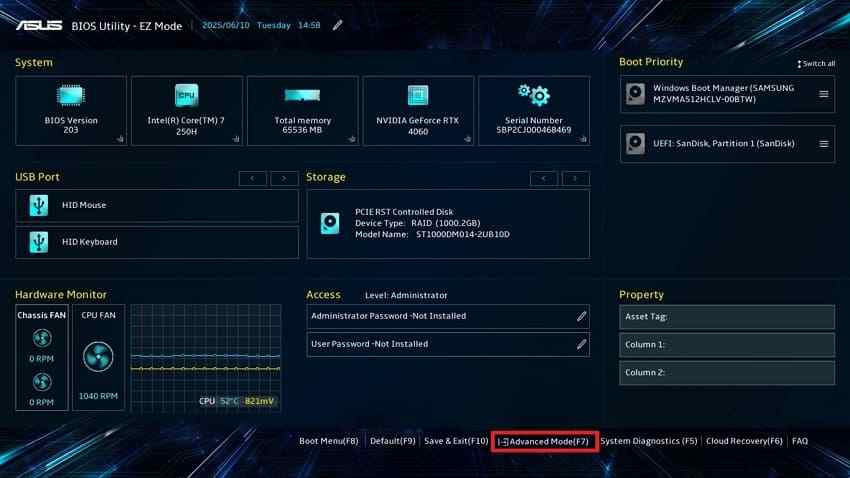
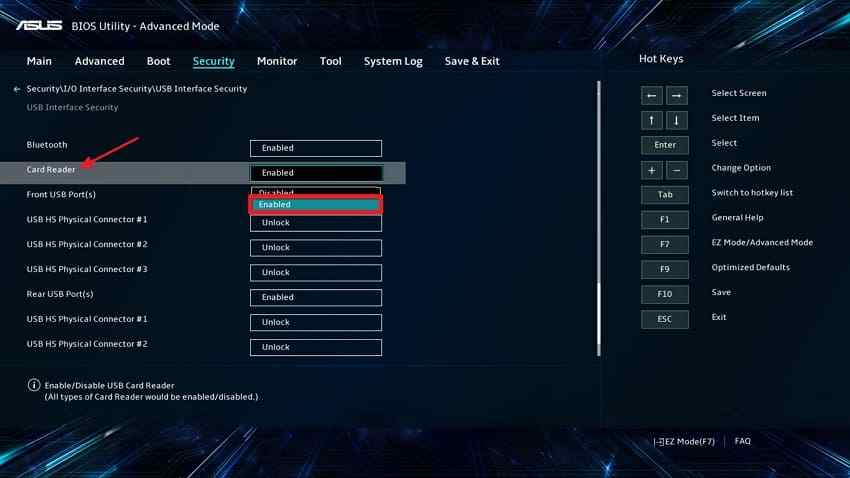
Step 2. Look under menus such as Advanced, Security, I/O Interface Security, USB Configuration, or Integrated Devices.
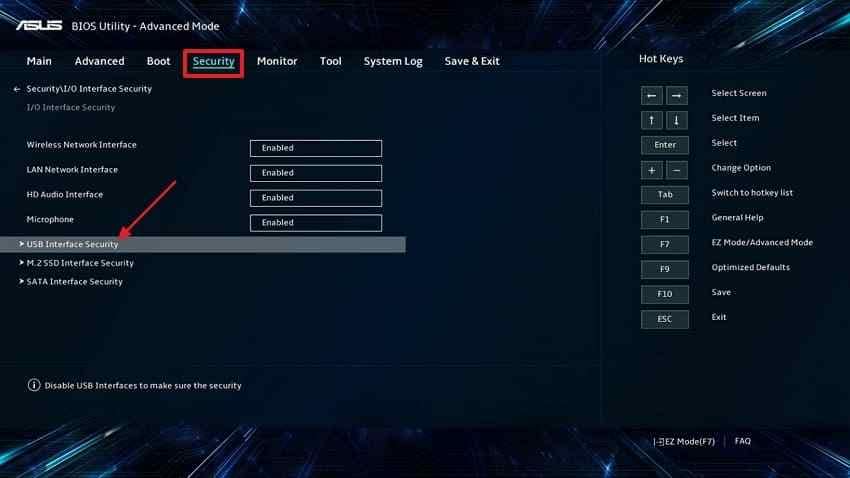
Step 3. Enable Card Reader, SD Reader, or Secure Digital Card if it is disabled. Save changes, exit BIOS, and test the card in Windows.
Fix 5. Replace the Reader or SD Card if Hardware Failure Is Confirmed
If every software and driver fix fails, compare hardware results again. Replace the reader if multiple cards fail only in that reader. Stop using the SD card if it fails in every phone, camera, PC, and reader, especially if it is cracked, warped, hot, corroded, or repeatedly disconnecting.
Part 7. Can You Recover Files From an Undetected SD Card?
Recovery depends on detectability. Software can only scan storage that the computer or recovery software can still communicate with. A completely undetected SD card usually needs professional recovery instead of more software attempts.
When Recoverit Can Help
Recoverit Memory Card Recovery can help recover files when the SD card is not visible in File Explorer but still appears as a physical device, unallocated disk, RAW card, inaccessible card, or removable storage through Windows or the recovery software.
- Detected without a drive letter: the card may still be scannable even if File Explorer does not show it.
- RAW or inaccessible card: scan for recoverable files before repair tools or formatting.
- Unallocated card: recover files before creating a new volume.
- Photo or video card: preview recoverable files before saving them elsewhere.
How to Recover Files From a Detected SD Card with Recoverit
Connect the SD card with a reliable reader. Install Recoverit on the computer, not on the affected card. Then recover files to another drive.
Step 1. Choose the detected SD card and start a scan. Open Recoverit, choose the SD card from the device list, and click Start Scan.

Step 2. Scan for missing files. Wait for the scan to complete. Use file type, path, size, or date filters to locate files faster.

Step 3. Preview and save recovered files. Preview files, select what you need, click Recover, and save the files to another drive or folder.

Try Wondershare Recoverit to Perform Data Recovery
Security Verified. Over 7,302,189 people have downloaded it.
When Professional Data Recovery Is Required
Use a professional recovery service if the card is missing from Disk Management and Device Manager, fails in every reader and device, shows visible physical damage, heats unusually, or disconnects repeatedly. Recoverit cannot repair physical card failure or guarantee recovery from a fully undetected card.
Part 8. How to Prevent SD Card Detection Problems
After fixing the current issue, these habits reduce the chance of Windows 10 not seeing an SD card again.
- Choose a quality card reader: use a reliable reader or adapter from a known brand.
- Keep drivers up to date: install card reader, USB, chipset, and Windows updates from official sources.
- Clean contact pins carefully: keep SD card contacts dry and free from dust or fingerprints.
- Store cards properly: protect cards from moisture, heat, bending, and physical impact.
- Safely eject before removal: use Safely Remove Hardware before unplugging readers or cards.
- Back up important files: keep copies of photos, videos, and documents outside the SD card.
- Replace unreliable cards: retire cards that frequently disconnect, corrupt files, or fail detection tests.
Conclusion
An SD card not detected in Windows 10 is usually caused by contact problems, a faulty reader, a disabled reader, driver corruption, USB controller issues, BIOS settings, or physical card failure. Start by identifying whether the card, reader, or Windows is at fault. If Windows can still detect the card at some level, recover important files before risky repair or replacement steps. If no device detects the card at all, professional recovery is safer than repeated DIY attempts.
FAQ
-
What is the difference between an SD card not detected and not showing up?
Not detected usually means Windows cannot identify the card or reader at the hardware or driver level. Not showing up can also mean Windows sees the card but has not mounted it in File Explorer. -
Why does my SD card work in my phone but not in Windows 10?
If the card works in a phone or camera, the Windows 10 reader, USB port, adapter, driver, or BIOS setting is more likely to be the cause than the card itself. -
Can a BIOS setting stop Windows 10 from detecting an SD card?
Yes. Some PCs include BIOS or UEFI settings that can disable a built-in SD card reader. Check the manufacturer's support instructions for the exact menu path. -
Can Recoverit recover files from an SD card that Windows 10 does not detect?
Recoverit can help when the card is still detectable as a physical device, RAW disk, inaccessible card, or unallocated storage. It cannot recover from a card that no reader, device, or recovery tool can detect. -
Should I reinstall the USB controller driver if only the SD card is not detected?
Start with the SD card reader driver first. Reinstall the USB controller driver only when external readers or other USB devices also stop working.



