Your SD card should appear on your computer soon after you insert it. When it does not, the first reaction is usually panic, especially if the card stores photos, videos, documents, or work files.
An SD card not recognized by a computer can be caused by a loose adapter, a faulty card reader, a missing drive letter, an outdated driver, an unsupported file system, or SD card corruption. The important rule is simple: if the files matter, do not format, initialize, or write new data to the card before recovery.
This guide explains why your computer does not recognise an SD card, how to diagnose the exact case, how to recover files safely, and how to fix SD or microSD card recognition problems on Windows and Mac.
In this article
Part 1. What Does "SD Card Not Recognized" Mean?
An SD card not recognized means your operating system cannot properly detect, mount, or read the card. The card may be missing from File Explorer, visible only in Disk Management, listed with an error in Device Manager, or detected as RAW, unallocated, or 0 bytes.
These cases look similar, but they require different fixes. The table below explains the most common status messages.
| Status | What It Means | What to Do First |
| Not shown anywhere | The PC, reader, or card may not be detecting the SD card at the hardware level. | Try another reader, port, computer, or device. |
| Shown in Disk Management but not File Explorer | Windows detects the card, but it may not have a drive letter or readable partition. | Assign a drive letter if the partition is healthy. |
| RAW | The file system is damaged or unsupported, so Windows cannot read it normally. | Recover files first, then format if needed. |
| Unallocated | The partition is missing or deleted. | Recover data before creating a new partition. |
| Not Initialized | Windows cannot read the disk structure. | Do not initialize before recovering important data. |
| 0 bytes | The card may have severe corruption or hardware failure. | Stop writing to it and try data recovery or professional help. |
| Warning icon in Device Manager | The card reader, USB controller, or driver may have a problem. | Update, reinstall, or enable the device driver. |
Part 2. Quick Diagnosis: Which Case Matches Your SD Card?
Use this quick diagnosis table before trying any repair. It helps avoid unnecessary formatting and protects recoverable data.
| What You See | Likely Cause | Recommended Action |
| SD card does not appear anywhere | Bad USB port, card reader, adapter, or card hardware | Test another reader, port, and computer. |
| Card appears in File Explorer | Windows recognizes it | Back up files immediately if the card was unstable. |
| Card appears in Disk Management only | Missing drive letter or partition issue | Assign a drive letter if the partition is healthy. |
| Card shows as RAW | File system corruption or unsupported format | Recover files first, then format. |
| Card shows as Unallocated | Partition loss or accidental deletion | Do not create a new volume until files are recovered. |
| Card is write-protected | Lock switch or software write protection | Unlock the adapter or remove write protection before changes. |
| Files open with errors | File system damage or corrupted files | Recover files and then repair or format the card. |
| MicroSD card works in phone but not PC | Adapter issue, encryption, unsupported format, or reader compatibility | Try another adapter and check whether the phone encrypted the card. |
Part 3. Why Is Your SD Card Not Recognized by Your Computer?
A PC not recognising an SD card is usually caused by one of the issues below:
| Cause | What It Means | Typical Fix |
| Loose card or dirty contacts | The reader cannot make a stable connection with the SD card. | Clean the contacts and reinsert the card carefully. |
| Faulty slot, USB port, or card reader | The problem is with the reader or computer, not necessarily the SD card. | Try another reader, slot, or USB port. |
| MicroSD adapter problem | The microSD card may be fine, but the adapter is damaged or locked. | Use another adapter and check the lock switch. |
| No drive letter | Windows detects the card but does not show it in File Explorer. | Assign a drive letter in Disk Management. |
| Outdated or corrupted driver | The card reader driver or USB controller is not working correctly. | Update or reinstall the driver. |
| RAW or unsupported file system | The card uses a damaged or unsupported format. | Recover files first, then reformat with a compatible file system. |
| SD card corruption | The file system, partition table, or stored files are damaged. | Recover files before running repairs. |
| Physical card failure | The flash memory or controller may be damaged. | Stop using the card and consider professional recovery. |
Part 4. Important Steps Before Fixing an Unrecognized SD Card
Before you try to repair an SD card, protect the data first. Some common fixes can overwrite recoverable files or make corruption worse.
- Do not format if data matters: Formatting may make the card usable again, but it can also reduce the chance of full recovery.
- Do not initialize the card too early: If Windows asks you to initialize the disk, stop and recover files first.
- Do not create a new partition: Creating a new volume on an unallocated card can overwrite old partition information.
- Do not run CHKDSK too early: CHKDSK can modify file system records. Recover important files before using it.
- Do not save new files to the card: New data may overwrite deleted or lost files.
- Test hardware first: Try another reader, adapter, USB port, or computer before assuming the SD card is damaged.
Part 5. Recover Files from an SD Card Your Computer Does Not Recognize
If the SD card contains important data, file recovery should come before repair. This is especially important when the card is shown as RAW, unallocated, not initialized, unreadable, or visible in Disk Management but not accessible in File Explorer.
Recoverit Windows Data Recovery can scan SD cards, microSD cards, USB card readers, and other removable storage devices when Windows can still detect the device. It is useful when your computer recognizes the card at the system level but cannot open it normally.
When Should You Use Recoverit First?
- The SD card appears in Disk Management but not File Explorer.
- The SD card asks to be formatted before use.
- The card shows as RAW, inaccessible, or corrupted.
- Files disappeared after accidental deletion or formatting.
- The card opens, but photos, videos, or documents are missing or damaged.
If no computer, camera, phone, or card reader can detect the card at all, the card may have physical damage. In that case, avoid repeated attempts and consider a professional recovery service.
Supported File Types and SD Card Cases
| Category | Examples |
| Documents | DOC, DOCX, XLS, XLSX, PPT, PPTX, PDF, TXT |
| Photos | JPG, JPEG, PNG, BMP, GIF, TIFF, HEIC |
| RAW camera files | CR2, CR3, NEF, ARW, ORF, RAF, DNG, RW2 |
| Videos | MP4, MOV, AVI, MKV, WMV, M4V, 3GP |
| Audio | MP3, WAV, AAC, FLAC, WMA, M4A |
| Archives | ZIP, RAR, 7Z, TAR, ISO |
| Common loss cases | Deletion, formatting, RAW file system, corruption, partition loss, virus attack, and inaccessible cards |
How to Recover Files from an SD Card on Your Computer
Connect the SD card through a reliable card reader. If you are using a microSD card, use a working microSD adapter or USB microSD reader.
Step 1. Connect the SD Card to the PC
Launch Recoverit Windows Data Recovery, choose SD Card Recovery, select your SD card, and click Start Scan.

Step 2. Scan the SD Card
Recoverit will scan the SD card for recoverable photos, videos, documents, and other files. Wait for the scan to finish for a more complete result.

Step 3. Preview and Recover Files
Preview the found files when available, select the files you need, and click Recover. Save recovered files to your computer or another external drive, not back to the same SD card.

Part 6. How to Fix an SD Card Not Recognized on a Windows PC
After protecting your files, try the following fixes from simple to advanced.
Fix 1. Check the SD Card, Adapter, and Reader
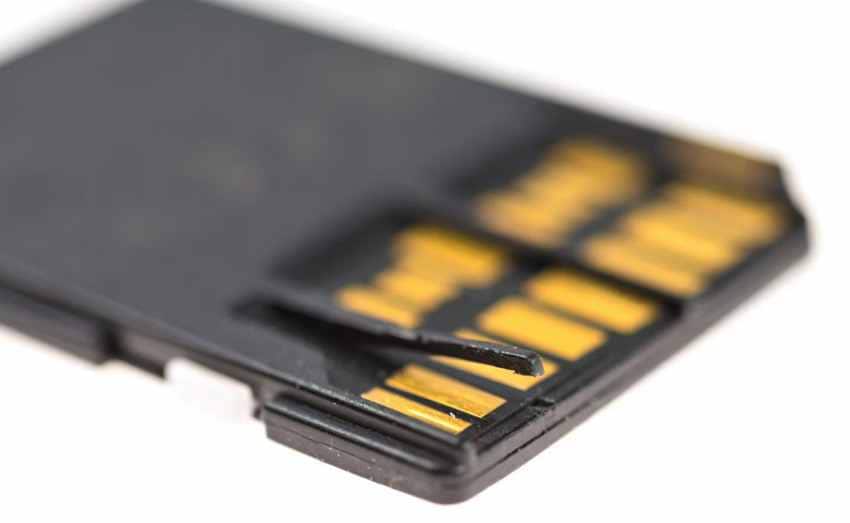
Remove the SD or microSD card and inspect it carefully. Look for cracks, bends, dirt, corrosion, or deep scratches on the gold contacts. If you use a full-size SD adapter for a microSD card, remove and reinsert the microSD card into the adapter.
Also check the adapter lock switch. A locked adapter usually prevents writing, but it can confuse troubleshooting if you are trying to repair or format the card.
Fix 2. Try Another USB Port, Slot, or Card Reader
A laptop not recognising an SD card may have a faulty built-in reader or USB port. Try these checks:
- Use another USB port on the same PC.
- Use a different USB card reader.
- Try the SD card on another computer.
- Test another known-good SD card in the same reader.
If multiple cards fail in the same reader, the reader or USB port is likely the problem. If the same card fails everywhere, the SD card may be corrupted or physically damaged.
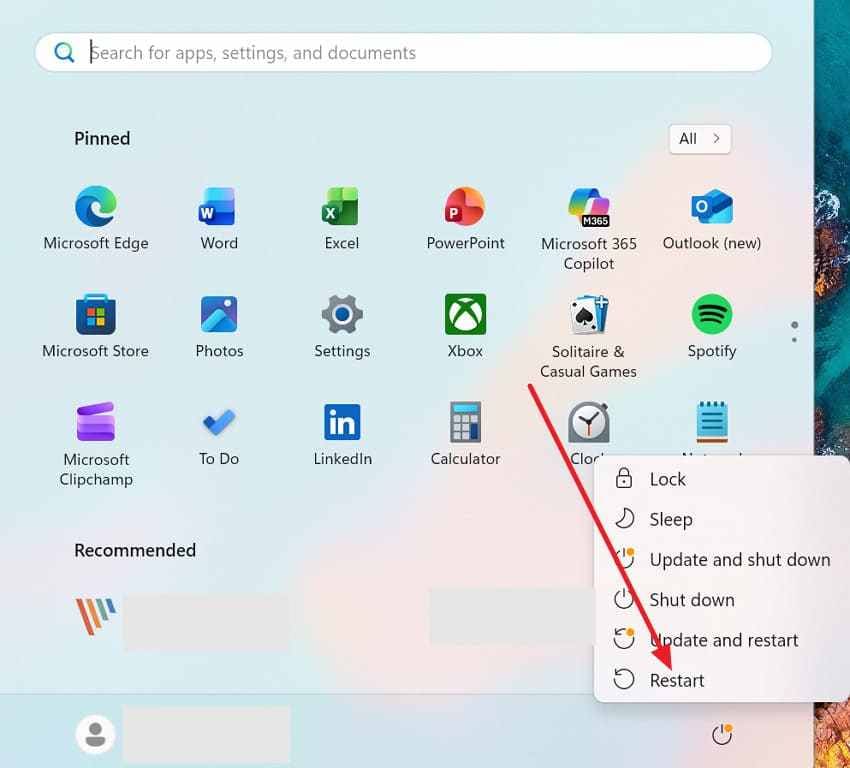
Fix 3. Restart the PC with the SD Card Connected
Restarting Windows can refresh USB storage services and reload device drivers.
Instructions:
- Insert the SD card into the reader.
- Click the Start icon.
- Select Power > Restart.
- After Windows restarts, check File Explorer and Disk Management again.
Fix 4. Check Device Manager
Device Manager can show whether Windows detects the card reader or reports a driver error.
Instructions:
- Right-click Start and choose Device Manager.
- Expand Disk drives, Universal Serial Bus controllers, and Memory technology devices if available.
- Look for the SD card, USB card reader, or any device with a warning icon.
- If the device is disabled, right-click it and choose Enable device.
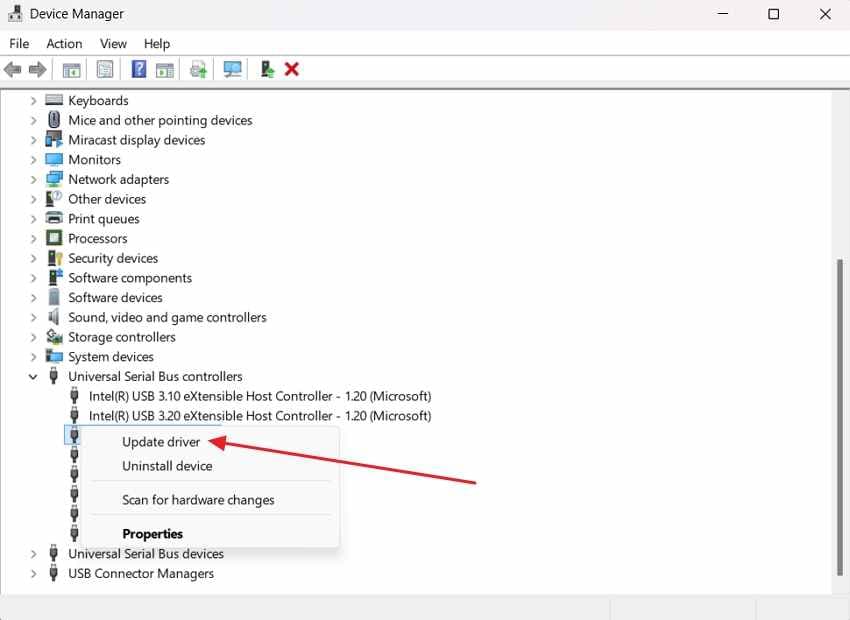
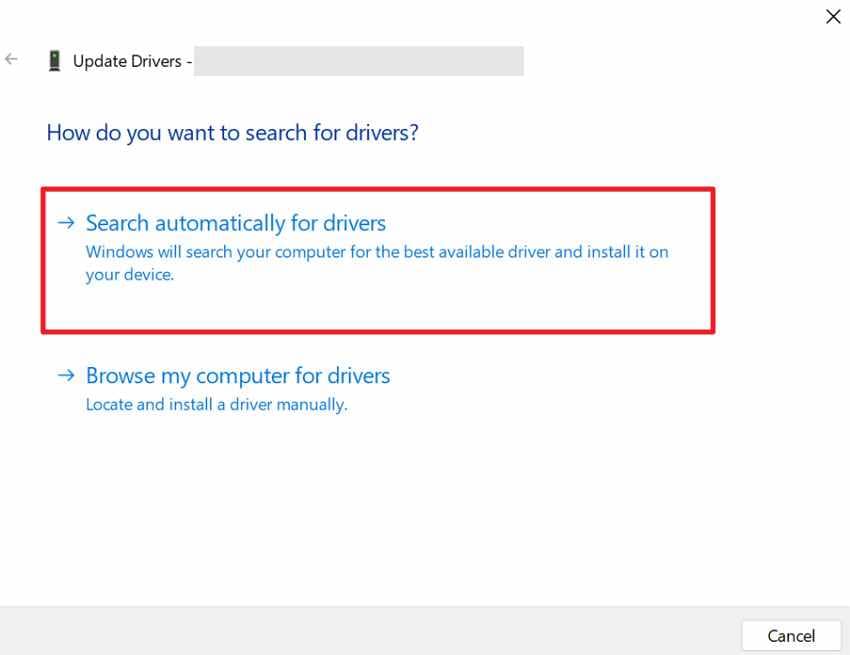
Fix 5. Update or Reinstall the Card Reader Driver
A corrupted or outdated driver can stop Windows from recognizing an SD card correctly.
Instructions:
- Open Device Manager.
- Find the card reader under Universal Serial Bus controllers, Disk drives, or Memory technology devices.
- Right-click the device and choose Update driver.
- Select Search automatically for drivers.
- If updating does not help, right-click the device, choose Uninstall device, then restart the PC.
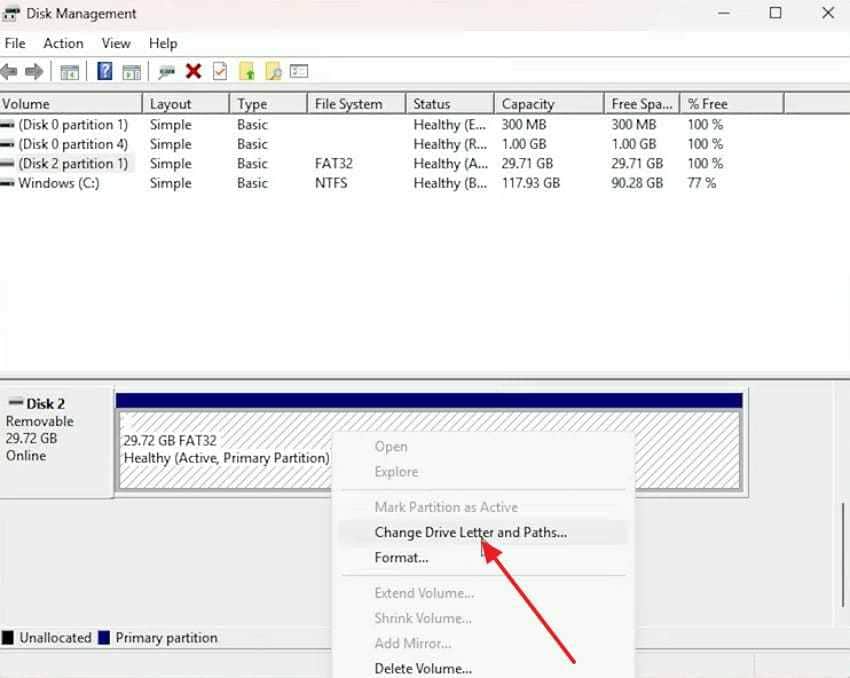
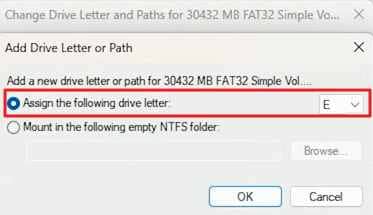
Fix 6. Assign a Drive Letter in Disk Management
If the SD card appears in Disk Management but not File Explorer, it may simply need a drive letter.
Instructions:
- Right-click Start and choose Disk Management.
- Find the SD card by checking its size and removable status.
- Right-click the healthy partition and choose Change Drive Letter and Paths.
- Click Add, choose an unused drive letter, and click OK.
If the partition is RAW, unallocated, or not initialized, do not create a new volume before recovering files.
Fix 7. Check the SD Card Status in Disk Management
Disk Management helps you decide whether the SD card is hidden, corrupted, missing a partition, or unreadable.
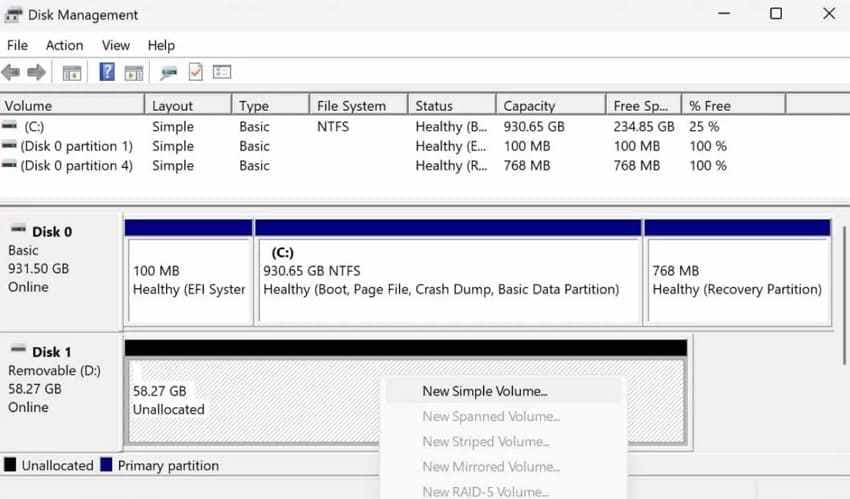
| Disk Management Status | Meaning | Safe Next Step |
| Healthy but no letter | The card is detected but hidden from File Explorer. | Assign a drive letter. |
| RAW | The file system is unreadable. | Recover files, then format. |
| Unallocated | The partition is missing. | Recover files before creating a new volume. |
| Not Initialized | Windows cannot read the disk structure. | Recover files before initializing. |
| No media or 0 bytes | Possible reader issue or card hardware failure. | Try another reader; if unchanged, consider professional recovery. |
Fix 8. Remove Write Protection
Write protection usually does not stop Windows from detecting an SD card, but it can stop repair, deletion, formatting, and file changes.
Check the physical lock switch on the side of a full-size SD card or SD adapter. Slide it to the unlocked position, reinsert the card, and try again.
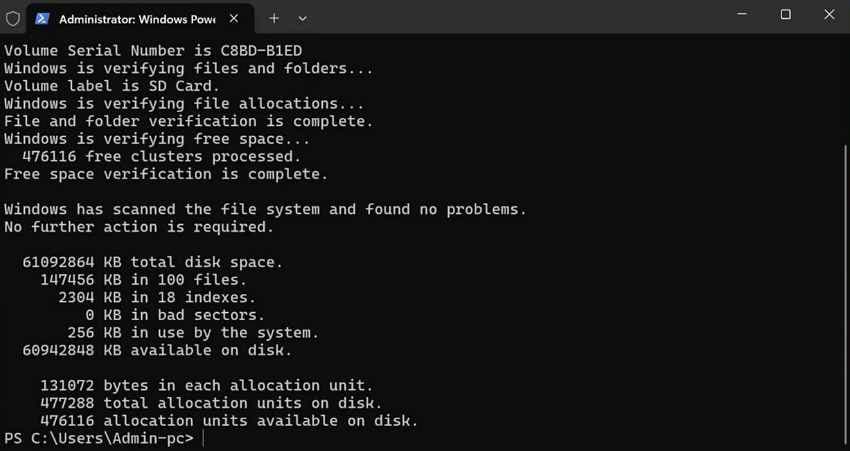
Fix 9. Run CHKDSK After Recovering Files
CHKDSK can repair file system errors, but it may also modify damaged file records. Use it only after recovering important files, and only when the SD card has a drive letter.
Instructions:
- Press Windows + X.
- Choose Terminal (Admin), Command Prompt (Admin), or Windows PowerShell (Admin).
- Type the command below, replacing X with your SD card drive letter:
chkdsk X: /fIf the SD card is RAW, CHKDSK may not work. Recover files first, then format the card to rebuild the file system.
Fix 10. Format the SD Card After Data Recovery
Formatting can fix many recognition issues by creating a fresh file system. It should be used only after files are backed up or recovered.
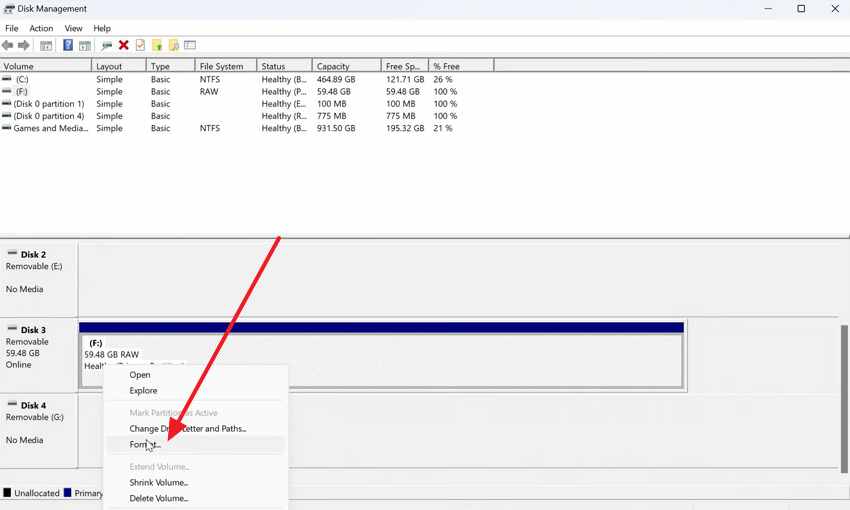
Instructions:
- Open Disk Management.
- Right-click the SD card partition.
- Select Format.
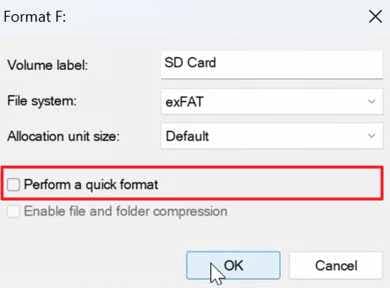
- Choose a compatible file system. Use exFAT for most modern SDXC cards and large files; use FAT32 for older devices when supported.
- Select Perform a quick format and click OK.
Fix 11. Check Windows Updates and Manufacturer Drivers
If the card reader is built into your laptop, install driver updates from Windows Update or your laptop manufacturer's support page. This is useful when a laptop not recognising an SD card started after a Windows update or system reinstall.
Fix 12. Replace the Card Reader or SD Card
If the SD card works in another reader, replace the reader. If no device can detect the card and it shows physical damage, severe heat exposure, 0 bytes, or repeated disconnection, the SD card may be failing. Recover data first if possible, then replace the card.
Part 7. What If a Micro SD Card Is Not Recognized?
A micro SD card not recognised issue often comes from the adapter, device compatibility, or phone-specific formatting.
- Check the adapter: Remove the microSD card from the SD adapter and reinsert it firmly. Try another adapter if possible.
- Clean the contacts: Hold the microSD card by the edges and gently wipe the gold contacts with a clean, dry, soft cloth.
- Test it in a phone or tablet: If the phone detects the card but the PC does not, the adapter or PC reader may be the problem.
- Check encryption: Some phones encrypt SD cards or use them as internal/adopted storage. Such cards may not be readable on a PC.
- Check capacity support: Older readers may not support SDHC, SDXC, or high-capacity microSD cards.
- Watch for fake or worn cards: If the card reports the wrong size, disconnects often, or corrupts new files, replace it after recovering data.
Part 8. What If Your Mac Does Not Recognize the SD Card?
If your SD card is not recognized on a Mac, use Disk Utility and Finder settings to check whether macOS detects the card.
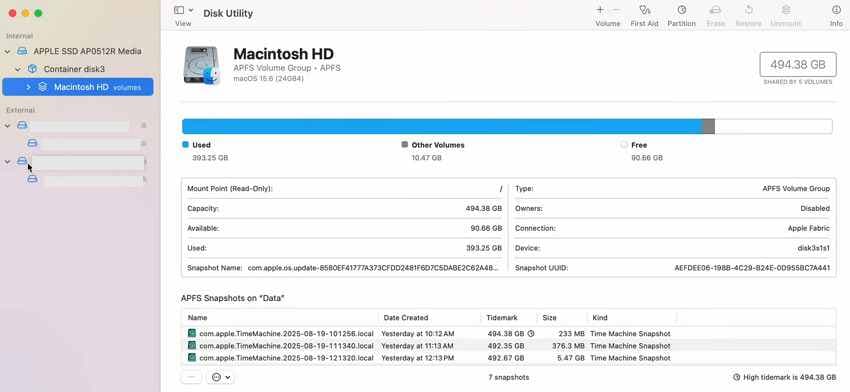
Fix 1. Check Disk Utility
Open Disk Utility and look for the SD card in the sidebar. If it appears there but not in Finder, the card may need to be mounted or repaired.
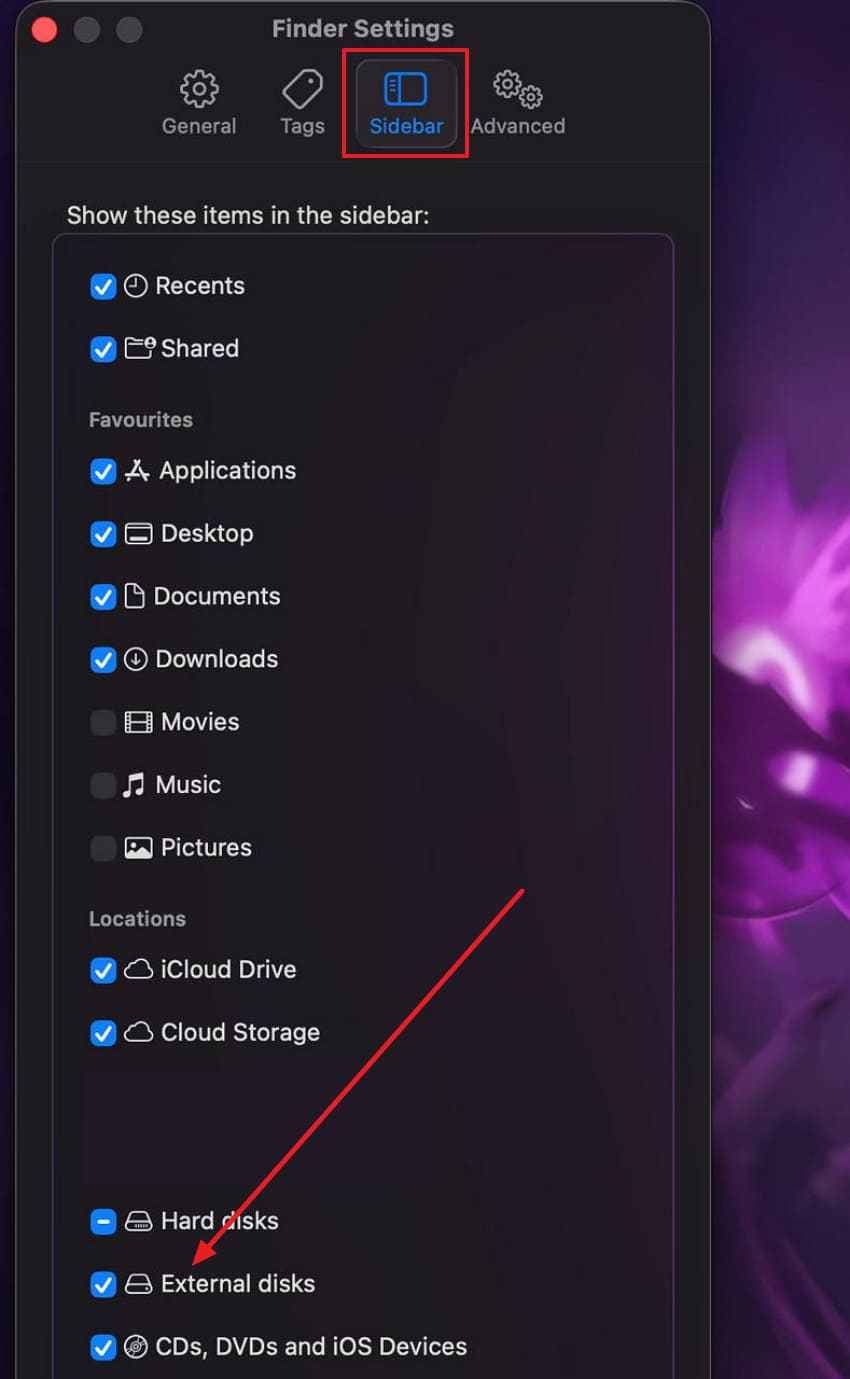
Fix 2. Show External Disks in Finder
If external disks are hidden, the SD card may be mounted but not visible on the desktop or sidebar.
Instructions:
- Open Finder.
- Go to Finder > Settings.
- Under General and Sidebar, enable External disks.
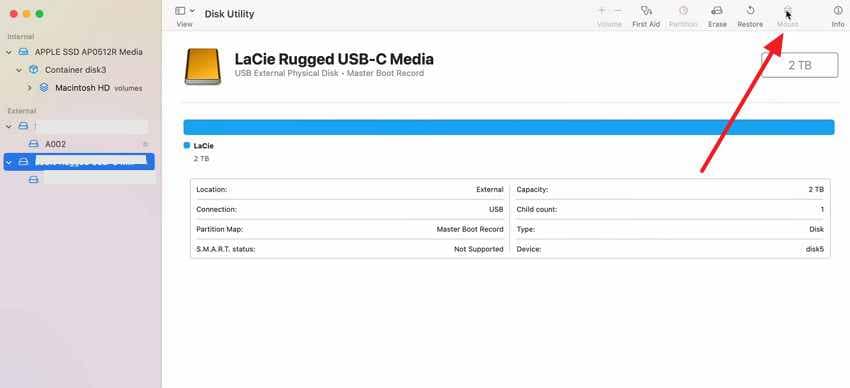
Fix 3. Mount the SD Card
If Disk Utility shows the card but it is not mounted, select it and click Mount.
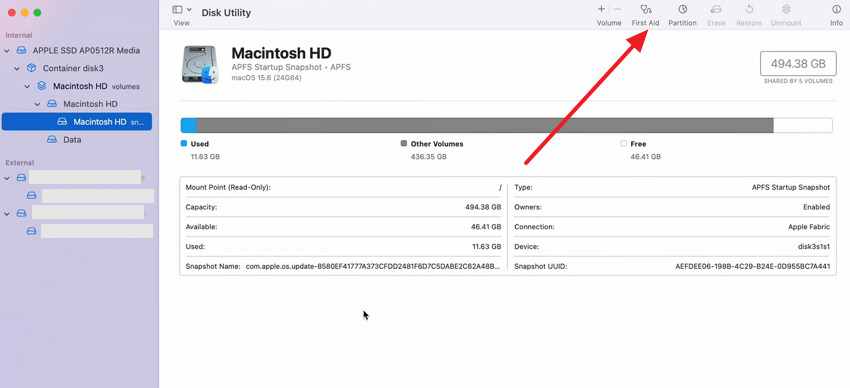
Fix 4. Run First Aid After Protecting Files
First Aid can repair some file system problems, but it may make changes to the card. If the files are important and the card is unstable, recover or back up files first.
Instructions:
- Open Disk Utility.
- Select the SD card.
- Click First Aid.
- Confirm and wait for the scan to finish.
Part 9. SD Card Works on One Device but Not on Your PC
If the SD card works in a camera, phone, or another computer but not on your PC, the card itself may not be the main problem.
| Check | What It Means | What to Do |
| File system compatibility | The card may use a format Windows cannot read normally. | Back up files on the working device, then reformat to exFAT or FAT32 if needed. |
| Phone encryption | The card may be encrypted or used as phone internal storage. | Use the original phone to access and back up files. |
| Reader compatibility | The PC reader may not support the card type or capacity. | Use a newer SDXC-compatible reader. |
| Driver issue | Windows may detect the reader incorrectly. | Update or reinstall the reader driver. |
| Drive letter conflict | Windows may assign a letter already used by another drive. | Assign a new drive letter in Disk Management. |
| Card reader damage | The PC's built-in slot or USB reader may be failing. | Try another reader or USB port. |
Part 10. How to Prevent SD Card Recognition Problems
These habits reduce the chance of future SD card detection errors and data loss.
| Measure | Why It Helps |
| Safely eject the card | Prevents file system corruption before removal. |
| Keep contacts clean | Maintains a stable connection between the card and reader. |
| Use the correct file system | Improves compatibility with cameras, phones, Windows, and Mac. |
| Back up before formatting | Protects files before any destructive repair. |
| Avoid frequent device switching | Reduces file system conflicts between cameras, phones, PCs, and Macs. |
| Check device capacity limits | Older devices may not support SDXC or large microSD cards. |
| Keep drivers and OS updated | Improves card reader and storage compatibility. |
| Store cards properly | Protects the card from heat, moisture, dust, and physical damage. |
| Replace aging cards | Prevents sudden failures from worn flash memory. |
Conclusion
An SD card not recognized by computer error can come from something simple, such as a bad adapter or missing drive letter. It can also point to a corrupted file system, unsupported format, or failing card hardware.
Start with safe checks: try another reader, inspect the adapter, check Disk Management, and assign a drive letter if the card is healthy. If the card shows as RAW, unallocated, not initialized, or asks to be formatted, recover your files first. Recoverit Windows Data Recovery can help recover files from SD and microSD cards before you repair or format them.
FAQ
-
Why is my SD card not recognised by my computer?
Your computer may not recognise the SD card because of a faulty card reader, dirty contacts, a loose microSD adapter, missing drive letter, outdated driver, unsupported file system, corrupted partition, or physical card failure. Test another reader first, then check Disk Management and Device Manager. -
What should I do if my micro SD card is not recognised?
Remove the microSD card from the adapter, clean the contacts, try another adapter, and test it in a phone or another computer. If it works in a phone but not on a PC, check whether the card is encrypted, formatted as phone internal storage, or too large for the old card reader. -
Can I recover files if my SD card asks to be formatted?
Yes, in many cases. Do not format the card if the files matter. Use a recovery tool first to scan the SD card and save recoverable files to another drive. After recovery, you can format the card to rebuild the file system. -
Should I run CHKDSK on an SD card that is not recognized?
Run CHKDSK only after recovering important files and only when the SD card has a drive letter. CHKDSK can repair file system errors, but it can also change damaged file records. If the card is RAW or unallocated, recover data first. -
Why does my SD card work in a camera but not on my PC?
The PC may have a card reader compatibility problem, driver issue, drive letter conflict, or unsupported file system. Back up the files through the device where the card works, then test a newer reader or reformat the card to a compatible file system after backup. -
Does formatting fix an SD card not recognized by a computer?
Formatting can fix file system problems, RAW errors, and some recognition issues, but it removes the existing file structure. Recover or back up important files before formatting. If the card is physically damaged, formatting may fail or only work temporarily.



