A reliable Mac backup should help you get your files back, not just copy them somewhere else. If your Mac's SSD fails, you accidentally replace a document, or you lose access to a laptop, the right backup software can make the difference between a quick restore and permanent data loss.
The eight Mac backup software options below cover local versioned backups, disk cloning, flexible file synchronization, and off-site cloud storage. You'll see where each tool stores data, how to restore it, and what it cannot protect. For most people, Time Machine is a sensible local starting point; pairing it with an independent off-site copy gives you protection that a single external drive cannot provide.
In this article
-
- 1. Apple Time Machine - Best Free Backup Software for Mac
- 2. Carbon Copy Cloner - Best for Advanced Local Mac Backups
- 3. SuperDuper! - Best for Straightforward Mac Disk Copies
- 4. Get Backup Pro - Best for Flexible Local Backup Jobs
- 5. ChronoSync - Best for Scheduled Backups and Complex Folder Workflows
- 6. Arq Backup - Best for Encrypted Backups to Your Chosen Storage
- 7. Backblaze - Best for Simple Off-Site Mac File Backup
- 8. IDrive - Best for Multiple Macs Under One Backup Account
Part 1. What Is Mac Backup Software, and How Does It Work?
Mac backup software saves a recoverable copy of your files, folders, or disk to a destination separate from the original. Depending on the tool, later runs may copy only changed files and retain earlier versions. The safest choice depends on what you need to restore: a deleted document, a previous edit, an entire user account, or a Mac after its internal drive fails.
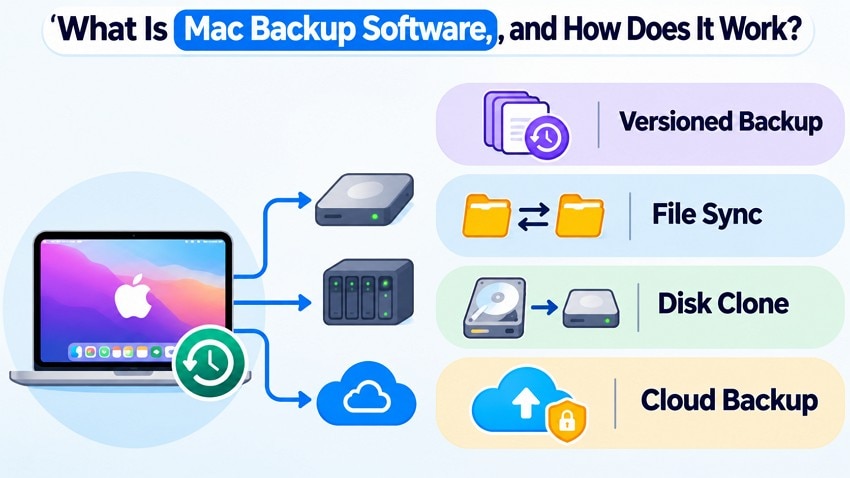
| Approach | What you can recover | Important distinction |
|---|---|---|
| Versioned backup | Deleted files and older versions retained by your backup schedule | Check retention, exclusions, and where the history is stored. |
| File synchronization | Current copies in another folder or device | Changes and deletions can sync too; look for snapshots or version history. |
| Disk copy or clone | A browsable copy of a volume or selected files | A clone is not automatically versioned or bootable, especially on Apple silicon. |
| Cloud backup | Files stored away from the Mac and local backup drive | Check upload coverage, retention, encryption keys, and restore speed. |
For example, if you delete a project folder and a two-way sync removes it from both locations, you may need a separately retained version or snapshot. With a genuine backup history, you can usually choose a point before the deletion. Likewise, a Time Machine local snapshot on the Mac itself is useful for recent changes but cannot protect you if that internal storage is lost.
You do not have to choose only one approach. A versioned local backup gives you fast access to prior files; an independent off-site copy helps if the Mac and nearby backup drive are both damaged or stolen.
Part 2. 8 Best Backup Software for Mac
Each option below serves a different recovery job. Before choosing one, check the supported macOS version, whether you control the destination, which drives and folders are actually included, and how you would restore one test file. Product availability and plan details can change, so confirm them on the linked official pages before buying.
1. Apple Time Machine - Best Free Backup Software for Mac
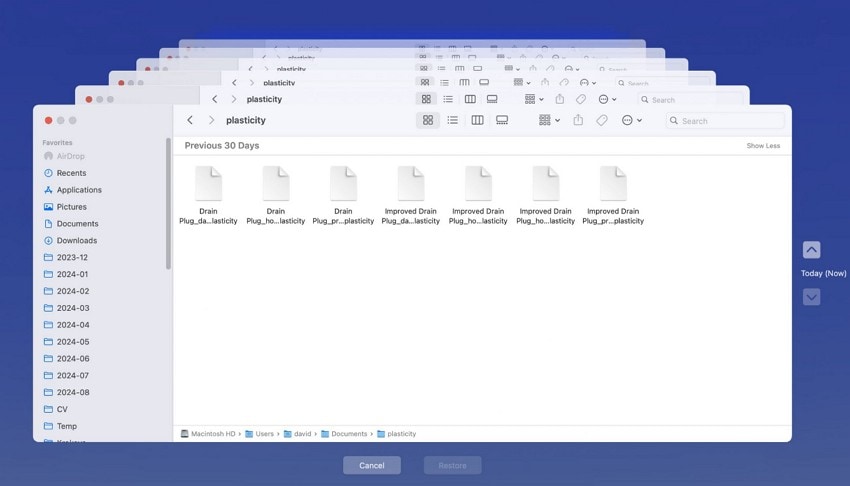
Time Machine is built into macOS and is a strong default if you want automatic, versioned backups without paying for another app. Connect a compatible external drive or network backup destination, and macOS can keep hourly, daily, and weekly copies of eligible data. When you need an older document or a deleted photo, browse the timeline and restore it to your Mac.
Key features:
- Automatic file history: Backups run in the background when the chosen destination is available; older versions are removed as retention space fills.
- Flexible restore: Restore a single file in Time Machine, or use Migration Assistant when moving supported user data to another Mac.
- Encrypted local backups: You can enable backup encryption during disk setup; keep the password in a secure location.
What to check: Time Machine is not a hosted cloud backup or bootable clone. It does not retain macOS installation files, and a single backup disk can fail. Test both a deleted file and an older version from the backup. If the external drive is usually unplugged, confirm the most recent successful backup rather than assuming the schedule ran.
2. Carbon Copy Cloner - Best for Advanced Local Mac Backups
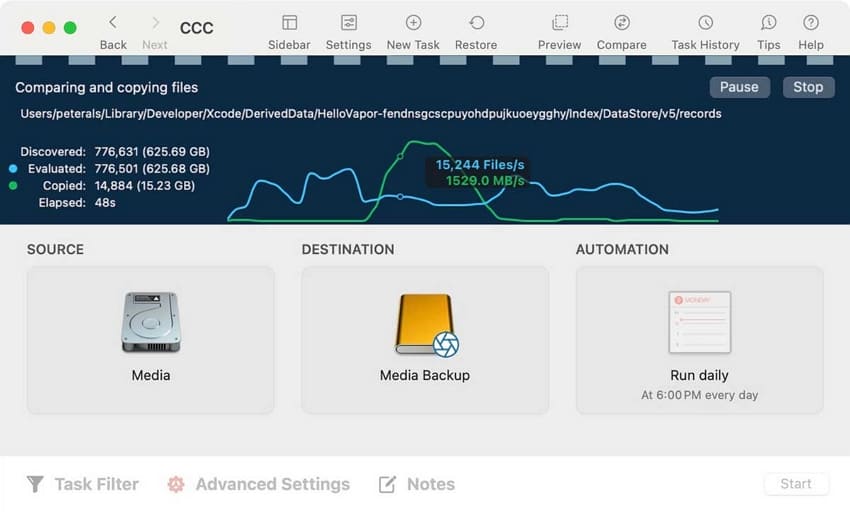
Carbon Copy Cloner (CCC) helps you build scheduled, customizable backups to an external disk or compatible network destination. CCC 7 supports Apple silicon and Intel Macs on macOS Ventura 13.1 and later, including current releases listed by Bombich. It is useful when you need an organized backup of the Mac Data volume, selected folders, or an external project drive.
Key features:
- Custom schedules: Run recurring backup tasks with clear source and destination selections.
- APFS snapshots: Depending on your task and destination, retain earlier file states for recovery rather than only the latest copy.
- Selective and verifiable copying: Choose what to copy and inspect task history before trusting a backup.
What to check: A standard CCC data backup is usually the better default than relying on a bootable operating-system clone. Encrypt an APFS backup destination when the files require protection, and keep the encryption password safe. Bootable copies have macOS and Apple silicon limitations, and do not replace an off-site backup. Test restoring a small file from the destination, then check whether the selected task preserves the history you need.
3. SuperDuper! - Best for Straightforward Mac Disk Copies
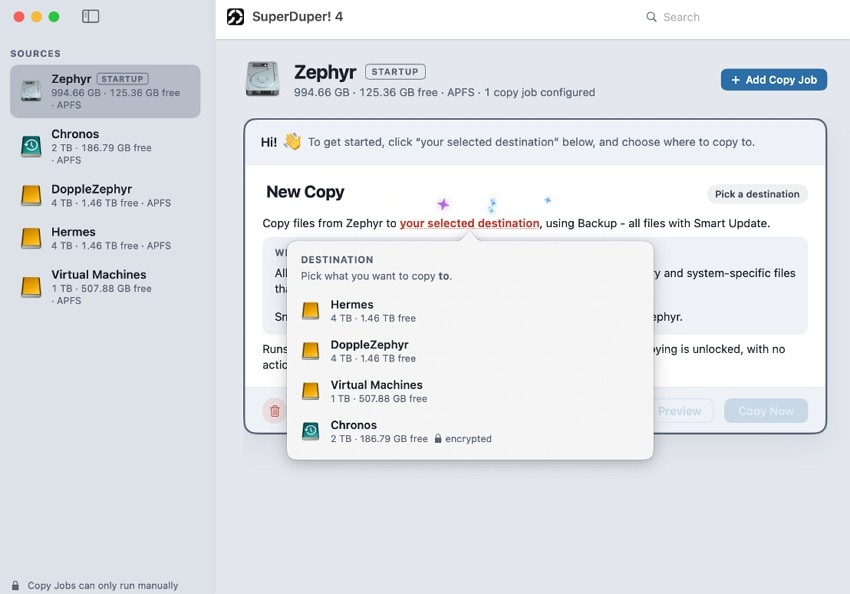
SuperDuper! 4 focuses on understandable disk-copy jobs. Its free mode supports full erase-and-copy backups; paid features unlock Smart Update and scheduling. The current 4.x app supports macOS 14 and later on Apple silicon and Intel Macs. This is a good fit if you prefer a browsable local copy rather than a cloud account.
Key features:
- Full disk copy: Copy a selected source to a separate drive, with a clear warning when the destination will be erased.
- Smart Update: Paid functionality refreshes only changed data on subsequent copies, reducing repeat-copy time.
- Conditional bootable copies: Supported combinations can create a startup-capable drive, subject to Apple replication and boot rules.
What to check: The app does not automatically give you historical versions of every deleted file. A bootable copy may require erasing the destination, and Apple silicon external startup is subject to security and internal-storage requirements. The vendor also notes that the macOS bootable replication process does not preserve destination encryption, so check that requirement before choosing a clone. Inspect the destination, test reading files, and treat bootability as an extra capability rather than your only recovery plan.
4. Get Backup Pro - Best for Flexible Local Backup Jobs
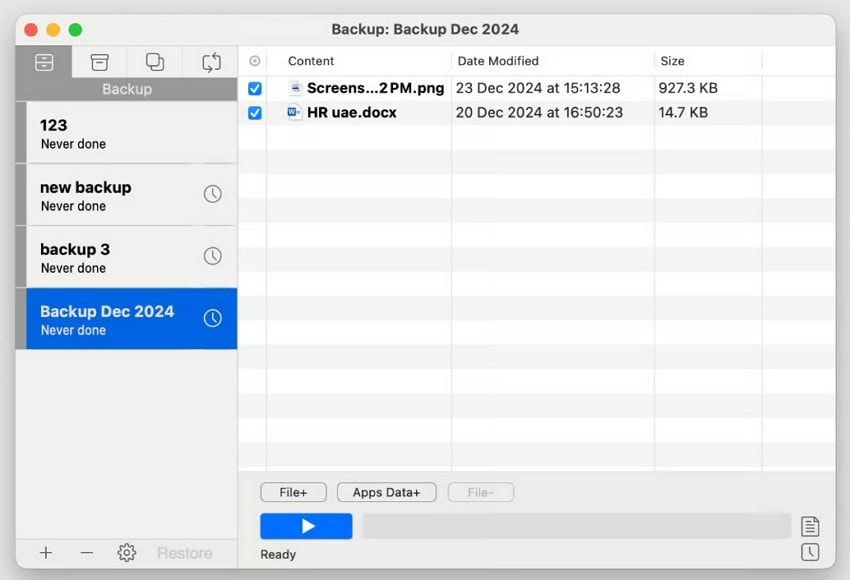
Get Backup Pro combines incremental file backups, compressed archives, disk copying, and synchronization. You can create separate jobs for Documents, Photos libraries, and attached drives. That flexibility is useful if your backup plan needs different destinations or schedules for different folders.
Key features:
- Incremental backups: Subsequent runs store changes instead of duplicating an entire unchanged file set.
- Password-protected archives: Archive projects offer encryption options; save the password outside the backup itself.
- Multiple job types: Configure local backup, archive, clone, and synchronization tasks independently.
What to check: BeLight currently lists Get Backup Pro 3.7.3 and documents explicit compatibility changes through macOS 14 Sonoma. Do not assume the latest macOS or Apple silicon bootable cloning behavior is supported without confirming with the vendor. Test an archive restore using a spare folder and verify the destination before running any clone operation that could overwrite data.
5. ChronoSync - Best for Scheduled Backups and Complex Folder Workflows
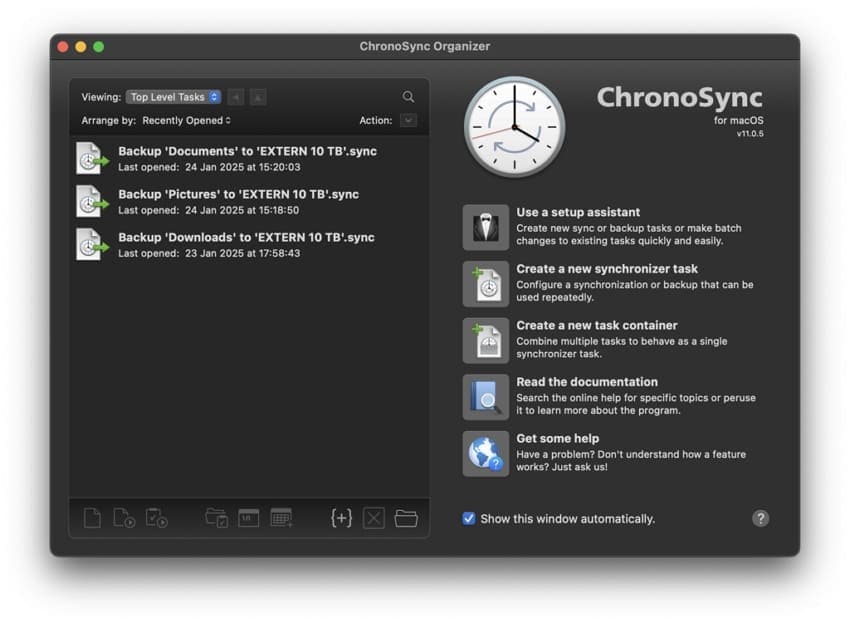
ChronoSync is suited to users who want detailed control over folders, exclusions, schedules, and network destinations. ChronoSync 12.0.3 is listed by its developer for macOS 10.14 or later. It can work with local disks, another Mac, and supported remote services, but each task must be configured for the intended direction and retention policy.
Key features:
- One-way and two-way jobs: Choose a backup task instead of a two-way sync when accidental deletions should not propagate.
- File rules and scheduling: Include or exclude folders and run jobs automatically or on demand.
- Verification and archives: Inspect task results and configure retention or archive behavior before relying on historical copies.
What to check: ChronoSync itself is not a managed cloud storage subscription, and a plain two-way sync is not a substitute for versioned backup. The developer discourages relying on bootable backup workflows on macOS 11 and later. Secure remote or local destinations with encryption suited to the storage provider; a plain sync job is not automatically a privately encrypted backup. Restore an older file from your configured archive or destination to verify that the job actually preserved it.
6. Arq Backup - Best for Encrypted Backups to Your Chosen Storage
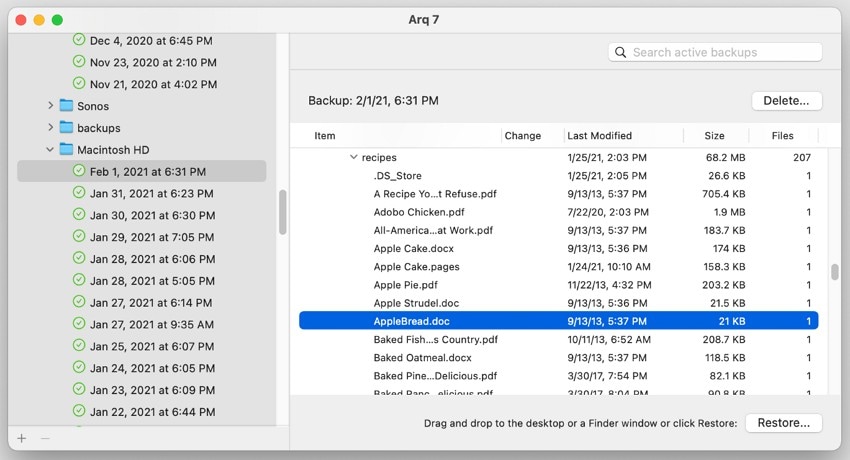
Arq 7 backs up selected Mac files to storage you provide, including compatible cloud accounts, a NAS, or an attached disk. Arq Premium is a separate subscription that adds managed cloud storage and web access; the vendor currently describes 1 TB of included storage for up to five computers. Both are suited to file-level, versioned recovery rather than bootable disk clones.
Key features:
- Private encryption: Backup data is encrypted before upload with the password you set; keep that password and recovery details safe.
- Multiple destinations: Use supported services such as Amazon S3, Backblaze B2, Google Drive, or a compatible local destination.
- Previous versions: Browse older backup records and restore selected files to a chosen folder.
What to check: Arq 7 does not include storage fees; Arq Premium has subscription and capacity terms. Confirm that external project drives are included in the backup set, and test restoring a small file from a previous date. If you lose the private encryption password, encrypted backups may be inaccessible.
7. Backblaze - Best for Simple Off-Site Mac File Backup
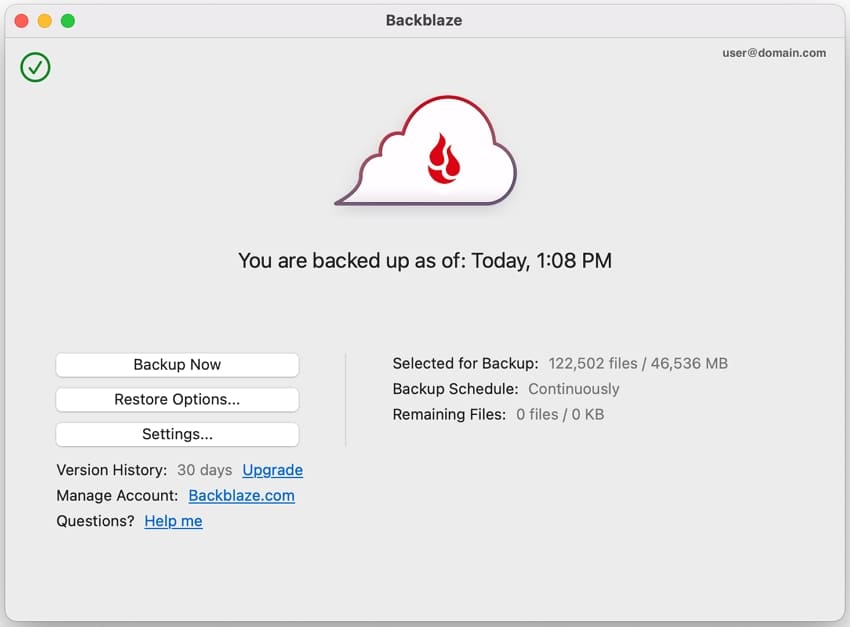
Backblaze Computer Backup is designed to run automatically and back up eligible personal files to the cloud. Its computer backup plan is organized around individual machines rather than one shared family storage pool. It can also protect selected directly connected external hard drives, but it excludes the operating system, applications, and certain file types.
Key features:
- Automatic off-site protection: Keep an additional copy away from the Mac and external backup disk.
- Version history: The default retention window is 30 days; an optional one-year setting is available without an additional storage charge, and longer retention has separate terms.
- External-drive support: Include eligible connected drives and verify their selection in the backup client.
What to check: Under default 30-day history, an external drive missing for more than 30 days may be removed from the cloud backup. Extended history changes that window, but does not recover versions already purged. Check exclusions, account security and encryption choices, and the actual date of the last uploaded copy, then perform a small download restore. Backblaze is not a bootable macOS image.
8. IDrive - Best for Multiple Macs Under One Backup Account
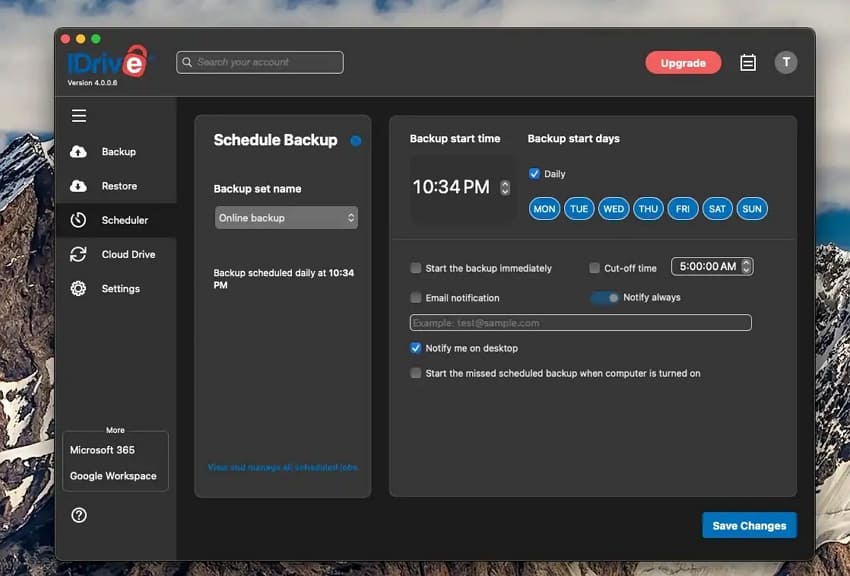
IDrive supports multiple computers under an account, subject to the selected plan and its shared storage quota. Its Mac client offers cloud backup, local backup options, scheduled jobs, and file version restoration. It can suit a household with more than one Mac if you prefer to manage the total storage allowance across devices.
Key features:
- Multiple-device backup: Protect selected data on several Macs without treating each Mac as a separate unlimited-storage plan.
- Cloud and local options: Back up selected folders to the cloud or another supported location, including external or network drives when configured.
- Versioning and security: Restore previous versions and use supported encryption choices, including a private key option when available at account setup.
What to check: IDrive capacity is finite and plan-dependent; external files must be included and accessible at backup time. Private encryption keys are not a substitute for a saved recovery secret. Inspect a device-specific restore path, test a file from an older backup, and compare the restored file against the original rather than relying solely on a successful-job notification.
Part 3. Comparison of the Best Mac Backup Software
Use this table to match the recovery you need with the storage model you can maintain. The restore-time column names the main factor affecting the first usable restore, not a measured speed benchmark. A tool that can copy a whole disk is not necessarily capable of starting a modern Mac from that copy.
| Tool | Backup model / destination | How to restore | First restore depends on | Bootable copy / main caveat |
| Time Machine | Local versioned backup / external or compatible NAS | Timeline to original folder; Migration Assistant | Backup drive or network speed | No bootable clone; history limited by space |
| Carbon Copy Cloner | Scheduled data backup / external disk or network | Finder, CCC task, or migration from copy | Disk speed, size, and destination | Bootable copy conditional; prefer data backups |
| SuperDuper! | Disk copy / external disk or disk image | Browse copy or migrate/restore from it | Local drive speed and copy format | Bootable only under supported conditions; full erase-and-copy can wipe target |
| Get Backup Pro | Incremental, archive, clone, or sync / local or network | Restore project/archive to selected location | Archive format, compression, disk speed | Modern macOS bootability and compatibility need checking |
| ChronoSync | Scheduled file backup, sync or archive / local and remote | Browse destination or configured archive | Folder size, link speed, retention | Bootable workflow not recommended on newer macOS |
| Arq 7 / Premium | Encrypted versioned backup / BYO or managed cloud | Arq restore to selected folder; Premium web retrieval | Download speed, file count, encryption key | No bootable clone; Arq 7 storage billed separately |
| Backblaze | Managed cloud backup / eligible Mac files and external drives | Download or provider restore workflow | Internet connection and size of selected restore | No OS image; exclusions and missing-drive retention |
| IDrive | Quota-based cloud and local backup / multiple devices | IDrive restore to chosen path | Download speed, backup size, device selection | No standard Mac bootable image; shared quota |
For a quick restore of one accidentally deleted file, Time Machine or a well-configured local backup is usually fastest. For a stolen Mac, an independent cloud backup gives you an off-site copy. If you need a complete new-Mac migration, verify that the backup includes the user data and settings you expect, not just the currently synced documents.
Part 4. How to Back Up Your Mac Using Time Machine
Time Machine is a straightforward way to begin protecting a Mac. You need a compatible external drive or supported network destination with enough space; Apple recommends at least twice the Mac storage capacity. Before selecting a backup disk, check whether it already contains files. The setup process may ask you to erase it. If those files matter, move them to another safe location or select a different disk.
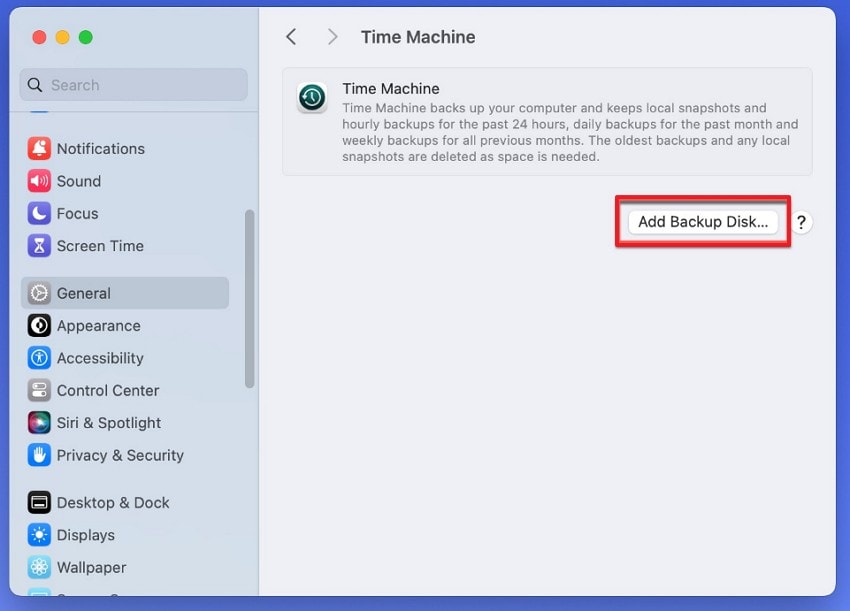
Step 1. Connect and select your backup destination. Connect your external drive, then choose Apple menu > System Settings > General > Time Machine. Click Add Backup Disk (or the plus button) and select the destination. Confirm its name and capacity before proceeding.
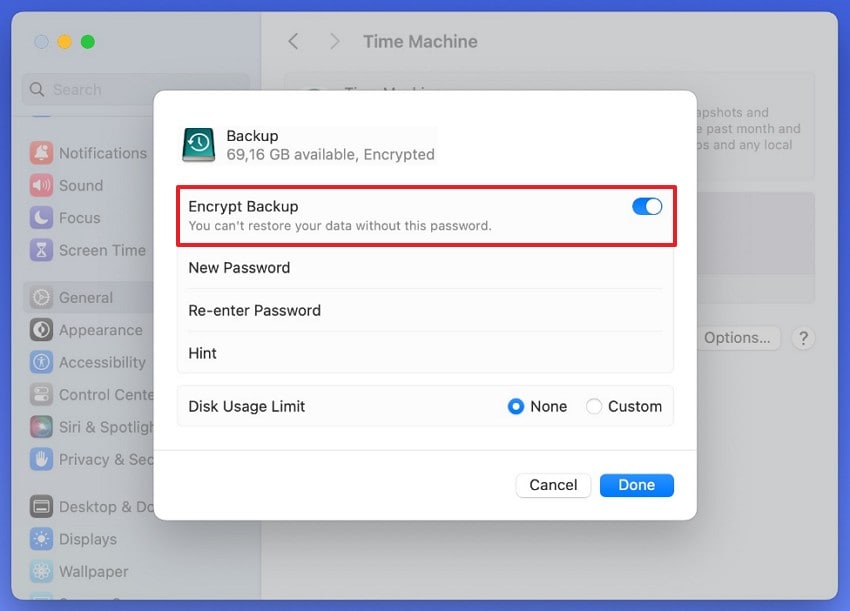
Step 2. Review encryption and erasure prompts. Choose Set Up Disk. Enable Encrypt Backup if you need protection for the stored copy, and save the encryption password somewhere you can access if the Mac fails. If macOS asks to erase the disk, do not proceed until you are certain the destination can be erased.
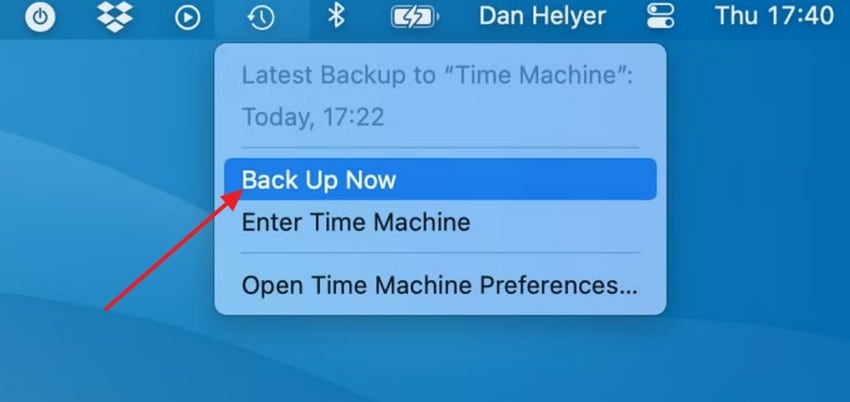
Step 3. Confirm the first backup completed. Let Time Machine run. Use the Time Machine menu bar item to choose Back Up Now if needed, then check the latest successful backup date. The image below shows an older version of the menu; on current macOS releases, the Time Machine menu and System Settings provide the equivalent controls.
Open Time Machine Settings to review exclusions and backup frequency. Remember that local snapshots on your Mac are not a substitute for the external backup disk. If the disk is usually disconnected, reconnect it regularly and verify that the backup resumes.
Part 5. How to Restore Files From a Mac Backup Using Time Machine
A backup is only useful if you can restore from it. Test both a deleted sample file and an earlier version of a document. Use copies created specifically for this test so you do not risk replacing an important original.
Step 1. Locate a sample file and open Time Machine. In Finder, open the folder that contains the test document. Launch Time Machine using Spotlight or the menu bar, and move to a backup dated before your test change. For a deleted test file, look in the folder where it was originally saved.
Step 2. Inspect the older copy and restore. Select the file from the timeline and click Restore. If macOS asks about an existing file, choose Keep Both when offered; otherwise use a disposable test file that is safe to replace. To test an earlier version, change a copy of a text document, wait for a successful backup, then restore and compare the older content. In apps that support version browsing, you can also use File > Revert To > Browse All Versions.
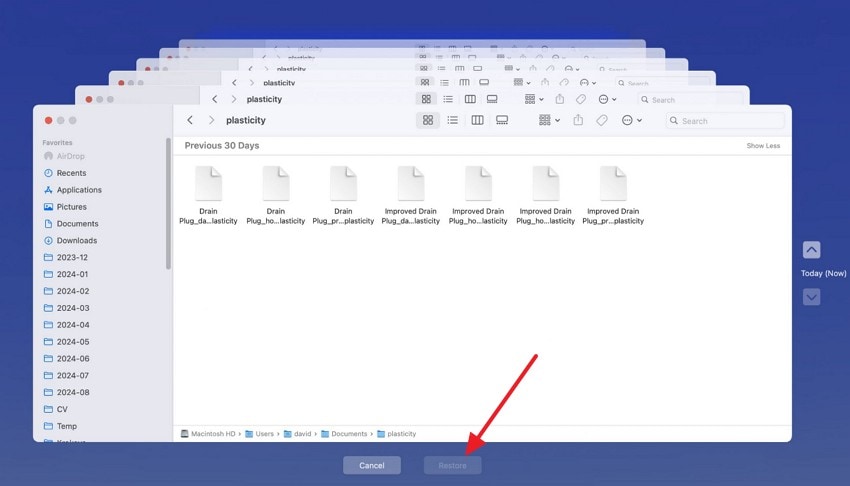
Step 3. Verify the result. Open the restored file, compare its contents or checksum if appropriate, and confirm the folder and timestamps you need are present. If the backup date is too old, check whether the disk was disconnected, the folder excluded, or the older version removed under the retention policy.
Part 6. How to Choose the Best Backup Software for macOS
For most Mac owners, the most practical foundation is one local, versioned backup plus one independent off-site backup. Time Machine can handle day-to-day file history, while a managed cloud service or encrypted off-site backup protects against losing the Mac and its external drive together. More specialized tools are worthwhile if you manage large media projects, several disks, or multiple Macs.
- Start with your recovery goal. If you mainly need a deleted file from yesterday, prioritize versions. If you need a recoverable project drive, consider a browsable scheduled copy. If your home could be affected by theft or fire, add off-site storage.
- Check coverage. Verify Photos libraries, video projects, external SSDs, NAS paths, and excluded folders. A green status icon does not mean every connected drive is included.
- Compare retention and storage cost. Decide how far back you must recover an edit or deletion, and check what happens when a disk fills or a cloud drive is disconnected.
- Plan for lost passwords and hardware. Keep encryption recovery information safe, and make sure the backup can be opened on a replacement Mac if necessary.
- Measure restoration, not marketing speed. Recover a small file and an older revision before trusting the schedule. For large video projects, estimate transfer time using your real internet or disk connection.
The familiar 3-2-1 rule is a useful baseline: keep three copies of important data, across two storage types or locations, with at least one copy off-site. A Time Machine drive that stays beside your Mac is convenient; an independently managed cloud or rotated off-site copy protects against local disasters. Do not assume a bootable clone replaces either version history or off-site storage.
Pro Tip. Recover Deleted Mac Files When No Usable Backup Exists
If you lose a file between backups, first check Trash, Time Machine, and any cloud service version history. If the file was not backed up and was deleted from locally detectable storage, Wondershare Recoverit for Mac may help locate eligible files. Recoverit is data recovery software, not a backup service and not a way to recreate files removed from a cloud-only backup set.
Stop writing to the affected drive before trying recovery. Installing applications, saving downloads, or repeatedly scanning an unstable disk can reduce the chance of retrieving intact data. SSD TRIM, overwriting, encryption, and storage hardware condition can make recovery impossible. If a drive is clicking, frequently disconnecting, or physically failing, seek professional advice instead of continuing direct scans.
For a drive that is accessible and stable enough to scan, you can follow these steps. Recoverit scans supported local storage and lets you review recoverable results; it cannot guarantee a particular file will still be available. The free trial may let you scan and preview, but saving recovered files may require a paid license.
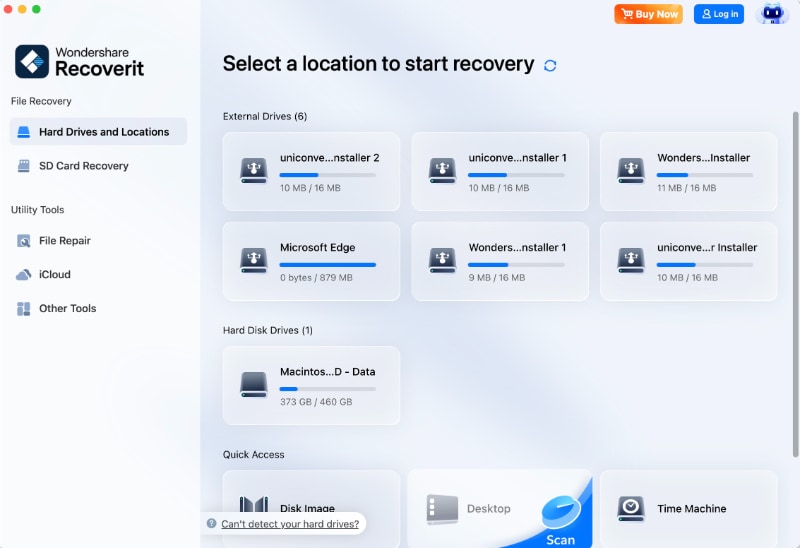
Step 1. Choose the drive containing the missing file. Open Recoverit from a safe installation location, and select the readable Mac or external drive that originally held the data. Choose a folder only if the current version offers that option.
Step 2. Scan and narrow the results. Let the scan run and use available file-type or path filters to look for your missing documents, photos, or videos. If available, compare filenames and timestamps with what you remember of the lost files.
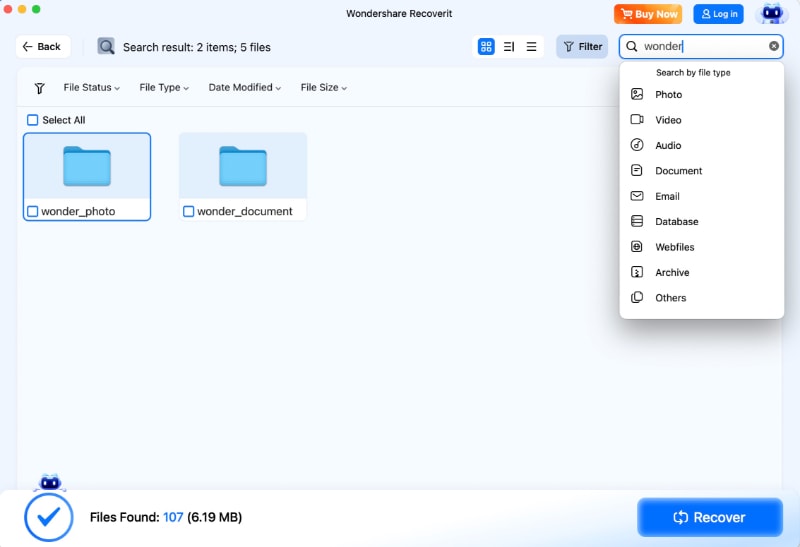
Step 3. Preview and save elsewhere. Preview supported items before selecting Recover. Save the recovered files to a different, healthy physical drive, not the original source. Open the recovered file to check its integrity.
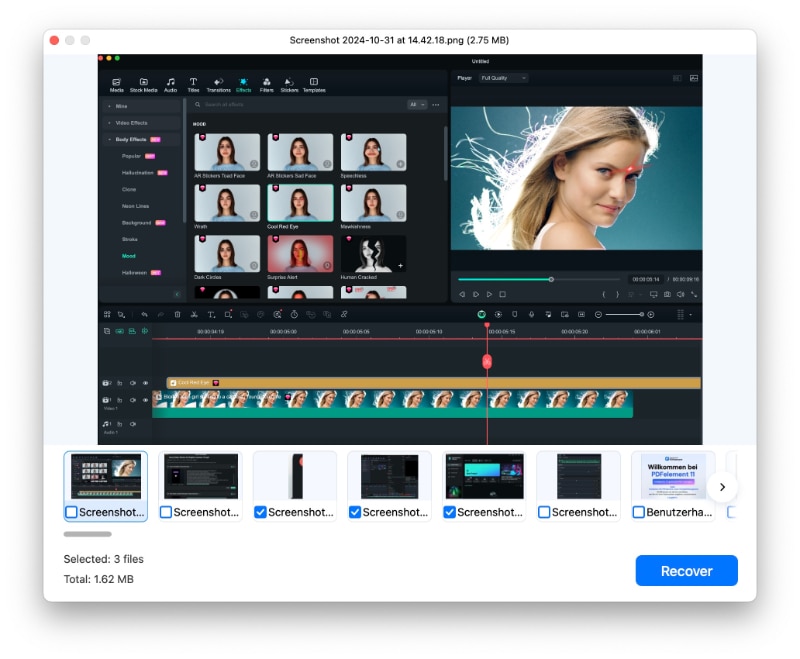
If the file does not appear, do not assume repeated scans will find it. Review other backups and consider professional recovery support when the storage device itself is unstable.
Conclusion
The best Mac backup software depends on how quickly you need to restore files and what could go wrong. Time Machine offers free local version history, while Carbon Copy Cloner, SuperDuper!, Get Backup Pro, and ChronoSync add control over copies and schedules. Arq, Backblaze, and IDrive support off-site protection in different ways. Check compatibility, encryption, exclusions, and restore methods before choosing. Keep at least one independent off-site copy and test restoring files. If an unbacked-up file is deleted from readable local storage, Recoverit may help when the data remains recoverable.
FAQ
-
What is the best free backup software for Mac?
Time Machine is built into macOS and provides automatic, versioned backups to a compatible external drive or network destination. The software is free, but you still need suitable backup storage. SuperDuper! also offers a free full-copy mode; Smart Update and scheduling require a paid license. -
Can Mac backup software back up an entire computer?
Many tools back up your personal files, settings, and eligible apps, but the restore method differs. Time Machine does not include the macOS installation itself; restoring onto a repaired or replacement Mac may require reinstalling macOS before transferring data. File-level cloud services such as Backblaze do not create a bootable macOS system image. -
Can you create a bootable backup on an Apple silicon Mac?
Some cloning apps can create startup-capable external copies under supported macOS, security, and drive conditions. However, Apple silicon startup rules and internal-storage requirements limit what those copies can do. Even when a copy is bootable, you should also maintain a separate data backup and test the actual restore path. -
What is the difference between Time Machine and third-party Mac backup software?
Time Machine provides automatic local file history with minimal setup. Third-party tools may add custom backup tasks, disk copying, synchronization, private-key-encrypted repositories, managed cloud backup, or multi-computer plans. The best choice depends on your storage destination, history requirements, and how you plan to restore files.


