Your Mac may hold years of photos, work files, and projects on both its internal drive and connected storage. An online backup service copies eligible files to remote servers, giving you an off-site recovery option if a drive fails, your Mac is stolen, or a file is deleted. However, not every service backs up the same folders, external drives, or older file versions.
The best online backup for Mac depends on how many computers you own, how much storage you need, and how you expect to restore your data. Backblaze, IDrive, Acronis True Image, Arq Premium, and Carbonite Safe handle those needs differently. Before choosing, compare their exclusions, encryption options, retention settings, and restore limits.
In this article
Part 1. What Is Online Backup for Mac, and How Does It Work?
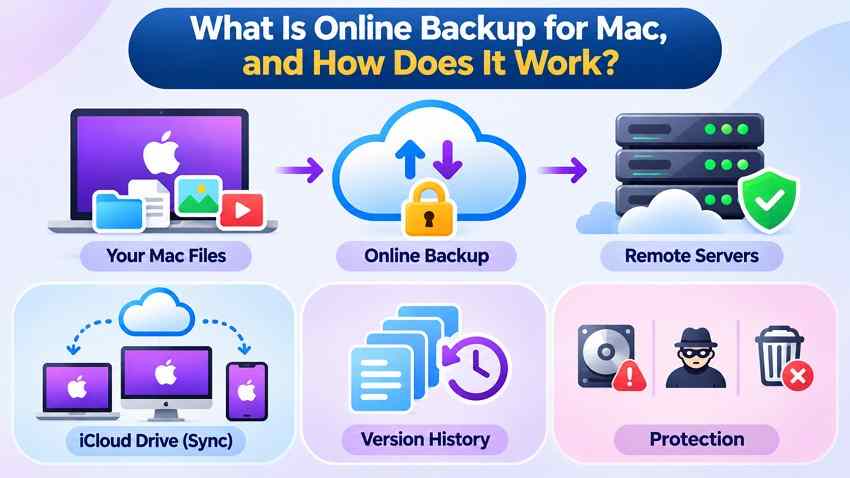
Online backup software copies eligible files from your Mac to storage operated by a remote provider. After the initial upload, the application normally sends new or changed data according to its schedule and rules. You can then restore files from an earlier backup if your Mac is stolen, a drive fails, or a document is deleted. What you can recover depends on what was uploaded, file exclusions, and the provider's version or deletion-retention policy.
Online Backup vs. iCloud Drive Sync
iCloud Drive is useful for keeping files in sync across Apple devices, but syncing is not the same as an independent off-site backup. Delete a synced document on one device and the deletion can propagate to the others. Apple generally lets you recover recently deleted iCloud Drive files for up to 30 days, unless you permanently remove them sooner. A backup service retains separate versions according to its own policy. For example, Backblaze starts with 30-day Version History, and you can enable one year for free. Check the actual setting before relying on that protection. See Apple's iCloud file recovery instructions and Backblaze Version History.
Part 2. 5 Best Online Backup Services for Mac
There is no single best service for every Mac. These five options differ mainly in whether you pay per computer or for a shared storage pool, which folders and external drives they protect, how long deleted versions remain available, and how you restore large amounts of data. Prices are shown in US dollars from the vendors' public pages checked in November 2026; confirm your plan, region, and renewal price before buying.
App screens can vary by macOS version and product release. For the latest controls and plan requirements, follow each provider's linked Mac instructions.
1. Backblaze - Best Overall for One Mac With Lots of Files
Backblaze Computer Backup is an uncomplicated choice when one Mac holds a large photo, video, or project library. Its Personal Backup plan lists unlimited storage for one computer at $99 per year. Eligible files on directly connected external drives can also be backed up, but network drives, Time Machine backup volumes, applications, and operating-system files are not a substitute for a full Mac image. Backblaze is an evolving backup of your current data, not permanent archival storage for disconnected drives. Review Backblaze pricing and external-drive requirements.
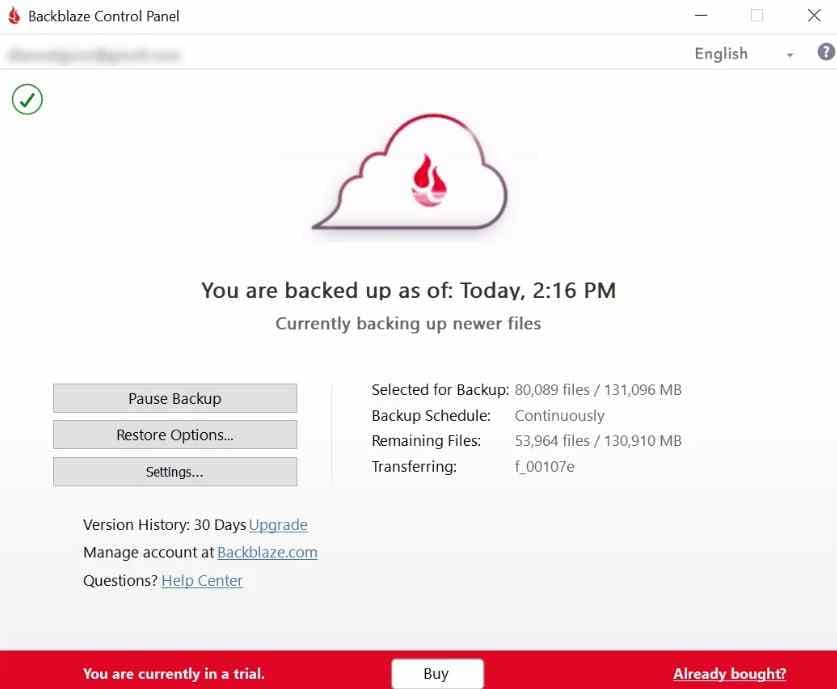
- Version History: Deleted and changed files are retained for 30 days by default. One-year history can be enabled at no additional cost; longer Forever retention has usage charges.
- External Mac Drives: Eligible directly attached storage is covered when selected and connected. Disconnected drives are subject to the selected history period.
- Restore Options: Download individual files or ZIP restores, use the Mac Restore App for larger jobs, or request eligible shipped restore media subject to fees and conditions.
2. IDrive - Best for Backing Up Multiple Macs
IDrive Personal is better suited to a household with multiple Macs and PCs sharing one storage allowance. Its paid Personal plans include shared pools starting at 5 TB, while IDrive Basic currently lists 10 GB free. You can add supported external or network-drive folders to your backup set and choose online or local backup destinations. Unlike an unlimited one-computer plan, every current device and backup set contributes to the storage used. Compare details on the IDrive pricing page and Mac backup FAQ.
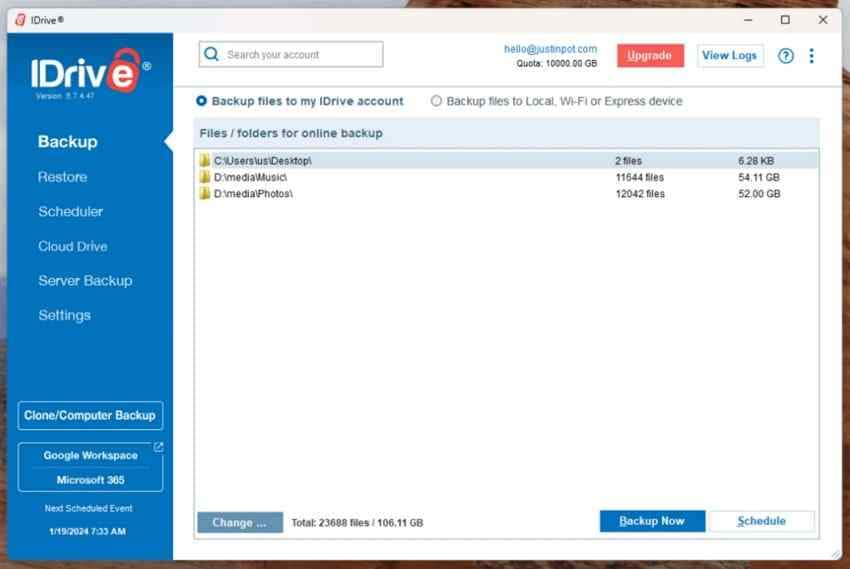
- Multi-Device Coverage: One Personal account can protect multiple eligible computers against a shared storage quota.
- File Versions: Standard Mac accounts can restore up to 30 previous versions of a file; some older accounts have different version limits.
- Privacy and Restores: An optional private encryption key changes who can decrypt the backup. IDrive supports online restores and optional physical-transfer services with separate eligibility and fees.
3. Acronis True Image - Best for Mac Backup Plus System Recovery
Acronis True Image is a strong fit when you want more than file-level cloud backup. It can create Mac backups that include system data, applications, settings, and personal files, with restoration options that depend on macOS and the recovery environment. The Essentials subscription provides local backup only. Choose Advanced for 50-500 GB of eligible cloud storage or Premium for 1-10 TB if an off-site Acronis Cloud copy is important. Verify Mac compatibility and the selected tier on the Acronis Mac backup page.
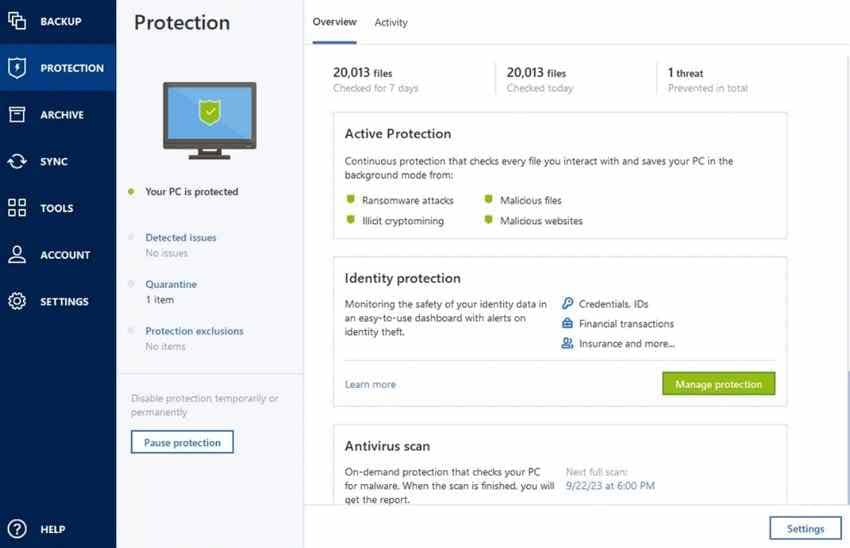
- Whole-Mac Backup: Supports system-oriented Mac backups as well as selected files and folders; recovery procedures and supported macOS versions still matter.
- Cloud Plan Choice: Cloud storage is available with Advanced and Premium, not Essentials.
- Security and Replication: Eligible plans combine malware protection with options for off-site cloud copies and recovery media.
4. Arq Premium - Best for Encrypted, Flexible Mac Backups
Arq Premium combines the Arq 7 backup application with managed cloud storage. Its published plan includes 1 TB and up to five computers for $69.99 per year, with additional cloud usage billed by the gigabyte. The separate Arq 7 purchase is software-only: you bring your own cloud or NAS storage and pay that provider separately. Arq appeals to Mac users who want control over backup frequency, retention, and encryption rather than a simplified unlimited-storage plan. Compare Arq pricing and Arq 7 versus Arq Premium.
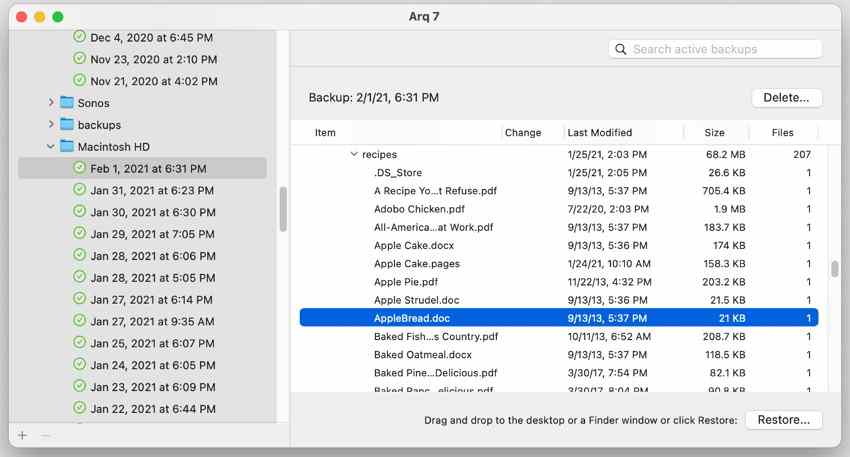
- Encryption Control: Arq encrypts backup data before upload. Save a separate encryption password securely because losing it may make the protected data inaccessible.
- Retention Rules: You can configure backup records and retention instead of relying on one fixed deleted-file window.
- Storage and Restore Paths: Premium includes managed cloud space and web access; Arq 7 can use your own supported cloud, NAS, or connected drive.
5. Carbonite Safe - Best for Simple Mac File Backup
Carbonite Safe offers automatic personal file backup with unlimited online storage for one subscribed computer. On Mac, pay close attention to the client version and plan. Current Mac 2.x guidance says Safe Basic selects several common user folders automatically, but video files are not backed up by default and must be chosen manually. Safe Plus and Prime can include supported USB-connected external drives formatted APFS, HFS+, or exFAT; network, flash, SD, and Thunderbolt drives are excluded from that external-drive workflow. Check Carbonite's Mac 2.x external-drive guidance.
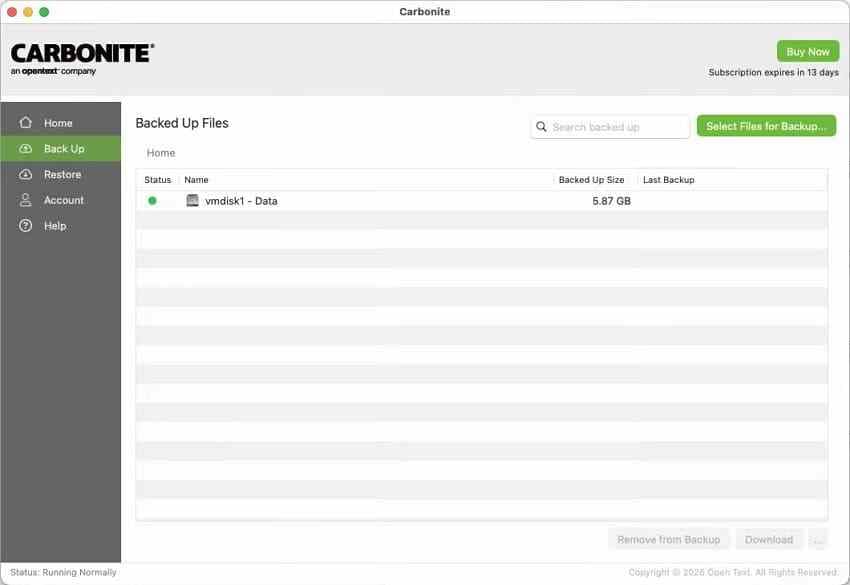
Mac client note: This Carbonite screenshot shows an earlier Mac application. Carbonite Safe Mac 2.x has different backup selection and migration rules.
- Automatic File Selection: Designed to protect common user folders, but your plan and file type determine whether all wanted items are selected.
- External Drives: Requires Safe Plus or Prime and a supported directly connected USB drive; a Time Machine backup disk is not supported.
- Mac Client Migration: If upgrading from Carbonite Mac 1.x to 2.x, you must start a new backup. Existing backup sets cannot be transferred directly between these versions.
Before migrating older Carbonite installations, review Carbonite's 1.x-to-2.x procedure and restore any older files you still need.
Part 3. Comparison of the Best Online Backup Software for Mac
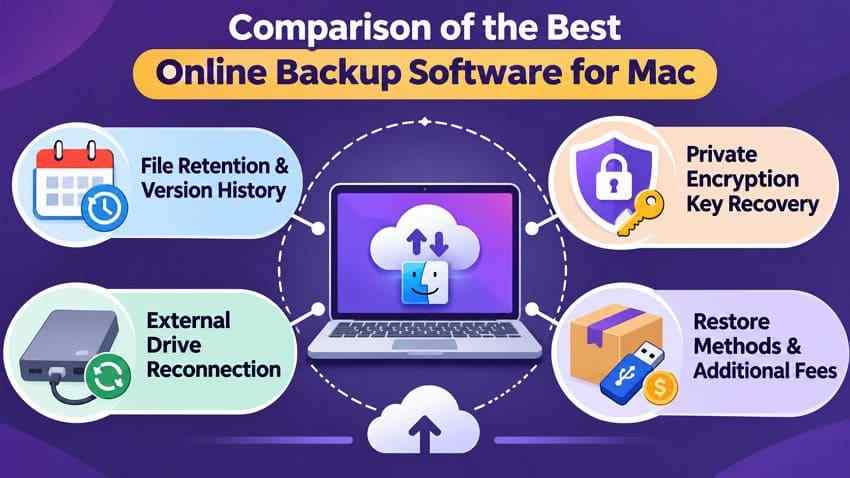
The comparison below focuses on the purchasing questions that matter after you have identified which Mac files and external drives need protection. A large storage allowance is useful only when the service includes the right source folders, keeps enough history, and provides a restore method you can actually use.
| Service | Storage and Mac coverage | Versions and encryption | External drives | Restore methods |
| Backblaze | Unlimited for one Mac; $99/year | 30 days default; optional free one year; optional private key | Selected, eligible directly attached drives | Web/ZIP, Mac Restore App, eligible shipped drive |
| IDrive | Shared quotas; multiple computers; 10 GB Basic plan | Up to 30 versions on standard accounts; optional private key | Selected eligible external or network sources | Mac app/web; optional IDrive Express |
| Acronis True Image | Advanced 50-500 GB cloud; Premium 1-10 TB; multi-computer tiers | Plan-based retention and encryption choices | Compatible attached/network sources depending on backup setup | File and full-backup recovery, subject to Mac support |
| Arq Premium | 1 TB across up to five computers; $69.99/year | Configurable records; encrypted by a user-chosen credential | User-selected connected storage; Arq 7 offers more destinations | Arq application and Premium web access |
| Carbonite Safe | Unlimited for one subscribed Mac | Plan- and Mac-client-dependent; check key options | USB APFS/HFS+/exFAT with Plus or Prime | Carbonite Mac app/account recovery workflow |
Buyer checklist: Before purchasing, compare the default history period with any paid extension; where encryption keys are stored and whether they can be recovered; how long external drives may remain disconnected; your available upload bandwidth; and file download, physical delivery, or cloud-egress charges. Test a small restore before trusting any subscription with irreplaceable files.
Part 4. How to Set Up Automatic Online Backup on Mac Using Backblaze
Backblaze is a practical example for a single Mac with files spread across an internal drive and a directly connected external disk. The key is not merely installing the app; it is confirming that the correct drives and actual files are included and that your first backup has finished. The exact labels may change with Backblaze updates.
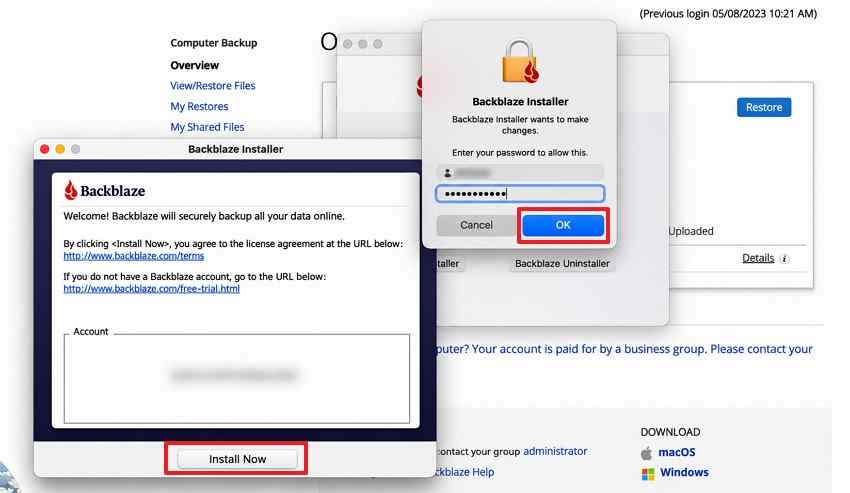
Step 1. Download the Mac client from Backblaze, sign in, and complete installation. When macOS prompts for access, follow the Backblaze instructions for the permissions required to read protected folders. Do not assume an installer finishing means your files have uploaded.
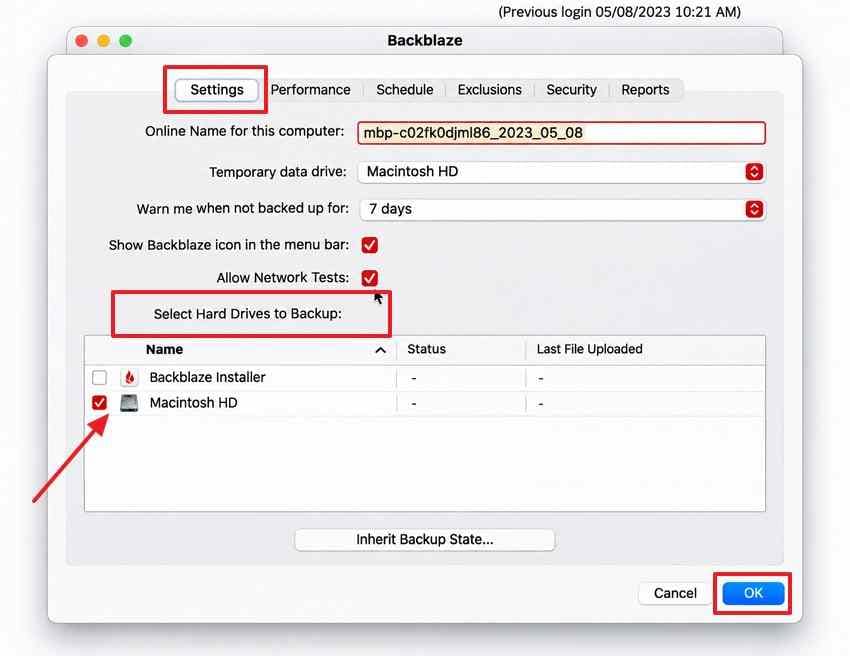
Step 2. Open the Backblaze client, choose Preferences > Settings, and review Select Hard Drives to Backup. Confirm each eligible external drive is connected and selected. If a drive cannot be selected, check its format, connection, and backup eligibility instead of reformatting a drive that contains important data.
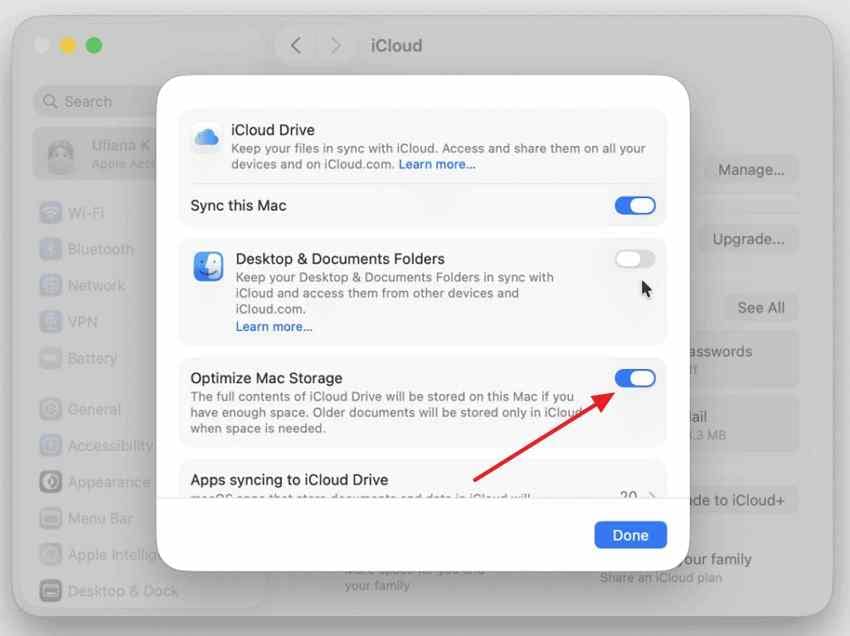
Step 3. Review exclusions and any folders that are stored only in iCloud. Backblaze backs up iCloud Drive files only when they are actually downloaded to the Mac. If you use iCloud storage optimization, confirm the files you want protected are local before relying on the cloud backup. See Backblaze's iCloud Drive instructions.
Step 4. Leave your Mac powered and online for the initial upload. Open the client to check its backup progress and remaining files, then use the Backblaze web file browser to look for a recent document or photo. Review the backup timestamp. If it does not appear, check exclusions, access permissions, and whether the external drive is still selected.
Step 5. In your Backblaze account, open the backed-up computer's Version History settings. Keep 30 days if that meets your needs, or select the free one-year option for longer recovery of deleted or changed files. If you use an external drive only occasionally, check the retention period before unplugging it for an extended time.
Important: With the 30-day default, a disconnected external drive can age out of the available backup. Reconnect eligible drives regularly and verify their data was uploaded; selecting a drive does not protect files that were never successfully backed up.
Part 5. How to Choose the Best Online Backup Service for Mac
Choose the plan based on the data you need to restore, not only the amount you can upload. Five questions usually settle the decision:
- Storage Model: Do you need unlimited storage for one Mac, or a finite shared pool across several Macs? Add external-drive libraries to the total.
- Drive Coverage: Does the Mac app include Photos libraries, downloaded iCloud files, and your external SSDs? Are network or Time Machine volumes excluded?
- Retention and Version History: How far back could you recover a mistakenly deleted or overwritten file? Is one-year retention included or extra?
- Encryption and Key Recovery: Would you rather rely on the provider's account recovery or manage your own encryption password? Know what happens if you lose it.
- Restore Cost and Speed: Can you restore a single file, a large archive, or a Mac system backup? Confirm web limits, mailed-drive terms, cloud-transfer fees, and your download speed.
For most people backing up one Mac and directly connected file drives, Backblaze is a reasonable starting point. Choose IDrive if several computers must share a backup pool, Acronis for system-image-oriented protection, Arq Premium for flexible encrypted backup records, or Carbonite Safe if you prefer straightforward automatic file backup and its Mac exclusions fit your data.
Part 6. How to Restore Files From an Online Mac Backup Using Backblaze
A backup is not proven until you successfully restore a file from it. Before you need an emergency recovery, download a small test folder and check that the files open, the folder structure makes sense, and the required versions and dates are present. The Backblaze web restore procedure below applies to files that were already uploaded and are still within your selected retention window.
The Backblaze restore images below show an earlier web interface. Your account may have different menu labels; use the current steps and official restore instructions linked below.
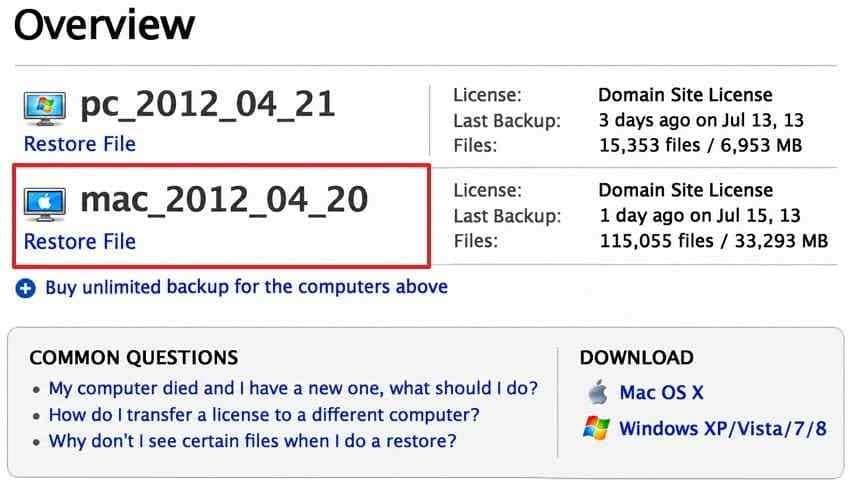
Step 1. Sign in to your Backblaze web account. Under Computer Backup > Overview, find the Mac you want to recover from and select Restore. Choose Download (Free) for a small ZIP restore. If you use a private encryption key, be ready to provide the correct key as required by Backblaze.
Step 2. Set the restore date or time range, then browse the backed-up drives and folders. Select a small document or photo folder that you recognize and click Continue with Restore. If the file is missing, adjust the time frame to an earlier version and check whether the original folder was excluded.
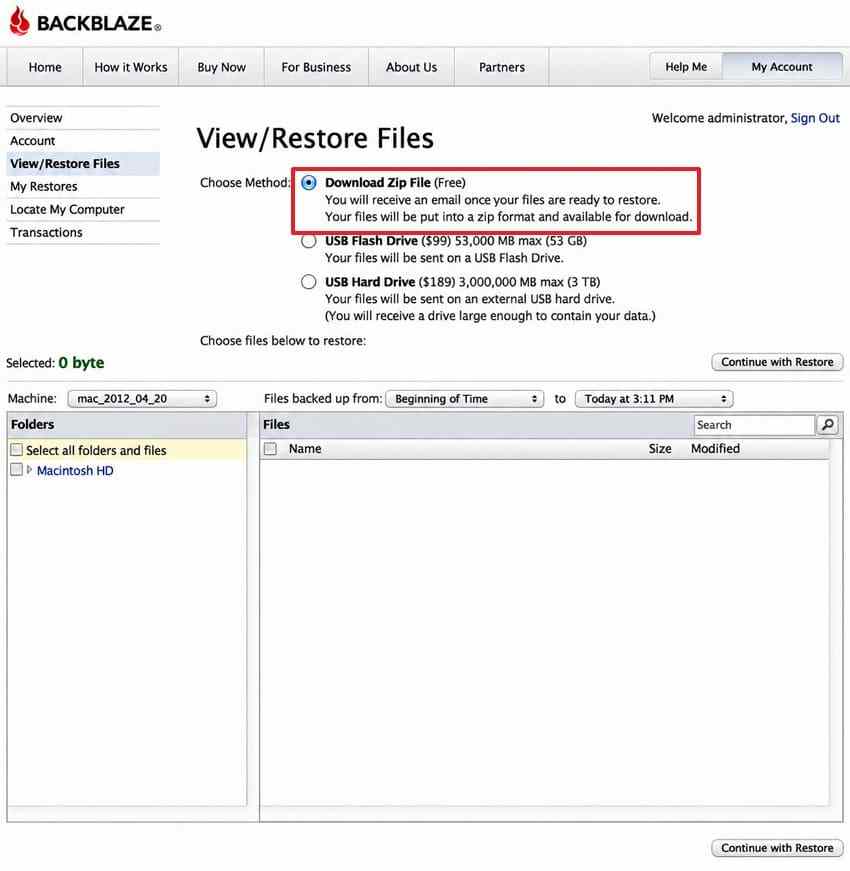
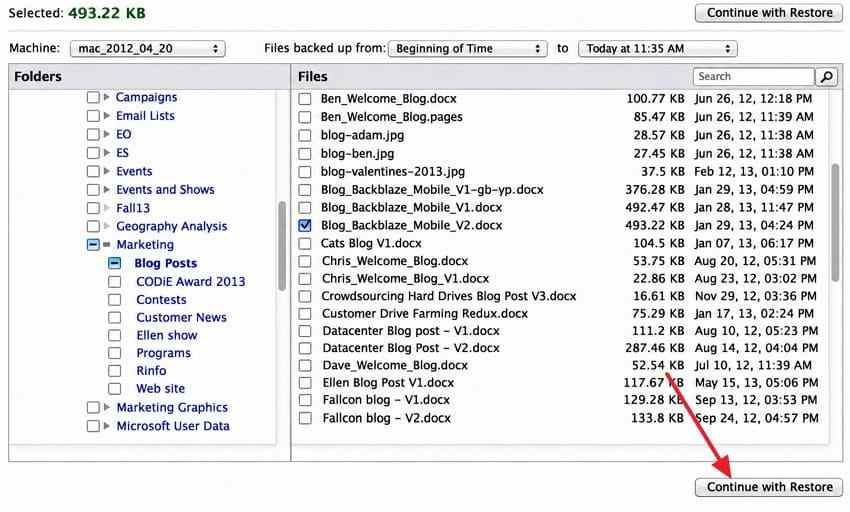
Step 3. Open Computer Backup > My Restores. When the ZIP restore status becomes Available, download it. Web ZIP restores are limited to 500 GB per request; for a larger restore, consider the Mac Restore App or a shipped restore drive after checking its terms.
Step 4. Extract the ZIP into a new folder on a healthy drive. Open several restored files, compare their names and folder hierarchy with what you expected, and check modification dates, permissions, and any Finder metadata that matters to your workflow. Do not overwrite your only remaining local copy until you have confirmed that the restore is usable.
Backblaze's official restore instructions describe the web selection and download process. For files larger than a browser restore can comfortably handle, choose an available application or physical-drive option instead of repeatedly restarting a huge ZIP download.
Pro Tip: Recover Lost Local Mac Files When a Cloud Backup Is Missing
If a document was deleted before its first successful cloud upload, or it lived in an excluded folder, no backup service can restore a copy it never received. First check your Mac Trash, Time Machine, iCloud Recently Deleted, and any other storage location that might still contain the file. If it is genuinely missing from a locally detectable drive, stop unnecessary writes to that drive before trying recovery software.
Wondershare Recoverit for Mac can scan supported, readable internal or connected storage for eligible deleted or lost files. It does not create online backups or recover missing cloud-only backup sets, and it cannot bypass FileVault credentials or recover overwritten or physically inaccessible data. Results depend on drive access, encryption, SSD TRIM, and whether recoverable data remains. You can check the Recoverit Mac data recovery tool when local recovery is appropriate.
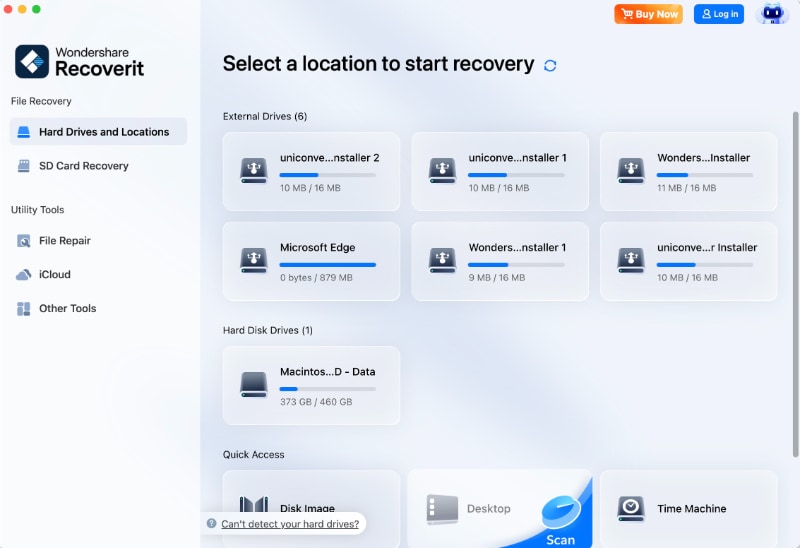
Step 1. Install and launch Recoverit without writing new files to the affected source if possible. In the Mac app, select the detectable internal or external drive that held the missing file.
Step 2. Allow the scan to find available files and narrow the results with file-type or folder filters. A file appearing in scan results is not proof it will restore intact.
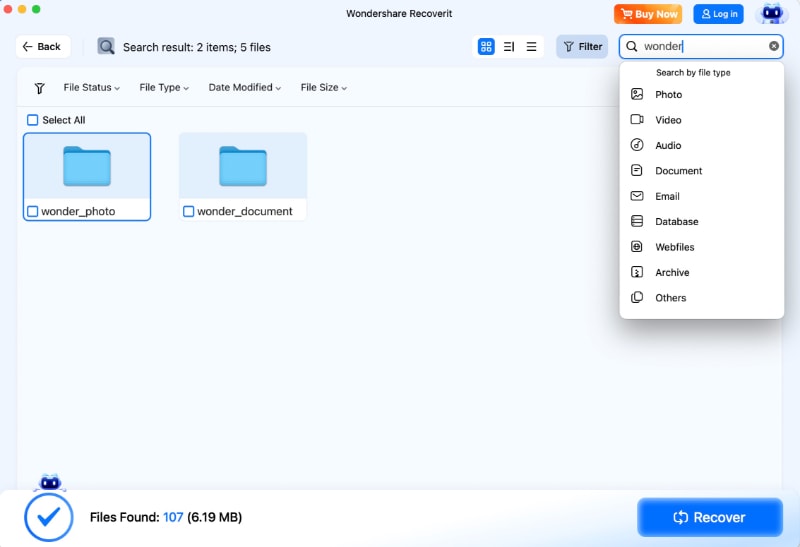
Step 3. Preview supported files, choose what you need, and select Recover. Save the result to a different healthy drive, not the original drive you are scanning. Open a restored sample to confirm it is usable.
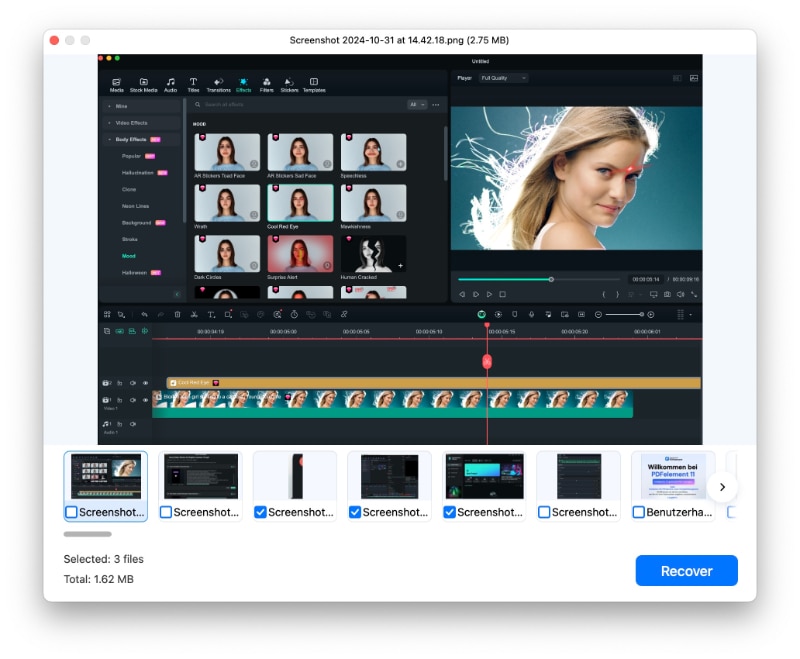
For exact Mac UI instructions and edition limits, see the official Recoverit Mac guide.
Conclusion
For one Mac with large libraries, Backblaze is an easy place to start. IDrive fits multiple computers, Acronis True Image adds system-focused recovery, Arq Premium offers flexible encrypted backups, and Carbonite Safe suits straightforward file protection when its exclusions fit. Compare device limits, version history, external-drive rules, and restore costs before paying. Then complete a real test restore. If an important file was never backed up, Recoverit may help with eligible local storage, but it cannot replace a missing cloud backup.
FAQ
-
What is the best free online backup for Mac?
IDrive Basic currently offers 10 GB of free online backup storage. That may cover important documents, but it is unlikely to hold a large Mac photo library or external drive. Time Machine is free for local backups when you supply a compatible backup disk; it is not an online backup service. Check current free-plan quotas before relying on them. -
Can I back up my entire Mac to the cloud?
It depends on the product. Backblaze and Carbonite primarily protect eligible files, not a bootable image of macOS and all applications. Acronis True Image supports Mac system-oriented backups to eligible local or cloud destinations when you select a cloud-enabled plan. Check the supported macOS version and recovery-media procedure, and keep a separate local backup for faster full-system recovery. -
Is iCloud Drive a replacement for online backup software on Mac?
Not by itself. iCloud Drive synchronizes data across devices, including deletions. Apple generally allows restoration of recently deleted iCloud Drive files for 30 days unless they were permanently removed. Dedicated online backup software can retain separate versions according to its own policy, so it can provide a different recovery window. A local Time Machine backup adds another layer. -
Can I back up external hard drives using Mac cloud backup services?
Yes, but the rules vary. Backblaze includes eligible selected directly connected drives, IDrive can include supported external folders, and Arq backs up selected accessible locations. Carbonite Mac 2.x requires Safe Plus or Prime for supported USB-connected drives formatted APFS, HFS+, or exFAT. Network shares, Time Machine disks, disconnected drives, and excluded file types may not qualify. Always verify the file actually uploaded.


