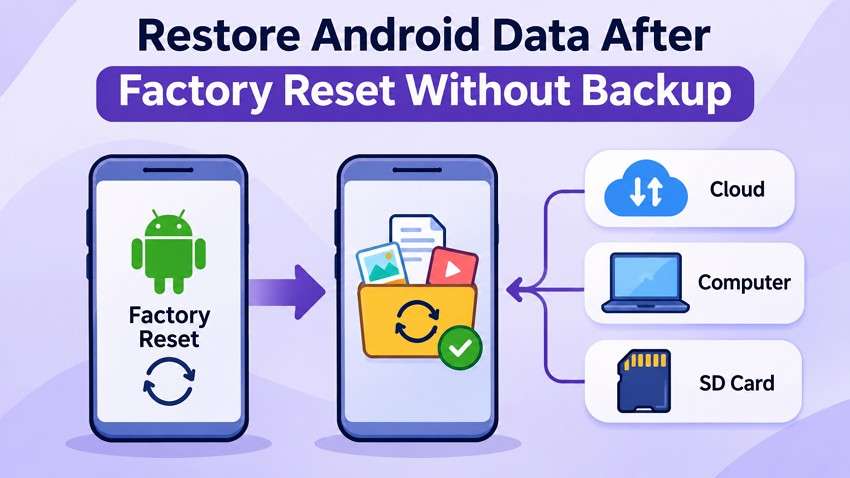
Losing important photos, videos, and documents after an Android factory reset can be frustrating. On a modern Android phone using file-based encryption, a factory reset destroys the encryption keys that made your internal files readable, so the old internal data usually cannot be recovered by software. However, not every file is necessarily lost. Previously synced content and independently stored copies can still be recovered.
The best way to restore data after a factory reset on Android without a backup is to look for copies that still exist somewhere else: Google Photos or Drive, a Samsung account, a computer, or a portable SD card. This guide explains when recovery is possible and walks through six practical methods.
In This Article
-
- Method 1. Recover Photos and Videos From Google Photos
- Method 2. Recover Android SD Card Files Using Recoverit
- Method 3. Check Available Android Data Using Dr.Fone
- Method 4. Restore Contacts and Documents From Google Services
- Method 5. Check Samsung Cloud and Other App-Specific Accounts
- Method 6. Retrieve Files From Computers and Other Devices
Part 1. Can You Recover Android Data After a Factory Reset Without Backup?
Recovering data after an Android factory reset without a backup is possible only under specific circumstances. Files erased from modern encrypted internal storage are generally unrecoverable. According to Android’s file-based encryption documentation, devices launched with Android 10 or later require file-based encryption.
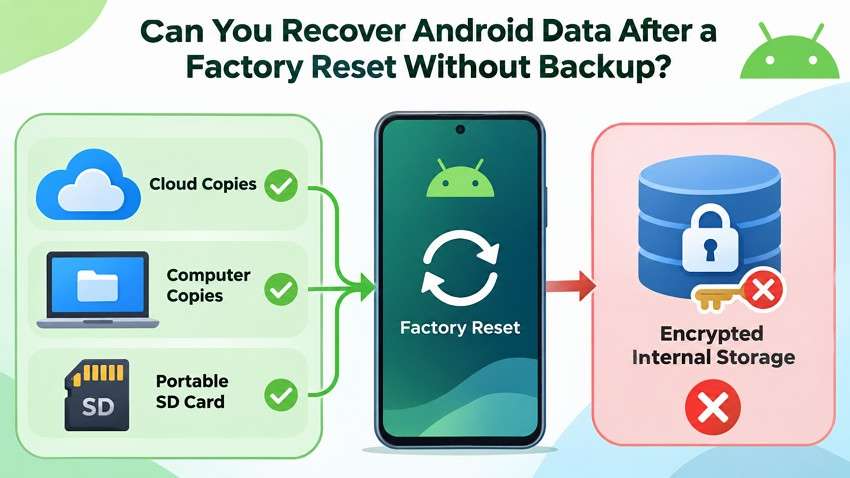
Older devices with unencrypted storage offer better recovery prospects only if the original data remains intact. To recover data after a factory reset without a backup, review the following table. It compares recovery possibilities across different storage locations.
| Original Data Location | Recovery Outlook | Reason |
| Encrypted internal storage | Generally impossible | A factory reset removes the encryption keys required to access previous files. |
| Unencrypted internal storage | Limited possibility | Recovery tools can retrieve residual data if it remains accessible and intact. |
| Google Photos backup | Possible if backed up | Google Photos retains previously backed-up media unless permanently deleted. |
| PC or Mac | Possible if copies exist | Independent file copies remain unaffected by the phone reset. |
| Cloud-synced app data | Possible if previously synced | Recovery depends on account access and individual service limitations. |
| Portable SD card | Depends on card condition | A standard factory reset generally leaves portable SD card data intact unless separately erased. |
| Adopted SD card | Generally impossible | Android’s adoptable storage relies on device-specific encryption keys lost during a factory reset. |
What Happens to Your Data During an Android Factory Reset?
An Android factory reset erases personal files, installed apps, app data, and device settings from internal storage. Unlike clearing the cache, this process removes user accounts and restores the device to its default settings. On devices using file-based encryption (FBE), a factory reset also removes the previous encryption keys.
Even if fragments of encrypted data remain, recovery software cannot decrypt them without the original keys. Android’s secure deletion requirements further restrict access to erased data. Therefore, to recover photos after a factory reset on Android without backup, check storage sources that were not affected by resetting.
Which Files Can Still Be Recovered Without a Backup?
Recovery options vary by file type and how individual apps store their data. To restore data after a factory reset on Android without backup, use the following table. It identifies recoverable file types and where to find them.
| Recovery Source | What You Can Recover | Where to Check |
| Google Photos | Previously backed-up photos and videos, including deleted media still available in Google Photos Trash. | photos.google.com using the original Google Account. |
| Google Contacts | Previously synced contacts and deleted contacts within the 30-day Trash period. | contacts.google.com |
| Cloud storage services | Previously uploaded photos, videos, documents, and other files. | Google Drive, Microsoft OneDrive, or other connected cloud accounts. |
| Samsung Cloud | Previously synced contacts, calendars, notes, and reminders. | Settings > Accounts and Backup using the original Samsung Account. |
| Computer or secondary device | Previously transferred photos, videos, documents, attachments, and shared files. | Pictures, Downloads, email attachments, and messaging apps. |
| Unencrypted portable SD card | Existing files and potentially recoverable deleted photos, videos, and documents. | Computer with a compatible card reader and Recoverit for deleted files. |
Pro Tip: Check for forgotten automatic backups through Android’s backup restoration options. An existing backup can restore supported apps, app data, messages, call history, and device settings.
Part 2. How to Recover Data After Factory Reset on Android Without Backup
Before attempting recovery, prioritize methods based on the type of data you need to retrieve. The following six methods explain how to recover data after a factory reset on Android without a backup.
Method 1. Recover Photos and Videos From Google Photos
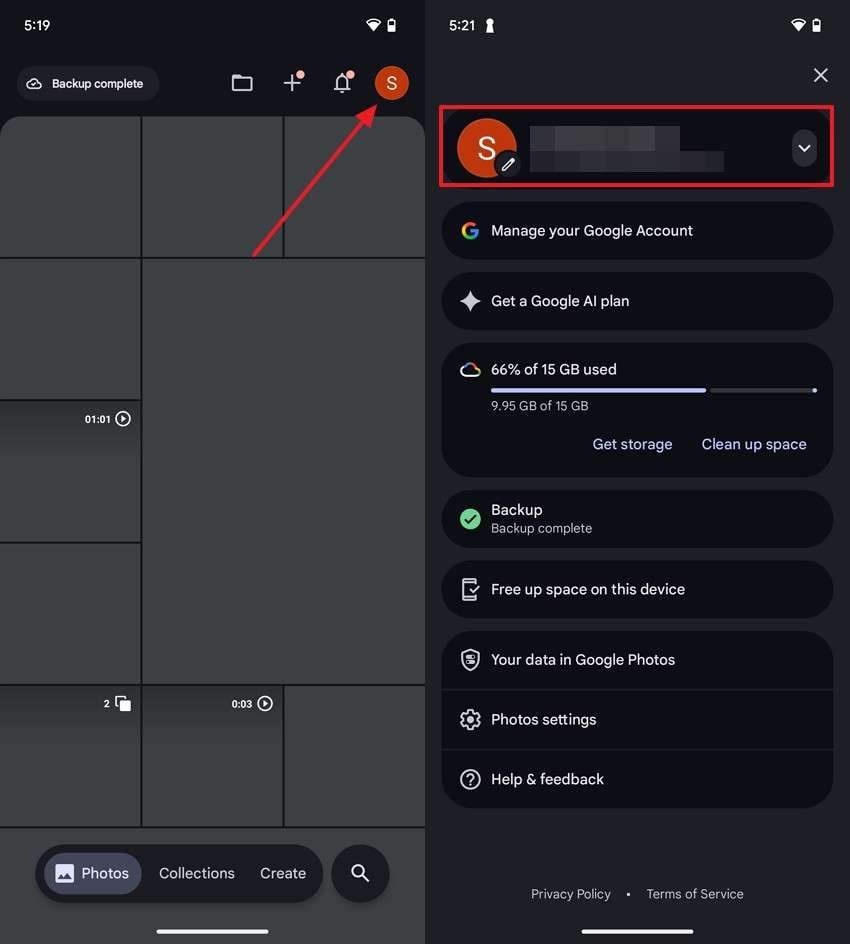
Google Photos retains previously backed-up photos and videos under the associated Google Account. Its backup feature operates independently of Android’s device backup, so media files can remain accessible even without a complete phone backup. Sign in to the original Google Account to check available media.
Step 1. Confirm the Google Account. Open Google Photos on another Android phone or the recently reset device. Tap your profile picture and sign in with the Google Account used before the reset. Check the Photos tab for previously backed-up media.
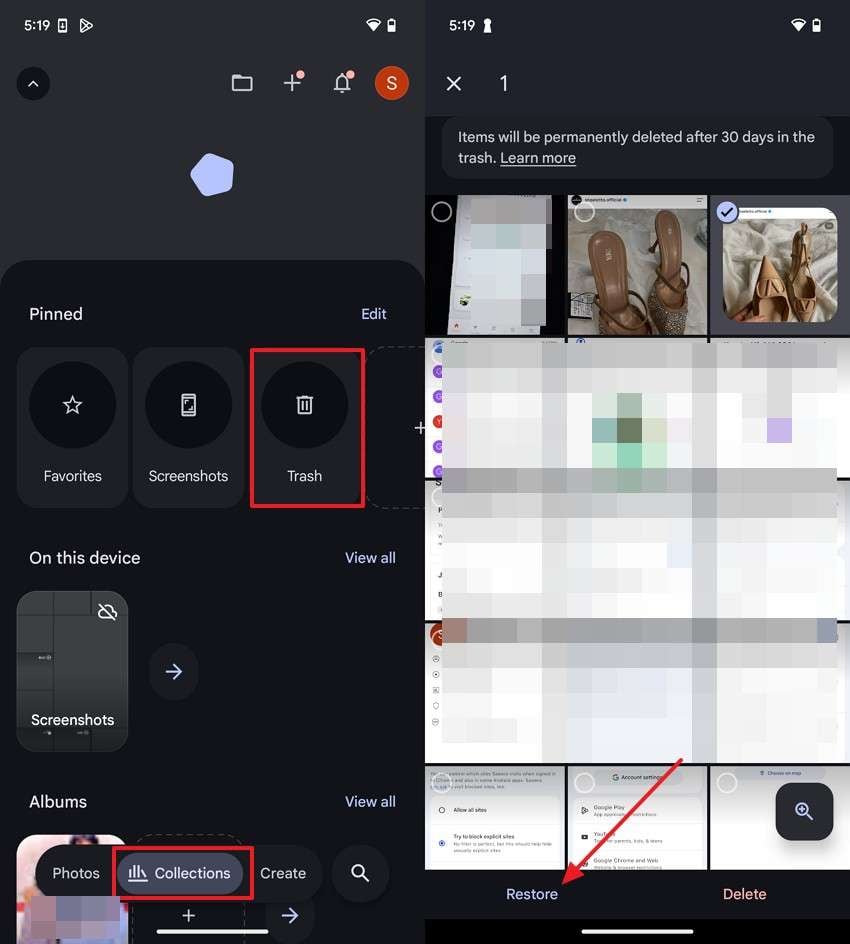
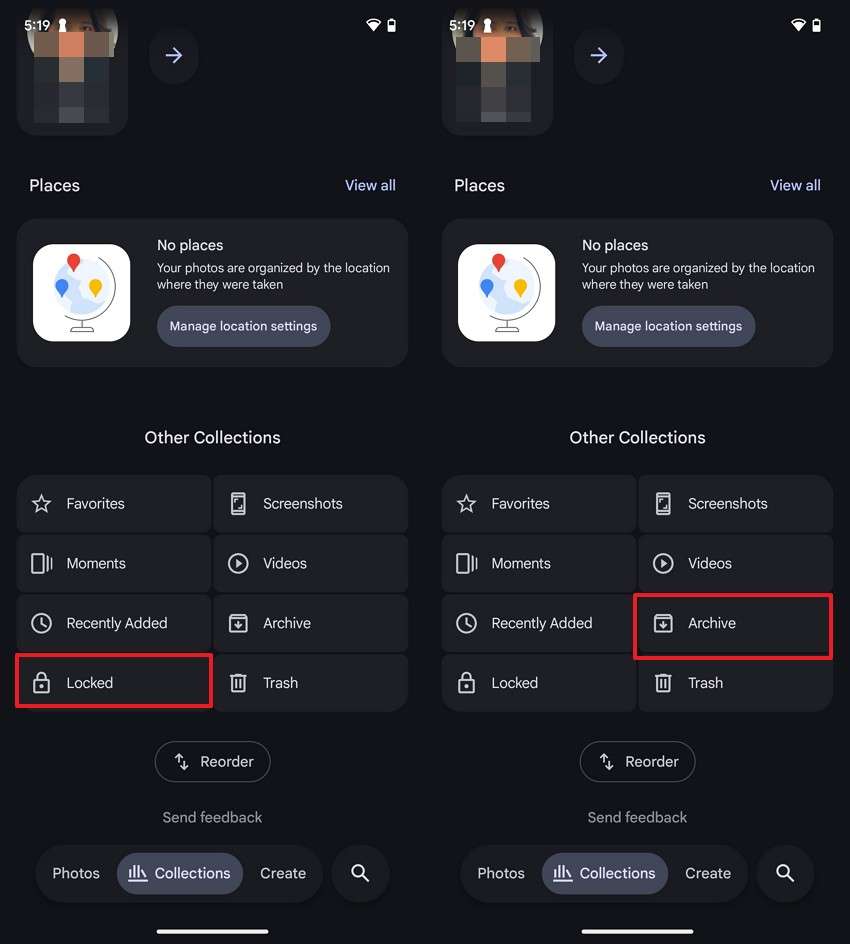
Step 2. Check Trash and restore. Go to Collections > Trash to check for missing photos and videos. Press and hold the required items, then tap Restore.
Step 3. Check Archive and Locked Folder. Navigate to Collections > Archive or Collections > Locked to locate missing media. According to Google’s Locked Folder guidelines, only previously backed-up Locked Folder items remain accessible after resetting.
Note: You can also visit photos.google.com on a computer to access and download previously backed-up media.
Method 2. Recover Android SD Card Files Using Recoverit
A standard Android factory reset generally leaves portable SD card files intact, according to Samsung’s factory reset guide. To recover photos after a factory reset on Android without backup, check the memory card first. If the required files are missing, dedicated recovery software can help retrieve them. Avoid adding new files to the card, as overwriting reduces recovery chances.
One such solution is Recoverit Memory Card Recovery, which supports SD, microSD, SDHC, and SDXC card recovery on Windows and Mac. It handles over 1,000 file formats, including photos, videos, and documents. Its scanning features locate recoverable files following accidental deletion, formatting, or file system corruption. Recoverit recovers files only from a portable, unencrypted, readable memory card connected through a card reader; it does not decrypt or recover the phone’s wiped internal storage.
Key features:
- AI-powered recovery: adapts recovery to the detected storage device and file formats for more targeted retrieval.
- Lost partition recovery: identifies missing or inaccessible partitions on memory cards.
- Original folder recovery: restores original filenames and directory structures when file system metadata remains.
- RAW file recovery: identifies recoverable files directly from storage sectors when directory information is damaged.
- Multi-file-system recovery: handles memory cards using FAT16, FAT32, exFAT, NTFS, EXT4, and other supported file systems.
Guide to recover Android SD card files using Recoverit:
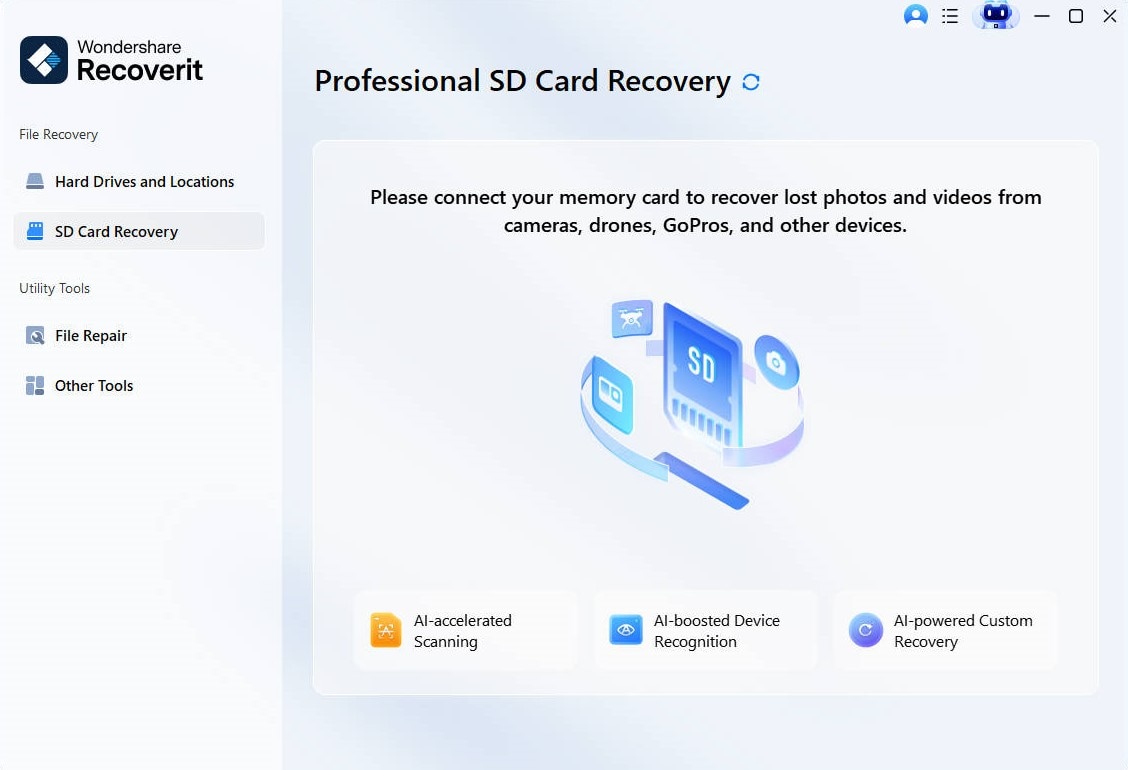
Step 1. Connect the SD card and select it. Remove the microSD card from your Android phone and connect it to your computer using a card reader. Launch Recoverit, open the SD Card Recovery tool, and select the connected memory card.
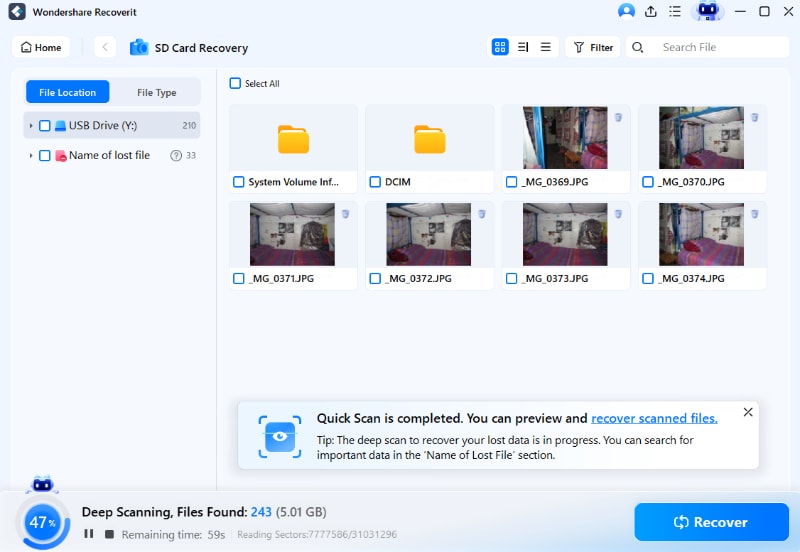
Step 2. Scan the SD card and locate lost files. As Recoverit scans the memory card, narrow down the results by file type, date, or size. For missing media with unknown filenames, use AI Search to locate them through descriptive queries.
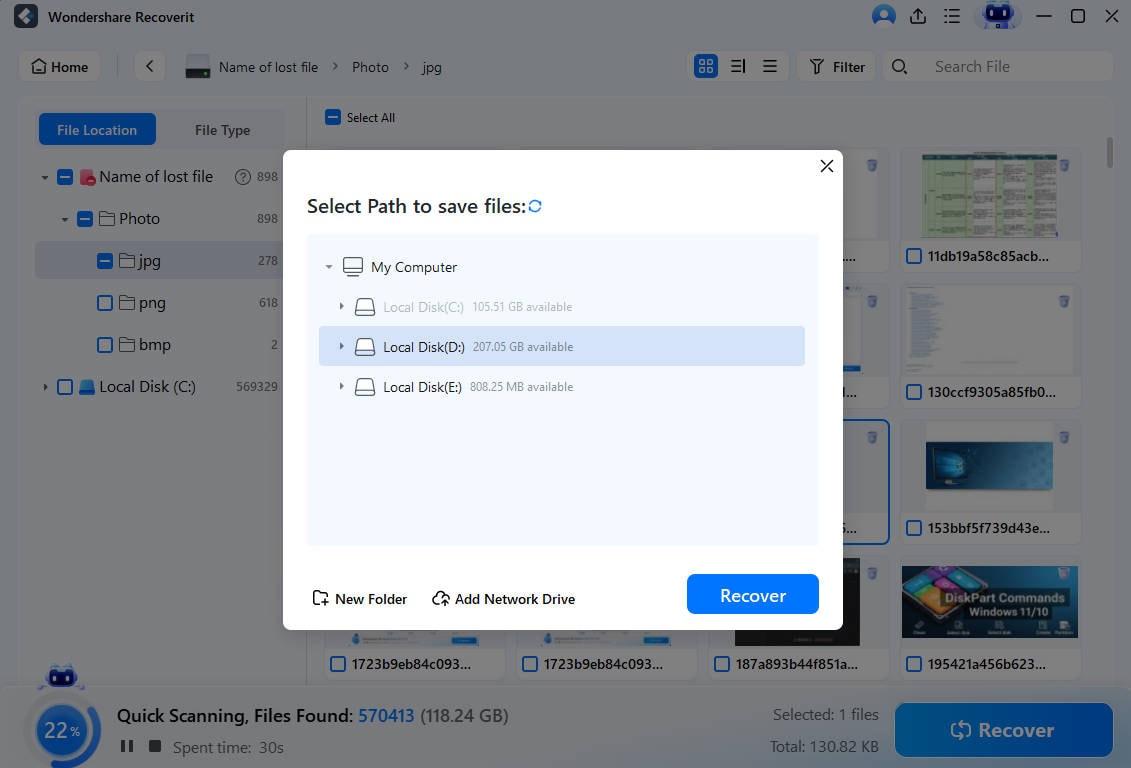
Step 3. Recover the required SD card files. Preview recovered files to assess their condition before recovery. Select the required items and click Recover. Choose a location on your computer or another storage device to save the recovered files.
Method 3. Check Available Android Data Using Dr.Fone
Dr.Fone – Data Recovery (Android) offers Standard Recovery and Advanced Recovery modes for different data-loss scenarios. It supports a large range of Android devices and data types, including contacts, messages, documents, and media files. The software allows you to preview detected content and selectively export files to a computer. However, device compatibility and recovery capabilities vary by Android version and recovery mode.
According to Dr.Fone’s official product FAQ, modern Android encryption significantly restricts internal storage recovery after resetting. Neither recovery mode can reconstruct encrypted files once their original encryption keys are destroyed. Dr.Fone can check available backups and retained local items where documented, but it is not a bypass for wiped post-reset FBE internal storage.
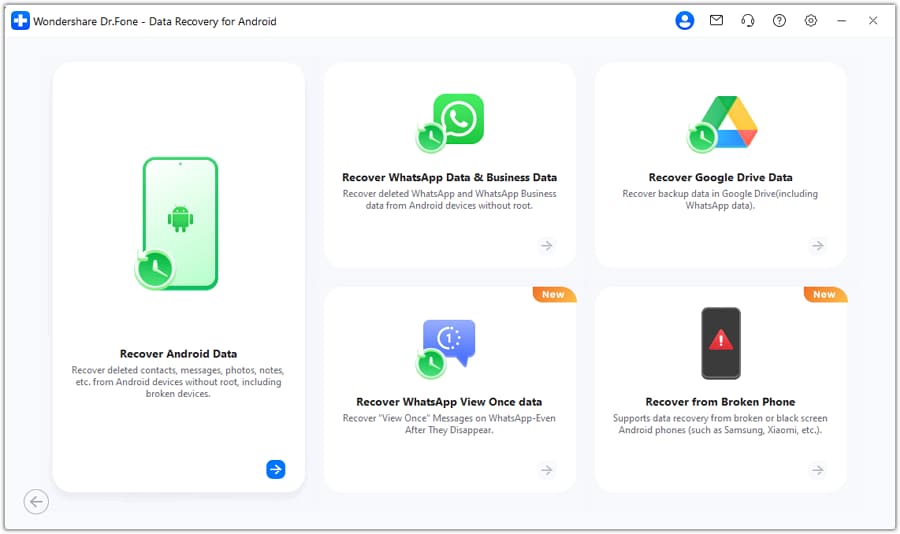
Step 1. Connect your phone and launch Dr.Fone. Connect your Android phone to the computer and launch Dr.Fone. Access Toolbox > Data Recovery > Android > Recover Android Data and enable USB debugging when prompted.
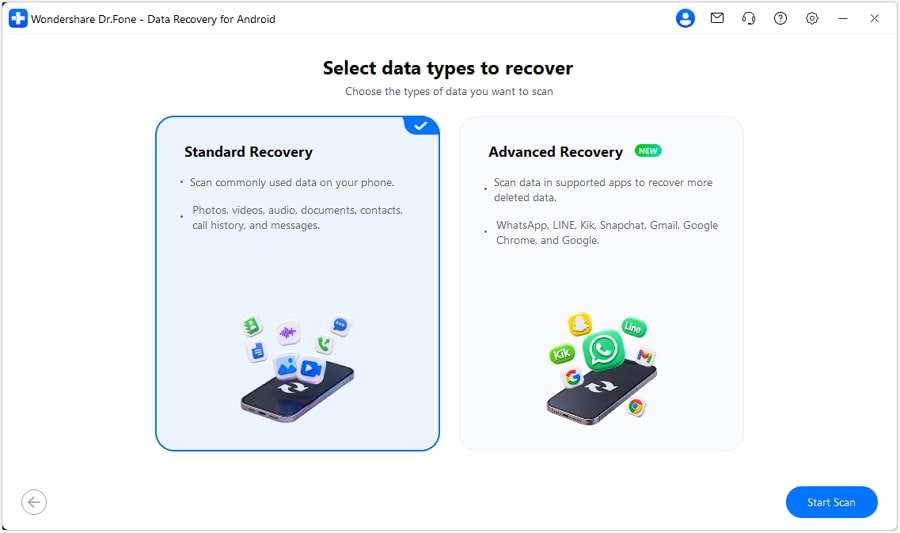
Step 2. Choose a recovery mode and scan. Proceed with Standard Recovery or Advanced Recovery and mark the categories containing your missing data. Hit Start Scan to initiate the recovery scan.
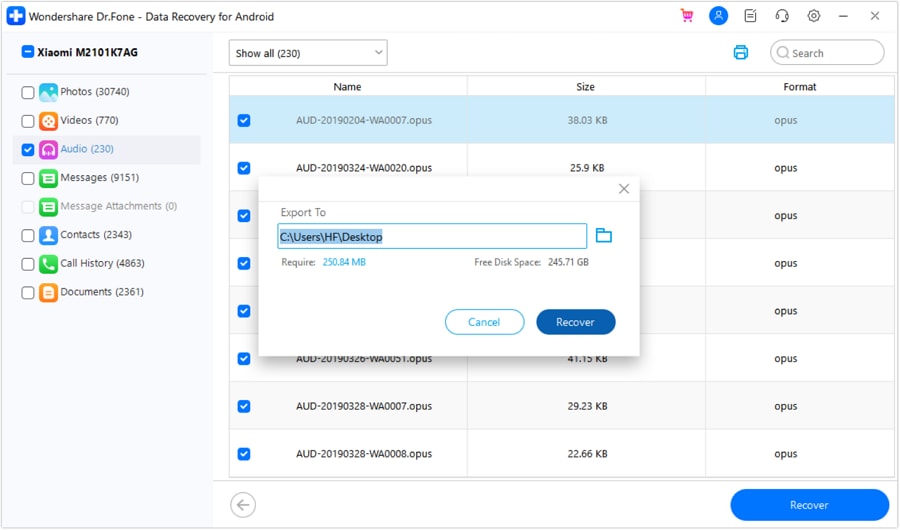
Step 3. Browse and export. Once the scan finishes, browse the detected items and mark the files you need. Select Recover > Export To and specify a destination on your computer.
Method 4. Restore Contacts and Documents From Google Services
Google Contacts and Google Drive store synchronized contacts and uploaded files independently of Android’s device backup. Even without a complete phone backup, previously stored data remains accessible through the original Google Account.
Additionally, deleted contacts remain in Google Contacts Trash for 30 days, with the same retention period applying to Google Drive’s Trash. However, these services cannot retrieve data that was never synced or uploaded.
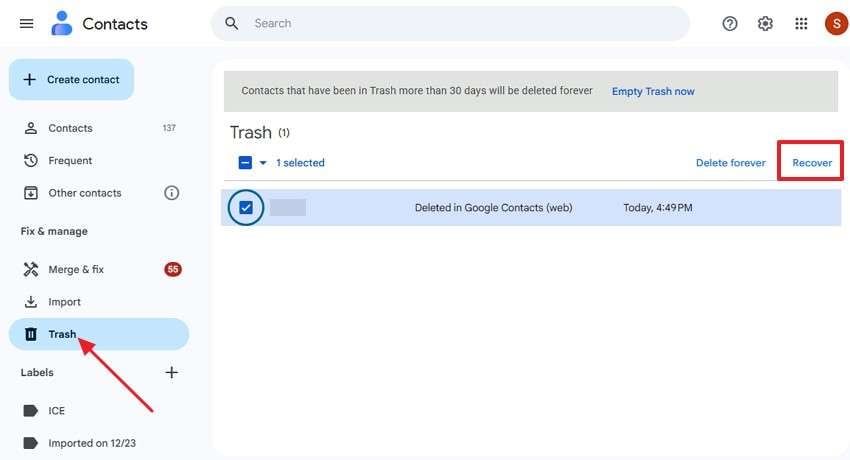
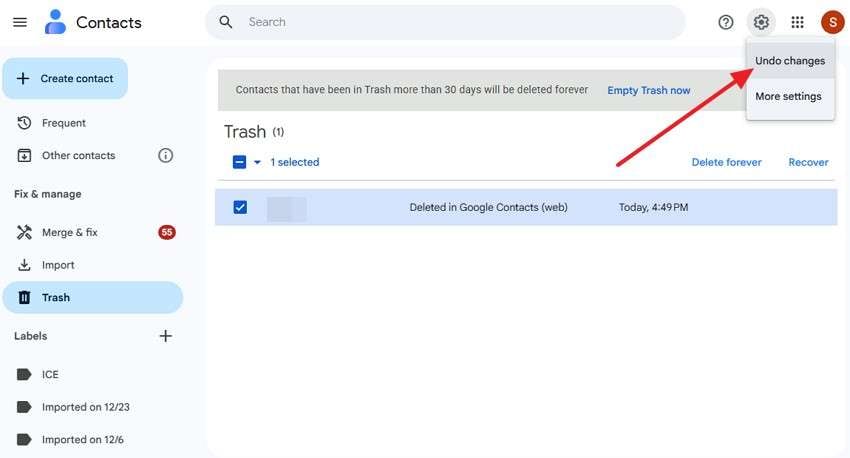
Step 1. Check Google Contacts. Visit Google Contacts on your computer and sign in with the original Google Account. Check the contact list for previously synchronized contacts. If any are missing, open Trash, select the required contacts, and click Recover.
Step 2. Undo changes. Alternatively, select Settings > Undo changes to reverse contact changes within the past 30 days. Choose the appropriate restoration period and confirm the action.
Step 3. Check Google Drive. Access Google Drive and browse My Drive for previously uploaded files. Use the search bar to locate specific documents. If any files are missing, open Trash, right-click the required file, and select Restore.
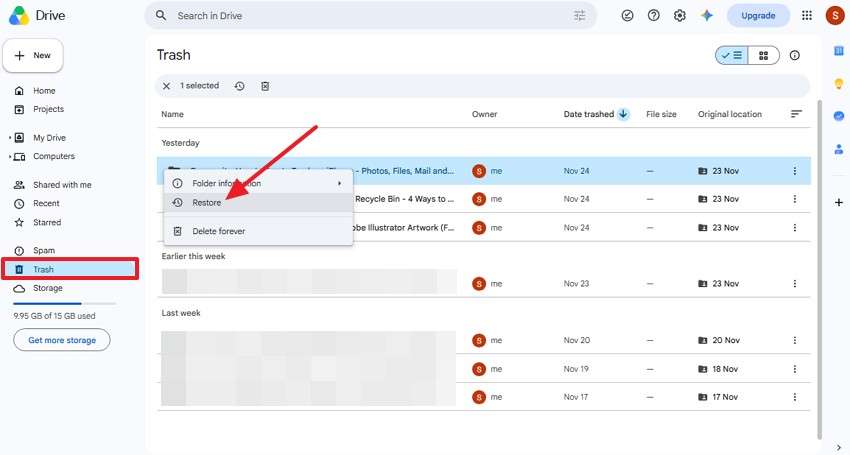
Tip: To access recovered data on your Android phone, sign in with the same Google Account and enable contact synchronization, then use Google Drive to download the restored files.
Method 5. Check Samsung Cloud and Other App-Specific Accounts
Many Android applications use their own synchronization and backup systems. For instance, Samsung Cloud can preserve certain types of data independently of Google’s device backup. Such services can provide recovery opportunities even if you never created a manual backup. Availability varies by app, account, and region, so check the official provider UI.
| Service | What Syncs or Stores Online | Recovery Requirement |
| Samsung Cloud Sync | Samsung account contacts, calendars, notes, reminders, and browser bookmarks | Previously synchronized data and the original Samsung account |
| Microsoft OneDrive | Photos, videos, documents, and other uploaded files | Existing cloud copies and the associated Microsoft account |
| Samsung Cloud Backup | Messages, call logs, locally saved contacts, settings, and home screen layouts | An existing manual or automatic Samsung Cloud backup |
| Chats and media stored in a Google Account backup | An existing WhatsApp backup, original phone number, and associated Google Account |
Note: Samsung Cloud Backup and WhatsApp require existing backups. Check these services for forgotten automatic backups created before the factory reset.
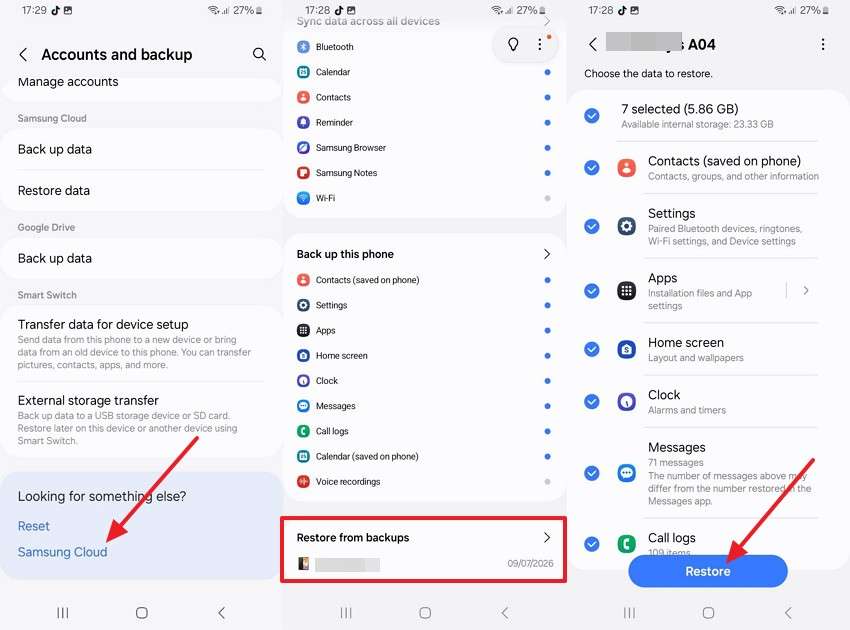
Step 1. Restore from Samsung Cloud. Navigate to Settings > Accounts and Backup > Samsung Cloud and sign in with your original Samsung account. Enable synchronization for the required services. If an existing backup is available, select Restore from Backups, choose the backup and data types, then tap Restore.
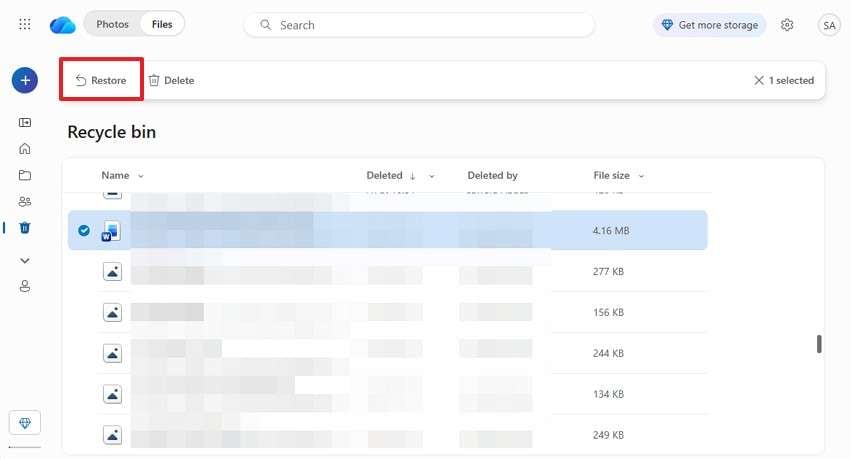
Step 2. Check Microsoft OneDrive. Open OneDrive and sign in with your original Microsoft account. Browse the stored files or use the search bar to locate missing content. If necessary, open Recycle Bin, select the required files, and tap Restore.
Step 3. Restore WhatsApp. Reinstall WhatsApp, verify your original phone number, and ensure the associated Google Account is available. Tap Continue > Allow to grant permissions. Select Restore from Backup > Continue and follow the on-screen instructions.
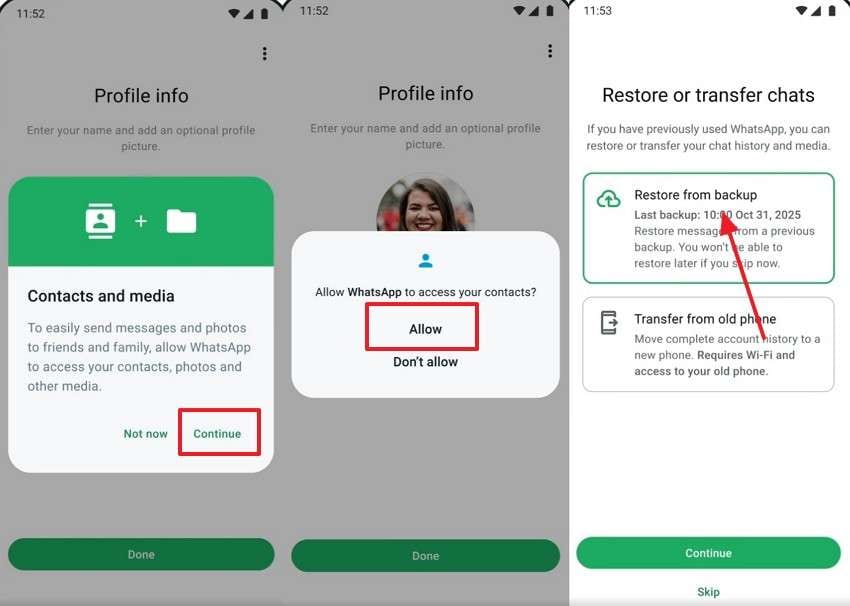
Note: Account synchronization works independently of a full device backup. WhatsApp chat restoration requires an existing chat backup after a factory reset.
Method 6. Retrieve Files From Computers and Other Devices
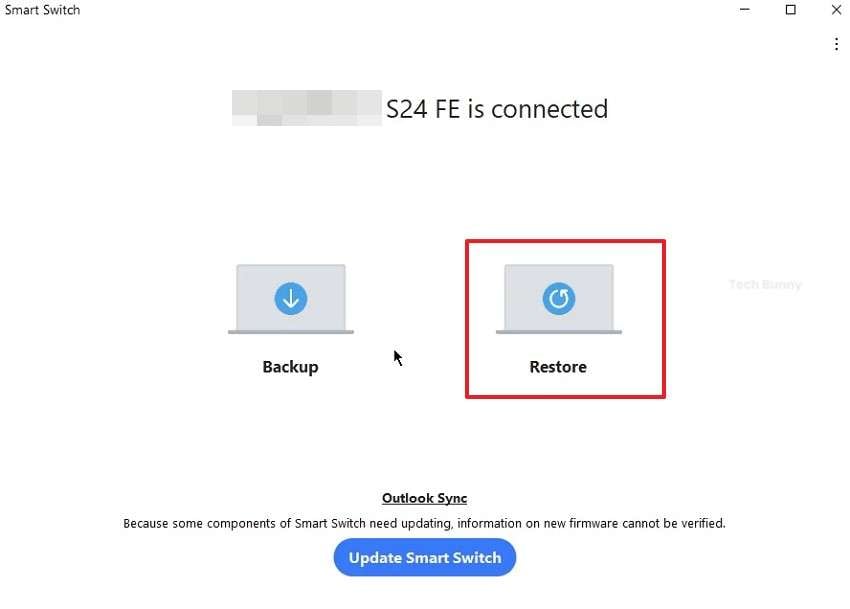
Files previously transferred to computers or shared with other devices remain unaffected by an Android factory reset. Even without a dedicated backup, routine file transfers can leave independent copies of important data. Samsung Galaxy users can also check for forgotten Smart Switch backups created before the reset.
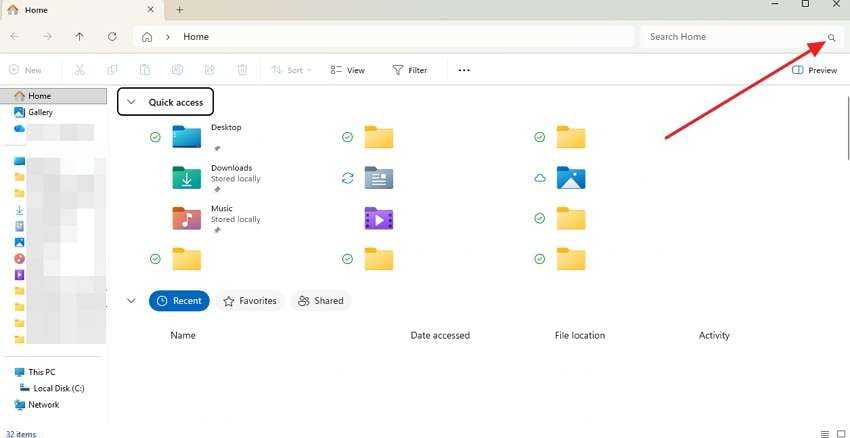
Step 1. Check your computer. Open File Explorer on Windows or Finder on Mac. Check the Pictures, Downloads, and previously exported DCIM folders for files transferred before the reset. Search other computers previously used for Android file transfers.
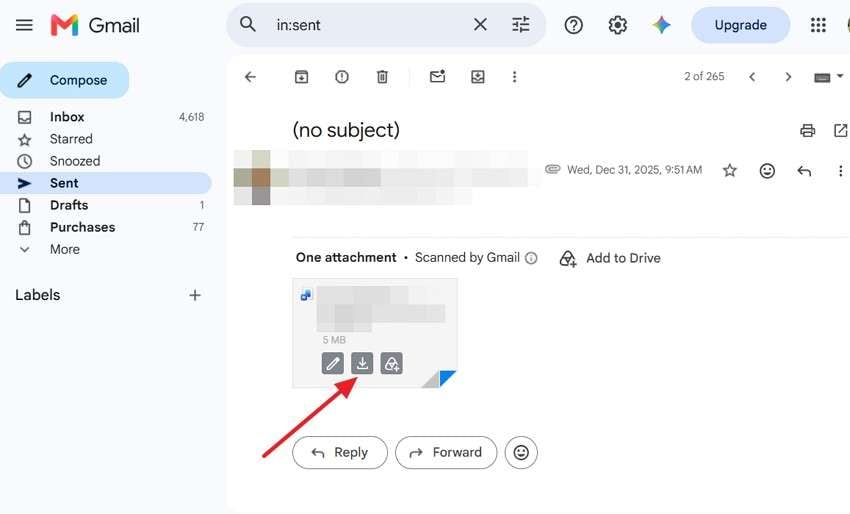
Step 2. Check email and other devices. Check email attachments, shared cloud folders, and secondary phones for missing files. Download available attachments or ask recipients to resend previously shared files.
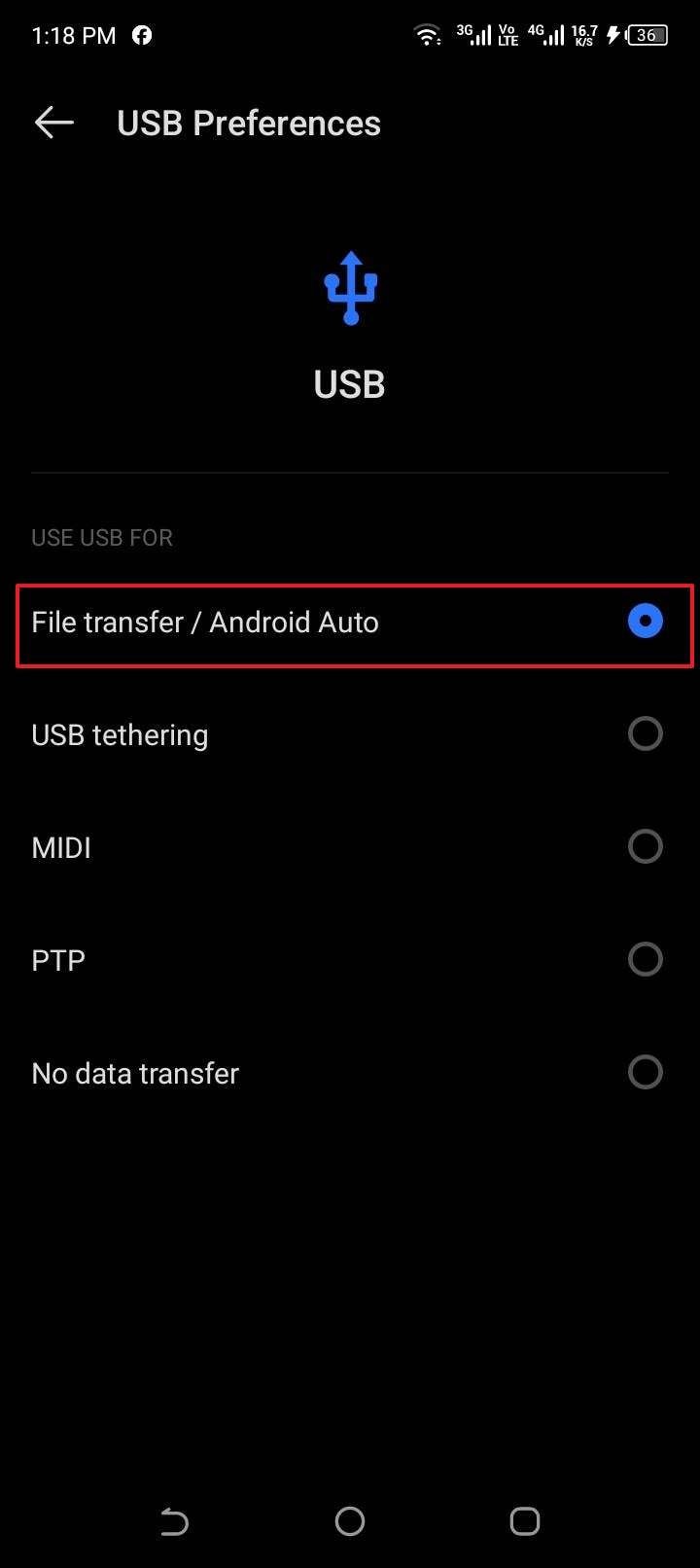
Step 3. Transfer files back. After locating the required files, connect your Android phone to your computer using a USB cable. Select File Transfer on your phone and copy the retrieved files to the appropriate folders. On Mac, use a compatible Android file transfer utility.
Note: Samsung Galaxy users can also check for forgotten Smart Switch backups. Connect the phone to your computer, launch Smart Switch, and select Restore. Choose a backup created before the reset and follow the on-screen instructions.
Part 3. Why Can’t You Recover Data After Factory Reset on Android?
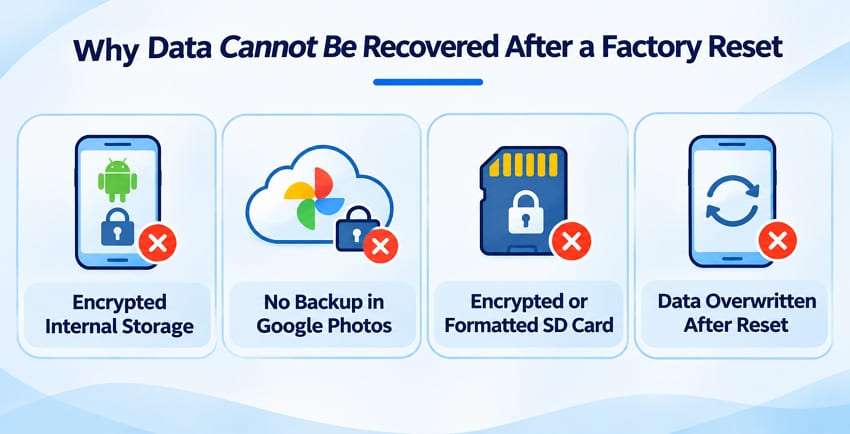
Even after trying multiple recovery methods, some files can remain permanently inaccessible. Understanding these limitations helps set realistic expectations before attempting further recovery. If you cannot recover data after a factory reset without a backup, consider these common reasons.
1. Files Were Stored Only in Encrypted Internal Storage
Devices launched with Android 10 or later must use file-based encryption. A factory reset removes the encryption keys required to access previous user data. Without these keys, recovery software cannot decrypt any remaining encrypted files.
Similar restrictions apply to users who want to recover iPhone data after a factory reset without a backup. According to Apple’s device security guidelines, a factory reset destroys encryption keys, making previously stored user data cryptographically inaccessible.
2. Google Photos and Locked Folder Content Was Never Backed Up
Photos that never uploaded to Google Photos lack a corresponding cloud backup. Backup settings might have been disabled, or uploads could have been interrupted. Signing into a different Google Account can also make previously backed-up photos appear missing.
According to Google, Locked Folder items without a backup are lost during a factory reset. Media deleted before a successful backup is also unavailable unless another copy was uploaded.
3. The Android SD Card Was Encrypted, Formatted, or Overwritten
According to Android’s adoptable storage documentation, adopted SD cards rely on encryption keys stored within the original phone. A factory reset removes these keys, making previously stored data inaccessible. Samsung also recommends decrypting encrypted microSD cards before a factory reset.
Formatting an unencrypted SD card does not necessarily prevent recovery. However, overwriting the original data can make recovery impossible. Recoverit can retrieve deleted files from supported memory cards only if the original data remains recoverable and the card is a portable, unencrypted SD card accessed through a reader.
4. Original Data Was Overwritten After the Reset
Continued phone usage after a factory reset can reduce recovery chances on older, unencrypted Android devices. Installing apps, downloading files, and capturing photos generate new data that can overwrite storage areas containing remnants of previously deleted files.
To restore data after a factory reset on Android without a backup, minimize device usage and avoid installing recovery apps directly on the affected phone. Consider professional data recovery if the missing files are critical. However, professional services cannot reverse the destruction of encryption keys.
Conclusion
The ability to restore data after a factory reset on Android without a backup depends on where files were stored. Modern Android encryption limits internal storage recovery, but independent file copies can remain accessible. Check previously synced accounts, computers, and portable SD cards before assuming your files are permanently lost.
For deleted files on unencrypted SD cards, Recoverit Memory Card Recovery offers a practical recovery solution. Save recovered files to a separate storage device to avoid overwriting existing data. Finally, enable automatic backups to prevent future data loss.
FAQ
-
Can I recover photos after a factory reset without Google Photos backup?
Yes, if copies exist on computers, secondary phones, or portable SD cards. Recoverit can retrieve deleted photos from compatible, unencrypted memory cards if the original data remains recoverable. However, photos stored exclusively in encrypted Android internal storage are generally unrecoverable after a factory reset. -
Does a factory reset delete everything on an Android SD card?
A standard factory reset generally leaves files on portable SD cards intact unless the card is formatted. However, encrypted or adopted SD cards can become inaccessible after resetting. Deleted files on unencrypted SD cards remain potentially recoverable if the original data has not been overwritten. -
Can I recover contacts after an Android factory reset without a backup?
Yes, if the contacts were previously synced with Google Contacts or a Samsung account. Sign in to the original account and enable contact synchronization. However, contacts stored exclusively in encrypted internal storage are generally unrecoverable after a factory reset.


