 TL;DR:
You can recover corrupted RTF files by trying alternative word processors for minor formatting issues, utilizing built-in repair tools, restoring Windows backups, or using specialized data recovery and hex editing software for severe damage.
● For formatting-related corruption, bypass the issue by opening the file in alternative programs like LibreOffice or WordPad, or use Microsoft Word's built-in "Open and Repair" feature to automatically fix content and encoding errors.
● You can completely bypass the corruption by utilizing the Windows "Previous Versions" feature, but this strictly requires File History or Shadow Copies to have been enabled prior to the file damage.
● For severely damaged files, advanced users can manually correct the "{\rtf" header using a Hex Editor like HxD, or utilize deep-scanning recovery software like Recoverit to salvage the underlying text-based structure.
Ask AI for a summary
 ChatGPT
 Perplexity
 Gemini
 Claude
 Grok
Grok
It’s upsetting to lose important documents, especially when your RTF files stop working. You try to open them, but nothing happens. It feels like all your effort is gone.
But don’t worry. There are ways to fix and recover your damaged RTF files.
This guide shows you how to recover corrupted RTF files. We'll cover simple methods anyone can use. You'll also learn what causes corruption. Plus, we'll share tips to prevent future problems. Let's get your files back.
Table of Contents:
Part 1: What is RTF File?
RTF stands for Rich Text Format. It's a document file type created by Microsoft. RTF files can store text with formatting. Think bold text, italics, and different fonts. They work across many programs and systems.
RTF files are smaller than Word documents. They don't support advanced features like macros. But they're great for sharing formatted text. Most word processors can open RTF files. This makes them useful for cross-platform work.
Key Features of RTF Files:
- Universal compatibility: Opens in almost any word processor
- Basic formatting: Supports fonts, colors, and simple styles
- Cross-platform: Works on Windows, Mac, and Linux
- Lightweight: Smaller file size than modern formats
- Text-based structure: Makes recovery easier in some cases
Part 2: Can You Recover a Corrupted RTF File?
Yes, you can often retrieve lost RTF file content. RTF files have a text-based structure. This makes them easier to repair than binary formats. Several methods can help you restore corrupt RTF file data.
Your success depends on the damage level. Minor corruption is usually fixable. Severe damage may require professional tools. But even then, you can often recover most content. The key is trying multiple methods. Don't give up after one attempt.
Part 3: How to Recover Corrupted RTF Files?
Multiple solutions exist to restore corrupt RTF file content. Each method works differently. Some use special software. Others rely on built-in features. Try them in order for best results.
Method 1: Use Recoverit to Restore RTF Files
Recoverit is professional data recovery software. It helps you find lost or broken files. The software is made for deep scanning. It looks through your storage carefully. It finds deleted RTF files. It also finds corrupted ones. After that, it repairs them. Then it brings them back to life.
You can use Recoverit when files are missing. It also works when files are damaged. The tool supports many devices. You can use it with hard drives. It works with USB drives too. SD cards are also supported. No matter where your file was stored, Recoverit can help.
Recoverit is easy to use. You don’t need special skills. Beginners can follow simple steps. Experts can use advanced features. The tool has a high success rate. It recovers files quickly and safely. Many people trust it. It’s a great choice for everyone.
Steps to Use Recoverit:
Step 1: Download and install Recoverit on your computer. Launch the program. Select the location where your RTF file was stored. Click the "Start" button.

Step 2: Wait for the scan to complete. Browse through the results.

Step 3: Preview the RTF files you found. Select the files you want to retrieve lost RTF file data from. Click "Recover". Pick a safe location to save them.

Video Tutorial: How to Recover Lost Files from SD Card?

Method 2: Open with a Different Word Processor
Sometimes RTF files open fine in other programs. The problem might be your current software. Different word processors handle RTF files differently. Switching programs can bypass corruption issues.
Try programs like LibreOffice, Google Docs, or WordPad. Each has its own RTF parser. One might read your file successfully. This method is quick and free. It's worth trying before more complex solutions.
How This Method Helps:
- Different programs tolerate different types of file corruption
- Free alternative word processors are widely available online
- Some programs auto-fix minor corruption during file opening
- Works well for formatting-related corruption issues only
- Allows you to save content in a new format
How to Open with a Different Word Processor:
- Download a different word processor if needed. LibreOffice Writer is a good free option. Install it on your computer. Right-click your corrupted RTF file. Click on "Open with" and pick the new program from the list.
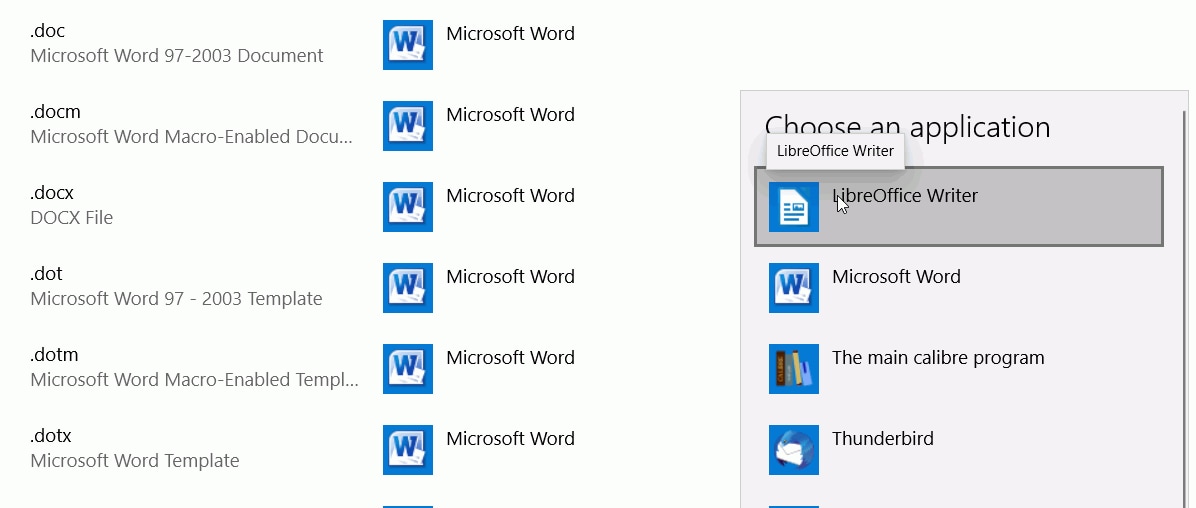
- If the file opens, save it immediately. Use "Save As" and choose RTF format again. Or save it as a different format like DOCX. This creates a clean copy without corruption.
Method 3: Use Word's "Open and Repair" Feature
Microsoft Word has a built-in repair tool. It's designed to restore corrupt RTF file content. This feature attempts automatic repairs during opening. It fixes many common corruption issues. The tool is easy to use.
This method works best for Word-related corruption. It handles formatting errors and encoding problems. The repair happens in the background. You don't need technical knowledge. Word does the work for you.
How This Method Helps:
- Built into Microsoft Word, no extra software needed
- Specifically designed to handle document corruption problems
- Repairs both content and formatting issues automatically
- Works with multiple document formats, including RTF
- Free solution if you already own Microsoft Word
How to Use Word's "Open and Repair" Feature:
- Open Microsoft Word. Click "File" then "Open". Navigate to your corrupted RTF file location. Don't double-click the file yet. Click the dropdown arrow next to the "Open" button.
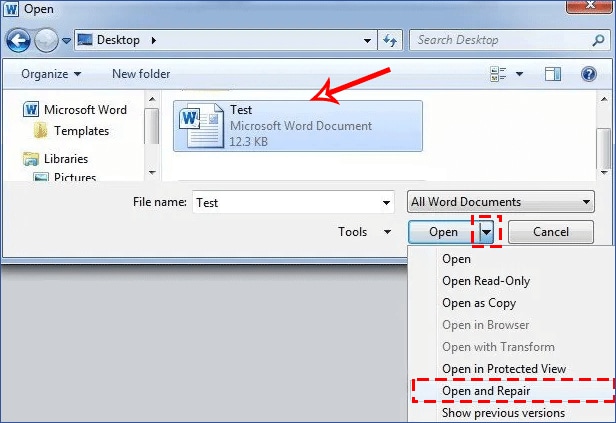
- Select "Open and Repair" from the dropdown menu. Word will attempt to restore a corrupt RTF file automatically. Wait for the process to finish. If successful, save the repaired file with a new name.
Method 4: Restore from Previous Versions (Windows)
Windows keeps backup copies of files automatically. This feature is called File History or Shadow Copies. It creates restore points regularly. You can roll back to earlier versions. This bypasses corruption completely.
This method retrieves lost RTF file versions from before corruption occurred. It only works if you have backup features enabled. The file must have been saved previously. Check your Windows backup settings to confirm.
How This Method Helps:
- Accesses automatic backups created by the Windows system
- Returns the file to a state before the corruption happened
- No special software or technical skills required
- Works even if the current file is completely unreadable
- Preserves original formatting and complete content
How to Restore from Previous Versions:
- Locate your corrupted RTF file in File Explorer. Right-click on the file. Select "Properties" from the context menu. Click the "Previous Versions" tab at the top.
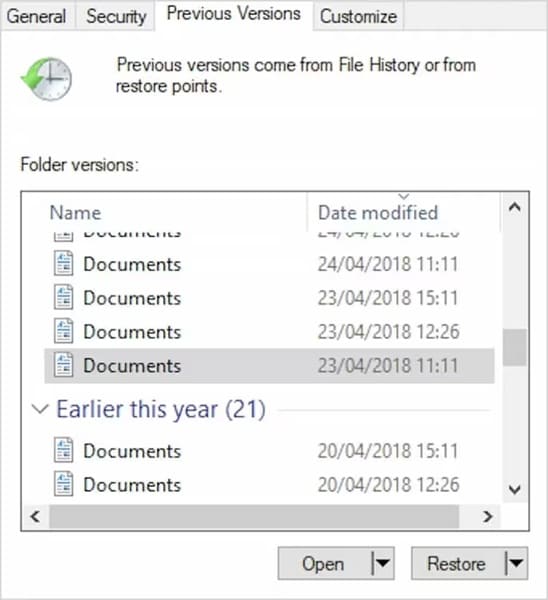
- You'll see a list of available versions. Choose a date before the corruption occurred. Click "Restore" to replace the current file. Or click "Copy" to save it separately. The old version should work perfectly.
Method 5: Try a Hex Editor (Advanced Users)
Hex editors show file data in raw format. They display the actual code structure. You can manually fix corruption issues. This requires technical knowledge. But it's powerful for severe corruption.
This method works when other solutions fail. You'll see the RTF file's internal structure. You can identify and remove corrupt sections. Or fix encoding problems manually. It's time-consuming but effective.
How This Method Helps:
- Provides direct access to the file's underlying code structure
- Allows manual removal of corrupted data segments
- Works when automated tools cannot fix the problem
- Helps identify the exact location and type of corruption
- Can recover partial content from severely damaged files
How to Try a Hex Editor:
- Download a hex editor like HxD. Open your corrupted RTF file in the editor. Look for the RTF header at the beginning. It should start with "{\rtf". Check if this header exists and is correct.
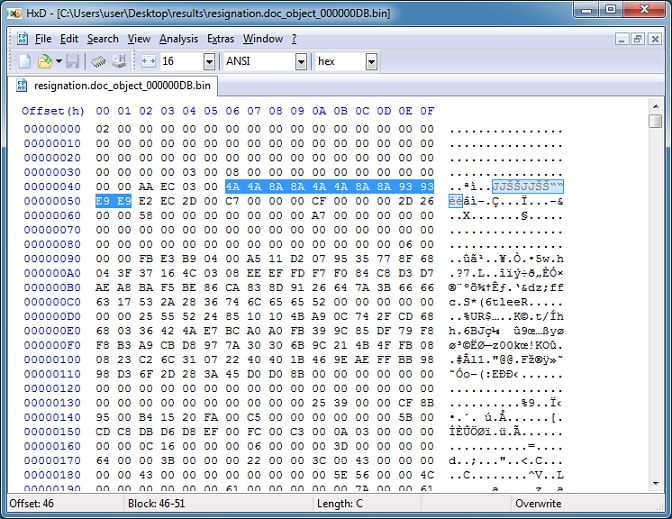
- Scan through the file for unusual characters or breaks. Remove sections that look corrupted. Save the modified file with a new name. Try opening it in a word processor. You may need to repeat this process several times.
Part 4: Pro Tips to Prevent RTF File Corruption
Follow these tips to protect your files. They reduce corruption risk significantly. Small habits make a big difference. Keep your RTF files safe long-term.
- Save files regularly while working: Don't wait until you're done. Save every few minutes. Use Ctrl+S frequently. This minimizes data loss if crashes occur.
- Always close files properly: Never force-quit programs with open RTF files. Use proper close or exit commands. This ensures data writes completely.
- Keep backup copies in multiple locations: Save to cloud storage and external drives. Don't rely on one location. Multiple backups ensure you can always retrieve lost RTF file data.
- Update your word processor regularly: New versions fix bugs that cause corruption. Enable automatic updates. Stay current with software patches.
- Use reliable storage devices: Cheap USB drives fail often. Invest in quality storage. Check drives for errors regularly.
- Avoid working on files over networks: Network interruptions corrupt files. Copy files to your local drive first. Work locally, then copy back.
- Scan for viruses and malware regularly: Malicious software corrupts files intentionally. Use updated antivirus programs. Scan downloads before opening.
- Don't open RTF files from suspicious sources: Unknown email attachments may be damaged. Verify the sender before opening. Scan files with an antivirus first.
Conclusion
Now you know how to recover corrupted RTF files. We've covered five different methods. Each works for different corruption types. Start with simple solutions like different word processors. Move to advanced tools if needed.
Remember that what is RTF file matters for recovery success. Understanding the format helps you choose the right method. Keep your files backed up always. Prevention saves time and stress. Follow our tips to avoid corruption. Your documents will stay safe and accessible. You can now confidently handle any RTF file problem.
Try Recoverit to Recover Lost Files from SD Card
 Security Verified. Over 7,302,189 people have downloaded it.
FAQs
-
Why do RTF files get corrupted?
RTF files get corrupted for several reasons. Sudden power failures during saving cause corruption. Hard drive errors damage file sectors physically. Virus infections deliberately corrupt data. Network issues during file transfer interrupt the writing process. Software bugs in word processors create formatting errors. Improper file closing leaves data incomplete. Storage device failures like USB drive removal without ejecting. Even system crashes while files are open can corrupt them. Multiple factors often combine to damage files. -
Can I recover lost or deleted RTF files without software?
Yes, you can sometimes recover lost or deleted RTF files without special software. Check your Recycle Bin first for deleted files. Use Windows File History or Mac Time Machine backups. Cloud services like OneDrive keep deleted file versions. Email attachments might have copies you sent previously. Try the "Open and Repair" feature in Microsoft Word. Look in temporary file folders where programs save auto-backups. Check with colleagues if you shared the file. These built-in options work for many situations. -
What's the best way to restore corrupt RTF file data?
The best way to restore corrupt RTF file depends on the damage. Try opening with different word processors first. This is quick and often works. Use Microsoft Word's "Open and Repair" feature next. For deleted files, recovery software like Recoverit works best. It scans storage deeply and rebuilds files automatically. Always maintain regular backups to avoid data loss. Professional recovery tools have the highest success rates. Combine multiple methods for stubborn corruption. Prevention through regular backups remains the ultimate solution.



