

 TL;DR:
Restoring a Windows 10 system image reverts your computer's files, programs, and OS to a previously saved stable state, and the specific recovery method you must use depends entirely on whether your operating system can currently boot.
● If Windows still loads normally, you can initiate the process directly through the Control Panel using the Backup and Restore feature without needing external tools.
● If the system crashes or fails to boot, you must either access the built-in Windows Recovery Environment (WinRE), boot from a Windows installation USB, or use a third-party tool like Recoverit to create a bootable media drive to force the recovery environment to open.
● You can restore your saved system image onto a completely new hard drive provided it has sufficient storage capacity, but you must manually install system updates immediately after the restoration finishes to secure the older OS version.
Ask AI for a summary
 ChatGPT
 Perplexity
 Gemini
 Claude
 Grok
Grok
Many computer problems arrive without warning. A small issue can turn into a major problem very fast. When this happens, your system may stop working. Your files may become hard to reach. Your programs may fail to open. In such moments, a system image is one of the strongest tools you can rely on. It works like a full copy of your system at a stable point in time.
Learning how to restore a system image helps you handle these moments with confidence. It gives you the power to bring your computer back to a working state. It also helps you avoid long repair work. Once you know the process, you can fix your system with steady steps.
This guide explains clear methods. You will see simple steps, short instructions, and easy ideas that anyone can follow.
Try Recoverit to Recover & Repair Video/Photo/Docs etc.
 Security Verified. Over 7,302,189 people have downloaded it.
Table of Contents
How to Restore a System Image?
Restoring a system image works like reversing time on your computer. You bring your system to the state it was in when the image was created. Each method in this guide explains how to perform a system image recovery with steady steps. Each method is simple. You can choose the one that fits your situation. The goal is to help you complete the process without stress.
A system image includes your programs, files, settings, and system information. When you use these methods, you bring all of this back at once. You can also use these methods for how to perform a system image recovery on Windows 10 when your system becomes unstable. Below are the main methods explained in clear language.

Method 1: Use Recoverit Data Recovery Tool
This method works well for people who want a guided process. The tool makes things simple. It can help you find your system image even when the system will not start. Many users trust this method because it gives clear steps. If you want to learn how to restore a system image with minimal confusion, this tool is a good choice.
Recoverit helps when the system is seriously damaged. It scans your drives. It finds your saved system image. It helps you recover a system image in a smooth flow. It is helpful for beginners who want easy steps. You can also use it when you need how to perform a system image recovery on Windows 10 with a damaged system.

How to use Recoverit to restore a system image:
Step 1. Open the Recoverit application on your Windows PC. Choose the recovery mode that fits your situation, for system image restoration, this is typically “System Crash Recovery”. Connect the external drive or location where your system image is stored.
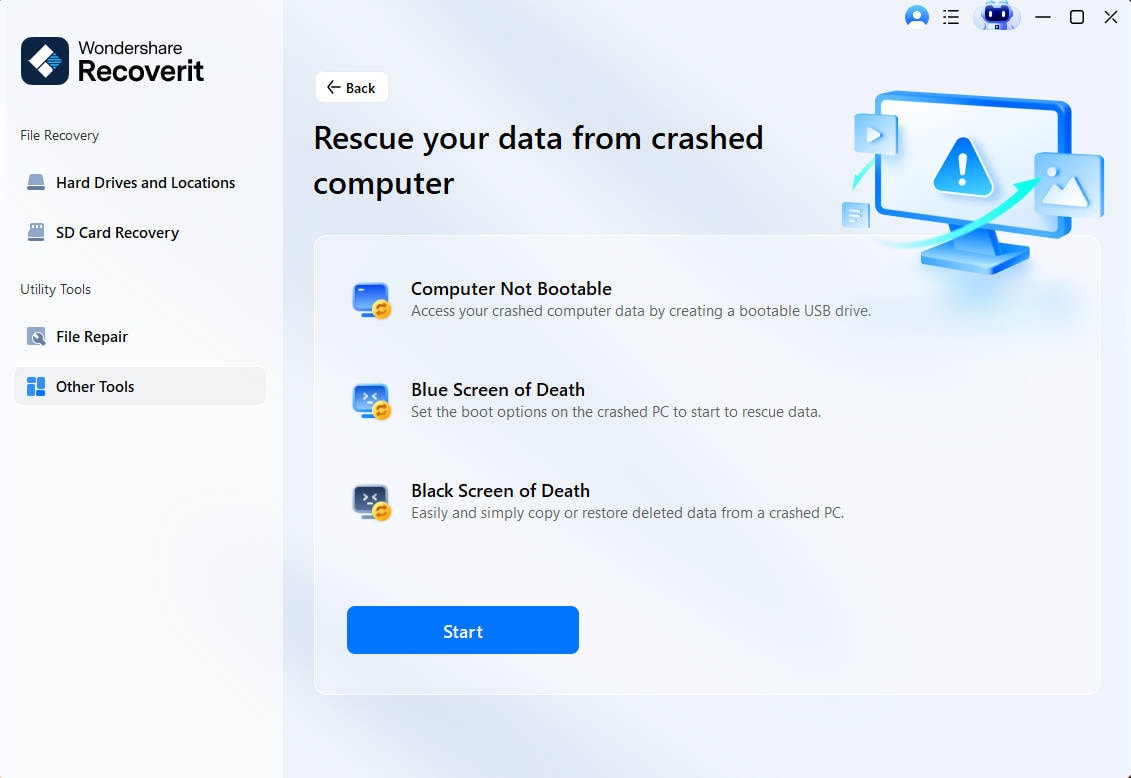
Step 2. Use Recoverit to create a bootable USB drive or CD/DVD. Insert the bootable media into the crashed or target computer. Restart the computer and boot from the media to access the recovery environment.

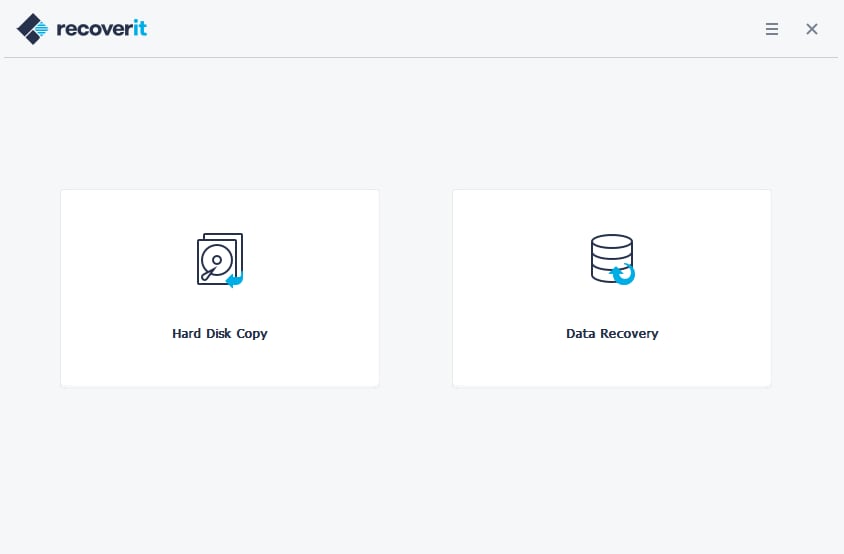
Step 3. Once in the recovery environment, Recoverit will scan for available system images. Select the correct image and follow the prompts to restore your system. The tool will reinstall the system image, restoring your OS and settings to the saved state
This method supports image restore Windows 10 tasks with a clean and guided path.
Method 2: Access Windows Recovery Environment (WinRE)
The Windows Recovery Environment is built into the system. It helps you repair your computer when Windows does not start properly. WinRE offers tools that fix startup issues. It also lets you restore from image Windows 10 if your system image is stored on a drive.
WinRE starts when your system fails to boot several times. You can also enter it manually. This method shows how to perform a system image recovery through Windows’ own tools. It works well when you do not want to use extra software.
How to restore system image by accessing windows recovery environment:
Step 1. Restart the computer. Use the key that opens WinRE.
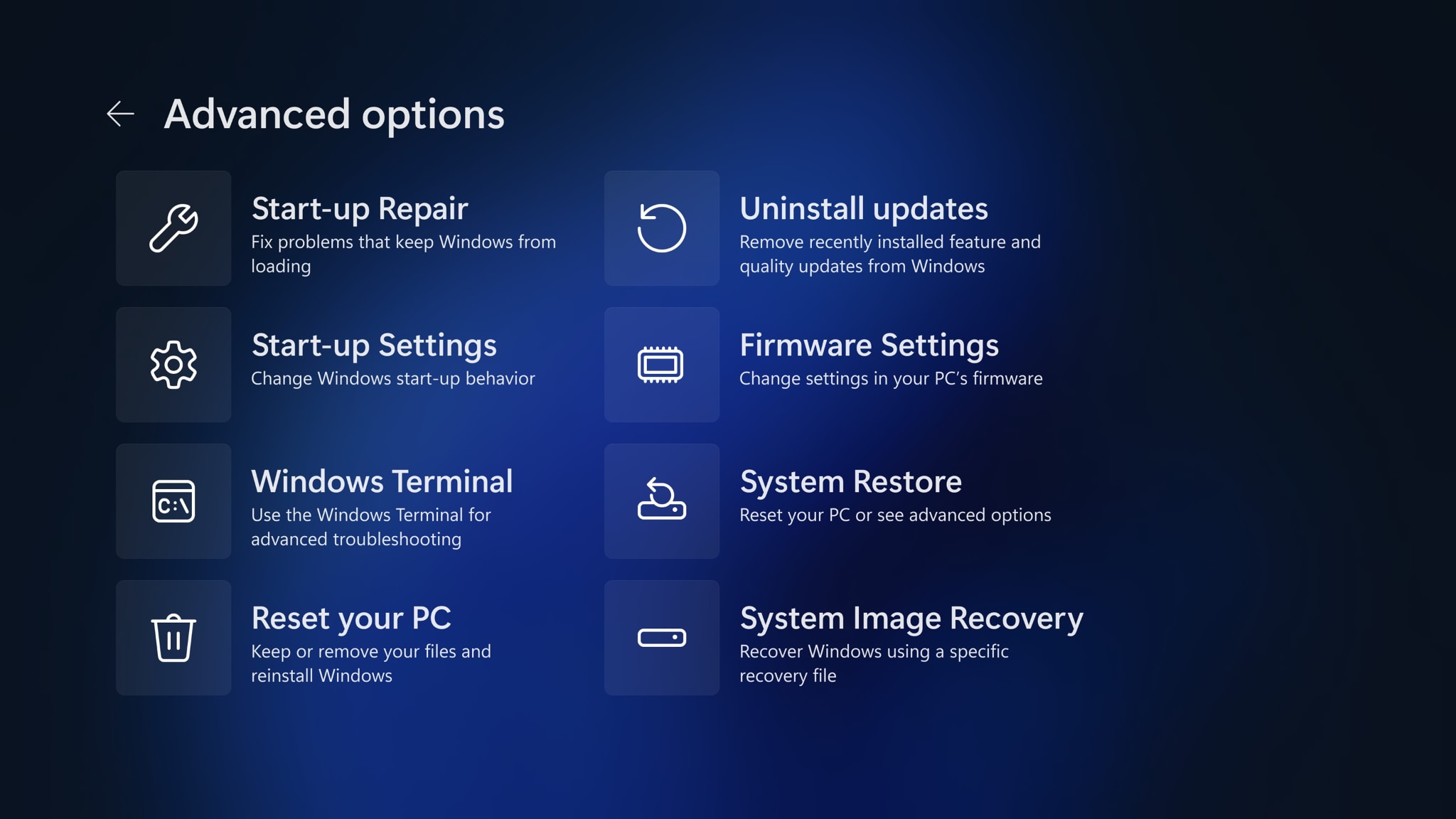
Step 2. Select the system image recovery option and follow the on screen steps.
WinRE gives you a simple way to handle what is system image recovery without extra tools.
Method 3: Restore System Image Using Control Panel
This method is useful when your system still loads. It uses the Backup and Restore feature in the Control Panel. Many people create their system image in the same place. So using this method feels natural. It helps you restore your files and settings with simple choices.
You can start this process from inside Windows. It works for many users who want how to restore a system image without restarting their system. It is also one of the common paths for how to perform a system image recovery on Windows 10.
How to Restore System Image Using Control Panel
Step 1. Open Control Panel. Select Backup and Restore.
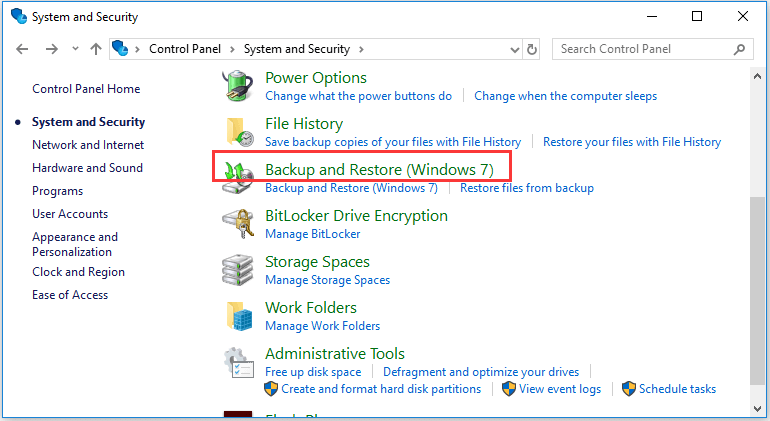
Step 2. Choose the system image and start the restore.
This method offers a calm way to recover a system image while your system still opens.
Method 4: Boot from Installation Media and Select “Repair your computer”
Sometimes your system may not open WinRE. In such cases, installation media helps. You can use a bootable USB with Windows. This media includes repair tools. It helps you open the system image recovery option and fix major issues. It also helps when the system is stuck in a loop.
This method is strong because it does not depend on your damaged system. You start from an external device. You move straight to the repair tools. It helps you complete how to restore a system image even when nothing else works.
How to Boot from Installation Media and Select “Repair your computer”
Step 1. Boot from the Windows installation USB.
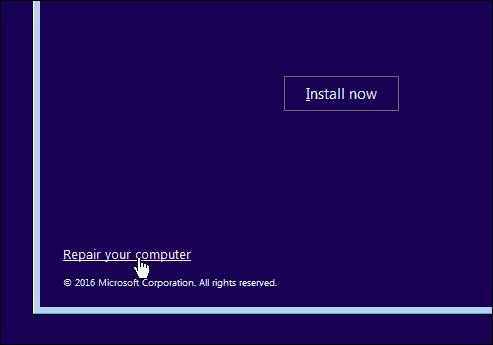
Step 2. Select Repair your computer. Choose system image recovery. Follow the prompts.
This method is reliable for people needing how to perform a system image recovery on Windows 10 during heavy system failure.
Method 5: Restore from External Drive or Network Location
Many users save their system images on external drives. Some store them in network locations. This method helps you restore your system from those stored images. It works well when your internal drive is damaged or when your system image is stored outside your computer.
External drives keep your system images safe. Network locations help offices restore many devices. This method supports how to restore a system image from secure storage.
How to Restore from External Drive or Network Location
Step 1. Connect your external drive or open your network path.
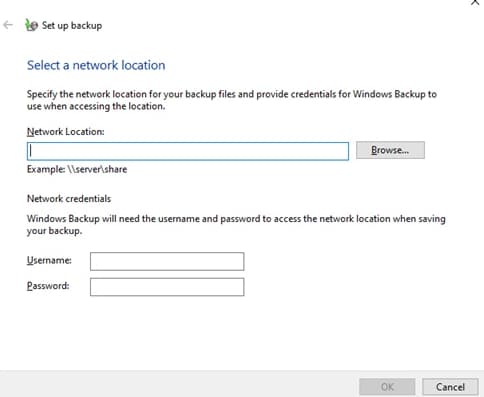
Step 2. Select the system image. Start the restore.
This method helps you recover a system image from outside your main system.
Method 6: Verify Restored Image and Run System Updates
Once you finish the restoration, you must check your system. Verification helps you confirm that the restore worked properly. You also need updates. Your restored system may be old. Updates help secure your computer and fix known issues.
Many users skip this step. This leads to problems later. When you finish restoration, give time for updates. It helps keep your restored system safe and steady. This final step completes what is system image recovery in the safest way.
How to Verify Restored Image and Run System Updates
Step 1. Check programs, files, and system functions.
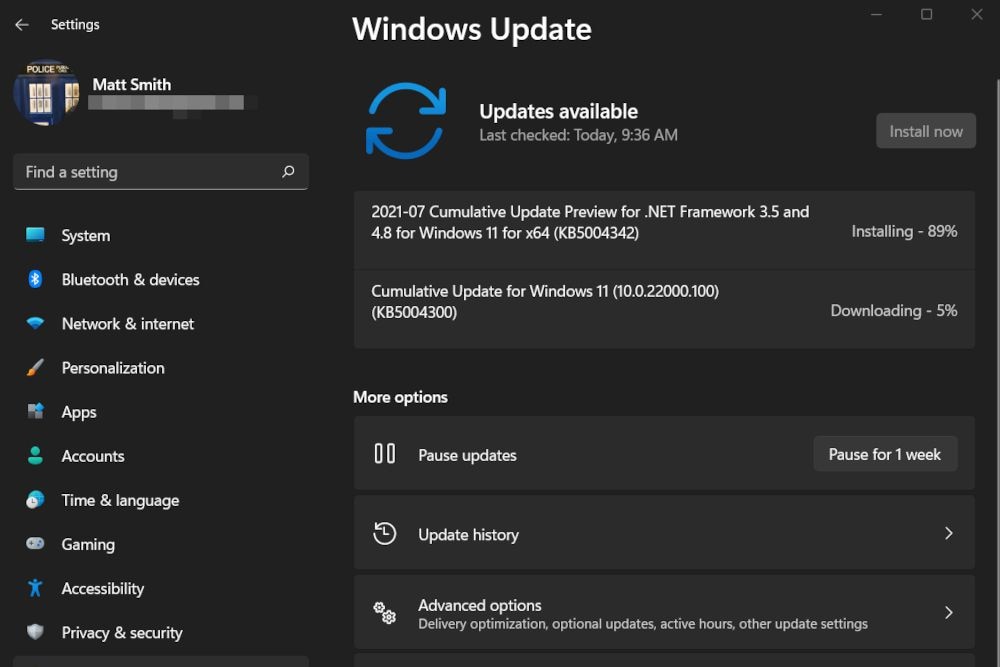
Step 2. Install all updates. Restart the computer.
This step supports long term success after image restore Windows 10 tasks.
Conclusion
A system image is one of the strongest tools for computer repair. It protects you from failures, errors, and system damage. When you know how to restore a system image, you handle system issues with calm steps. You save time. You avoid stress. You bring your computer back to full working condition.
Each method in this guide is clear and practical. Some help during minor issues. Others help during serious failures. All of them support how to perform a system image recovery in a safe and simple way. Create regular backups. Store them well. With a good system image, your computer is always within reach.
Try Recoverit to Recover Lost Data
Security Verified. Over 7,302,189 people have downloaded it.
FAQs
-
1. What is system image recovery?
It is the process of restoring your computer from a full backup. The backup includes your system files, programs, and data. It brings the computer back to the exact state captured in the image. -
2. Can I use a system image on a new hard drive?
Yes. You can install a new drive and restore the system image to it. The restored system will work like before as long as the drive has enough space. -
3. How long does a system image restore take?
The time depends on the size of the image and the speed of your drive. Some restores take minutes. Some take longer. The process is steady and simple.


