 TL;DR:
You should strictly reserve costly clean room data recovery for physical hardware damage, as logical issues like formatted partitions or accidentally deleted files can be resolved much faster and for under $100 using alternative software.
● Professional clean room services costing between $300 and $3000 are explicitly required only if your hard drive makes clicking noises, suffers fire or water damage, or completely fails to power on and be detected by the computer.
● For logically damaged but detectable drives, choose Recoverit for comprehensive Windows and Mac recovery, Recuva for a free portable solution without installation, EaseUS to pause and resume large scans, or Stellar for advanced drive monitoring and media repair.
● Always verify your hard drive warranty status before purchasing software or professional services, as some manufacturers provide free data recovery assistance for their devices.
Ask AI for a summary
 ChatGPT
 Perplexity
 Gemini
 Claude
 Grok
Grok
Anyone can experience data loss. A hard drive crash, missing files, or vanished photos. In such moments, quick recovery is key. While many assume costly clean room services are the only option, that's not always necessary.
What is clean room data recovery? It's a special process. Technicians work in a dust-free environment. They open your hard drive. They fix physical damage. They recover your files. This process costs a lot. It can take days or weeks.
But here's good news. Most data loss doesn't need clean room services. This guide shows you the best clean room data recovery alternative options.
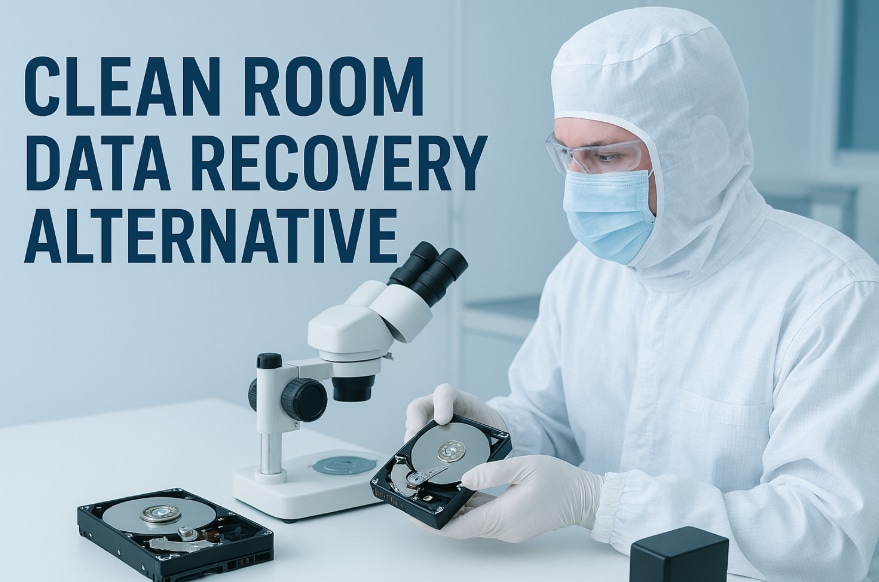
Table of Contents:
Part 1: When Is Clean Room Recovery Necessary?
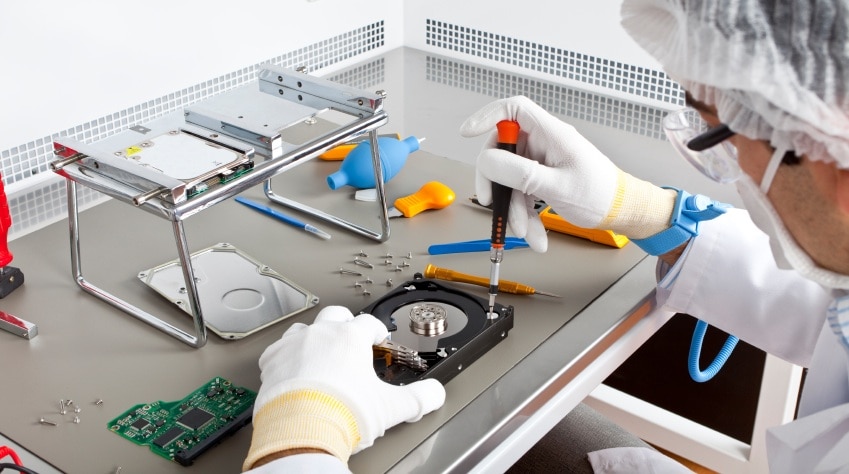
Leading clean room data recovery services handle severe physical damage. Your hard drive has moving parts. These parts can break. When they do, special equipment is needed. A clean room prevents dust from causing more damage. Here's when you need professional clean room services:
- Head crash damage: The read/write heads touch the disk platters. This scratches the surface. Data becomes unreadable. Only clean room technicians can fix this.
- Motor failure: The spindle motor stops working. The disk won't spin. You can't access any data. This requires professional repair.
- Fire or water damage: Extreme conditions destroy components. Corrosion spreads quickly. Clean room experts must act fast.
- Physical impact damage: You dropped your drive. Internal parts shifted. Platters might be misaligned. This needs expert handling.
- Electrical surge damage: Power spikes fry circuits. The PCB (circuit board) burns out. Sometimes internal components fail, too.
- Firmware corruption with hardware issues: The drive's firmware gets corrupted. Hardware problems make it worse. Special tools are required.
- Clicking or grinding sounds: These noises mean mechanical failure. Parts are hitting each other. Continued use causes more damage.
- Complete drive failure: The drive doesn't power on. Nothing works. No software can detect it. Professional assessment is essential.
Part 2: When Clean Room Recovery Is Not Needed?
Most data loss situations don't require expensive services. Software solutions handle common problems. A clean room data recovery alternative works perfectly for logical issues. These problems affect your data, not your hardware. Here's when software tools are enough:
- Accidental deletion: You deleted files by mistake. They're still on your drive. Recovery software finds them easily.
- Formatting errors: You formatted the wrong drive. The data structure changed. But files remain recoverable.
- Corrupted partitions: Your partition table got damaged. The operating system can't read it. Recovery tools rebuild the structure.
- OS crashes: Your system won't boot. Files are still intact. Recovery software accesses them.
- Virus or malware attacks: Malicious software hides or deletes files. Recovery tools restore them.
- Software conflicts: Programs crash and corrupt files. The drive still works. Recovery is straightforward.
- Bad sectors (limited): Some disk areas can't be read. But most of the drive functions normally.
- File system errors: NTFS or FAT errors prevent access. The physical drive is fine. Software fixes these issues.
Part 3: Best Clean Room Alternatives for Data Recovery
Software solutions offer effective data recovery. They're affordable. They're user-friendly. You can use them at home. Here are the top options for avoiding expensive clean room hard drive recovery.
#1 Recoverit
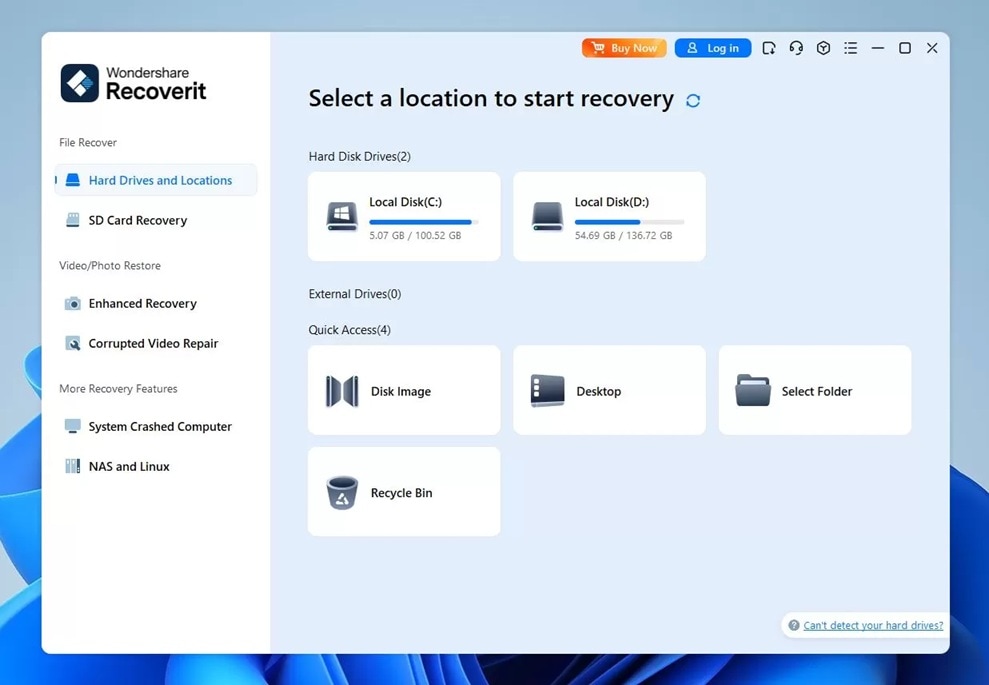
Recoverit is a powerful recovery tool. It handles over 1000 file types. The interface is simple. Even beginners can use it easily. This best clean room data recovery alternative works on Windows and Mac.
The software scans your drives thoroughly. It finds deleted files quickly. Advanced scanning recovers more complex cases. You can preview files before recovery. This saves time. You only recover what you need. Recoverit supports all storage devices. External drives work fine. SD cards are supported, too.
Key Features:
- Supports 1000+ file formats
- Deep scan technology
- Video repair function
- Crashed computer recovery
- Preview before recovery
Pros:
- Very user-friendly interface
- High recovery success rate of up to 99%
- Fast scanning speed
- Regular updates
- Good customer support
Cons:
- Deep scan takes time for large drives.
#2 Recuva
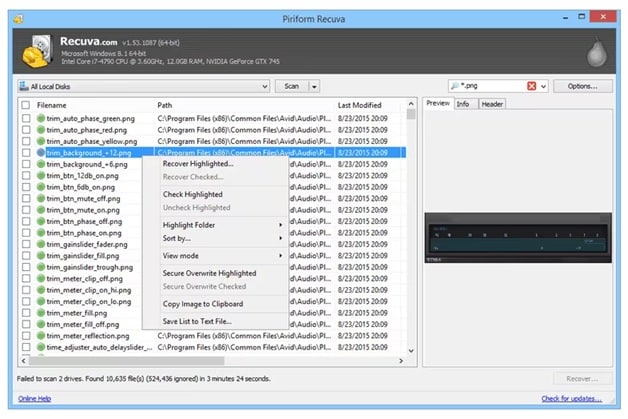
Recuva comes from Piriform. It's a lightweight tool. The software is free for basic use. It works well for simple recovery tasks. Many users trust this clean room data recovery alternative.
Recuva offers quick and deep scans. Quick scans find recently deleted files. Deep scans search thoroughly. The wizard mode guides beginners. Advanced users get more control. The portable version needs no installation.
Key Features:
- Quick and deep scan modes
- Secure file deletion
- Portable version available
- Virtual drive support
- File preview capability
Pros:
- Completely free basic version
- Small file size
- Simple interface
- Works on older computers
- No installation required (portable version)
Cons:
- Limited advanced features.
- The interface looks dated.
- Slower than premium tools.
- Less effective for complex cases.
#3 EaseUS Data Recovery Wizard
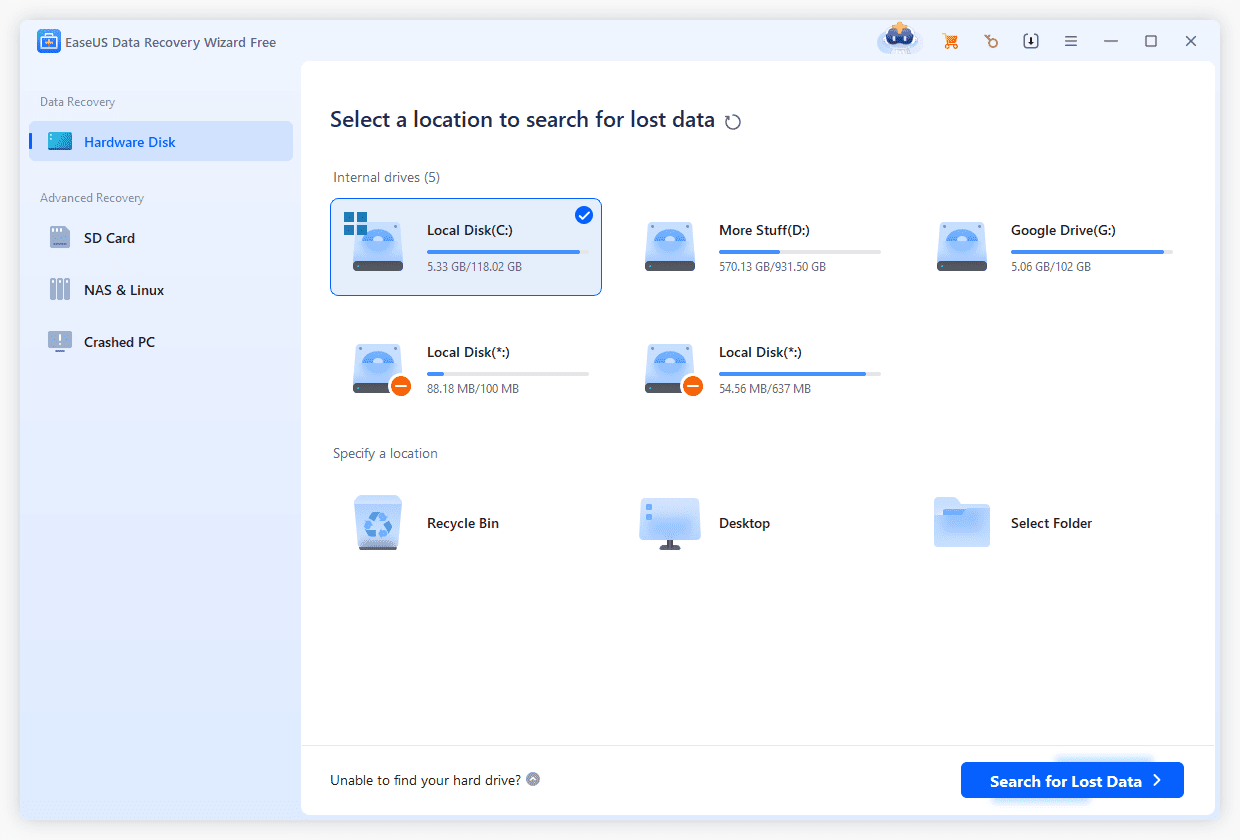
EaseUS offers comprehensive recovery. The tool handles many scenarios. Deleted files come back easily. Lost partitions get restored. This software competes with professional services.
The program has a clean interface. Three-step recovery makes it simple. Quick scan finds recent deletions. Deep scan recovers more files. You can pause and resume scans. This helps with large drives.
Key Features:
- Partition recovery
- RAW drive recovery
- Multiple file filters
- Pause and resume scans
- Bootable media creation
Pros:
- Excellent recovery rate
- Clean modern interface
- Good documentation
- Multiple language support
- Free trial available
Cons:
- Expensive full version.
- Free version limits recovery size.
- Scans can be slow.
#4 Stellar Data Recovery
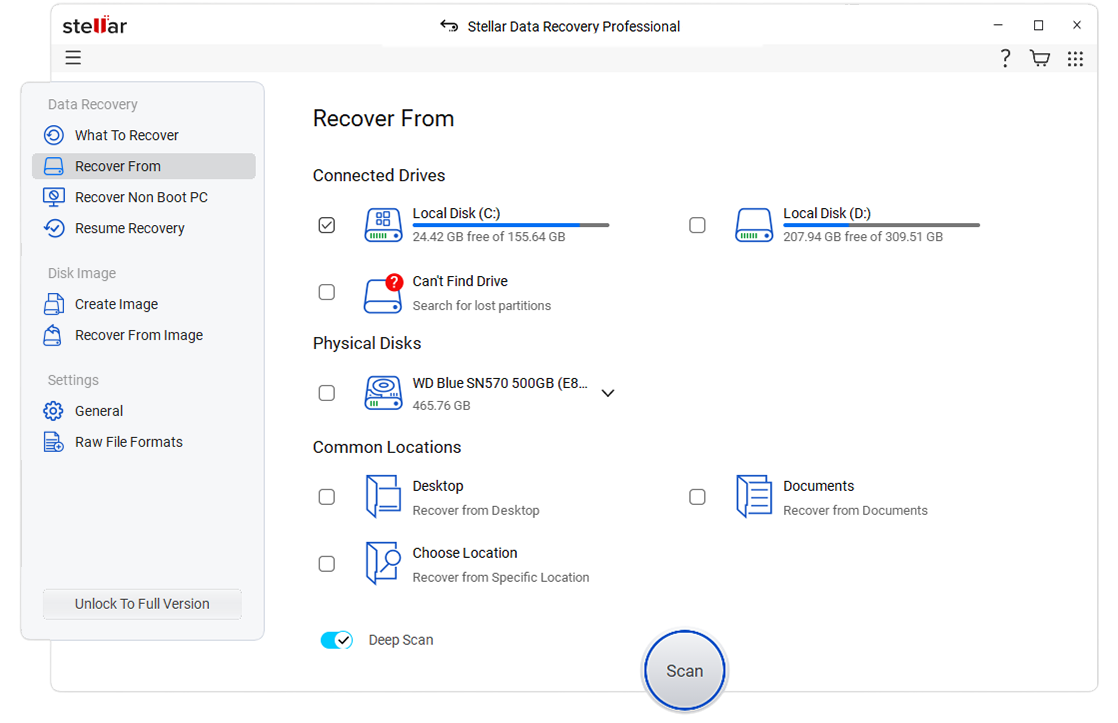
Stellar provides professional-grade recovery. The software handles complex situations. It repairs corrupted files too. Photos and videos get fixed. This makes it versatile for the clean room hard drive recovery alternative approach.
Stellar includes drive monitoring. It warns about potential failures. This prevents data loss. The software creates disk images. You can recover from images safely. This protects your original drive.
Key Features:
- Drive health monitoring
- Photo and video repair
- RAID recovery support
- Disk imaging
- Encrypted drive recovery
Pros:
- Professional features
- Excellent for photos/videos
- Drive monitoring included
- Good technical support
- Regular updates
Cons:
- Complex for beginners
- Requires more system resources
Part 4: Recover Lost Data with Recoverit: Step-by-Step Guide
Recoverit stands out as the top choice. It combines power with simplicity. The recovery rate is excellent. Customer reviews are consistently positive. Thousands of users trust it daily.
This tool saves you from expensive clean room recovery cost. Professional services charge hundreds or thousands. Recoverit costs much less. You get lifetime value. Updates keep coming. New features get added regularly.
Try Recoverit to Recover Permanently Deleted/Lost Data
 Security Verified. Over 7,302,189 people have downloaded it.
The software works on various systems. Windows 11 runs it smoothly. Older versions work too. Mac users get full support. All storage types are compatible. HDDs, SSDs, and USB drives all work. Even memory cards and cameras connect directly.
How to Use Recoverit:
Step 1: Select Location

Download and install Recoverit. Open the program. You'll see all available drives. Select where you lost your files. This could be your C: drive. Or an external hard drive. Even a USB stick works.
Click on the location. The software prepares to scan. You can select specific folders, too. This speeds up the process. For deleted files, choose "Recycle Bin." For formatted drives, select the drive letter.
Step 2: Scan the Drive

Click Start to run a quick scan for recently deleted files. You can pause anytime to check results. For deeper recovery, let the full scan finish. It takes longer but finds more files. Progress and file types appear as they’re found.
Step 3: Preview and Recover

Preview found files to check for corruption. The photos, videos, and documents display clearly. Select multiple files, click "Recover," and choose a different drive to avoid overwriting. Your files will be safely restored.
Related Video >>: How to Recover Permanently Deleted Files?

Part 5: How to Choose the Right Recovery Method
Choosing the right method saves money and time. Physical damage needs professional help. Logical problems need software solutions. Here's how to decide on the best clean room hard drive recovery alternative:
- Listen to your drive: Strange noises mean physical damage. Clicking or grinding requires professional help. Silent drives with software issues need recovery tools only.
- Check drive detection: Can your computer see the drive? If yes, the software probably works. If not, the hardware might be damaged. Test on different computers first.
- Assess the damage cause: Did you drop the drive? Seek professional help. Just deleted files? Software handles it. Consider what happened before failure.
- Consider data value: Family photos are priceless. Business data might be critical. Important data justifies professional services. Less critical data can use the software.
- Try software first: Most problems are logical. Software costs less. Try it before expensive services. You might save hundreds of dollars.
- Check warranty status: Some drives have data recovery warranties. Manufacturers might help for free. Check before paying anyone. This saves significant money.
Part 6: Pro Tips to Prevent Data Loss
Prevention beats recovery every time. Simple habits protect your data. These tips avoid the need for any clean room data recovery alternative. Follow them consistently for maximum protection:
- Back up regularly: Use the 3-2-1 rule. Keep three copies of the data. Store on two different media types. Keep one copy offsite. This covers all scenarios.
- Use cloud storage: Services like Google Drive help. OneDrive works well, too. Automatic syncing protects files constantly. Access data from anywhere.
- Maintain your drives: Check drive health regularly. Tools like CrystalDiskInfo help. Replace drives showing problems. Don't wait for failure.
- Install a reliable antivirus: Malware causes data loss. A good antivirus prevents infections. Update it regularly. Run scans weekly.
- Safely eject drives: Always use "Safely Remove Hardware." Don't just unplug drives. This prevents corruption. It's a simple habit.
- Use surge protectors: Power spikes damage drives. Quality surge protectors help. UPS systems are even better. They provide backup power, too.
- Keep drives cool: Heat kills hard drives. Ensure good ventilation. Don't block air vents. Monitor temperatures in summer.
Conclusion
Understanding what is clean room data recovery helps you make smart choices. Clean room services handle severe physical damage. They work in controlled environments. Technicians use specialized equipment. This process costs significantly.
But most data loss doesn't need this. Software alternatives work perfectly. They're affordable and fast. Tools like Recoverit offer professional results. You save money while recovering your files.
When problems occur, try software solutions first. Use clean room services only when truly necessary. Your data and wallet will thank you.
FAQs:
-
Q1: How much does clean room data recovery typically cost?
The clean room recovery cost varies greatly. Simple cases start around $300-$500. Complex recoveries reach $1000-$3000 or more. Multiple platters increase costs. Expedited service adds extra charges. Software alternatives cost under $100. For most logical failures, software provides excellent value. Only severe physical damage justifies high professional costs. -
Q2: Can I use a clean room data recovery alternative for physically damaged drives?
Software works for logical issues only. Physical damage needs professional help. If your drive makes clicking noises, stop using it. Strange sounds indicate mechanical failure. Software can't fix broken parts. However, if the drive powers on normally and appears in your system, you should use a clean room data recovery alternative Recoverit or similar software. -
Q3: How long does software recovery take compared to clean room services?
Software recovery is much faster. Recoverit scans drives in minutes to hours. This depends on drive size and damage. Recovery completes the same day usually. Clean room services take days or weeks. Drives must be shipped. Assessment takes time. Repairs require specialized work. Then the data gets extracted and returned. Software wins for speed.



