

 TL;DR:
MBR2GPT validation fails due to strict structural disk requirements, which you can resolve by reducing the primary partition count, creating unallocated space, and disabling drive encryption.
● Ensure the drive is a basic disk currently using the MBR partition style, and shrink the main volume to leave at least 100 MB of unallocated space at the very end of the disk.
● Delete unused or duplicate OEM recovery partitions so the drive has fewer than three primary partitions, leaving a valid slot available for the tool to create the new EFI boot structure.
● Turn off BitLocker drive encryption to allow structural modifications and run the chkdsk C: /f /r command to repair hidden logical file system errors before retrying the conversion.
Ask AI for a summary
 ChatGPT
 Perplexity
 Gemini
 Claude
 Grok
Grok
Do you see an error when trying to switch your disk from MBR to GPT? Do you feel confused when the screen shows a validation message and the process stops? Many users face this issue when preparing their system for UEFI boot mode. The MBR2GPT tool is built into Windows, and it is designed to make the conversion safe. Still, small disk structure problems can block it. That is when people start searching for how to fix MBR2GPT conversion failed and look for safe solutions.
Ever wondered why MBR2GPT conversion failed even after following online guides? The process depends on strict disk rules. If the disk does not meet those conditions, validation fails. You may see messages such as disk layout conversion failed or MBR2GPT exe convert allowfullos failed. These messages do not clearly explain the root problem. They only show that something inside the disk layout is not correct.
This article explains how to fix the MBR2GPT conversion failed in a clear and steady way. You will also understand how to convert MBR2GPT? without risking your files or system stability.
Table of Contents
-
- Fix 1: Ensure the disk uses MBR partition style
- Fix 2: Verify the disk has fewer than 3 primary partitions
- Fix 3: Check for unallocated space at the end of the disk
- Fix 4: Delete unnecessary recovery or OEM partitions
- Fix 5: Run CHKDSK to repair disk errors
- Fix 6: Disable BitLocker or other encryption before conversion
- Fix 7: Update Windows to the latest version
- Fix 8: Use Diskpart or third-party tools to clean and reconfigure partitions
Quick Fixes to Resolve MBR2GPT Validation Failed
Each method below includes clear preparation steps. Follow them slowly and double-check each action before moving ahead.
Fix 1: Ensure the Disk Uses MBR Partition Style
This is the most basic verification, yet many users ignore it. The MBR2GPT tool only converts disks that already use MBR. If your disk is GPT, the tool will refuse to proceed. Validation failure in this case does not mean something is broken. It simply means conversion is not required.
Some users attempt conversion without checking the disk format first. This creates confusion and unnecessary troubleshooting. Before searching for deeper causes, confirm that the disk actually needs conversion. A simple check prevents wasted effort and prevents misdiagnosing the issue.
- Step 1: Press Win + X and select Disk Management. In the lower pane, locate your system disk (usually Disk 0). Right‑click the disk label (on the left side, where it says Disk 0) and choose Properties. Go to the Volumes tab.
- Step 2: Look at Partition Style. If it shows a GUID Partition Table, conversion is not needed. If it shows MBR, continue with troubleshooting.
Fix 2: Verify the Disk Has Fewer Than 3 Primary Partitions
Partition limits are strict under MBR. The tool needs space to create a new EFI partition during conversion. If all available primary partition slots are already used, validation fails immediately. This is a very common structural reason for failure.
Users often install multiple operating systems or create extra partitions over time. These additional partitions fill the available slots. The system then blocks conversion because it cannot insert the required boot partition safely. Reviewing the partition count is necessary before running the tool again.
- In Disk Management, review all partitions on the system disk carefully.
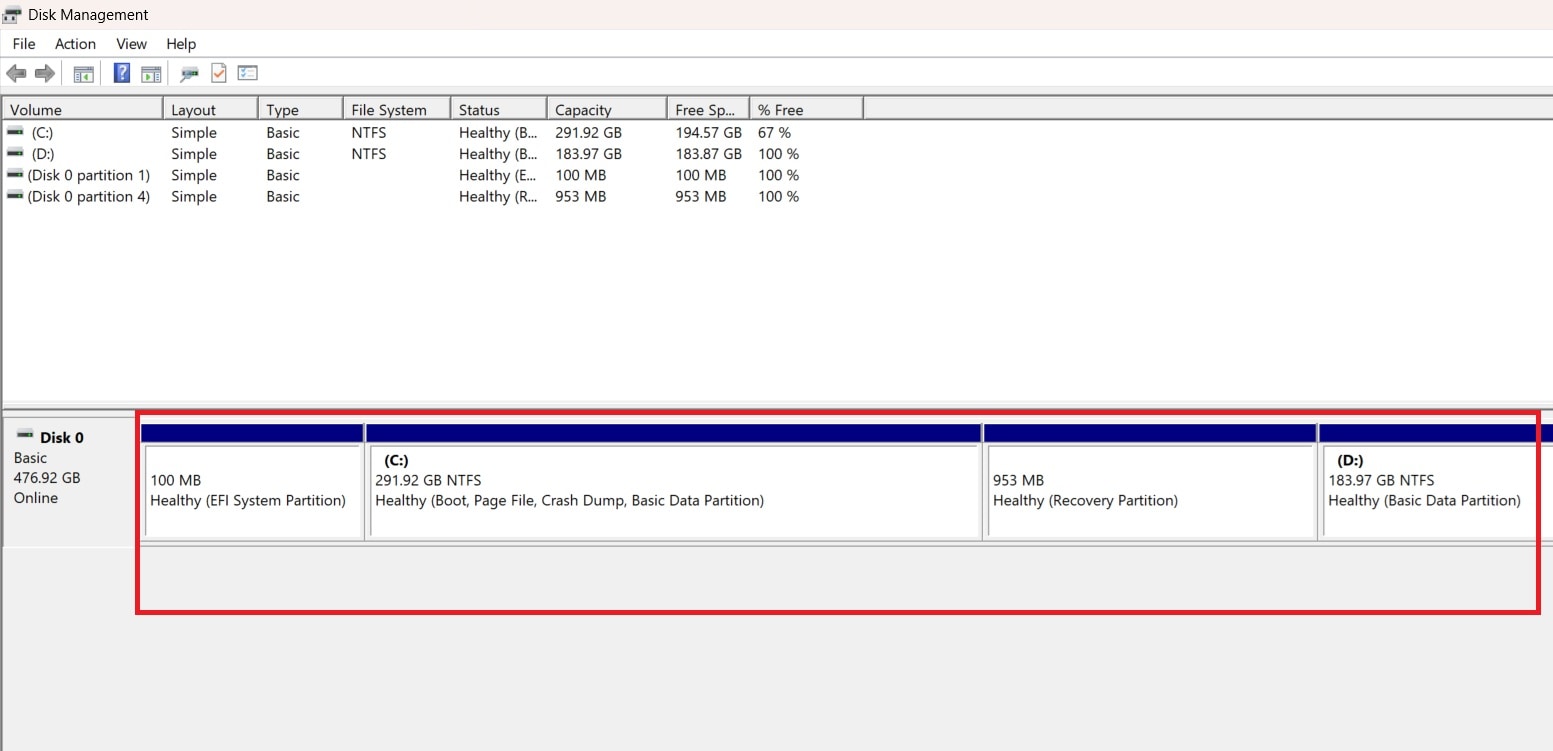
- Delete or merge one unnecessary primary partition. Make sure you back up important files before deletion.
Fix 3: Check for Unallocated Space at the End of the Disk
The conversion process requires free space at the end of the disk. This space is used to create system boot structures. If no free block exists, validation cannot continue. The system must have enough unallocated space to reorganize partitions safely.
Many disks are fully occupied without any free space. Even if the total disk size looks large, the absence of free blocks at the correct location causes problems. Proper shrinking of an existing partition usually resolves this limitation.
- In Disk Management, check the right end of the disk layout for unallocated space.
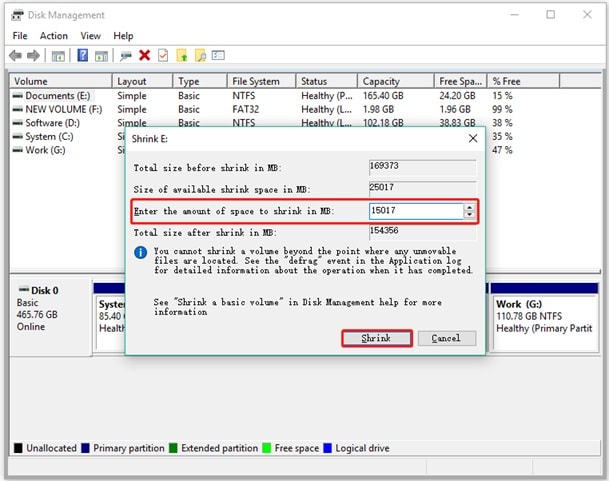
- If none exists, right-click the main partition and choose Shrink Volume. Shrink it by at least 100 MB.
Fix 4: Delete Unnecessary Recovery or OEM Partitions
Systems upgraded multiple times may contain duplicate recovery partitions. These extra partitions often remain hidden from normal view. While they may seem harmless, they consume partition slots needed during conversion.
Leaving old OEM or recovery partitions untouched can interfere with layout restructuring. It is important to confirm which recovery partition is active before removing any. Only unused or duplicate ones should be deleted.
- Identify duplicate recovery partitions in Disk Management. Confirm which one is active.
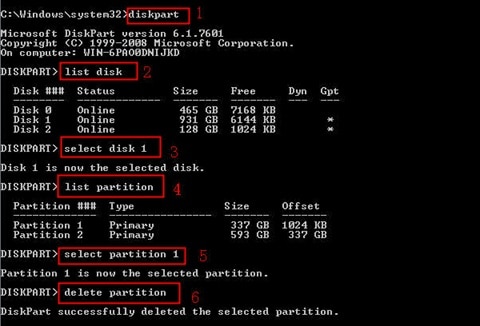
- Use Diskpart in Command Prompt to delete unused partitions carefully.
Fix 5: Run CHKDSK to Repair Disk Errors
Even if partitions look correct, hidden file system errors may exist. Bad sectors and corruption can prevent structural changes. Validation includes checking file system consistency before proceeding.
Running CHKDSK repairs logical errors and marks bad sectors. This stabilizes the disk structure. Skipping this repair step may cause repeated validation failure even when the layout conditions are correct.
- Open Command Prompt as administrator. Type chkdsk C: /f /r and press Enter.
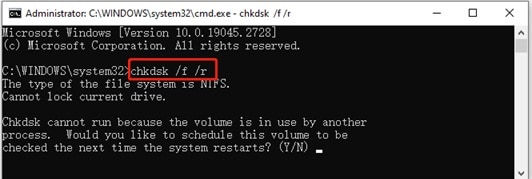
- Allow the system to restart if prompted. Wait until scanning completes fully.
Fix 6: Disable BitLocker or Other Encryption Before Conversion
Encryption protects disk content from unauthorized access. However, it also prevents structural modifications. Conversion requires rewriting partition data, which conflicts with active encryption.
If encryption remains enabled, the system blocks layout adjustments. Disabling protection temporarily allows safe structural editing. Once the conversion finishes, encryption can be enabled again.
- Open the Control Panel and go to BitLocker Drive Encryption settings.
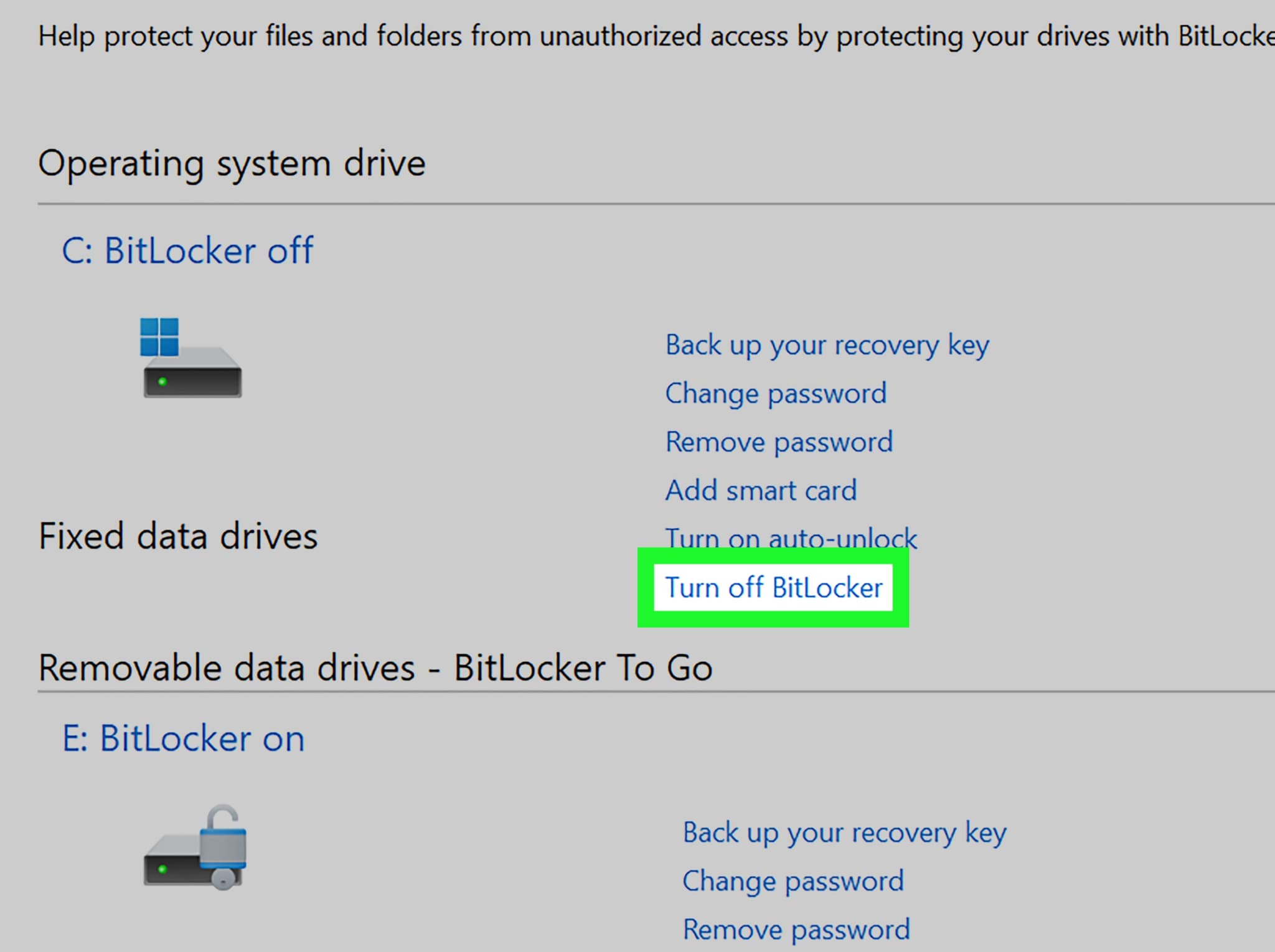
- Turn off BitLocker for the system drive. Wait until decryption finishes completely.
Fix 7: Update Windows to the Latest Version
MBR2GPT works best on updated Windows builds. Earlier versions may contain compatibility bugs or incomplete features. Running outdated system files can cause unexpected validation failure.
Updating Windows refreshes system components and improves tool stability. It also patches bugs related to disk management and boot configuration. Installing updates is often a quick yet overlooked solution.
- Open Settings and select Windows Update. Click Check for updates.
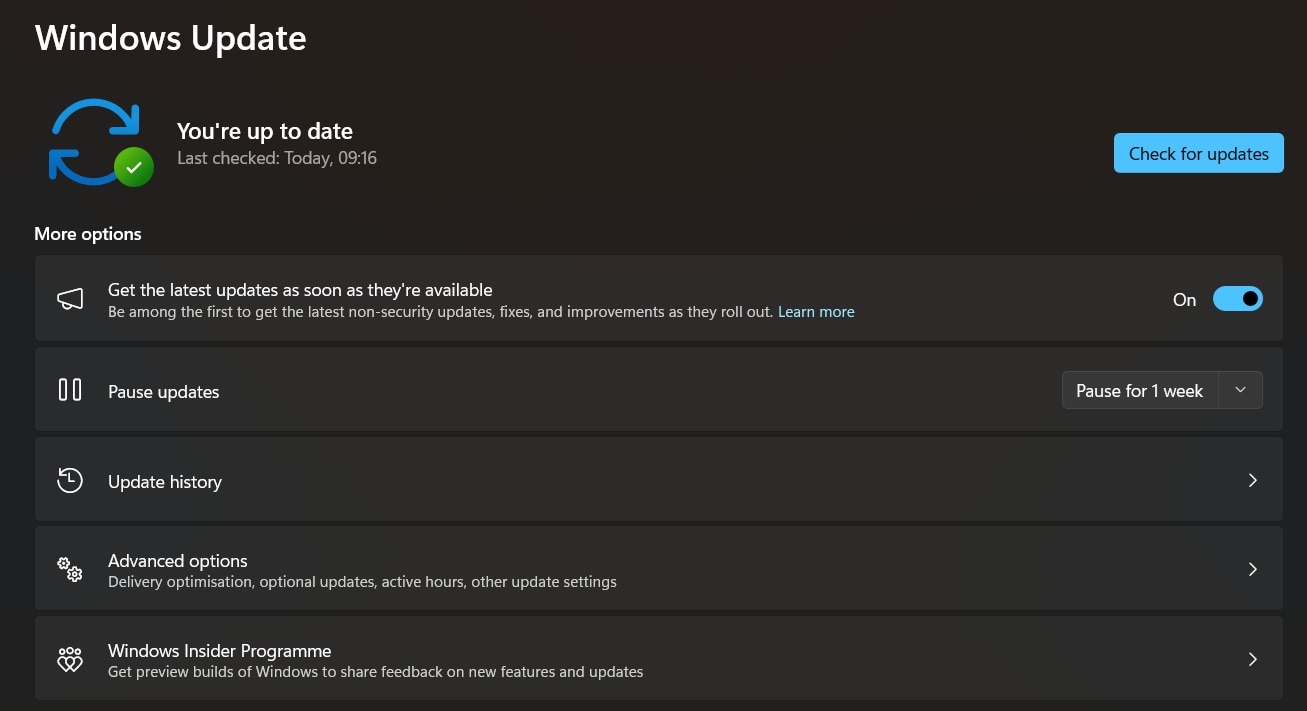
- Install available updates. Restart the computer after installation.
Fix 8: Use Diskpart or Third-Party Tools to Clean and Reconfigure Partitions
If the partition structure is deeply fragmented, manual restructuring may be necessary. Over time, disk layouts become complex due to upgrades and resizing operations. Automatic validation may fail because of irregular layouts.
Diskpart allows precise control over partition deletion and inspection. This method should be used carefully and only when simpler fixes fail. A full backup is strongly recommended before manual adjustments.
- Open Command Prompt as admin. Type diskpart and then list disk. Select the correct disk number.
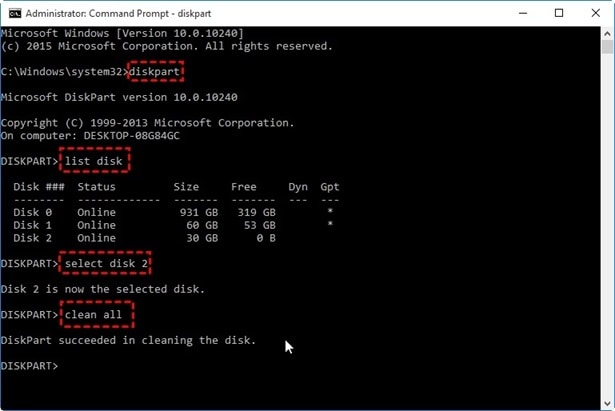
- Review partitions using the list partition. Delete unwanted ones carefully and rebuild the layout if required.
Lost Data During MBR2GPT Conversion? Recover Lost Data Easily Using Recoverit
In some cases, users delete partitions during troubleshooting. Sometimes the system crashes during conversion. Files may disappear after disk edits. This can create stress and panic. Even when learning how to fix MBR2GPT conversion failed, data safety should remain a priority.

Recoverit helps retrieve lost files from damaged or formatted partitions. If the disk layout conversion failed and resulted in accidental partition deletion, the software can scan the drive deeply. It identifies recoverable files based on file signatures.
The tool works for system drives, external drives, and formatted disks. Even if why MBR2GPT conversion failed led to corruption, recovery remains possible in many situations.
Why Use Recoverit?
- Advanced deep scan technology
- Supports deleted partitions
- Recovers multiple file formats
- Clean and simple interface
- Allows file preview before saving
- Compatible with modern Windows versions
Steps to Recover Data
Step 1: Install and open Recoverit. Select the affected disk where data was lost.

Step 2: Start the scan and wait patiently. Deep scanning may take time depending on disk size.

Step 3: Preview found files. Select the required files and save them to another healthy drive.

Pro Tips to Remember Before Fixing MBR2GPT Validation Failed
Before attempting conversion again, prepare your system properly. Preparation reduces repeated failure. Careful planning prevents system instability.
- Below are practical tips that support safe disk modification.
- Back up all important data Store copies on an external drive before editing partitions.
- Confirm disk type Make sure the disk is basic and not dynamic.
- Check free disk space Keep enough space at the end of the disk.
- Run disk health checks Always perform CHKDSK before conversion attempts.
- Disable encryption tools Remove BitLocker protection in advance.
- Avoid power interruption Keep the system connected to reliable power.
- Read the command syntax carefully Incorrect typing can stop the conversion process.
- Restart before retrying A clean reboot clears temporary system conflicts.
Conclusion
MBR2GPT validation errors may look complex, but they are usually linked to disk structure rules. Messages such as disk layout conversion failed or MBR2GPT exe convert allowfullos failed indicate that specific requirements are missing. By checking disk style, partition count, free space, and encryption settings, most users can resolve the issue without advanced tools.
You now understand the main causes and solutions. Follow the fixes calmly and step by step. With proper preparation, you can solve why MBR2GPT conversion failed and complete the upgrade safely. Learning how to convert MBR2GPT? In the correct way ensures system stability and secure boot support in the long term.
FAQs
-
1. Why does MBR2GPT validation fail?
MBR2GPT validation fails when the disk does not meet the required structural conditions. The tool checks partition count, available unallocated space, disk type, and file system health before allowing conversion. If there are too many primary partitions, no free space at the end of the disk, corruption in the file system, or active encryption like BitLocker, the process stops to prevent damage. These safeguards are built into protect system stability. -
2. Can I fix validation errors without deleting data?
Yes, in most situations, you can resolve validation errors without deleting personal data. Many fixes involve shrinking a partition, repairing file system errors, disabling encryption, or updating Windows. These actions adjust disk structure without erasing files. However, creating a complete backup before making any partition changes is strongly recommended to prevent accidental data loss. -
3. Is it safe to retry conversion after fixing errors?
Yes, it is generally safe to retry the conversion once all disk conditions are corrected. After reducing partition count, ensuring proper unallocated space, repairing disk errors, and disabling encryption, the system should pass validation. Restarting the computer before attempting the process again can also help clear temporary system conflicts.


