

 TL;DR:
SMR hard drives experience severe write slowdowns due to overlapping data tracks, but you can stabilize performance by keeping the drive under 80% full and restricting its use to sequential, long-term backups rather than active daily workloads.
● Consolidate small files into single large ZIP archives before transferring and pause between large copy jobs to allow the SMR drive to clear its temporary cache and complete hidden background cleanup tasks.
● Upgrade to a Conventional Magnetic Recording (CMR) drive or an SSD if your workflow involves constant data edits, active downloads, or virtual machines, as CMR uses separate tracks that process random writes consistently without reshuffling.
● Run "fsutil behavior query DisableDeleteNotify" in an administrator command prompt to ensure TRIM is active, which helps the system optimize fragmented layouts after deleting large files from the shingled storage.
Ask AI for a summary
 ChatGPT
 Perplexity
 Gemini
 Claude
 Grok
Grok
When your backup drive suddenly becomes very slow, it can completely break your workflow. Many users buy cheap, large HDDs, then face the SMR hard drive's slow write speed during normal everyday use. This problem occurs because SMR technology performs poorly with small or constant file changes.
The good news is that there are clear ways to reduce the worst slowdowns in most cases. In this guide, we will explain why SMR drives slow down and how to copy smarter. By the end, you will also understand when upgrading to an SSD or CMR HDD is the only real fix.
Try Recoverit to Perform Data Recovery
 Security Verified. 3,591,664 people have downloaded it.
In this article
-
- Fix 1: Keep Drive Below 80% Full
- Fix 2: Write Large Files, Avoid Tiny Ones
- Fix 3: Use Drive Only for Sequential Backups
- Fix 4: Pause Between Large Copy Jobs
- Fix 5: Run Defrag/Optimize (TRIM‑Aware Systems)
- Fix 6: Move Constant‑Write Tasks to SSD/CMR HDD
- Fix 7: Check USB Enclosure/Use Direct SATA
- Fix 8: Update Firmware and Disk Drivers
- Fix 9: Run SMART Health Check for Errors
Part 1. What is SMR Technology and Why Does It Affect Speed
Shingled Magnetic Recording (SMR) is a way of writing data tracks that slightly overlap. This overlapping design lets manufacturers store more data on the same physical platter area. Drives using SMR are usually cheaper per terabyte than many similar-capacity conventional models.
They are often sold as large backup or archive drives for home and small office users. Many people only discover WD SMR drive slow write fix issues after copying lots of changing data. Some brands also hide SMR usage, so buyers may not realize performance limitations before purchase.
Why SMR Technology Affects Drive Speed
SMR changes how data is updated on the disk, which adds hidden extra work. Now, let's explore the main reasons this recording method can slow write performance:
- Overlapping Tracks: When data changes, the drive must rewrite multiple overlapping tracks instead of one. This extra rewriting takes time, so write speed drops during heavy updates.
- Slow Random Writes: SMR works best for large writes, not for scattered random file changes. Many small edits require constant data reshuffling within the SMR drive.
- Drive Nearly Full: When space is low, the drive has less room for background data reshuffling. With limited free blocks, write speeds can collapse.
- Background Cleanup Work: SMR drives run hidden cleanup tasks to merge their overlapping data blocks. During these tasks, the visible write speed can drop due to resource contention in the background.
Part 2. Why WD SMR Drives Become Extremely Slow
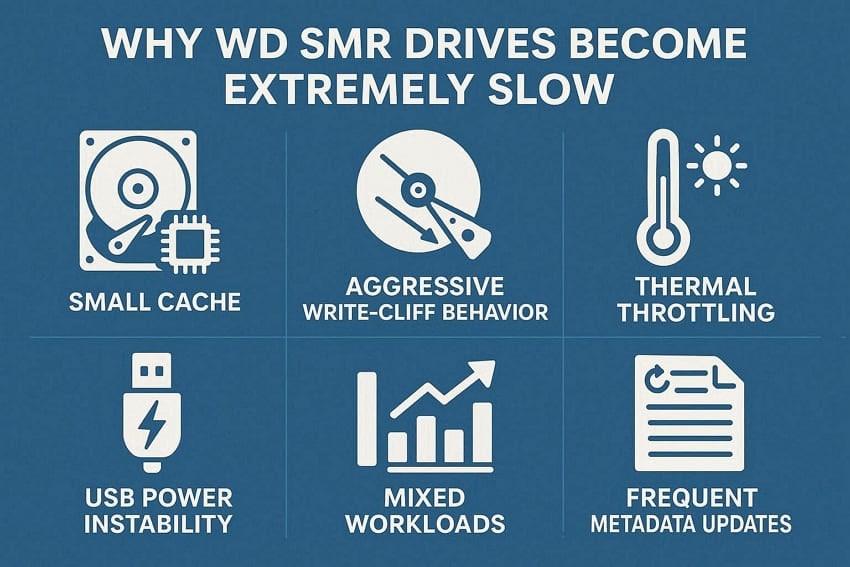
SMR drives overlap tracks, so small changes can trigger very large hidden rewrites. When space is tight or patterns are difficult, background reshaping work becomes much more intense. Next, we will see extra situations that often cause the SMR hard drive's slow write speed:
- Small Cache or Cache Exhaustion: The drive first writes into a small cache that hides the true, slower shingled area. During long transfers, this cache fills up, and speed drops dramatically.
- Aggressive Write‑Cliff Behavior: Some WD SMR models start fast, then sharply fall once temporary buffers are exhausted. When the drive switches zones, it must reorganize tracks, causing long pauses and spikes.
- Hot Drive and Thermal Throttling: In closed cases, long writes can heat the drive far beyond its preferred range. Firmware may quietly slow operations to reduce temperature, which users experience as stuttering writes.
- USB Power or Cable Instability: Weak USB ports or cheap cables can cause tiny errors that need silent retries. The system keeps resending chunks, so actual progress lags far behind reported transfer activity.
- Mixed Workloads on One Partition: Big backups, constant downloads, and daily edits may all hit the same disk area. These mixed patterns confuse the layout, forcing extra reshuffling whenever workloads overlap heavily.
- Frequent Metadata and Index Updates: Backup tools and cloud clients often update logs, databases, and indexes every few seconds. These constant tiny rewrites land in shingled regions, demanding disproportionate internal cleanup work.
Part 3. How to Fix SMR Hard Drive Slow Write Speed - 9 Ways
SMR drives can feel very slow, especially when handling many files and dealing with frequent changes. With the right habits and a few technical checks, you can reduce the worst slowdowns. Next, we will share the best ways to learn how to speed up the SMR hard drive write:
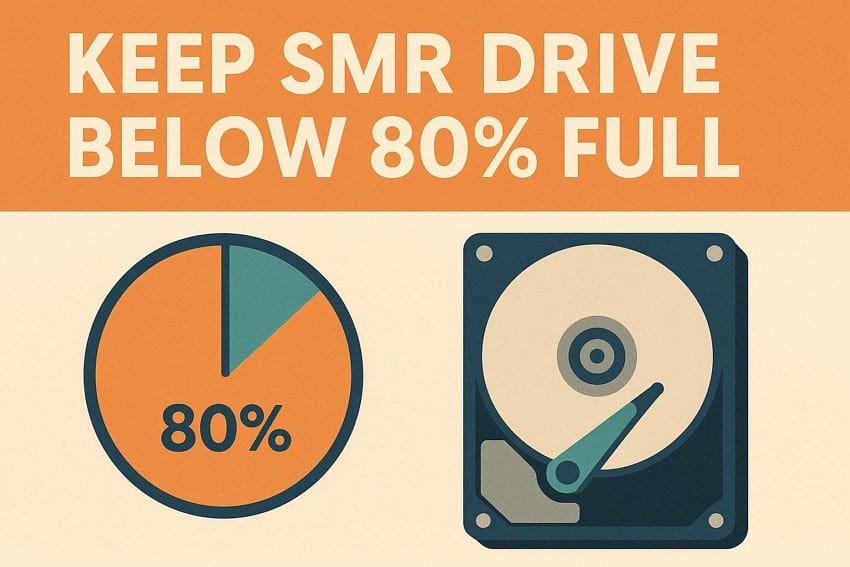
Fix 1: Keep Drive Below 80% Full
Keeping your SMR drive under 80% full gives it breathing room for internal housekeeping. With more free space, the drive can rearrange overlapping tracks without becoming painfully slow. This method works best when you store big backups and avoid filling the last free gigabytes.
Users benefit because normal copying and backup jobs finish faster and feel more consistent. If the drive is nearly full now, deleting or moving files often brings noticeable speed improvement. Over time, keeping plenty of free space also helps reduce heavy slowdowns during future writes.
Fix 2: Write Large Files, Avoid Tiny Ones
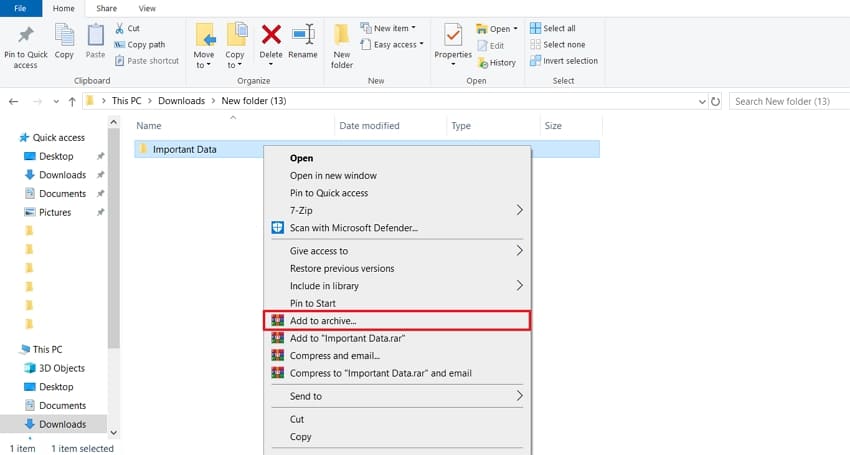
This method means combining many small files into a single large file before copying. It works best for backups or archives where files change infrequently. Users who want a WD SMR drive slow-write fix during large transfers benefit most. They see smoother copying and fewer sudden speed drops when moving lots of data. Next, follow the steps below to group small files into larger, easier‑to‑copy archives:
Instructions. Before transferring multiple files, put them all into a folder, then right-click the folder. Then, click the “Add to Archives” option to create a zip folder. Once done, copy the single zip file and transfer it to the desired location in the SMR hard drive.
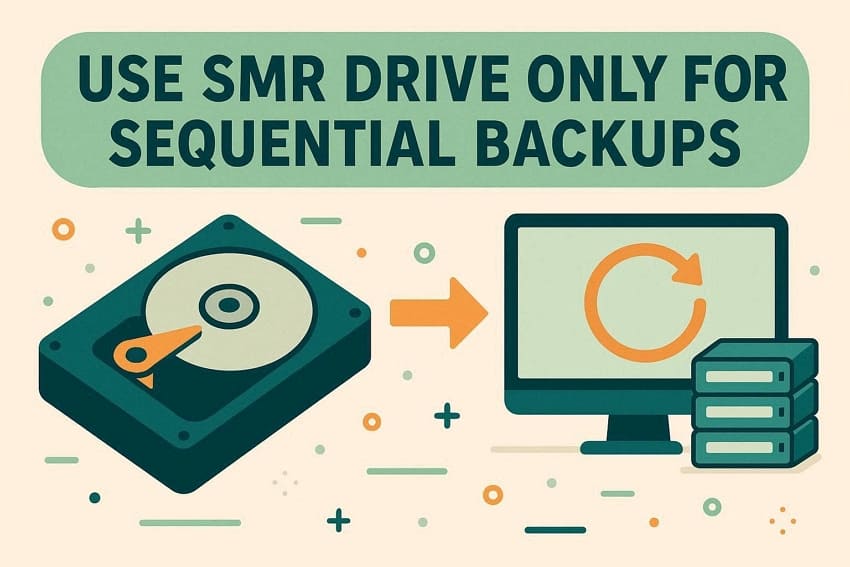
Fix 3: Use Drive Only for Sequential Backups
Using the SMR drive to store large backup copies works best. To use this method, you can copy large folders or full backups at once, then mostly leave them unchanged. It helps because the drive writes data in one straight line, which it prefers.
Users who mainly need long‑term storage for photos, videos, or archives benefit the most. They see fewer slowdowns because the drive does not handle constant small edits or deletions. Over time, this usage style keeps performance more stable and reduces frustrating write speed drops.
Fix 4: Pause Between Large Copy Jobs
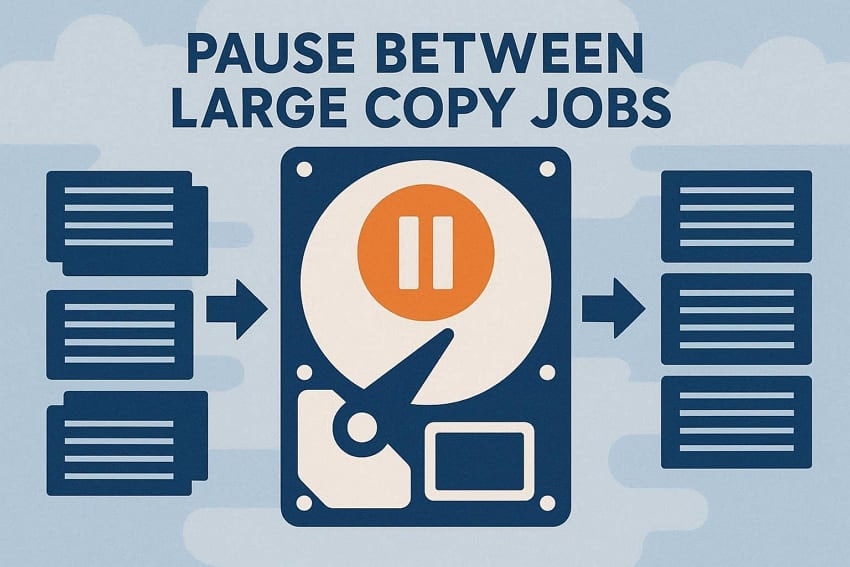
Many users copy large folders one after another, and the drive quickly falls behind. A short pause after each large transfer gives the drive extra time to perform hidden cleanup tasks. During this break, it reorganizes recent data and slowly prepares free space for upcoming writes.
People who often move terabytes of backups or media files gain the biggest improvement. They notice fewer sudden drops in the SMR hard drive's slow write speed during long copy sessions. Moreover, this simple waiting habit keeps transfers smoother and reduces stress on the drive.
Fix 5: Run Defrag/Optimize (TRIM‑Aware Systems)
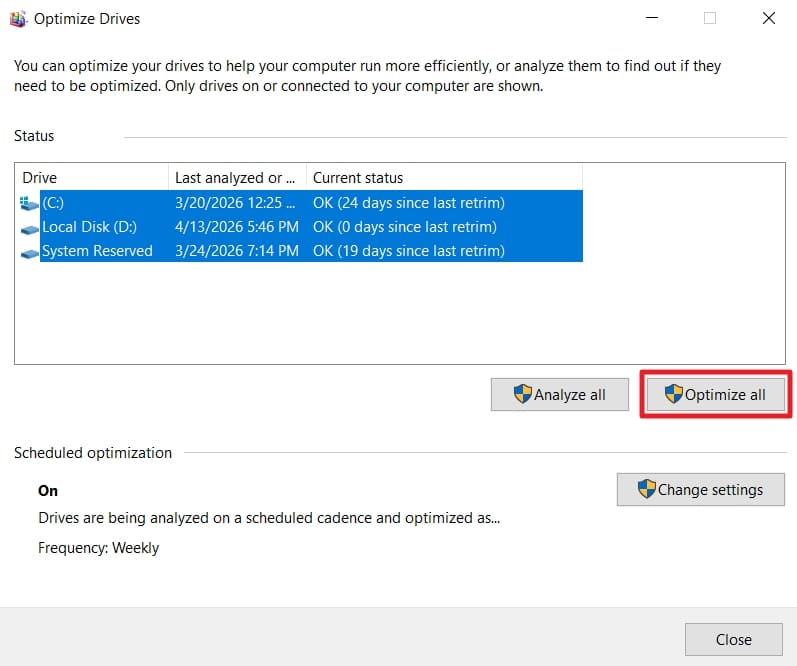
Occasional defragmentation on an SMR hard drive can help tidy very fragmented file layouts. It works best after big delete operations, because it groups remaining data and frees larger gaps. However, a full defrag on a heavily used SMR drive is slow and demanding. So, follow the steps below to check TRIM status and optimize your drive:
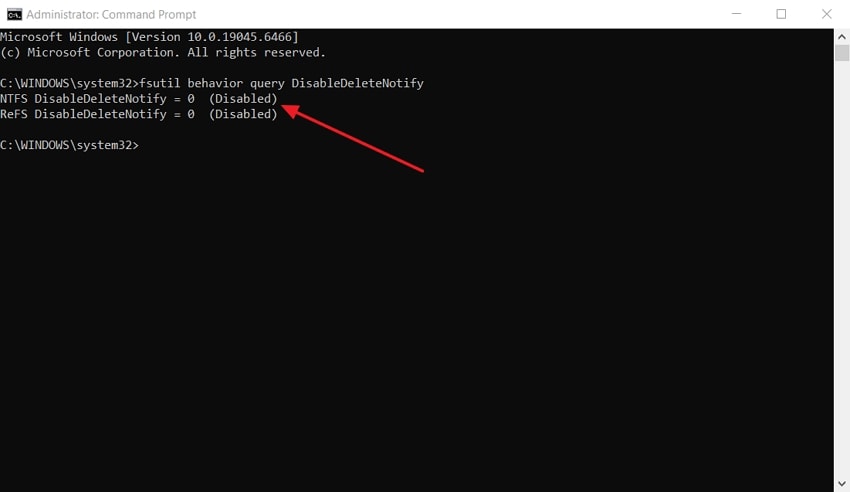
- To check the TRIM status, run CMD as an Administrator, type the prompt “fsutil behavior query DisableDeleteNotify,” and press the “Enter” key. If the result shows “DisableDeleteNotify = 0,” TRIM is enabled on your system.
- Once done, open the “Defragment” and “Optimize Drives” window and check it SMR drive is showing.
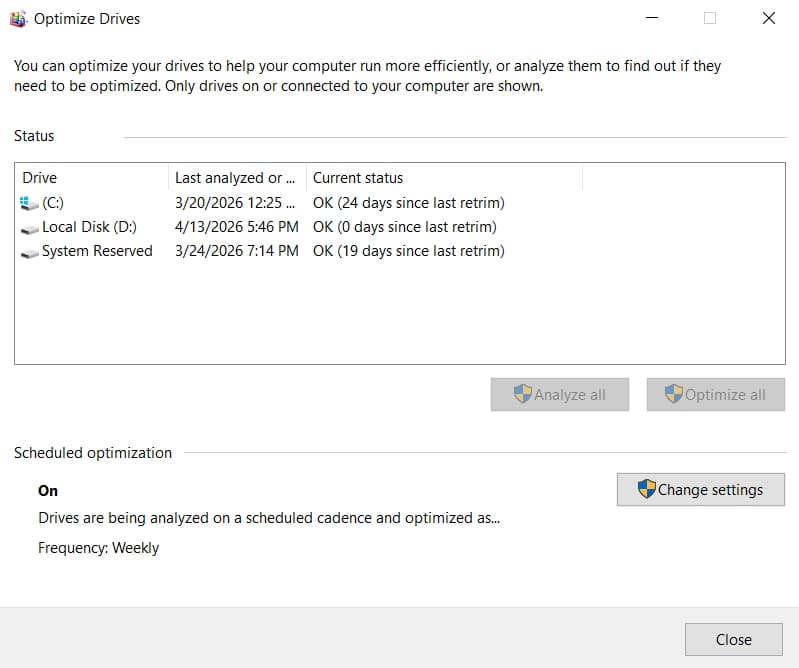
- Afterward, select all drives or the drive you want to optimize and click the “Optimize” button. Wait for the process to finish, then restart the PC. Try checking if the original issue persists once your system boots up again.
Fix 6: Move Constant‑Write Tasks to SSD/CMR HDD
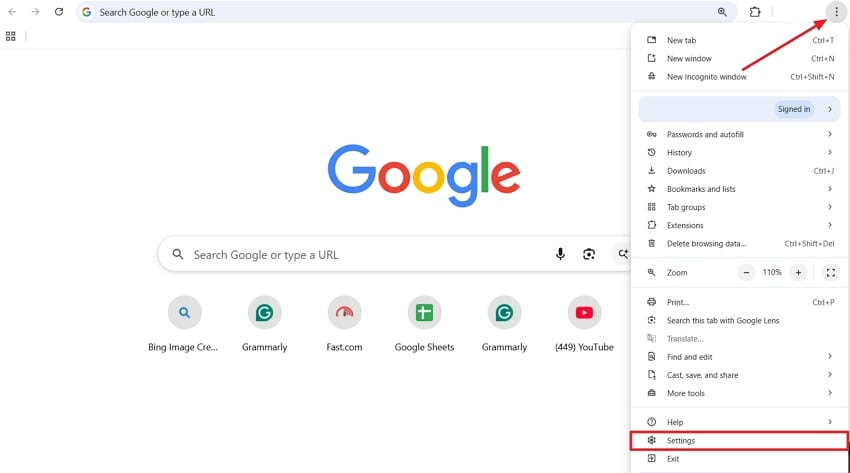
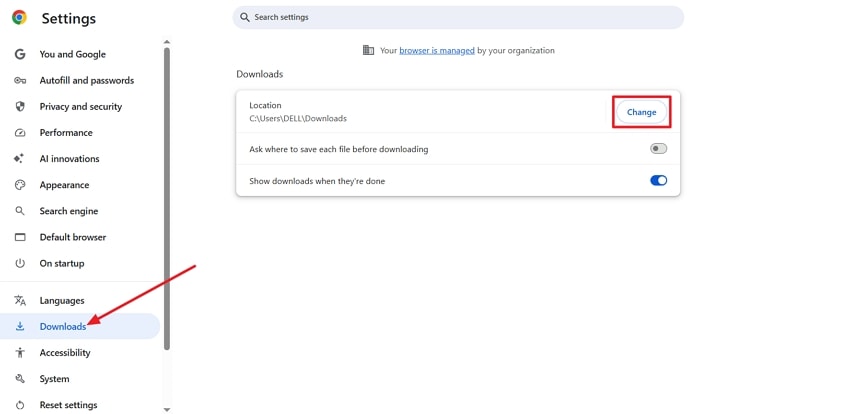
Moving constant‑write tasks from your SMR drive to faster storage can improve responsiveness. This reduces nonstop writing on the SMR drive and helps avoid slowdowns or freezes. It especially helps users with frequent large downloads, game updates, or active background services. So, follow the steps below to learn how to speed up SMR hard drive write by changing the Chrome download location:
- Once you enter Chrome’s interface, click the “Three-Dots” icon in the top right corner and press the “Settings” option.
- Next, click the “Download” option in the left-side panel. Afterward, click the “Change” button under the “Location” section to change the default downloads location. Moreover, you can also move existing large folders from SMR or an SSD or CMR Drive to reduce constant write load.
Fix 7: Check USB Enclosure/Use Direct SATA
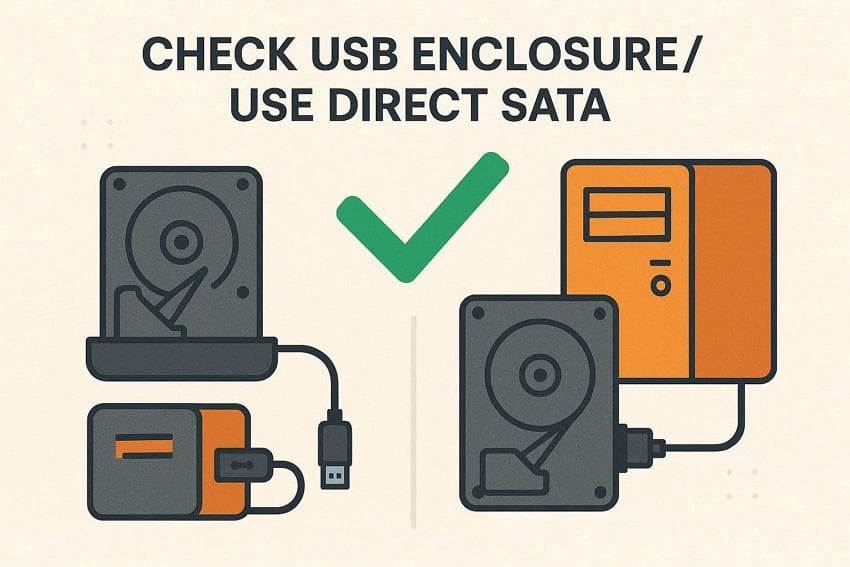
Sometimes the USB case or cable makes a healthy hard drive seem very slow. A cheap or faulty enclosure can cause disconnections, freezes, or severely degraded transfer speeds. You can first try another USB port or a different USB cable on your computer.
If possible, test the same drive in a different external enclosure for comparison. For a stronger test, connect the drive directly inside the PC using a SATA port. If performance improves a lot with direct SATA, the USB enclosure is likely the problem.
Fix 8: Update Firmware and Disk Drivers
Updating your drive’s firmware and disk drivers can fix hidden bugs and performance issues. You can open Device Manager or the manufacturer’s support page to check for updates. Newer firmware and drivers can improve stability, reduce freezes, and sometimes boost transfer speeds. This method is especially helpful for users looking for a WDSMRdriveslow-write fix. Next, we will explore ways to update the Firmware and disk drivers.
How to Update SMR HDD’s Firmware
Now, follow the steps below to safely update your SMR HDD’s firmware:
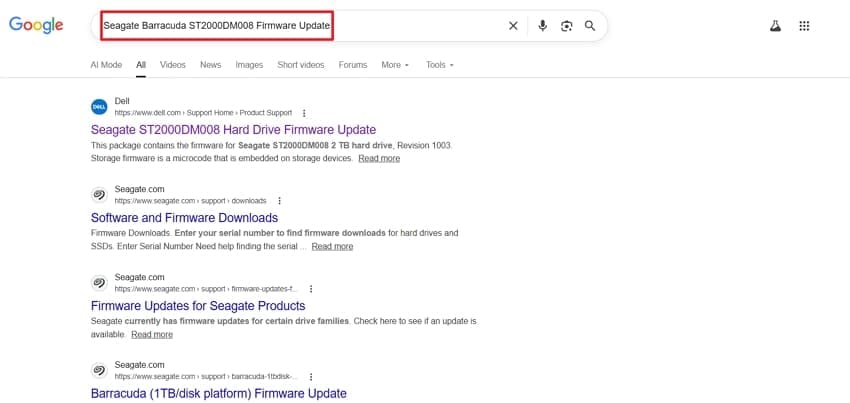
- First, verify the model name of the SMR hard drive installed on your PC. Next, open any browser, write the exact model number, mention “Firmware Update”, and search for it. Once done, open the official site.
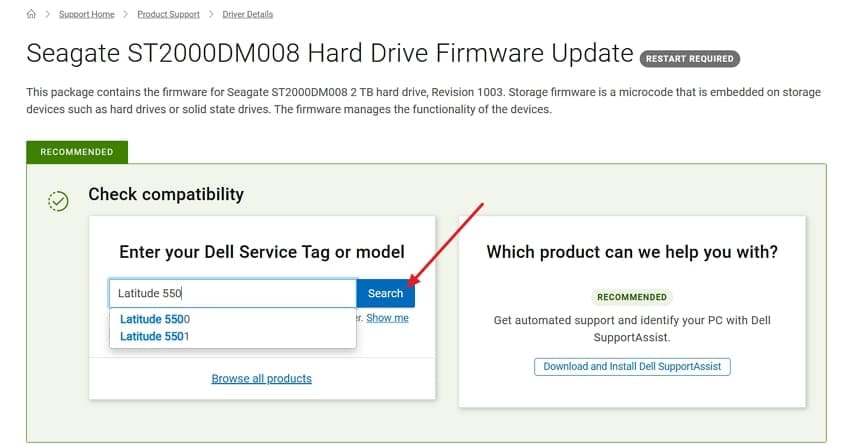
- Next, enter your PC model in the text box, then click the “Search” button to check compatibility. Once done, download the Firmware update file.
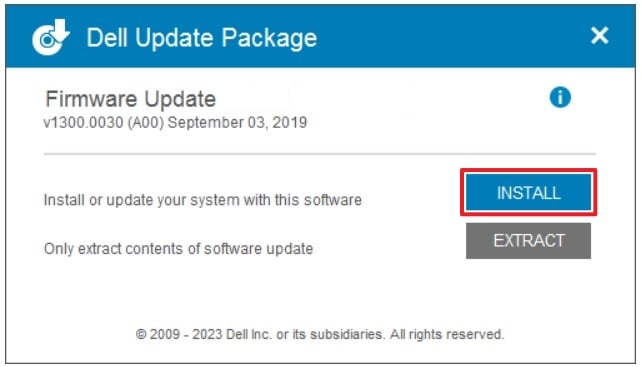
- Afterward, launch the setup file and click the “Install” button to install the updates.
How to Update SMR Disk Drivers
Next, adhere to the steps below to update your SMR disk drivers using the built-in feature:
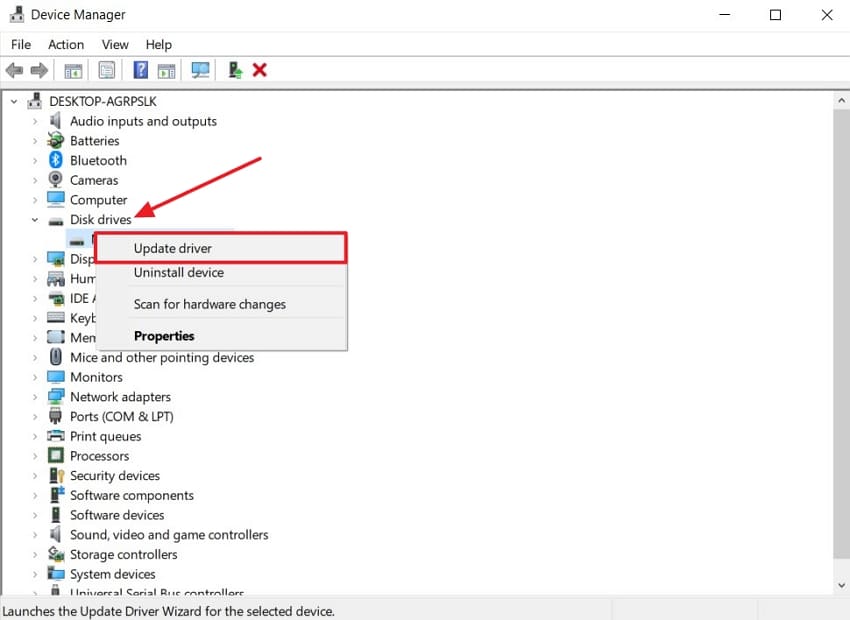
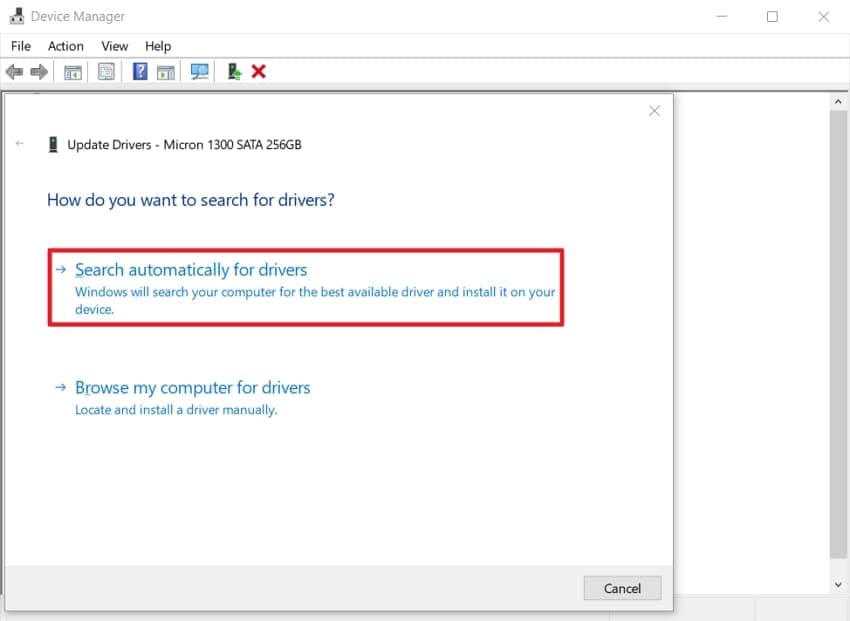
- Open the Device Manager window and click the “Disk Drives” option. Next, right-click your hard disk and press the “Update Driver” option.
- Afterward, click the “Search Automatically For Drivers” option. It will automatically find and install the latest disk drivers to keep your SMR hard drive performing properly.
Fix 9: Run SMART Health Check for Errors
SMART health checks read your drive’s internal health report to find serious problems early. You can do this using simple CMD commands or easy third‑party tools. This helps spot failing drives behind SMR hard drive slow write speed or strange freezes. It is especially useful for users deciding whether to keep or replace a drive. So, follow the steps below to run a SMART health check using CrystalDiskInfo:
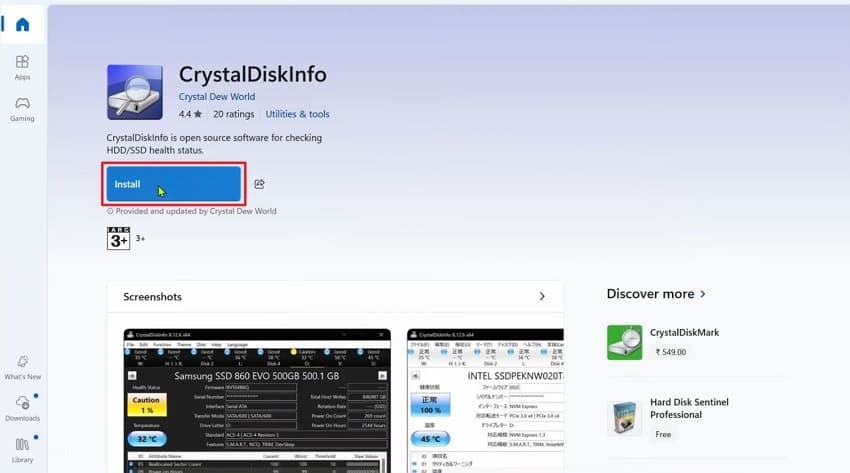
- First, open the Microsoft Store on your PC and search for “CrystalDiskInfo”. After that, click the “Install” button to download and install the tool.
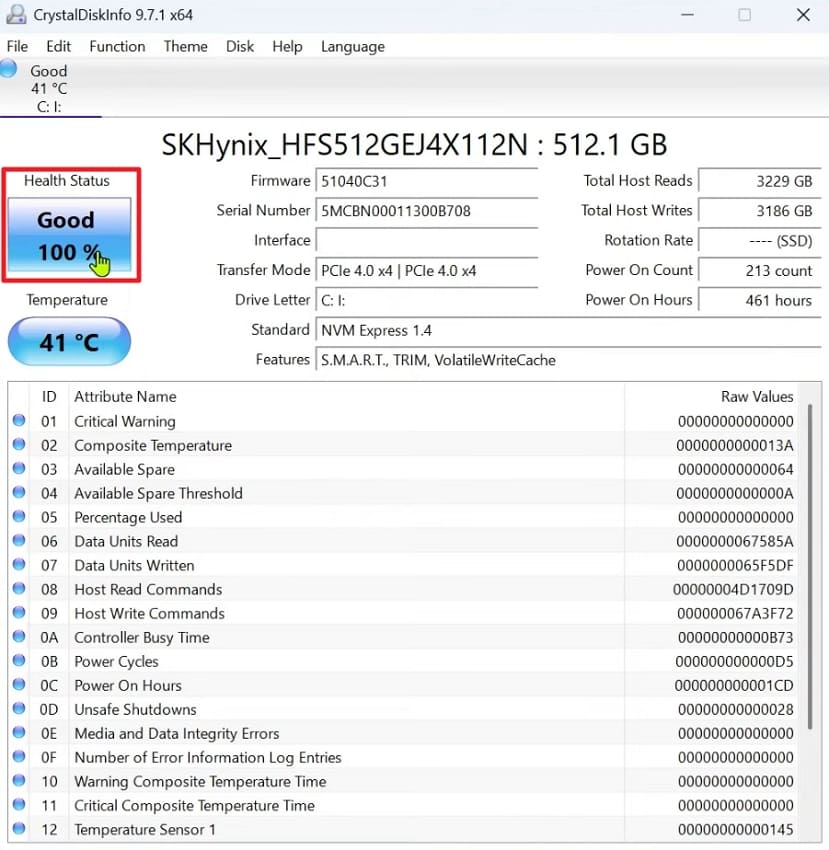
- Once done, launch the tool and see the drive’s health status. It will display a simple label such as “Good,” “Caution,” or “Bad” for your drive. To review more detailed health information, look at the list of SMART attributes below.
Part 4. SMR vs. CMR: Why Upgrade May Be the Real Fix
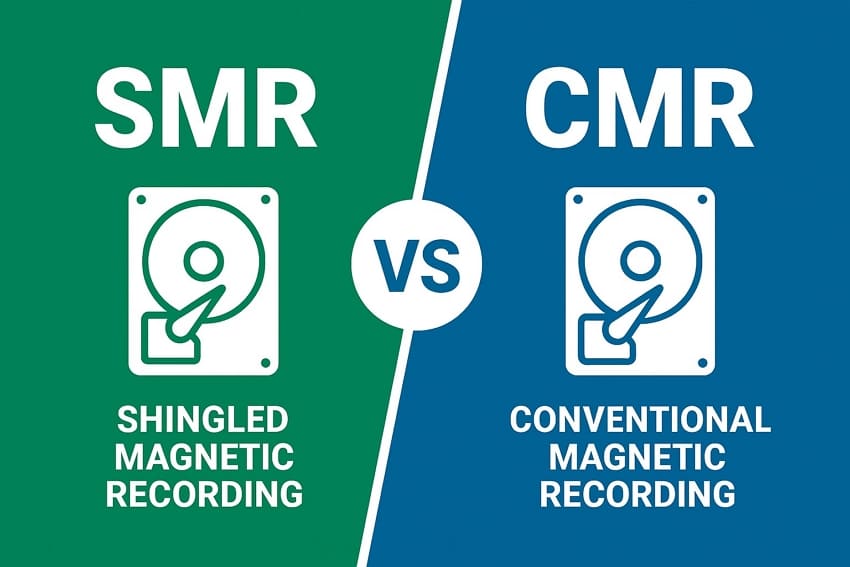
SMR drives have design limits, so many speed problems come directly from their recording method. On the other hand, CMR drives avoid overlapping tracks, so they handle random writes better and stay much more consistent.
How SMR and CMR Record Data
SMR writes overlapping tracks, so one small change can require rewriting several nearby tracks. This overlapping pattern makes random writes slower, especially when many files change very often. However, CMR writes each track separately, so updates usually affect only a single, narrow area. With this separate layout, CMR drives keep good speed under many different write patterns.
SMR vs. CMR
After learning how to speed up the SMR hard drive write, let's compare the real-world behavior carefully:
When Upgrading to CMR Makes Sense
Upgrading makes sense when you often copy large files and also change them very frequently. It also helps when you run games, virtual machines, or downloads directly from the drive. If write speed problems keep returning, moving important workloads to a CMR drive is smart.
Pro Tip: Wondershare Recoverit Helps Save Data from SMR Drive Failure
Many users experience sudden file loss when an SMR drive becomes unstable or begins to fail. This is where Wondershare Recoverit comes in as a powerful, user-friendly data recovery helper. It scans the disk surface, sector by sector, to locate hidden and fragmented file pieces. Even when files vanish from the system, their data often remains until fully overwritten later.
Recoverit can rebuild lost file structures from deleted files, formatted partitions, and corrupted logical volumes. You can preview recovered files before saving, which helps confirm successful recovery. For WD SMR drive slow write fix attempts that fail, Recoverit helps rescue important data.
Key Features
- Broad Data Loss Coverage: Protects against 10,000+ data loss scenarios, including deletion, formatting, crashes, and system errors.
- Wide Device and Brand Support: Works with major hard drive brands, including WD, Seagate, Toshiba, Samsung, Dell, and more.
- File Format Support: Recovers more than 1,000 different file types, including documents, photos, videos, and archives.
- Ultimate Guide: How to Recover Data from a Struggling SMR Hard Drive
Recovering data early is important when the SMR hard drive's slow write speed suddenly appears. So, follow the steps below to recover important files before the drive worsens using Recoverit:
1. Select The Location to Begin Scanning
On the main interface, press the “Hard Drives and Location” tab in the left side menu. Afterward, choose the SMR hard drive to start the scanning process.

2. Apply Advanced Search Filters
After that, at the top, click the “Filter” icon to open a drop-down menu. Next, choose filter types, such as “File Type” and “File Size,” to narrow down the scan.

3. Preview and Export Recovered Files
Once the scanned SMR files start appearing in the “File Path” panel, view them on the “Preview” screen. If the scanned files are correct, press the “Recover” button to export them.

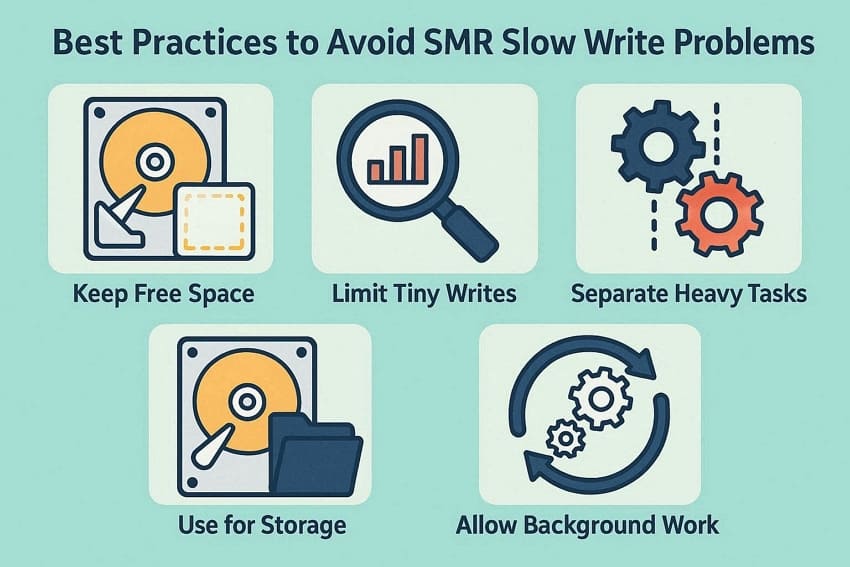
Part 5. 5 Best Practices to Avoid SMR Slow Write Problems
Good habits can greatly reduce slowdowns on SMR drives in everyday normal use. They also support a more reliable, long-lasting WD SMR drive slow write fix. After understanding the best way to recover SMR data, let's now focus on prevention.
- Keep Free Space: Always keep plenty of free space, so the drive can reshuffle data without struggling.
- Limit Tiny Writes: Avoid apps that constantly save tiny files, because they quickly overload shingled recording zones.
- Separate Heavy Tasks: Keep torrents, backups, and big game installs on different drives, not your SMR drive.
- Use for Storage: Prefer the SMR drive for archives and backups, not for active daily project folders.
- Allow Background Work: Safely eject or shut down to give the drive time to finish hidden cleanup tasks properly.
Conclusion
In conclusion, these steps give you practical control over the SMR hard drive's slow write speed. You now know why WD SMR drives bog down and which fixes truly matter. With smarter copying, better workload placement, and timely upgrades, everyday transfers can feel far more stable. If you still lose important files while troubleshooting, we recommend using Recoverit to recover them safely.
FAQ
1. How can I tell if my WD drive uses SMR?
Check the exact model number on the label, then search online for confirmed SMR lists. Many manufacturers publish technology details in spec sheets, forums, or support documents for transparency.2. Does full formatting help restore SMR performance?
A full format can sometimes restore sequential layout and temporarily improve write behavior. However, performance will degrade again if the same fragmented, constantly changing workload returns later.3. When should I stop using an SMR drive entirely?
Stop relying on it when SMART warnings, strange noises, or repeated freezes start appearing. At that point, copy important data elsewhere and treat recovery, not WD SMR drive slow write fix, as a priority.


