

 TL;DR:
Yodot Hard Drive Recovery Tool is a beginner-friendly, Windows-based software best suited for basic file restoration like accidental deletions, but it requires a paid upgrade to actually recover files and struggles with severe drive corruption.
● The free version is strictly limited to scanning and previewing files; users must purchase the software to execute any recovery, and the program must be installed on a separate drive to prevent permanent data overwriting.
● While effective for recovering small documents, Yodot experiences significantly slow deep scan times on large capacity drives and yields incomplete results on heavily fragmented or physically damaged partitions.
● Wondershare Recoverit serves as the recommended alternative for complex data loss scenarios, offering faster advanced scanning algorithms capable of handling severe corruption, RAW drive errors, and large video libraries.
Ask AI for a summary
 ChatGPT
 Perplexity
 Gemini
 Claude
 Grok
Grok
Data loss is a common problem today. Well, yes! People store photos, videos, office files, and business data on hard drives. One small mistake can delete important files. A virus attack or system crash can also damage storage devices. In some cases, a hard drive may stop responding without warning. When this happens, users search for a reliable recovery tool. Many people look for reviews of Yodot hard drive recovery tool before making a decision.
There are many recovery programs in the market. Some are made for home users. Others are built for professionals. Choosing the right one is not easy because every tool claims high recovery rates. Users often want clear information before spending money.
This article explains what is Yodot hard drive recovery tool and how it works in real situations. It also covers the pros and cons of the Yodot hard drive recovery tool in a balanced way. Finally, we will explain the best alternative for users who need advanced performance.
Try Recoverit to Recover Data From External Hard Drive
 Security Verified. Over 7,302,189 people have downloaded it.
Table of Contents
What is Yodot Hard Drive Recovery Tool?
To understand whether this tool fits your needs, it is important to know what the Yodot hard drive recovery tool is in practical terms. It is a Windows-based recovery program designed to restore lost, deleted, formatted, or inaccessible files. It scans internal hard drives, external drives, and USB devices. The main goal is to help users recover files without technical skills.
When people search what is Yodot hard drive recovery tool, they usually want clarity about its purpose. This software focuses on file recovery rather than system repair. It works best when data is deleted but not overwritten. It provides scanning modes that attempt to locate file traces in different storage sectors. The tool presents results in a structured list so users can easily identify needed files.
Key Features
- Deep scan mode: The deep scan checks each sector of the drive. It takes longer but may detect more files.
- Quick scan option: A faster scan method for recently deleted files.
- Deleted file recovery: Restores files deleted from the system or emptied from the Recycle Bin.
- Partition recovery: Supports recovery from deleted or missing partitions.
- Preview option: Allows users to preview images and documents before recovery.
- File type support: Supports common formats such as DOC, XLS, JPG, MP4, and more.
- External drive recovery: Works with USB drives, memory cards, and portable HDDs.
- Filter and search option: Users can sort files by name, size, or file type for easy access.
- The features and price of Yodot hard drive recovery tool make it attractive for home users. Still, performance depends on the actual drive condition.
Typical Scenarios Where Users Rely on Yodot
Hard drive issues often happen unexpectedly. Many people do not realize the importance of backup until data is lost. In such moments, they turn to recovery tools.
Below are common situations where users depend on this software:
- Accidental file deletion: Files are removed by mistake during cleaning or organizing folders.
- Permanent deletion: Files are deleted using Shift + Delete.
- Formatted hard drive: A drive is formatted by mistake during OS installation.
- Partition loss: The partition becomes unallocated due to a disk error.
- System crash: The operating system fails, causing file inaccessibility.
- Virus or malware attack: Malicious programs corrupt or hide files.
- External drive error: External HDD shows as RAW or inaccessible.
- Power interruption: Sudden shutdown damages the file structure.
In these situations, users search for reviews of the Yodot hard drive recovery tool to see if it can handle similar cases.
Reviews of Yodot Hard Drive Recovery Tool
Before purchasing any software, users often read online feedback. Reviews of Yodot hard drive recovery tool help in understanding real-world performance. They reveal both positive experiences and limitations.
General User Sentiment
Many users appreciate the clean layout of the software. The installation process is simple. The menu options are clearly labeled. Beginners find it easy to select drives and start scanning without confusion.
On the other hand, some experienced users mention that the interface feels basic. It lacks advanced customization options. Reviews of Yodot hard drive recovery tool often show that it is designed more for casual users than IT professionals.
Performance in Recovering Large Files and Partitions
Small documents and images are often recovered successfully. The preview function increases user confidence before saving files.
However, when it comes to large video files, scan time increases significantly. Partition recovery works if the damage is not severe. Some users report incomplete recovery in heavily fragmented drives.
Success Rate in Different Scenarios
For accidental deletion cases, the success rate is generally good. If the disk has not been used after deletion, recovery is possible.
For partition loss and heavy corruption, results vary widely. Reviews of the Yodot hard drive recovery tool indicate that success depends on storage health and data overwrite level.
Notable Strengths Highlighted in Reviews
One of the most praised aspects is simplicity. The interface does not overwhelm users.
Compatibility with different storage devices is another strength. Users also appreciate the preview feature and file filtering options.
Common Complaints
Deep scanning may take several hours on large drives. This frustrates some users.
The free version only allows scanning and preview. Recovery requires payment.
Advanced users feel limited by fewer customization settings. These issues are often discussed in Reviews of the Yodot hard drive recovery tool.
Pros and Cons of Yodot Hard Drive Recovery Tool
Before investing in recovery software, it is wise to study the pros and cons of Yodot hard drive recovery tool carefully. No software is perfect. Each has strengths and weaknesses.
Understanding the pros and cons of Yodot hard drive recovery tool helps you set realistic expectations. It is better suited for moderate recovery tasks rather than extreme cases involving severe physical damage.
How to Use Yodot Hard Drive Recovery Tool: Step-by-Step Guide
Many new users feel anxious when data is lost. They worry about making mistakes during recovery. That is why learning how to use the Yodot hard drive recovery tool correctly is important.
If you are unsure how to use Yodot hard drive recovery tool, follow the steps below carefully. Make sure you avoid installing it on the same drive that lost data.
Step 1: Download and Install
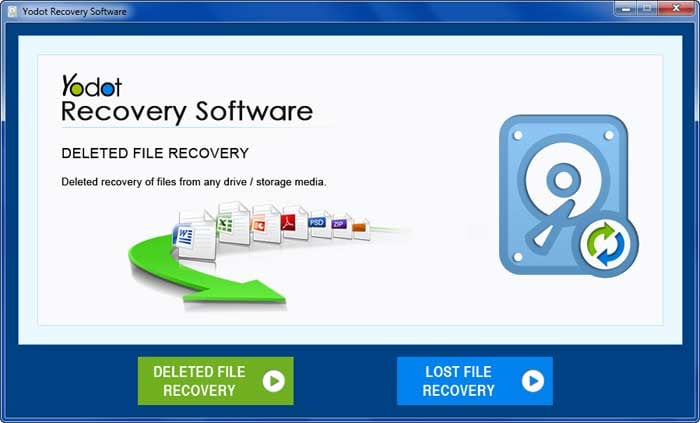
Visit the official Yodot Hard Drive Recovery tool website. Download the installer. Install the software on another partition or external drive. Open the program after installation.
Step 2: Choose the Drive and Scan

Select the drive or partition that contains lost data. Click on Scan. Wait patiently. Do not interrupt the process. Use a deep scan if the quick scan does not find files.
Step 3: Preview and Recover Safely
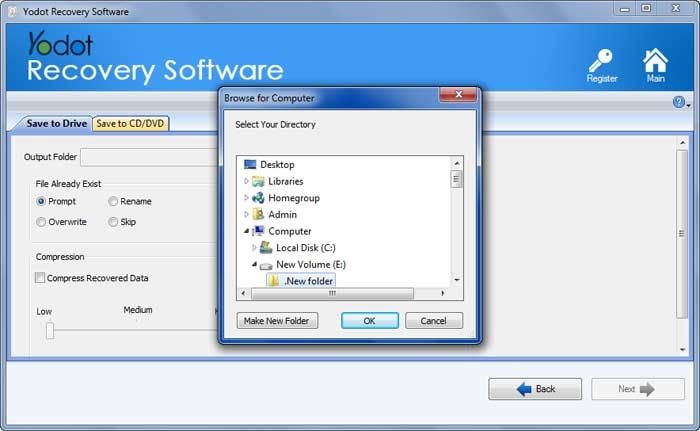
After scanning, review the list of detected files. Use filters if needed. Preview files. Select required items. Click Recover and save them to a different storage device.
This explains how to use Yodot hard drive recovery tool in a safe and clear way.

Best Alternative to Yodot Hard Drive Recovery Tool: Recoverit
Many users require stronger recovery performance when basic scanning does not deliver complete results. They may face long scan durations or only partial file restoration. In serious data loss cases, entry-level tools may fail to detect deeply buried files. People working with business documents, research data, or large video libraries often need more powerful recovery support. In such situations, they start searching for the best alternative of Yodot hard drive recovery tool. One frequently recommended option is Wondershare Recoverit.
This software applies advanced scanning methods to locate lost files with greater accuracy. It supports a wider range of file systems and storage devices, including HDDs, SSDs, USB drives, and formatted partitions. It can also address complex issues such as system crashes, RAW drive errors, and severe corruption. Many users who first explore reviews of Yodot hard drive recovery tool later consider this solution when they need stronger recovery results.
The best alternative of Yodot hard drive recovery tool is often selected by users who expect a higher success rate in difficult scenarios. It is suitable for large-capacity drives where scan efficiency and depth matter. Business users and professionals prefer it because it provides more stable performance across demanding recovery situations.

Why Use Wondershare Recoverit
- Advanced deep scan technology
- Higher success rate for formatted drives
- Supports crashed computer recovery
- Recovers large video and audio files
- Faster scanning compared to basic tools
- Regular updates and wider compatibility
Recovery Steps
Step 1: Install and Open
Download Recoverit on your PC. Install it on a different drive, not the one with lost data. Launch the program after installation.

Step 2: Choose Drive and Scan
Select the affected drive from the list. Click Scan to begin. Let the quick and deep scan complete without interruption.

Step 3: Preview and Recover
Preview the found files to confirm them. Select the required files and click Recover. Save them to another safe drive, not the original one.
For users facing advanced data loss, this is considered the best alternative of Yodot hard drive recovery tool.

Conclusion
Hard drive data loss can disrupt work and personal life. A good recovery tool offers hope in difficult situations. This article explained what is Yodot hard drive recovery tool is in clear language. It also discussed the features and price of Yodot hard drive recovery tool along with user experiences.
The pros and cons of Yodot hard drive recovery tool show that it is suitable for basic to moderate recovery needs. Users who want advanced scanning may prefer the best alternative of Yodot hard drive recovery tool, like Wondershare Recoverit. Always act quickly after data loss. Avoid overwriting files. Backup regularly to prevent future stress.
FAQs
-
1. Can Yodot recover data from damaged partitions?
Yes, it can recover data from deleted or lost partitions if the partition structure is not fully overwritten. Success depends on disk health and whether new data was written after the loss. Scanning may take time for large partitions. -
2. Does Yodot support external hard drives?
Yes, it supports external HDDs, USB drives, and memory cards. The drive must be detected by the system. If the drive shows as RAW, a deep scan may still find recoverable files. -
3. Is there a better option than Yodot for advanced recovery?
For complex cases like severe corruption or crashed systems, many users consider Wondershare Recoverit. It offers stronger scanning algorithms and higher recovery success rates compared to basic tools.


