Your Samsung phone can retain deleted files for 30 days or longer, depending on the app. Those files keep occupying storage space until you permanently remove them. However, emptying the Recycle Bin on a Samsung phone works differently in each app: Samsung and Google apps keep separate trash folders, and the exact options depend on your One UI version.
There is no single action that empties every Samsung Recycle Bin at once. This guide covers the main Samsung and Google app bins and how to fix common issues when trash will not empty or storage stays full.
In This Article
-
- Method 1. Empty Recycle Bin Using Samsung My Files
- Method 2. Empty Trash in Samsung Gallery
- Method 3. Clear Samsung Recycle Bin Through Device Care
- Method 4. Empty Recycle Bin in Samsung Notes
- Method 5. Clear Recycle Bin in Samsung Voice Recorder
- Method 6. Delete Trash in Samsung Messages
- Method 7. Empty Recycle Bin in Samsung Contacts
Part 1. How Does the Recycle Bin Work on Samsung Phones?
The Recycle Bin provides a safety net against accidental file deletion on Samsung phones. It lets you review unwanted items before removing them permanently. However, not every app supports this feature, and some files bypass the bin entirely. Before learning how to empty trash on a Samsung phone, it helps to understand how this feature handles deleted content.
Where Do Deleted Files Go on Samsung Phones?
According to Samsung’s recycle bin guide, One UI 6 introduced centralized management of deleted content through My Files. You can access deleted documents, Gallery photos, videos, and Voice Recorder recordings from this location. Samsung Notes, Messages, and Contacts have their own dedicated bins where supported.
Before learning how to clear the Recycle Bin on a Samsung phone, identify the relevant bin. The following table outlines each app’s bin location and its accessibility through My Files.
| App | Bin Location | In My Files (One UI 6+) | Retention Period |
| Samsung Gallery | Three-line menu > Recycle Bin | Yes | 30 days |
| Samsung My Files | Main screen > Recycle Bin | Yes | 30 days |
| Samsung Voice Recorder | More Options > Recycle Bin | Yes | 30 days |
| Samsung Notes | Three-line menu > Recycle Bin | No | Varies by version |
| Samsung Messages | More Options > Trash or Recycle Bin | No | 30 days |
| Samsung Contacts | Three-line or three-dot menu > Recycle Bin | No | 15-30 days, depending on version |
Note: Menu locations, bin names, and feature availability vary by device model, app version, region, and One UI version.
How Long Do Deleted Files Stay in Samsung Recycle Bin?
Samsung’s auto-delete page confirms a 30-day retention period for My Files, Gallery, Messages, and Calendar. After this period, trashed items disappear automatically. This list excludes Samsung Notes, Contacts, and Voice Recorder. Older Samsung guides specify 15 days for Notes and Contacts, while Samsung Australia’s 2026 restore guide specifies a general 30-day retention period, including Contacts.
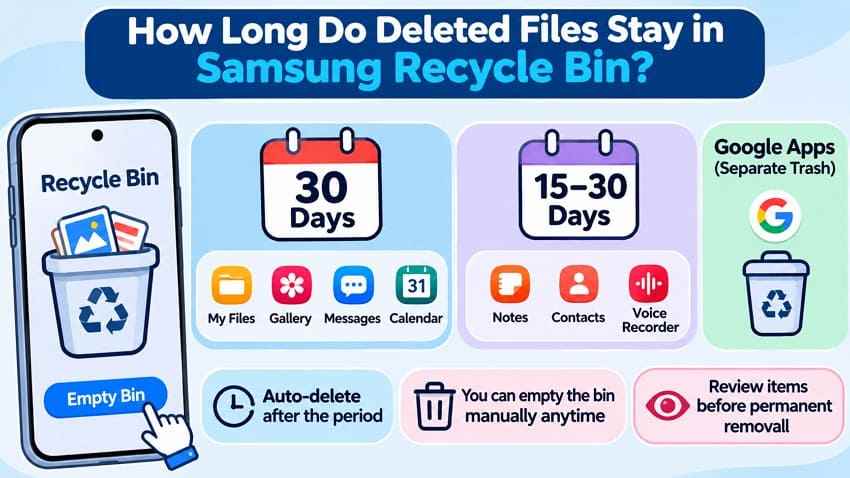
When learning how to empty the bin on a Samsung phone, remember that manual deletion bypasses the retention period and reclaims storage immediately. Always review unwanted items before confirming, because the app cannot restore them afterward.
Part 2. How to Empty Recycle Bin on Samsung Phone
Clearing unwanted items takes only a few taps once you locate the right Recycle Bin. Depending on the app, you can remove individual items or delete everything at once. Explore these methods to learn how to delete trash on a Samsung phone through different apps and system settings.
Method 1. Empty Recycle Bin Using Samsung My Files
My Files offers the most convenient way to manage deleted files from supported Samsung apps. According to Samsung’s official My Files guide, the Recycle Bin cannot be disabled on One UI 6. On One UI 6 or later, My Files may also expose removed Gallery and Voice Recorder items, but verify the actual menu on your device.
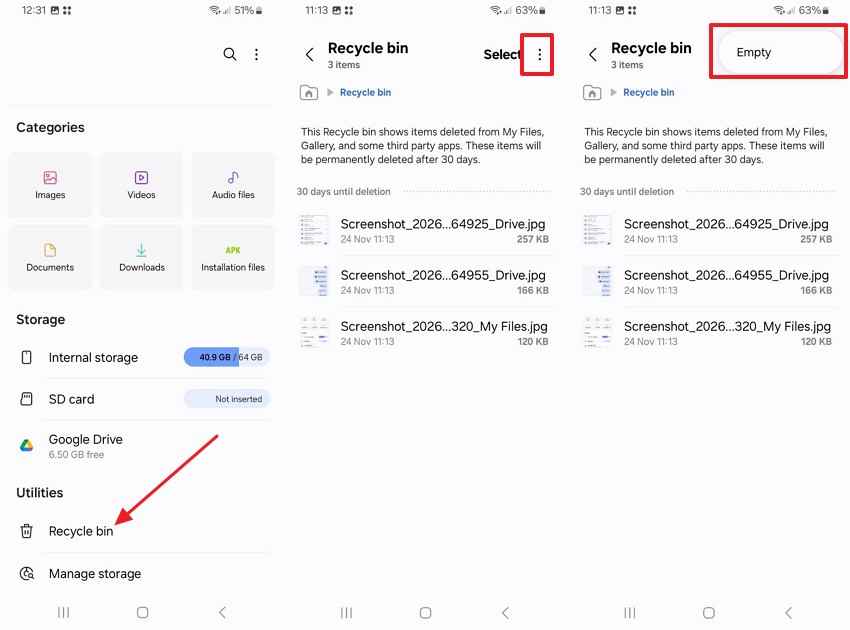
Step 1. Open My Files and empty the bin. Open My Files, scroll down the main screen, and tap Recycle Bin. Tap the three-dot More menu and select Empty. Confirm permanent deletion.
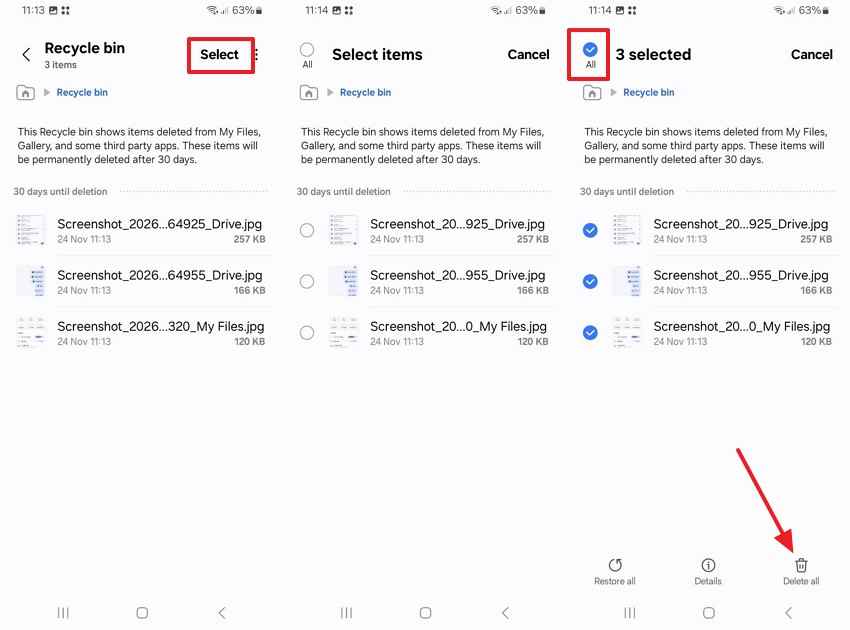
Step 2. Select specific files. Alternatively, tap Select and choose specific files or select All. Tap Delete or Delete All and confirm with Delete.
Method 2. Empty Trash in Samsung Gallery
Samsung Gallery provides a visual preview of deleted photos and videos before permanent removal. Samsung’s Gallery trash guide confirms you can restore individual media files before emptying the bin. Only delete items you truly want permanently removed.
Direct Gallery integration with OneDrive ended on September 30, 2026. Microsoft confirms previously synced media remains accessible through OneDrive. To remove unwanted cloud copies, delete them separately from your OneDrive account.
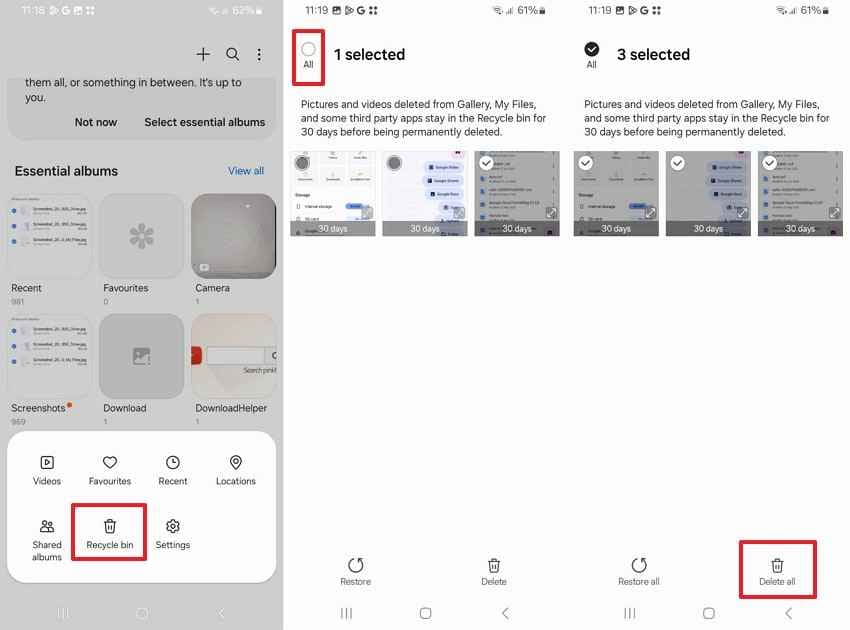
Instructions. In Gallery, tap the Three Lines menu and select Recycle Bin. Touch and hold a photo or video, then select All. Tap Delete All and confirm with Delete.
Method 3. Clear Samsung Recycle Bin Through Device Care
Device Care provides an overview of storage usage, including space occupied by deleted files. It acts as a shortcut rather than an independent Recycle Bin, and may link to app recycle bins rather than centrally delete everything. Available storage options vary by Galaxy model and One UI version.
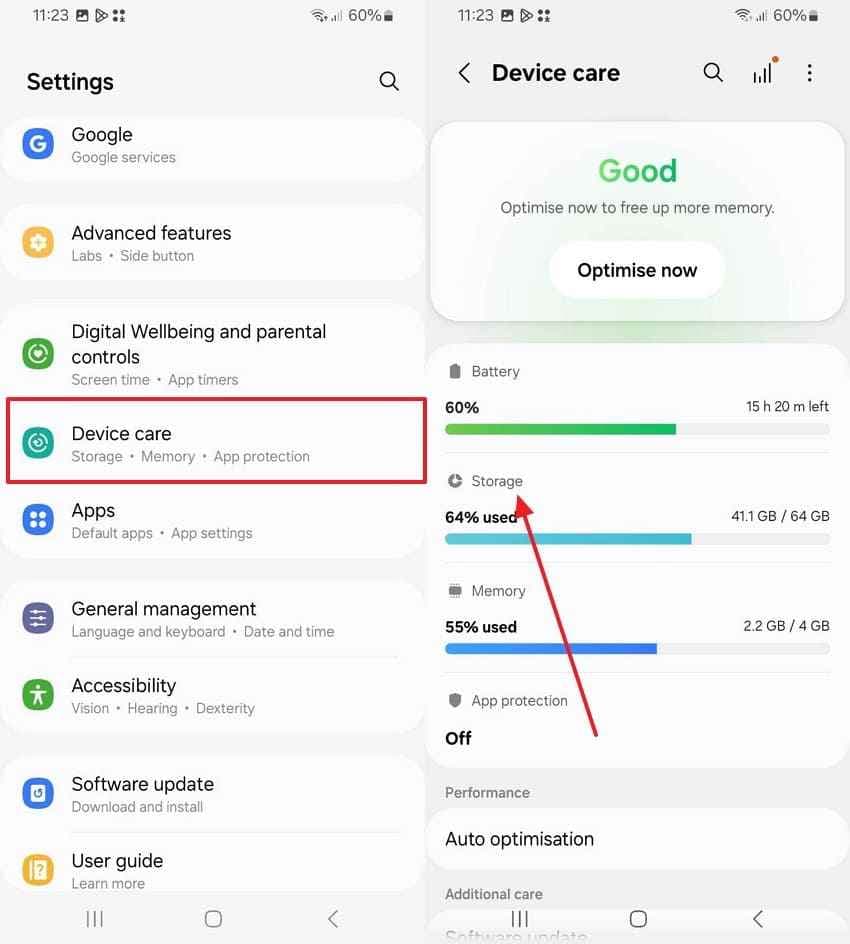
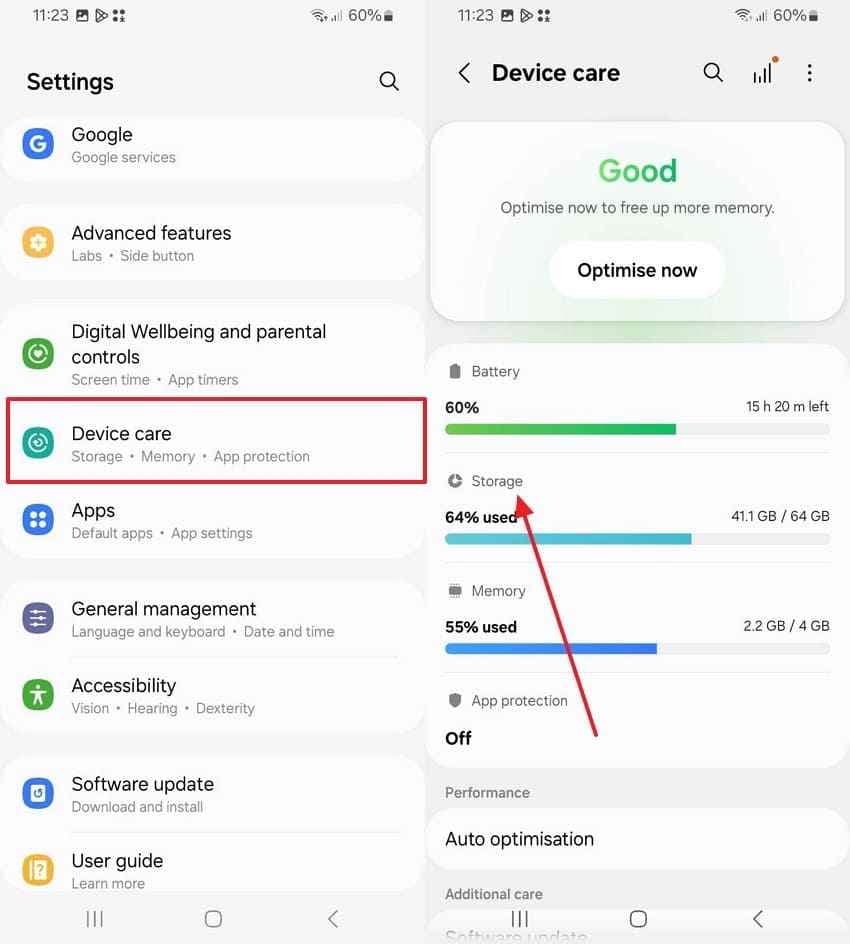
Step 1. Open Device Care. Go to Settings, select Device Care, and tap Storage.
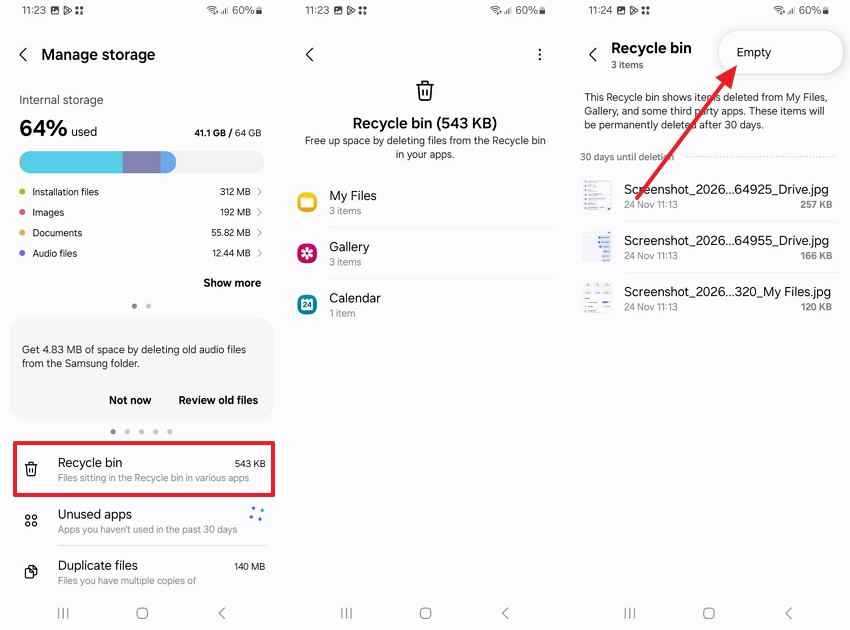
Step 2. Manage the Recycle Bin. Locate the Recycle Bin section and select the relevant app. Tap the Three Dots menu and choose Empty, or select individual files and confirm permanent deletion.
Method 4. Empty Recycle Bin in Samsung Notes
Samsung Notes lets you manage deleted handwritten notes, checklists, and documents. Recycle Bin settings differ across Galaxy models and software versions, as a 2023 Samsung Community thread notes: an S21+ owner could disable the bin, while an S23 Ultra owner lacked that option. If the Trash menu is not shown, document the One UI/app version rather than inventing a path.
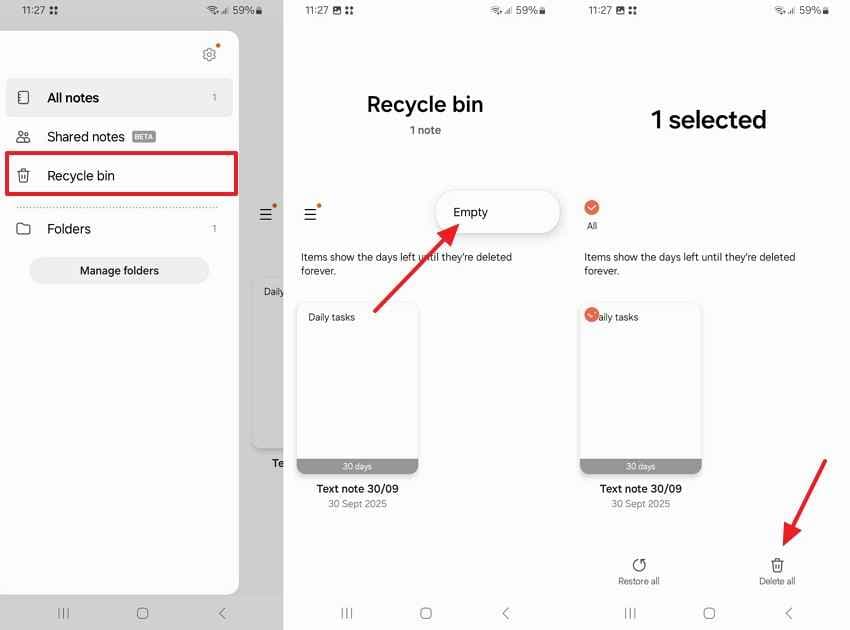
Instructions. Open Samsung Notes, tap the Three Lines menu, and select Recycle Bin. Tap Three Dots > Empty and confirm deletion. Alternatively, select unwanted notes and tap Delete.
Method 5. Clear Recycle Bin in Samsung Voice Recorder
Samsung Voice Recorder provides a dedicated space for managing deleted audio recordings. According to Samsung’s official recycle bin guide, you can also manage these recordings through My Files, but using Voice Recorder directly avoids sorting through unrelated deleted files.
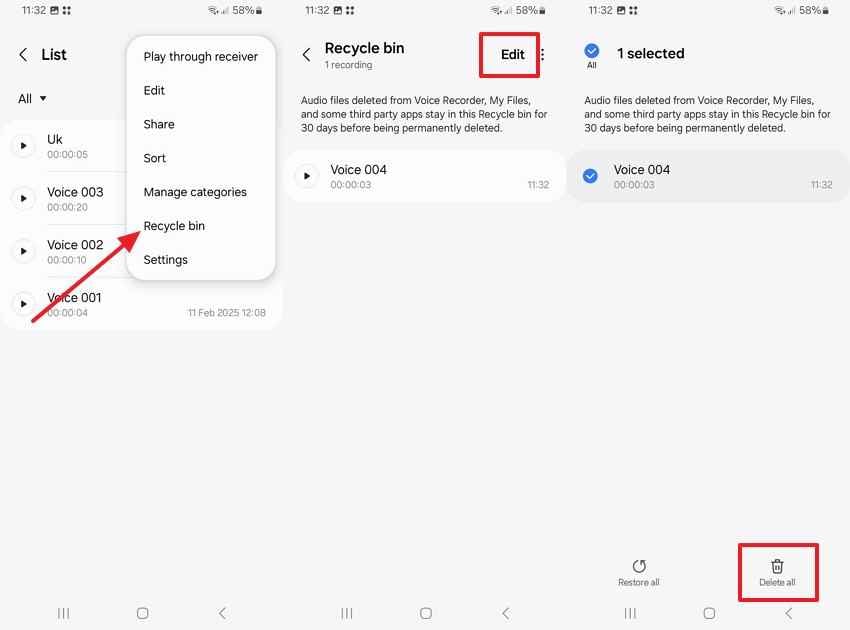
Step 1. Select recordings. Launch Voice Recorder, tap the Three Dots menu, and select Recycle Bin. Choose Edit and select the recordings to remove. Tap Delete or Delete All and confirm with Delete.
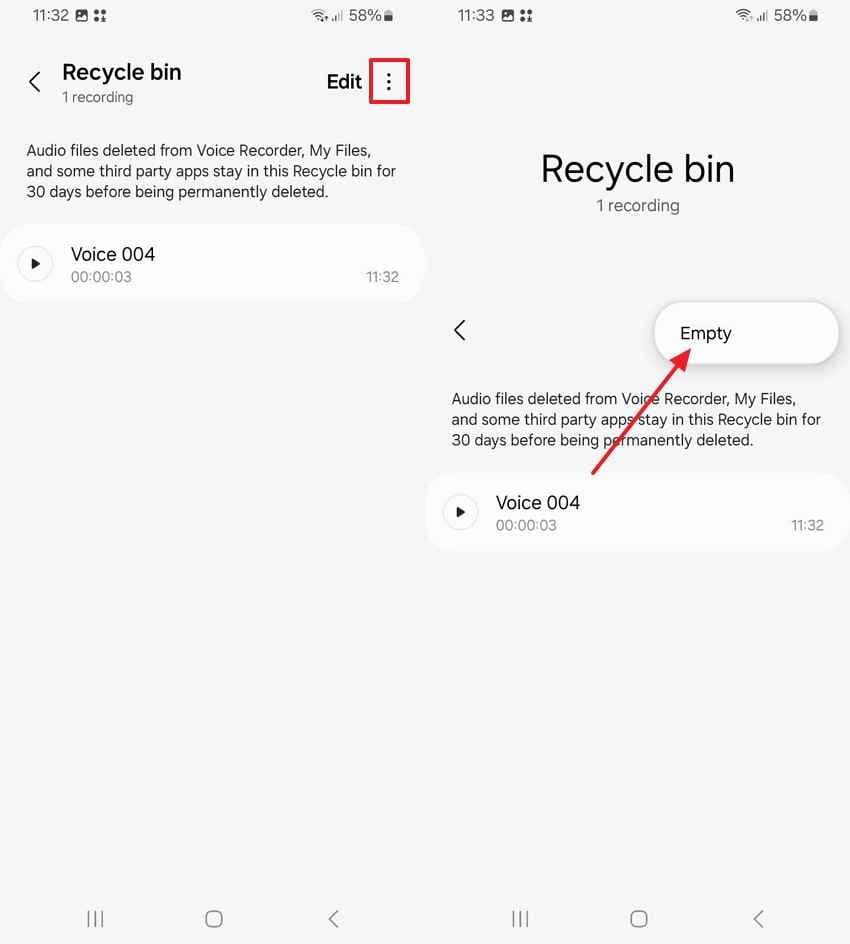
Step 2. Empty the entire bin. Alternatively, tap Three Dots > Empty and confirm permanent deletion.
Method 6. Delete Trash in Samsung Messages
According to Samsung’s Messages guide, deleted conversations remain in the dedicated Trash folder for 30 days. However, Samsung discontinued its Messages service in the US on July 6, 2026, for devices running Android 12 or later. Devices running Android 11 or earlier are unaffected. This method applies only to Galaxy phones where Samsung Messages and its Trash feature remain available.
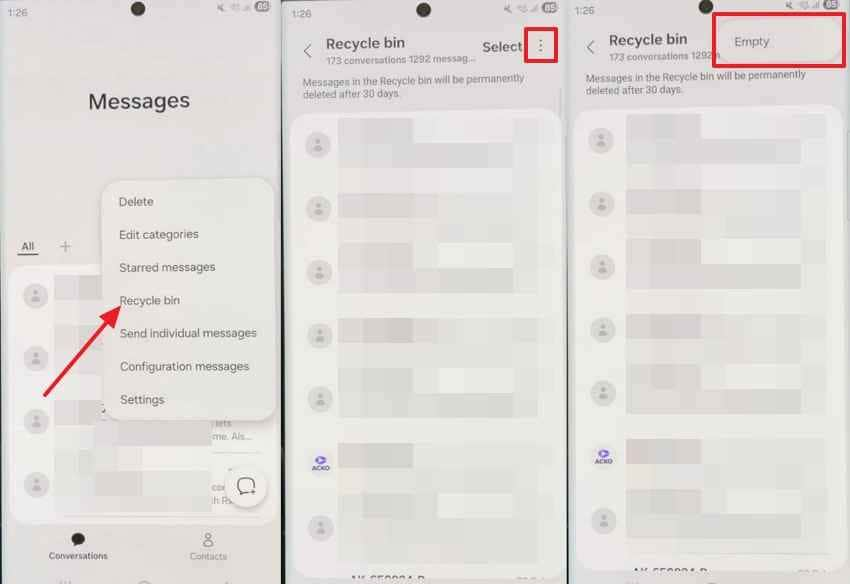
Instructions. Open Samsung Messages, tap the Three Dots menu, and select Recycle Bin. Choose Three Dots > Empty and confirm deletion. Alternatively, touch and hold a conversation, select All, and tap Delete All > Delete.
Method 7. Empty Recycle Bin in Samsung Contacts
The account associated with a contact determines where it is stored after deletion. Samsung Contacts supports entries saved locally and those synced with online accounts. For contacts associated with a Google Account, check Google Contacts Trash under Organize. Samsung-managed contacts and Google Contacts use separate sync accounts and retention.
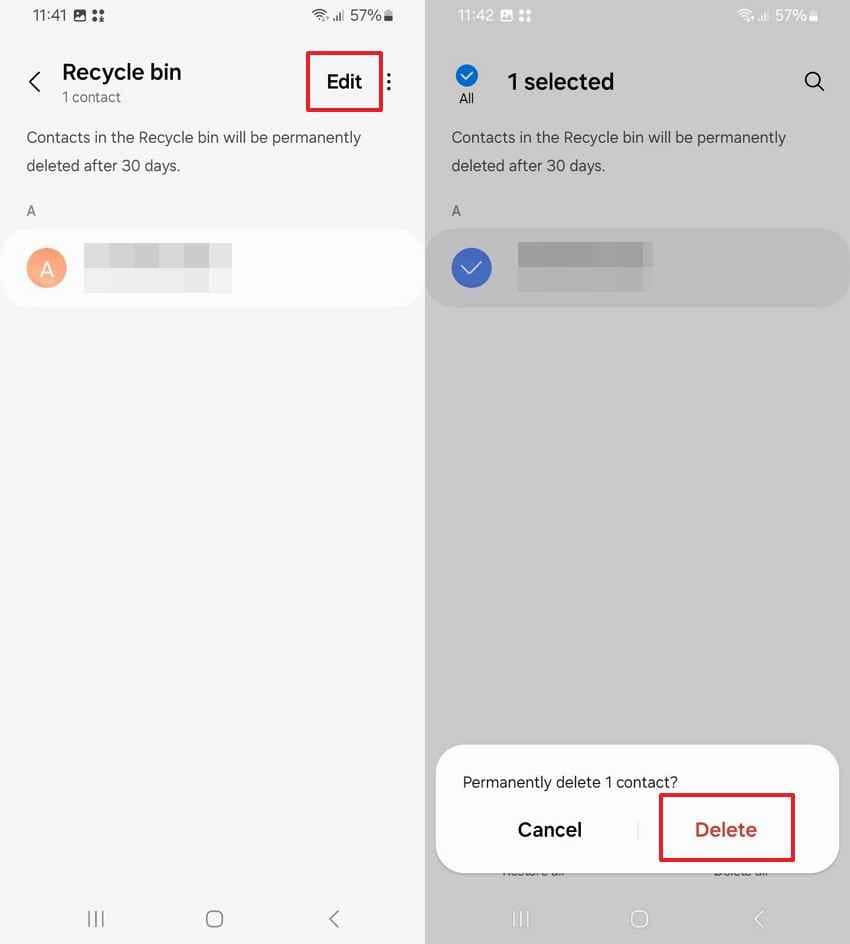
Step 1. Empty the bin. Open Samsung Contacts, tap the Three Dots menu, and select Recycle Bin. Choose Three Dots > Empty and confirm with Delete.
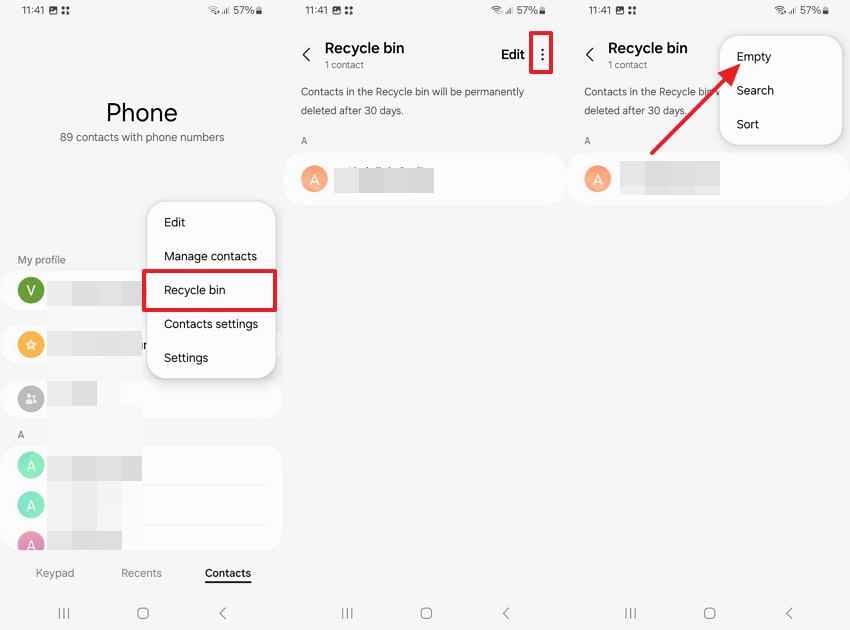
Step 2. Remove specific contacts. Use the Edit option and mark the unwanted entries. Proceed with Delete or Delete All, then Delete to confirm.
Part 3. How to Empty Trash in Google Apps on Samsung Phones
Deleting files through Google apps follows different storage and retention policies than Samsung’s native apps. Each Google app manages its own Trash folder and automatically removes items after a set period. To learn how to empty the Recycle Bin on Samsung devices through Google apps, explore these methods.
Method 1. Empty Trash in Google Photos
According to Google Photos help, photos and videos you delete stay in the bin for 30 days before they are permanently removed. This retention applies whether the items were backed up or not. Deleting backed-up photos also removes them from devices with backup enabled. The Free up space feature is different: it removes local copies while preserving backed-up media in the cloud.
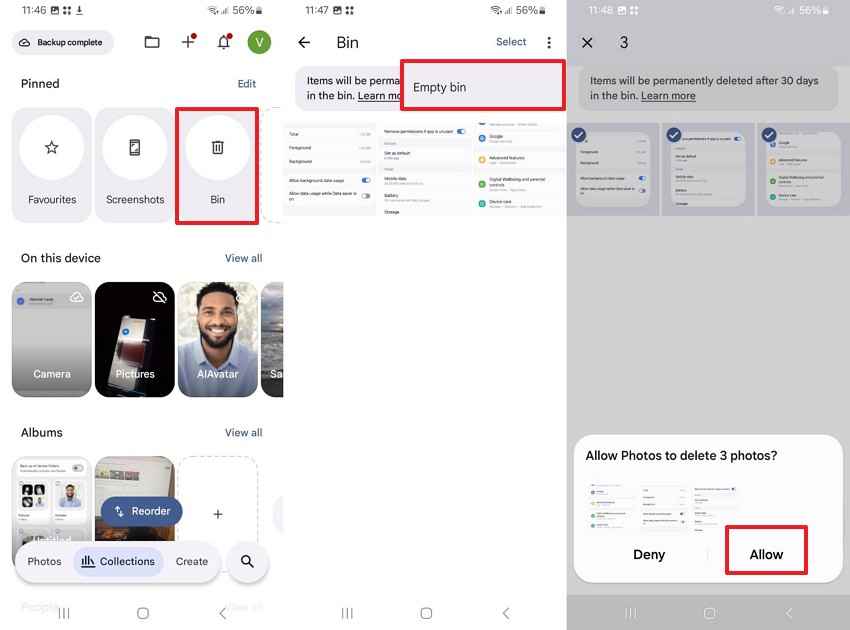
Step 1. Empty the bin. Launch Google Photos, tap Collections at the bottom, and select Bin. Choose More > Empty Bin and tap Allow to confirm.
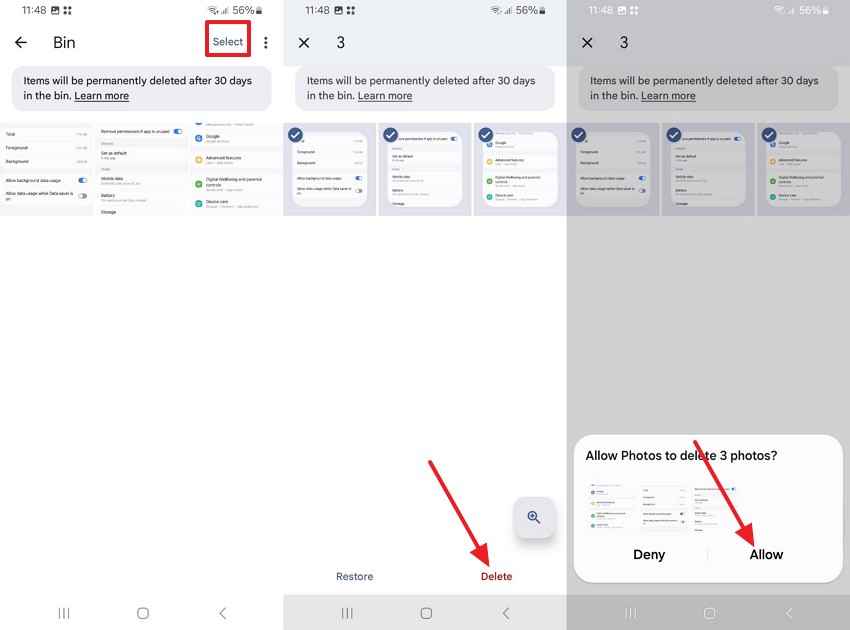
Step 2. Delete selected items. Tap Select and mark the unwanted photos and videos. Proceed with Delete > Allow to remove them permanently.
Method 2. Clear Trash in Files by Google
Files by Google manages deleted content independently of Samsung My Files. According to Google’s official Files guide, items remain in Trash for 30 days before automatic removal. Files deleted through the Junk files card bypass Trash and are permanently removed. This app handles local and removable storage, so check whether the deleted file was on the phone or an SD card.
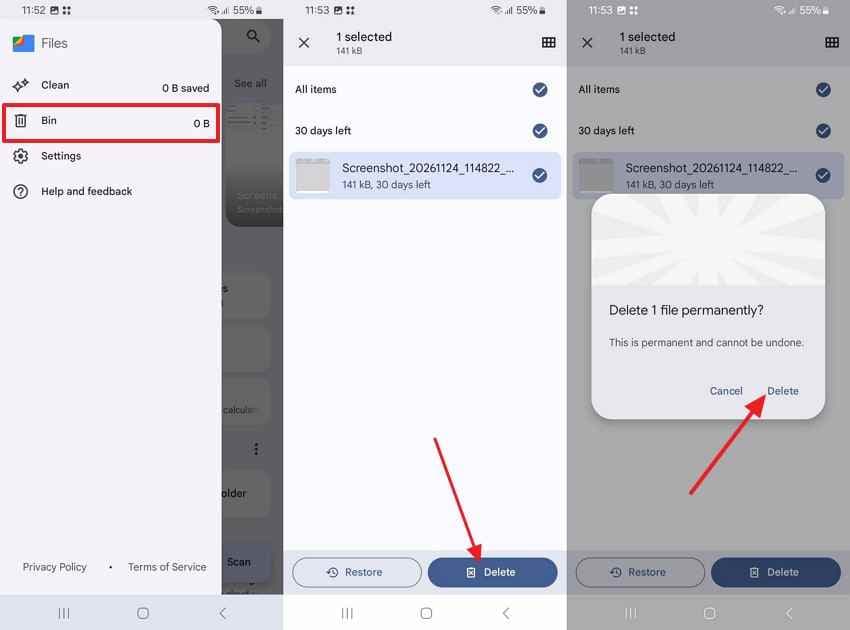
Instructions. Open Files by Google, tap the Three Lines menu in the upper-left corner, and select Bin. Confirm the unwanted files or mark All Items to empty the entire bin. Tap Delete at the bottom and confirm with Delete.
Method 3. Empty Trash in Google Messages
Google Messages introduced a dedicated Trash folder in 2026 to protect conversations against accidental deletion. Earlier versions without this feature permanently deleted messages immediately. According to Google’s Messages help, deleted conversations remain recoverable for 30 days. Access depends on the installed app version.
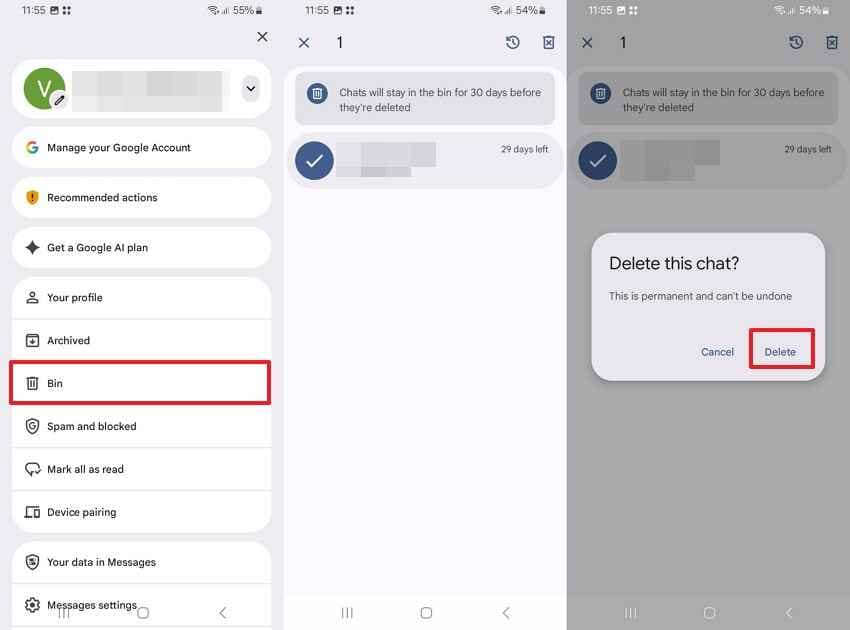
Step 1. Open the bin. Open Google Messages, tap your profile picture, and select Bin. Touch and hold the conversations to remove. Tap the Trash icon and confirm with Delete.
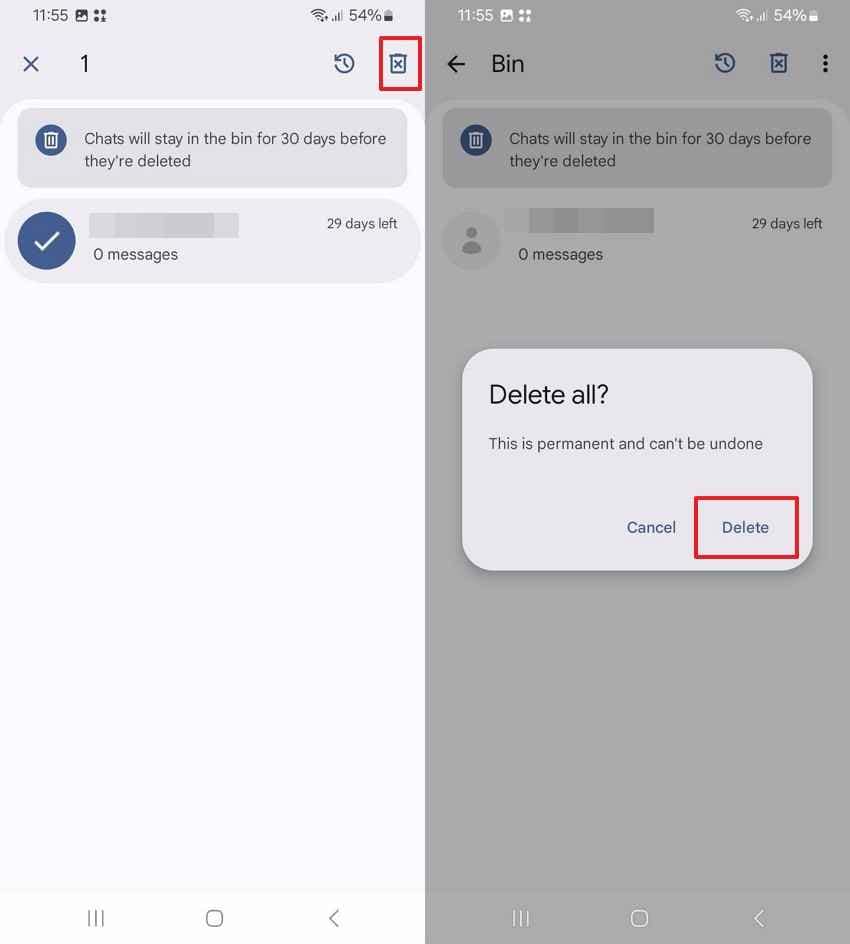
Step 2. Empty the entire bin. Tap the Trash icon without selecting any conversations. Confirm permanent removal by tapping Delete.
Part 4. Samsung Recycle Bin Not Showing or Not Emptying: How to Fix It
Sometimes deleted files remain visible or storage space stays unchanged even after clearing the Recycle Bin. The table below covers common problems, their possible causes, and practical solutions.
| Symptom | Likely Reason | First Step |
| Bin menu missing | Different One UI version, outdated app, or unsupported Trash feature | Check the app version, updates, and alternative menu locations |
| Recycle Bin won’t empty | Temporary app glitch or software error | Restart the phone, update the app, or clear its cache |
| Storage remains full | Cache, downloads, app data, or files in other recycle bins | Review Device Care > Storage |
| Cloud storage unchanged | Only local copies were deleted, or quota updates are delayed | Check OneDrive or Google Photos trash |
| Deleted files remain visible | Duplicate copies, cached thumbnails, or files in Secure Folder | Check the original location and associated app |
Fix 1. Recycle Bin Option Is Missing on Samsung Phone
Software updates can change the location of the Recycle Bin across Samsung apps. One UI 6 introduced centralized management of deleted Gallery and Voice Recorder files through My Files; earlier versions require the individual app bins. Updating an app does not guarantee Recycle Bin availability if the feature is unsupported.
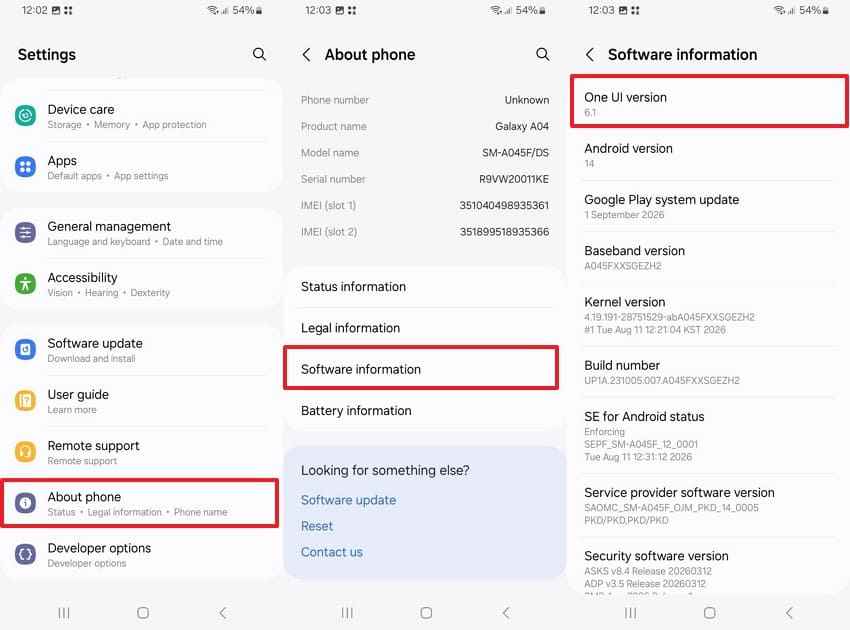
Step 1. Check the One UI version. Navigate to Settings > About Phone > Software Information and check the current One UI version.
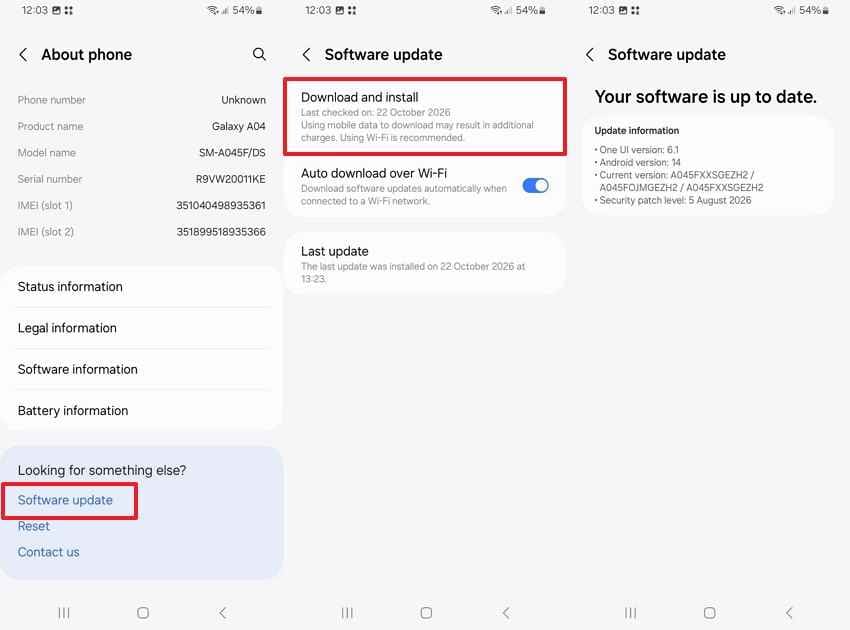
Step 2. Install system updates. Return to Settings and select Software Update > Download and Install.
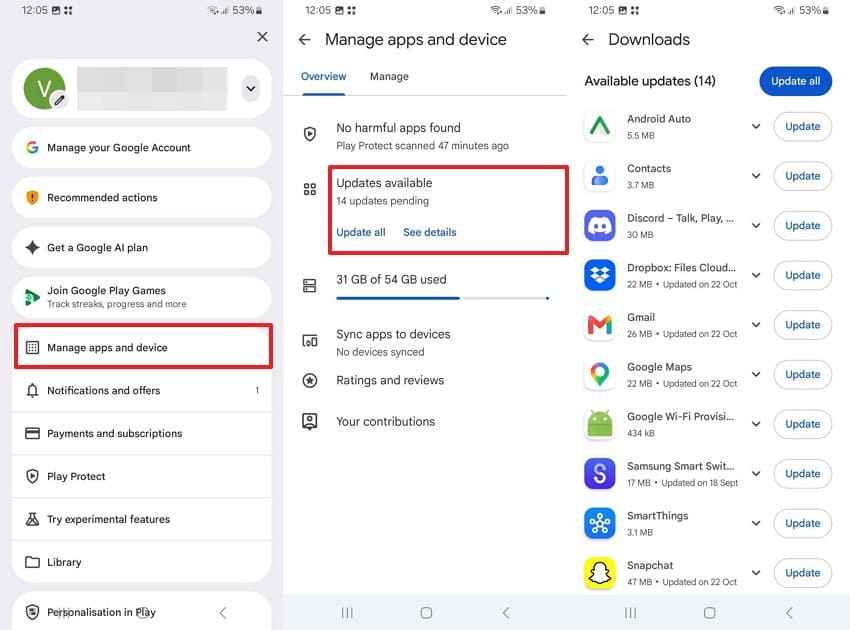
Step 3. Update the affected app. Update through Galaxy Store or Play Store. In Play Store, tap your profile picture, choose Manage Apps and Device, select Updates Available > See Details, and tap Update. Then check for the Recycle Bin in My Files or under Device Care > Storage.
Fix 2. Samsung Recycle Bin Won’t Empty or Delete Files
Samsung recommends restarting the device, updating affected apps, and clearing their cache. Clearing the cache removes temporary files without deleting personal app data, but Samsung confirms that Clear Data resets the app and removes its saved data and settings. Avoid Clear Data without a backup.
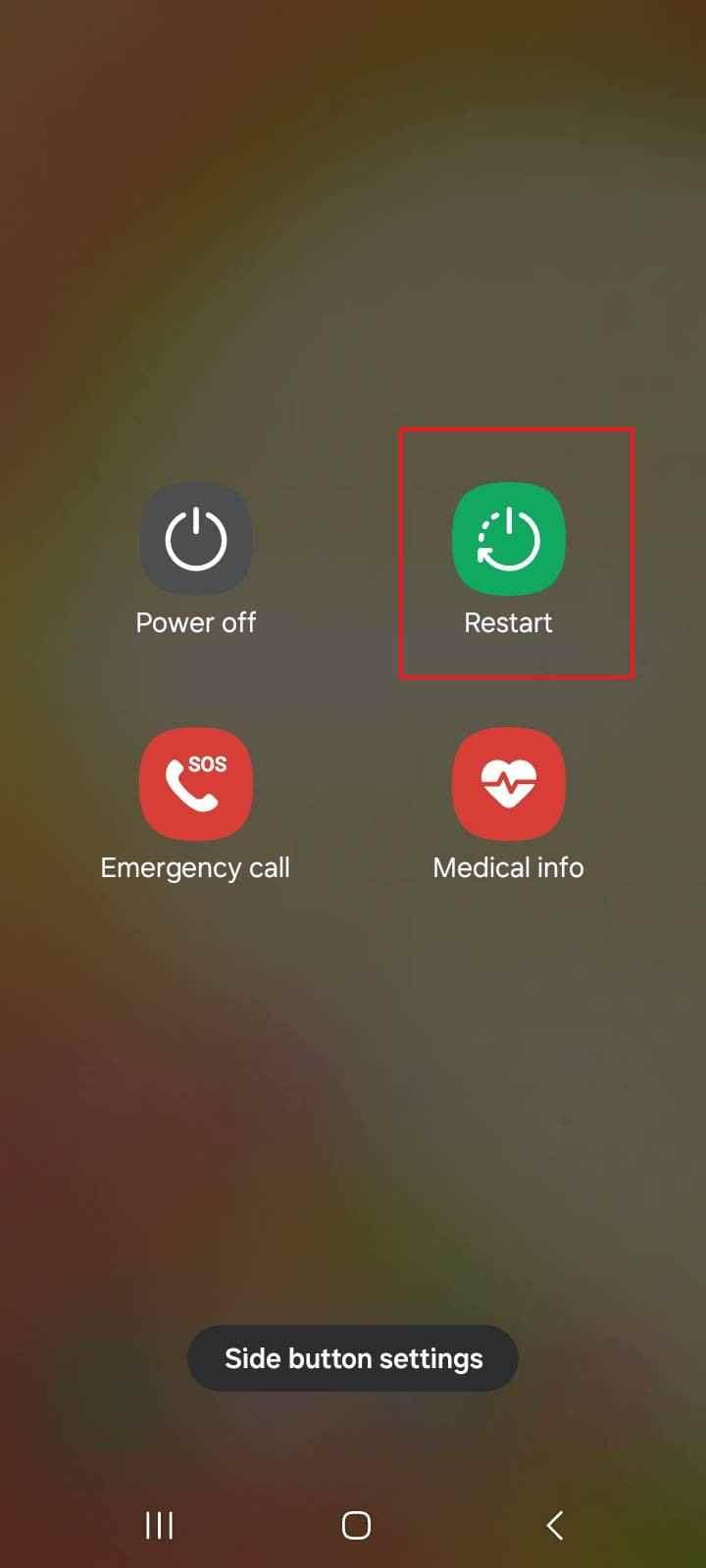
- Restart the phone. Press and hold Side and Volume Down until the power menu appears, then tap Restart to resolve temporary software glitches.
- Update the app. Install available updates for the affected app through Galaxy Store or Play Store.
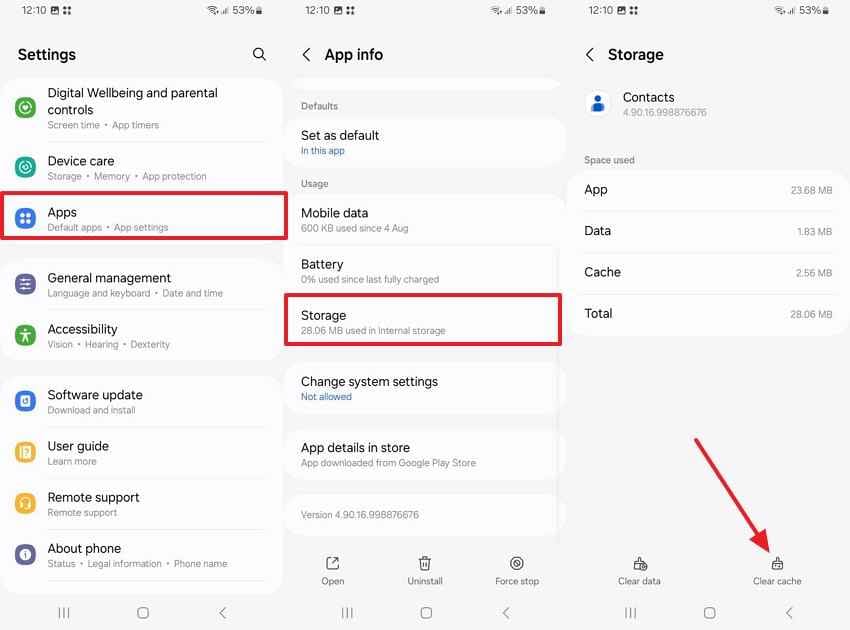
- Clear app cache. Navigate to Settings > Apps, select the affected app, then Storage > Clear Cache.
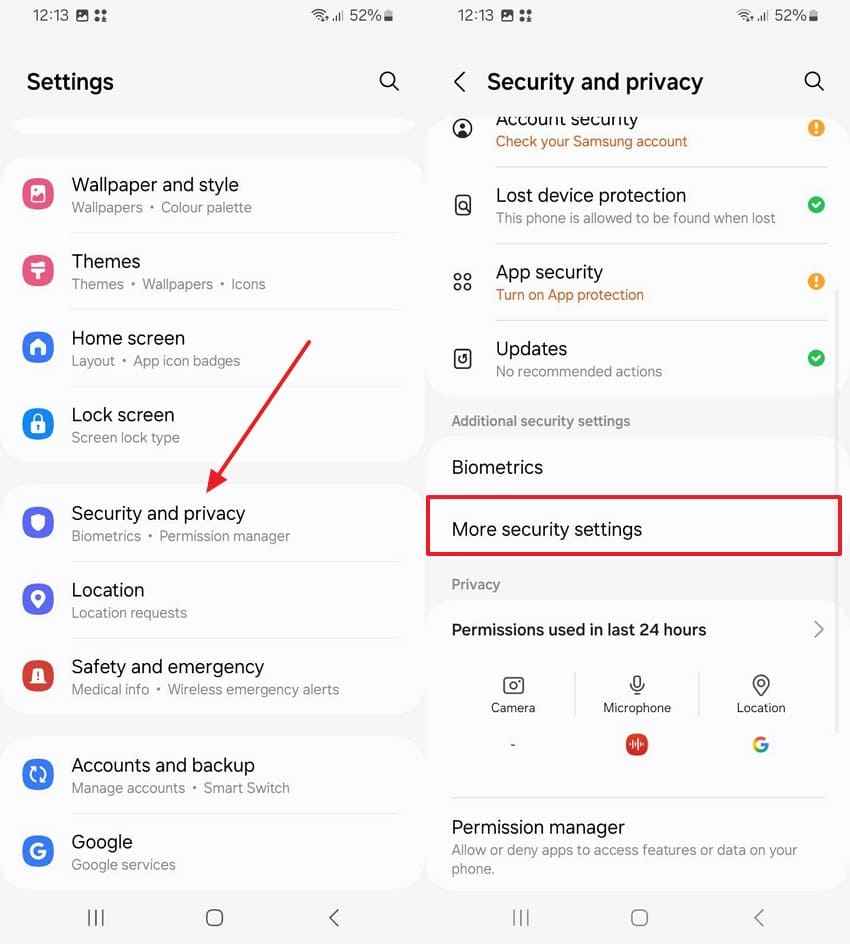
- Check Secure Folder. Navigate to Settings > Security and Privacy > More Security Settings > Secure Folder, then check the recycle bins of apps installed within it.
- Retry deletion. Reopen the affected app and check whether its Recycle Bin can now be emptied.
Fix 3. Samsung Storage Is Still Full After Emptying Trash
Emptying the Recycle Bin only releases the storage occupied by its deleted items. According to Samsung’s Other storage guide, this category includes app data, system files, cached data, and temporary files. Deleting cloud files frees account storage rather than device storage unless local copies are also removed.
- Review storage usage. Access Settings > Device Care > Storage to identify categories occupying the most space.
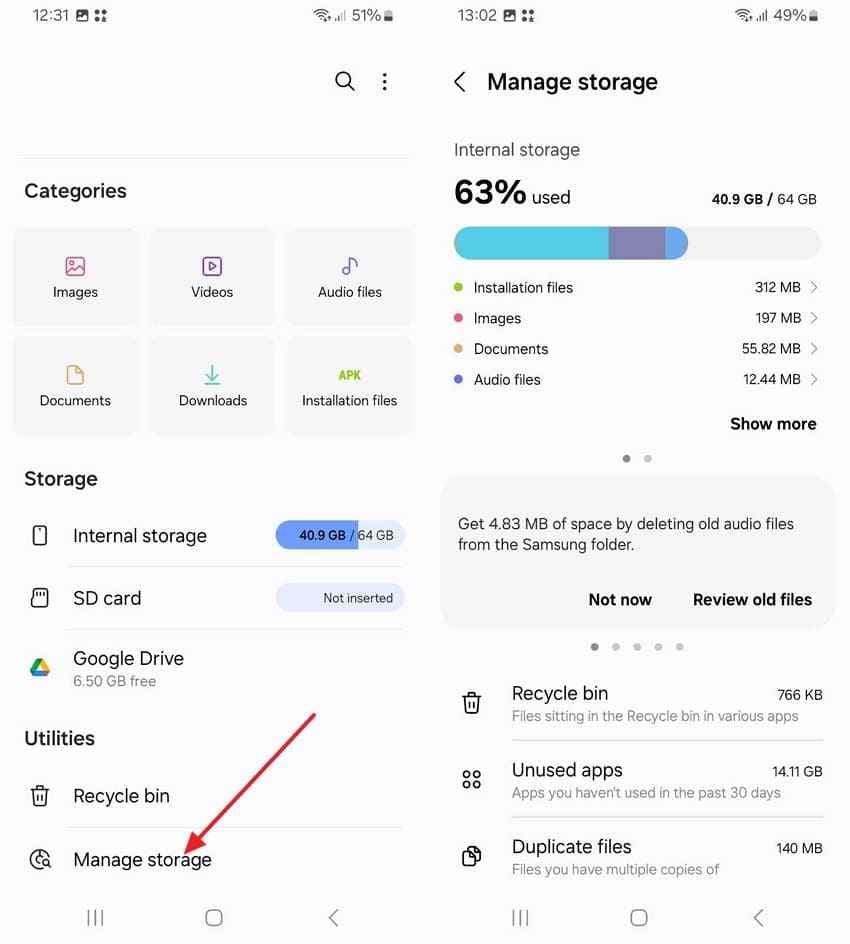
- Remove unnecessary files. Open My Files > Manage Storage and review large and duplicate files to remove unwanted items.
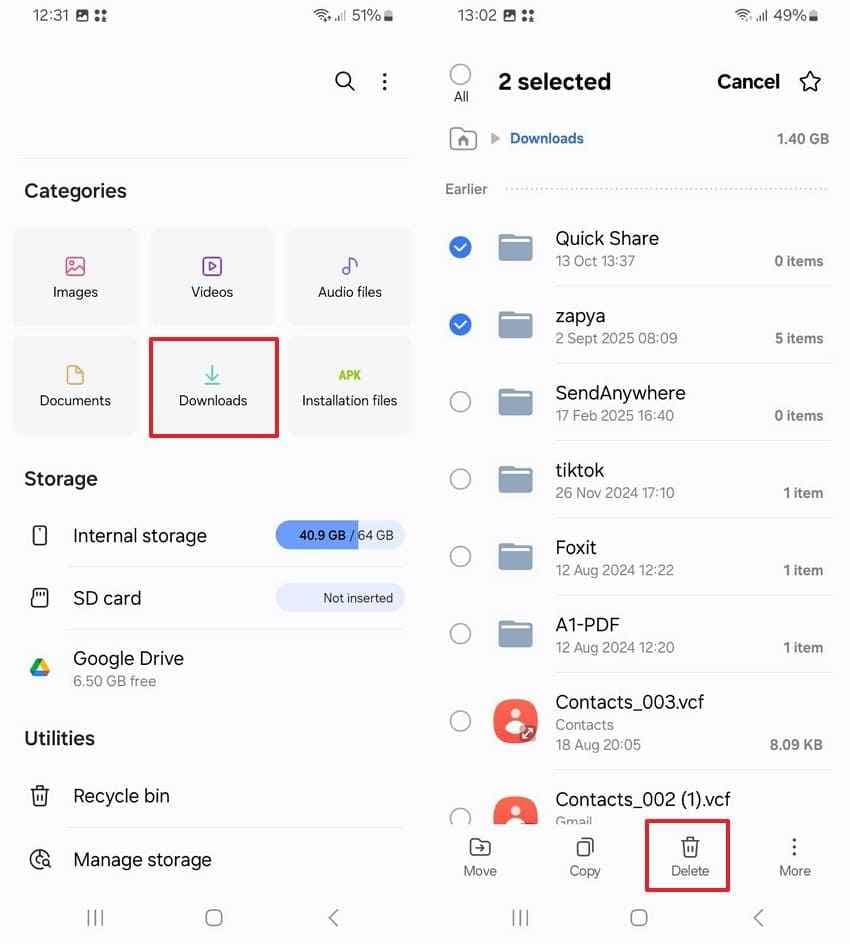
- Clear old downloads. Navigate to My Files > Downloads and delete unnecessary documents, installation files, and downloaded media.
- Recheck available storage. Empty the relevant recycle bins, restart the phone if storage figures remain unchanged, then review the available space.
Pro Tip. Recover Deleted Samsung SD Card Files Using Recoverit
Once you understand how to empty the Recycle Bin on a Samsung phone, consider accidental file deletion. Samsung’s encrypted internal storage limits conventional recovery, but deleted files on an unencrypted microSD card may remain recoverable. You can connect the card to a computer through a card reader, then use data recovery software to locate permanently deleted files.
Available for Windows and Mac, Recoverit Memory Card Recovery supports recovery from accidental deletion, formatting, and memory card corruption. It can retrieve photos, videos, audio recordings, documents, and other file types, and lets you preview supported recoverable files before restoring them. Recoverit works only on a portable, unencrypted, readable SD card accessed through a card reader; it does not scan the phone’s encrypted internal storage.
Key features:
- Dedicated SD Card Recovery: a specialized module for SD, microSD, SDHC, and SDXC cards.
- Lost partition recovery: locates deleted or missing memory card partitions.
- Advanced video recovery: reconstructs fragmented video files to improve playable recovery.
- File system compatibility: supports FAT32, exFAT, NTFS, and other file systems.
- Real-time scan results: displays discovered files during scanning.
How to Recover Deleted Samsung SD Card Files Using Recoverit
Accidental deletion can happen while learning how to empty the trash on a Samsung phone. Follow these steps to locate and retrieve lost files using Recoverit.
Step 1. Insert the card and select it. Safely unmount the microSD card from your Samsung phone, then connect it to your computer through a card reader. Launch Recoverit, open SD Card Recovery, and select the connected card.
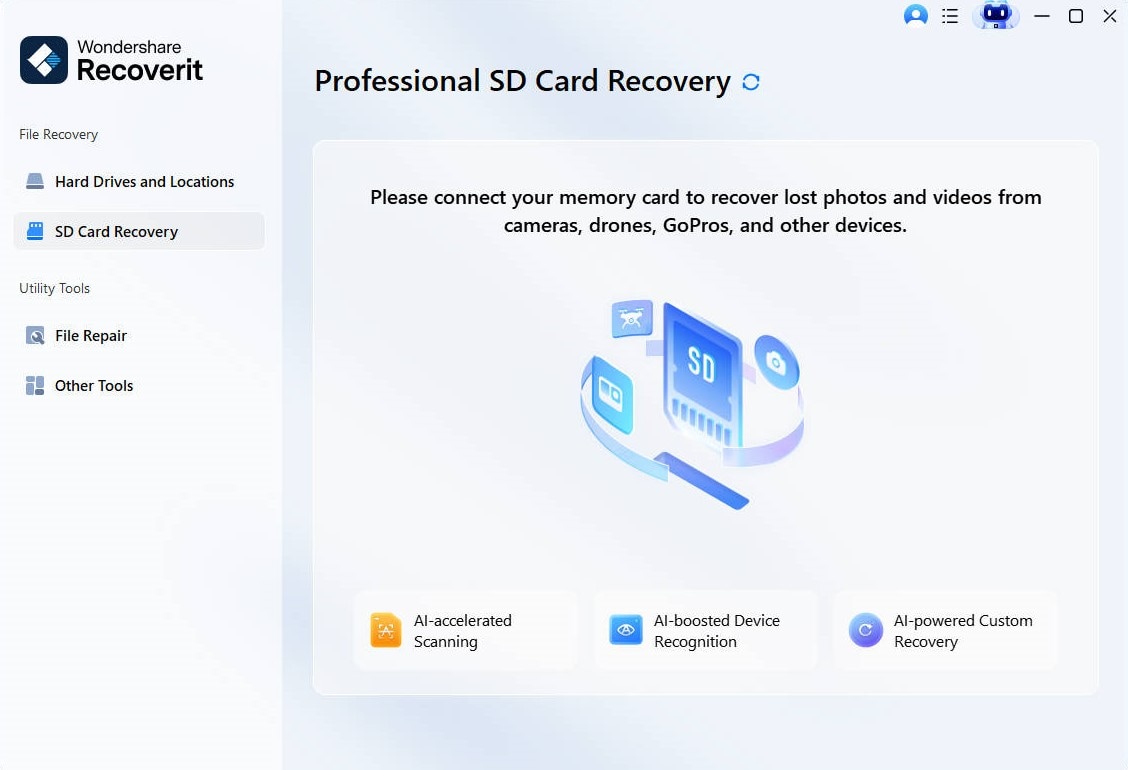
Step 2. Scan and filter. Allow Recoverit to scan the memory card. Use file type filters or AI Search to locate specific photos, videos, or documents.
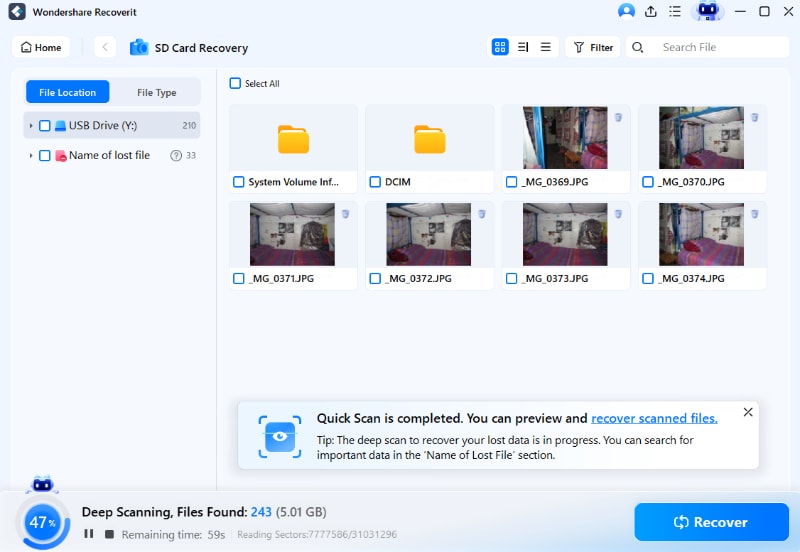
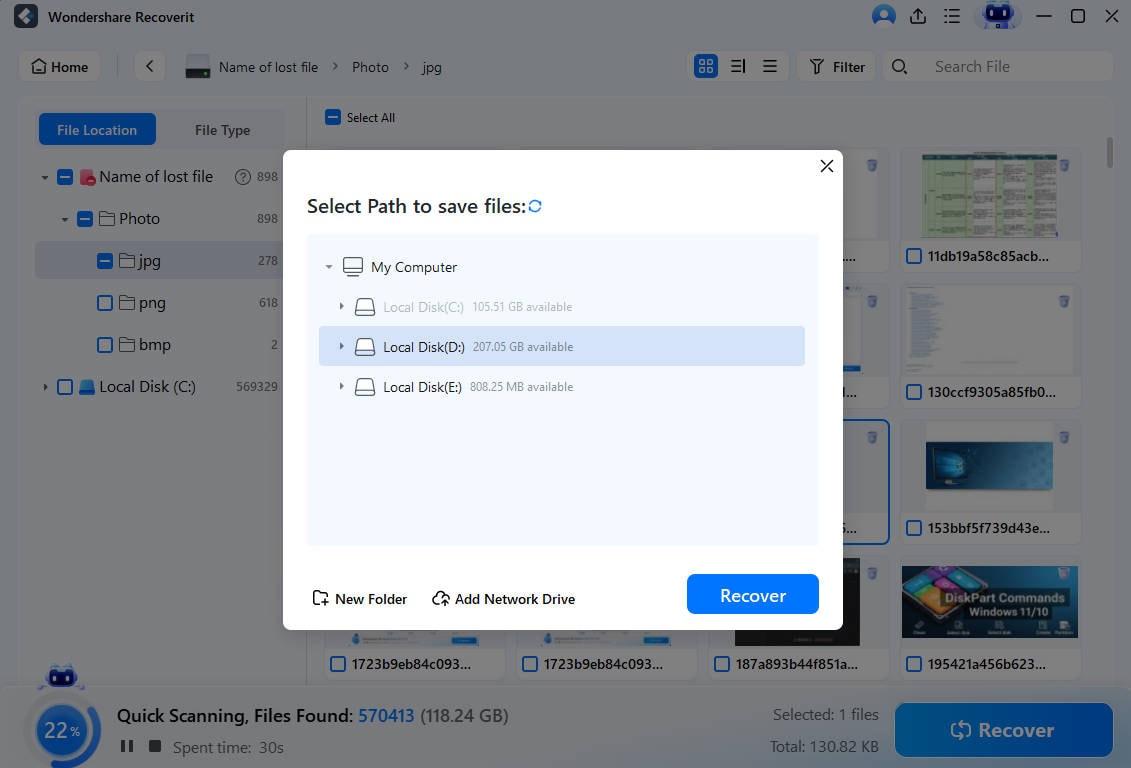
Step 3. Save recovered files. Preview supported recoverable files, select the required items, and click Recover. Choose a location on your computer rather than the original memory card.
Conclusion
Knowing how to empty the Recycle Bin on a Samsung phone helps manage storage more effectively. Samsung and Google apps keep separate trash folders, so complete clearance means checking the relevant apps one by one. If storage problems persist, remove unnecessary downloads, cached data, and unused apps.
If you accidentally delete important files from an unencrypted SD card, stop using the card immediately and try a recovery tool such as Recoverit Memory Card Recovery. Recover files only from a portable, unencrypted SD card connected through a reader, and always save recovered files to a separate drive.
FAQ
-
Can I empty all Samsung Recycle Bins at once?
No, Samsung phones do not offer a universal option to empty every Recycle Bin simultaneously. On One UI 6 and later, My Files manages deleted items from Gallery and Voice Recorder, while Samsung Notes, Messages, Contacts, and Google apps require separate clearance. -
Can I turn off or delete the Recycle Bin on my Samsung phone?
Samsung does not allow you to disable the Recycle Bin in My Files, Gallery, or Voice Recorder on One UI 6 and later. Some versions of Samsung Messages offer a Trash toggle under More Options > Settings. -
Can I recover files after emptying the Recycle Bin on Samsung?
Permanently deleted files cannot be restored through the original Recycle Bin. Existing Samsung Cloud, Google, or computer backups can help restore supported data. For files deleted from an unencrypted microSD card, Recoverit can attempt recovery if the data remains intact.


