

 TL;DR:
Restore an SD card not showing up on a Mac by verifying the physical lock switch, enabling external disk visibility in Finder, and using Disk Utility to manually mount, repair, or reformat the drive.
● Stop using the card and extract unbacked-up files using software like Recoverit before running First Aid or formatting, because both procedures can permanently modify the card and complicate data recovery.
● Resolve issues where the card is detected but hidden by clicking Mount in Disk Utility and checking the External disks boxes within the General and Sidebar tabs of Finder Settings.
● Format unresponsive cards only as a final measure using the Master Boot Record scheme, assigning MS-DOS (FAT) for SDHC cards up to 32 GB or ExFAT for SDXC cards 64 GB and above.
Ask AI for a summary
 ChatGPT
 Perplexity
 Gemini
 Claude
 Grok
Grok
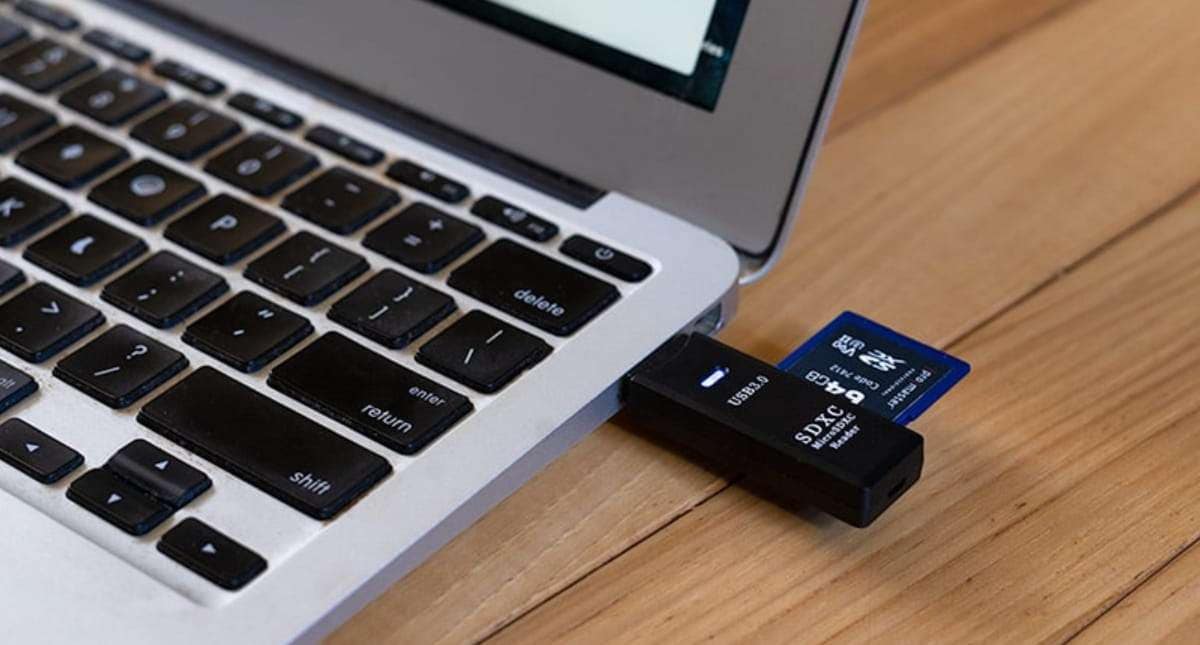
An SD card that stops showing up on a Mac usually has a simple fix, but it blocks your files and any workflow that depends on the card. This guide walks through the fixes in the safest order: quick checks first, data recovery before any repair, formatting only as a last resort, and a breakdown of why cards disappear. If the card holds files you have not backed up, copy or recover them before you run First Aid or reformat, because both steps can change the card.
Most detection problems are solved in the first two or three methods below. Start with the quick fixes, then move to Disk Utility repair, and format the card only when everything else has failed.
Quick Answer
● First check: reinsert the SD card slowly, move the lock switch on the side of the card, and confirm Finder is set to show external disks.
● Protect data: stop using the card and copy or recover your files before running First Aid or formatting, because both can modify the card.
● Next step: if the card still will not mount, open Disk Utility, run First Aid, and format the card to FAT32 or exFAT as a last resort.
In This Article
Part 1. Quick Fixes for an SD Card Not Showing Up on Mac
Work through these fixes in order. Each one is less invasive than the next, and most SD card detection problems are solved in the first two or three steps. Before you run anything that can change the card, make a copy of the files you can still open.
Method 1. Reinsert the Card and Check the Lock Switch
The most common cause of an SD card not showing up on a Mac is simply a card that was not seated correctly. Apple notes that an SD card sometimes will not mount if it is inserted too slowly or too quickly, so remove the card and push it in again in one steady motion until it clicks, per Apple's guidance on the SD and SDXC card slot.
- Eject the card first if it appears anywhere in Finder or Disk Utility, then remove it from the slot.
- Inspect the metal contacts on the card and wipe them with a soft, dry cloth if they look dirty.
- Reinsert the card with the metal contacts facing down and pointing toward the computer, and do not force it into the slot.
- If a message such as "cannot be modified" appears, the card is locked. Slide the lock switch on the side of the card to unlock it, remove the card, and reinsert it.

This lock switch is easy to miss. A card with the switch in the locked position mounts read-only or fails to mount at all on a Mac, which looks exactly like a card that is "not showing up."
Method 2. Show External Disks in Finder
Your SD card may be mounted but hidden because Finder is not configured to display external disks on the desktop or in the sidebar.
- Open Finder, then choose Settings from the Finder menu (it is called Preferences on macOS Monterey and earlier).
- Go to the General tab and check External disks under "Show these items on the desktop."
- Go to the Sidebar tab and check External disks under Locations.
- Close the window. The SD card should now appear on the desktop and in the Finder sidebar when it is inserted.

Method 3. Restart Your Mac
A restart clears temporary file-system and driver states that can prevent a card from mounting. Choose Restart from the Apple menu, or press Control + Command + Power and confirm the restart. After the Mac boots, insert the SD card again and check Finder.

Method 4. Test the Card Reader and the Card Separately
To find out whether the problem is the card or the Mac, test each one independently.
- Insert a different SD card into the same slot. If the second card mounts, the slot works and the first card is the problem.
- Insert your card into another computer or a camera. If it mounts there, the card is fine and the issue is with your Mac or its reader.
- If your Mac has no built-in slot, try a different USB-C or USB card reader.
Not every Mac has a built-in SD card slot. Mac Studio models from 2022 or later, 14-inch and 16-inch MacBook Pro models from 2021 or later, MacBook Pro models from 2011 through 2015, Mac mini models from 2011 through 2014, 13-inch MacBook Air models from 2013 through 2017, and iMac models from 2010 or later include an SDXC slot. Newer MacBook Air and Mac mini models do not, so they need an external reader.
Method 5. Mount the Card in Disk Utility
If the SD card is visible in Disk Utility but not on the desktop, it is simply unmounted. Open Disk Utility, select the card in the sidebar, and click Mount in the toolbar.
- Press Command + Space, type Disk Utility, and press Return.
- In the sidebar, look for your card under Internal or External. If it is listed but greyed out, it is not mounted.
- Select the card and click Mount. The card should then appear in Finder.

If the card does not appear in Disk Utility at all, the Mac is not detecting it at the hardware level. Recheck the lock switch and the reader, and try the card in another device before moving on.
Method 6. Run First Aid on the Card
First Aid checks and repairs the file system of a volume. It is safe to run on a card whose files you have already copied or recovered, but because it can modify the card, back up anything you can open first. See Apple's First Aid guide for the full repair procedure.
- Open Disk Utility and choose View > Show All Devices if the card is not listed.
- Select your SD card in the sidebar.
- Click First Aid in the toolbar, then click Run.

- Wait for the check to finish. If the card has errors that First Aid cannot repair, Disk Utility will tell you and you may need to erase and reformat the card.

Method 7. Repair Disk Permissions (Legacy macOS Only)
Repairing disk permissions is only available on OS X Yosemite (10.10) and earlier. Apple removed the Repair Disk Permissions option in OS X El Capitan (10.11) and later, so on current macOS versions this button no longer exists. If you are running an old Mac with Yosemite or earlier, select your startup disk in Disk Utility, open the First Aid tab, and click Repair Disk Permissions.

Part 2. Recover Lost Data From the SD Card Before Formatting
If your SD card will not mount or its files are missing, stop using the card immediately. Every new write to the card can overwrite the data you are trying to recover. Do not format the card until you have recovered what you can, because erasing makes recovery harder.
Recoverit for Mac scans the card directly and can find deleted or lost files even when the card does not mount normally in Finder. Recoverit memory card recovery supports SD, SDHC, and SDXC cards, and the SD card recovery guide covers more data-loss scenarios. It is designed for this exact situation, and it is the safest way to get your files back before any repair or formatting step.
- Connect the SD card to your Mac and launch Recoverit. Select the SD card under External Drives and click Start.
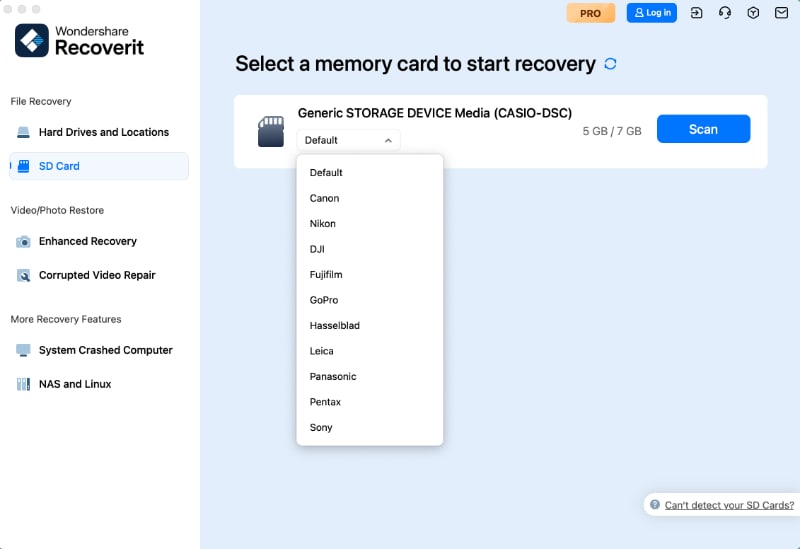
- Recoverit scans the card for recoverable files. You can wait for the scan to finish or use the filter and search tools to narrow the results.
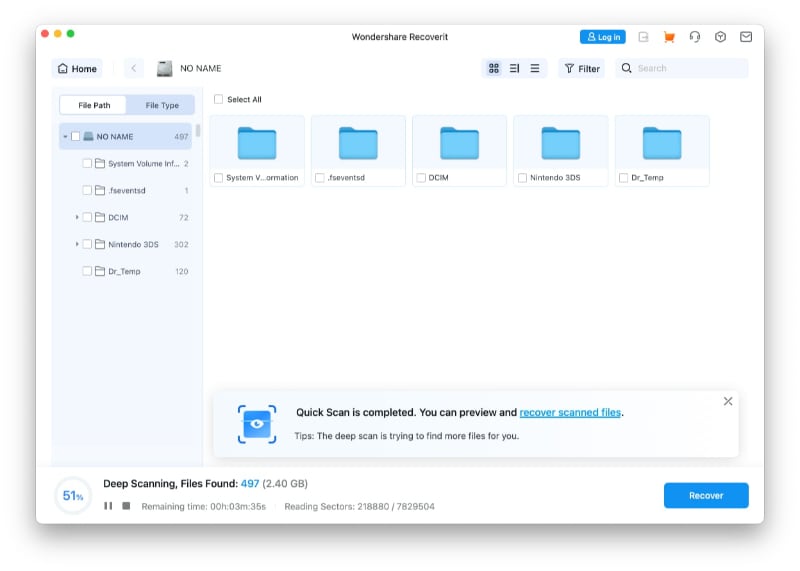
- Preview the files you want, select them, and click Recover. Save the recovered files to a different healthy drive, never back onto the same card.
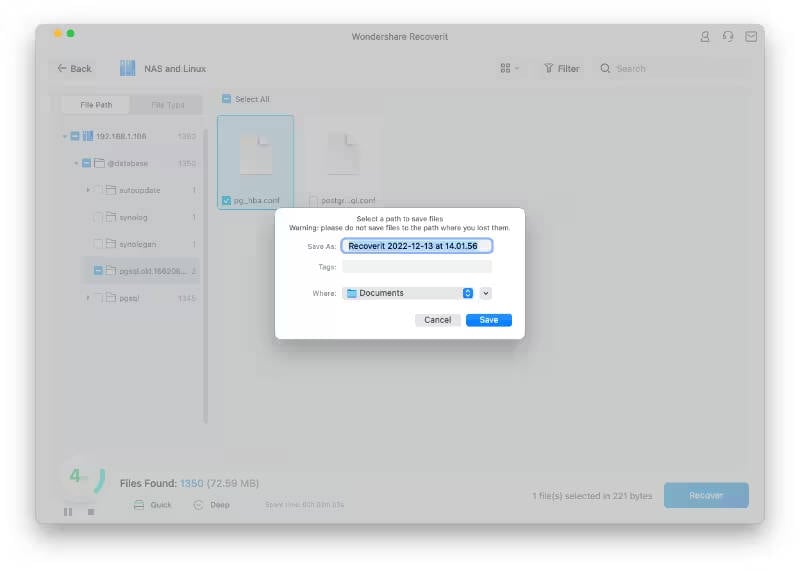
No software can guarantee recovery after a card has been overwritten or physically damaged. If the card makes unusual noises, shows physical damage, or has been exposed to water, stop scanning and contact a professional data recovery service instead.
Recover Lost Data From the SD Card Before Formatting
 Security Verified. Over 7,302,189 people have downloaded it.
Part 3. Format the SD Card as a Last Resort
Formatting erases everything on the card and is destructive. Only do this after you have recovered or copied the files that matter, and only when the card still will not mount after the fixes above. Formatting often restores a card that macOS can no longer read.
- Open Disk Utility and select your SD card in the sidebar.
- Click Erase in the toolbar.

- Enter a name for the card.
- Choose a format: MS-DOS (FAT) for cards up to 32 GB, or ExFAT for cards larger than 32 GB. Both work on Mac and Windows. If you only use the card with Macs, Mac OS Extended (Journaled) or APFS also work.

- Choose Master Boot Record as the scheme for the best compatibility with cameras and other devices.
- Click Erase, then Done.
SanDisk's macOS formatting guide recommends FAT32 for SDHC cards from 4 GB to 32 GB and exFAT for SDXC cards of 64 GB or higher. Using the matching format keeps the card readable by cameras, phones, and both Mac and Windows computers.
Part 4. Why the SD Card Is Not Showing Up on Mac
Understanding the cause helps you pick the right fix. The table below maps the common symptoms to their likely causes and the safest next action.
| Symptom | Likely Cause | Safe Action |
| Card was working, then disappeared | Loose connection or incomplete insertion | Reinsert the card slowly until it clicks |
| Card mounts but files are read-only | Lock switch is in the locked position | Slide the lock switch, remove, and reinsert |
| Card mounts on another computer but not this Mac | Faulty card reader or hidden Finder setting | Check Finder settings, then test another reader |
| Card is in Disk Utility but not on the desktop | The volume is unmounted | Select the card and click Mount |
| Card appears with errors or will not open | Corrupted file system | Copy accessible files, then run First Aid |
| Card is not detected by any device | Unsupported format or physical damage | Try formatting, or contact a recovery lab |
SD cards need to match the standard and file system that macOS supports. Cards up to 2 GB use the original SD standard, SDHC cards run from 4 GB to 32 GB and use FAT32, and SDXC cards run from 32 GB to 2 TB and use exFAT. A card formatted with an unsupported file system, or a card that is too thick for the slot, will not show up.
If you use a microSD card, it needs an adapter to fit the full-size slot. Insert the microSD card into the adapter first, then insert the adapter into the Mac. Cards thicker than 2.1 mm can damage the slot and should not be forced in.

Speed standards also matter for performance, not detection. According to Apple, UHS-II is supported on Mac Studio models from 2022 or later, MacBook Pro models from 2021 or later, iMac models from 2020, and iMac Pro. Older Macs still read UHS-II cards at UHS-I speeds, so a card that is not showing up is not a UHS-II compatibility problem.
Conclusion
An SD card that is not showing up on your Mac is usually restored by working through the fixes in order: reinsert the card and check the lock switch, show external disks in Finder, restart the Mac, and test the card in another device. If the card still will not mount, the Mount and First Aid tools in Disk Utility often repair it. Recover your files before any repair or format, because erasing the card makes data recovery much harder, and Recoverit for Mac is the safest way to get your files back at that point. When every other fix has failed, format the card to FAT32 or exFAT as a last resort, and if the card shows signs of physical damage, take it to a professional recovery service.
FAQ
-
Why is my SD card not showing up on my Mac?
An SD card usually stops showing up on a Mac because it was inserted incorrectly, the lock switch is on, Finder is set to hide external disks, the card reader is faulty, or the card's file system is corrupted. Start by reinserting the card, checking the lock switch, and confirming Finder shows external disks. -
How do I force my Mac to read an SD card?
Open Disk Utility and check whether the card appears in the sidebar. If it does, select it and click Mount. If it does not, reinsert the card, restart your Mac, and try a different card reader. Running First Aid on the card can also repair a file system that macOS cannot read. -
Why is my SD card showing in Disk Utility but not on the desktop?
That means the card is detected but the volume is not mounted. Select the card in Disk Utility and click Mount. You should also check Finder Settings and make sure External disks is selected under both the General and Sidebar tabs. -
How do I recover data from an SD card that won't mount on Mac?
Stop using the card so new data does not overwrite your files. Use a data recovery tool such as Recoverit for Mac to scan the card and preview recoverable files, then save them to a different healthy drive. Do not format the card before you attempt recovery. -
What format should my SD card be for a Mac?
Use MS-DOS (FAT), which is FAT32, for SDHC cards up to 32 GB, and ExFAT for SDXC cards of 64 GB or higher. Both formats work with Mac and Windows. If the card is used only with Macs, Mac OS Extended (Journaled) or APFS also work. -
Why is my SD card not showing up on my MacBook Pro?
MacBook Pro models from 2021 or later have an SDXC slot, so a card should mount when inserted fully. If it does not, check the lock switch, restart the Mac, confirm Finder shows external disks, and try the card in another device to tell whether the card or the reader is at fault.


