
 TL;DR:
To recover photos from an accidentally formatted FUJIFILM X half SD card, immediately stop using the card to prevent data overwriting—especially halting any Firmware Ver.2.00 update preparations—and use recovery software only after confirming the files are not already in your X half App or computer folders.
● Filter your software scan specifically for JPEG, MOV, and MP4 formats, as the current X half specification does not support RAF RAW capture.
● Cancel any OS prompts to format the card, avoid running repair tools like CHKDSK or Disk Utility First Aid, and strictly save recovered media to a separate healthy drive.
● Be aware that recovered files may lose their original names or folder structures, and any new writes after the initial format can result in unopenable, incomplete, or visibly damaged media.
Ask AI for a summary
 ChatGPT
 Perplexity
 Gemini
 Claude
 Grok
Grok
If you accidentally formatted the SD card in your FUJIFILM X half, stop using that card now. Do not take a test photo, record a video, copy a firmware file to it, format it again, or run a repair command. The most important thing you can do after accidental formatting is prevent new writes from replacing data that may still remain on the card.
This warning is especially relevant around X half Firmware Ver.2.00. Fujifilm's card-based firmware workflow tells users to prepare a formatted memory card before copying the firmware file. If the card you formatted was actually your shooting card and it still held the only copy of your photos, pause the firmware update and preserve that card. Use another clean card for the update, or use the supported X half App update path later, after your photos are safe.
This guide is specific to the X half rather than a generic Fujifilm recovery template. The X half's current specifications list JPEG still photos and H.264 movies in MOV/MP4 containers; it does not list RAF RAW capture. That changes what you should search for during recovery and prevents wasted time filtering for file types the camera does not create.
In This Article
Part 1. What Formatting Does on a FUJIFILM X half
On the X half, the in-camera format command is under SET UP > USER SETTING > FORMAT. Fujifilm's current X half USER SETTING documentation states that formatting deletes all data on the memory card, including protected pictures, and tells users to copy important files to a computer or other storage first.
That explains what you see after formatting: the card appears ready for new use, while the previous pictures are no longer listed by the camera. It does not, by itself, tell you whether every underlying storage block that once held those files has already been overwritten. That distinction matters for recovery.
X half Format vs. Quick and Overwrite Format
The SD Association's formatter FAQ distinguishes two general format behaviors:
| Format Type | What the SD Association Says It Does | Recovery Meaning |
| Quick format | Initializes file-system parameters and removes file/directory entries without deleting the data written in the files. | Old file content may remain until later writes reuse those storage areas. |
| Overwrite format | Initializes the file system and overwrites the user-data area. | Previously stored content may no longer remain for software to recover. |
Do not assume the X half's in-camera FORMAT command is always equivalent to one of these SD Association formatter modes. Fujifilm's X half manual says that the card's data is deleted but does not specify, in the documentation reviewed for this article, that its in-camera format is the SD Association's Quick or Overwrite method. The safe conclusion is therefore narrower: recovery depends on what the camera changed, what was written afterward, and whether the card remains readable.
If you formatted the card for a firmware update and then copied FPUPDATE.DAT onto it, that firmware file is a new write. It does not prove that every old photo was overwritten, but it can replace some storage that might otherwise have remained recoverable. Stop adding anything else to the card.
Which X half Files Should You Look For?
The X half is unusual enough that generic "recover Fujifilm RAW" advice can send you in the wrong direction. Fujifilm's current X half specifications list:
- Still photos: JPEG-baseline compliant images.
- Movies: H.264 video recorded in MOV or MP4 containers.
- Storage: SD, SDHC, and SDXC memory cards; the slot is UHS-I compliant.
So for an X half card, prioritize JPG/JPEG during photo recovery and include MOV/MP4 if you also lost video. Do not treat a missing RAF filter as evidence that the scan failed; this model does not list RAF capture in its current specification.
Part 2. Do These Things Immediately After Accidental Formatting
The first minutes after formatting are about preservation, not repair. The card may look empty, but every write after the format can change the recovery picture.
Step 1. Turn the camera off and remove the card.
Fujifilm instructs users to turn the camera off before removing memory cards. Press the card inward and release it slowly.
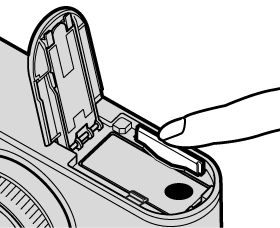
See Fujifilm's X half memory-card handling instructions if you need the exact removal procedure.
Step 2. Do not shoot anything else.
A test photo is still a new file. The camera can write it into space that the newly formatted file system now considers available, even if that space previously belonged to an older image.
Step 3. Do not continue preparing this card for a firmware update.
If accidental formatting happened while you were preparing for Ver.2.00, do not place the firmware file on the affected card. Put the card aside and use a different empty card later, or use the X half App update path after the recovery problem is resolved.
Step 4. Reject additional format, initialize, or repair prompts.
If Windows or macOS says the card must be formatted before use, cancel. Do not run CHKDSK, Disk Utility First Aid, or another repair operation before the missing files are protected. Repair tools are designed to modify structures, which is the opposite of preserving a recovery source.
Step 5. Keep recovered output away from the source card.
Any files you later recover must be saved to the computer or another healthy drive. Never use the formatted X half card as the recovery destination.
Part 3. Check for a Good Copy Before You Scan the Card
Recovery software should not be the first thing you run if the photo already exists somewhere else. X half users often move pictures through the phone app, a card reader, USB-C, or an editing workflow, so check those destinations while keeping the formatted card offline.
Start with the places that are most likely to contain a complete copy:
- X half App gallery or album: Look for images you transferred wirelessly before the format.
- Your phone's Photos or gallery app: Fujifilm says transferred X half images are saved to the phone's default camera roll, with X half albums used for organization.
- Computer import folders: Check Pictures, project folders, dated import folders, and any folder you normally use after a card-reader or USB transfer.
- Editing catalogs: Open the catalog or library you used for the shoot and verify that the actual original files were imported rather than only previews.
- Cloud storage you intentionally use: Check whether the phone or computer copy was synchronized to a service you already configured.
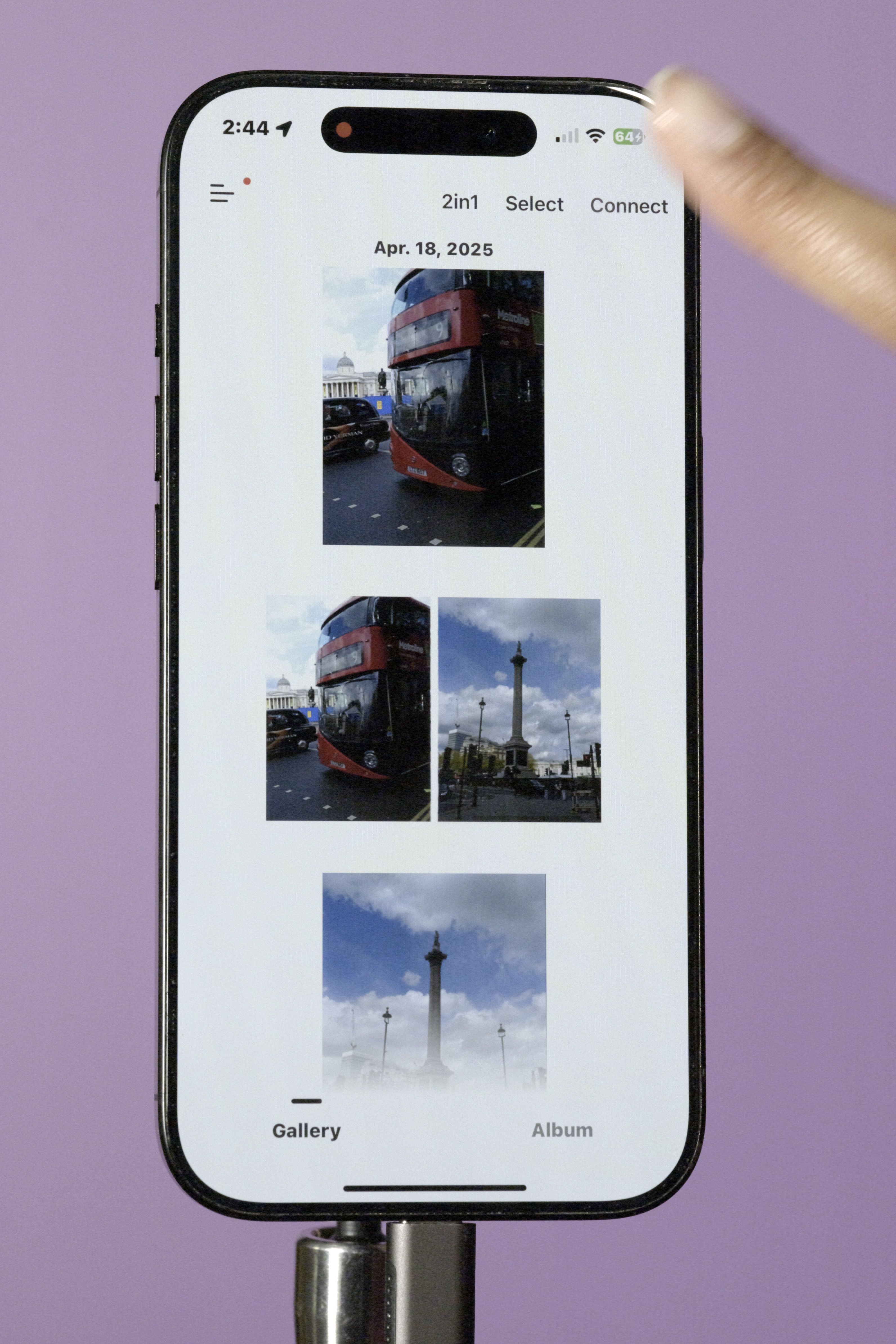
Fujifilm's official X half transfer guide explains app, USB, and card-reader transfer options, including Film Camera Mode rolls.
If you find a complete full-quality copy, make another copy to a healthy drive and stop there. Scanning the formatted card is unnecessary when the data is already safely available elsewhere.
Part 4. Decide Whether Software Recovery Is the Right Next Step
Software recovery is appropriate for a logical data-loss problem on a card that is still stably detected. It is not the right response to a card that is physically failing.
| Current Card Condition | What It Suggests | Safest Next Step |
| Card is detected with a plausible capacity and stays connected | The format may be a logical loss scenario. | Check backups first, then scan the card read-only as much as the tool allows. |
| Card was formatted but nothing new was written afterward | There may be more unchanged storage to inspect than after continued use. | Keep the card unused and scan promptly if no backup exists. |
| Firmware file or new photos were written after formatting | Some previous storage may have been reused. | Stop writing now. A scan may still find unaffected files, but complete recovery is less certain. |
| Card repeatedly disconnects or reports obviously wrong capacity | The problem may extend beyond ordinary formatting. | Stop repeated scans; consider professional recovery for important data. |
| Card is cracked, wet, burned, unusually hot, or physically damaged | This is a hardware-risk scenario. | Do not use ordinary recovery software as a substitute for a professional lab. |
| Multiple known-good readers and computers cannot detect the card | Normal file-recovery software may have no readable source to scan. | Escalate based on the value of the files instead of repeatedly reconnecting it. |
Part 5. Recover X half Photos From the Formatted SD Card
If you have checked existing copies and the missing X half photos are still needed, the card is stably detected by the computer, and you have stopped all new writes, this is the point where Recoverit becomes relevant. Wondershare's current formatted SD card photo recovery workflow is designed for this kind of readable logical-loss scenario.
Recoverit cannot recreate blocks that have already been overwritten, it cannot guarantee every photo will be intact, and it is not a hardware repair tool. If the card is physically unstable, do not keep forcing software scans.

If you are dealing with a different Fujifilm model, deletion rather than formatting, or a camera that records RAF files, the broader Fujifilm camera photo recovery guide covers those adjacent scenarios. This X half article stays focused on the formatted-card path and the model's JPEG and H.264 media.
When Software Recovery Fits This X half Scenario
- The X half card was formatted accidentally: The files disappeared from the camera but the card still appears as storage on the computer.
- The card was formatted during firmware preparation: You realized afterward that JPEG photos or videos had never been backed up.
- A small amount of new data was written after the format: You want to see which unaffected files can still be found, while accepting that overwritten content cannot be restored.
- You need visual confirmation: Preview can help distinguish intact JPEGs from incomplete or unrelated scan results before saving.
How to Scan the Formatted X half SD Card
Step 1. Connect the card through a stable reader and choose SD Card Recovery.
Keep the X half powered off. Insert the formatted card into a reliable card reader, connect it to the computer, and open Recoverit. Select SD Card Recovery, then choose the correct card. If the operating system prompts you to format it again, cancel the prompt.
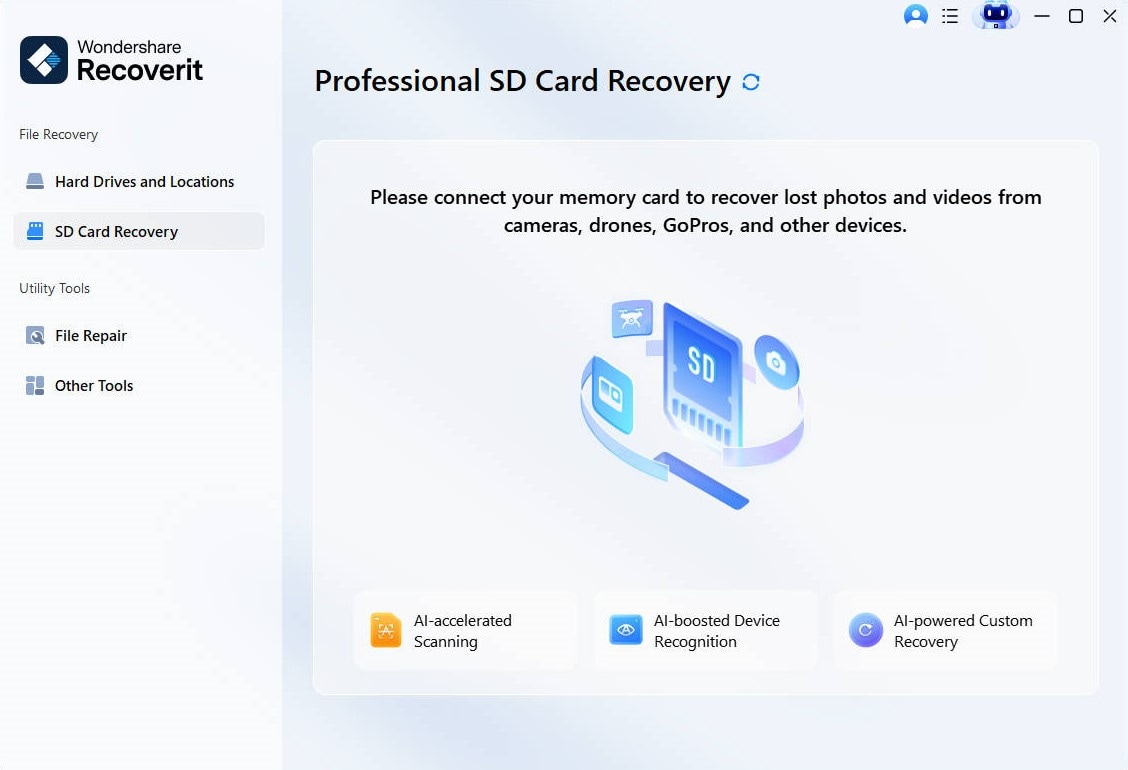
Step 2. Scan the card and filter for X half file types.
Let the scan run without disconnecting the reader. For this camera, prioritize JPG/JPEG for still photos and MOV/MP4 if video is also missing. The X half-specific file-format check matters here: there is no reason to make RAF recovery the center of this scan.

Step 3. Preview supported photos and recover selected files to another drive.
Use preview and filtering to identify the files you actually need. Select the recoverable photos or videos and save them to the computer, an external SSD, or another healthy drive. Do not save them back to the formatted X half card.

After saving, open the recovered files from the destination and make a second copy of irreplaceable work before you do anything to the original card.
Part 6. Why Recovered X half Photos May Lose Names or Look Damaged
A scan can find image content without reconstructing every piece of the original file-system record. That is why formatted-card results can look different from the card before formatting.
- Original names may be missing: Formatting can remove or reset file-system records that stored names and folder relationships, even when some file content remains recoverable.
- Folder structure may not return: Signature-based discovery can find JPEG data without knowing the exact original directory path.
- Some images may preview correctly while others do not: If later writes reused only part of the old storage, some files may remain intact while others are partial.
- A recovered JPEG can be incomplete or visibly damaged: Gray areas, missing sections, or an unopenable file can be consistent with incomplete recovery or overwritten data. Do not assume a second format will improve it.
- Video can be more complicated: Large or fragmented MOV/MP4 files may depend on multiple areas of the card, so a file being found does not guarantee complete playback.
If a file has been recovered but is damaged, preserve the recovered file and the original card first. Work on copies afterward. Recovery and file repair are different jobs; trying to "repair" the source card before recovery can make the underlying data-loss problem worse.
Part 7. Reuse the Card Only After Recovery Is Finished
Do not prepare the affected card for Firmware Ver.2.00 until you have finished recovery, opened the recovered photos from a different drive, and made any second backup you need. Once you are satisfied that the important files are safe, you can decide whether the card itself should return to service.
If the card has behaved normally and the only problem was your accidental format, Fujifilm recommends formatting memory cards in the camera before normal use. On the X half, that means SET UP > USER SETTING > FORMAT. Remember that this command intentionally deletes the card's contents.
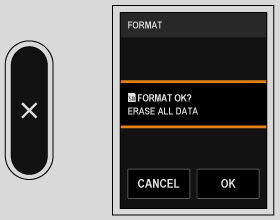
For firmware maintenance, consider using a separate spare card rather than your active shooting card. If the card ever showed disconnects, wrong capacity, heat, corruption, or repeated errors beyond the accidental format, replace or professionally evaluate it instead of trusting it with new irreplaceable work.
Conclusion
An accidental X half format is a preservation problem before it is a software problem. Stop using the card, remove it from the camera, and check whether your phone, X half App, computer, editor, or backup storage already has the photos. If no good copy exists, scan only while the card is stably detected and save anything recovered to another drive.
Do not assume the X half's format behavior is identical to a generic Quick Format just because some formatted cards are recoverable. Fujifilm confirms that its FORMAT command deletes the card's data, while the SD Association separately explains why quick and overwrite formatting have very different recovery consequences. The safest response is to preserve the card and let the actual scan results - not a blanket promise - show what remains.
And keep the recovery target X half-specific: JPEG stills and, where relevant, MOV/MP4 video. Once those files are verified elsewhere, then you can return to card formatting, Firmware Ver.2.00, and normal shooting.
FAQ
-
Can I recover photos after formatting an SD card in a Fujifilm X half?
Possibly. Fujifilm confirms that formatting deletes the card's data from normal camera access, but recoverability depends on what the format changed, whether later writes overwrote older storage, and whether the card is still physically readable. Stop using the card immediately. -
Should I copy the X half firmware file to the card before trying recovery?
No. If the card contains missing photos, copying FPUPDATE.DAT is another write that could replace storage belonging to older files. Preserve the affected card and use another update card later. -
Does the Fujifilm X half shoot RAF RAW files?
Fujifilm's current X half specification lists JPEG for still images and does not list RAF RAW capture. For this model, focus photo recovery on JPG/JPEG; include MOV or MP4 if you also lost video. -
What if I already took new pictures after formatting the X half card?
Stop shooting now. New files can overwrite some previously used storage, but they do not let you predict exactly which older photos were affected. A scan may still find unaffected files if the card is stable and readable. -
Should I run CHKDSK or Disk Utility First Aid before recovery?
No. Recover important files first. Repair operations modify file-system structures and should not be the first step when the priority is preserving missing data from a formatted card. -
When should I stop DIY recovery and use a professional lab?
Stop repeated software attempts if the card is cracked, wet, burned, unusually hot, repeatedly disconnects, reports an obviously wrong capacity, or is not detected by multiple known-good readers. Those symptoms can indicate a hardware problem rather than a simple logical format.


