

 TL;DR:
Always recover your files first using software like Recoverit before attempting to repair a corrupted but detectable micro SD card, as running repair utilities or formatting will permanently alter the file system and overwrite recoverable data.
● Home repair tools like Windows CHKDSK and Mac Disk Utility First Aid can only resolve logical errors such as RAW formats or format prompts; physically broken, overheating, or completely undetected cards require professional lab recovery.
● Before executing software-level repairs, isolate basic connectivity failures by testing a different card reader, checking the adapter lock switch, or manually assigning a new drive letter in Windows Disk Management.
● If corruption returns after rebuilding the file system with the official SD Memory Card Formatter, the hardware suffers from irreversible memory cell wear or fake capacity and must be permanently replaced.
Ask AI for a summary
 ChatGPT
 Perplexity
 Gemini
 Claude
 Grok
Grok
A corrupted micro SD card may show RAW, ask to be formatted, display 0 bytes, lose files, or fail to open on a phone, camera, drone, dash cam, Nintendo Switch, Windows PC, or Mac. If the card contains important photos, videos, documents, or project files, do not format it first.
Quick answer: If your micro SD card is corrupted but still detected, stop using it and recover important files first. Then try safe fixes such as another reader, another device, drive letter assignment, driver reinstall, CHKDSK on Windows, First Aid on Mac, or SD Memory Card Formatter. If the card is cracked, wet, overheating, or not detected by any device, stop DIY repair and consider professional recovery.
In this article
-
- Fix 1. Try The Card In A Different Device, Adapter, Or Card Reader
- Fix 2. Clean the Micro SD Card Contacts Gently
- Fix 3. Check The Adapter Lock Switch
- Fix 4. Assign or Change the Drive Letter in Windows
- Fix 5. Update or Reinstall the Card Reader Driver
- Fix 6. Run CHKDSK Only After Recovering Important Files
- Fix 7. Run Disk Utility First Aid on Mac
- Fix 8. Format The Card With SD Memory Card Formatter After Recovery
- Fix 9. Replace the Card If Corruption Keeps Returning
Part 1. Can a Corrupted Micro SD Card Be Repaired?
Before trying to repair a micro SD card, identify whether the problem is logical corruption or physical damage.
| What You See | Likely Cause | Can You Try Home Repair? | First Safe Step |
| Card asks to be formatted | File system damage | Yes | Recover files first |
| Card shows RAW | Severe file system corruption | Yes, if detected | Recover files first |
| Card shows 0 bytes | Partition error, controller issue, or severe corruption | Maybe | Test another reader, then recover if detected |
| Files are missing | Deleted, hidden, or corrupted directory | Yes | Stop using and scan the card |
| Files open but look corrupted | Incomplete write, bad sectors, or interrupted transfer | Maybe | Recover usable files first |
| Card has no drive letter on Windows | Drive letter conflict | Yes | Assign a new drive letter |
| Card works in camera but not computer | Reader, format, or directory issue | Yes | Copy files through the working device first |
| Card is bent, cracked, wet, or burned | Physical damage | No | Stop DIY repair |
| No device detects the card | Reader failure or physical damage | Maybe | Test another reader; stop if still undetected |
| Card keeps corrupting after format | Wear, fake capacity, or failing memory cells | No long-term fix | Replace the card |
Logical Corruption vs Physical Damage
A corrupted micro SD card can often be repaired when the issue is logical. Physical damage is different and usually cannot be fixed with software.
| Factor | Logical Corruption | Physical Damage |
| Common Causes | Unsafe ejection, interrupted transfer, file system errors, malware, format conflict | Cracks, water, heat, bent card, broken chip, worn memory cells |
| Card Detected? | Usually yes | Rarely or inconsistently |
| Files Accessible? | Sometimes partially | No |
| Home Repair Possible? | Often yes | No |
| Data Recovery Chance | Higher if no new data was written | Lower and often needs a lab |
| What to Do First | Recover files, then repair | Stop using the card |
When a Micro SD Card Can Usually Be Repaired
A micro SD card can often be repaired when:
- It is still detected by a computer or device.
- It asks to be formatted.
- It appears as RAW.
- Files are missing or inaccessible.
- The card has a drive letter issue.
- The card has file system errors.
- The card works in one device but not another.
When A Micro SD Card Cannot Be Safely Repaired At Home
Stop DIY attempts if:
- The card is cracked, bent, burned, or water-damaged.
- The card overheats quickly.
- No computer, phone, camera, or reader detects it.
- The card shows the wrong capacity on every device.
- The card disconnects every few seconds.
- The files are business-critical, legal, or irreplaceable.
Part 2. Before Repairing A Corrupted Micro SD Card: Protect Your Files First
Micro SD card repair tools can change file system structures. If files matter, recover or back them up before repair.
| Step | What To Do | Why It Matters |
| Stop Using The Card | Remove it from the phone, camera, drone, or PC | Prevents overwriting |
| Do Not Format | Ignore format prompts for now | Formatting rebuilds the file system and hides old file records |
| Do Not Save New Files | Avoid new photos, videos, downloads, or app data | Protects recoverable file space |
| Avoid CHKDSK First | Recover files before running repair commands | CHKDSK modifies file system structures when fixing errors |
| Test Another Reader | Try another adapter, slot, or computer | Rules out reader or port issues |
| Recover Files First | Scan the card before repair | Keeps important data safe |
| Recover Files First | Use a PC folder or another external drive | Avoids overwriting the same card |
Part 3. Recover Files From A Corrupted Micro SD Card Before Repairing It
If the micro SD card contains important files, recovery should come before CHKDSK, First Aid, formatting, or SD Card Formatter.
Recoverit Memory Card Recovery is best used when the card is still detected but files are missing, inaccessible, deleted, RAW, formatted, or hidden by corruption. It helps recover files from the card before repair. It does not physically repair broken micro SD hardware.
When Recoverit Is A Good Fit
Use Recoverit when:
- The micro SD card asks to be formatted.
- The card shows RAW.
- Files are missing or deleted.
- The card is detected but cannot open.
- A transfer was interrupted and files disappeared.
- The card was accidentally formatted.
- The card was used in a camera, drone, GoPro, phone, Switch, dash cam, or recorder.
- You need files before CHKDSK, First Aid, or formatting.
When Recoverit May Not Work
Recoverit may not help if:
- The micro SD card is physically broken.
- No device detects the card.
- The card overheats or disconnects instantly.
- The memory chip is damaged.
- The files were overwritten by new data.
What File Types and Memory Cards Recoverit Can Recover
Recoverit recovers over 1,000 file types from virtually every memory card format available. So, below is a quick overview of exploring a few famous and common data types and cards:
| Category | Recoverit Support |
| Images | JPG, JPEG, PNG, GIF, BMP, TIFF, PSD, RAW, ARW, CR2, CR3, NEF, DNG, ORF, RAF, RW2, SR2, and more |
| Videos | MP4, MOV, AVI, MKV, MTS, M2TS, AVCHD, MXF, BRAW, R3D, INSV, 3GP, WMV, FLV, and more |
| Audio | MP3, WAV, AAC, FLAC, AIFF, OGG, WMA, M4A, MIDI, and more |
| Documents | DOC, DOCX, XLS, XLSX, PPT, PPTX, PDF, TXT, RTF, CSV, HTML, and more |
| Archives & Emails | ZIP, RAR, 7Z, TAR, GZ, CAB, ISO, PST, OST, EML, EMLX, MBOX, and more |
| Supported Memory Cards | microSD, SD, SDHC, SDXC, CF, CFast, CFexpress, XQD, MMC, Memory Stick, xD-Picture Card, and more |
How to Recover Files from a Corrupted Micro SD Card
Adhere to the following guide to recover data prior to fixing a corrupted micro SD card:
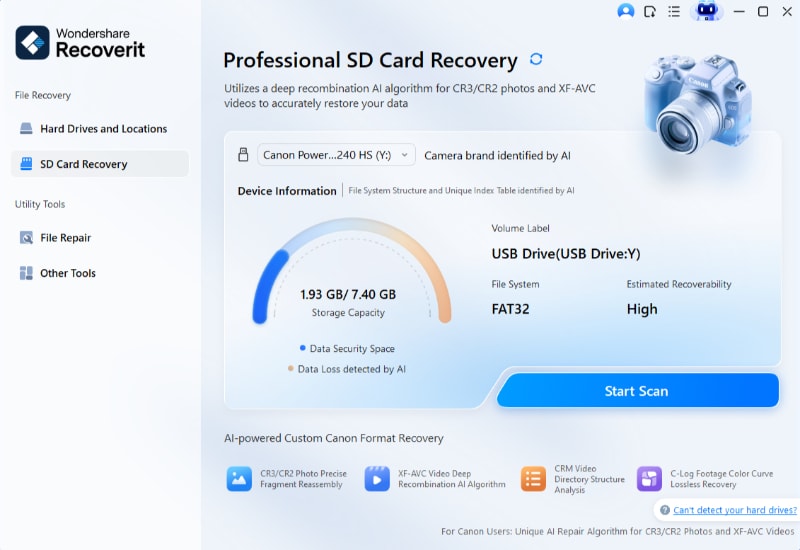
Step 1. Choose Your Corrupted Micro SD Card
From the “SD Card Recovery” tab, choose your corrupt micro SD card for scanning.
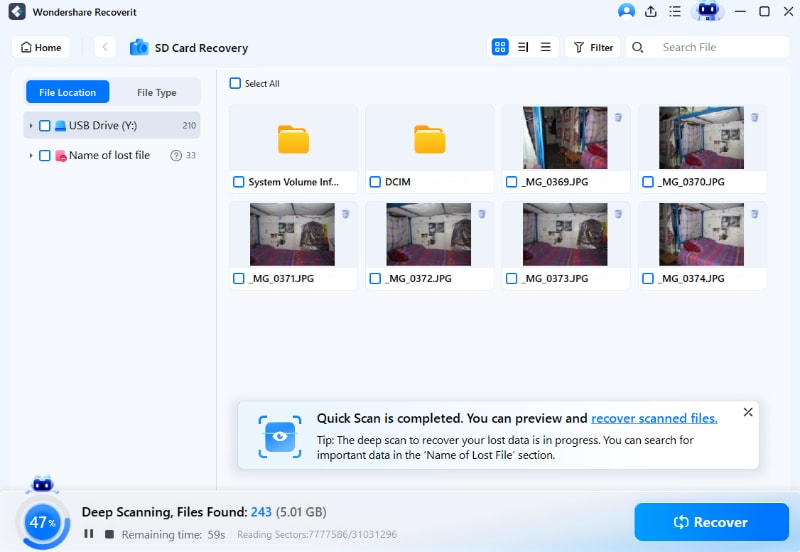
Step 2. Analyze the Card for Lost and Inaccessible Files
This program later scans storage sectors, locating missing files from corruption issues.
Step 3. Check and Restore Data to a Secure Location
You then need to review recovered files and save them elsewhere by pressing “Recover.”

Part 4. Why Micro SD Cards Become Corrupted
A micro SD card can become corrupted for several reasons.
- Unsafe Ejection: Removing a card during file transfer can interrupt writing and damage the file system.
- Power Loss Or Battery Drain: If a camera, phone, drone, dash cam, or console loses power during writing, the card may become unreadable.
- Bad Sectors Or Memory Wear: Micro SD cards have limited write cycles. Older cards can develop unstable storage areas.
- Malware Or Unsafe Devices: Malware may hide, rename, encrypt, delete, or damage files on the card.
- File System Conflict Across Devices: Switching the same card between phones, cameras, PCs, drones, and consoles can create compatibility problems.
- Long 4K Or 8K Recording: High-bitrate recording creates heavy write pressure. Overheating, slow cards, or interrupted recording can cause file damage.
- Counterfeit Or Fake-Capacity Cards: Fake cards may report more storage than they actually have. Once real capacity is exceeded, files may disappear or corrupt.
- Filling The Card Completely: A nearly full card has less space for stable writing and file system updates.
Part 5. How To Repair A Corrupted Micro SD Card After Recovering Files
After your important files are safe, try these repair methods from low risk to advanced.
Fix 1. Try The Card In A Different Device, Adapter, Or Card Reader
Sometimes the micro SD card is fine, but the reader, adapter, USB port, or device is failing.
Try the card in:
- Another card reader
- Another USB port
- Another computer
- The original camera, phone, drone, dash cam, or console
- A different microSD-to-SD adapter
If the card works elsewhere, copy the files first. Then replace the faulty reader or adapter
Fix 2. Clean the Micro SD Card Contacts Gently
Dust or debris on the gold contacts can block detection.
Use a dry microfiber cloth or dry cotton swab. Wipe gently across the contacts. Do not use water, alcohol, or sharp tools.
After cleaning, reconnect the card with a reliable reader.
Fix 3. Check The Adapter Lock Switch
If you use a microSD-to-SD adapter, check the side lock switch. A locked adapter can make the card read-only and may block formatting or repair.
Slide the switch to the unlocked position, reconnect the card, and test again.
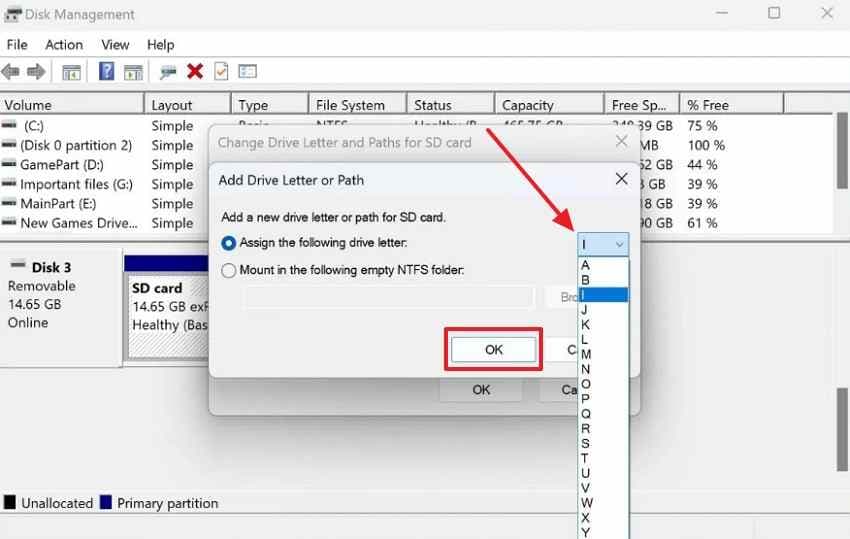
Fix 4. Assign or Change the Drive Letter in Windows
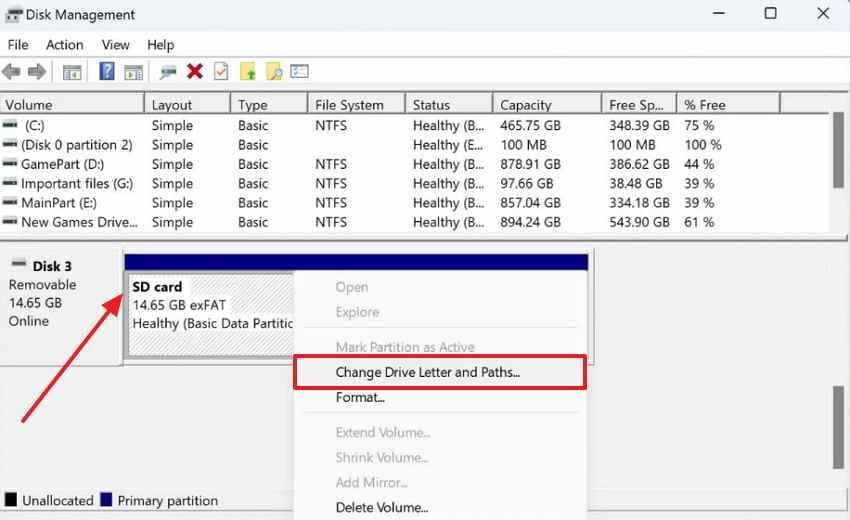
Windows sometimes fails to assign a drive letter to your connected micro SD card. Without a drive letter, your card stays invisible to your system. This simple issue can make people think they need to repair corrupted micro SD card problems. So, follow the steps below to apply this specific fix to your system:
Step 1. From “Disk Management” > Right-click on your microSD card > Opt for “Change Drive Letter and Paths…”
Step 2. Click the “Add…” button to assign a drive letter.
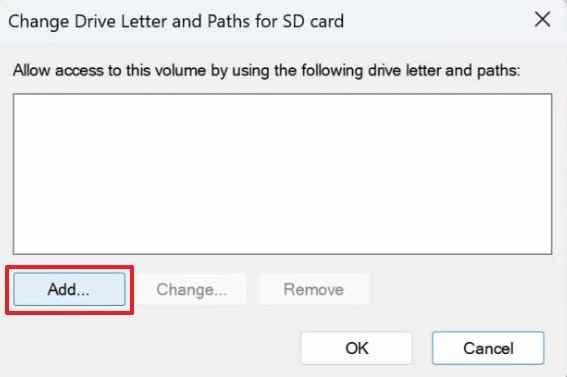
Step 3. Select a different letter from “Assign the Following Drive Letter” > Click “OK” twice.
Fix 5. Update or Reinstall the Card Reader Driver
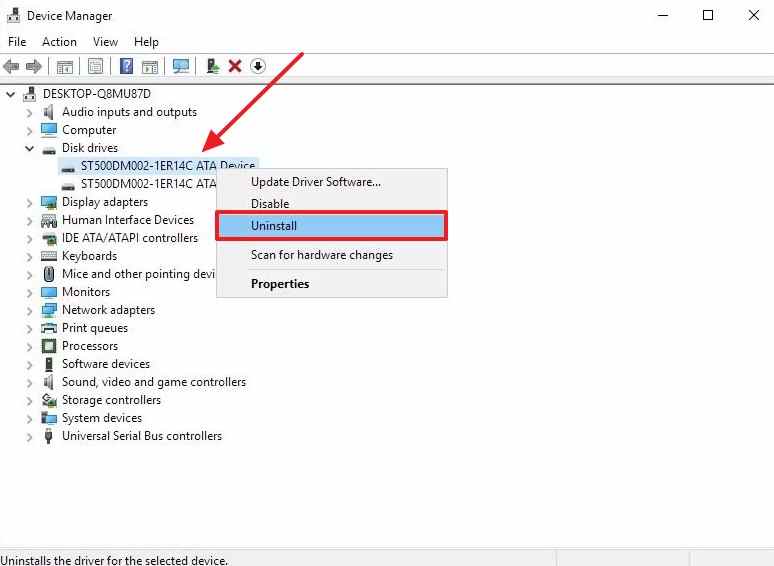
A bad driver may also stop Windows from reading your micro SD card. Your computer needs the correct driver installed to communicate with the card reader. Here, either a driver update or reinstall often restores full card detection on Windows. Go through the steps below to reinstall your card reader driver:
Instructions. Expand “Disk Drivers” upon running “Device Manager” > Right-click the micro SD card > Opt for “Uninstall.” After waiting a few minutes, restart your device and reconnect the card to reinstall the drivers.
Fix 6. Run CHKDSK Only After Recovering Important Files
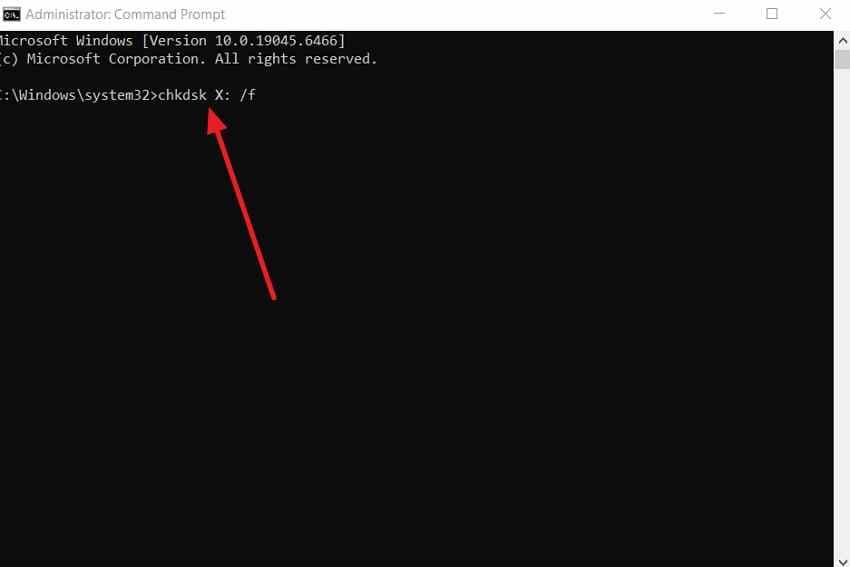
CHKDSK can repair file system errors on a corrupted micro SD card, but it should be used after important files are recovered. It can change file system structures while fixing errors.
If the card is unstable, physically damaged, or contains critical files, do not run repeated CHKDSK attempts. Recover files first or stop DIY repair.
Instructions. Launch “Command Prompt” as admin > Run “chkdsk X: /f” by replacing “X” with your micro SD card drive letter.
Fix 7. Run Disk Utility First Aid on Mac
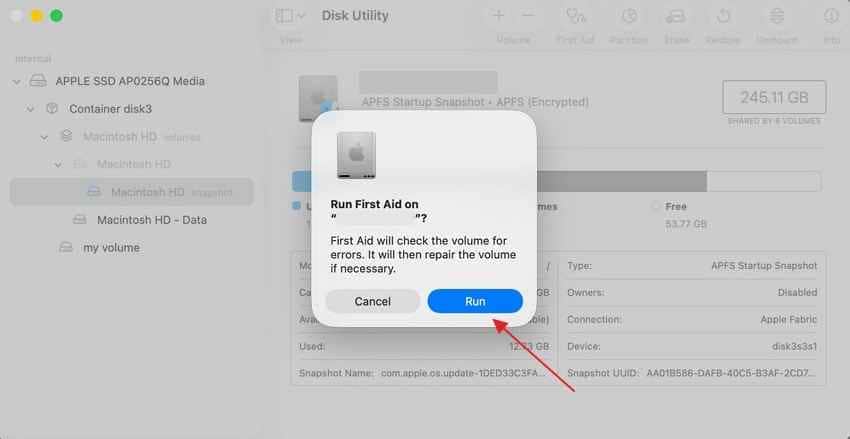
Mac users also have a built-in tool called Disk Utility to fix card errors. First Aid scans your card and repairs detected file system issues. Yet, it works well for logical errors caused by unsafe ejection or disconnection. Thus, follow the basic operational steps to perform this specific solution:
Step 1. Run the “Disk Utility” tool > Choose the micro SD card > Click “First Aid.”
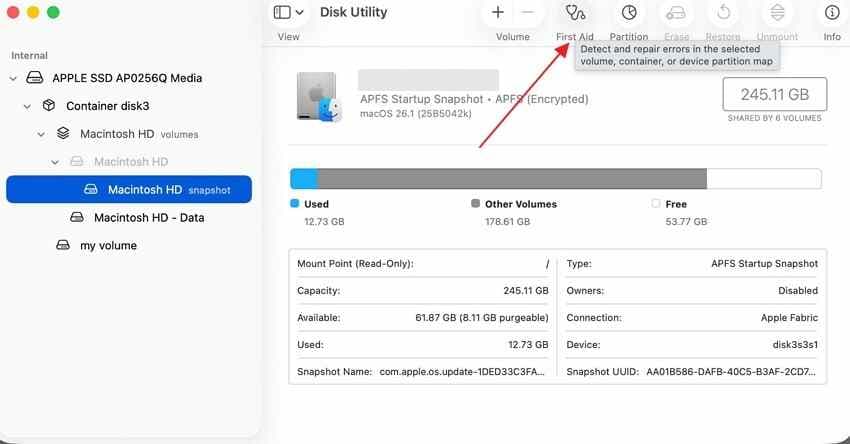
Step 2. Upon seeing the confirmation prompt, press the “Run” button.
Fix 8. Format The Card With SD Memory Card Formatter After Recovery
Formatting can make a corrupted micro SD card usable again, but it erases the card. Only do this after your files are recovered or backed up.
The SD Association provides SD Memory Card Formatter for SD, SDHC, SDXC, and SDUC cards. It is designed to format cards according to SD card file system specifications.
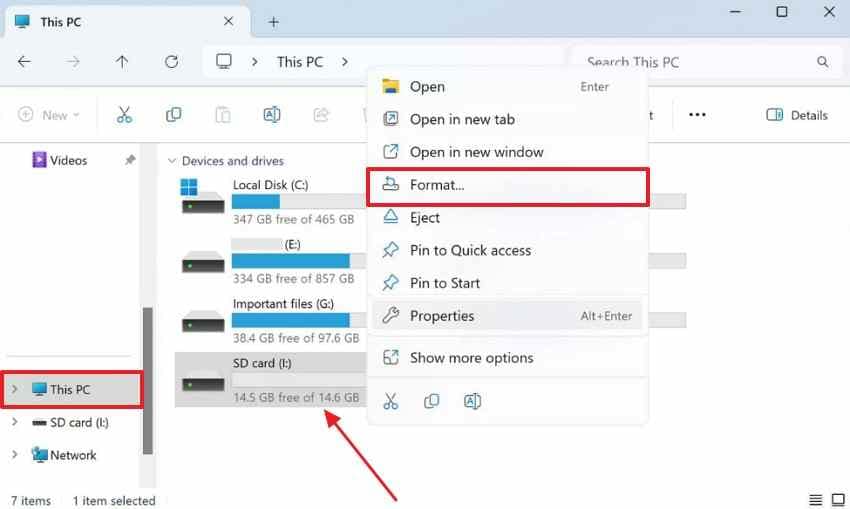
Step 1. From “This PC,” right-click your connected micro SD card > Opt for “Format.”
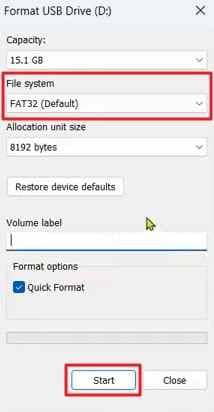
Step 2. Ensure to select the available “FAT32 or exFAT” file system and press “Start.”
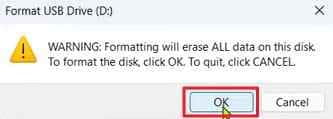
Step 3. As you see the warning prompt, click the "OK” button.
Fix 9. Replace the Card If Corruption Keeps Returning
If the micro SD card corrupts again after formatting, do not trust it for important files. Repeated corruption often suggests wear, bad sectors, fake capacity, or internal memory failure.
Replace the card with a genuine card from a trusted brand. For dash cams, security cameras, drones, and long recording sessions, use a high-endurance or video-rated card.
Part 6. Fix Micro SD Card Corruption Caused by Specific Scenarios
The table below matches your specific micro SD card corrupted scenario to the most effective solution:
| Scenario | Likely Cause | Recommended Fix |
| Corrupted In Camera Or Drone | Unsafe removal or power interruption | Recover files, then format the card in the camera |
| RAW After Sudden Disconnection | Interrupted update or file system corruption | Recover data, then run file system repair or format |
| Phone Asks To Format The Card | File system corruption | Recover files before running CHKDSK or First Aid |
| Corrupted After Switching Devices | File system incompatibility | Back up data, then reformat for the target device |
| Corrupted After Long 4K Recording | Flash memory wear or overheating | Replace with a high-endurance microSD card |
| Nintendo Switch Cannot Read The Card | File system or device compatibility issue | Back up files, then format for Switch if needed |
| Dash Cam Card Keeps Corrupting | Constant overwrite cycles or heat | Replace with high-endurance card |
| Card Shows 0 Bytes | Partition error, controller issue, or severe corruption | Test another reader and recover if detected |
| Card Is Write-Protected | Adapter lock or card error | Unlock adapter; replace card if still locked |
| Files Open As Damaged | Interrupted write or bad sectors | Recover usable files, then replace if errors return |
Part 7. When A Micro SD Card Cannot Be Repaired At Home
Some situations go beyond what any home repair method can do to repair a micro SD card:
- The Card Is Not Detected By Any Device: If multiple computers, readers, phones, or cameras cannot detect the card, software recovery may not work.
- The Card Shows The Wrong Capacity Everywhere: A card showing 0 bytes or the wrong size on every device may have severe partition, controller, or fake-capacity issues.
- The Card Is Physically Damaged: Cracks, bent plastic, damaged contacts, water exposure, or heat damage often require professional recovery.
- The Card Keeps Disconnecting: Frequent disconnects can interrupt recovery and repair tools. Try another reader once, then stop if the issue continues.
- The Card Keeps Corrupting After Format: Repeated corruption means the card is no longer reliable. Replace it instead of storing important files on it.
- Every Repair Tool Fails: If CHKDSK, First Aid, SD Card Formatter, and multiple devices fail, the card may be too damaged for DIY repair.
Part 8. How to Protect Your Micro SD Card from Future Corruption
People should follow these clean storage habits to prevent memory drive system errors:
| Protection Habit | What to Do | Why It Matters |
| Safe Ejection | Eject before removing the card | Prevents file system errors |
| Back Up Files Regularly | Save copies to the cloud or PC | Protects against data loss |
| Avoid Filling Completely | Keep some storage space free | Prevents write failures |
| Store It Safely | Avoid heat, water, and pressure | Extends card lifespan |
| Buy Trusted Brands | Choose genuine branded cards | Improves reliability and durability |
Conclusion
A corrupted micro SD card can often be repaired when the problem is logical, such as a RAW file system, drive letter issue, file system error, or format prompt. However, physical damage, overheating, repeated disconnection, or complete non-detection usually cannot be repaired at home.
If your files matter, recover them before trying repair tools. Recoverit Memory Card Recovery can scan corrupted, RAW, formatted, or unreadable micro SD cards and help save photos, videos, documents, and other files to a safe location. After your files are protected, you can try CHKDSK on Windows, First Aid on Mac, SD Memory Card Formatter, or reformatting.
If the card keeps corrupting after repair, replace it. A repaired card may work again, but a failing card should not be trusted with important files.
FAQs
-
1 Can A Corrupted Micro SD Card Be Repaired?
Yes, if the problem is logical, such as file system corruption, RAW errors, missing drive letters, or formatting problems. Physical damage usually cannot be repaired with software. -
2 How Do I Fix A Corrupted Micro SD Card Without Formatting?
First recover your files. Then try another reader, clean the contacts, assign a drive letter, update the driver, run CHKDSK on Windows, or run First Aid on Mac. Formatting should be the last step. -
3 Should I Run CHKDSK On A Corrupted Micro SD Card?
Run CHKDSK only after recovering important files. CHKDSK can fix file system errors, but it may change file system structures during repair. -
4 Can I Recover Files Before Repairing A Micro SD Card?
Yes. If the card is still detected, use memory card recovery software to scan and recover files before running CHKDSK, First Aid, or formatting. -
11.5 Why Does My Micro SD Card Ask To Be Formatted?
The card may have file system damage, RAW format, partition errors, or unsupported formatting. Do not format it first if files matter. Recover files, then format the card. -
6 How Do I Fix A RAW Micro SD Card?
Recover files from the RAW micro SD card first. After recovery, use CHKDSK if Windows assigns a drive letter, or format the card with SD Memory Card Formatter to rebuild the file system. -
7 Can A Physically Damaged Micro SD Card Be Repaired?
Usually no. If the card is cracked, wet, burned, bent, or not detected by any device, stop DIY attempts and contact a professional recovery service. -
8 Why Does My Micro SD Card Keep Corrupting?
Repeated corruption may be caused by bad sectors, fake capacity, overheating, frequent unsafe removal, device compatibility issues, or a worn-out card. Replace the card if corruption returns after formatting. -
9 Should I Use SD Card Formatter Or Windows Format?
Use SD Memory Card Formatter when you want to reformat an SD, SDHC, SDXC, or SDUC card according to SD card specifications. Windows Format can work, but SD Card Formatter is designed specifically for SD cards. -
10 When Should I Replace A Micro SD Card?
Replace the card if it keeps corrupting, shows the wrong capacity, disconnects often, becomes extremely slow, overheats, or fails after formatting. Do not store important files on an unstable card.


