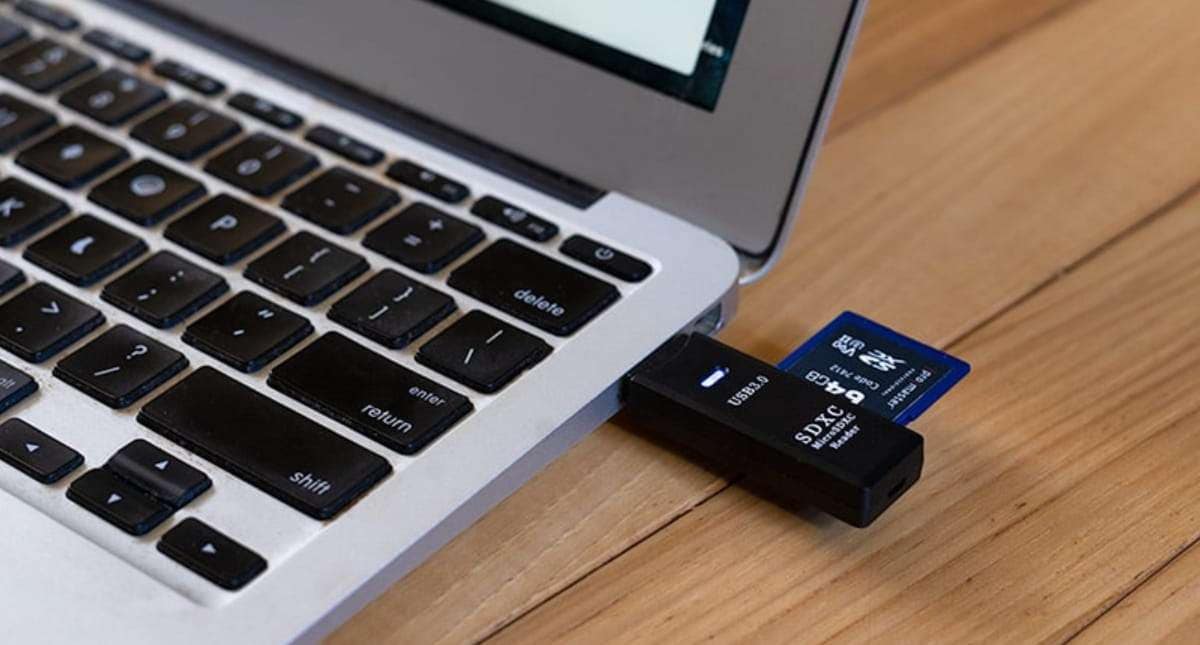


 TL;DR:
To safely rescue missing files from a memory card on a Mac, immediately stop using the card to prevent data overwriting, bypass repair tools like Disk Utility First Aid, and scan the media with a dedicated recovery tool before saving the extracted files to a completely separate drive.
● Choose Wondershare Recoverit for a guided interface with file previews and extensions filters for accidental deletion or formatting, or use the free PhotoRec tool if you are comfortable with a Terminal interface and accept losing original filenames; rely on Mac Trash, Photos Recently Deleted, or Time Machine only if the missing files were previously imported to your computer.
● Always save the recovered RAW photos, videos, and documents to your Mac drive or an external SSD rather than the affected memory card, and strictly reserve Disk Utility First Aid for fixing directory structure errors after the file recovery is fully verified.
● Software recovery requires the Mac or card reader to successfully detect the device; if the SD, microSD, CF, or camera card is physically cracked, overheats, repeatedly disconnects during a scan, or remains totally unrecognized, cease all DIY attempts to prevent further damage and consult a professional data recovery lab.
Ask AI for a summary
 ChatGPT
 Perplexity
 Gemini
 Claude
 Grok
Grok
Quick answer: to rescue memory card files on a Mac, remove the SD, microSD, CF, or camera card from the device, do not format or run First Aid first, and save recovered files to your Mac or another drive. Check Trash, Photos Recently Deleted, and Time Machine only if the files were deleted or backed up on the Mac. If the files are missing from the card itself after deletion, formatting, corruption, or a camera error, scan the card with a recovery tool such as Recoverit or PhotoRec before repairing or reformatting it.
Lost photos, videos, RAW files, or documents from a memory card on Mac? Stop using the card first. This guide shows the safest recovery order for deleted, formatted, corrupted, unreadable, and camera-used cards, with clear steps for Recoverit, Trash, Photos Recently Deleted, Time Machine, PhotoRec, Disk Utility First Aid, and professional recovery.
This page is focused on Mac memory card recovery. If your main goal is to compare tools, use a dedicated Mac SD card recovery software guide. If the only issue is accidental formatting, the narrower formatted SD card recovery guide is a better match.
Recover Memory Card Files on Mac With Recoverit
 Security Verified. Over 7,302,189 people have downloaded it.
In this article
Part 1. Which Mac Memory Card Recovery Method Fits Your Case?
Memory card file loss on Mac is not one single problem. A deleted photo in the Photos app, a formatted SD card from a camera, a corrupted exFAT card, and a physically damaged microSD card all need different handling. Start with the table below instead of trying random fixes.
| Your symptom on Mac | What it usually means | Best first move | What to avoid |
| Files were deleted after importing to Mac | The files may be in Trash, Photos Recently Deleted, or a backup. | Check Trash, Photos, and Time Machine first. | Do not scan the memory card if the missing copy was only on the Mac. |
| Files disappeared from the card after accidental deletion | Deleted data may still be on the card until overwritten. | Stop using the card and scan it. | Do not record new photos or videos on the card. |
| The memory card was formatted in a camera or on Mac | The file index may have been reset. | Use a deep recovery scan before saving anything to the card. | Do not format again or copy test files to it. |
| macOS asks to initialize, erase, or format the card | The file system may be unreadable or damaged. | Cancel the prompt and recover files first. | Do not click Erase if the files matter. |
| Finder shows an empty card but Disk Utility detects it | Files may be hidden, directory records may be damaged, or the card may need recovery. | Check hidden files, then scan if files still do not appear. | Do not run repair before important files are recovered. |
| The card disconnects, overheats, is cracked, or is not detected anywhere | The media may be physically failing. | Stop DIY attempts and consider a professional lab. | Do not run repeated scans on unstable media. |
The most common memory cards used with Mac workflows are SD, microSD, SDHC, SDXC, CF, CFexpress, XQD, Memory Stick, and camera cards from Canon, Nikon, Sony, Fujifilm, DJI, GoPro, Insta360, and dash cams. The brand matters less than the condition of the card and whether new data has overwritten the lost files.
Part 2. Before Recovery: Protect the Memory Card First
Your first actions can preserve or destroy recoverable data. Follow these steps before opening any recovery app, Disk Utility repair, or Terminal command.
- Remove the card from the device: stop shooting, recording, downloading, or saving files to the card.
- Cancel format prompts: if macOS asks to initialize, erase, or format the card, click cancel.
- Use a reliable card reader: connect the card directly to your Mac or a stable hub. Unstable adapters can interrupt long scans.
- Do not run First Aid first if files matter: Disk Utility First Aid is a repair tool, not a file recovery tool. Recover files first when the card contains important data.
- Do not use
diskutil repairDiskas recovery: it can attempt repair, but it does not carve lost photos, videos, or documents from a formatted card. - Save recovered files elsewhere: use your Mac drive, an external SSD, or another healthy storage device. Never save recovered files back to the same memory card.
- Prioritize high-value files: recover original RAW photos, project videos, and irreplaceable folders before less important files.
Part 3. Recover Memory Card Files on Mac With Recoverit
Wondershare Recoverit for Mac is a visual recovery option for users who want to scan a readable memory card, filter by file type, preview recoverable files, and save results to another drive. It is suitable for logical data loss cases such as deletion, accidental formatting, corrupted directories, camera card errors, and missing photos or videos after transfer.
Recoverit cannot repair a physically damaged memory card, guarantee recovery, or recover overwritten data. Its role is to scan readable storage before risky repair, erasing, or reformatting.
When Recoverit is the right first step
| Good fit | Why |
| You deleted files from an SD or microSD card and Trash is empty. | A scan may find recoverable file records or file signatures if the card was not overwritten. |
| The card was formatted by mistake. | Deep scanning is more appropriate than Time Machine if the files were never backed up to your Mac. |
| The card holds mixed file types. | Recoverit can help search for photos, RAW files, videos, documents, audio, archives, and project assets. |
| You need preview and filters. | Preview and file filters are useful when a card contains many camera sessions or old files. |
| The card is cracked, burned, or not detected by any Mac or reader. | Not a good fit. Stop scanning and consider a recovery lab. |
How to rescue memory card files with Recoverit for Mac
- Connect the memory card: insert the SD, microSD, CF, or camera card into a reliable reader and connect it to your Mac. Cancel any prompt that asks to erase or initialize the card.
- Launch Recoverit: open Recoverit for Mac and choose the memory card from the available storage devices.
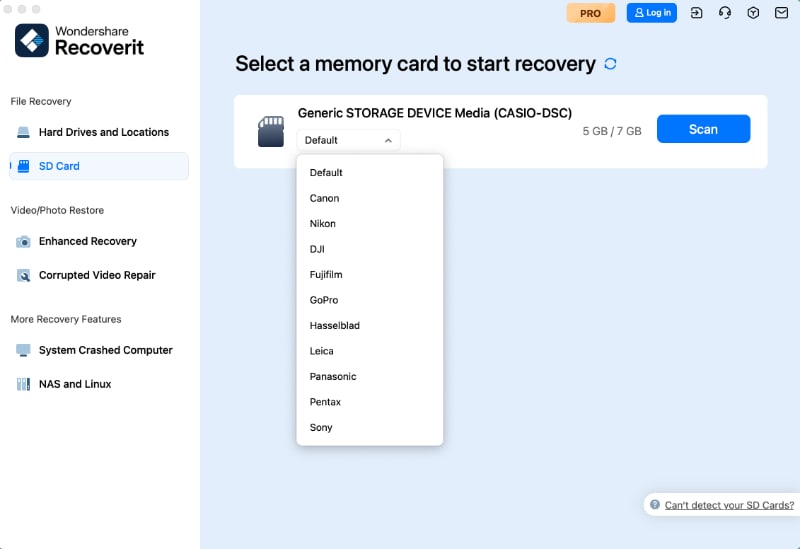
- Start scanning: click Scan. Keep the card connected until the scan finishes.
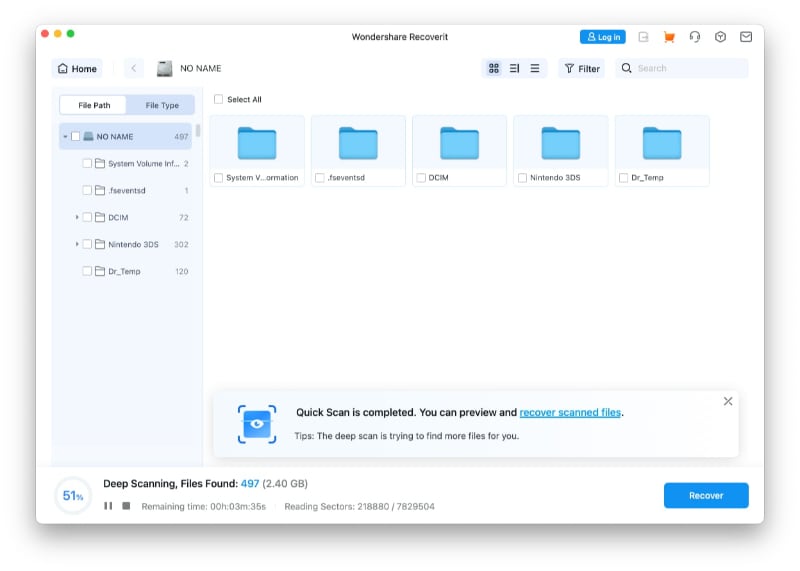
- Filter file types: narrow the results by extension or category, such as
.jpg,.png,.dng,.cr2,.cr3,.nef,.arw,.mov,.mp4,.wav,.docx, or.pdf. - Preview important files: check whether the found photos, videos, and documents open correctly before recovery.

- Recover to another drive: save recovered files to your Mac or an external drive, not to the same memory card.
- Verify the files: open key photos, play videos, and check document sizes before formatting or reusing the card.
If your project is photo-heavy, see photo recovery. If the card contains large MOV, MP4, action-camera, drone, or 4K/8K clips, see video recovery.
Recover Memory Card Files on Mac With Recoverit
Security Verified. Over 7,302,189 people have downloaded it.
Part 4. Free Mac Checks Before Scanning the Card
Free built-in checks are worth trying when the missing files were deleted from your Mac or backed up before the memory card problem. They are not a substitute for scanning a formatted or corrupted card.
Check Mac Trash
Use this method if you imported files from the memory card to your Mac and then deleted those Mac copies. Trash cannot recover files that only existed on the memory card and were deleted or formatted there.
- Open Trash: click the Trash icon in the Dock.
- Search for imported files: look for camera folders, filenames, extensions, or project folders copied from the memory card.
- Restore files: right-click the files you need and choose Put Back, or drag them to a safe folder.
- Back up restored files: copy important files to another location before working with the card again.
Check Photos Recently Deleted
If the missing photos or videos were imported into Apple's Photos app and then deleted, check Recently Deleted. Apple states in its Photos User Guide that deleted photos and videos remain in Recently Deleted for 30 days before permanent deletion.
- Open Photos: launch the Photos app on your Mac.
- Open Recently Deleted: choose Recently Deleted under Utilities in the sidebar.
- Unlock if required: use Touch ID or your Mac login password if Photos asks you to unlock the album.
- Recover items: select the photos or videos and click Recover.
- Export a backup: export important recovered media to another drive if the memory card is still unstable.
Restore from Time Machine
Time Machine can restore items that were backed up from your Mac. It is useful if the memory card files were copied to a Mac folder before deletion, formatting, or card failure. It cannot restore files that only existed on the card and were never included in a backup.
- Connect the backup disk: attach your Time Machine backup drive or connect to the network backup location.
- Open the original folder: open the Mac folder where the memory card files were copied, such as Pictures, Movies, Documents, or a project folder.
- Enter Time Machine: open Time Machine with Spotlight or from the menu bar.

- Choose a backup date: use the timeline to go back to a version before the files disappeared.
- Restore files: select the files or folder and click Restore.

Part 5. Use PhotoRec for Free Memory Card Recovery on Mac
PhotoRec is a free, open-source recovery tool from CGSecurity. Its official documentation explains that PhotoRec ignores the file system and searches for underlying data, so it can work when a file system is damaged or reformatted. It also uses read-only access for the source drive or memory card, and users should not save recovered files to the same media.
PhotoRec is powerful, but it is not beginner-friendly. It may recover files without original filenames or folder structure. Use it if you are comfortable with Terminal-style interfaces and can sort recovered files afterward.
- Download PhotoRec: download TestDisk and PhotoRec from CGSecurity and extract the package on your Mac.
- Open Terminal: go to Applications > Utilities > Terminal.

- Launch PhotoRec: navigate to the extracted folder and run
sudo ./photorec. - Select the memory card: choose the SD, microSD, CF, or camera card from the device list and select Proceed.

- Choose the partition: select the partition that contained the lost files. If the card was formatted, choose the most relevant detected partition.
- Select the scan scope: choose Whole for formatted or corrupted cards, or Free for recently deleted files if the file system is still readable.

- Choose a destination: select a folder on your Mac or another external drive. Do not select the same memory card.

- Wait for the scan: PhotoRec shows recovered file counts as it works. Do not disconnect the card during recovery.

- Sort recovered files: review the output folders and sort by file type, size, date clues, and media preview.
Part 6. Use Disk Utility First Aid After Recovery
Disk Utility First Aid can check and fix errors related to formatting and directory structure. Apple also notes that Disk Utility cannot detect or repair all disk problems, and if it reports that a disk is about to fail, users should back up data and replace the disk. For a memory card containing important files, the safer order is recovery first, then First Aid.
- Recover or back up files first: use Recoverit, PhotoRec, Time Machine, Trash, or another backup path before repair.
- Open Disk Utility: go to Applications > Utilities > Disk Utility.

- Show all devices: choose View > Show All Devices.
- Select the card: choose the card volume, container, or physical device in the sidebar.
- Run First Aid: click First Aid, then click Run and follow the onscreen instructions.
- Decide whether to retire the card: if errors return, the card disconnects, or transfer speeds become unstable, replace it.
Do not use Erase or reformat the card until recovered files have been verified and backed up. If you need a formatting workflow later, use the related memory card format guides below.
More related articles from this page:
- Memory Card Format Guide: Fix Errors & Use SD Card Formatter
- How to Format Corrupted SD Card: The Best Options to Try
- A Step-by-Step Guide on How to Format an SD Card on Windows
- How to Format Memory Card?
Part 7. When to Stop DIY and Use a Recovery Lab
Software recovery is appropriate only when the memory card is readable enough for macOS or a recovery app to scan. Stop DIY attempts if the card shows physical or electrical symptoms.
| Stop DIY if you see this | Why it matters |
| The card is cracked, bent, burned, or water-damaged. | Physical media damage needs lab equipment and controlled handling. |
| The card disconnects during every scan. | Repeated reads may worsen unstable storage. |
| No Mac, camera, reader, or Disk Utility view detects the card. | Consumer recovery software needs a detectable device. |
| The lost files are legally, professionally, or financially critical. | A lab evaluation may be safer than repeated experiments. |
If you contact a recovery service, do not format the card, do not run more repair commands, and do not try to open the card housing. Keep the card in a protective case and describe exactly what happened.
Part 8. Prevent Memory Card File Loss on Mac
After you rescue the files, improve the workflow that caused the loss. These habits are especially important for camera, drone, GoPro, dash-cam, and creator projects.
- Use a two-copy rule before formatting: keep one copy on your Mac and another on an external SSD, NAS, or cloud backup.
- Verify imports: check file counts, open several photos, and play key videos before erasing the card.
- Format in the recording device: cameras and drones often create their preferred folder structures when they format the card.
- Do not fill cards to 100%: leaving free space reduces transfer and file-system stress.
- Retire unreliable cards: replace cards that produce repeated format prompts, slow writes, missing clips, or random disconnects.
- Use the right card class: high-bitrate 4K/8K, RAW, Log, burst-photo, and action-camera recording need appropriate card speed ratings.
- Eject safely: use Finder eject before removing the card from your Mac.
- Keep card sets organized: separate empty cards from used cards during shoots so you do not format the wrong one.
Part 9. Final Verdict
To rescue memory card files on Mac, the safest order is clear: stop using the card, check Mac-only recovery locations if files were imported or backed up, scan the card if files were deleted, formatted, corrupted, or missing from the card itself, and run repair or format only after recovery.
Recoverit is the easier route for users who want a guided Mac recovery workflow with preview and filters. PhotoRec is the stronger free technical option when you can accept a text interface and possible loss of original filenames. Time Machine, Trash, and Photos Recently Deleted are useful only when those Mac locations actually contain previous copies. Disk Utility First Aid belongs after file recovery, not before it.
FAQ
-
Can I rescue files from a formatted memory card on Mac?
Yes, often, if the card was quick formatted and has not been reused. Stop using the card immediately, scan it with recovery software, and save recovered files to another drive. Recovery is much less likely after overwrite formatting, secure erase, or heavy new recording. -
Can Disk Utility First Aid recover deleted memory card files?
No. First Aid checks and repairs file system and directory problems. It is not designed to recover deleted or formatted files. Use recovery software or backups first, then run First Aid if the card still needs repair. -
Can Time Machine restore files from an SD card?
Only if the files were copied to your Mac and included in a Time Machine backup before loss. Time Machine does not scan the memory card itself for deleted or formatted files. -
Is PhotoRec safe for Mac memory card recovery?
PhotoRec is a legitimate open-source recovery tool from CGSecurity and uses read-only access for the source drive or memory card. However, it is technical and may recover files without original names or folder paths. -
Can I recover Sony, Canon, Nikon, DJI, GoPro, or Insta360 memory cards with the same Mac method?
Usually yes, if the card is a removable storage card that your Mac or card reader can detect. The recovery method depends more on deletion, formatting, corruption, overwriting, and physical condition than on the camera brand. -
Should I save recovered files back to the memory card?
No. Always save recovered files to your Mac or another healthy external drive. Saving to the same memory card can overwrite data that has not yet been recovered. -
What if my memory card is not detected by Mac at all?
Try another reader, another USB port, and Disk Utility's device view. If no Mac, camera, or reader detects the card, software recovery may not work. Stop repeated attempts and consider a professional data recovery lab for valuable files.


