

 TL;DR:
To safely diagnose a Nintendo Switch that cannot read a microSD card, completely power off the console and test the media in a computer to isolate whether the hardware fault lies with the card or the internal reader.
● Game-save data remains permanently stored in the console's System Memory, but you must back up or use software to recover unique screenshots and gameplay videos to a separate computer drive before formatting an unrecognized card.
● The original Nintendo Switch, Switch Lite, and OLED models require an initial system update to mount high-capacity microSDXC cards, whereas the Nintendo Switch 2 strictly requires a microSD Express card for downloading games and standard expansion storage.
● If multiple compatible, known-good cards fail to read inside the console, the internal reader is likely faulty and requires official Nintendo service, but if only the original card fails across multiple independent readers, the card itself is failing and must be replaced.
Ask AI for a summary
 ChatGPT
 Perplexity
 Gemini
 Claude
 Grok
Grok
Quick answer: If your Nintendo Switch is not reading an SD card, power the console off before reseating the microSD card, confirm that the card standard matches the console, and test the card in a computer. If one compatible card fails everywhere, suspect that card. If several known-good compatible cards fail only in the same console, suspect the card reader. Do not format a card containing irreplaceable screenshots or captured videos until you have copied or attempted to recover them.
Nintendo Switch, Nintendo Switch Lite, and Nintendo Switch - OLED Model use microSD-size cards, not full-size SD cards. Nintendo Switch 2 changes the rule: downloadable software and normal expanded storage require a microSD Express card. A standard microSD card from an original Switch has only a limited import role on Switch 2. Mixing those standards can make a healthy card look unsupported.
The safest diagnosis is not a long list of random fixes. It is a two-device test: find out whether the problem follows the card or stays with the console. That distinction tells you whether to preserve files and replace the card, update the system, or arrange Nintendo service.
One reassurance applies across the Switch family: game-save data is stored in System Memory, not on a microSD or microSD Express card. Screenshots and captured videos can be on the card, however, and those may not be downloadable again. This guide therefore puts data protection before formatting.
Need the Screenshots Before You Format?
If a computer still detects the microSD card but photos or videos are missing, Wondershare Recoverit Memory Card Recovery can scan the card for recoverable media. It cannot scan Nintendo Switch System Memory or repair a failed card reader.
In this article
Part 1. Why Your Nintendo Switch Is Not Reading the microSD Card
A card-detection error has three broad sources: the removable card, the console, or a mismatch between them. The screen message alone rarely identifies which one. The most useful evidence is whether the same card works in another reader and whether another compatible card works in the console.
The Short Answer: Card, Console, or Compatibility Problem
A card that fails in the Switch but opens normally on a computer is not automatically healthy. The computer proves that some communication is possible; it does not prove that the card has the right standard, a clean file system, stable reads, or a format the console accepts. Conversely, a card that fails in two independent readers is much more likely to have a card-level fault than a Nintendo software problem.
Use a known-good test card only when it is compatible with that exact console. A standard microSDXC card is a valid test for Nintendo Switch, Lite, or OLED after the required system update, but it is not a valid expansion-storage test for Switch 2. Switch 2 requires the microSD Express standard.
Quick Diagnosis Table: What Each Detection Result Means
| What you observe | What it suggests | Is formatting the next step? | Best first action |
| The card opens on a computer but not on the Switch | Compatibility, update, file-system, seating, or console-reader issue | No | Copy readable media, confirm the card standard, update the console, and test a known-good compatible card |
| The card fails in the Switch and in more than one computer reader | Card, controller, or physical-media failure | No | Stop repeated writes; consider recovery if the card is detected at the disk level |
| Another compatible card works in the same console | The original card is faulty, corrupted, counterfeit, or incompatible | Only after protecting files | Recover or copy the original card, then replace or format it |
| Several known-good compatible cards fail in the same console | Console slot, reader, or related hardware problem | No | Follow Nintendo's service path |
| A computer asks to format the card | The computer sees the device but cannot mount its current file system normally | No | Cancel the prompt and recover important media first |
| Switch 2 rejects a standard microSD card for downloads | The wrong card standard is being used | No | Use a genuine microSD Express card for expansion storage |
The table is a routing tool, not a health certificate. A marginal card may work intermittently, and a counterfeit card may report a false capacity before failing under load. If files matter, copy them while reads are stable rather than continuing to test the card for hours.
What the microSD Card Stores - and What It Never Stores
Nintendo's current Data Management FAQ says Switch game-save data stays in the console's System Memory and cannot be saved or copied to a microSD card. That remains true whether the software is physical or downloaded.
| May be stored on the card | Not stored on the card |
| Downloaded software | Game-save data |
| Software update data and DLC | User profiles and Nintendo Accounts |
| Screenshots saved or moved to the card | Account purchase history |
| Captured gameplay videos saved or moved to the card | Core console settings |
This distinction changes the recovery priority. Downloaded software can normally be redownloaded using the same Nintendo Account. A one-off screenshot or video may exist nowhere else. Back up the media, not the replaceable game installation, before you erase the card.
Nintendo Switch vs Nintendo Switch 2: Do Not Mix the Card Requirements
The original Switch family and Switch 2 share a slot shape but not the same expansion-storage requirement. Nintendo's microSD Express FAQ says any microSD Express card up to 2 TB can be used on Switch 2 after the required first-use system update.
| Requirement | Nintendo Switch, Lite, and OLED | Nintendo Switch 2 |
| Normal expansion storage | microSD, microSDHC, or microSDXC | microSD Express |
| Maximum supported capacity | Up to 2 TB | Up to 2 TB |
| System update requirement | Required to use microSDXC | Required the first time a microSD Express card is used |
| Standard microSD card from an original Switch | Normal supported storage | Can load original Switch screenshots and videos for import; not normal expansion storage |
| Game-save data | System Memory only | System Memory only |
Nintendo's current compatibility page is precise: a standard microSD card previously used with a Switch can let Switch 2 load captured screenshots and videos, but it cannot save or load digital games. For broader context on the bus and labeling, see the Recoverit explainer on SD Express and microSD Express.
Part 2. What to Do Before Any Fix
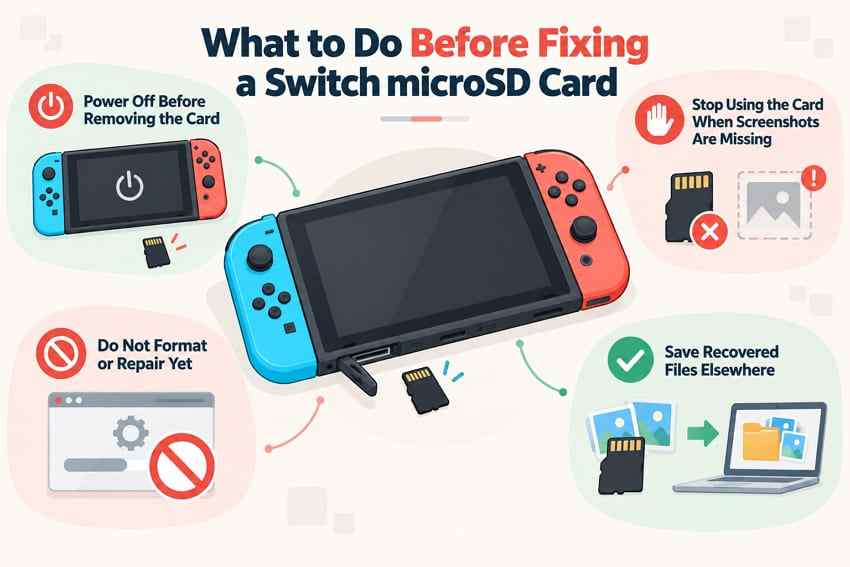
The wrong first action can turn a detection problem into permanent loss. Work through these precautions before you repair, reformat, or repeatedly reconnect a card:
- Power the console off before removing or reinserting the card. Nintendo says to shut the console down, not leave it running or in Sleep Mode. Removing a mounted card during a write can corrupt files or trigger a restart prompt.
- Stop using the card if screenshots or videos are missing. New downloads, updates, captures, formatting, and repair operations can overwrite storage that still contains recoverable media.
- Do not format, initialize, repair, or run CHKDSK before recovery. If Windows says the card must be formatted, cancel. File-system repair changes metadata; it is not a data-recovery operation and may remove entries a recovery tool could otherwise use.
- Copy readable files before deeper tests. If File Explorer or Finder opens the card, copy irreplaceable screenshots and videos to a healthy drive first. Do not assume the next read will succeed on an unstable card.
- Prepare a different recovery destination. Never save recovered files back to the affected microSD card. Use the computer's internal drive or, preferably, another physical storage device with enough free space.
- Do not insert tools or liquid into the slot. A visual inspection is enough for home troubleshooting. Visible contamination or physical damage is a service issue, not an invitation to scrape the contacts inside the console.
Nintendo's current not-recognized procedure also puts shutdown before card removal. The support page warns that screenshots and videos should be backed up before formatting and that multiple unreadable cards point toward service.
Part 3. Check microSD Compatibility and Installation
Compatibility errors can look exactly like corruption. Before judging the card or slot, read the label, match the standard to the console, and account for the update required by higher-capacity or Express media.
Supported Cards for Nintendo Switch, Switch Lite, and OLED Model
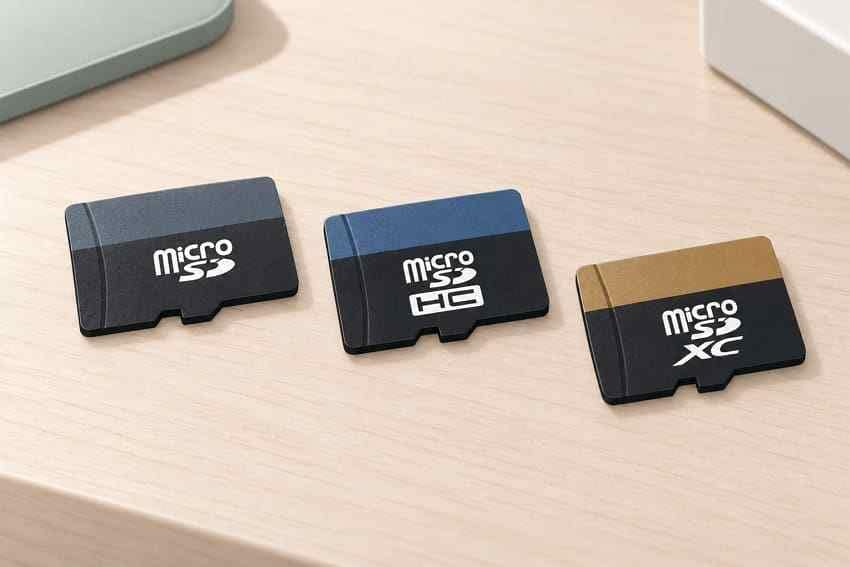
Nintendo Switch, Nintendo Switch Lite, and Nintendo Switch - OLED Model support microSD up to 2 GB, microSDHC from 4 GB to 32 GB, and microSDXC from 64 GB to 2 TB. A full-size SD card or miniSD card does not fit the console's slot directly.
Nintendo's current Australian support page recommends a UHS-I-compatible microSD card with a transfer speed of 60-95 MB/s for a better gameplay experience. That is a performance recommendation, not a promise that every card displaying a fast marketing number is genuine or healthy. Check the card itself and packaging for the standard and capacity, and buy from a reputable seller.
For the source specification, see Nintendo's supported microSD card guidance.
Why microSDXC Requires a Console System Update
A microSDXC card can be physically seated correctly and still remain unavailable until the console installs the required system update. Nintendo documents that update requirement in its microSD recognition instructions. Connect the console to the internet, update it without the problematic card if necessary, shut it down, and then reinsert the card.
Do not confuse capacity with speed class. microSDXC describes the capacity family; UHS-I and speed markings describe interfaces or performance classes. A card can be microSDXC and UHS-I at the same time.
Nintendo Switch 2 Requires microSD Express for Games and Downloads
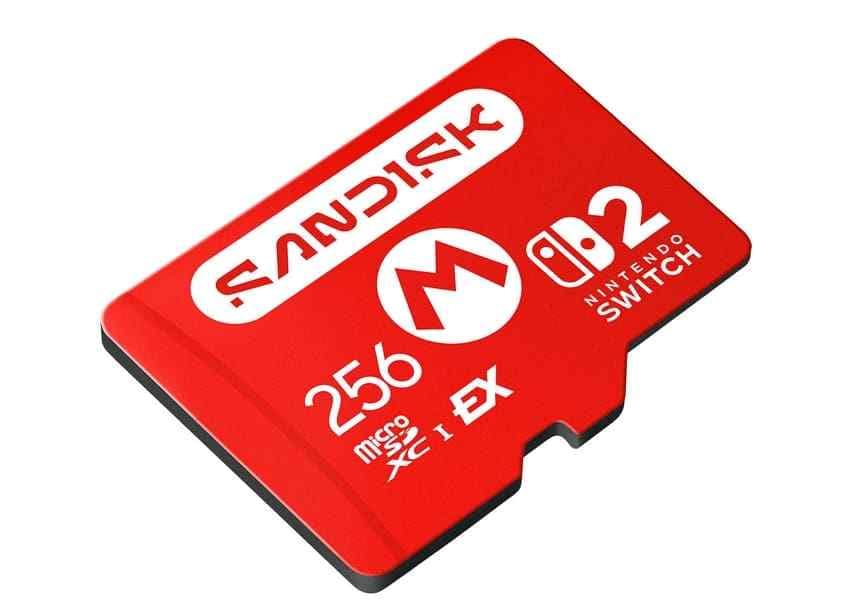
Nintendo Switch 2 requires microSD Express for downloadable games, DLC, software updates, screenshots, videos, and other normal card-storage operations. Standard microSD, microSDHC, or microSDXC cards that lack the Express standard are not substitutes, even if their advertised sequential speed appears high.
Nintendo's current Switch 2 compatibility table makes one narrow exception: Switch 2 can load screenshots and videos captured on an original Switch microSD card so they can be imported. The standard card is not then converted into Switch 2 expansion storage.
Inspect the Card Contacts and Slot Without Forcing or Cleaning Internally
Poor contact can cause intermittent detection, but aggressive cleaning can damage the card or console. Work under good light and stop if anything looks bent, scorched, corroded, or lodged inside the slot.
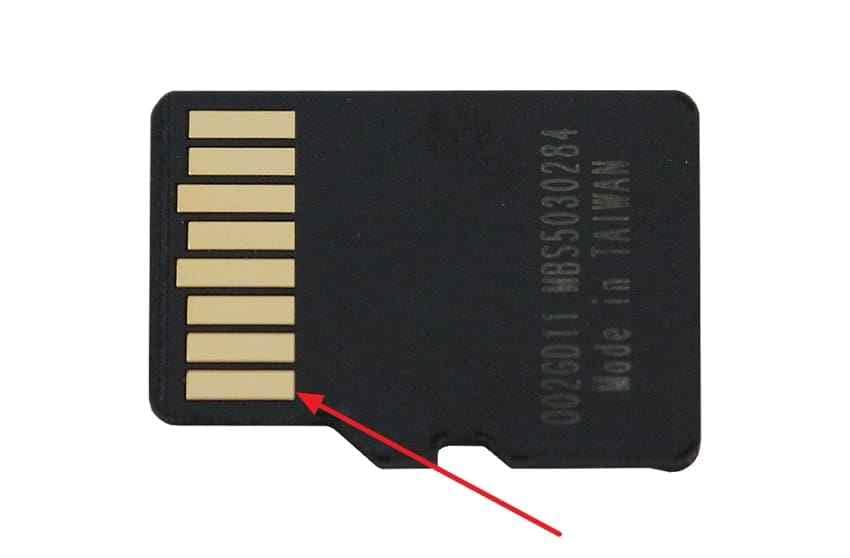
Step 1. Power off and inspect the card. Turn the console off completely. Remove the microSD card, hold it by the edges, and look for contamination, cracks, delamination, or visibly damaged gold contacts. Do not use the card if it is cracked or overheating.
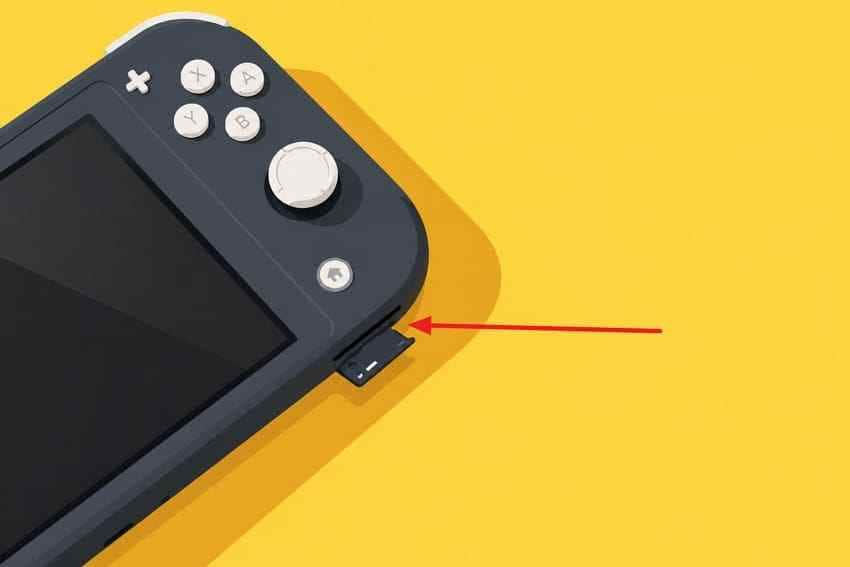
Step 2. Inspect the slot without inserting tools. Use good light to look for obvious debris or damage. Do not pour cleaner into the slot, scrape the pins, or force the card. Nintendo's support guidance says visible contamination may require card replacement and console service.
Part 4. Fix the Problem by Detection Result
Apply the fix that matches your test result. The first two methods address seating and software. The next two separate the card from the console. The final two interpret that evidence so you do not format a good card to fix a bad reader.
Reseat the Card After a Full Power-Off
A full shutdown clears the console's current storage state and lets you reseat the card without removing mounted media.
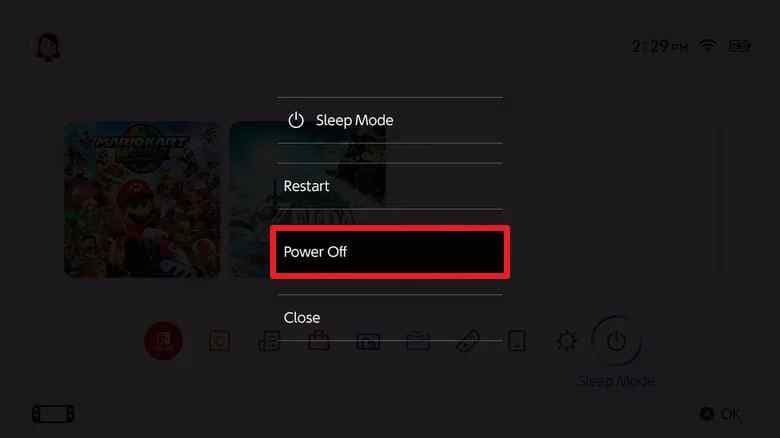
Step 1. Shut the console down. Hold the POWER Button for at least three seconds, choose Power Options, and select Turn Off. If the menu is unresponsive, do not repeatedly remove and insert the card while the system remains powered.
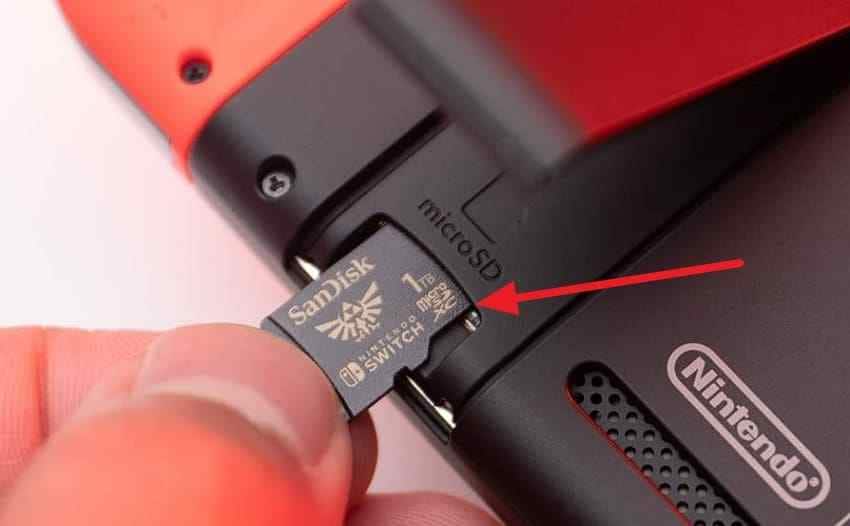
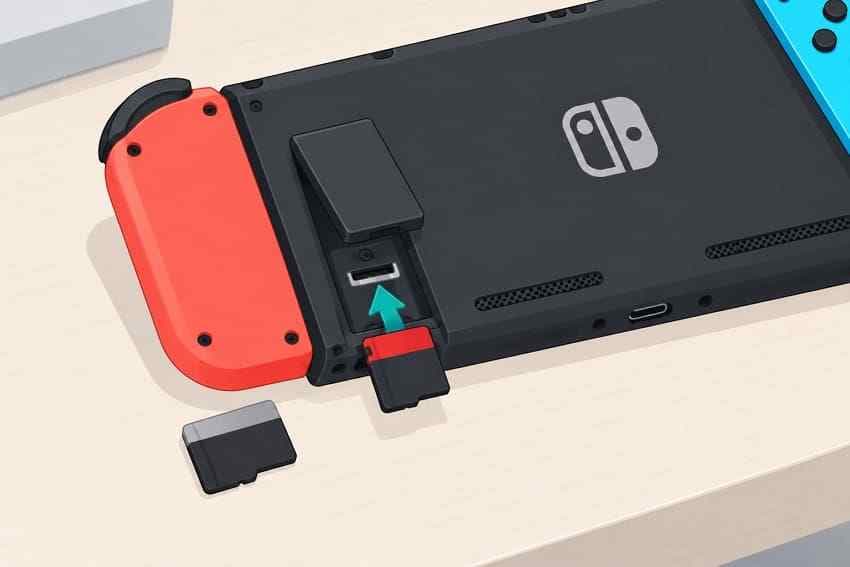
Step 2. Remove and reinsert the card. Open the card access area for your model, gently press the card until it releases, and slide it out. Align it correctly and press it back in until it clicks. The slot location differs among the standard Switch, Switch Lite, OLED Model, and Switch 2, so do not force a card into an unfamiliar opening.
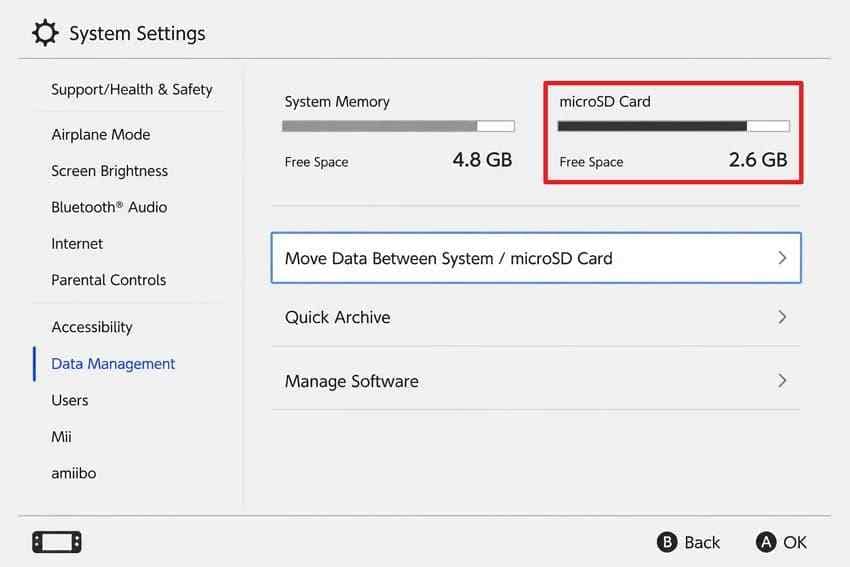
Step 3. Start the console and check detection. Turn the console on and open System Settings. Check the microSD card information under Data Management. If the same error returns, move to the compatibility and cross-device tests instead of reseating it repeatedly.
Update the Nintendo Switch System Software
The original Switch family needs a system update before it can use microSDXC. Switch 2 also needs an internet update the first time a microSD Express card is used. Update the console itself; do not download unofficial firmware or put update files on the questionable card.
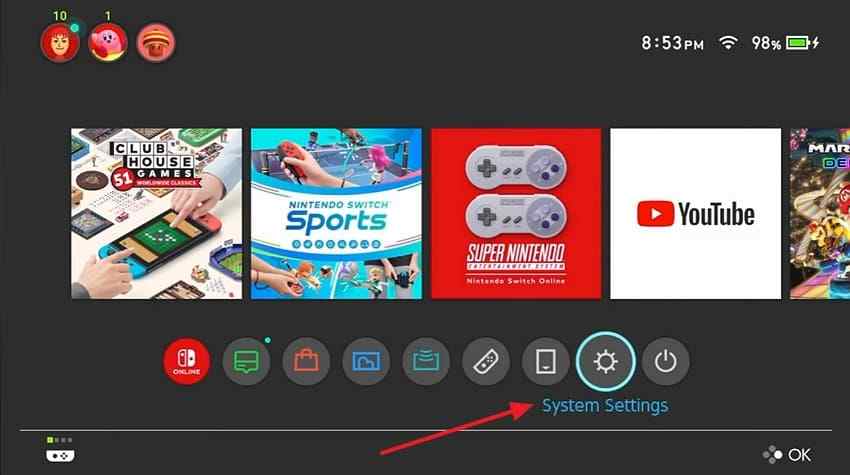
Step 1. Open System Settings. From the HOME Menu, select System Settings. If inserting the card causes unusual behavior, perform the update with the card removed, then shut the console down before reinserting it.
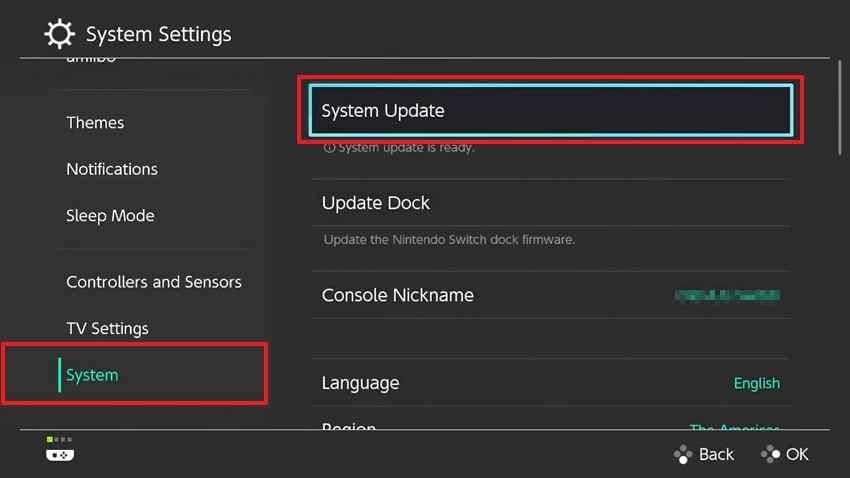
Step 2. Open System Update. Scroll to System and select System Update. Keep the console connected to power and the internet while it checks.
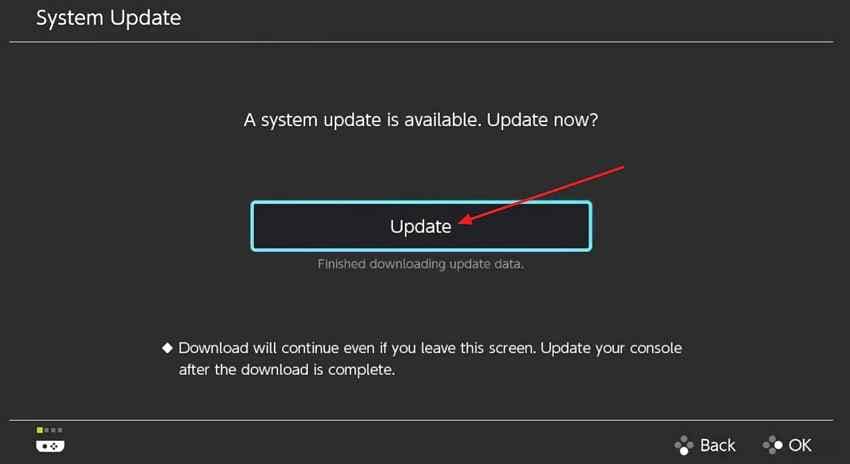
Step 3. Install the update and retest. Follow the on-screen instructions. After the update and restart, power the console off again, reinsert the correct card, and check detection. An update cannot make a standard non-Express card suitable for Switch 2 expansion storage.
Test the Card in a Computer or Card Reader
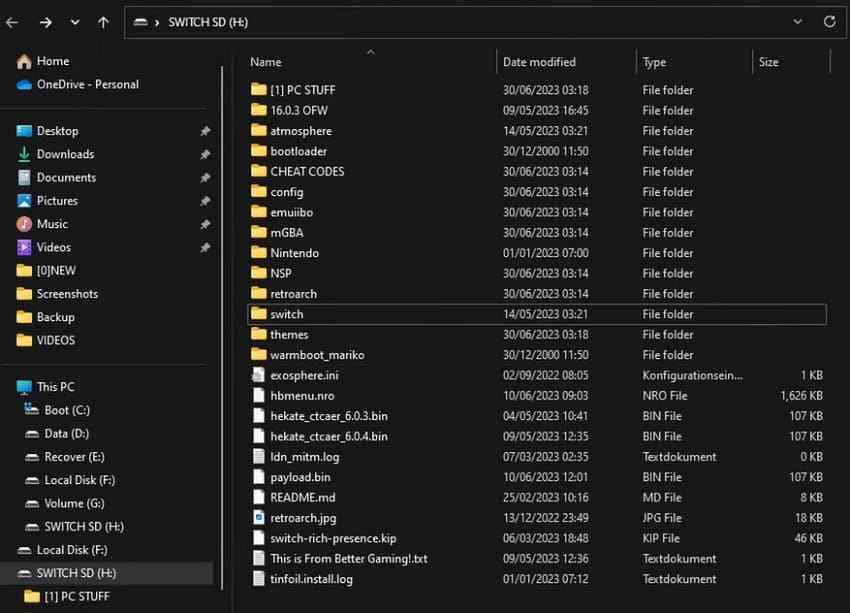
Shut the console down, remove the card, and connect it to a Windows PC or Mac through a reliable reader. Use a second port or reader if the first shows nothing; a failed adapter can mimic a failed card.
- If the card opens normally: Immediately copy screenshots and videos to the computer. Then eject the card properly before disconnecting it.
- If the card appears in Disk Management or Disk Utility but will not mount: Cancel format, initialize, or repair prompts. The card may still be a candidate for read-only recovery.
- If the card does not appear at all: Test one other known-good reader and port. If it remains absent, software cannot scan it through the operating system.
- If the card disconnects, becomes hot, or reports repeated I/O errors: Stop. Repeated scans can stress unstable media; valuable data may justify professional recovery.
Test a Known-Good Compatible Card in the Console
Use a card that is known to work and that matches the console's standard. For Switch, Lite, or OLED, use a supported microSD family card. For Switch 2 expansion storage, use microSD Express. Power off before swapping cards.
Use a blank or safely backed-up test card. If the console proposes formatting, do not accept unless the card contains nothing you need. One successful detection is strong evidence that the console slot can communicate with a compatible card, though intermittent reader faults may require repeated observation.
If One Card Fails but Another Works
The evidence now follows the original card. It may be corrupted, electrically unstable, physically damaged, counterfeit, or simply the wrong standard. If a computer can read it, copy important media or scan it before formatting. If it is unreadable in multiple independent readers, replacement is more appropriate than repeated console-side fixes.
Do not use successful formatting as proof that a previously unstable card is trustworthy. A card that repeatedly disconnects, changes reported capacity, fails verification, or returns read errors should not hold the only copy of important captures.
If Multiple Compatible Cards Fail in the Same Console
When multiple known-good cards of the correct standard fail only in one console after a full power-off and system update, the console's slot, reader, or related hardware becomes the leading suspect. Nintendo's current guidance says the console should be serviced when multiple microSD cards cannot be read.
Formatting each test card will not repair bent contacts or an electrical fault. Record any on-screen error code, note the cards tested, remove cards containing private media before shipping when possible, and follow Nintendo's service instructions for your region.
Part 5. Recover Screenshots and Videos Before Formatting
A Switch card can fail in the console yet remain detectable on a computer. That is the recovery window to use before formatting. The target is user-created media - typically screenshots and captured gameplay videos - not downloaded games or save data.
When a Computer-Detected microSD Card Can Be Scanned
Software recovery is appropriate for logical loss: deleted files, a formatted or RAW card, a mount problem, or folders that disappeared while the device remains visible to Windows or macOS. Use a stable reader and stop all writes to the card. If files open normally, a direct copy is safer and faster than a deep scan.
Software is not the right first tool when the card is cracked, corroded, extremely hot, repeatedly disconnecting, or absent from every reader. Those signs point toward physical or controller-level damage. A computer must detect the device at some level before desktop recovery software can scan it.
Recover Files From the microSD Card With Recoverit

Wondershare Recoverit runs on Windows or macOS and supports computer-detected SD, SDHC, SDXC, microSD, microSDHC, and microSDXC media. Its current product page documents scanning, file-type and path filtering, preview for supported files, and recovery to a different location.
For this Nintendo scenario, its practical strengths are narrow and useful:
- Scan without accepting a format prompt: The card can be scanned while logically inaccessible if the operating system still detects it.
- Target common capture formats: Recoverit lists JPEG/JPG and MP4 among supported image and video formats.
- Filter a large result set: File type, path, or name search can reduce the number of candidates you inspect.
- Preview supported candidates: A working preview helps identify the right capture and check whether it is readable before saving.
- Recover elsewhere: The destination can be another healthy drive, protecting the source card from avoidable writes.
Step 1. Select the microSD card and start scanning. Connect the card through a stable reader. Open Recoverit, choose SD Card Recovery, select the correct card by capacity and device details, and start the scan. Do not select a similarly sized external drive by mistake.

Step 2. Let the scan run and narrow the results. Keep the reader connected. Use file type, location, or search filters to focus on image and video candidates. Finding a filename does not prove that every block of the file survived.

Step 3. Preview and recover to another physical drive. Preview supported photos or videos, select the files you need, and choose Recover. Save the output to the computer's internal drive or another healthy device - never to the affected microSD card. Open several recovered files before deciding whether to format the source.

Recover Files From the microSD Card With Recoverit
 Security Verified. Over 7,302,189 people have downloaded it.
What Recoverit Cannot Recover From Nintendo Switch System Memory
Recoverit cannot connect to Nintendo Switch System Memory as a normal removable disk. It therefore cannot retrieve game saves from the console, scan a console that Nintendo does not expose as supported storage, repair the microSD slot, or turn an incompatible card into a supported one. It also cannot restore downloaded software more effectively than redownloading it through the owning Nintendo Account.
Game-save recovery is a separate Nintendo account and console-backup question. Because saves are never on the microSD card, scanning that card cannot find them. Do not advertise a card-recovery scan as a way to restore progress.
Why Recovery Results Depend on Overwriting and Card Condition
Deletion usually removes references before it removes every underlying byte, but new writes may reuse those blocks. Formatting, downloads, updates, new captures, or saving recovered files to the source can overwrite the media you want. Flash controllers may also perform internal housekeeping that reduces what remains accessible.
Recovery can therefore be partial: a thumbnail may survive while a full video is fragmented, or a filename may be found while the content is damaged. No responsible tool can guarantee recovery. The best odds come from immediate shutdown, minimal card use, stable detection, and a separate output drive.
Part 6. Format, Replace, or Service the Right Component
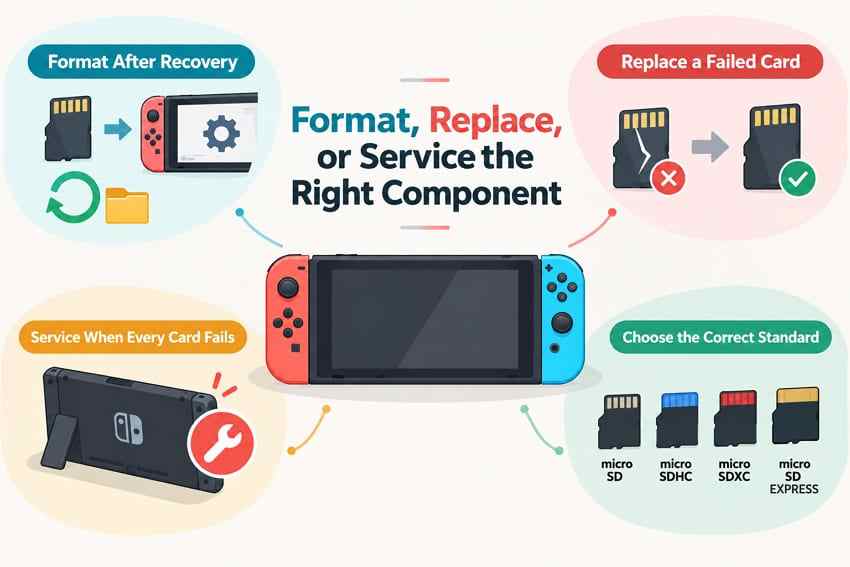
At this point, the detection tests should identify the component to act on. Format only a readable card whose important contents are safe. Replace a card that fails across devices. Service a console that rejects multiple known-good compatible cards.
Format Only After Important Files Are Backed Up or Recovered
Nintendo warns that formatting deletes the information on the card. Its current formatting instructions use different labels for the console generations:
- Nintendo Switch, Lite, and OLED: Open System Settings > System > Formatting Options > Format microSD Card, then follow the confirmation prompts.
- Nintendo Switch 2: Open System Settings > System, confirm the system is current, select Clear microSD Card Data, and follow the confirmation prompts.
Use the console process only after copying or recovering needed media. Reformatting may restore logical usability, but it is not a health repair. If errors return, replace the card.
Replace a Card That Fails Across Multiple Readers
Replace the card when it remains unreadable in multiple trusted readers, disconnects under light use, reports repeated read/write errors, becomes abnormally hot, or fails again after a clean console format. Do not keep irreplaceable captures on media that has already shown unstable behavior.
If professional recovery is warranted, stop before formatting or destructive testing. A recovery lab needs the most unchanged version of the card available.
Request Nintendo Service When Multiple Compatible Cards Fail
A console-side fault is likely when several known-good cards of the correct standard fail in the same Switch, while those cards work elsewhere. Nintendo's not-recognized flow recommends service in that situation. Include the relevant error code and the details of at least one tested card when you open the request.
Do not send the only copy of private screenshots or videos with the console unless Nintendo specifically requires the card. If the card is readable elsewhere, back it up first.
Choose a Genuine Replacement Card With the Correct Standard
For Switch, Lite, or OLED, choose a reputable microSDHC or microSDXC card within Nintendo's supported range; UHS-I and Nintendo's recommended transfer-speed range are useful performance checks. For Switch 2 expansion storage, look for the microSD Express standard and the microSD EX mark, not only a capacity or speed claim.
Counterfeit flash media can report a capacity it cannot actually store. Buy from a reputable retailer, keep the receipt, and test new media before moving the only copy of valuable captures. A card is expansion storage, not a backup.
Conclusion
When a Switch won't read an SD card, the fastest safe answer comes from separating the card from the console. Power off before removal, verify the exact standard, copy readable captures, test the card in a computer, and test one known-good compatible card in the console. Protect screenshots and videos before any format, because those files may be unique even though game saves remain in System Memory.
If the card is still computer-detected, a conditional recovery attempt may retrieve missing media before erasure. If the card fails everywhere, replace it or consider professional recovery. If several compatible cards fail only in the console, stop cycling through cards and use Nintendo's service route.
FAQ
-
Why Did My Nintendo Switch Suddenly Stop Reading the SD Card?
Sudden detection failure can come from file-system corruption, an unstable or failing card, poor contact, an interrupted write, missing system support for microSDXC, or a console-reader fault. Power off before reseating, test the card in a computer, and test a known-good compatible card in the console. Protect readable screenshots and videos before formatting. -
Why Does My SD Card Work on My Computer but Not My Nintendo Switch?
A computer proves that the card can communicate with that reader, but not that it matches the console's standard or that every read is stable. Confirm microSD compatibility, install the required system update, reseat after shutdown, and test another compatible card. On Switch 2, normal expansion storage requires microSD Express. -
Will Formatting a Nintendo Switch SD Card Delete My Game Saves?
No. Nintendo stores game-save data in the console's System Memory, not on the microSD card. Formatting does erase data on the card, including downloaded software and any screenshots or captured videos stored there. Downloaded software can normally be redownloaded with the same Nintendo Account; unique media should be backed up first. -
Why Won't My Nintendo Switch Read a New microSDXC Card?
Nintendo Switch, Lite, and OLED need a system update before using microSDXC. Connect the console to the internet, update it, power it off, and reinsert the card. If the console is a Switch 2, a standard microSDXC card is not valid expansion storage unless it also meets the microSD Express standard. -
Can I Recover Nintendo Switch Game Saves From the microSD Card?
No. Game saves are stored in System Memory and cannot be copied to a microSD or microSD Express card. Memory-card recovery software can only scan the removable card for supported files that remain recoverable, such as screenshots or captured videos. It cannot retrieve game progress from the console. -
Should I Format the microSD Card on My PC or on the Switch?
After protecting important files, use Nintendo's console procedure for the model you own. Original Switch models use Format microSD Card; Switch 2 uses Clear microSD Card Data. Do not accept a PC format prompt merely to make an unreadable card open, because formatting can overwrite recovery opportunities. -
Do These Fixes Work on Nintendo Switch 2?
The diagnosis principles do, but the compatibility rule changes. Switch 2 requires microSD Express for games, downloads, and normal card storage. A standard microSD card from an original Switch can only be used to load and import existing Switch screenshots and videos; it is not Switch 2 expansion storage.


