 TL;DR:
The obsolete Panasonic SD Formatter 3.1 should no longer be used; download its official replacement, the SD Memory Card Formatter, directly from the SD Association (sdcard.org) to safely initialize modern memory cards.
● Version 5.0.4 for Windows (10 22H2, 11 22H2/23H2/24H2) and 5.0.3 for Mac (macOS 11 through 15) securely supports SD, SDHC, SDXC, and SDUC formats without the malware risks of unverified legacy mirrors.
● Back up or recover required files before initialization, selecting Quick Format for standard reuse and strictly avoiding Overwrite Format to prevent permanent data destruction that blocks software recovery.
● Bypass computer-based utilities and format the card directly inside your camera, dash cam, or Android device if it will permanently operate there, guaranteeing the hardware generates its mandatory folder structures and databases.
Ask AI for a summary
 ChatGPT
 Perplexity
 Gemini
 Claude
 Grok
Grok
If you are searching for Panasonic SD Formatter or Panasonic SD Formatter 3.1, the short answer is this: do not download old installer copies from random software sites. Panasonic's old formatter was a legitimate SD card utility, but it is no longer the maintained download most users should use today.
The official replacement is the SD Memory Card Formatter from the SD Association, the standards body founded by Panasonic, SanDisk, and Toshiba. Before formatting, recover or back up files you still need because formatting can remove file-system records and overwrite formatting can make software recovery unlikely.
In this article
Part 1. Is Panasonic SD Formatter Still Available?
Panasonic no longer provides the old Panasonic-branded SD Formatter as the recommended public download. The maintained path now runs through the SD Association. That matters because many search results for Panasonic SD Formatter download point to unofficial mirrors, old forum attachments, or repackaged installers.
What Panasonic SD Formatter Was Used For
Panasonic SD Formatter was used to format SD cards according to SD card file-system expectations rather than treating the card like a generic USB drive. Users liked it because it could prepare cards for cameras, handheld consoles, single-board computers, dash cams, and other devices that sometimes leave unusual partitions or show the wrong capacity in Windows.
It was also useful when Windows displayed only part of a card's capacity after another device had partitioned it. However, formatting is still a data-loss action. If the card contains photos, videos, documents, or device files you need, recover or back them up first.
Is Panasonic SD Formatter 3.1 Still Supported?
No. Panasonic SD Formatter 3.1 is a legacy tool, and it is not the current supported download for Windows 10, Windows 11, or modern macOS. Even if an old copy launches, it lacks current SDUC support and comes from an era before today's Windows and macOS requirements. For most users, the safer choice is the current SD Memory Card Formatter from the SD Association.
Why You Should Avoid Third-Party Download Sites
The issue is not that Panasonic's original utility was unsafe. The issue is that old downloads now found on third-party software portals are difficult to verify. Repacked installers may include unwanted programs, and an old unsigned or modified file gives you no reliable way to confirm that it matches the original release.
For this keyword, the search intent is usually practical: users want a formatter that is safe, compatible, and official. That answer is not a random Panasonic SD Formatter 3.1 mirror. It is the current SD Association download page.
The Current Official Replacement for Most Users
The SD Association says it was founded in January 2000 by Panasonic, SanDisk, and Toshiba, now KIOXIA. Its current formatter is therefore not an unrelated clone. It is the maintained standards-based formatter for SD, SDHC, SDXC, and SDUC cards. The SD Association also notes that the formatter is developed by Tuxera.
Part 2. Panasonic SD Formatter vs SD Memory Card Formatter
The two tools share the same purpose: formatting SD cards for better standards compliance than generic operating-system tools. The difference is support, platform compatibility, and card-generation coverage.
| Attribute | Panasonic SD Formatter 3.1 | Current SD Memory Card Formatter |
| Publisher | Panasonic-era legacy utility | SD Association |
| Recommended download source | No current official Panasonic download for general users | sdcard.org formatter page |
| Current versions listed by SD Association | Not current | 5.0.4 for Windows and 5.0.3 for Mac |
| Supported card families | Legacy SD, SDHC, and SDXC-era use | SD, SDHC, SDXC, and SDUC |
| Modern OS support | Not recommended for Windows 10, Windows 11, or current macOS | Windows 10 22H2, Windows 11 22H2/23H2/24H2, and macOS 11 through macOS 15 |
| Format options | Legacy quick/full style options | Quick Format and Overwrite Format |
| Protected area | Not intended to format protected areas | Does not format the SD/SDHC/SDXC protected area; SDUC has no protected area |
| Encryption limit | Legacy behavior varies | Does not support BitLocker To Go-encrypted cards until they are unlocked |
Legacy Panasonic Formatter Versions
Older Panasonic formatter builds were useful in their time, but that does not make them the best choice now. They predate many current operating-system versions, current SDUC capacity ranges, and the security expectations users should apply to downloadable utilities.
Current SD Memory Card Formatter Versions for Windows and Mac
As of August 10, 2026, the official SD Association formatter page lists SD Memory Card Formatter 5.0.4 for Windows and 5.0.3 for Mac. The same page lists system requirements for Windows 10 version 22H2, Windows 11 versions 22H2, 23H2, and 24H2, plus macOS 11 Big Sur through macOS 15 Sequoia.
Supported SD, SDHC, SDXC, and SDUC Cards
The current utility supports SD, SDHC, SDXC, and SDUC cards that comply with SD Association file-system specifications. Always confirm that your reader and device also support the card type. A formatter cannot make an old camera support SDXC or SDUC if the hardware or firmware does not support it.
Quick Format vs Overwrite Format
Quick Format is the normal choice. It rebuilds file-system structures and finishes quickly, but it can leave some old file contents recoverable until overwritten. Overwrite Format writes across the user data area, takes much longer, and is useful when you are handing the card to someone else or intentionally removing recoverable data. Do not choose Overwrite Format if you still need to recover files.
Part 3. Which SD Formatter Version Should You Use?
For nearly everyone searching Panasonic SD Formatter download today, the correct version is the newest SD Memory Card Formatter from the SD Association, not Panasonic SD Formatter 3.1.
Best Choice for Windows 10 and Windows 11
Use the official SD Memory Card Formatter for Windows download. Run it with administrator rights, select the correct drive letter, and check the card capacity carefully before formatting. Do not rely on old Panasonic installers for Windows 10 or Windows 11.
Best Choice for macOS Users
Use the official SD Memory Card Formatter for Mac download. The SD Association notes that Apple silicon Macs may ask users to install Rosetta to open the formatter. If you only need a basic erase for a camera card, macOS Disk Utility can also work, but the SD Association formatter is the official SD-focused tool.
Best Choice for Cameras, Dash Cams, and Android Devices
If the device has its own Format or Initialize SD Card option, start there. Cameras, dash cams, action cameras, handheld consoles, and Android devices may create device-specific folders, databases, or file-system settings. Use the computer formatter when the device cannot format the card, the card shows the wrong capacity, or you need a clean reset before putting the card back into the device.
When an Older Formatter Should Not Be Used
Do not use an old Panasonic formatter when you are on Windows 10, Windows 11, current macOS, SDUC cards, or a card that contains important files. Also avoid it when the download comes from a software portal, archive mirror, or forum attachment rather than an official source.
Where to Download Safely
Download only from sdcard.org. The source article also references Panasonic's older SD Formatter support pages, which remain useful historical reference, but they are not the current download path most users need.
Part 4. What to Check Before Formatting an SD Card
Formatting should come after data protection and basic hardware checks. If the card contains important files, stop here and recover or back them up first.
| Check Before Formatting | Why It Matters | What to Do |
| Back up or recover important files | Formatting can remove access to files, and overwrite formatting can make recovery unlikely. | Copy accessible files or scan the card with recovery software before formatting. |
| Check the write-protect switch | A locked full-size SD card or microSD adapter can block formatting. | Move the switch to the unlocked position and reconnect the card. |
| Test another card reader or USB port | Reader, adapter, cable, or port issues can look like card failure. | Try a direct USB port and another compatible reader. |
| Confirm the correct capacity appears | A wrong capacity can indicate partition damage, fake capacity, or unsupported media. | Compare displayed capacity with the card label and device support list. |
| Check whether the card is genuine | Counterfeit cards often fail formatting or lose data after filling beyond real capacity. | Use trusted capacity-test tools and buy from authorized sellers. |
| Verify device and file-system compatibility | Older devices may support SDHC but not SDXC or SDUC. | Check the camera, phone, dash cam, or console manual before choosing FAT32 or exFAT. |
Part 5. Recover Files Before Using an SD Formatter
Many people open an SD formatter because a card asks to be formatted, shows the wrong capacity, or becomes unreadable. Those symptoms do not always mean the data is gone. They can also come from file-system damage, a missing partition table, or a reader problem.
Why Formatting Can Make Recovery Harder
A quick format can remove file-system records that help software find original file names and folders. Some data may remain recoverable until overwritten, but recovery becomes less organized. An overwrite format writes through the user data area and can make software-based recovery unlikely. For important photos, videos, documents, or device backups, recover first and format later.
When SD Card Recovery Is Possible
Recovery may be possible when the card is readable through a computer or card reader, files were deleted, the card was quick-formatted, or the file system is damaged. Recovery is less likely if the card was overwritten, physically damaged, counterfeit, encrypted without the key, or not detected by any reliable reader.
Recover SD Card Files With Wondershare Recoverit
Recoverit Memory Card Recovery can help recover deleted, formatted, or inaccessible files from a readable SD, SDHC, SDXC, microSD, CF, or CompactFlash card through a card reader. Use it before running Panasonic SD Formatter alternatives, overwrite formatting, DiskPart clean, or device reset. Recovery depends on card condition, detectability, file fragmentation, encryption, and whether new data has overwritten the files.
You can also visit the Wondershare Recoverit site for more data recovery resources, but this article's recommended product page is the memory card recovery page linked above.
How to Scan an SD Card to Recover Important Data
Step 1. Attach the card and select it.
Connect the SD or microSD card through a compatible reader. Open Recoverit, choose SD Card Recovery, select the card, and start scanning.

Step 2. Scan and filter the results.
Let the scan continue and filter by file type, such as photos, videos, documents, or archives, to narrow the results.

Step 3. Preview and export files.
Preview recoverable files, choose what you need, and save them to your computer or another drive. Do not save recovered files back to the same SD card.

Try Wondershare Recoverit to Perform Data Recovery
 Security Verified. Over 7,302,189 people have downloaded it.
Part 6. How to Use SD Memory Card Formatter
Use the maintained SD Association formatter when you need an SD-focused desktop formatter instead of Panasonic SD Formatter 3.1. Confirm you selected the correct drive before formatting because the operation removes file access from the selected card.
Step 1. Download the formatter from the SD Association.
Open the official SD Association page, choose the Windows or Mac download, accept the license if you agree, install the tool, and launch it with administrator rights.
Step 2. Select the correct SD card or microSD card.
Insert the card through a compatible SD slot or USB reader. Confirm the drive letter, card name, and capacity before continuing.
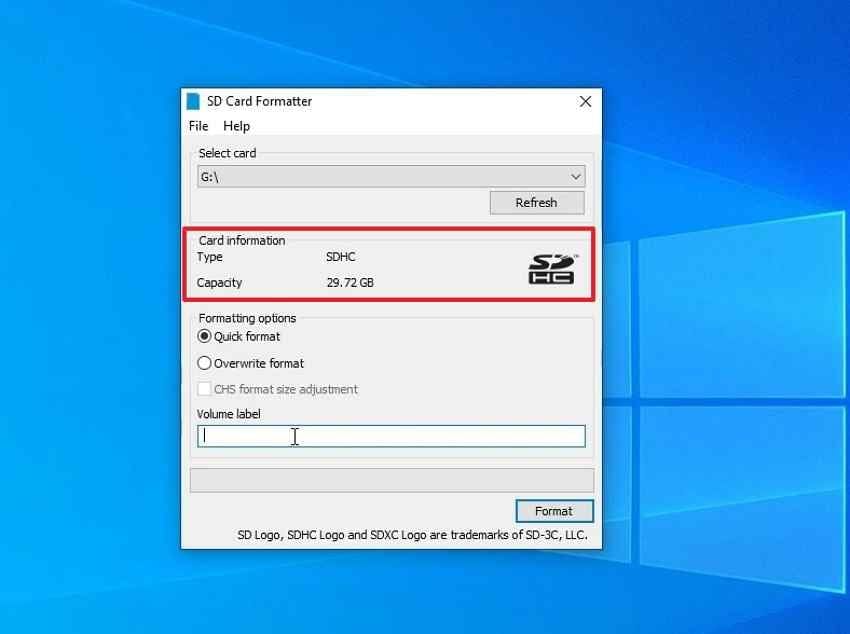
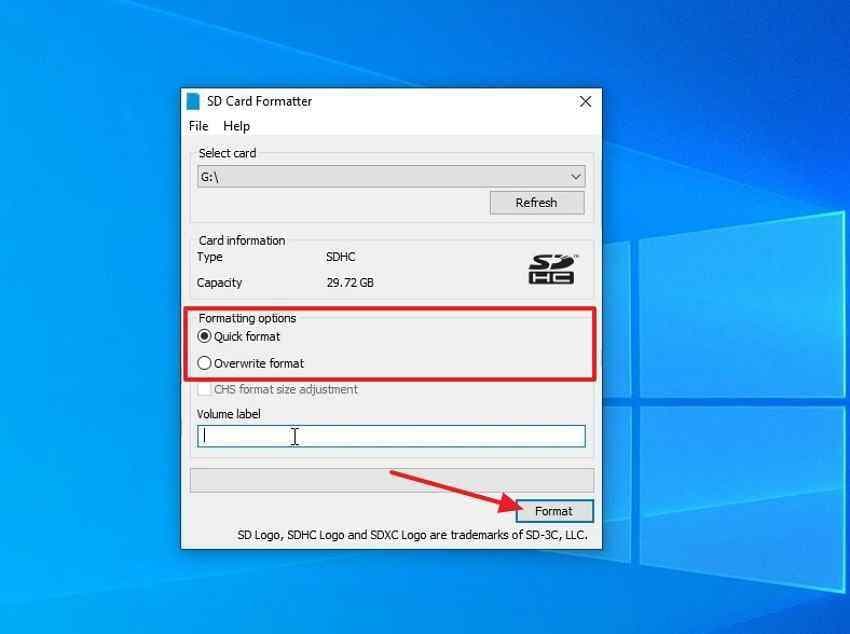
Step 3. Choose Quick Format or Overwrite Format.
Choose Quick Format for normal reuse. Choose Overwrite Format only when you intentionally want to write through the card's user data area and no longer need recovery.
Step 4. Confirm the warning before formatting.
Click Format only after confirming the selected card is correct and files are already backed up or recovered.
Step 5. Check the card after formatting.
After formatting, confirm the expected usable capacity appears. Copy a few test files, safely eject the card, reconnect it, and verify that the files remain accessible.
Part 7. Best Alternatives to Panasonic SD Formatter
The SD Association formatter is the closest official replacement, but other formatting methods can be appropriate depending on where you will use the card. Always recover important files first.
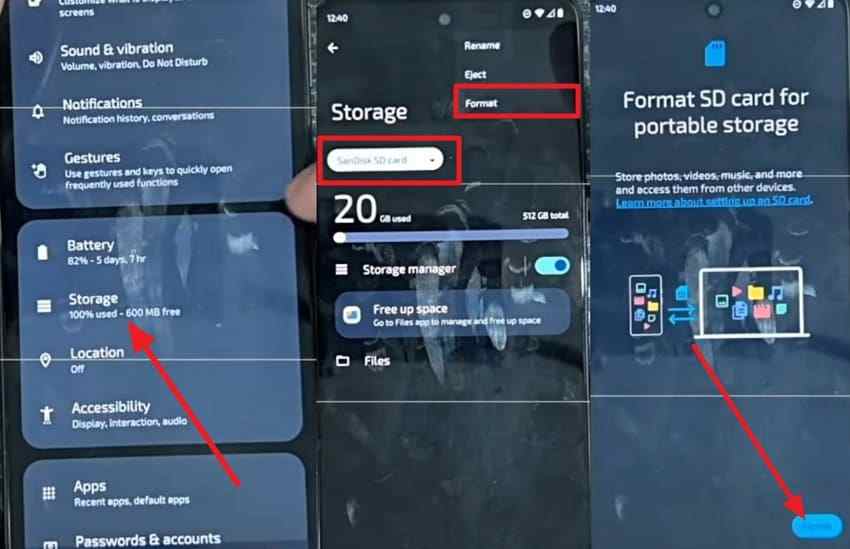
Method 1. Format Inside a Camera or Android Device
Use the device's built-in format option when the card will live in that same camera, dash cam, action camera, or Android device. The device can create its expected folder structure and storage settings.
Instructions: On Android, open Settings > Storage, select the SD card, open the card menu, and choose Format. On cameras or dash cams, look for Format, Initialize Card, or Format Memory Card inside the setup menu.
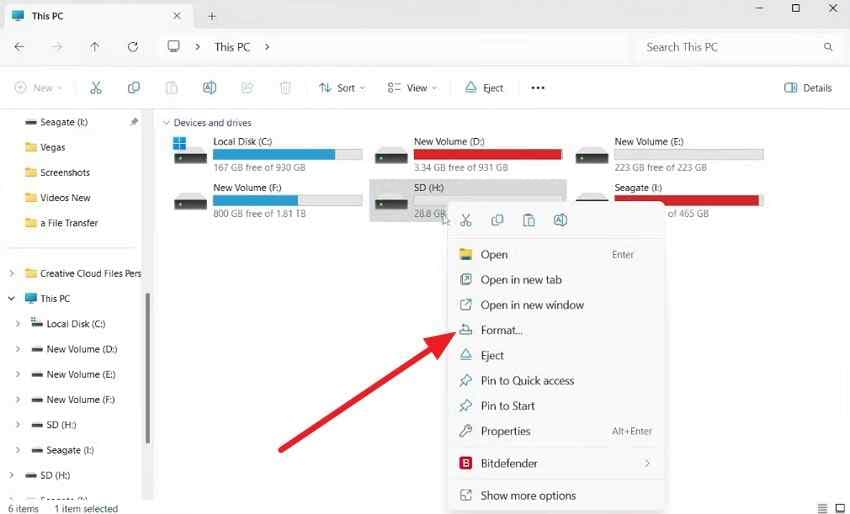
Method 2. Format With Windows File Explorer
Windows File Explorer is quick for normal cards that already show a drive letter. It is convenient, but it offers fewer diagnostics than Disk Management or SD Memory Card Formatter.
Step 1. Open This PC, right-click the SD card, and choose Format.
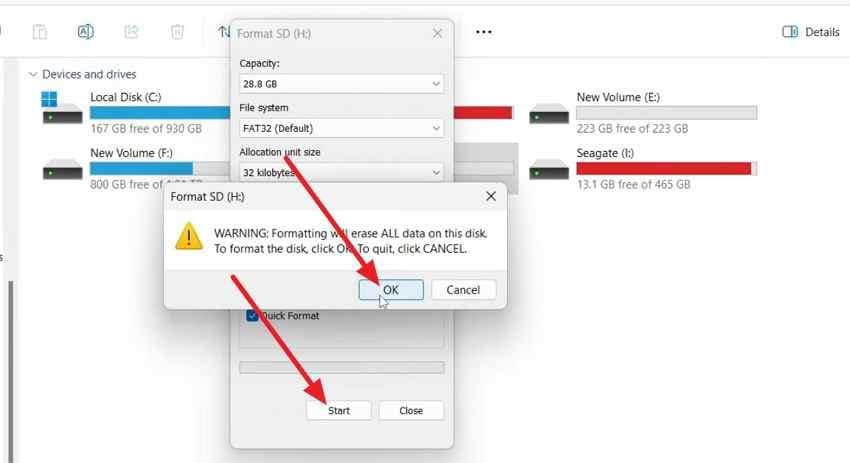
Step 2. Choose the file system, keep Quick Format selected for ordinary reuse, click Start, and confirm.
Method 3. Format Through Windows Disk Management
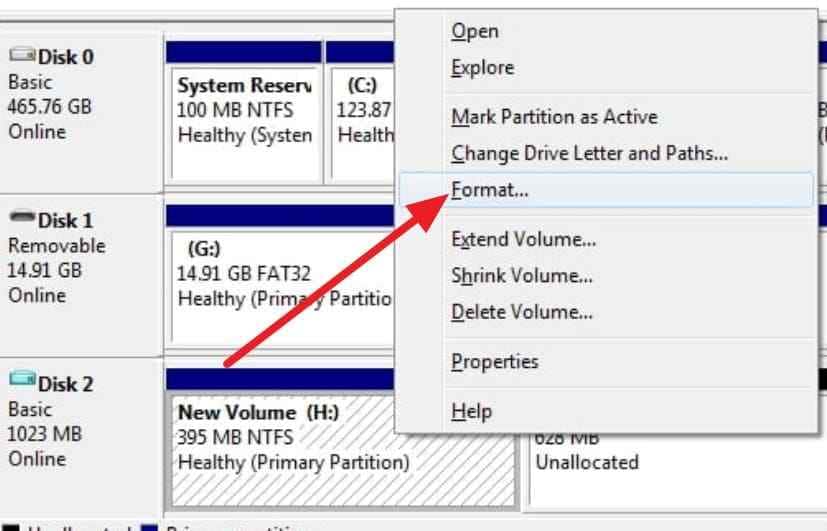
Disk Management helps when the card is detected but missing a drive letter, split into strange partitions, or not showing correctly in File Explorer.
Step 1. Right-click Start, open Disk Management, identify the SD card by size, right-click its volume, and choose Format.
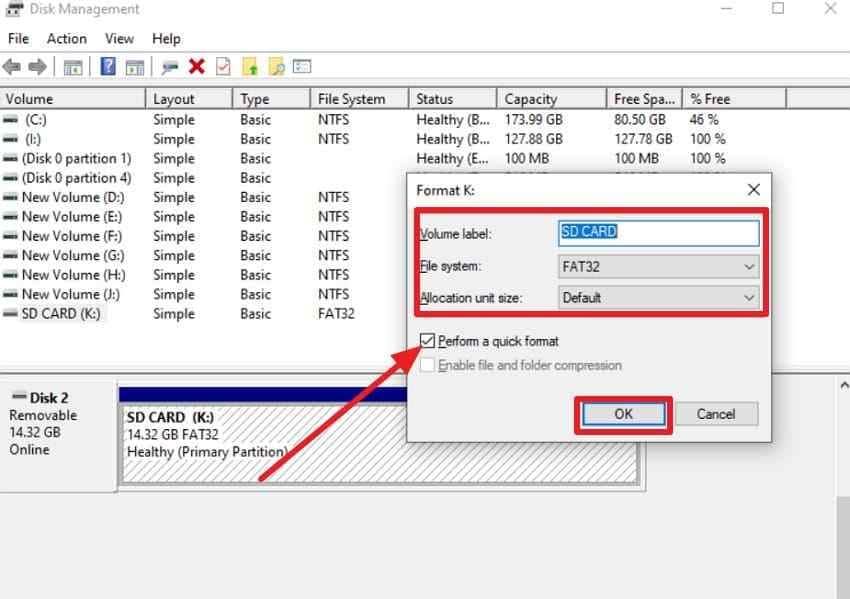
Step 2. Choose the file system and volume label, select Perform a quick format if appropriate, and click OK.
Method 4. Format an SD Card Using DiskPart
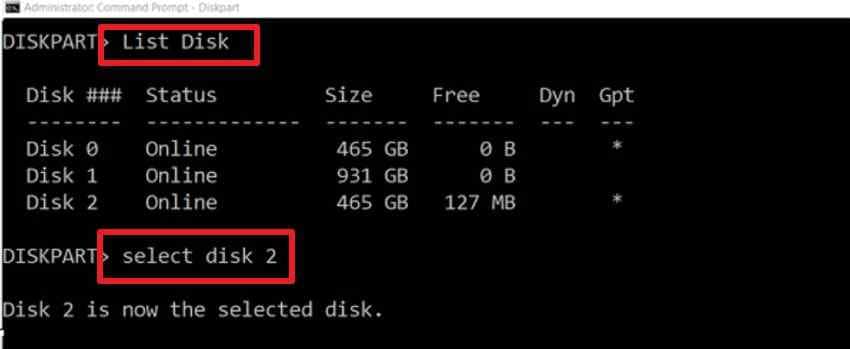
DiskPart is powerful and risky because it works by disk number and executes commands directly. Use it only after backing up or recovering data and after confirming the exact disk number.
Step 1. Open Command Prompt as administrator, type diskpart, press Enter, then type list disk. Type select disk X, replacing X with the SD card's actual disk number.
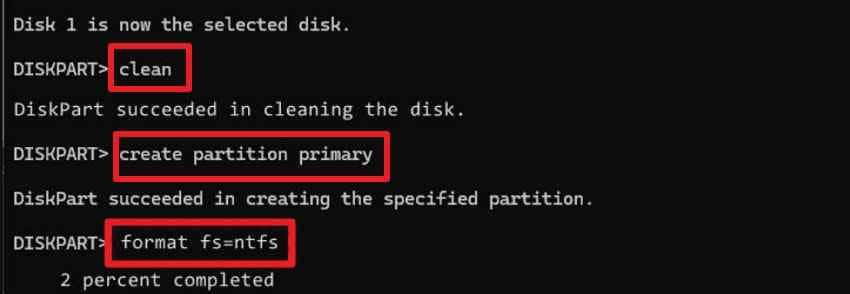
Step 2. Run clean, then create partition primary. Use format fs=fat32 quick for cards up to 32GB when FAT32 is needed, or format fs=exfat quick for SDXC cards above 32GB. Then type assign.
Method 5. Format With macOS Disk Utility
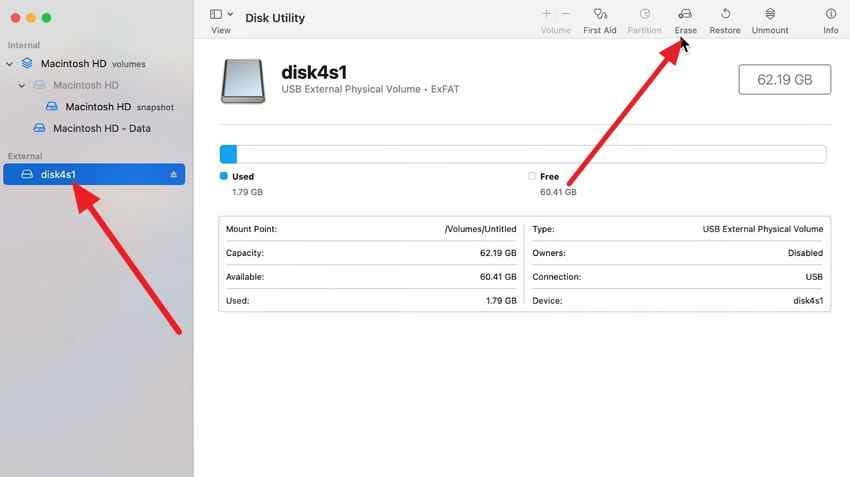
Disk Utility is the built-in macOS storage tool. It is a practical alternative when you do not need the SD Association formatter or when you are preparing a card for general use.
Step 1. Connect the card, open Disk Utility, select the card under External, and click Erase.
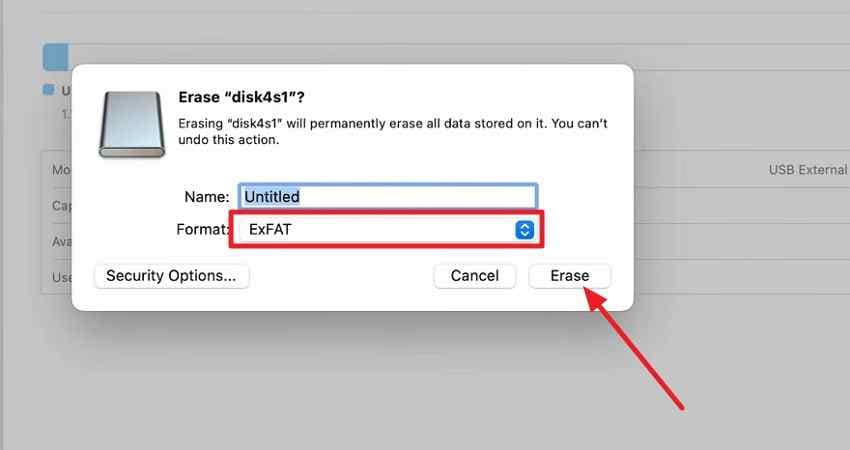
Step 2. Choose MS-DOS (FAT) for SD/SDHC cards up to 32GB or ExFAT for SDXC cards above 32GB, then click Erase.
Part 8. How to Fix SD Memory Card Formatter Problems
If SD Memory Card Formatter or another Panasonic SD Formatter alternative fails, use the table below to decide whether the issue is connection, permissions, encryption, partition layout, or card failure.
| Problem | Likely Cause | Fix |
| Card not detected | Loose connection, faulty reader, unsupported card type, or bad USB port | Reconnect the card, try another reader or port, and confirm the reader supports SDHC, SDXC, or SDUC as needed. |
| Write protection error | SD card or adapter lock switch is enabled | Move the lock switch to the unlocked position and reconnect the card. |
| Access denied during format | Insufficient permissions or another app is using the card | Close file browsers and camera apps, then run the formatter with administrator rights. |
| Card reports as encrypted | BitLocker To Go or another encryption method is active | Unlock or decrypt the card first. The SD Association formatter does not support BitLocker To Go-encrypted cards until they are unlocked. |
| Capacity still incorrect | Partition layout problem, fake capacity, or device-created partitions | Recover files first, then recreate the partition layout with Disk Management, DiskPart, or the SD formatter. |
| Errors keep returning | File-system corruption, failing flash memory, counterfeit card, or unstable reader | Test with another reader and device. Replace the card if errors return after a clean format. |
Conclusion
Panasonic SD Formatter 3.1 was a legitimate legacy utility, but it is not the safest download target today. Panasonic no longer provides the old public download for general users, and third-party mirrors are not a reliable source for formatting tools. Use the current SD Memory Card Formatter from the SD Association instead.
Before formatting, protect the data first. Use Quick Format for normal reuse, avoid Overwrite Format when recovery may still be needed, and choose camera or device formatting when the card will stay in that device. If files are missing or the card asks to be formatted, scan it with Recoverit before destructive formatting steps.
FAQ
-
Is Panasonic SD Formatter still available?
Not as the maintained Panasonic-branded download most users should use today. The official replacement is SD Memory Card Formatter from the SD Association, which Panasonic co-founded with SanDisk and Toshiba. -
Where can I download the latest SD card formatter?
Download it from the SD Association at sdcard.org. As of August 10, 2026, the official page lists SD Memory Card Formatter 5.0.4 for Windows and 5.0.3 for Mac. -
Is Panasonic SD Formatter 3.1 safe to use?
The original Panasonic tool was legitimate, but version 3.1 is a legacy formatter and unofficial downloads cannot be reliably verified. Use the current SD Association formatter instead, especially on Windows 10, Windows 11, and current macOS. -
Can Recoverit recover files after formatting an SD card?
Recoverit may help recover files after a quick format if the SD card is readable and the data has not been overwritten. It cannot guarantee recovery, recover overwritten files, or repair physically failed or counterfeit cards. -
Should I use FAT32 or exFAT when formatting an SD card?
Use FAT32 for many SD or SDHC cards up to 32GB when the device requires it. Use exFAT for most SDXC cards above 32GB unless the device manual says otherwise.



