 TL;DR:
Choosing the right SD card recovery software for a Windows PC depends on the damage severity: Recoverit handles mixed media best, Recuva offers simple free recovery, and R-Studio or PhotoRec suit advanced users dealing with RAW or badly corrupted file systems.
● Stop writing data to the SD card immediately and avoid running CHKDSK or formatting before scanning, as these actions alter file-system structures and decrease recovery chances; always save the recovered files to a completely different drive.
● Recuva is restricted to simple file deletions on readable cards, whereas the fully free PhotoRec utilizes file-signature recovery to bypass reformatted file systems but permanently loses original file names and folder structures.
● For physically unstable cards that disconnect frequently, create a byte-to-byte image first and perform the recovery scan directly on the image using disk-image-compatible tools like R-Studio or Disk Drill to avoid overstressing the failing hardware.
Ask AI for a summary
 ChatGPT
 Perplexity
 Gemini
 Claude
 Grok
Grok
"Please suggest some free and good recovery apps for Windows to restore my microSD card. I already created a byte-to-byte image, so I need recovery software."
Choosing the best SD card recovery software for PC depends on what happened to the card: accidental deletion, quick formatting, RAW file system, missing folders, corrupted media files, or a card that asks to be formatted. The safest first step is the same in every case: stop using the SD card and recover files to another drive.
This guide compares seven free and paid tools for Windows PC users, including Recoverit Memory Card Recovery, Recuva, Disk Drill, EaseUS Data Recovery Wizard, Stellar Data Recovery, R-Studio, and PhotoRec. You will also see which tool fits simple deletion, formatted SD cards, RAW cards, media-heavy recovery, and advanced partition problems.
In this article
Part 1. Quick Picks: Best SD Card Recovery Software for PC
If you only need a fast recommendation, use the table below. The right memory card recovery software for PC depends on the card condition, file type, and how much control you want during recovery.
| Need | Best pick | Why it fits |
| Best overall SD card recovery software for PC | Recoverit | Good balance of guided recovery, scan depth, preview, and support for photos, videos, documents, and camera memory cards. |
| Best free tool for simple deletion | Recuva | Simple Windows-only tool for recently deleted files from readable SD cards and external storage. |
| Best free tool for advanced users | PhotoRec | Free and open-source file carving tool that can work even when the file system is badly damaged. |
| Best for lost partitions | PhotoRec with TestDisk | TestDisk is bundled with PhotoRec and focuses on lost partitions and partition-table problems. |
| Best for beginners | Disk Drill or EaseUS | Both offer guided scan flows, filters, and previews that are easier than command-line tools. |
| Best for photo and video recovery | Recoverit | Recoverit is a strong fit when the SD card contains camera photos, videos, RAW images, or mixed media files. |
| Best for technicians | R-Studio | Advanced controls, disk imaging, RAID tools, and file-system options make it better for complex cases. |
Quick safety note: do not format the SD card, run repair commands, or save new files to it before recovery. Those actions may reduce what recovery software can find.
Part 2. When Do You Need SD Card Recovery Software?
You need SD recovery software for PC when Windows can still detect the card or its disk image, but files are missing, deleted, inaccessible, or hidden behind file-system damage. If the card is physically broken or not detected by any device, software may not be enough.
| Situation | What it usually means | Best next step |
| Deleted files from an SD card | The file entries were removed, but the file data may still be on the card. | Stop using the card and scan it from a PC. |
| Formatted SD or microSD card | A quick format rebuilt the file system, but older data may remain until overwritten. | Use deep scan or file-signature recovery before taking new photos. |
| RAW, corrupted, or inaccessible card | Windows cannot read the file system, so it may ask you to format the card. | Recover files first, then repair or format the card later. |
| Files disappeared but space is still used | The directory, index, or file attributes may be damaged or hidden. | Scan the card and check hidden-file settings only after protecting data. |
| Camera photos or videos will not open | The file may be incomplete, fragmented, corrupted, or partially overwritten. | Try a recovery tool with preview and media-focused scanning. |
| Card is not detected anywhere | The card reader, adapter, controller, connector, or NAND chip may have failed. | Try another reader and PC; if still invisible, consider a recovery lab. |
Recovery chances depend on overwriting, card health, encryption, and whether the PC can read the card. If you made a byte-to-byte image of the SD card, scan the image where the software supports it. This protects the original card from extra reads during recovery.
Part 3. How We Chose the Best SD Card Recovery Software
A good card recovery software for PC list should focus on practical recovery factors, not only brand names. We evaluated each tool by the criteria below.
- Supported file systems: SD cards and microSD cards commonly use FAT32 or exFAT. A stronger tool should also understand NTFS, RAW partitions, and common camera media structures when relevant.
- Supported devices: The software should scan SD, SDHC, SDXC, microSD, CF cards, USB card readers, camera cards, and disk images where available.
- Quick scan and deep scan: Quick scans help with recent deletion. Deep scans and signature scans matter more for formatting, RAW cards, and damaged file systems.
- Preview before recovery: Preview helps confirm whether photos, videos, documents, and archives are actually recoverable before saving or paying.
- Ease of use on Windows PC: Beginners need a guided interface, while advanced users may need file-system controls, disk imaging, and manual scan settings.
- Free recovery limits and pricing clarity: Some tools are fully free, some allow limited recovery, and some only scan or preview until you upgrade.
- Read-only safety: Recovery software should avoid writing to the source card and should encourage saving recovered files elsewhere.
- Product boundaries: Recovery software can copy recoverable data from readable storage. It cannot repair a physically failed SD card, bypass encryption, or guarantee recovery after overwriting.
Part 4. 7 Best SD Card Recovery Software for PC
The seven tools below cover the main search intent behind "sd card recovery software for pc": a Windows user wants to recover files from an SD or microSD card and needs to know which software is worth trying first.
1. Recoverit Memory Card Recovery
Recoverit Memory Card Recovery is the best overall pick for users who want a guided Windows recovery workflow for SD cards, microSD cards, CF cards, camera cards, USB card readers, and other readable storage devices. It is especially useful when the card contains mixed files such as photos, videos, audio, documents, and camera RAW formats.
Recoverit is a better fit than basic free tools when the card was formatted, became RAW, shows corrupted folders, or contains media files that need preview before recovery. It does not physically repair a damaged SD card or guarantee recovery if data has already been overwritten, but it can help recover files from readable cards before you format or repair them.
- Best for: deleted, lost, formatted, RAW, or corrupted SD card files on a Windows PC.
- Strength: beginner-friendly workflow with scan, filter, preview, and recovery steps.
- Useful for media: supports common photo, video, audio, document, and archive formats.
- Safety: scan the card first, then save recovered files to a different drive.
- Limitation: recovery depends on card detectability, card health, encryption, and overwriting.
2. Recuva
Recuva is a simple Windows file recovery tool from CCleaner. It is a practical choice for users who accidentally deleted files from a readable SD card and want a free, lightweight recovery option before trying a paid tool.
Recuva is easy to use because its wizard asks what file type you want and where to scan. The tradeoff is that it is less suited to complex cases such as heavily formatted cards, RAW file systems, fragmented videos, or damaged partition structures.
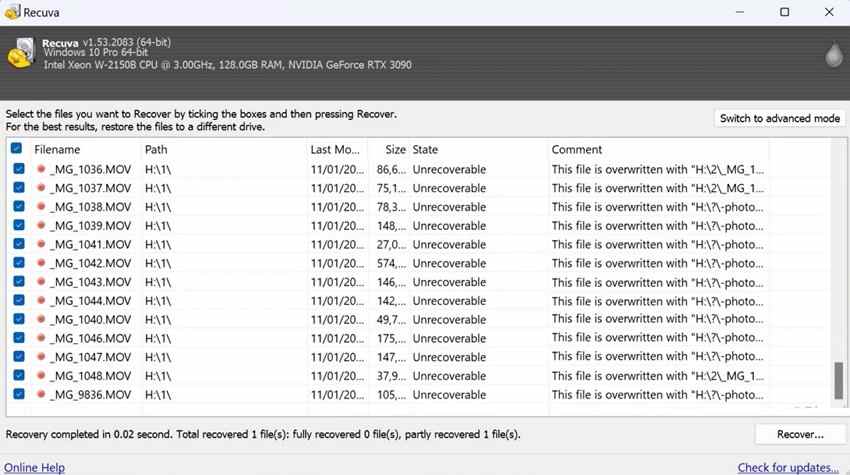
- Best for: recently deleted files from a readable SD or microSD card.
- Strength: simple Windows interface and a free version for home users.
- Useful feature: deep scan can search beyond a quick file-index scan.
- Limitation: weaker for RAW cards, formatted cards, and complex media recovery.
3. Disk Drill
Disk Drill is a polished recovery tool for Windows and macOS. For PC users, it is a strong choice when you want a clean interface, organized scan results, preview, recovery-chance indicators, and extra data protection tools.
Disk Drill is good for accidental deletion, formatted SD cards, and common memory-card recovery jobs. Its Windows free recovery allowance is limited, so it is often best for testing whether your files are recoverable before deciding whether to upgrade.
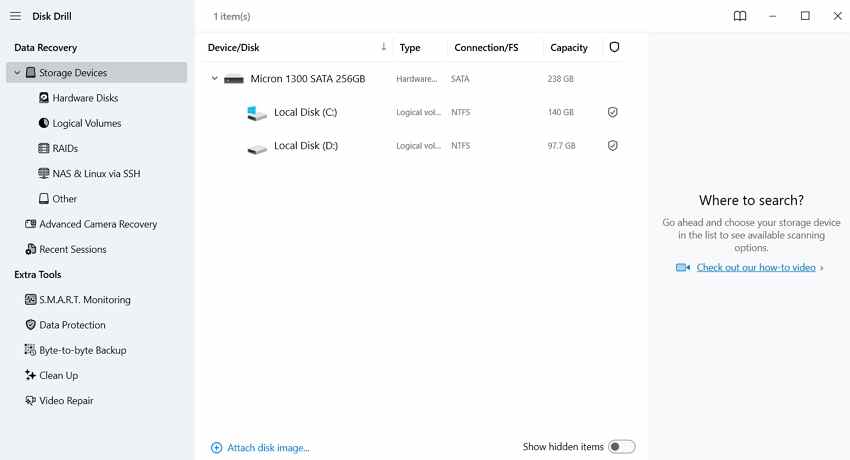
- Best for: beginners who want clean scan results and previews.
- Strength: supports SD cards, USB devices, internal drives, and disk images.
- Useful feature: byte-level backups can help protect unstable storage during recovery.
- Limitation: the free Windows recovery limit is small for large photo or video folders.
4. EaseUS Data Recovery Wizard
EaseUS Data Recovery Wizard is another beginner-friendly option for Windows users. It uses a simple choose-scan-preview-recover flow and can handle common loss scenarios such as deletion, formatting, lost partitions, and inaccessible storage.
EaseUS is useful when you want clear filters and preview while scanning. Its free version has a recovery cap, and some advanced features require a paid plan, so check the current edition details before relying on it for a large SD card recovery job.
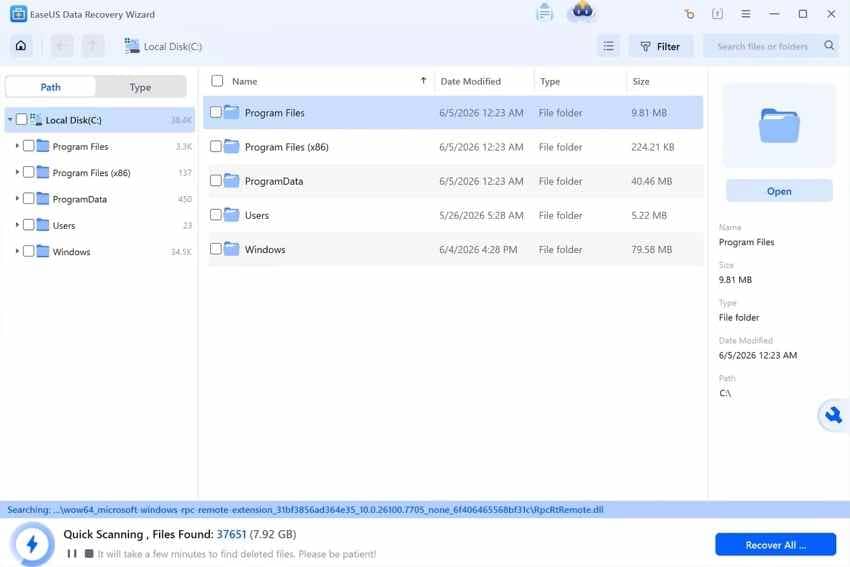
- Best for: common deletion, formatting, and lost-file cases.
- Strength: guided interface, filters, and preview before recovery.
- Useful feature: can show found files while scanning, so you can evaluate results early.
- Limitation: free recovery and advanced features depend on the edition and plan.
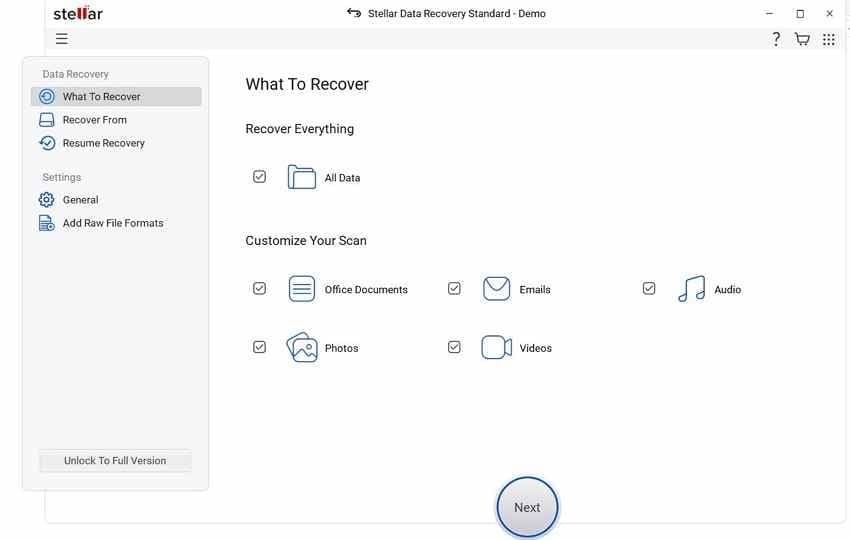
5. Stellar Data Recovery
Stellar Data Recovery covers a wide range of file types and storage devices, including SD cards, USB drives, external drives, and internal PC storage. It is a solid choice if you want a well-known recovery suite with scan, preview, and recover steps.
Stellar can be useful for users who need broad file-type coverage and a more conventional recovery workflow. Its free edition can recover a limited amount of data, while larger recoveries and advanced features require a paid edition.
- Best for: users who want broad file-type support from a familiar commercial tool.
- Strength: supports photos, videos, documents, archives, and multiple storage devices.
- Useful feature: preview helps verify files before saving them.
- Limitation: advanced recovery, larger files, and higher limits may require an upgrade.
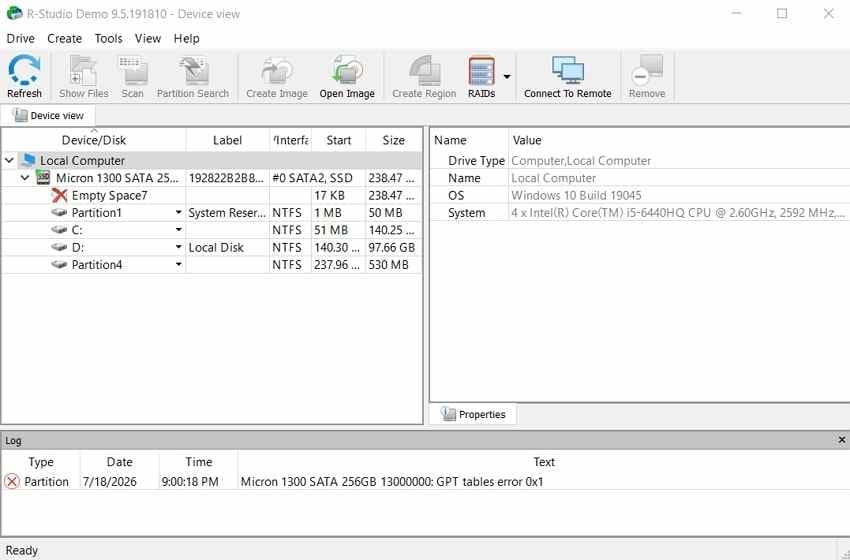
6. R-Studio
R-Studio is built for advanced users, technicians, and data recovery professionals. It supports many file systems, disk images, damaged partitions, RAID recovery, network recovery, and detailed scan controls.
For a normal SD card deletion case, R-Studio may be more complex than necessary. For a difficult card image, damaged partition structure, or technical recovery workflow, it gives far more control than beginner-focused tools.
- Best for: technicians, disk-image recovery, damaged partitions, and complex storage layouts.
- Strength: advanced file-system support, imaging, hex viewer/editor, and RAID features.
- Useful feature: demo mode can preview recovery results, but recovery size is restricted.
- Limitation: steeper learning curve than Recoverit, Recuva, Disk Drill, or EaseUS.
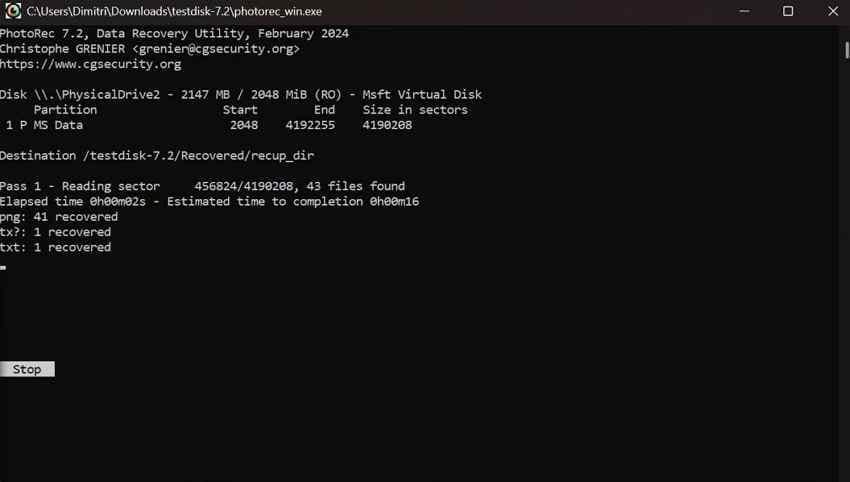
7. PhotoRec
PhotoRec is free, open-source, and powerful when a card's file system is badly damaged. Instead of relying on the file table, it searches for known file signatures. That approach can recover files from reformatted or corrupted media, including SD cards and camera memory cards.
The downside is usability. PhotoRec usually does not preserve original file names or folder structure, and the interface is less friendly than commercial recovery tools. It is best for patient users who can sort recovered files manually. TestDisk, the companion utility, is useful when the main issue is a lost partition rather than individual file recovery.
- Best for: advanced free recovery from corrupted, RAW, or reformatted cards.
- Strength: fully free, open source, and able to ignore a damaged file system.
- Useful feature: supports hundreds of file families and many storage devices.
- Limitation: no polished GUI workflow, limited preview, and recovered files may lose original names.
Part 5. SD Card Recovery Software Comparison Table
The table below compares the seven options side by side. Free limits and edition features can change, so check each official download page before starting a large recovery job.
| Tool | Systems | Free use | Best use case | Main drawback |
| Recoverit | Windows, macOS | Free scan and preview; recovery depends on version or plan | SD, microSD, camera card, photo, video, RAW, formatted, and corrupted-card recovery | Large recovery jobs usually require a paid plan |
| Recuva | Windows | Free version available for home users | Simple recent deletions from readable cards | Less effective for RAW, formatted, or severely corrupted cards |
| Disk Drill | Windows, macOS | Limited free recovery on Windows; preview available | Beginner-friendly recovery with clean results and byte-level backup tools | Free recovery allowance may be too small for large SD cards |
| EaseUS Data Recovery Wizard | Windows, macOS | Limited free recovery; paid editions unlock more recovery | Guided recovery for deletion, formatting, and lost files | Plan limits and advanced features need checking before use |
| Stellar Data Recovery | Windows, macOS | Limited free recovery | Broad file-type coverage across SD cards, USB drives, and PC storage | Higher limits and advanced features require paid editions |
| R-Studio | Windows, macOS, Linux | Demo mode with restricted recovery size | Technician-level recovery, disk images, damaged partitions, RAID, and file-system control | Complex for beginners |
| PhotoRec | Windows, macOS, Linux | Fully free and open source | RAW, reformatted, or badly corrupted cards where file-signature recovery is needed | Recovered files may lose original names and folder structure |
| Tool | Pros | Cons |
| Recoverit | Balanced option for SD card, microSD, camera media, preview, and beginner recovery | Not a physical card repair tool; paid plan may be needed |
| Recuva | Lightweight and easy for simple deleted files | Not ideal for severe corruption or fragmented video recovery |
| Disk Drill | Modern interface, organized results, and helpful disk tools | Free Windows recovery limit is small |
| EaseUS | Guided workflow, filters, and preview while scanning | Edition limits can be confusing for SD card users |
| Stellar | Broad file-type and storage-device support | Advanced recovery features depend on paid editions |
| R-Studio | Strong technical controls, disk imaging, and damaged partition support | Overkill for many home users |
| PhotoRec | Free, open source, and strong on damaged file systems | No easy file preview and no original folder recovery in many cases |
Part 6. How to Recover Files from an SD Card on PC with Recoverit
Use Recoverit when the SD card is detected by Windows through a built-in slot, USB reader, or adapter. If Windows asks you to format the card, close that prompt and recover your files first.
Step 1. Select the SD Card
Connect the SD card to your PC with a reliable card reader. Open Recoverit, choose SD Card Recovery, select the card, and click Start Scan.

Step 2. Scan the Card
Recoverit will scan the selected card for lost files. Let the scan finish when possible, especially if the card was formatted, became RAW, or contains many photos and videos. Use filters to narrow results by file type, name, size, or date.

Step 3. Preview and Save Files to Another Drive
Preview recoverable photos, videos, documents, and other files. Select what you need, click Recover, and save the files to your computer or another external drive. Do not save recovered files back to the same SD card.

Part 7. Free vs. Paid SD Card Recovery Software: What Should You Choose?
Free sd recovery software for PC is worth trying when the data loss is simple and the card is still healthy. Paid software is usually better when time matters, the interface needs to be easier, or the card was formatted, corrupted, or filled with large media files.
| Question | Best choice | Why |
| Which free tool should I try first? | Recuva for simple deletion; PhotoRec for advanced free recovery | Recuva is easier. PhotoRec is stronger when the file system is damaged. |
| When is paid software worth it? | Recoverit, Disk Drill, EaseUS, Stellar, or R-Studio depending on the case | Paid tools usually provide better previews, guided workflows, filters, and support for larger recoveries. |
| Which tool is best for photos and videos? | Recoverit | It is built for common storage devices and media-heavy recovery, including SD cards and camera cards. |
| Which tool is best for a corrupted or RAW card? | Recoverit for guided recovery; PhotoRec or R-Studio for advanced cases | Choose based on your skill level and whether you need a simple interface or deep technical control. |
| Which tool is best for a byte-to-byte image? | R-Studio, Disk Drill, PhotoRec, or another tool that supports disk images | Scanning an image is safer when the original card may be unstable. |
If you only lost a few recently deleted files, start with a free tool. If the files are important, the card was formatted, or you need to preview specific videos and camera files, use a more complete recovery tool first instead of repeatedly scanning the same unstable card.
Part 8. Can Recovery Software Fix a Corrupted SD Card?
Recovery and repair are different jobs. Recovery software tries to copy recoverable files from the SD card. Repair tools try to fix the card's file system or rebuild a usable volume. If you repair or format first, you may change the card and reduce recovery chances.
When Software Can Recover Files But Not Fix the Card
Recovery software can help when the SD card is readable enough for Windows or a card reader to access it. It may recover files from a card that is RAW, asks to be formatted, has missing folders, or shows file-system errors. It does not repair failed memory chips, broken contacts, controller damage, or a card that no device can detect.
When CHKDSK or Formatting Can Help After Recovery
After your files are safely recovered, Windows repair tools may help make the card usable again. Microsoft explains that CHKDSK checks the file system and file-system metadata for logical and physical errors. Because repair commands can change file-system structures, run them after recovery, not before it. If the card remains unreliable, replace it instead of trusting it again.
When Professional Recovery Is Required
Use a professional data recovery service when the SD card is physically cracked, overheats, is not detected by any reader, disconnects repeatedly, or contains high-value files that you cannot risk. Repeated software scans can add stress to unstable hardware.
Part 9. Tips for Improving SD Card Recovery Success
The tool you choose matters, but your actions before and during recovery matter just as much.
- Stop using the card immediately: every new file can overwrite deleted photos, videos, or documents.
- Remove the card from the camera or phone: devices may write thumbnails, databases, or system files in the background.
- Use a reliable card reader: a poor adapter can cause disconnects and incomplete scans.
- Scan from a PC, not the original camera: recovery software needs stable direct access to the card.
- Create a byte-to-byte image if the card is unstable: advanced users should scan the image instead of the original card where possible.
- Save recovered files elsewhere: never recover files back to the same SD card.
- Try deep scan when quick scan finds nothing: formatted and RAW cards often need a deeper scan.
- Recover before repair: use CHKDSK, formatting, or partition repair only after copying important files to another drive.
- Do not trust a failing card again: if the card keeps corrupting files, replace it after recovery.
Conclusion
The best SD card recovery software for PC depends on your loss scenario. Recuva is useful for simple deleted files. PhotoRec is the strongest fully free option for advanced users. Disk Drill, EaseUS, and Stellar offer guided recovery with different free limits and upgrade paths. R-Studio is best for technicians and complex storage cases.
For most Windows users who need a balanced tool for deleted, formatted, RAW, or corrupted SD card files, Recoverit Memory Card Recovery is the most practical first choice. Recover your files first, save them to another drive, and only then repair or format the SD card.
FAQ
-
What is the best SD card recovery software for PC?
Recoverit is the best overall pick for most PC users because it offers a guided workflow, SD card support, preview, filters, and broad file-format recovery. Recuva is better for simple free recovery, PhotoRec is better for advanced free recovery, and R-Studio is better for technicians. -
What is the best free SD card recovery software for PC?
Recuva is the easiest free option for recently deleted files from a readable SD card. PhotoRec is fully free and stronger for formatted, RAW, or badly corrupted cards, but it is harder to use and may not keep original file names. -
Can I recover files from a formatted SD card on Windows?
Yes, files can often be recovered from a quick-formatted SD card if the card has not been reused or overwritten. Stop using the card, scan it from a PC, preview the found files, and save recovered files to another drive. -
Can SD card recovery software fix a corrupted SD card?
No, recovery software mainly copies recoverable files from readable storage. It does not physically repair a damaged SD card. Recover your files first, then try CHKDSK or formatting only if you want to reuse the card. -
Why should I not save recovered files back to the same SD card?
Saving recovered files to the same SD card can overwrite other lost data that has not been recovered yet. Always restore files to your PC, an external drive, or another safe storage device.



