

 TL;DR:
Recovering permanently deleted iPhone photos after the 30-day Recently Deleted window requires retrieving a copy from an iCloud, Finder, or iTunes backup, or locating synced files in third-party cloud apps and external computer imports.
● Restoring an iPhone from an older iCloud or local computer backup requires erasing all current content on the device, which will permanently overwrite any new photos, messages, and app data created since that specific backup date.
● Recoverit Photo Recovery cannot extract files directly from a locked iPhone, iCloud Photos, or Apple's encrypted internal database; it is only effective if the iPhone pictures were previously exported to a Mac, Windows PC, external hard drive, or SD card.
● Before erasing your phone to execute a backup restore, manually check iCloud.com's separate Recently Deleted folder, offline Apple devices, and independent cloud services like Google Photos or OneDrive where unsynced copies frequently remain.
Ask AI for a summary
 ChatGPT
 Perplexity
 Gemini
 Claude
 Grok
Grok
Permanently deleted iPhone photos are difficult to recover, but not every case is hopeless. If the photos are still in Recently Deleted, recovery is simple. If they were removed from Recently Deleted or the 30-day window has passed, you need to look for another copy: iCloud Photos Recently Deleted, an iCloud backup, a Finder or iTunes backup, another Apple device, a cloud app, a message attachment, a computer import, or an external drive copy.
Quick Answer: If photos are still in Recently Deleted, restore them in the Photos app within 30 days. If they were removed from Recently Deleted or the 30-day window has passed, you usually need another copy or backup. Check iCloud.com, other Apple devices, Google Photos, Dropbox, OneDrive, Messages, Mail, WhatsApp, Finder/iTunes backups, and computer imports. Recoverit cannot recover photos directly from iCloud, a locked iPhone, or Apple’s internal Photos database, but it can help recover iPhone photos that were previously saved to a computer, SD card, USB drive, external hard drive, or local folder.
In this article
-
- 1. Check the Recently Deleted Album in the Photos App First
- 2. Look Inside Hidden, Shared Library, and Shared Albums
- 3. Sign in to iCloud.com and Check iCloud Photos
- 4. Check Whether iCloud Photos was Enabled on another Apple Device
- 5. Look for Google Photos, Dropbox, OneDrive, or Other Cloud Copies
- 6. Search Messages, Mail, AirDrop Downloads, and Social Media Apps
- 7. Check Whether the Photos Were Imported to a Mac or Windows PC
Part 1. Can You Recover Permanently Deleted Photos on iPhone?
Sometimes, but not always. If the photos are still in the Recently Deleted album, you can recover them directly from the Photos app. If they were permanently deleted, recovery usually depends on whether another copy exists in iCloud, a backup, another synced device, a third-party cloud app, a message, a computer, or external storage.
When Recovery Still Has a Chance
You still have a chance when:
- The photos are still in Recently Deleted.
- The photos remain in iCloud Photos Recently Deleted.
- An iCloud backup was created before deletion and includes the photos.
- A Finder or iTunes backup was created before deletion.
- Another Apple device still has the photos and has not synced the deletion.
- The photos were shared through Messages, Mail, WhatsApp, or social media.
- The photos were uploaded to Google Photos, Dropbox, OneDrive, or another cloud service.
- The photos were imported to a Mac, Windows PC, USB drive, SD card, or external hard drive.
When Photos May Be Truly Gone
Recovery is unlikely when:
- The photos were removed from Recently Deleted and no backup exists.
- iCloud Photos synced the deletion across all devices.
- No cloud, message, computer, or external copy exists.
- The backup was created after the photos were already deleted.
- The iPhone was reset and no older backup exists.
- The photos were securely erased or overwritten.
- The device is locked, encrypted, damaged, and no backup/copy exists.
Part 2. Recently Deleted vs Permanently Deleted: What Still Works?
“Recently deleted” and “permanently deleted” are not the same. This difference decides which recovery options are realistic.
| Factor | Recently Deleted | Permanently Deleted |
| Where It Lives | Still inside the Photos app or iCloud Recently Deleted | Removed from native Photos recovery locations |
| Time Limit | Usually available for up to 30 days | Gone from Recently Deleted after removal or expiration |
| Direct Recovery | Yes, from Photos or iCloud.com | Usually no direct Photos app recovery |
| What You Need | iPhone passcode, Face ID, or Apple Account access | Backup, synced copy, imported copy, or external copy |
| Success Chance | High if still in Recently Deleted | Depends on whether another copy exists |
| Data Risk | Low | Backup restore may replace current data |
Backup Restore vs Photo Recovery Software vs External Storage Recovery
| Method | Best For | Realistic Limit |
| Recently Deleted | Photos deleted within 30 days | No help after permanent deletion |
| iCloud Photos | Photos still in iCloud Recently Deleted or another synced copy | Deletion can sync across Apple devices |
| iCloud Backup | Backup made before photo deletion | Requires full restore and may replace current data |
| Finder/iTunes Backup | Local backup made before deletion | Usually requires full-device restore unless using backup extraction tools |
| Other Apps Or Copies | Photos shared, exported, uploaded, or synced elsewhere | Works only if a copy exists |
| Recoverit Photo Recovery | Photos deleted from computer, SD card, USB drive, external drive, or local folder | Does not recover directly from iCloud, locked iPhone, or Apple Photos database |
Part 3. Check These Places Before Restoring an iPhone Backup
Before erasing your iPhone or using recovery software, check these locations. Many “permanently deleted” photos still exist somewhere else.
1. Check the Recently Deleted Album in the Photos App First
Open the Photos app and check Recently Deleted first. If the photo is still there, restore it directly.
Open Photos > scroll to Utilities > tap Recently Deleted > unlock the album > select photos > tap Recover.
If the photos were already removed from this album, move to the next checks.

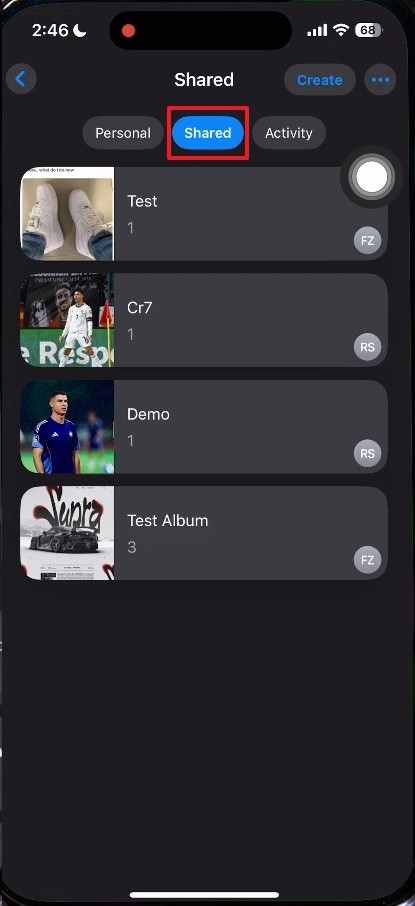
2. Look Inside Hidden, Shared Library, and Shared Albums
Photos may look deleted when they are actually hidden, shared, or stored in another library.
Check:
- Hidden album
- Shared Library
- Shared Albums
- Albums created by apps
- Screenshots or Imports albums
3. Sign in to iCloud.com and Check iCloud Photos
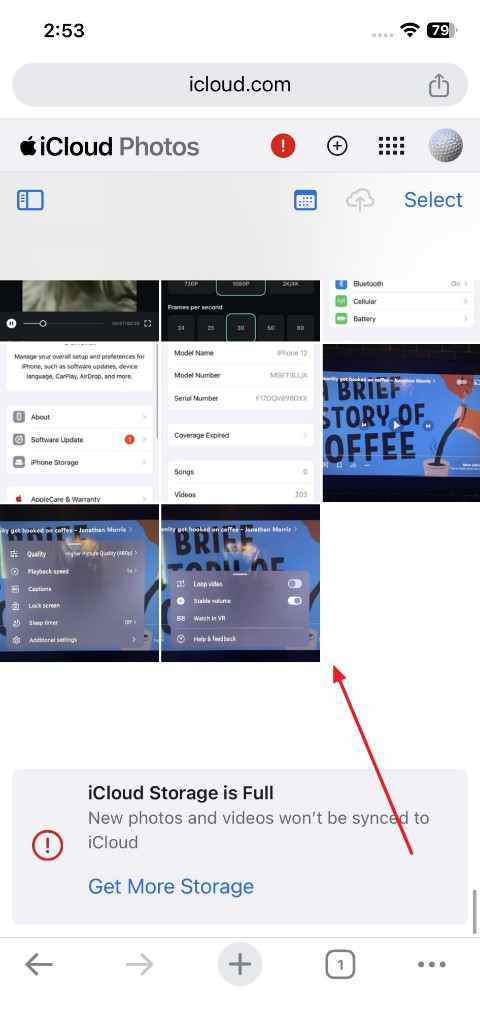
Go to iCloud.com and open Photos. Check both your main library and Recently Deleted.
Sign in to iCloud.com > open Photos > check Library and Recently Deleted > select photos > click Recover if available.
If iCloud Photos is enabled, deleting a photo from one Apple device may delete it from iCloud and other synced devices. However, iCloud Recently Deleted may still hold it within the recovery window.
4. Check Whether iCloud Photos was Enabled on another Apple Device
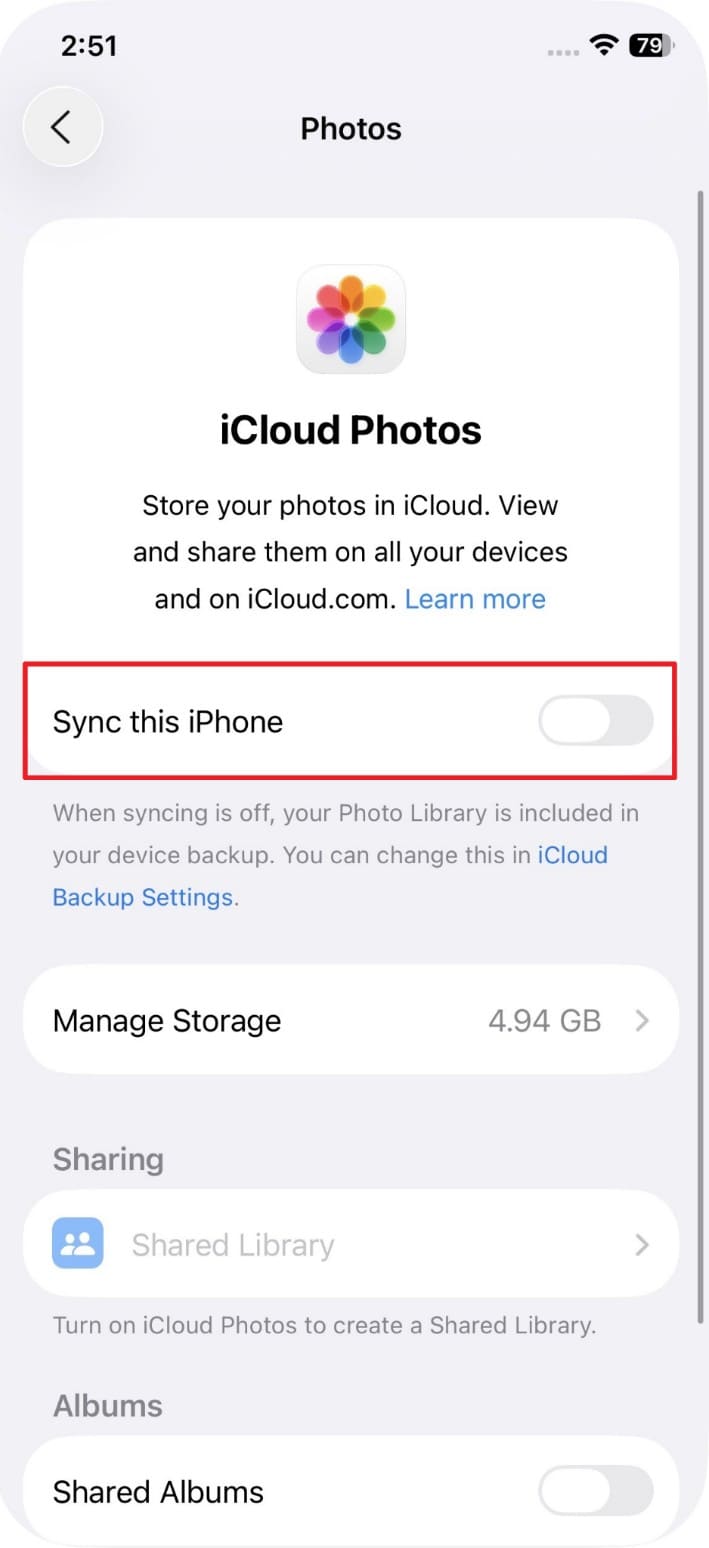
If you own another iPhone, iPad, or Mac, check it quickly. A device that has been offline may still have a local copy if it has not synced the deletion yet.
If you find the photo:
- Turn off Wi-Fi and cellular data on that device temporarily.
- Export the photo to a safe place.
- AirDrop it to another device.
- Save it to external storage or a cloud service.
5. Look for Google Photos, Dropbox, OneDrive, or Other Cloud Copies
Many users back up iPhone photos to third-party cloud apps. These apps may keep independent copies even after local deletion.
Check:
- Google Photos
- Dropbox
- OneDrive
- Amazon Photos
- Box
- Synology Photos
- Camera app cloud backups
- Social app media folders
Also check each app’s Trash, Recently Deleted, or Bin folder.

6. Search Messages, Mail, AirDrop Downloads, and Social Media Apps
You may have sent or received the missing photo before deleting it.
Check:
- Messages attachments
- Mail attachments
- WhatsApp chats
- Messenger
- Instagram or Facebook posts
- Telegram saved media
- AirDrop downloads
- Files app downloads
Ask family, friends, clients, or original senders to resend copies if needed.
7. Check Whether the Photos Were Imported to a Mac or Windows PC
If you ever connected your iPhone to a computer, the photos may have been imported.
On Mac, check:
- Photos app
- Pictures folder
- Downloads
- Desktop
- Image Capture imports
- External backup folders
On Windows, check:
- Pictures folder
- Photos app imports
- Downloads
- Desktop
- DCIM import folders
- OneDrive Camera Roll
- External backup drives
Part 4. Recover Deleted iPhone Photos With iCloud Photos or iCloud Backup
iCloud Photos and iCloud Backup work differently. Understanding the difference prevents accidental data loss.
iCloud Photos vs iCloud Backup: Why They Work Differently
This simple table will help you discover how these features differ for photo recovery:
| Factor | iCloud Photos | iCloud Backup |
| Main Purpose | Syncs your photo library across Apple devices | Creates a backup snapshot of device data and settings |
| Photo Behavior | Deletions can sync across devices | May include photos only when they are not already synced with iCloud Photos |
| Recovery Place | Photos app or iCloud.com Recently Deleted | Full iPhone restore from backup |
| Time Sensitivity | Recently Deleted recovery window matters | Backup date matters |
| Risk | Deleted photos may disappear from all synced devices | Restoring an older backup can replace current data |
If iCloud Photos is turned on, your photos and videos sync to iCloud and usually are not included again in the daily iCloud Backup. If iCloud Photos is off, iCloud Backup may include photos stored on the device at the time of backup.
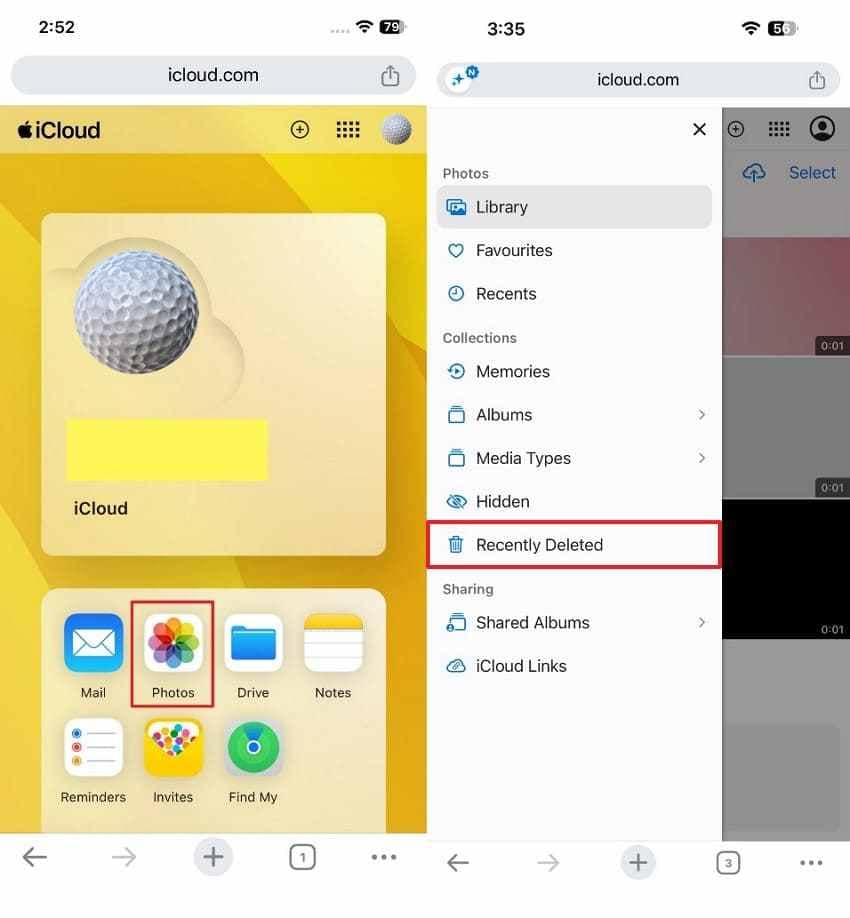
How to Recover Photos from Recently Deleted on iCloud.com
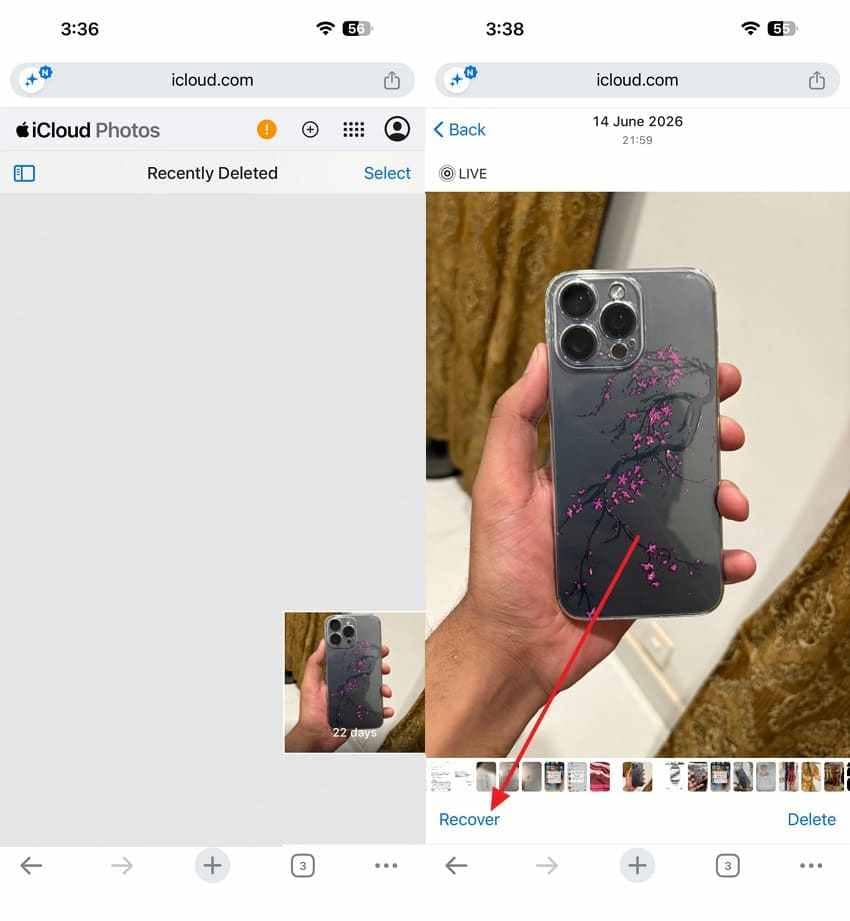
Your cloud storage also has its own “Recently Deleted” album that works like your iPhone. Photos removed appear in this album for up to 30 days. So, review the steps to learn how to recover permanently deleted photos on iPhone:
Step 1. Access your “iCloud” account > Go to “Photos” > Head to the “Recently Deleted” section.
Step 2. Choose your desired deleted image > Tap the “Recover” button.
How to Restore an iCloud Backup to Get Deleted Photos Back
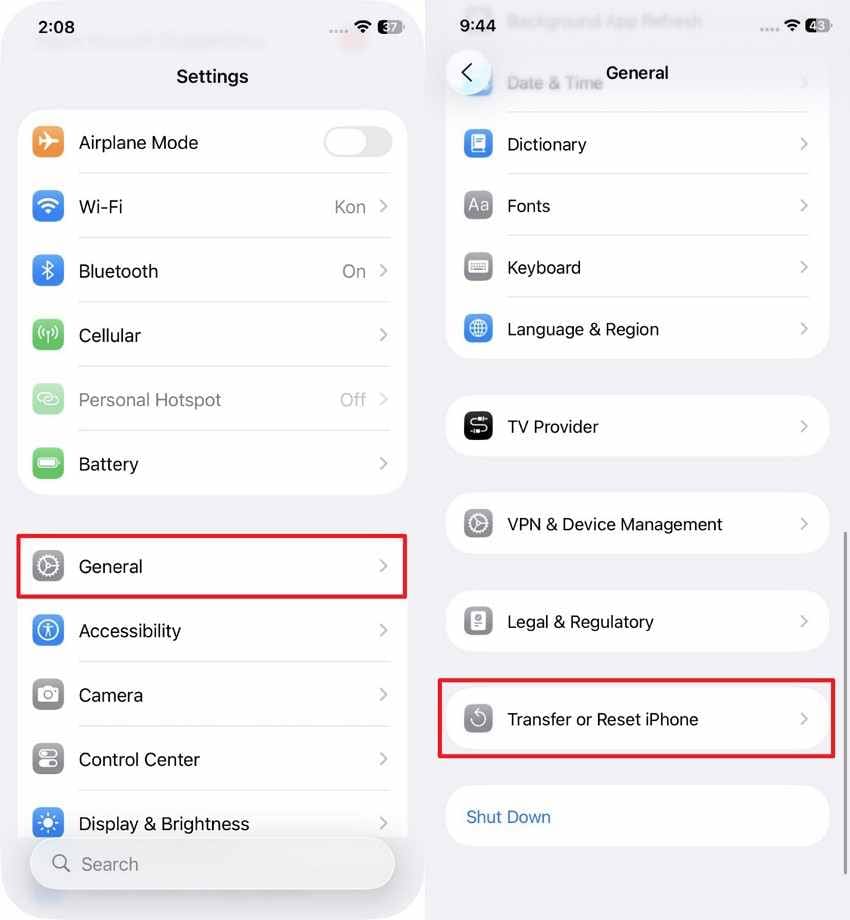
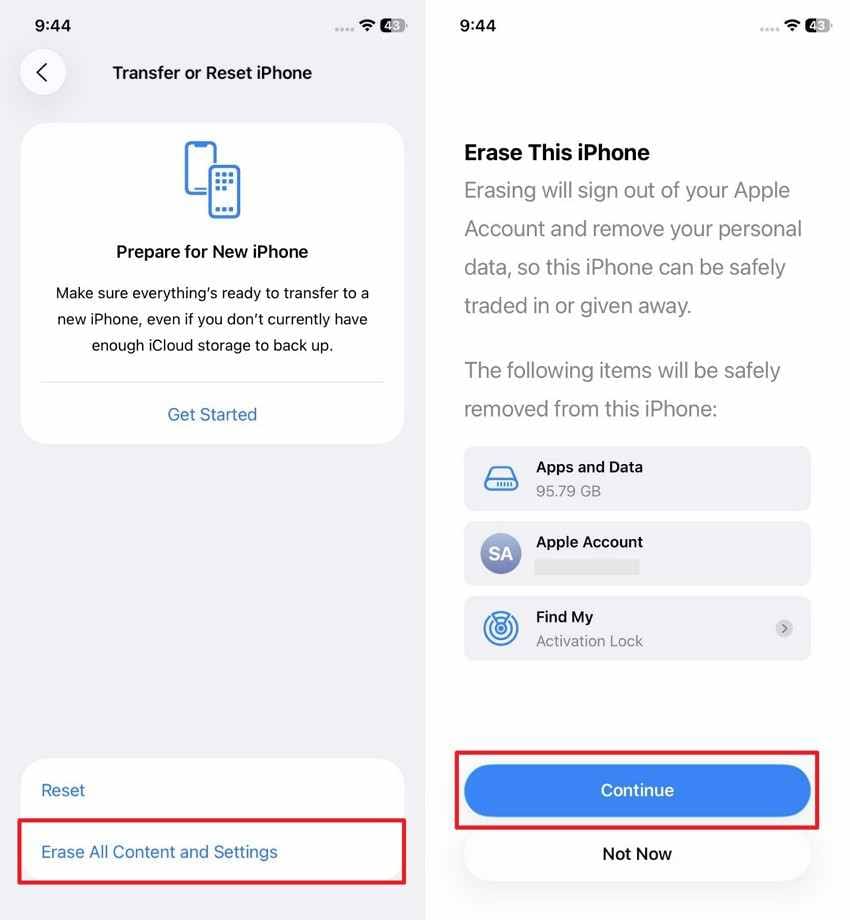
An iCloud backup restores all photos saved on your phone at the backup date. This method works best when deleted photos exist inside a recent backup. Anyways, follow these steps to restore your backup and get deleted photos back:
Step 1. Navigate to your device’s settings > Tap “General” > Access “Transfer or Reset iPhone.”
Step 2. Choose the “Erase All Content and Settings” > Press “Continue” to reset it by following the on-screen instructions.
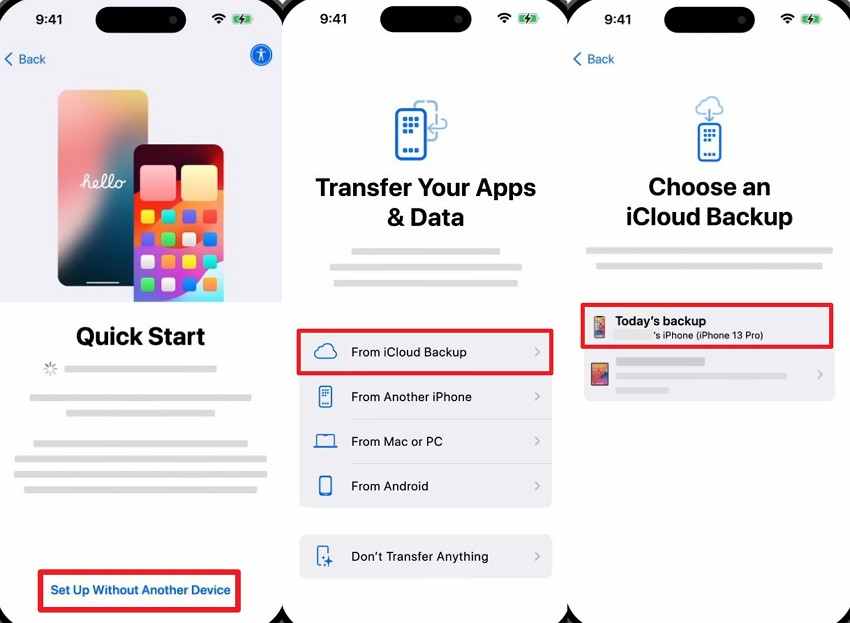
Step 3. Again, set up your device > Tap “Set Up Without Another Device” > “From iCloud Backup.” You need to sign in to your account > Choose the recent backup to restore it.
What You May Lose When Restoring an Older iCloud Backup
An older backup may not include:
- Photos taken after the backup date
- New messages
- New app data
- New settings
- Recently downloaded content
- Changes made after the backup
Use this option only when the missing photos are more important than current device changes, or after preserving current data elsewhere.
Part 5. Recover Deleted iPhone Photos From Finder or iTunes Backup
Finder and iTunes backups can help if you backed up the iPhone to a computer before the photos were deleted.
What Finder or iTunes Backup Stores
A computer backup is a snapshot of iPhone data and settings. However, if iCloud Photos was enabled, photos may already be synced to iCloud and may not be included in the computer backup in the same way.
How to Check Whether a Recent Backup Exists
- On Mac, connect your iPhone and open Finder. Select your iPhone and check the latest backup date.
- On Windows, open iTunes, connect your iPhone, select the device, and check the backup date.
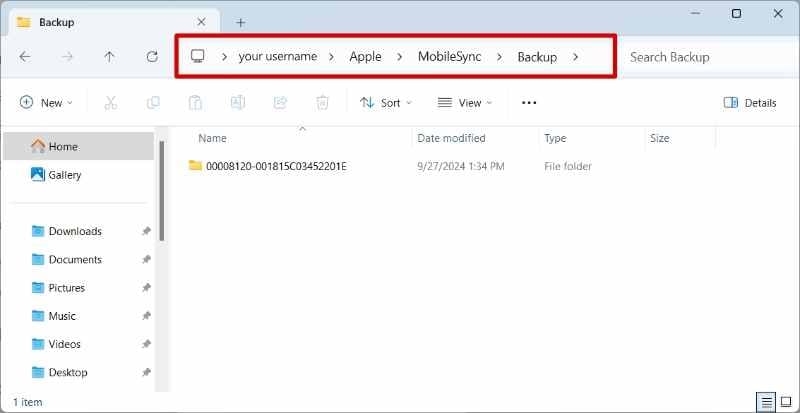
Advanced users can also check backup folders:
- Mac: ~/Library/Application Support/MobileSync/Backup/
- Windows: %APPDATA%\Apple Computer\MobileSync\Backup
How to Restore iPhone Photos from a Finder or iTunes Backup
Many users ask, how do I recover permanently deleted photos from iPhone using a local backup. Finder on Mac and iTunes on Windows both restore your full photo library. Let’s find out how to get these backups and restore your device photos:
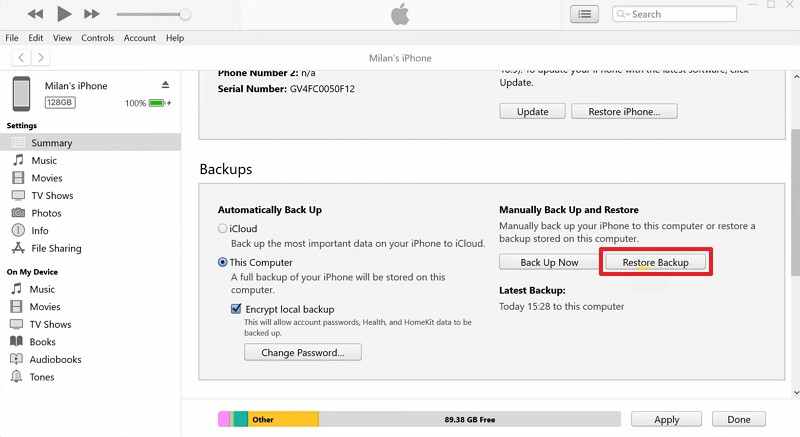
Step 1. As you connect your smartphone and run “iTunes/Finder,” click on your phone > Press “Restore Backup.”
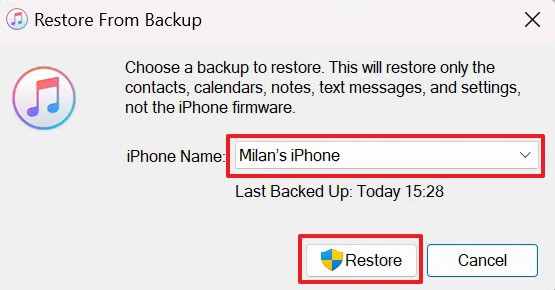
Step 2. Choose the recent backup containing deleted photos and click “Restore.”
When Finder or iTunes Backup Is Better Than iCloud Restore
This method may work better when:
- You have a recent local backup.
- Your internet connection is slow.
- iCloud Backup is unavailable.
- The deleted photos existed in the local backup.
- You prefer restoring from your own computer.
What to Do If the Backup Does Not Include the Photos
If the backup was created after deletion or does not include photos, check other copies instead: cloud apps, messages, old devices, computer imports, USB drives, external drives, or shared albums.
Part 6. Can You Recover Permanently Deleted iPhone Photos Without Backup?
Without a backup, direct recovery from the iPhone itself is uncertain and often impossible after permanent deletion. Modern iPhones use strong encryption and storage management, and permanently deleted Photos app data may not be available for direct recovery.
Some third-party iPhone recovery tools claim to scan devices or backups, but they cannot guarantee recovery. Results depend on iOS version, encryption, backup status, device condition, and whether a copy still exists somewhere.
What Third-Party iPhone Recovery Tools May Do
Review this table to understand what external data tools can deliver:
| What They Can Do | Important Limit |
| Scan existing iPhone data | Cannot guarantee permanently deleted Photos app recovery |
| Extract files from backups | Needs a backup that contains the photos |
| Read unencrypted local backup content | Encrypted backups require the password |
| Find app attachments or cached copies | Only works if those copies still exist |
| Preview some recoverable items | Preview does not guarantee complete recovery |
What They Cannot Reliably Do
They cannot reliably:
- Recover photos removed from Recently Deleted with no backup.
- Bypass iPhone encryption.
- Access a locked iPhone without credentials.
- Recover deleted iCloud Photos after permanent deletion.
- Guarantee recovery from overwritten or erased storage.
- Restore photos that never existed in any backup or copy.
Part 7. Use Recoverit If iPhone Photos Were Saved Outside the iPhone
Recoverit Photo Recovery does not recover directly from iCloud, a locked iPhone, or Apple’s internal Photos database. Use it when the missing iPhone photos were previously saved to a Mac, Windows PC, SD card, USB drive, external hard drive, camera card, or local folder.
When Recoverit Can Help
Recoverit can help if:
- You imported iPhone photos to a PC or Mac and later deleted them.
- You downloaded iCloud photos to a computer and then lost them.
- You exported iPhone photos to an external drive or USB.
- You saved photos to an SD card or camera card.
- Pictures saved in Downloads, Pictures, DCIM, or Desktop folders were deleted.
- The computer Trash or Recycle Bin was emptied.
- The external drive or SD card containing iPhone photos was formatted or corrupted.
When Recoverit Cannot Help
Recoverit cannot:
- Recover directly from iCloud Photos.
- Log in to or restore your Apple Account.
- Recover from a locked iPhone.
- Bypass iPhone encryption.
- Recover directly from Apple’s internal Photos database.
- Guarantee recovery of permanently deleted photos from internal iPhone storage.
What Photo and Video Formats Can Recoverit Recover
The table below lists all major photo and video formats that Recoverit supports:
| Format Type | Supported Formats |
| Standard Image Formats | JPG, JPEG, PNG, BMP, GIF, TIFF, HEIC, WebP, ICO, WMF |
| RAW Camera Formats | CRW, CR2, CR3, NEF, NRW, ORF, RAF, ARW, SR2, SRF, MRW, DCR, DNG, ERF, PEF, RW2, RAW |
| Video Formats | MP4, MOV, M4V, AVI, MKV, WMV, ASF, FLV, 3GP, 3G2, MPG, MPEG, TS, MTS, M2TS, and more |
| Apple Photo Formats | HEIC, Live Photos (HEIC + MOV), JPG exports, PNG screenshots |
Guide to Recover iPhone Photos from Your Computer with Recoverit
Adhere to the given steps to recover your deleted photos stored on your PC:
Step 1. Select the Location Where Photos Were Lost
Choose the drive or folder containing your missing iPhone photos from the “Hard Drives and Locations” tab.

Step 2. Search for Deleted or Missing Photos
After selecting the storage location, let Recoverit perform a scan to locate deleted photo files.

Step 3. Preview the Recoverable Photos to Restore
Preview the recovered iPhone photos and use "Recover” to save them to another location.

Important Note: The Recoverit tool doesn’t help retrieve photos from both iCloud and a locked iPhone.
When to Contact a Professional Data Recovery Service for Critical Photos
Sometimes, recovery is no longer realistic.
Photos may be truly gone when:
- They were removed from Recently Deleted.
- iCloud Photos synced the deletion to every device.
- No iCloud, Finder, iTunes, or computer backup contains them.
- No copy exists in Messages, Mail, WhatsApp, Google Photos, Dropbox, OneDrive, or social apps.
- No old Apple device still has them.
- No imported copy exists on a computer or external drive.
- The iPhone was erased and no older backup exists.
- The photos were overwritten, securely erased, or never backed up.
- The device is locked, encrypted, physically damaged, and no backup exists.
For critical photos, a professional data recovery service may be worth asking, but iPhone encryption and the absence of backups can still make recovery impossible.
Part 8. How to Avoid Losing iPhone Photos Permanently Again
After learning how to recover completely deleted photos on iPhone, review these key practices:
| Prevention Step | Action | Benefit |
| Enable iCloud Photos | Turn on photo syncing | Automatic cloud backup |
| Keep Storage Available | Maintain free iCloud space | Prevents sync interruptions |
| Back Up Regularly | Create routine iPhone backups | Protects against photo loss |
| Save in Multiple Places | Use cloud and external storage | Reduces data loss risk |
| Review Settings Monthly | Verify backup and sync status | Prevents unnoticed failures |
Conclusion
Recovering permanently deleted iPhone photos depends on where another copy exists. If the photos are still in Recently Deleted, restore them directly. If they were removed from Recently Deleted or the 30-day window has passed, check iCloud Photos, iCloud.com, another Apple device, third-party cloud apps, Messages, Mail, WhatsApp, Finder/iTunes backups, iCloud backups, computer imports, and external drives.
Be careful with full backup restore methods because they can replace current iPhone data. Also be realistic about third-party iPhone recovery tools: they cannot guarantee recovery from permanently deleted, encrypted, or overwritten iPhone storage.
Recoverit Photo Recovery is useful when the missing iPhone photos were previously saved outside the iPhone, such as on a Mac, Windows PC, USB drive, SD card, external hard drive, or local folder. It does not recover directly from iCloud or a locked iPhone, but it can help recover deleted or lost photo files from supported storage locations.
FAQs
-
1 Can I Recover Permanently Deleted Photos on iPhone?
Sometimes. If the photos are still in Recently Deleted, you can restore them within the recovery window. If they were permanently deleted, you usually need another copy, such as an iCloud backup, Finder/iTunes backup, synced app, old device, message attachment, computer import, or external drive copy. -
2 Can I Recover Photos After Deleting Them from Recently Deleted?
Only if another copy or backup exists. Once photos are removed from Recently Deleted and no copy exists elsewhere, recovery is usually not possible. -
3 Are Permanently Deleted iPhone Photos Gone Forever?
They may be gone forever if they were removed from Recently Deleted, synced deletion reached all devices, no backup includes them, and no external or app copy exists. -
4 Can iCloud Recover Permanently Deleted Photos?
iCloud can help if the photos are still in iCloud Recently Deleted or exist in an older backup that includes them. If iCloud Photos synced the deletion and the recovery window passed, iCloud Photos may not help. -
5 Can I Restore Deleted Photos from an iCloud Backup?
Yes, if the backup was created before deletion and includes the photos. However, restoring an iCloud backup requires erasing the current iPhone first, so back up current data before restoring. -
6 Will Restoring an iPhone Backup Erase Current Data?
Yes, restoring from an older backup can replace current data with the backup contents. You may lose new messages, photos, app data, and settings created after the backup date. -
7 Can Recoverit Recover Permanently Deleted Photos Directly from iPhone?
No. Recoverit Photo Recovery does not recover directly from iCloud, a locked iPhone, or Apple’s internal Photos database. It is used for photos saved on computers, SD cards, USB drives, external drives, and local folders. -
8 When Can Recoverit Help with iPhone Photo Recovery?
Recoverit can help when iPhone photos were previously imported, exported, downloaded, or copied to a computer, SD card, USB drive, external hard drive, camera card, or local folder, and then deleted or lost from that location. -
9 Can I Recover Deleted iPhone Photos Without Backup?
Without a backup, recovery is difficult. Check other Apple devices, cloud apps, messages, emails, shared albums, social media, computer imports, and external storage. If no copy exists anywhere, recovery may not be possible. -
10 How Do I Prevent iPhone Photos from Being Permanently Lost Again?
Use iCloud Photos, keep enough iCloud storage, create regular iPhone backups, export important photos to a computer or external drive, use another cloud backup app, and check Recently Deleted carefully before emptying it.


