
 TL;DR:
To rebuild a functional shoot library from disorganized recovered camera data, extract the files to a separate drive and sequence them hierarchically by EXIF capture time, device source, media role, and shoot batch rather than relying on altered file modified dates.
● Preserve all secondary helper files, such as XMP sidecars, video proxies, THM thumbnails, and SRT subtitles, keeping them alongside their matching RAW or main video files to maintain editing settings and camera context.
● The Recoverit AI Search workflow for Windows Vista through 11 and macOS 10.10 or later enables natural language filtering to identify specific shoot batches, but it cannot retrieve overwritten data or repair physical storage failure.
● Delay formatting the original memory card or bulk renaming any media files until you have visually previewed the recovered assets and secured an untouched backup duplicate of the entire scan export.
Ask AI for a summary
 ChatGPT
 Perplexity
 Gemini
 Claude
 Grok
Grok
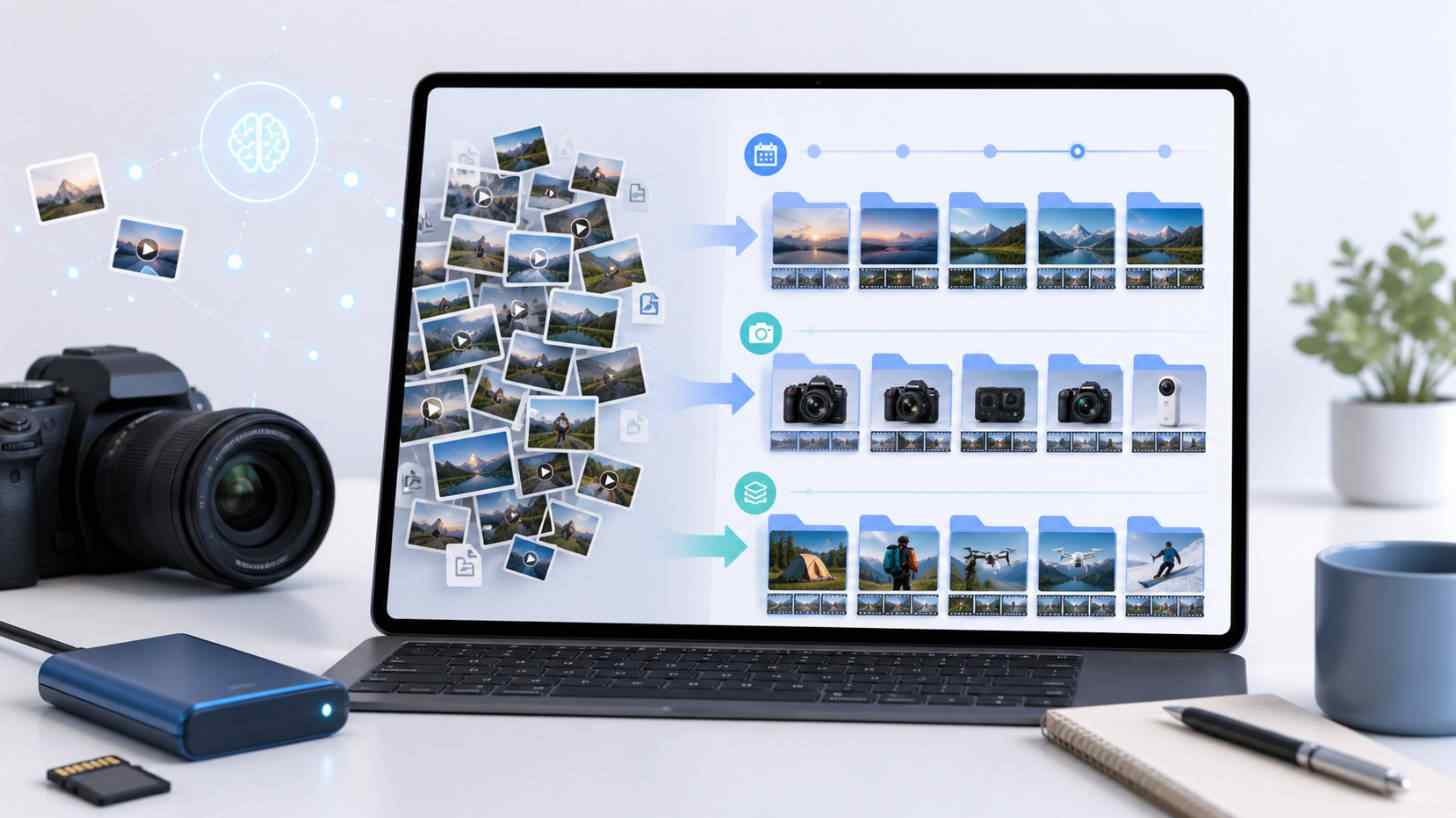
Recovering camera files is only half the job. A scan may bring back thousands of photos and videos, but the result can feel unusable if RAW files, JPG previews, proxies, sidecars, burst shots, and video clips are mixed into one long list. For photographers, drone operators, editors, and media managers, the real question becomes: how do you turn recovered files back into a workable shoot library?
Quick answer: organize recovered camera files in layers. First protect the original card or drive and recover files to another location. Then rebuild order by capture date, device source, file type, shoot batch, and related-file relationships. Recoverit's new AI Search workflow can help by turning scan results into a searchable media view, so users can group files by time and device, search by remembered content, and identify complete shoot assets faster.
In this article
Part 1. Why Recovered Camera Files Become Disorganized
A normal camera card is already a small media system. It may contain DCIM folders, RAW photos, in-camera JPG previews, video files, low-resolution proxies, thumbnails, subtitle or metadata files, and app-created directories. When the card is deleted, formatted, corrupted, or interrupted during writing, some of the records that kept those files organized may disappear.
That is why recovered camera files often show these symptoms:
- Files appear in one mixed result list. The original folder tree may not be fully recoverable.
- Capture order looks wrong. File modified time may reflect recovery time, copy time, or repair time instead of shooting time.
- Multiple cameras are mixed together. A single project card dump can include Canon, Sony, Nikon, DJI, GoPro, Insta360, phone, and exported files.
- Main files and helper files are separated. RAW+JPG, photo+XMP, video+SRT, video+LRV, or video+THM files can look unrelated.
- File names no longer tell the story. A signature scan may recover playable photos and videos without the original project path or camera filename.
Good organization after recovery should not start by renaming everything. It should start by preserving the recovered result, reading the clues that remain, and rebuilding the shoot structure carefully.
Part 2. The Best Order to Rebuild a Camera Shoot Library
To organize recovered camera files, work from the most stable clues to the least stable ones. This keeps the process logical and reduces the risk of mixing client shoots, camera bodies, or file versions.
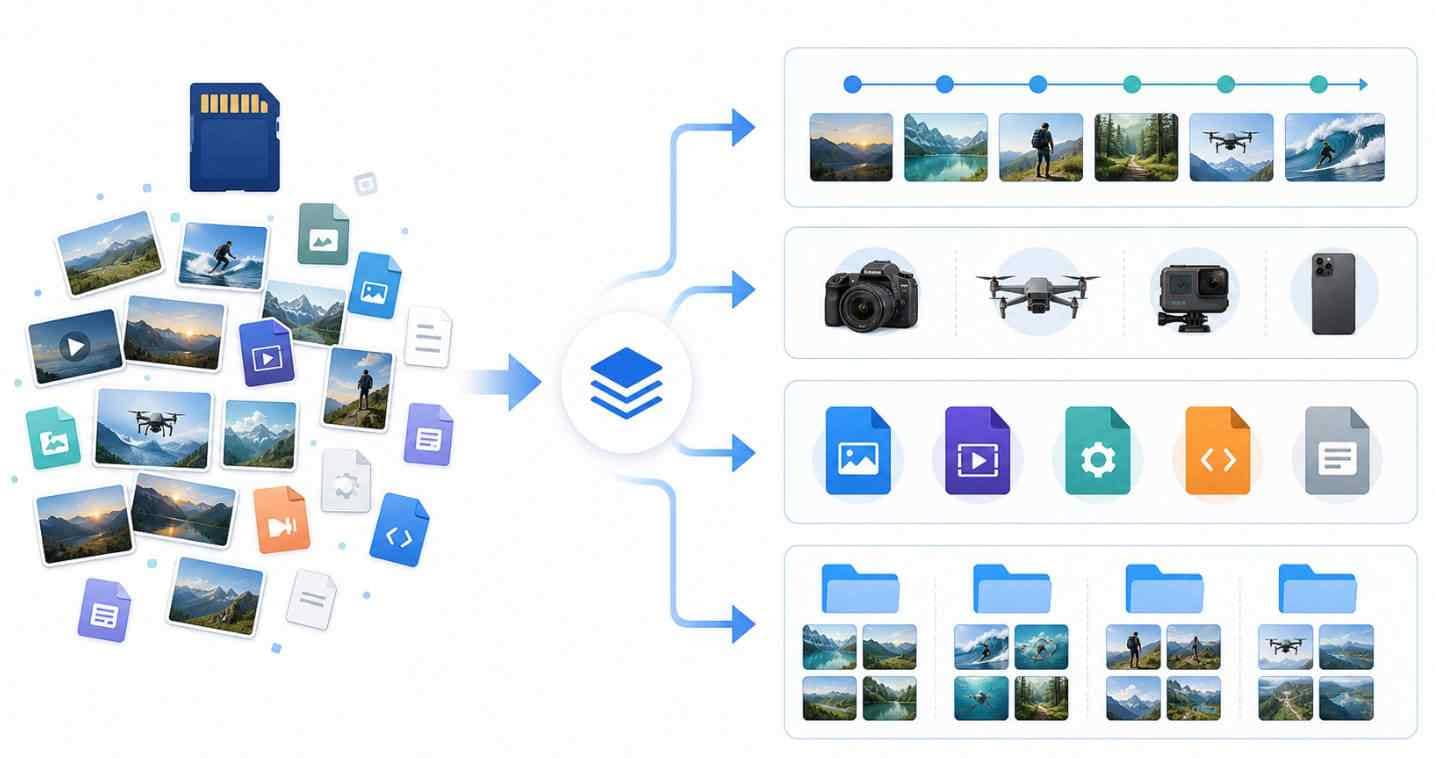
The model above shows a practical hierarchy: capture time builds the timeline, device metadata separates camera sources, file type identifies each media role, and shoot batch turns a long recovery list into meaningful working groups.
Layer 1. Capture date and time
Start with capture time, not file modified time. File modified time can change when files are copied, recovered, edited, or exported. Camera metadata is usually more useful because it reflects when the photo was taken if the metadata survived.
CIPA's Exif standards include current digital camera metadata standards, including Exif Version 3.1 and Exif metadata for XMP. That is why capture date, camera model, and other metadata can still help after recovery, though they are not guaranteed in every loss case.
Layer 2. Device source
Next, separate files by device source when possible. A two-camera wedding shoot, a drone project, or an action-camera trip may contain overlapping timestamps, but the device source can reveal which body or camera created each file.
- Canon, Nikon, Sony, Fujifilm, Panasonic, or OM System still cameras
- DJI drones and handheld cameras
- GoPro action cameras
- Insta360 cameras
- Phone photos copied onto the same card or backup drive
Layer 3. File type and media role
File extension alone does not tell you whether a file is final, original, preview, proxy, or metadata. Still, it is a useful layer. Separate photo, video, RAW, proxy, sidecar, subtitle, and thumbnail files before making decisions.
For example, Adobe documents that Camera Raw settings can be stored in sidecar XMP files, which are useful when moving or storing RAW image files with their associated settings. Deleting those files too early can remove editing context even if the RAW photo itself survived.
Layer 4. Shoot batch
A shoot batch is a group of files that likely belong to the same shooting session. It may be a wedding ceremony segment, a product shoot setup, a drone flight, a travel day, or a sports sequence. Batch grouping usually comes from time ranges, camera/device source, file relationships, and visual similarity.
This is where Recoverit AI Search can add practical value. Instead of showing scan results only as isolated files, the new workflow is designed to help users reorganize media by shooting timeline, device source, content tags, and related assets, making a recovered card easier to review.
Part 3. Organize Recovered Camera Files With Recoverit AI Search
Recoverit can help recover photos and videos from readable camera storage, including SD cards, microSD cards, CF cards, external drives, USB drives, and computer disks. Its new AI Search workflow is designed for the moment after scanning begins, when users need to find and organize the right media instead of manually opening every file.
Use this workflow before you format, repair, repartition, or reuse the original card.
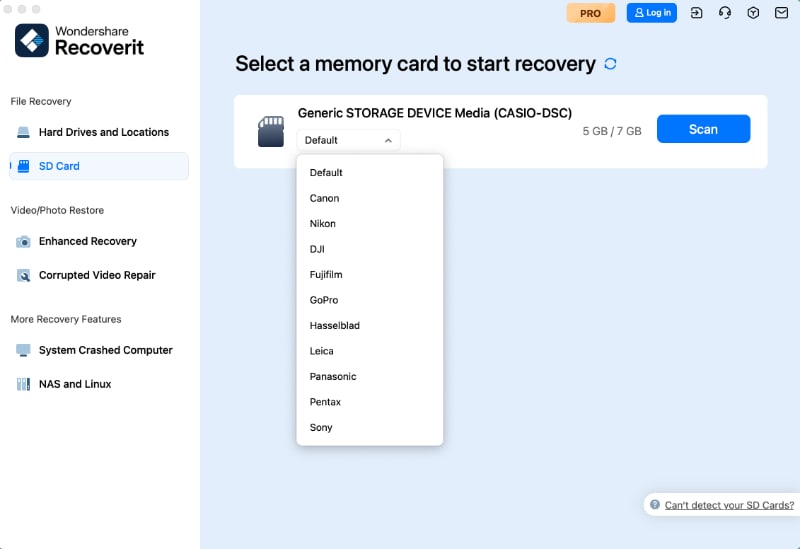
Step 1. Scan the camera card before repair or format
Remove the card from the camera or recorder and connect it to your computer through a stable card reader. Open Recoverit and scan the card, partition, or disk where the files were lost. If the card asks to be formatted or appears RAW, scan first and format only after important media is recovered.
The SD Association FAQ explains that Quick Format initializes file and directory entries, while Overwrite Format erases the user data area. This is why recovery should come first when the original files still matter.
Step 2. Review the timeline and device source
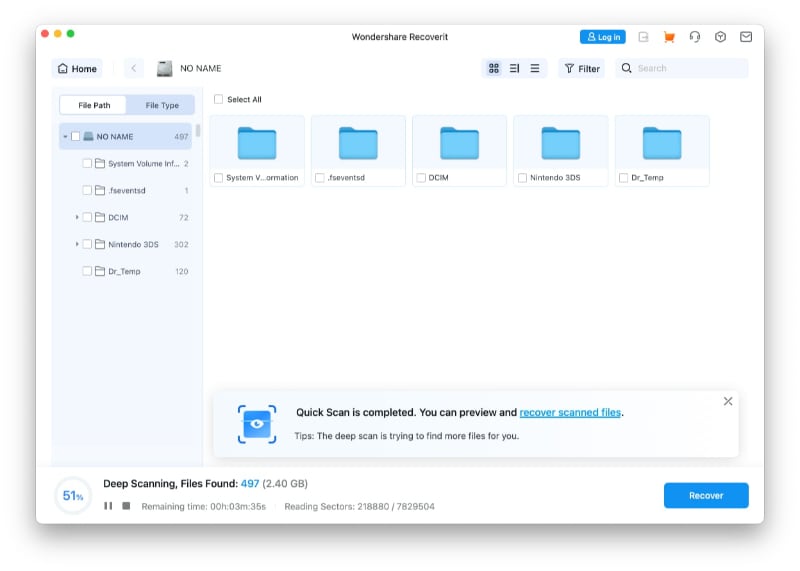
After scanning starts, review files by date and device where that information is available. This helps you identify obvious groups: one camera body, one shooting day, one drone flight, one client event, or one travel segment.
If filenames are gone, timeline and device source can still give the recovery result an order that makes sense to the person who shot the material.
Step 3. Search by shoot content or client context
When a scan returns too many files, use Recoverit AI Search where supported. Type what you remember in plain language, such as "Canon wedding reception," "DJI sunset drone video," "product photos on white background," or "night street photos from last week."
Recoverit's new workflow is positioned around local AI analysis where supported, so recovered photo content can be tagged and searched without framing the feature as a cloud-uploaded review process. Before publication, confirm final release documentation for supported languages, media types, and content categories.
Step 4. Keep related files together
Do not judge small helper files as junk until you know what they belong to. A complete shoot may need RAW+JPG pairs, XMP sidecars, video proxies, thumbnails, or subtitle/metadata files.
Recoverit's creator-oriented organization can group related files where the relationship is identifiable, helping users review one media asset with its related files instead of seeing each item as a separate mystery file.
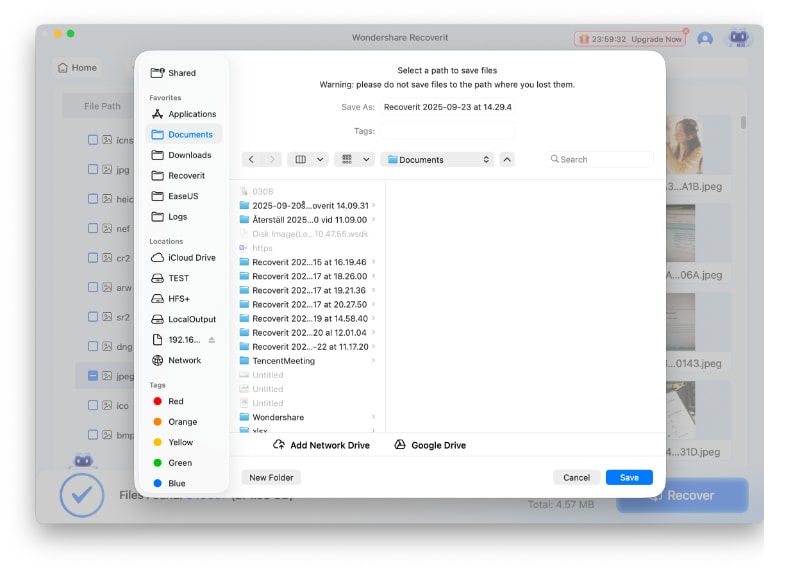
Step 5. Recover into a clean folder structure
After you identify the right groups, recover them to a different drive. Then organize copies into a structure that works for editing, backup, and client delivery. Do not recover or rename files directly on the original card.
For broader recovery guidance, see Recoverit's camera photo recovery, SD card recovery, and folder structure recovery guides.
Part 4. Recommended Folder Structure After Camera Recovery
Once the recovered files are safely copied to another drive, use a structure that keeps time, shoot, device, and role visible. A simple naming system is easier to maintain than a clever one.
| Level | Example | Why it helps |
| Year or month | 2026 / 2026-08 | Keeps large archives chronological and easy to browse. |
| Shoot folder | 2026-08-21-client-wedding | Combines ISO-style date sorting with a human-readable event label. |
| Device subfolder | canon-r5, sony-a7iv, dji-mavic, gopro-hero | Prevents mixed-camera files from losing capture context. |
| Media role folder | raw, jpg, video, proxy, sidecar, selects | Separates originals, previews, helper files, and edited choices. |
| Recovery status folder | previewed, needs-review, damaged-copy | Keeps uncertain recovered files from being mistaken for final delivery assets. |
A practical recovered-shoot folder might look like this:
2026-08-21-client-wedding/
  canon-r5/
    raw/
    jpg/
    xmp/
  sony-a7iv/
    raw/
    jpg/
  dji-mavic/
    video/
    srt/
    proxy/
  review/
    selects/
    damaged-check/
Do not rename the only recovered copy until you have backed it up. Rename a duplicate or use a cataloging tool that can preview changes first.
Part 5. How Shoot Batch Grouping Works
Shoot batch grouping is not magic. It is a practical way to infer which recovered files belong together. The stronger the clues, the safer the grouping.
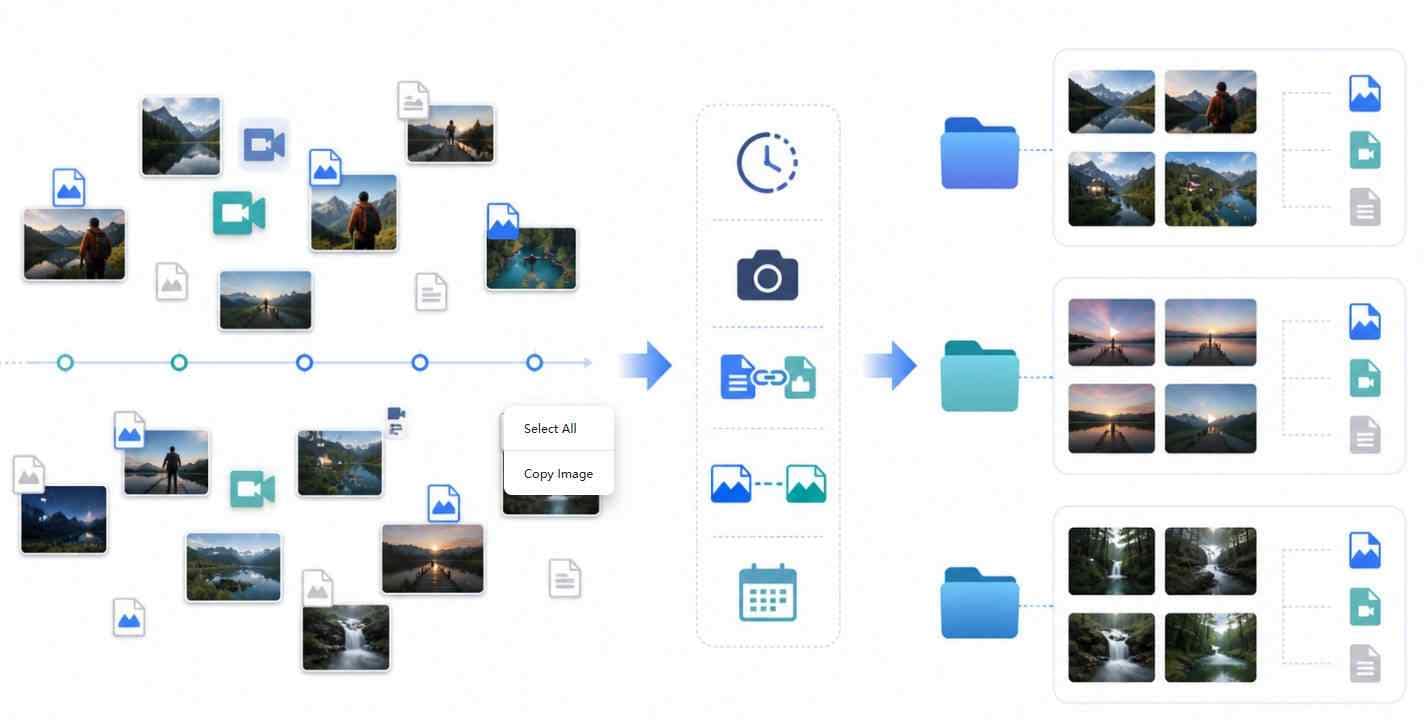
The grouping logic above combines time gaps, camera source, media type, and related file names or metadata. For example, a 30-minute block from one camera may be a ceremony segment, while a separate DJI flight may form its own video batch with subtitle and proxy files.
| Grouping signal | What it can reveal | When to be careful |
| Close capture times | Files from the same burst, scene, ceremony segment, or flight. | Multiple cameras may shoot at the same time, so do not rely on time alone. |
| Same camera or device | Files from one body, drone, action camera, or phone. | Metadata may be missing or incorrect if the file is partial or exported. |
| Matching base names | RAW+JPG pairs, XMP sidecars, or video helper files from the same capture. | Signature recovery may replace the original base name with a generic name. |
| Visual similarity | Shots from the same setup, location, person, product, or scene. | Similar scenes can occur across multiple shoots, so combine with time or device. |
| Known shoot schedule | Getting ready, ceremony, reception, product setup, travel day, or drone flight. | Manual labels should be added only after preview confirms the group. |
Part 6. What to Do With RAW, JPG, XMP, Video, Proxy, and Thumbnail Files
Recovered camera results often include files that look secondary but still matter. Treat them as relationship clues first, not cleanup targets.
| File type or group | Role in a camera workflow | How to organize after recovery |
| RAW files | Original sensor data for editing and color work. | Keep in a RAW folder by shoot and device. Recover these before relying on JPG previews. |
| JPG or JPEG | In-camera processed preview or delivery-friendly image. | Pair with matching RAW files when possible; separate final selects from every recovered JPG. |
| XMP | Sidecar settings or metadata used by RAW workflows such as Adobe Camera Raw. | Keep next to the matching RAW file with the same base name when available. |
| MP4, MOV, or camera video | Main video file from a camera, drone, phone, or recorder. | Group by device, shoot, and capture time. Preview before deleting any companion files. |
| Proxy or preview files | Low-resolution versions used for faster playback or app review. | Keep until the main video is confirmed playable and complete. |
| Thumbnail files | Small image previews or video cover images. | Use as clues for identifying media, then archive or remove only after verification. |
| Subtitle or metadata files | May contain captions, timestamps, or device-specific shooting information. | Keep with the matching video if the project depends on camera or flight context. |
If you work with Adobe Camera Raw, review Adobe's Camera Raw settings guidance before separating RAW files from XMP sidecars.
Part 7. Manual Tools to Organize Recovered Camera Files
Recoverit helps you recover and search the scan result, but your final archive may still be organized with normal file or catalog tools after recovery. Use manual tools only on recovered copies, not on the original card.
| Tool or method | Best use after recovery | Important limit |
| File Explorer or Finder | Basic sorting by date, type, size, and folder. | May show modified time rather than capture time. |
| Adobe Bridge or Lightroom Classic | Cataloging, rating, previewing, and metadata-based selection. | Do not import damaged or uncertain files as final project assets without review. |
| ExifTool or metadata utilities | Reading capture time, camera model, lens, and other metadata in bulk. | Use dry-run or copy mode first; metadata operations can be hard to undo. |
| Windows File Recovery | Command-line recovery with filters for local storage cases. | Microsoft Windows File Recovery is not a visual media organizer. |
| Manual client or event labels | Adding human meaning after preview confirms a shoot group. | Label only after you know the group is correct. |
Part 8. Safety Rules Before You Rename, Move, or Format
Recovered camera files may be your only copy of a project. Before reorganizing aggressively, follow these rules:
- Keep the original recovered export untouched. Make a working copy before renaming, deleting, or moving files.
- Recover to another drive. Do not save recovered files back to the same card or damaged partition.
- Preview before deleting helper files. XMP, SRT, LRV, THM, and proxy files may help identify or complete a shoot.
- Do not format the card before recovery is finished. Format only after the files you need are recovered and backed up.
- Use the official SD Memory Card Formatter after recovery if you need to prepare an SD card for reuse.
- Replace unstable cards. If a card disconnects, shows wrong capacity, or repeatedly loses files, do not trust it for new shoots.
Recoverit can help recover files from readable storage and organize scan results, but it cannot repair physical camera card failure, bypass encryption, recover overwritten data, or guarantee every partial file will open.
Part 9. Conclusion
Camera recovery should end with a usable shoot library, not a folder full of mystery files. The practical path is to recover first, then rebuild order from capture time, device source, file type, shoot batch, and related-file relationships.
Recoverit's new AI Search workflow supports this creator-focused stage by helping users search recovered media by content and context, organize results by time and device, and keep related files easier to understand. That makes recovered camera files faster to review, safer to export, and more useful for real editing work.
FAQ
-
How should I organize recovered camera files?
Recover files to a different drive first, then organize copies by capture date, shoot folder, device source, file type, and review status. Keep the original recovered export untouched until you confirm that the working folder is correct. -
Can recovered photos be organized by date taken?
Yes, if capture-time metadata survived. EXIF metadata can help identify date taken and camera source, but metadata may be missing after formatting, corruption, export, or partial recovery, so combine date sorting with preview and content search. -
What is a shoot batch in recovered camera files?
A shoot batch is a group of files that likely came from the same shooting session, such as a ceremony segment, product setup, drone flight, travel day, or burst sequence. Batch grouping can use time, camera source, file type, file relationships, and visual similarity. -
Should I rename recovered files immediately?
No. First keep an untouched recovered copy. Rename or reorganize a duplicate only after you preview the files, confirm important RAW/JPG/XMP or video helper relationships, and back up the result. -
How does Recoverit AI Search help organize recovered media?
Recoverit AI Search helps users search scan results by remembered content and context, such as scene, event, time, device source, or file type where supported. It is a search and organization layer, not a guarantee that overwritten or physically damaged files can be recovered. -
Should I delete XMP, proxy, thumbnail, or subtitle files after recovery?
Not immediately. These files may preserve edit settings, preview information, captions, timestamps, or device-specific context. Keep them with the matching photo or video until the main media is verified and the project no longer needs the helper files.



