

 TL;DR:
When recovered media loses its original folder structure due to signature-based scanning, use Recoverit AI Search to filter the generic files by visual content, camera device, shooting date, and media type.
● Save all recovered files to a completely different storage device before attempting to format the original card or run CHKDSK, as any new data written will permanently overwrite recoverable files.
● Do not delete unrecognized files like Adobe XMP, DJI SRT, GoPro LRV/THM, or Insta360 INSV, since the software groups these with main files to preserve edit settings, flight data, and proxy workflows.
● The local AI analysis and metadata search can only organize intact scan results; it cannot recreate destroyed directory records, repair corrupted media, or fix physical hardware failures.
Ask AI for a summary
 ChatGPT
 Perplexity
 Gemini
 Claude
 Grok
Grok
You recovered the card, but the hard part is not over. Instead of familiar folders like Wedding_Raw or DJI_Project_A, the result may show thousands of files with random names, mixed formats, and no obvious shooting order. That is especially painful for photographers, drone pilots, editors, and content teams who only remember the scene, the camera, or the shoot date.
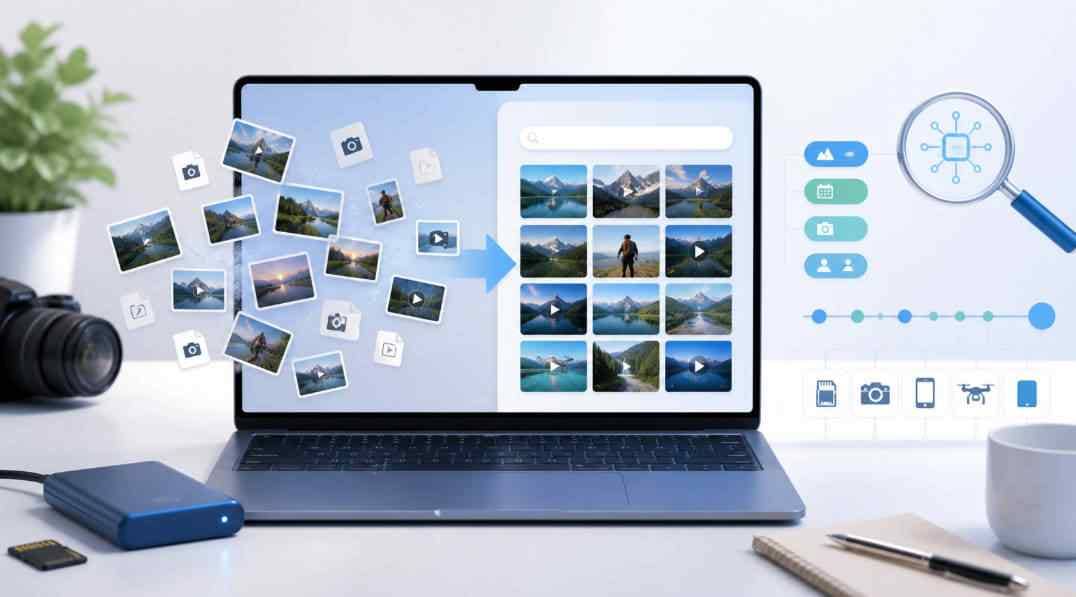
Quick answer: Do not format, repair, or write new files to the card or drive. Scan the original storage first, preview recoverable photos and videos, then use filters that match how creators remember media: content, shooting time, camera/device, file type, and related files from the same shot. The new Recoverit AI Search workflow is designed for this exact moment: after scanning, it helps turn a flat recovery list into a searchable media library, so you can type what you remember, such as "beach sunset photos," "Canon wedding photos," or "DJI playable videos from last week."
In this article
Part 1. Why Recovered Files Lose Original Names and Folders
Recovered files usually lose names and folders when the recovery tool can no longer rely on the file system records that originally mapped each file to a path. This can happen after deletion, formatting, a RAW SD card error, partition loss, file system corruption, or interrupted camera writing.
For a normal user, the symptom looks simple: the files are there, but the structure is gone. For a creator, the impact is bigger. A single SD card may contain RAW photos, JPG previews, XMP sidecars, drone subtitles, low-resolution proxy files, thumbnails, and 360-degree camera pairs. Once those items are separated, the recovery result becomes hard to trust and slow to review.
Directory scan vs. signature scan
Most recovery situations fall into two broad patterns:
| Recovery pattern | What it uses | What the result may look like | Creator impact |
| File system or directory-based scan | Existing file records, directory entries, and file allocation information. | Original names and folder paths may be recoverable if the records are intact. | Best chance of keeping project folders, camera folders, and shoot organization. |
| Signature or RAW scan | Known file headers and file patterns when directory records are missing or damaged. | Files may be recovered by type, but names and folder paths can become generic. | Photos and videos may be playable, but finding a specific shot takes much longer. |
This is why two people can run recovery on similar SD cards and get very different organization results. If the directory data is still readable, the recovered files may keep useful names. If the tool must rely on file signatures, the visible content may survive while the original name, folder, and project path do not.
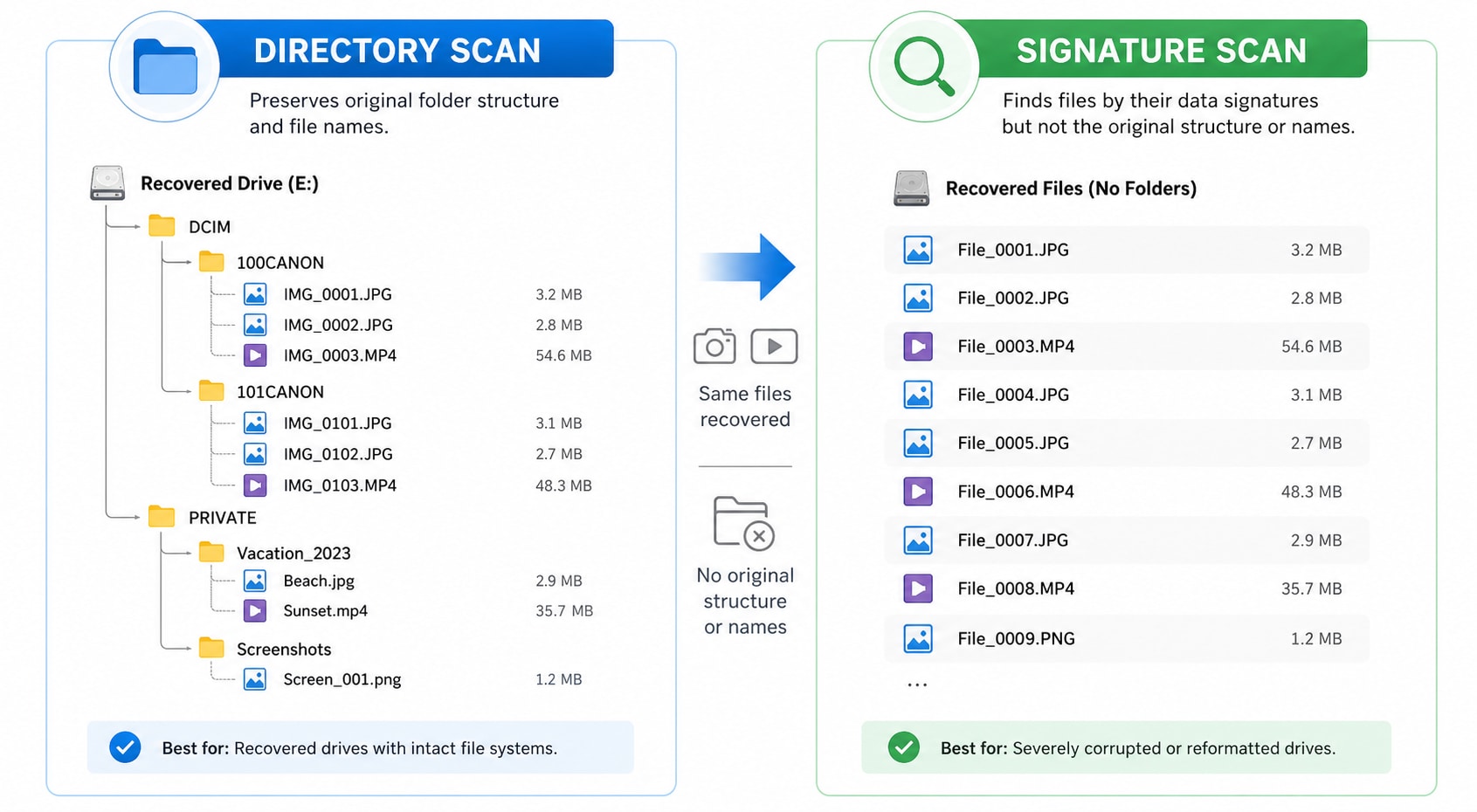
The workflow above shows the key split: when file-system records survive, names and folders may remain; when only file signatures are found, photos and videos may still be recoverable but appear under generic names.
What metadata may still survive
Even when the folder path is gone, recovered media can still contain useful signals. Camera files often store capture time, camera model, exposure data, dimensions, and other metadata. CIPA's Exif standards cover digital camera metadata such as capture date and image information, while Adobe documents how Camera Raw settings may be stored in sidecar XMP files for RAW workflows.
Recoverit AI Search builds on this practical reality: creators do not always remember the filename, but they often remember the scene, the device, the approximate time, or the shoot. A recovery interface that understands those signals can shorten the review process significantly.
Part 2. What to Do Before Searching Recovered Media
Before you search recovered media, protect the storage device. The wrong next step can overwrite the files you are trying to recover.
- Stop using the SD card or drive. Do not take new photos, record new videos, copy files to it, or run repair operations before recovery.
- Do not format just because Windows asks. A RAW SD card or unallocated partition may still contain recoverable data. Format only after the important files are recovered.
- Do not run CHKDSK on unstable media first. CHKDSK can change file system records. If the card is failing, recover files before repair attempts.
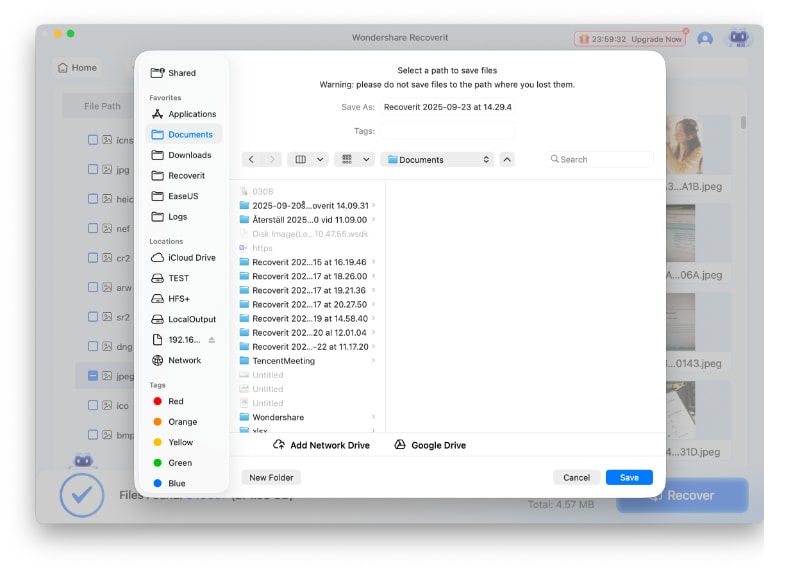
- Recover to a different disk. Saving recovered files back to the same card or partition can overwrite remaining recoverable data.
- Scan the original source when possible. If an external hard drive partition disappeared or a card became RAW, scan the device or lost partition before creating a new volume.
If your issue is a RAW SD card, lost partition, or unallocated disk, these related Recoverit guides may help you choose the right recovery-first path: recover RAW SD card data before formatting, recover data from a lost partition, and recover files from unallocated space.
Part 3. Use Recoverit AI Search to Find the Right Photo or Video
Recoverit is built for data recovery from readable storage, including common creator storage such as SD cards, external drives, USB drives, and computer disks. Its new AI Search workflow is designed to make scan results easier to search after recovery starts, especially when filenames and folders are missing.
The value is not that AI "repairs" your card or guarantees recovery. The value is that it helps you locate the right media faster inside a large recovery result.
Step 1. Scan the card, drive, or lost partition
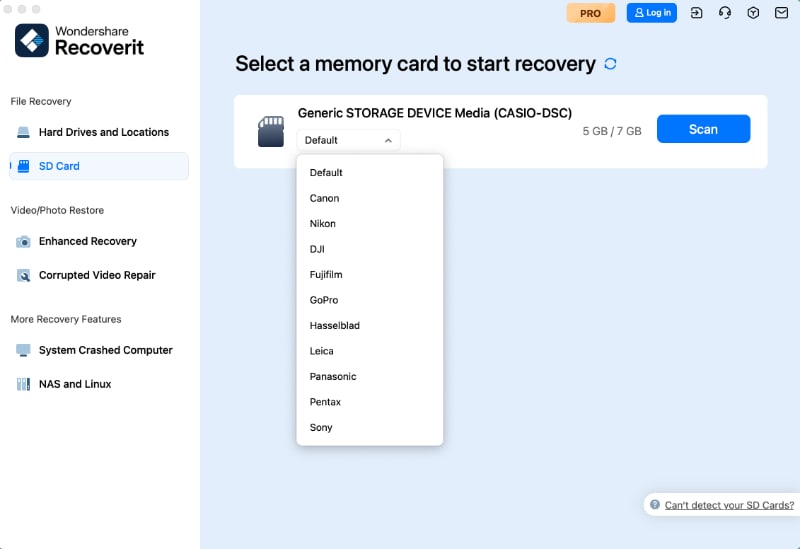
Connect the SD card, external drive, USB drive, or camera card to your computer. Open Recoverit and choose the location where the files were lost. If the drive shows as RAW, unallocated, or missing a drive letter, choose the available disk or lost partition entry instead of formatting it.
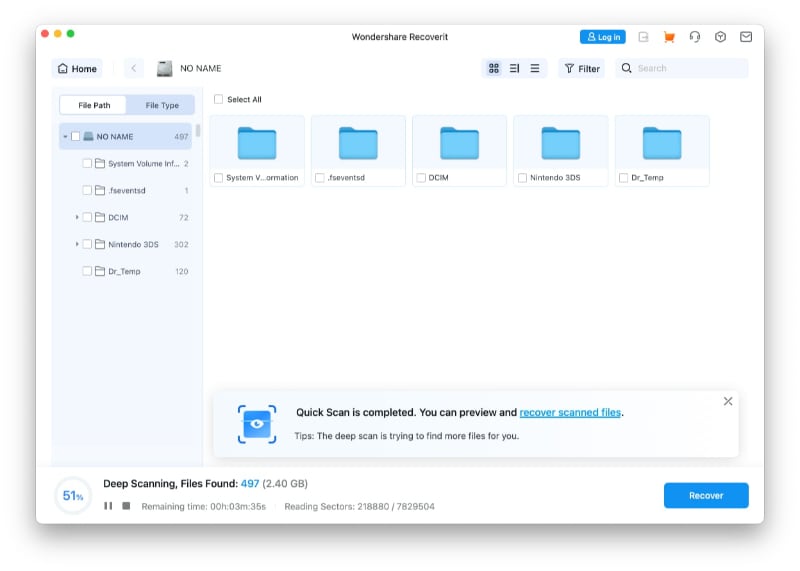
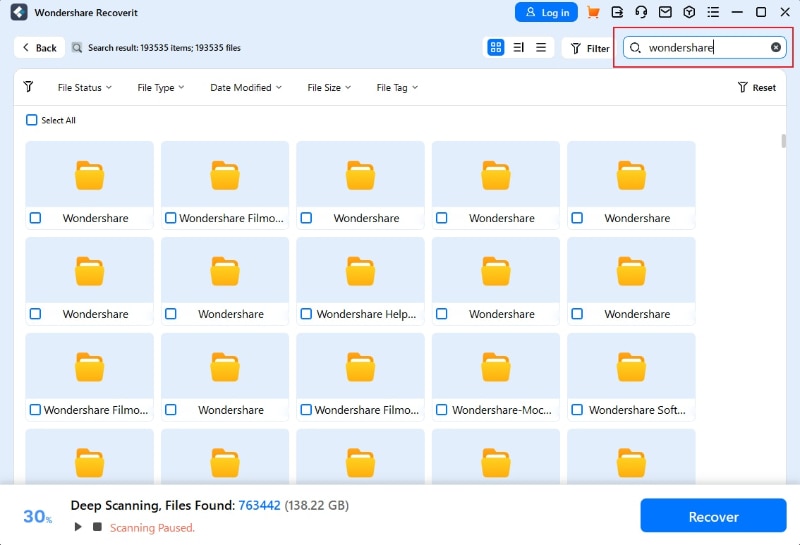
During the scan, Recoverit lists recoverable files as they are found. In the new workflow, searchable media results can continue updating while the scan is still running, so you do not have to wait until every sector has been scanned before you begin checking likely files.
Step 2. Search by what you remember
If the original filename is gone, search like you would describe the shot to another person. Instead of guessing filenames such as DSC_1048 or DJI_0031, try content-based phrases:
- beach sunset photos
- wedding ceremony pictures
- night city shots
- drone footage over the lake
- portraits with a white dress
Where the feature is supported, Recoverit analyzes photo content locally and generates AI tags for scan results. This local analysis approach is especially important for professional work because the search experience should help organize the result without turning private client material into uploaded content.
Step 3. Narrow results by date, device, and file status
Content words are powerful, but creators often remember more than the scene. Combine what you remember:
- Time: last week, Saturday night, the second shooting day, or a date range.
- Device: Canon, Sony, Nikon, DJI, GoPro, Insta360, or another source device when metadata is available.
- Type: photo, video, RAW, proxy, sidecar, or media directory.
- Status: playable videos, previewable photos, or files that need closer inspection.
This turns a vague memory into a useful search request, such as "Canon wedding photos from Sunday" or "DJI playable videos from last week."
Step 4. Review grouped creator files
Creator media is rarely one file per shot. A camera may create RAW plus JPG pairs. Adobe workflows may create XMP sidecar files. DJI drones may save an MP4 with an SRT subtitle or flight-data file. GoPro and Insta360 cameras may create proxy or preview files next to the original media.
Recoverit's new creator-oriented media organization is designed to group related files from the same capture, so the scan result is easier to judge. Instead of showing every helper file as a separate mystery item, related files can be presented as one media asset with attached supporting files where the file relationship is identifiable.
Step 5. Preview and recover to another drive
After you find likely photos or videos, preview them before recovery when possible. Select the target files, then recover them to a different storage device, such as your computer drive or an external disk. Do not save recovered files back to the same SD card or partition.
If you need a broader recovery workflow, Recoverit also provides dedicated guidance for photo recovery and recovering files with folder structure.
Part 4. Search Examples for Creator Recovery
The best AI Search queries are not technical. They combine normal memory with recoverable media signals. Use this table as a practical starting point.
| What you remember | Search phrase to try | Why it works |
| A wedding shoot, but filenames became random. | Canon wedding photos | Combines device source and scene content. |
| A drone clip from last week. | DJI playable videos from last week | Combines device, time, file type, and playable status. |
| Only the visual scene is remembered. | beach sunset photos | Uses content tags instead of filenames. |
| Night photos from an event card. | night shots from Saturday | Uses visual content plus time range. |
| A 360 camera card with paired files. | Insta360 videos from the trip | Helps separate 360 camera media from other files on the card. |
| A mixed card with RAW and JPG versions. | RAW photos with JPG previews | Helps identify related still-photo assets from the same capture. |
Part 5. What RAW, XMP, SRT, LRV, THM, INSV, and INSP Files Mean
Many recovery results look messy because cameras save more than the final photo or video. Do not delete small or unfamiliar files too quickly. Some of them help identify, preview, edit, or rebuild the final media workflow.
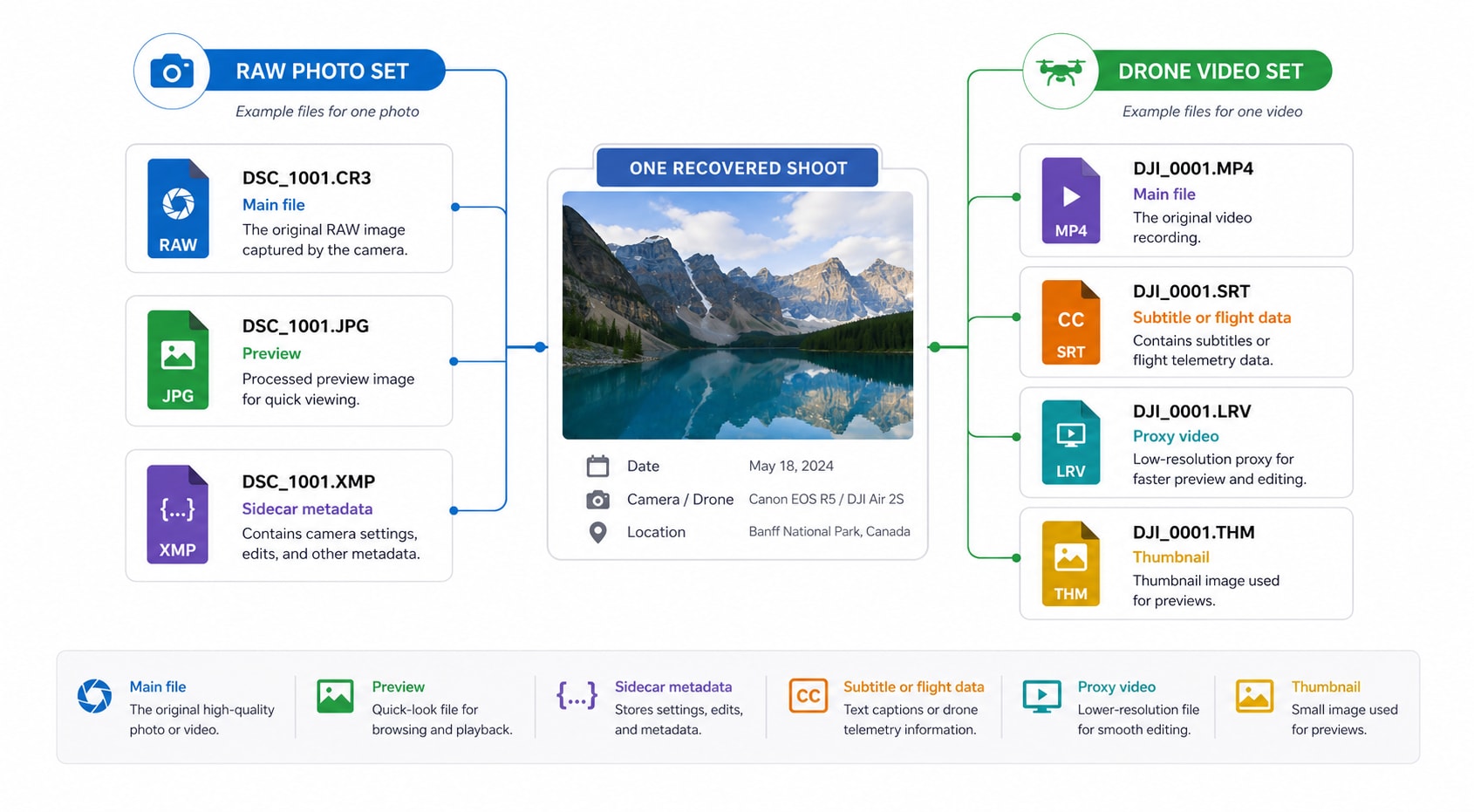
The relationship diagram illustrates why creator recovery results should not be judged file by file only. A single media asset may include a main photo or video plus helper files, such as RAW + JPG + XMP for photos or DJI MP4 + SRT + LRV + THM for drone footage.
| File or group | What it usually means | Why it matters after recovery |
| RAW + JPG | A RAW capture plus an in-camera processed JPG preview or shareable version. | Recovering both helps photographers keep editing latitude and quick previews. |
| XMP | A metadata sidecar file used by workflows such as Adobe Camera Raw to store edit settings or related metadata. | If the RAW file is recovered but the XMP is missed, previous edits, ratings, or metadata may be incomplete. |
| DJI MP4 + SRT | A drone video plus a subtitle file that can include time, camera settings, GPS, altitude, and flight information on supported DJI products. | The SRT file can help verify which flight or shot the video belongs to. |
| GoPro MP4 + LRV or THM | A main action-camera video plus low-resolution proxy or thumbnail helper files, as described in Open GoPro file notes. | Grouped display helps users avoid mistaking helper files for unrelated recovered videos. |
| Insta360 INSV + LRV | A 360 video master file plus a low-resolution preview file. Insta360 notes that some imports require the master file and proxy file together. | Recovering only one related file can cause import or preview errors in Insta360 Studio. |
| INSP | An Insta360 photo file. | It should be treated as a camera photo asset, not a random unknown file. |
Official documentation from Adobe, GoPro, and Insta360 Studio confirms that these sidecar, subtitle, proxy, or camera-specific formats are part of real creator workflows. That is why grouping related files is more than a neat interface detail. It helps users understand whether a recovered shoot is complete.
Part 6. When Original Folder Structure Can and Cannot Come Back
Users often ask whether they can recover files with the original folder structure. The honest answer depends on what still exists on the storage device.
| Situation | Folder structure chance | What to do |
| Files were deleted recently and the file system is still healthy. | Better chance. | Scan immediately and recover to another drive. |
| SD card became RAW or asks to format. | Uncertain. | Recover files first, then repair or format after data is protected. |
| Partition disappeared or became unallocated. | Possible if partition and directory records are still detectable. | Use partition recovery before creating a new volume. |
| Only signature recovery is possible. | Low for original names and folders. | Use content, date, device, and file-type organization to identify files. |
| Data was overwritten or the SSD was trimmed. | Very low or impossible for affected files. | Check backups or earlier copies; recovery software cannot recover overwritten data. |
This is where AI Search adds a practical layer. It does not recreate directory records that no longer exist. Instead, it gives users a new way to find the right media when the old path is gone.
Part 7. Manual Ways to Find Recovered Photos Without AI Search
If AI Search is not available in your Recoverit version or if you want to double-check important projects manually, use these methods after recovery.
- Sort by date taken. If Exif capture time survived, sort images by date instead of recovered filename.
- Filter by camera model. Use metadata fields to separate Canon, Sony, Nikon, DJI, GoPro, or Insta360 files.
- Group by file extension. Separate RAW, JPG, MP4, MOV, INSV, INSP, SRT, XMP, LRV, and THM files before review.
- Open contact sheets or thumbnail views. This helps when visual content matters more than filenames.
- Use backup catalogs. Lightroom catalogs, exported project folders, cloud albums, and NAS backups may preserve original shoot names even when the card does not.
- Use command-line recovery carefully. Microsoft Windows File Recovery can recover local files and supports filters, but it is a command-line tool and does not provide a creator-focused visual search interface.
Manual sorting still works, but it is slow when a scan returns tens of thousands of files. That is why content search and grouped media views are useful as a post-scan navigation layer.
Part 8. Recovery Safety Checklist Before Formatting or Repairing
After you find the files you need, you can move on to card repair, formatting, repartitioning, or device testing. Before that, check the following:
- You recovered the files to a different storage device.
- You opened a sample of recovered photos and videos to confirm they are usable.
- You checked whether related files are needed for your editing workflow, such as XMP, SRT, proxy, or 360 camera pair files.
- You copied the recovered project to a second backup location if the job is important.
- You formatted or repaired the original card only after recovery is complete.
- You replaced the card if errors repeat, files disappear again, or the card disconnects during copy or scan.
Recoverit can help recover files from readable storage before risky operations, but it cannot fix physical card failure, guarantee overwritten data recovery, or repair the underlying camera or disk hardware.
Part 9. Conclusion
When recovered photos and videos lose their original names, the problem is no longer just recovery. It becomes search and identification. Traditional folders are gone, the file list is crowded, and creator media often includes many related helper files that are easy to misunderstand.
Recoverit's new AI Search workflow gives this stage a better structure. By organizing recovered media by content, shooting time, batch, device source, file type, and related creator files, it helps users find the shot instead of guessing the filename. Recover first, search intelligently, preview carefully, and only then format or repair the original storage.
FAQ
-
Why do recovered photos have random names?
Recovered photos may have random names when the original file system records are missing or damaged. In that case, recovery software may find the image content by file signature, but the original filename and folder path may no longer be available. -
Can Recoverit recover the original folder structure?
Recoverit may recover original folders when the directory records are still readable. If only RAW or signature recovery is possible, original names and folders may not come back, but you can still use content, date, device, file type, and preview filters to identify important files. -
What is Recoverit AI Search used for?
Recoverit AI Search is used to find specific recovered photos and videos faster after a scan. Instead of relying only on filenames, users can search by remembered content, shooting time, device source, file type, and file status where those signals are available. -
Does AI Search upload my recovered photos?
The new workflow is positioned around local AI analysis where the feature is supported. Before publication or rollout, confirm the final product UI and documentation for the exact privacy wording, supported languages, and content categories. -
Should I delete LRV, THM, SRT, or XMP files after recovery?
Do not delete them until you understand the project. LRV and THM files may be preview or proxy files, SRT files may contain subtitle or flight information, and XMP files may store RAW edit settings or metadata. They may not replace the main media file, but they can help complete the shoot workflow. -
Can AI Search repair corrupted photos or videos?
No. AI Search is a search and organization feature for scan results. It helps locate likely media faster, but it does not repair physical storage problems, rebuild overwritten files, or guarantee that every recovered file will open correctly.


