 TL;DR:
If a camera firmware update fails and your SD card prompts for formatting or shows missing files, immediately remove the card without formatting or running repair commands, and extract your media to a separate drive using recovery software before attempting the update again.
● To safely apply Canon's August 19, 2026 firmware updates, including Firmware Version 1.0.7.1 for the EOS C400 and C80, you must use a dedicated clean SD/SDHC/SDXC card of 512MB or more, rely on a fully charged battery or adapter, and ensure models like the EOS C50 and EOS R5 C are specifically in VIDEO mode.
● Do not run CHKDSK, fsck, or macOS First Aid on the affected card, and never save recovered files back to the original media, as these actions alter the directory structure and permanently overwrite fragmented RAW photos or large video clips.
● Software like Recoverit only resolves logical file system errors on readable cards; if the camera body itself refuses to boot after the update or the SD card is physically damaged and undetectable by any reader, you must escalate to official Canon support or a professional data recovery lab.
Ask AI for a summary
 ChatGPT
 Perplexity
 Gemini
 Claude
 Grok
Grok
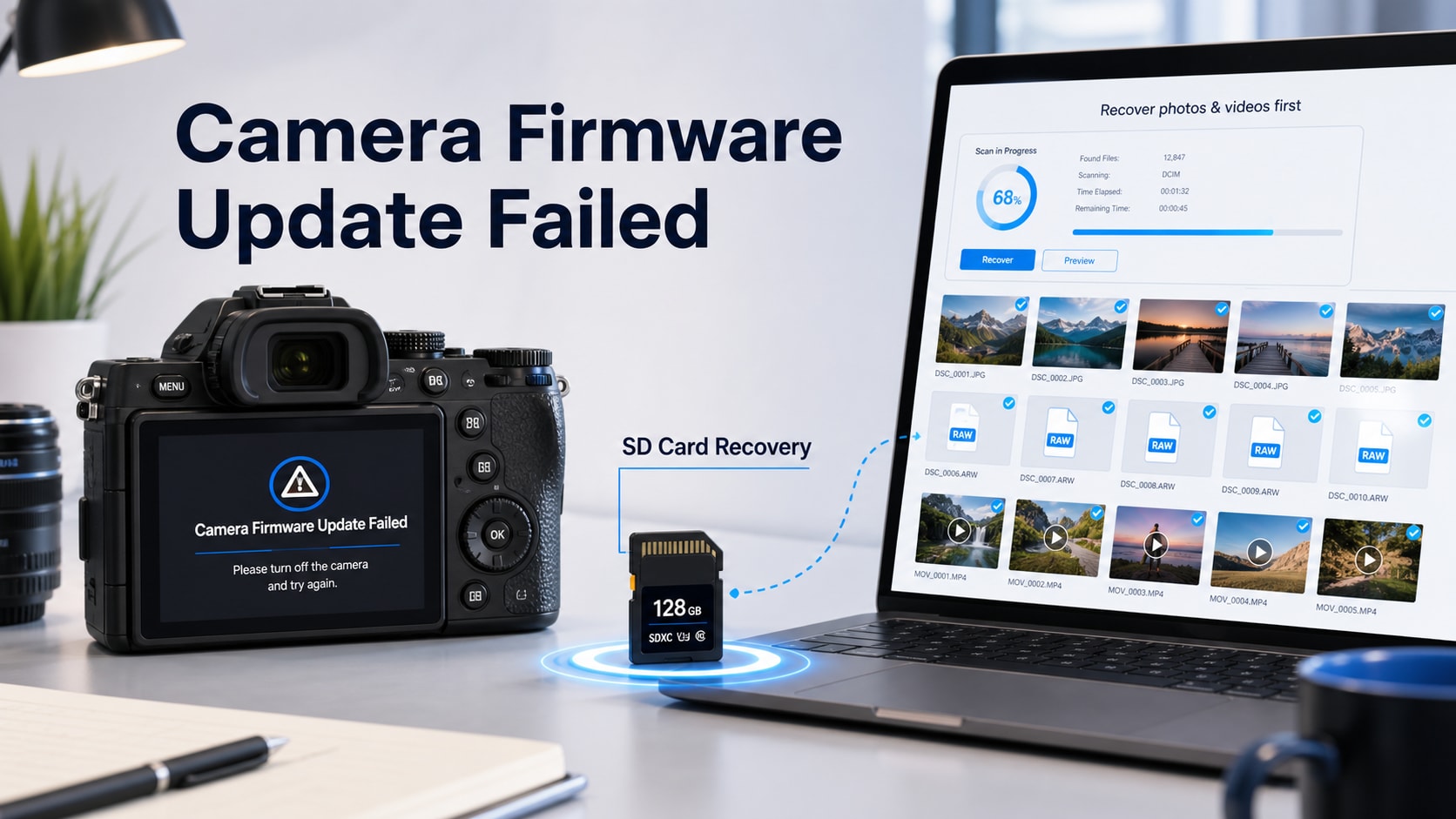
Quick answer: If a camera firmware update failed and the SD card now asks to format, shows a card error, or has missing photos and videos, stop using the card first. Remove it from the camera, do not copy the firmware file again, do not format, and do not run repair tools before recovery. If the card is still detected by a computer, scan it with a camera-aware recovery tool such as Recoverit camera recovery software, save recovered files to another drive, and only then prepare a clean firmware update card from the official camera maker page.
Canon's August 19, 2026 Cinema EOS firmware advisories put firmware updates back in the workflow for filmmakers using the EOS C400, EOS C80, EOS C70, EOS C50, and EOS R5 C. Canon U.S.A.'s Product Advisories page lists those firmware notices with an 08.19.26 date, and the EOS C400/EOS C80 updates are especially relevant because they add Cinema Exposure and CINE-SERVO workflow changes.
That news hook matters for data recovery because firmware updates often depend on an SD/SDHC/SDXC card as the update carrier. If the update fails, the camera freezes, the SD card becomes unreadable, or a card asks to be formatted, the first job is not to force another update attempt. The first job is to protect the photos, RAW files, proxy clips, WAV audio, and video files already on that card.
Try Recoverit to Recover Photos and Videos from the SD Card
 Security Verified. Over 7,302,189 people have downloaded it.
In this article
Part 1. What to Do First When a Camera Firmware Update Failed
If a firmware update failed and the SD card still contains files you care about, treat the card as evidence. The less you write to it, the better your recovery odds. The safe order is: power down, remove the card, recover or copy data, then rebuild the firmware update card.
- Turn off the camera: do not keep rebooting with the same media card if the card contains photos or video.
- Remove the SD card: if it is a full-size SD card, slide the lock switch before using a reader. Some readers honor the switch and reduce accidental writes.
- Do not format: cancel any camera, Windows, or macOS prompt asking to initialize or format the card.
- Do not run repair first: CHKDSK, fsck, First Aid, and partition repair tools can change the card structure before files are recovered.
- Use a reliable reader: connect the card to a computer through a known-good SD card reader or built-in SD slot.
Firmware Failure Triage Table
| What happened | What it usually means | Safest next move |
| The camera cannot find the firmware file | Wrong file name, wrong folder level, incompatible model package, or card read issue. | Use a different clean card for firmware. If this card has media, recover it first. |
| The camera froze during update | Power interruption, damaged update package, card read failure, or camera-side firmware issue. | Stop repeated attempts and follow Canon support if the body will not recover. |
| The SD card asks to format | File system or partition data may be damaged, but media may still exist. | Cancel format and scan the card before writing anything else. |
| Photos or videos disappeared after copying firmware | Accidental deletion, wrong folder, overwrite, or card directory corruption. | Use SD card file recovery before rebuilding the card. |
| Recovered videos will not play | Metadata, index, or video fragments may be incomplete. | Keep the original card untouched and check recovery or repair options on a copied file. |
| The card is not detected anywhere | Reader issue, contact damage, controller failure, or physical card damage. | Try one known-good reader. If still invisible, stop DIY writes and consider a lab. |
Part 2. Why Canon's August 19 Firmware Updates Matter
This article is not using Canon as a random example. Canon U.S.A. listed several Cinema EOS firmware notices dated August 19, 2026, and Canon's regional download pages explain that the update process requires an SD/SDHC/SDXC card and a computer/card reader workflow. That is exactly where accidental deletion, card corruption, and format prompts tend to happen.
The biggest workflow signal is on the EOS C400 and EOS C80. Canon's firmware notices say Firmware Version 1.0.7.1 adds a new Capture Mode for Cinema Exposure, allowing dynamic range balance adjustment between highlight and shadow ranges based on ISO sensitivity. The C400 update also adds Auto Exposure Ramping Compensation, while both C400 and C80 add CINE-SERVO compatibility and S&F external audio output.
Canon Firmware Update Snapshot
| Camera | Official update focus | Why SD card recovery belongs in this topic |
| EOS C400 Firmware Version 1.0.7.1 | Cinema Exposure, CINE-SERVO support, Auto Exp. Ramping Comp., and S&F external audio output. | High-end crews may update before LOG/highlight-sensitive jobs; SD card setup mistakes can put media and settings at risk. |
| EOS C80 Firmware Version 1.0.7.1 | Cinema Exposure, CINE-SERVO support, S&F external audio output, and stability improvements. | Solo operators and small teams often reuse cards, increasing the chance of mixing firmware files with production folders. |
| EOS C70 Firmware Version 1.1.4.1 | CINE-SERVO compatibility, FTP connection fix, and stability improvements. | FTP and handoff workflows can overlap with card transfer mistakes and missing proxy files. |
| EOS C50 Firmware Version 1.0.5.1 | CINE-SERVO compatibility and operational stability. | Canon's regional page says the firmware update must be performed in VIDEO mode and uses an SD/SDHC/SDXC update card. |
| EOS R5 C Firmware Version 1.1.3.1 | CINE-SERVO support, RAW clip playback with lens corrections, FTP/USB fixes, and stability improvements. | RAW and high-resolution video users have larger files, where interrupted transfer and fragmented recovery are more sensitive. |
Canon's regional firmware pages for the EOS C50 and EOS R5 C specify an SD/SDHC/SDXC card of 512MB or more, a computer, a card reader or SD slot, and a fully charged battery or power adapter. Those pages also note that menu settings and Custom Picture settings can be reset after update, and that once updated to the latest version, the camera cannot be restored to a previous firmware version.
Part 3. Symptoms That Point to SD Card Data Risk
A failed firmware update does not automatically delete footage. The risk usually comes from the update workflow: reusing a shooting card, copying the wrong firmware file, formatting to "start fresh," pulling the card too early, or trying repair commands before recovery.
| Symptom | Likely risk | Recovery priority |
| Camera says "card error" after the update attempt | The file system may be damaged or the card may be failing. | High. Stop using the card and scan it if a computer still detects it. |
| Windows asks to format the card before use | The volume may be RAW or unreadable to the operating system. | High. Do not format before recovery. |
| macOS Disk Utility sees the card but Finder cannot open it | The partition or file system may be corrupted. | High. Avoid First Aid until important media is recovered. |
| Canon folders exist but clips are missing | Directory entries may be deleted or the wrong card/folder may be in use. | Medium to high. Scan before creating new files. |
| Recovered files are present but video is unplayable | Large video files may be fragmented or missing metadata. | High. Keep the original card and recovered copy; do not rescan after formatting. |
| Card is bent, cracked, wet, or not detected by any reader | Possible physical failure. | DIY software is not the right first step. Consider professional recovery. |
If the card is still readable or at least detected, Recoverit may help with logical loss cases such as accidental deletion, formatting, unreadable folders, missing camera files, and corrupted card file systems. For broader card-specific guidance, see Recoverit's memory card recovery page and the guide on recovering data from a corrupted SD card.
Part 4. What Not to Do Before SD Card Recovery
Most failed-update mistakes happen after the warning appears. Users panic, then format, repair, rewrite the firmware package, or shoot a test clip. Those actions can overwrite recoverable photo and video data.
- Do not format the SD card: formatting may make the card mountable again, but it can remove file system records that recovery software uses.
- Do not copy the firmware file again: writing a new firmware file can overwrite deleted media fragments.
- Do not run CHKDSK, fsck, or First Aid first: these tools can modify the card structure. Recover files first, then repair or reformat.
- Do not recover files back to the same card: always recover to a computer drive or external SSD.
- Do not use unofficial firmware mirrors: use Canon's official support page for your exact model and region.
- Do not assume software can fix the camera body: Recoverit can help recover files from readable storage; it cannot repair camera firmware or hardware.
Part 5. How to Recover Photos and Videos from the SD Card
Use this workflow if the card is detected by Windows or macOS, even if it cannot be opened normally. If the card is physically damaged or never appears in any reader, skip software recovery and escalate.
Step 1. Stop using the camera card
Turn off the camera, remove the SD card, and avoid all new writes. If the firmware file was copied to a card that also had photos or videos, do not delete anything else to "clean it up." Install Recoverit on your computer drive, not on the affected card.
Step 2. Select the camera card in Recoverit
Connect the card through a stable reader. Launch Recoverit, go to the SD card or external-device location list, and select the camera card. If the card appears with a wrong label or no file system, choose the detected device rather than formatting it.

Step 3. Scan for lost camera media
Start the scan and let it finish. For Canon and cinema workflows, look for file types and folders that match your camera settings: JPG, CR3, RAW photos, MP4, MOV, MXF, CRM or Cinema RAW Light clips, WAV audio, proxy folders, or project-related files. For photo-specific cases, Recoverit's RAW photo recovery guide and Canon CR3 recovery guide are useful supporting references.

Step 4. Preview and recover to another drive
Preview recoverable files where possible, select the needed media, and save it to a different drive. Do not recover files back to the SD card. If you are handling 4K, 6K, 8K, open-gate, or long GOP camera footage, keep the original card untouched until you confirm that the recovered video files play correctly.

Step 5. Check unplayable recovered videos
If a recovered video has the expected size but will not play, the issue may be damaged metadata, a missing index, or fragmented video data. Do not delete the recovered copy and do not format the original card. Start with Recoverit's guide on how to repair recovered video files, and use repair only on copies, not on the original media card.
Related video: How to Recover Deleted or Corrupted Files from an SD Card

Try Recoverit to Recover Photos and Videos from the SD Card
Security Verified. Over 7,302,189 people have downloaded it.
Part 6. How to Retry the Firmware Update Safely After Recovery
After the media is safe, you can rebuild the firmware update workflow. Do not reuse the same card until it has been recovered, tested, and reformatted properly.
- Use the official Canon page: start from Canon U.S.A.'s Product Advisories page or your regional Canon support page.
- Match the exact model: EOS C400, C80, C70, C50, and EOS R5 C firmware packages are not interchangeable.
- Use a clean update card: Canon regional firmware pages specify an SD/SDHC/SDXC card with 512MB or more for these updates.
- Use a stable power source: Canon's regional instructions list a fully charged battery and, for some models, a power adapter as required update items.
- Save settings before updating: Canon notes that menu settings and Custom Picture settings may reset after the update. Use a separate card for saved settings where Canon recommends it.
- Update in the correct camera mode: Canon's EOS C50 and EOS R5 C regional pages specify that the firmware update must be performed in VIDEO mode.
If you need to format the SD card after recovery, use an official formatting path. The SD Association SD Memory Card Formatter is the official formatter for SD, SDHC, SDXC, and SDUC cards. Use it only after you have recovered or backed up the data.
Part 7. When to Use Recoverit, Canon Support, or a Lab
| Situation | Best first step | Why |
| Card is detected, but files are missing | Use Recoverit before writing to the card. | This is a logical loss case where the card may still contain recoverable media. |
| Card asks to format after firmware attempt | Cancel format and scan the card. | Formatting first can reduce recoverability. |
| Card contains CFexpress footage from the same shoot | Check every media card from the update window. | Cinema cameras may use SD for updates and CFexpress or other media for recording. See the CFexpress card recovery guide. |
| Recovered large video files are damaged | Keep original media and use video-aware repair/recovery on copies. | Large camera clips may be fragmented or have damaged container metadata. See Open Gate Video Recovery for large camera-video workflow context. |
| Camera body will not boot or complete firmware recovery | Contact Canon support. | Recoverit cannot fix firmware, firmware rollback, camera electronics, or service-level body issues. |
| Card is cracked, bent, wet, or invisible to all readers | Stop DIY software attempts and consider a data recovery lab. | Software needs a readable device. Physical damage is a lab case. |
Part 8. Prevention Checklist for Future Firmware Updates
- Use a dedicated firmware card: never use the card that holds active shoot media.
- Back up every card first: copy production footage, proxy files, audio, stills, and settings files before update work.
- Download firmware from the official region page: model and region pages can differ in package format and instructions.
- Read the included PDF: Canon firmware packages include procedure instructions; review them before starting.
- Use a reliable reader and eject properly: interrupted copy operations can corrupt the update file or the card file system.
- Use stable power: update only with a charged battery or approved power source.
- Keep settings backup separate: if Canon recommends saving camera settings to SD, do it on a separate card from the update card.
- Do not update right before a shoot unless necessary: allow time to verify settings, lens communication, RAW playback, audio output, and exposure behavior.
More related articles you can't miss:
- How To Recover Data From a Corrupted SD Card
- How to Recover Lost Files on SD Card
- How to Repair Recovered Video Files That Won't Play
- How to Recover Deleted CR3 Files
Part 9. Final Verdict
A failed camera firmware update is a firmware problem only if the camera body is the only thing affected. The moment the SD card asks to format, turns unreadable, or loses photos and clips, it becomes a data recovery problem first.
Canon's August 2026 Cinema EOS updates are valuable for production workflows, especially for C400 and C80 users working with Cinema Exposure, highlight/shadow allocation, CINE-SERVO lenses, and external audio monitoring. But those workflow gains do not change the recovery rule: protect the card before retrying the update.
If the card is still detected by a computer, Recoverit is a logical first step for recovering photos, RAW files, proxies, audio, and video from readable camera storage before format or repair. If the camera firmware itself is stuck, or the card is physically damaged, use Canon support or a lab instead.
Try Recoverit to Recover Photos and Videos from the SD Card
Security Verified. Over 7,302,189 people have downloaded it.
FAQ
-
Can a failed camera firmware update delete photos or videos from an SD card?
A firmware update should not normally delete media by itself, but the update workflow can cause data loss. Reusing a shooting card, formatting to prepare the card, interrupted copying, or file system corruption can make photos and videos disappear. -
Should I format the SD card if the firmware update failed?
No, not before recovery. If the card contains files you still need, cancel the format prompt, stop using the card, and recover the data to another drive first. -
Can Recoverit fix a failed Canon firmware update?
No. Recoverit cannot repair firmware, roll back camera firmware, or fix a camera body. It can help recover files from readable SD cards, memory cards, CFexpress cards, USB drives, and other detected storage media. -
What files can I recover from a Canon camera SD card?
Depending on the camera and recording mode, you may be able to recover JPG, CR3, RAW photos, MP4, MOV, MXF, CRM or Cinema RAW Light clips, WAV audio, proxy files, and project-related folders if they have not been overwritten. -
What if recovered Canon videos will not play?
Keep the original card untouched and keep the recovered copy. The file may have damaged metadata, missing index data, or incomplete fragments. Try deeper recovery or repair only on copies, not on the original SD card. -
Which Canon firmware updates made this topic timely in August 2026?
Canon U.S.A. listed firmware notices dated August 19, 2026 for EOS C400, EOS C80, EOS C70, EOS C50, and EOS R5 C. The C400 and C80 updates are especially workflow-heavy because they add Cinema Exposure and CINE-SERVO related improvements.



