

 TL;DR:
You can successfully recover videos after a quick format because the operating system only clears the file directory, provided you immediately stop using the drive to prevent new files from overwriting the physical data blocks.
● Beginners can use graphical programs like Recoverit Video Recovery Tool for Windows Vista to 11 and macOS X 10.10 or later to rebuild MP4, MOV, and AVI files, while experienced technicians handling corrupted drives should use slower command-line utilities like PhotoRec or Windows File Recovery for Windows 10 and above.
● Users who configured automatic backups prior to formatting can bypass third-party software entirely by restoring previous states through Windows File History, Mac Time Machine, or auto-synced cloud platforms like Google Drive, iCloud, OneDrive, and Dropbox.
● The time required for recovery ranges from minutes for small memory cards to several hours for large hard drives, and you must always save the restored videos to a completely different storage location rather than the formatted drive currently being scanned.
Ask AI for a summary
 ChatGPT
 Perplexity
 Gemini
 Claude
 Grok
Grok
Formatting a drive or memory card often happens by mistake. A single click or system prompt can remove hundreds of your favorite videos in seconds. You may think the videos are gone forever, but that is not always true. In most cases, you can still get them back through formatted video recovery.
When you format a device, the system removes only the index pointing to your files. The video data usually remains untouched until something overwrites it. That gives you a short window to recover lost videos from formatted devices.
In this article, you will learn step-by-step how to recover formatted video using simple tools, backup options, and reliable formatted video recovery software.
Table of Contents:
Part 1: Can You Recover Videos After Formatting a Drive or Card?
Yes, it is often possible to recover videos even after you format a device. When you perform a quick format, the operating system clears the file directory but not the physical data blocks. Those old video fragments remain hidden but recoverable. That is why formatted video recovery works best if you act before new files overwrite those sectors.
Once new data replaces the old sectors, recovery becomes harder. Therefore, stop using the drive right after formatting. Do not install software or copy new data onto it. The sooner you begin the recovery process, the greater your chances of success. Acting fast is the first rule in every guide on how to recover formatted video.
Part 2: Formatted Video Recovery: How to Recover Formatted Video?
Many users panic after formatting their SD card, external hard drive, or USB stick. The truth is, several reliable solutions can help you. Some are built into your computer system, while others involve specialized recovery tools. Below are five proven methods to restore videos from formatted storage devices. Read the short introduction for each to decide which fits your case.
Method 1: Use Recoverit Video Recovery Tool
This is the easiest and most efficient way for most users. The Recoverit Video Recovery Tool scans formatted drives deeply to find traces of deleted or lost videos. It can rebuild broken files and supports many formats like MP4, MOV, AVI, and others. This method works for cameras, SD cards, hard drives, and even USB flash drives.
It is a professional-grade program but still simple enough for beginners. It provides quick and deep scan modes to ensure that even old video fragments can be recovered safely.
How to Use Recoverit Video Recovery Tool:
Step 1. Install Recoverit on another drive. Launch it and choose the formatted device from the list.

Step 2. Click “Scan.” Wait for the results.

Step 3. Preview the videos, and save them to a different safe location.

Using this formatted video recovery software early gives the best results. Never save recovered videos to the same drive you are scanning.
How to Recover Deleted or Lost Video on Different Devices

Method 2: Try File History or Previous Versions (Windows)
If you use Windows, the system might already have a backup. File History or Previous Versions can bring back lost videos if they were included in earlier backups. It’s helpful for users who set up automatic backups before formatting their drives or folders.
This feature stores earlier copies of your files. Even if you formatted a partition, you can restore a previous state that still contained your videos. It is a built-in method that does not need any extra download.
How to Try File History or Previous Versions:
- Right-click the folder where your videos were stored. Select “Restore previous versions.”
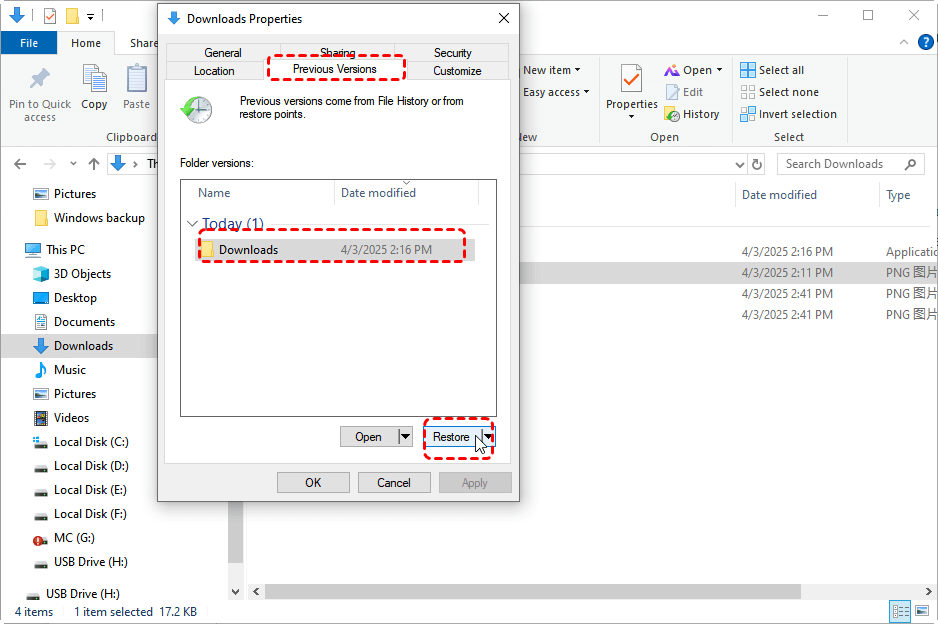
- Choose a version dated before the format, then click “Restore.”
If no version appears, File History may not have been enabled. But if it was, you can quickly recover lost videos from formatted devices without extra tools.
Method 3: Use Time Machine to Restore Video Backups (Mac)
For Mac users, Time Machine is a powerful ally. It takes regular snapshots of your system and connected drives. If you formatted a drive or partition but had Time Machine turned on earlier, you can restore old video files from its archive.
This tool works automatically once configured. It can recover single files or the whole system. It is one of the easiest ways for Mac users to restore videos from formatted storage devices.
How to Use Time Machine to Restore Formatted Video:
- Connect the Time Machine backup drive and open Time Machine from the menu bar.
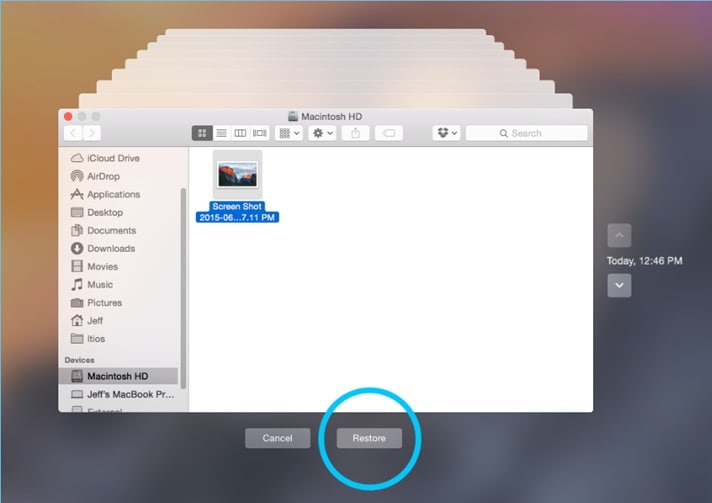
- Scroll back to a date before the format. Locate your videos, select them, and click “Restore.”
If your backup exists, this method ensures full recovery without needing other software. For people who back up regularly, it is the simplest solution for how to recover formatted video.
Method 4: Check Google Drive, iCloud, OneDrive, or Dropbox
Cloud services can save you when local drives fail. Many users forget they synced their devices before formatting them. Platforms like Google Drive, iCloud, OneDrive, and Dropbox often keep older files automatically. Checking your account may reveal your lost videos sitting safely online.
This method is perfect for anyone who prefers online storage. It works even when the device is damaged or wiped clean. You only need your login details and an internet connection.
How to check google drive:
- Log in to your cloud account and open the folder where your videos were stored.
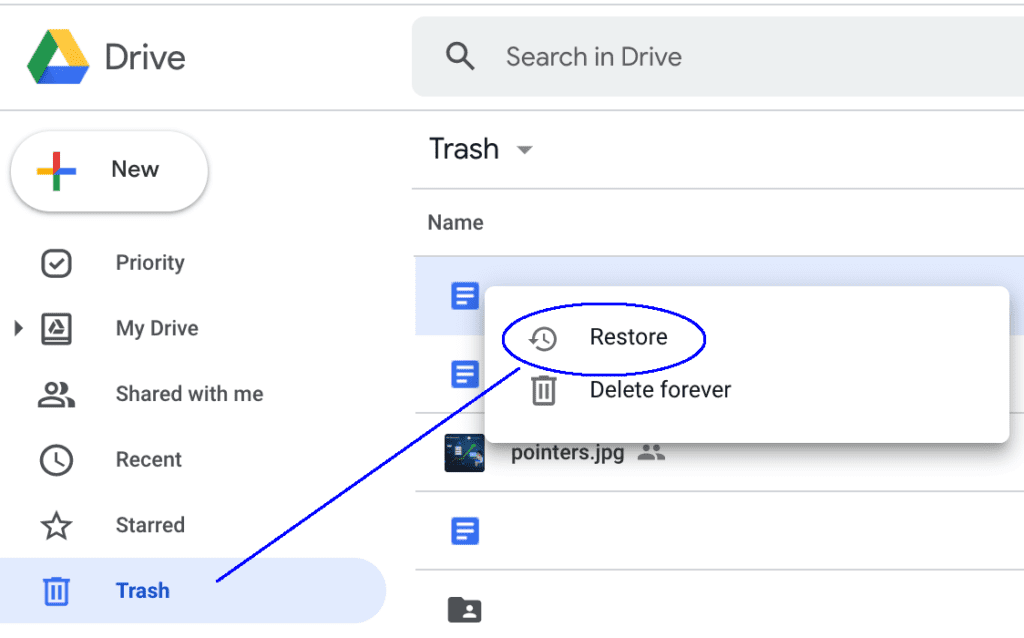
- Select the videos you want, click “Restore,” and store them on your computer.
If you used auto-sync, the cloud may already contain a full backup. It’s one of the safest ways to restore videos from formatted storage devices, especially for mobile and remote users.
Method 5: Use Command-Line Recovery Tools (Windows File Recovery, PhotoRec)
For users comfortable with command-line tools, this method provides deeper scanning options. Tools like Windows File Recovery (for Windows 10 and above) and PhotoRec (cross-platform) analyze each storage block to locate hidden video fragments.
This approach is slower but effective when normal tools fail. It’s suitable for experienced users or technicians handling badly formatted or corrupted drives. It can also help when graphical recovery software cannot recognize the drive.
How to Use Command-Line Recovery Tools:
- Install the command-line tool like Windows File Recovery. For Windows, open Command Prompt as Administrator.
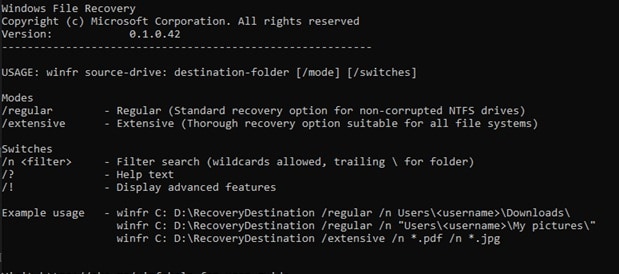
- Enter the recovery command to scan your formatted drive and specify an output folder. Wait for the process to finish, then check the restored videos.
Although less friendly, these programs dig deeper into your device’s memory. They can perform professional-level formatted video recovery when others fail.
Part 3: Pro Tips to Prevent Permanent Loss After Formatting
Recovering videos after formatting is possible, but prevention is far easier. A few careful habits can save you time and stress in the future. Follow these eight tips to protect your media collection.
- Stop using the device immediately. Once you find it’s formatted, stop saving or recording anything. New data can overwrite old videos and make recovery harder.
- Keep two backups. Save one copy on an external drive and another in the cloud. If one fails, you’ll still have the other.
- Enable automatic backups. Turn on auto-backup in your system or editing app. It saves your videos regularly without needing to remember each time.
- Label drives and cards. Mark each one clearly to avoid formatting the wrong device. Simple labels prevent major mistakes.
- Use separate cards for different work. Keep project files and personal clips on different cards. It makes file management safer and easier.
- Test backup drives monthly. Plug in and open files to ensure they still work. Replace drives that show errors or slow response.
- Avoid unsafe recovery tools. Don’t use random free programs from unverified sites. Stick to trusted formatted video recovery software only.
- Recover first, format later. Make sure all videos are restored and playable before you reformat the device again.
By following these precautions, you reduce the need for formatted video recovery. Backup planning saves both data and time.
Conclusion
Formatting does not have to mean permanent loss. In most cases, you can still bring your videos back with the right approach. Whether you use built-in backup tools, command-line methods, or specialized software, quick action is key.
The methods in this article show exactly how to recover formatted video. They help you recover lost videos from formatted devices, even when the situation looks hopeless. Reliable tools, proper backups, and a bit of patience are all you need. Remember, once your videos are recovered, store them safely and back them up again. Prevention today avoids panic tomorrow.
Try Recoverit to Recover Lost Data
 Security Verified. Over 7,302,189 people have downloaded it.
FAQs
-
Q1: How long does it take to recover videos from a formatted drive?
A: It depends on drive size and condition. Small memory cards may take minutes. Larger hard drives can take several hours. Using a deep scan through formatted video recovery software can improve accuracy but will take longer. -
Q2: Are free recovery tools as good as paid ones?
A: Free tools like PhotoRec are powerful but harder to use. Paid tools offer a friendly interface and preview options. For most people, investing in trusted formatted video recovery software saves time and effort. -
Q3: Can formatted video recovery work after months?
A: It depends on whether the drive has been used since formatting. If little data was written after the format, recovery may still succeed. But heavy reuse overwrites old sectors, making recovery almost impossible. Act quickly after formatting.


